1
Dragon Bluetooth Wireless Headset User Guide
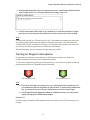
4. When Dragon presents the list of sources to choose from, select Dragon Bluetooth Headset in Dragon version 13, or Enhanced Bluetooth in Dragon version 12.
5. Click OK and press the Mic button on your headset to un-mute the microphone. Dragon prompts you to read some text that will allow it to test the sound levels of your headset. NOTE
If Dragon tells you that your “Sound level is too low”, the headset microphone may be muted. Try pressing the Mic button again and then re-read the text prompts. If you still receive the “Sound level is too low” message from Dragon, your Windows sound system may not be set up correctly. Visit http://support.nuance.com for more assistance.
When all necessary set up is complete, Dragon opens your profile.
Turning on Dragon's microphone
It's important to note that you must also turn on the Dragon microphone to dictate into Dragon, in addition to turning on your headset microphone. To turn on the Dragon microphone, press the plus key (+) on the numeric keypad, or click the microphone button on the DragonBar, as pictured below.
The microphone is off.
The microphone is on.
NOTE
n Even when the Dragon microphone icon is red, indicating that the microphone is off, your headset microphone may still be on and activated. To preserve the headset's battery, you may want to power off your headset after you are done using Dragon.
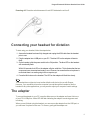
n If the Dragon Bluetooth Wireless Headset isn’t displayed in step 4, you may need to unplug and replug the USB Bluetooth adapter.
IMPORTANT:
It's best to plug the headset's USB adapter into the same port on your PC each time you use Dragon. 8