1
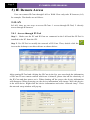
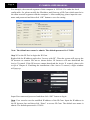
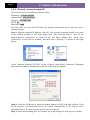
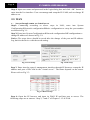
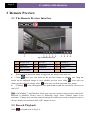
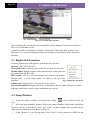
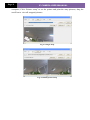
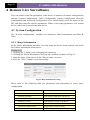
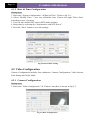
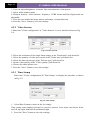
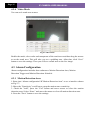
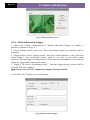
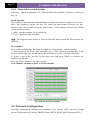
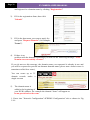
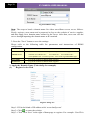
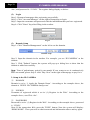
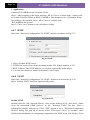
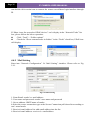
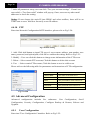
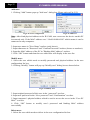
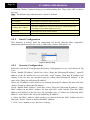
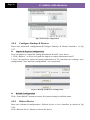
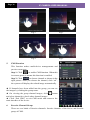
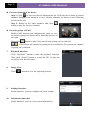
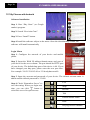
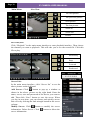
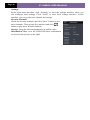
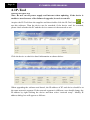
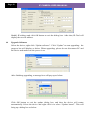
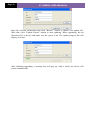
Page 36 5. IP CAMERA USER MUANUAL Fig 2 Fig 3 Fig 4 Fig 5 CMS Function This function makes multi-device managements and preview come true. Step 1: Click to enable CMS function. When this icon turns green, it means this function is enabled. Step 2: Click to choose channel as shown in the right picture. After you choose the channel, click “ok”, the system will display the related image automatically. If channels have been added into the group, you can see the images by clicking the group name. On viewing the group channel images, click button and select channels to check other channel images. Click “Exit CMS” to exit CMS mode and return to the main interface of the device. 6. Favorite Channel/Group There are two kinds of favorite channels: favorite channels of the device and favorite group of CMS.