1
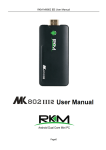
RKM MK802 IV User Manual
Page0
RKM MK802 IV User Manual
Table of Contents
Declaration................................................................................................................................................................... 2
1. Connector................................................................................................................................................................ 3
2. Device connection Instruction...............................................................................................................................4
3. Boot state.................................................................................................................................................................4
4.1 Move/Delete desktop icon........................................................................................................................... 5
4.2 Function column............................................................................................................................................7
4.3 Status bar.......................................................................................................................................................8
4.4 Application......................................................................................................................................................8
5. Settings.................................................................................................................................................................. 10
5.1 WIFI Setting.................................................................................................................................................10
5.2 Ethernet Setting.......................................................................................................................................... 10
5.3 Portable host pot.........................................................................................................................................11
5.4 Bluetooth...................................................................................................................................................... 11
5.5 PPPOE Setting............................................................................................................................................11
5.6 USB...............................................................................................................................................................11
5.7 Sound........................................................................................................................................................... 12
5.8 Display..........................................................................................................................................................12
5.9 Screen.......................................................................................................................................................... 12
5.10 Storage.......................................................................................................................................................12
5.11 Apps............................................................................................................................................................13
5.12 Security...................................................................................................................................................... 13
5.13 Language & input..................................................................................................................................... 13
5.14 Backup & reset......................................................................................................................................... 13
5.15 Date & time................................................................................................................................................13
5.16 Developer options.................................................................................................................................... 13
5.17 About device..............................................................................................................................................13
6. Browse /Copy Files.............................................................................................................................................. 13
7. Install/Uninstall Apps............................................................................................................................................14
7.1 Online installation....................................................................................................................................... 14
7.2 Local installation......................................................................................................................................... 14
7.3 Uninstall Apps............................................................................................................................................. 15
8. DLNA......................................................................................................................................................................15
9. Web Browsing.......................................................................................................................................................15
10. Local audio & video playback...........................................................................................................................16
12. Switch input methods........................................................................................................................................ 17
13. System recovery/update................................................................................................................................... 17
13.1 Recovery/update on Windows XP system........................................................................................... 18
13.2 Recovery/update on Windows WIN7 system.......................................................................................23
Question & Answer................................................................................................................................................... 29
Specifications............................................................................................................................................................ 30
Page1
RKM MK802 IV User Manual
Declaration
� The user manual includes all the information of safe and correct operation instruction. To avoid
accident and product damaged, please make sure go through all the content carefully before using
the product.
� Please keep the product away from high temperature, humid and dusty environment.
� Do not drop or crash the product.
� Do not cut off the device when it is formatting, or upgrading, otherwise it will cause operation
system error.
� Do not dismantle the device. Do not clean it by alcohol, thinner and Benzene.
� We keep the right to upgrade and modify the product.
� Disclaimer: we only take the responsibility to provide the warranty and after service. The users
have to take care of their data in the device by themselves. We do not responsible for any data or
related lost.
� The product is not water-proof.
� All the pictures in the instruction are just for reference.
Page2
RKM MK802 IV User Manual
1. Connector
Micro-USB Power: Connect with TV USB port for charge the unit.
USB 2.0 HOST: Connect with other USB device.
USB OTG: Data transfer with PC, or connect USB device.
HDMI
HDMI: High Definition Multimedia Interface Output
Micro SD
SD: Support expanded 2GB-32GB TF card
Page3
RKM MK802 IV User Manual
2. Device connection Instruction
a)
Take out the device insert into your TV HDMI port(if there is no enough space around HDMI
interface for MK802 IV, please use HDMI extend cable), make sure source is HDMI input
mode.(Refer to TV set user manual).
b)
Power supply connection: take out Micro USB cable to USB cable, connect the MK802IV with TV
via this cable; If the TV USB port can’t provide enough current, please take USB power
supply.(Any USB power supply among 5V/1A to 5V/2A are available).
c)
Suggest using 2.4G wireless keyboard or mouse. Plug 2.4G receiver on USB Host connector, if
only mouse plugged, the device will provide soft keyboard during operation; If the device detected
the physical keyboard, the soft keyboard will be hidden automatically.
d) Mouse left button for “ok”, right button for “return”, rolling for page up and page down, Keep
holding left button to drag icon or copy/paste file. Keep holding middle button to pop up
properties.
3. Boot state
After powered around 10 seconds, the boot image will appear.
Then access to boot animation;
Page4
RKM MK802 IV User Manual
After around 30 seconds, device would access to main screen;
4. Main Screen Introduction
4.1 Move/Delete desktop icon
Long-press any icon in the main menu, you could put it in any position as you like, at the same time you
could put the other apps shortcut to the desktop.
Page5
RKM MK802 IV User Manual
Long press the icon and move it to the right above “×” and loosen, then you could delete it
Move your cursor to any space and drag towards left or right for page rolling.Also you can use the mouse
wheel for rolling page.
Page6
RKM MK802 IV User Manual
4.2 Function column
Return button: click to return to previous directory;
Homepage button: click it anytime to return to main menu;
Program button: Click to check all the running program;
Volume decrease button: Click to decrease volume;
Volume increase button: Click to increase volume;
Properties button: in different apps, it shows different contents. It′s equivalent to Windows
properties button;
Soft turn off button.
Page7
RKM MK802 IV User Manual
Hide icon: click for hide this function bar.
Search button: Located in the top left corner of the main menu, click this icon to pop up webpage
screen, user can input any website here.
Program tools button: Located in the right top corner of the desktop, click this icon to pop up all the
apps which has been installed.
4.3 Status bar
Located on the right bottom, display T-Flash Card, USB connection, Time, Wifi and Download status.
Click status bar, the hide menu will pop up:
4.4 Application
Click
to pop up all the installed app and setup tools icon.
Page8
RKM MK802 IV User Manual
� If the installed APP beyond the first page, drag the page or rolling the mouse roller will display the
second page of APP;
� You can directly use these APPs, or set up related tools, or long-press those commonly used APP to
drag onto the desktop.
Click
on the desktop.
to access widgets, long press any widgets to form corresponding shortcut
Page9
RKM MK802 IV User Manual
5. Settings
In the system user can setup according to their own requirements, such as network connection, language,
input methods, Video output resolution, Sound output and check storage space.
Click the tool bar
to pop up below screen.
5.1 WIFI Setting
When opened the WIFI, the MK802 IV will auto search available wireless router signals within 20 meters,
user just choose a router and input correct password to connected network.
5.2 Ethernet Setting
If there is no WIFI in the house, suggest to connect a USB LAN adapter (please select right matched USB
LAN adapter) to setting Ethernet.
Setting method: Click “setting” � “More” � “Ethernet” � tick “Use Ethernet”, then the Ethernet setting
finished.
Page10
RKM MK802 IV User Manual
5.3 Portable host pot
If connected the device with Ethernet (not WiFi ), then open portable host pot function, you could regard
MK802 IV as an wireless AP.
5.4 Bluetooth
Bluetooth is a wireless technology standard for exchanging data over short distances (using
short-wavelength radio transmissions in the ISM band from 2400–2480 MHz) from fixed and mobile
devices, creating personal area networks (PANs) with high levels of security.
Open Bluetooth settings--> Scan and search equipment-->select a device, input Bluetooth wireless
password (if required)-->confirm. Then complete the Bluetooth pairing.
Notice:
�
Some equipments, for example, Bluetooth headset maybe have a fixed password (like 000), then you
must input corresponding password.
� Some equipments without testing or without Bluetooth SIG examination and approval, may not
compatible with MK802IV.
5 PPPOE Setting
5.
5.5
If the network need dial-up, then click PPPOE Settings and input account and password.
Click “Setting � “More” � “PPPOE Settings” � input account and password.
6 USB
5.
5.6
For exchange data between the MK802 IV and PC.
:
Specific operation steps
steps:
1. Equipment connection: take out the Micro USB to USB cable, connect the machine with PC through
this cable,at same time, connect the machine with TV through HDMI cable.
2. Settings: After device access to the main screen , click Settings � USB � Connect to PC, press
confirm. After the device access to USB mode, turn on USB storage. Now your computer could find the
device and you can copy/paste files freely.
Page11
RKM MK802 IV User Manual
7 Sound
5.
5.7
This is for Sound settings;
Volume: Control volume level;
Operate prompt tone
tone:: Setting prompt tone during operating;
Screen saver sound: Setting screen saver sound.
8 Display
5.
5.8
Font size: Setting font size according to their own request;
9 Screen
5.
5.9
This is for Screen settings:
1. Screen ratio: Used for adjusting screen ratio.
2. Output Interface: Default HDMI
3. HDMI mode: User can setting corresponding output resolution according to the TV.
Normally system will auto detective.
10 Storage
5.
5.10
In this option, user could view local storage space and external storage space, besides, user even can
uninstall or format storage equipment.
Notice: System divided the whole storage into seven partition, only two partition visible, the other five
partition has been occupied by Android system which is invisible.
The balance space is equal to the sum of two partitions.
Page12
RKM MK802 IV User Manual
11 Apps
5.
5.11
In this option, user could view installed and running apps, at same time could check DDR parameters.
2 Security
5.1
5.12
User can set password according to their request.
5.13 Language & input
1. User can set the language for system menus according to their Country or preference(60 languages
supported)
2. System default support Chinese and English, user need manual installing other input methods.
3. User could set keyboard and mouse cursor speed and simulated mouse step length at here.
4 Backup & reset
5.1
5.14
Backup: If there are some important files or apps inside, you′d better choose backup in case files lost.
Reset: If choose this option, and confirm, system will back to factory setting, all the
user′s settings and
apps will missing, (Not suggest);
5.1
5 Date & time
5.15
Since there is no battery inside, the date and time setting can′t be saved.
Suggest setting to use the network synchronization time, as long as the network connected, then the date
and time will be with the network synchronization.
6 Developer options
5.1
5.16
USB debugging: During connecting with PC to exchange data, please open this option;
7 About device
5.1
5.17
User can check system info here.
6. Browse /Copy Files
Open file management on the desktop.
1.
1.Open
Page13
RKM MK802 IV User Manual
Internal Flash: Check internal storage space
SD Card: If TF card inside, icon will be highlight
USB: If USB device (HDD, U-disk) connected, the icon will be highlight.
Network Places: Through this option, user can access to other PC to find files and playback.
2. File Copy
Long-press a file or folder will pop-up a menu, including: Copy, Delete, Move, Paste, Rename options,
if no need execute operation, just click “cancel”.
7. Install/Uninstall Apps
MK802IV supports many commonly used third-party apps. You can install or uninstall apps freely, there
are two methods available for installing Apps.
7.1 Online installation
Please login Google Play store or other Android marketing to download Apps (User should have Gmail
account if download from Google play store), After download system will remind you to install the Apps,
just click install according to the system prompt.
7.2 Local installation
User also can copy app from computer to U disk or TF card, insert the U disk or TF card to your device,
just click the APK icon to install according to the system prompt.
Page14
RKM MK802 IV User Manual
7.3 Uninstall Apps
Click Settings�Apps, click an Apps you want to uninstall, the uninstall window will pop up click uninstall to
uninstall. If you don′t want to uninstall just exit.
8. DLNA
DLNA : Through some special APP(such as iMediaShare Lite.), all the multimedia files can be pushed
from smart phone or Android tablet PC to big screen, user can share those pictures/music/videos with
family or friends freely.
9. Web Browsing
After connected network, you can access the webpage screen through the system browser.
Page15
RKM MK802 IV User Manual
New opened webpage will be shown on the screen as tag, click “+”
to add new webpage, click “x“
to
close the webpage.
10. Local audio & video playback
Through the file manager, user can browse & playback those contents of TF card, USB flash or USB HDD.
11. Use virtual keyboard
If just connect USB mouse only, then below virtual keyboard will pop up;
If connect with physical keyboard, system will hidden the virtual keyboard.
Page16
RKM MK802 IV User Manual
12. Switch input methods
Click the keyboard icon at the right-bottom status bar from desktop;
All the installed methods will display as below picture, and you can choose one of you prefer:
13. System recovery/update
If your MK802IV has following issues, please solve these issues by recovery/update methods.
Page17
RKM MK802 IV User Manual
1. If you need update to the latest firmware,
2. After boot, there is no signal;
3. There is only boot screen;
4. System running very slow, crashing;
5. Can’t find the wireless network equipment, or can’t connect wireless;
6. When installation apps, player loss power unexpected and cant boot up.
7. TF card update failed and can’t boot again etc.
13.1 Recovery/update on Windows XP system
First, download recovery tool Batch Tool
Tool,, driver and recovery firmware,(img file) from official
website
website..
Download, decompression the folder and find
to double click, below screen will pop out,
then add img file.
Page18
RKM MK802 IV User Manual
Second, connect the mini pc with computer.
1. Prepare an USB cable (Micro USB to USB cable); insert the normal USB port to computer usb host.
2. Prepare a thin metal stick; press the recover button by the stick according below method.
3. Don’t loose the stick, at same time, insert the micro USB port to the unit USB OTG port, after 3-5s,
loose the stick.
Third, usb driver installa
installattion
There will pop up a guide window to install new driver.
Page19
RKM MK802 IV User Manual
Select “next”
Choose the options as picture display, then click browse,find out
install.
Page20
, then click “next” to
RKM MK802 IV User Manual
When finished installation, the computer will pop up below window, then click“finish”
After installation, the “connect device” icon on the “batch tool” will changed to blue, as below:
Page21
RKM MK802 IV User Manual
Then Click “upgrade” (the second button of below picture) for recovery, as below.
This procedure will take 3 minutes also, please wait patiently, during recovery/upgrade, don’t remove the
USB cable.
Page22
RKM MK802 IV User Manual
When this above prompt window appears, then means recovery is successful, pull out USB cable, then
total process is finished.
13.2 Recovery/update on Windows WIN7 system
l,driver and recovery firmware(img file) from official website
First, download recovery too
tool,driver
website..
Download, decompression the folder and find
to double click, below screen will
pop out, then add img file.
Page23
RKM MK802 IV User Manual
Second, connect the mini pc with computer.
1. Prepare an USB cable(Micro USB to USB cable),insert the normal USB port to computer usb host.
2. Prepare a thin metal stick, press the recover button by the stick according below method.
3.Don’t loose the stick, at same time, insert the micro usb port to the unit USB OTG port, after 3-5s,loose
the stick.
Third, install the USB driver.
Press“computer”with right key, computer---management--device management--other device, pls check
below picture.
Page24
RKM MK802 IV User Manual
Double click unknown device.
Press update driver,Click browse for driver software on your computer. And choose the correct driver.
Page25
RKM MK802 IV User Manual
If your computer is WIN7 32bit, choose x86--win7; if it is WIN7 64bit, choose x64--win7.
Press next, will pop up below window, Click on the image below red circle option.Click install.
Then pls wait for installation.See below picture.
Page26
RKM MK802 IV User Manual
Now the driver was installed successfully. Press close. After successful installation, the batch tool will
Page27
RKM MK802 IV User Manual
connect the MK802IIIS automatically.If it cant connect automatically, pls reconnect the MK802IIIS to the
computer by usb cable again. See step 1. No need to do step2.
Then Click “upgrade”for recovery, as below .
Page28
RKM MK802 IV User Manual
This procedure will cost 3minutes also, pls wait patiently, during recovery/upgrade, don’t remove the USB
cable.
When this prompt window appears, then means recovery is successful, pull out USB cable, then total
process is finished.
Notice:
1.Don’t power off during updating or recovering.
2.Same computer just need install driver for one time.
3.First turn on the unit after recovery/update will cost more long time, and even occur some lag
issue, it’s normal since internal apk file need be decompressed and occupy RAM, after 5 minutes, then
system running well. So don’t worry about that.
Question & Answer
�
Screen flicker or unstable working: please check if the HDMI cable has been connected tightly.
�
Cannot start device: please download FW file from Rikomagic official website: www.rikomagic.com to
Page29
RKM MK802 IV User Manual
refresh the device FW. Make sure all the important data has been backup before process it. If the
issue still cannot be solved, please contact the distributor which you bought from.
�
Keep restarting system automatically: please check if the device get enough power supply.
Sometimes, external HDD cause power shortage. Please plug additional power supply for external
HDD or other external devices.
�
Cannot find file in SD card or open drive: Please check all the connection of the device. And make
sure you have tick of SD and USB Host in “Setting”
Specifications
Model#
MK802 IV
CPU
Rockchip 3188 Quad core, 28nm
GPU
2D/3D GPU,GPU Mali-400 MP4 @
533MHz,GPU offers 3D graphic with OpenGL ES2.0 and OpenVG 1.1
OS
Android4.2
Main Frequency
Cortex-A9,Up to 1.8GHZ
RAM
2G DDR3
Memory
8GB/16GB for option
Expand Micro SD
T-Flash(Maximum support 32GB)
Browser
Browse webpage
Video Format
Audio Format
WMV/ASF/MP4/3GP/3G2M4V/AVI/MJPEG/RV10/DivX/VC-1/MPEG-2/MPEG
-4/H.263/H.264/1280*720P HD 30 fps, 1080P/720*480 D1 30fps
MP3/WMA/APE/FLAC/AAC/OGG/AC3/WAV
Music
Can be connected to the Internet, listen to music online
Picture format
Max.8000x8000 JPEG BMP GIF PNG
WiFi
802.11 b/g/n
Bluetooth
Build in
Flash
Supports flash 11.1 or later.
Ports
HDMI(male),Micro SD slot, USB host*1,USB OTG*1, USB power port;
LED(Blue)
HDMI cable, USB power adapter, USB connector adapter, manual
Accessory
Page30
RKM MK802 IV User Manual
Shenzhen Rikomagic Tech Corp.,Ltd
Add: 2F,Liangshi Building,Qi'an Road 6#,Shajing street, Bao'an, Shenzhen, China, 518125
Official website: www.rikomagic.com
Tel: 86-755-29981801; Fax: 86-755-27317052
After service: [email protected]
Page31