1
4.3
Cancellation
You can cancel a previous transaction if necessary.
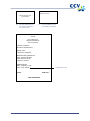
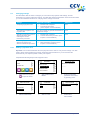
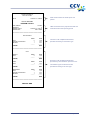
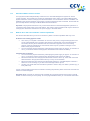
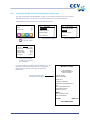
Important: You need an authorisation code to cancel a previous transaction. The authorisation code is
printed on the copy receipt of the transaction you wish to cancel. See the next page for an example of a
copy receipt with an authorisation code.
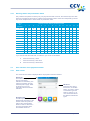
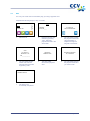
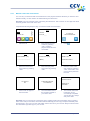
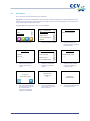
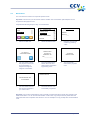
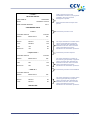
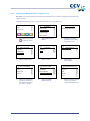
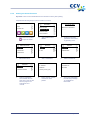
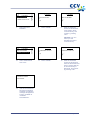
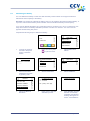
Complete the following steps to carry out a cancellation:
PROTECTED ITEM
TRANSACTION
SALE
MERCHANT PASSWORD:
_____
CANCELLATION
OTHER TRX
RESERVATION
SALE AFTER RESERV.
REFUND
1.
Select OTHER TRX.
2.
CANCELLATION
Select CANCELLATION.
3.
CHOOSE CANCELL. TYPE
Enter the merchant
password and confirm by
pressing <OK>.
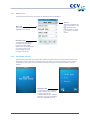
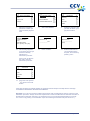
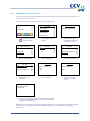
CANCELLATION
SALE
AMOUNT
EUR 0,00____
AUTHORISATION CODE
_______
CASH ADVANCE
RESERVATION
EXTRA RESERVATION
4.
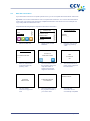
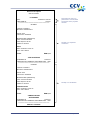
Enter the amount and
confirm by pressing
<OK>.
5.
Select the transaction
type that you wish to
cancel.
6.
Enter the authorisation
code and confirm by
pressing <OK>.
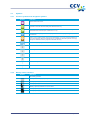
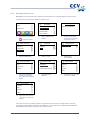
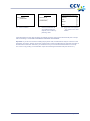
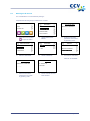
CANCELLATION
TOT EUR 0,01
YOUR CARD PLEASE
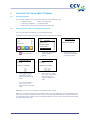
7.
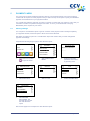
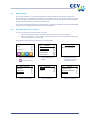
The card holder inserts
the payment card in the
chip card reader or
swipes it through the
magnetic card reader.
CID088A/03012013
TOT EUR 0,01
OK?
8.
The card holder must
press <OK> to approve
the transaction.
APPROVED
REMOVE CARD
9.
The card holder removes
the payment card.
Page 21 of 52