1
Printing return address labels
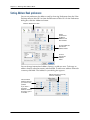
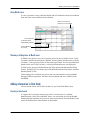
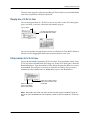
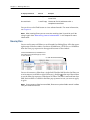
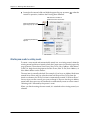
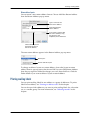
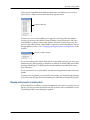
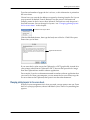
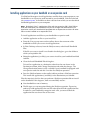
To change or delete a label or address layout, choose the layout from its pop-up
menu, then choose Edit Layout from the pop-up menu. Make the changes you
want, then click Save, or click the Delete button if you want to delete the layout.
Printing return address labels
You can print return address labels. You can even add a graphic to the return
address.
One sheet of return address labels is printed. If you want more than one sheet, type
the number of copies you want in your printer’s Print dialog box just before you
print. For fewer labels, change the number in the “Start printing on label” field
until the Preview shows the number of labels you want.
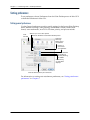
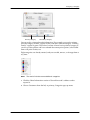
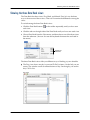
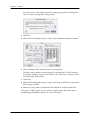
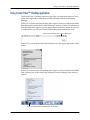
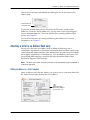
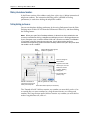
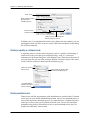
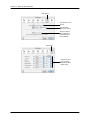
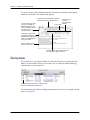
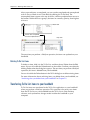
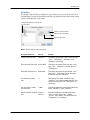
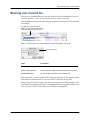
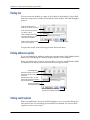
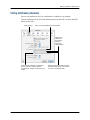
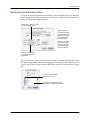
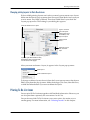
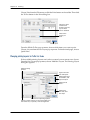
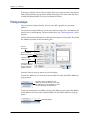
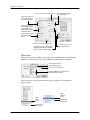
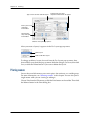
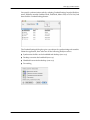
Choose Print from the File menu, or click the Print button on the toolbar. Then click
the Addresses button in the Print dialog box.
Choose Return
Address Labels
Choose which
return address
to print
Choose the
layout you want
Type a number to adjust the number of return
address labels if you want fewer than a full sheet
Click to print
From the Print As pop-up menu, choose Return Address Labels.
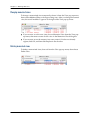
Choose which return address you want to use for your labels from the Return
Address pop-up menu.
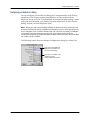
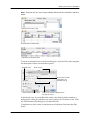
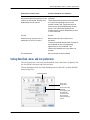
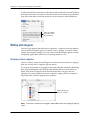
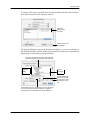
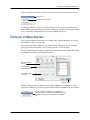
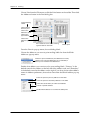
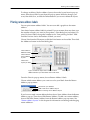
Choose for your address
Add a new return address layout
Edit an existing return address layout
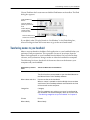
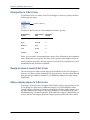
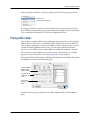
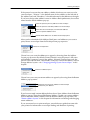
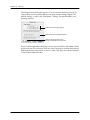
If you have not used a return address before, choose Your Address from the Return
Address pop-up. Then choose Edit Return Address. To add a new return address,
choose Add New Return Address from the Return Address pop-up menu. See
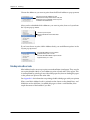
“Return address layouts” in this chapter for information on creating and changing
return addresses.
133