1
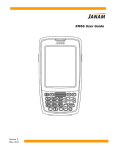
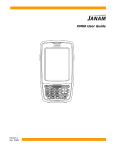
Uniterminal B32 User Guide 1. Introduction About the Mobile Device If you are looking for a mobile computer that you can collect data for a whole day, your search is over. This series Uniterminal B32 - mobile computers is the answer to your request. It is just about 275g (normal battery), long battery life (10+ hours operation), big screen (3.2” diagonal) and yet comfortably to hold. This series mobile computers is a neat package that packs with functions your customers needed in a major industries, namely retail, health care, warehouse tracking and logistics. It is rugged (IP64 and 1.2 meters drop), fully connected (Bluetooth, WiFi b/g, GPRS) and has various options that you can customize for your customers' needs (multiple scan engines and OS support). Feature Summary Microsoft Windows CE 6.0 Small and light Full 3.2" color display High performance barcode scanning WLAN 802.11b/g and SUMMIT b/g options Bluetooth 128MB RAM / 128MB FLASH (256MB RAM / 256MB FLASH) memory User-accessible microSD card slot Sculpted to fit in the hand - truly pocketable Withstands multiple 4'/1.2m drops to concrete across a wide temperature range Sealed to IP64 standards Ten-layer PCB with grounding planes Hi-Speed USB 2.0 and serial output Full system of accessories 4