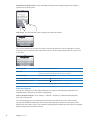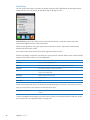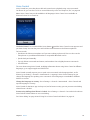
1
iPhone
User Guide
For iOS 5.0 Software
Contents
2
9
9
9
10
12
Chapter 1:  iPhone at a Glance
14
14
14
15
15
15
16
16
16
17
18
Chapter 2:  Getting Started
19
19
22
24
27
28
29
30
31
32
33
33
34
36
37
37
Chapter 3:  Basics
38
38
40
40
Chapter 4:  Siri
41
41
45
Chapter 5:  Phone
iPhone overview
Accessories
Buttons
Status icons
Viewing this user guide on iPhone
What you need
Installing the SIM card
Setup and activation
Connecting to the Internet
Connecting iPhone to your computer
Setting up mail and other accounts
Managing content on your iOS devices
iCloud
Syncing with iTunes
Using apps
Customizing the Home screen
Typing
Printing
Searching
Voice Control
Notifications
Twitter
Apple Earphones with Remote and Mic
AirPlay
Bluetooth devices
Battery
Security features
Cleaning iPhone
Restarting or resetting iPhone
Using Siri
If Siri doesn’t hear you correctly
Dictation
Phone calls
FaceTime
46
47
48
48
49
49
50
Visual voicemail
Contacts
Favorites
Call forwarding, call waiting, and caller ID
Ringtones, Ring/Silent switch, and vibrate
International calls
Setting options for Phone
51
51
52
52
53
53
53
54
54
54
Chapter 6:  Mail
57
57
58
58
58
58
59
59
59
59
Chapter 7:  Safari
60
60
60
61
62
62
63
63
63
64
64
65
65
Chapter 8:  Music
66
66
67
67
68
68
Chapter 9:  Messages
Checking and reading email
Working with multiple accounts
Sending mail
Using links and detected data
Viewing attachments
Printing messages and attachments
Organizing mail
Searching mail
Mail accounts and settings
Viewing webpages
Links
Reading List
Reader
Entering text and filling out forms
Searching
Bookmarks and history
Printing webpages, PDFs, and other documents
Web clips
Adding music and audio
Playing songs and other audio
Additional audio controls
Podcast and audiobook controls
Using Siri or Voice Control with Music
Browsing album artwork in Cover Flow
Viewing tracks on an album
Searching audio content
iTunes Match
Genius
Playlists
Home Sharing
Sending and receiving messages
Sending messages to a group
Sending photos, videos, and more
Editing conversations
Searching messages
Contents
3
4
69
69
69
70
70
70
71
71
71
Chapter 10:  Calendar
72
72
73
73
73
74
Chapter 11:  Photos
75
75
76
76
77
77
77
78
78
Chapter 12:  Camera
79
79
79
80
80
80
81
81
81
Chapter 13:  YouTube
82
82
83
Chapter 14:  Stocks
84
84
85
86
86
87
Chapter 15:  Maps
88
88
Chapter 16:  Weather
About Calendar
Viewing your calendars
Adding events
Responding to invitations
Searching calendars
Subscribing to calendars
Importing calendar events from Mail
Calendar accounts and settings
Viewing photos and videos
Viewing slideshows
Organizing photos and videos
Sharing photos and videos
Printing photos
About Camera
Taking photos and videos
HDR photos
Viewing, sharing, and printing
Editing photos
Trimming videos
Uploading photos and videos to your computer
Photo Stream
About YouTube
Browsing and searching for videos
Playing videos
Watching YouTube on a TV
Keeping track of videos you like
Sharing videos, comments, and ratings
Getting information about a video
Sending videos to YouTube
Viewing stock quotes
Getting more information
Finding locations
Getting directions
Getting and sharing info about a location
Showing traffic conditions
Satellite view and street view
Getting weather information
Contents
89
89
89
90
90
90
Chapter 17:  Notes
91
91
91
92
92
92
Chapter 18:  Clock
93
93
94
94
95
95
95
95
Chapter 19:  Reminders
96
96
97
97
97
97
98
Chapter 20:  Game Center
99
99
99
100
100
100
101
101
102
102
102
Chapter 21:  iTunes Store
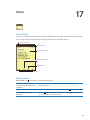
About Notes
Writing notes
Reading and editing notes
Searching notes
Printing or emailing notes
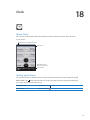
About Clock
Setting world clocks
Setting alarms
Using the stopwatch
Setting a timer
About Reminders
Setting a reminder
Managing reminders in List view
Managing reminders in Date view
About location reminders
Managing completed reminders
Searching reminders
About Game Center
Signing in to Game Center
Purchasing and downloading games
Playing games
Playing with friends
Game Center settings
About the iTunes Store
Finding music, videos, and more
Purchasing music, audiobooks, and tones
Purchasing or renting videos
Following artists and friends
Streaming or downloading podcasts
Checking download status
Changing the browse buttons
Viewing account information
Verifying downloads
103 Chapter 22:  Newsstand
103 About Newsstand
103 Reading the latest issues
104
104
105
105
106
Chapter 23:  App Store
About the App Store
Finding and downloading apps
Deleting apps
Store settings
Contents
5
107
107
107
108
108
109
109
Chapter 24:  Contacts
110
110
110
111
111
111
112
112
113
113
Chapter 25:  Videos
About Contacts
Syncing contacts
Searching contacts
Adding and editing contacts
Unified contacts
Contacts accounts and settings
About Videos
Playing videos
Searching for videos
Watching rented movies
Watching videos on a TV
Deleting videos from iPhone
Using Home Sharing
Setting a sleep timer
Converting videos for iPhone
114 Chapter 26:  Calculator
114 Using the calculator
114 Scientific calculator
6
115
115
115
116
116
Chapter 27:  Compass
117
117
118
118
119
119
Chapter 28:  Voice Memos
120
120
120
120
121
121
121
Chapter 29:  Nike + iPod
122
122
122
122
123
124
124
125
Chapter 30:  iBooks
About Compass
Calibrating the compass
Finding the direction
Using Compass with Maps
About Voice Memos
Recording
Listening to a recording
Managing and sharing recordings
Sharing voice memos with your computer
About Nike + iPod
Activating Nike + iPod
Linking a sensor
Working out with Nike + iPod
Calibrating Nike + iPod
Sending workout data to Nikeplus.com
About iBooks
Using the iBookstore
Syncing books and PDFs
Reading books
Reading PDFs
Changing a book’s appearance
Searching books and PDFs
Contents
125
125
125
126
126
Looking up the definition of a word
Having a book read to you
Printing or emailing a PDF
Organizing the bookshelf
Syncing bookmarks and notes
127
127
128
137
137
138
138
138
139
139
139
139
139
140
140
140
141
141
141
141
141
141
142
142
142
Chapter 31:  Accessibility
143
143
143
144
145
145
145
146
146
147
147
147
152
Chapter 32:  Settings
153
153
153
153
155
155
Appendix A:  International Keyboards
Universal Access features
VoiceOver
Routing the audio of incoming calls
Siri
Triple-Click Home
Zoom
Large Text
White on Black
Speak Selection
Speak Auto-text
Mono Audio
Hearing aid compatibility
Custom Vibrations
LED Flash for Alerts
AssistiveTouch
Universal Access in Mac OS X
TTY support
Minimum font size for mail messages
Assignable ringtones
Visual voicemail
Widescreen keyboards
Large phone keypad
Voice Control
Closed captioning
Airplane mode
Wi-Fi
Notifications
Location Services
VPN
Personal Hotspot
Carrier
Sounds and the Ring/Silent switch
Brightness
Wallpaper
General
Settings for apps
Adding and removing keyboards
Switching keyboards
Chinese
Japanese
Typing Emoji characters
Contents
7
155 Using the candidate list
155 Using shortcuts
156 Vietnamese
157
157
157
157
159
159
160
160
160
161
162
162
8
Appendix B:  Support and Other Information
iPhone Support site
Restarting or resetting iPhone
Backing up iPhone
Updating and restoring iPhone software
File sharing
Safety, software, and service information
Using iPhone in an enterprise environment
Using iPhone with other carriers
Disposal and recycling information
Apple and the environment
iPhone operating temperature
Contents
1
iPhone at a Glance
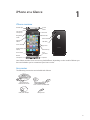
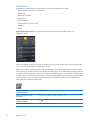
iPhone overview
Headset jack
Top
microphone
Ring/Silent
switch
Volume
buttons
On/Off
button
Receiver
Status bar
Main camera
LED flash
Front camera
App icons
Apple Retina
display
SIM card tray
Home button
Bottom
microphone
iPhone
Dock
connector
Speaker
Your iPhone and the Home screen may look different, depending on the model of iPhone you
have and whether you’ve customized your Home screen.
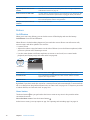
Accessories
The following accessories are included with iPhone:
Apple Earphones
with Remote and Mic
USB power adapter
Dock Connector to USB Cable
SIM eject tool
9
Item
What you can do with it
Apple Earphones with Remote
and Mic
Listen to music and videos, and make phone calls. See “Apple Earphones
with Remote and Mic” on page 32.
Dock Connector to USB Cable
Use this cable to connect iPhone to your computer to sync and charge. The
cable can be used with the optional dock or plugged directly into iPhone.
USB power adapter
Connect the power adapter to iPhone using the included cable, then plug it
into a standard power outlet to charge iPhone.
SIM eject tool (not included in
all areas)
Eject the SIM card tray.
Buttons
On/Off button
When you’re not using iPhone, you can lock it to turn off the display and save the battery.
Lock iPhone: Press the On/Off button.
When iPhone is locked, nothing happens if you touch the screen. iPhone can still receive calls,
text messages, and other updates. You can also:
ÂÂ Listen to music
ÂÂ Adjust the volume using the buttons on the side of iPhone (or on the iPhone earphones) while
you’re on a phone call or listening to music
ÂÂ Use the center button on iPhone earphones to answer or end a call, or to control audio
playback (see “Playing songs and other audio” on page 60)
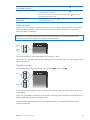
On/Off button
Unlock iPhone
Press the Home button
or the On/Off button, then drag the slider.
Turn iPhone off
Press and hold the On/Off button for a few seconds until the red slider
appears, then drag the slider.
Turn iPhone on
Press and hold the On/Off button until the Apple logo appears.
By default, if you don’t touch the screen for a minute, iPhone locks automatically. To turn auto-lock
off, or to change how long before iPhone locks, see “Auto-Lock” on page 150. To require a passcode
to unlock iPhone, see “Passcode Lock” on page 150.
Home button
The Home button lets you get back to the Home screen at any time. It also provides other
convenient shortcuts.
Go to the Home screen: Press the Home button
.
At the Home screen, just a tap opens an app. See “Opening and switching apps” on page 19.
10
Chapter 1    iPhone at a Glance
Display the multitasking bar
to see recently used apps
With iPhone unlocked, double-click the Home button
.
Display audio playback controls
When iPhone is locked: Double-click the Home button . See “Playing songs
and other audio” on page 60.
When using another app: Double-click the Home button , then flick the
app switcher from left to right.
Start Siri (iPhone 4S) or
Voice Control
Press and hold the Home button
“Voice Control” on page 29.
. See Chapter 4, “Siri,” on page 38 and
Volume buttons
When you’re on the phone or listening to songs, movies, or other media, the buttons on the side
of iPhone adjust the audio volume. Otherwise, the buttons control the volume for the ringer,
alerts, and other sound effects.
WARNING: For important information about avoiding hearing loss, see the Important Product
Information Guide at www.apple.com/support/manuals/iphone.
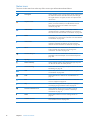
Volume
up
Volume
down
To limit the volume for music and videos, go to Settings > Music.
You can also use the volume up button to take a picture or record a video. See “Taking photos and
videos” on page 76.
Ring/Silent switch
Flip the Ring/Silent switch to put iPhone in ring mode
or silent mode
.
Ring
Silent
In ring mode, iPhone plays all sounds. In silent mode, iPhone doesn’t ring or play alerts and other
sound effects.
Important: Clock alarms, audio apps such as Music, and many games still play sounds through the
built-in speaker when iPhone is in silent mode.
For information about changing sound and vibrate settings, see “Sounds and the Ring/Silent
switch” on page 146.
Chapter 1    iPhone at a Glance
11
Status icons
The icons in the status bar at the top of the screen give information about iPhone:
Status icon
12
What it means
Cell signal*
Shows whether you’re in range of the cellular network and
can make and receive calls. The more bars, the stronger
the signal. If there’s no signal, the bars are replaced with
“No service.”
Airplane mode
Shows that airplane mode is on—you cannot use the
phone, access the Internet, or use Bluetooth® devices.
Non-wireless features are available. See “Airplane
mode” on page 143.
UMTS/EV-DO
Shows that your carrier’s 3G UMTS (GSM) or EV-DO
(CDMA) network is available, and iPhone can connect to
the Internet over that network. See “Network” on page 148.
EDGE
Shows that your carrier’s EDGE (GSM) network is available,
and iPhone can connect to the Internet over that network.
See “Network” on page 148.
GPRS/1xRTT
Shows that your carrier’s GPRS (GSM) or 1xRTT (CDMA)
network is available, and iPhone can connect to the
Internet over that network. See “Network” on page 148.
Wi-Fi*
Shows that iPhone is connected to the Internet over
a Wi-Fi network. The more bars, the stronger the
connection. See “Wi-Fi” on page 143.
Personal Hotspot
Shows that iPhone is connected to another iPhone
providing a Personal Hotspot. See “Personal Hotspot” on
page 145.
Syncing
Shows that iPhone is syncing with iTunes.
Network activity
Shows network activity. Some third-party apps may also
use the icon to show an active process.
Call Forwarding
Shows that Call Forwarding is set up on iPhone. See “Call
forwarding” on page 48.
VPN
Shows that you’re connected to a network using VPN.
See “Network” on page 148.
Lock
Shows that iPhone is locked. See “On/Off button” on
page 10.
TTY
Shows that iPhone is set to work with a TTY machine.
See “TTY support” on page 141.
Play
Shows that a song, audiobook, or podcast is playing.
See “Playing songs and other audio” on page 60.
Portrait orientation lock
Shows that the iPhone screen is locked in portrait
orientation. See “Viewing in portrait or landscape
orientation” on page 21.
Alarm
Shows that an alarm is set. See “Setting alarms” on
page 92.
Location Services
Shows that an item is using Location Services.
See “Location Services” on page 145.
Chapter 1    iPhone at a Glance
Status icon
What it means
Bluetooth*
Blue or white icon: Bluetooth is on and a device, such as
a headset or car kit, is connected. Gray icon: Bluetooth is
on, but no device is connected. See “Bluetooth devices” on
page 33.
Bluetooth battery
Shows the battery level of a supported paired Bluetooth
device.
Battery
Shows battery level or charging status. See “Battery” on
page 34.
* The use of certain accessories with iPhone may affect wireless performance.
Chapter 1    iPhone at a Glance
13
2
Getting Started
·
WARNING: To avoid injury, read all operating instructions in this guide and safety information
in the iPhone Important Product Information Guide at www.apple.com/support/manuals/iphone
before using iPhone.
Viewing this user guide on iPhone
The iPhone User Guide can be viewed on iPhone in Safari, and in the free iBooks app.
View the user guide in Safari: Tap
, then tap the iPhone User Guide bookmark.
To add an icon for the guide to the Home screen, tap , then tap “Add to Home Screen.” To view
it in a different language, tap “Change Language” on the main contents page.
View the user guide in iBooks: If you haven’t installed iBooks, open App Store, then search for
and install “iBooks.” Open iBooks and tap Store. Search for “iPhone User,” then select and download
the guide.
For more information about iBooks, see Chapter 30, “iBooks,” on page 122.
What you need
To use iPhone, you need:
ÂÂ A wireless service plan with a carrier that provides iPhone service in your area
ÂÂ An Apple ID (for some features), which can be created during setup
ÂÂ A Mac or a PC with a USB 2.0 port and one of the following operating systems:
ÂÂ Mac OS X v10.5.8 or later
ÂÂ Windows 7, Windows Vista, or Windows XP Home or Professional (SP3)
ÂÂ An Internet connection for your computer (broadband is recommended)
ÂÂ iTunes 10.5 or later (for some features), available at www.itunes.com/download
14
Installing the SIM card
If you were given a SIM card to install, install it before setting up iPhone.
Important: A SIM card is required to use cellular services when connecting to GSM networks and
some CDMA networks. An iPhone 4S that has been activated on a CDMA wireless network may
also use a SIM card for connecting to a GSM network, primarily for international roaming. Your
iPhone is subject to your wireless service provider’s policies, which may include restrictions on
switching service providers and roaming, even after conclusion of any required minimum service
contract. Contact your wireless service provider for more details. Availability of cellular capabilities
depends on the wireless network.
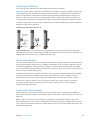
Installing the SIM Card in iPhone 4S
Micro SIM
card tray
Paper clip
or SIM
eject tool
Micro SIM
card
Install the SIM card: Insert the end of a small paper clip or SIM eject tool into the hole on the
SIM card tray. Pull out the SIM card tray and place the SIM card in the tray as shown. With the tray
aligned and the SIM card on top, carefully replace the tray.
Setup and activation
To set up and activate iPhone, turn on iPhone and follow the Setup Assistant. The Setup Assistant
steps you through the setup process, including connecting to a Wi-Fi network, signing in with or
creating a free Apple ID, setting up iCloud, turning on recommended features such as Location
Services and Find My iPhone, and activating iPhone with your carrier. You can also restore from an
iCloud or iTunes backup during setup.
Activation can be done over a Wi-Fi network or over your carrier’s cellular network (not available
in all areas). If neither are available, you need to connect iPhone to your computer. See the
following section. If you don’t have a SIM card installed (for GSM networks), iPhone must be
connected to a Wi-Fi network, or to your computer with iTunes open, in order to complete
activation. In areas where you have a choice of carriers, the SIM card must be installed to
complete the initial activation.
Connecting to the Internet
iPhone connects to the Internet whenever necessary, using a Wi-Fi connection (if available) or
your carrier’s cellular network. For information about connecting to a Wi-Fi network, see “Wi-Fi” on
page 143.
Note: If a Wi-Fi connection to the Internet isn’t available, certain iPhone features and services
may transfer data over your carrier’s cellular network, which may result in additional fees. Contact
your carrier for information about your cellular data plan rates. To manage cellular data usage, see
“Network” on page 148.
Chapter 2    Getting Started
15
Connecting iPhone to your computer
If you don’t have Wi-Fi or cellular access, you may need to connect iPhone to your computer in
order to complete activation. Connecting iPhone to your computer also lets you sync information,
music, and other content with iTunes. See “Syncing with iTunes” on page 18.
Connect iPhone to your computer: Use the Dock Connector to USB Cable provided with iPhone.
Setting up mail and other accounts
iPhone works with iCloud, Microsoft Exchange, and many of the most popular Internet-based mail,
contacts, and calendar service providers. If you don’t already have a mail account, you can set up a
free iCloud account when you first set up iPhone, or later in Settings > iCloud.
Set up an account: Go to Settings > Mail, Contacts, Calendars.
For information about iCloud, see “iCloud” on page 17.
You can add contacts using an LDAP or CardDAV account if your company or organization
supports it. See “Syncing contacts” on page 107.
You can add a CalDAV calendar account, and you can subscribe to iCal (.ics) calendars or import
them from Mail. See page 71.
Managing content on your iOS devices
You can transfer information and files between your iOS devices and computers using either
iCloud or iTunes.
ÂÂ iCloud stores your photos, apps, contacts, calendars, and more, and wirelessly pushes them
to your devices. When something changes on one of your devices, your other devices are
automatically updated. See “iCloud,” below.
ÂÂ iTunes syncs music, video, photos, and more between your computer and iPhone. Changes you
make on one device are copied to the other when you sync. You can also use iTunes to copy
a file to iPhone for use with an app, or to copy a document you’ve created on iPhone to your
computer. See “Syncing with iTunes” on page 18.
You can use iCloud or iTunes, or both, depending on your needs. For example, you can use iCloud
Photo Stream to automatically get photos you take on iPhone to your other devices, and use
iTunes to sync photo albums from your computer to iPhone.
Note: You should not sync items on the Info pane of iTunes (such as contacts, calendars, and
notes) and also use iCloud to keep that information up to date on your devices. If you do both,
duplicated data may result.
16
Chapter 2    Getting Started
iCloud
iCloud stores your photos, apps, contacts, calendars, and more, and wirelessly pushes it to your
iOS devices and computers, automatically keeping everything up to date.
iCloud features include:
ÂÂ Automatic Downloads—Music, apps, and books that you purchase appear on your devices
automatically.
ÂÂ Previous Purchases—View previous iTunes Store, App Store, and iBooksstore purchases and
download them again if needed.
ÂÂ Photo Stream—When you take a photo on one iOS device, automatically get it on your other
devices. See“Photo Stream” on page 78 .
ÂÂ Documents & Data—Store and keep document up to date on your devices for apps that
support Documents in the iCloud.
ÂÂ Find My iPhone—Locate your iPhone on a map, display a message, play a sound, lock the
screen, or remotely wipe the data. See “Find My iPhone” on page 36.
You can also back up iPhone to iCloud. See “Backing up iPhone” on page 157.
With iCloud, you get a free email account and 5 GB of storage for your mail, documents, and
backup. Your purchased music, apps, TV shows, and books, as well as your Photo Stream, don’t
count against your free space.
Note: iCloud is not available in all areas, and iCloud features may vary by area.
Sign in or create an iCloud account: In Settings, tap iCloud.
If you have a MobileMe subscription, you can migrate it to iCloud at me.com/move.
Choose info to store in iCloud
Go to Settings > iCloud.
Turn Automatic Downloads on
or off
Go to Settings > Store.
View and download previous
iTunes Store purchases
Go to iTunes, then tap Purchased.
View and download previous
App Store purchases
Go to App Store, tap Updates, then tap Purchased.
View and download previous
iBooksstore purchases
Go to iBooks, tap Store, then tap Purchased.
Turn Photo Stream on or off
Go to Settings > iCloud.
Find your iPhone
Visit www.icloud.com.
Important: On your iPhone, Find My iPhone must be turned on in
Settings > iCloud in order for Find My iPhone features to be available.
Purchase additional iCloud storage
Go to Settings > iCloud > Storage & Backup, then tap Manage Storage. For
information about purchasing iCloud storage, see help.apple.com/icloud.
For more information about iCloud, go to www.apple.com/icloud. For support information, go to
www.apple.com/support/icloud.
Chapter 2    Getting Started
17
Syncing with iTunes
Syncing with iTunes copies information from your computer to iPhone, and vice versa. You can
sync by connecting iPhone to your computer using the Dock Connector to USB Cable, or you
can set up iTunes to sync wirelessly using Wi-Fi. You can set iTunes to sync music, photos, video,
podcasts, apps, and more. For information about syncing iPhone with a computer, open iTunes,
then select iTunes Help from the Help menu.
Set up wireless iTunes syncing: Connect iPhone to your computer using the Dock Connector to
USB Cable. In iTunes, turn on “Sync over Wi-Fi connection” in the device’s Summary pane.
When Wi-Fi syncing is turned on, iPhone syncs automatically every day. iPhone must be
connected to a power source, both iPhone and your computer must be on the same wireless
network, and iTunes must be open on your computer. For more information, see “iTunes Wi-Fi
Sync” on page 149.
Tips for syncing with iTunes
ÂÂ If you’re using iCloud to store your contacts, calendars, bookmarks, and notes, don’t also sync
them to your device using iTunes.
ÂÂ Purchases you make on iPhone in the iTunes Store or the App Store are synced back to your
iTunes library. You can also purchase or download content and apps from the iTunes Store on
your computer, and then sync them to iPhone.
ÂÂ In the device’s Summary pane, you can set iTunes to automatically sync your device when it’s
attached to your computer. To temporarily override this setting, hold down Command and
Option (Mac) or Shift and Control (PC) until you see your iPhone appear in the sidebar.
ÂÂ In the device’s Summary pane, select “Encrypt iPhone backup” if you want to encrypt the
information stored on your computer when iTunes makes a backup. Encrypted backups are
indicated by a lock icon , and a password is required to restore the backup. If you don’t select
this option, passwords (such as those for mail accounts) aren’t included in the backup and will
have to be reentered if you use the backup to restore the device.
ÂÂ In the device’s Info pane, when you sync mail accounts, only the settings are transferred from
your computer to iPhone. Changes you make to an email account on iPhone don’t affect the
account on your computer.
ÂÂ In the device’s Info pane, click Advanced to select options to let you replace the information on
iPhone with the information from your computer during the next sync.
ÂÂ If you listen to part of a podcast or audiobook, your place in the story is included if you sync the
content with iTunes. If you started listening to the story on iPhone, you can pick up where you
left off using iTunes on your computer—or vice versa.
ÂÂ In the device’s Photo pane, you can sync photos and videos from a folder on your computer.
18
Chapter 2    Getting Started
3
Basics
Using apps
The high-resolution Multi-Touch screen and simple finger gestures make it easy to use
iPhone apps.
Opening and switching apps
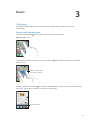
Press the Home button
to go to the Home screen and see your apps.
Open an app: Tap it.
To return to the Home screen, press the Home button
Home screen.
again. Flick left or right to see another
Flick left or right to switch
to another Home screen.
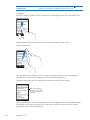
Double-click the Home button to reveal the multitasking bar, which shows your most recently
used apps. Tap an app to reopen it, or flick to see more apps.
Recently used apps
19
Remove an app from the
multitasking bar
Touch and hold the app icon until it begins to jiggle, then tap
Removing an app from the multitasking also forces it to quit.
.
Scrolling
Drag up or down to scroll. On some screens such as webpages, you can also scroll side to side.
Dragging your finger to scroll won’t choose or activate anything on the screen.
Flick to scroll quickly.
You can wait for the scrolling to come to a stop, or touch the screen to stop it immediately.
Touching the screen to stop scrolling won’t choose or activate anything.
To quickly scroll to the top of a page, tap the status bar at the top of the screen.
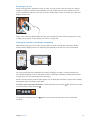
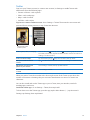
Drag your finger along
the index to scroll quickly.
Tap a letter to jump to
a section.
Tap an item in a list to choose it. Depending on the list, tapping an item can do different things—
for example, it may open a new list, play a song, open an email, or show someone’s contact
information so you can call that person.
20
Chapter 3    Basics
Zooming in or out
When viewing photos, webpages, email, or maps, you can zoom in and out. Pinch your fingers
together or apart. For photos and webpages, you can double-tap (tap twice quickly) to zoom
in, then double-tap again to zoom out. For maps, double-tap to zoom in and tap once with two
fingers to zoom out.
Zoom is also an accessibility feature that lets you magnify the screen with any app you’re using,
to help you see what’s on the display. See “Zoom” on page 138.
Viewing in portrait or landscape orientation
Many iPhone apps let you view the screen in either portrait or landscape orientation. Rotate
iPhone and the display rotates too, adjusting automatically to fit the new screen orientation.
You may prefer landscape orientation for viewing webpages in Safari, or when entering text,
for example. Webpages scale to the wider screen in landscape orientation, making the text and
images larger. The onscreen keyboard is also larger.
Movies viewed in Videos and YouTube appear only in landscape orientation. Street views in Maps
also appear only in landscape orientation.
Lock the screen in portrait orientation: Double-click the Home button
screen from left to right, then tap .
The portrait orientation lock icon
is locked.
Chapter 3    Basics
, flick the bottom of the
appears in the status bar when the screen orientation
21
Customizing the Home screen
Rearranging apps
You can customize the layout of app icons on the Home screen—including the apps in the Dock
along the bottom of the screen. If you want, arrange them over multiple Home screens. You can
also organize apps by collecting them in folders.
Rearrange icons:
1 Touch and hold any app on the Home screen until it begins to jiggle.
2 Arrange the apps by dragging them.
3 Press the Home button
to save your arrangement.
Move an icon to another screen
While arranging apps, drag an app to the side of the screen.
Create additional Home screens
While arranging apps, flick to the rightmost Home screen, then drag an app
to the right edge of the screen. You can create up to 11 Home screens.
Reset your Home screen to the
default layout
Go to Settings > General > Reset, then tap Reset Home Screen Layout.
Resetting the Home screen removes any folders you’ve created and applies
the default wallpaper to your Home screen.
You can add icons on the Home screen to open your favorite webpages. See “Web clips” on
page 59.
When iPhone is physically connected to your computer (with the Dock Connector to USB Cable),
you can customize your Home screens using iTunes. In iTunes, select iPhone in the Devices list,
then click Apps at the top of the screen.
Organizing with folders
Folders let you organize apps on the Home screen. You can put up to 12 apps in a folder. iPhone
names a folder automatically when you create it, based on the category of the apps you use
to create the folder. You can change the name anytime you want. Like apps, folders can be
rearranged by dragging them on the Home screens, or to the Dock.
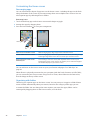
22
Chapter 3    Basics
Create a folder: Touch an app until the Home screen apps begin to jiggle, then drag the app onto
another app.
iPhone creates a new folder that includes the two apps, and shows the folder’s name. You can tap
the name field and enter a different name.
Tap a folder to open it, then you can tap to open an app inside. To close a folder, tap outside the
folder, or press the Home button .
While arranging apps:
Add an app to a folder
Drag the app onto the folder.
Remove an app from a folder
Tap to open the folder, then drag the app out of the folder.
Delete a folder
Move all apps out of the folder. The folder is deleted automatically.
Rename a folder
Tap to open the folder, then tap the name at the top and use the keyboard
to enter a new name.
When you finish organizing your Home screen, press the Home button
to save your changes.
Adding wallpaper
You can set an image or photo as wallpaper for the Lock screen. You can also set wallpaper for
your Home screen. You can choose an image that came with iPhone, a photo from your Camera
Roll or other album on iPhone.
Set wallpaper:
1 In Settings, choose Wallpaper, tap the image of the Lock and Home screens, then tap Wallpaper or
an album.
2 Tap to choose an image or photo. If you choose a photo, drag to position it and pinch to zoom in
or out, until it looks the way you want.
3 Tap Set, then choose whether you want to use the photo as wallpaper for your Lock Screen, Home
screen, or both.
Chapter 3    Basics
23
Typing
The onscreen keyboard appears anytime you need to type.
Entering text
Use the keyboard to enter text. The keyboard corrects misspellings, predicts what you’re typing,
and learns as you use it. Depending on the app you’re using, the intelligent keyboard may suggest
corrections as you type, to help prevent mistyped words.
Type text: Tap a text field to bring up the keyboard, then tap on the keyboard.
As you type, each letter appears above your thumb or finger. If you touch the wrong key, you can
slide your finger to the correct key. The letter isn’t entered until you release your finger from the key.
Delete the previous character
Tap
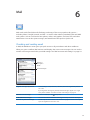
.
Type uppercase
Tap the Shift key before tapping a letter. Or touch and hold the Shift key,
then slide to a letter.
Quickly type a period and space
Double-tap the space bar. To turn this feature on or off, go to Settings >
General > Keyboard.
Turn caps lock on
Double-tap the Shift key . Tap the Shift key again to turn caps lock off.
You can turn this feature on or off in Settings > General > Keyboard.
Enter numbers, punctuation,
or symbols
. Tap the Symbol key
Tap the Number key
punctuation and symbols.
Set options for typing
Go to Settings > General > Keyboard.
to see additional
To type an alternate character,
touch and hold a key, then slide
to choose one of the options.
Dictation
On iPhone 4S, you can dictate text instead of typing it on the onscreen keyboard. For
example, you can dictate a message in Mail or a note in Notes. Siri must be turned on in
Settings > General > Siri.
Dictate text: From the onscreen keyboard, tap , then dictate. When you finish, tap Done.
To add to the message, tap again.
24
Chapter 3    Basics
Enter a comma, period, or other
punctuation mark
Say the punctuation mark.
Auto-correction and spell checking
For many languages, iPhone automatically corrects misspellings or makes suggestions as
you type. When iPhone suggests a word, you can accept the suggestion without interrupting
your typing.
Note: For a list of supported languages, see www.apple.com/iphone/specs.html.
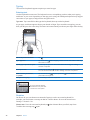
Suggested
word
Accept the suggestion: Type a space, punctuation mark, or return character.
Reject a suggestion: Tap the “x”.
Each time you reject a suggestion for the same word, iPhone becomes more likely to accept
the word.
iPhone may also underline words you’ve already typed that might be misspelled.
Replace a misspelled word
Tap the word, then tap one of the alternate spellings.
If the word you want doesn’t appear, correct the word by retyping it.
Turn auto-correction or spell
checking on or off
Go to Settings > General > Keyboard.
Shortcuts and your personal dictionary
Shortcuts lets you type just a few characters in place of a longer word or phrase. The expanded
text appears whenever you type the shortcut. For example, the shortcut “omw” is expanded to
“On my way!”
Create a shortcut: Go to Settings > General > Keyboard, then tap Add New Shortcut.
Add a word or phrase to your personal dictionary so that iPhone doesn’t try to correct or
replace it: Create the shortcut, but leave the Shortcut field blank.
Edit a shortcut
Go to Settings > Keyboard and tap the shortcut.
Editing text
The touchscreen makes it easy to make changes to text you’ve entered. An onscreen magnifying
glass helps you position the insertion point precisely where you need it. Grab points on selected
text let you quickly select more or less text. You can also cut, copy, and paste text and photos
within apps, or across multiple apps.
Chapter 3    Basics
25
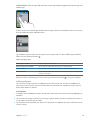
Position the insertion point: Touch and hold to bring up the magnifying glass, then drag to
position the insertion point.
Select text: Tap the insertion point to display the selection buttons.
You can also double-tap to select a word. In read-only documents, such as webpages, or email
messages you’ve received, touch and hold to select a word. Drag the grab points to select more
or less text.
Cut or copy text
Select text, then tap Cut or Copy.
Paste text
Tap the insertion point and tap Paste. The last text that you cut or copied is
inserted. Or select text and tap Paste to replace the text.
Undo the last edit
Shake iPhone and tap Undo.
Make text bold, italic, or underlined When available, tap , then tap B/I/U.
Get the definition of a word
When available, tap , then tap Define.
Get alternative words
When available, tap Suggest, then tap one of the words.
Keyboard layouts
You can use Settings to set the keyboard layouts for software and hardware keyboards. The
available layouts depend on the keyboard language.
Select a keyboard layout: Go to Settings > General > Keyboard > International Keyboards,
then select a keyboard.
For each language, you can make separate selections for both the onscreen software and
any external hardware keyboards. The software keyboard layout determines the layout of the
keyboard on the iPhone screen. The hardware keyboard layout determines the layout of an Apple
Wireless Keyboard connected to iPhone.
26
Chapter 3    Basics
Using an Apple Wireless Keyboard
You can use an Apple Wireless Keyboard (available separately) for typing on iPhone. The Apple
Wireless Keyboard connects via Bluetooth. See “Pairing a Bluetooth device with iPhone” on
page 33.
Once the keyboard is paired with iPhone, it connects whenever the keyboard is within range (up
to 30 feet). You can tell that the keyboard is connected if the onscreen keyboard doesn’t appear
when you tap in a text field. To save the battery, turn off or unpair the keyboard when not in use.
Printing
AirPrint
AirPrint lets you print wirelessly to AirPrint-enabled printers. You can print from:
ÂÂ Mail—email messages and attachments that can be viewed in Quick Look
ÂÂ Photos and Camera—photos
ÂÂ Safari—webpages, PDFs, and other attachments that can be viewed in Quick Look
ÂÂ iBooks—PDFs
ÂÂ Maps—view of map showing on the screen
ÂÂ Notes—currently displayed note
Other apps available from the App Store may also support AirPrint.
An AirPrint-enabled printer doesn’t need setup—just connect it to the same Wi-Fi network as
iPhone. For more information, go to support.apple.com/kb/HT4356.
Printing a document
AirPrint uses your Wi-Fi network to send print jobs wirelessly to your printer. (iPhone and the
printer must be on the same Wi-Fi network.)
Print a document:
1 Tap , , or (depending on the app you’re using), then tap Print.
2 Tap Select Printer to select a printer.
3 Set printer options such as number of copies and double-sided output (if the printer supports it).
Some apps also let you set a range of pages to print.
4 Tap Print.
See the status of a print job
Double-click the Home button
, then tap Print Center.
The Print Center app appears as the most recent app when a document is printing. A badge on
the app app shows how many documents are queued for printing.
If you’re printing more than one document, select a print job to see its status summary.
Cancel a print job
Chapter 3    Basics
Double-click the Home button , tap Print Center, select the print job (if
you’re printing more than one document), then tap Cancel Printing.
27
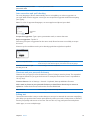
Searching
You can search many apps on iPhone, including Contacts, Mail, Calendar, Music, Messages, Notes,
and Reminders. You can search an individual app, or all apps at once.
Search iPhone: Go to the Search screen. (From the first Home screen, flick right or press the
Home button .) Enter text in the Search field.
Search results appear as you type. Tap an item in the list to open it. Tap Search to dismiss the
keyboard and see more results.
Icons next to the search results show which app the results are from.
iPhone may display a top hit for you, based on your previous searches. Safari search results include
options to search the web or to search Wikipedia.
App
What’s searched
Contacts
First, last, and company names
Mail
To, From, and Subject fields and the messages of all accounts
Calendar
Event titles, invitees, locations, and notes
Music
Music (names of songs, artists, and albums) and the titles of podcasts,
videos, and audiobooks
Messages
Names and text of messages
Notes
Text of notes
Reminders
Titles
Search also searches the names of the native and installed apps on iPhone, so if you have a lot of
apps, you may want to use Search to locate and open apps.
Open apps from Search
Enter the app name, then tap to open the app directly from the search
results.
Use the Spotlight Search setting to specify which contents are searched and the order the results
are presented in. See “Spotlight Search” on page 149.
28
Chapter 3    Basics
Voice Control
Voice Control lets you make phone calls and control music playback using voice commands.
On iPhone 4S, you can also use Siri to control iPhone by voice. See Chapter 4, “Siri,” on page 38.
Note: Voice Control may not be available in all languages. Voice Control is not available on
iPhone 4S when Siri is turned on.
Use Voice Control: Press and hold the Home button until the Voice Control screen appears and
you hear a beep. You can also press and hold the center button on the iPhone earphones.
For best results:
ÂÂ Speak into the iPhone microphone as if you were making a phone call. You can also use the
microphone on your Bluetooth headset or compatible Bluetooth car kit.
ÂÂ Speak clearly and naturally.
ÂÂ Say only iPhone commands and names, and numbers. Pause slightly between commands.
ÂÂ Use full names.
For more about using Voice Control, including information about using Voice Control in different
languages, go to support.apple.com/kb/HT3597.
Voice Control normally expects you to speak voice commands in the language that’s set for
iPhone (go to Settings > General > International > Language). Voice Control settings let you
change the language for speaking voice commands. Some languages are available in different
dialects or accents.
Change the language or country: Go to Settings > General > International > Voice Control and
tap the language or country.
Voice Control for the Music app is always on, but for better security you can prevent voice dialing
when iPhone is locked.
Prevent voice dialing when iPhone is locked: Go to Settings > General > Passcode Lock and turn
Voice Dial off. Unlock iPhone to use voice dialing.
See “Voice dialing” on page 42 and “Using Siri or Voice Control with Music” on page 62.
Chapter 3    Basics
29
Notifications
Notification Center displays all your alerts in one place, including alerts about:
ÂÂ Missed phone calls and voice messages
ÂÂ New email
ÂÂ New text messages
ÂÂ Reminders
ÂÂ Calendar events
ÂÂ Friend requests (Game Center)
ÂÂ Weather
ÂÂ Stocks
Show Notification Center: Drag down from the top of the screen. Scroll the list to see
additional alerts.
Alerts also appear on the lock screen, or briefly at the top of the screen when you’re using iPhone.
You can see all current alerts in Notification Center.
Many apps, such as Phone, Messages, Mail, and the App Store, can display an alert badge on their
Home screen icon with a number (to indicate incoming items) or an exclamation mark (to indicate
a problem). If these apps are contained in a folder, the badge appears on the folder. A badge with
a number shows the total number of items you haven’t attended to, such as incoming phone calls,
email messages, text messages, and updated apps to download. A badge with an exclamation
mark indicates a problem with an app.
30
Respond to an alert in
Notification Center
Tap the alert.
Respond to an alert on the
lock screen
Swipe the icon displayed in the alert to the right.
Remove alerts from
Notification Center
Tap
Set options for notifications
Go to Settings > Notifications.
Chapter 3    Basics
, then tap Clear.
Twitter
Sign in to your Twitter account (or create a new account) in Settings to enable Tweets with
attachments from the following apps:
ÂÂ Camera or Photos—with a photo
ÂÂ Safari—with a webpage
ÂÂ Maps—with a location
ÂÂ YouTube—with a video
Sign in to or create a Twitter account: Go to Settings > Twitter. Then enter the user name and
password for an existing account, or tap Create New Account.
In Camera or Photos,
tap the Action button
to tweet a photo.
Tweet a photo.
Tweet a photo, video, or webpage
View the item, tap , then tap Tweet. If
isn’t showing, tap the screen.
To include your location, tap Add Location. Location Services must be on in
Settings > Location Services.
Tweet a location in Maps
Tap the location pin, tap
Add your current location to
a Tweet
Tap
Add Twitter user names and
photos to your contacts
Go to Settings > Twitter, then tap Update Contacts.
Turn Twitter on or off for Photos
or Safari
Go to Settings > Twitter.
, tap Share Location, then tap Tweet.
. Location Services must be turned on in Settings > Location Services.
When you write a Tweet, the number in the lower-right corner of the Tweet screen shows the
number of characters remaining that you can enter. Attachments use some of a Tweet’s 140
characters.
You can also install and use the Twitter app to post a Tweet, view your timeline, search for
trending topics, and more.
Install the Twitter app: Go to Settings > Twitter, then tap Install.
To learn how to use the Twitter app, open the app, tap the More button (…), tap Accounts &
Settings, tap Settings, then tap Manual.
Chapter 3    Basics
31
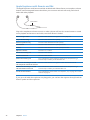
Apple Earphones with Remote and Mic
The Apple Earphones with Remote and Mic included with iPhone feature a microphone, volume
buttons, and an integrated button that allows you to answer and end calls easily, and control
audio and video playback.
Center button
Plug in the earphones to listen to music or make a phone call. Press the center button to control
music playback and answer or end calls, even when iPhone is locked.
Pause a song or video
Press the center button. Press again to resume playback.
Skip to the next song
Press the center button twice quickly.
Return to previous song
Press the center button three times quickly.
Fast-forward
Press the center button twice quickly and hold.
Rewind
Press the center button three times quickly and hold.
Adjust the volume
Press the + or – button.
Answer an incoming call
Press the center button.
End the current call
Press the center button.
Decline an incoming call
Press and hold the center button for about two seconds, then let go.
Two low beeps confirm you declined the call.
Switch to an incoming or on-hold
Press the center button. Press again to switch back to the first call.
call and put the current call on hold
Switch to an incoming or on-hold
call and end the current call
Press and hold the center button for about two seconds, then let go.
Two low beeps confirm you ended the first call.
Use Siri or Voice Control
Press and hold the center button. See Chapter 4, “Siri,” on page 38 or “Voice
Control” on page 29.
If you get a call while the earphones are plugged in, you can hear the ringtone through both the
iPhone speaker and the earphones.
32
Chapter 3    Basics
AirPlay
You can stream music, photos, and video wirelessly to your HDTV using AirPlay and Apple TV.
You can also use AirPlay to stream audio to an Airport Express base station. Other AirPlay-enabled
receivers are available from third-parties. Visit the online Apple Store for details.
Stream content to an AirPlay-enabled device: Start the video, slideshow, or music, then tap
and choose the AirPlay device. Once streaming starts, you can exit the app that’s playing
the content.
iPhone and the AirPlay-enabled device must be on the same Wi-Fi network.
Get quick access to the AirPlay
control
When the screen is on, double-click the Home button
left end of the multitasking bar.
Switch output from AirPlay back
to iPhone
Tap
and scroll to the
and choose iPhone.
On iPhone 4S, you can mirror the iPhone screen on a TV with Apple TV. Everything on the iPhone
screen appears on the TV.
Mirror the iPhone screen on a TV: Tap
at the left end of the multitasking bar, choose an
Apple TV, and tap the Mirroring button that appears.
A blue bar appears at the top of the iPhone 4S screen when AirPlay mirroring is turned on.
You can also mirror the iPhone screen on a TV using a cable. See “Watching videos on a TV” on
page 111.
Bluetooth devices
You can use iPhone with the Apple Wireless Keyboard and other Bluetooth devices, such as
Bluetooth headsets, car kits, and stereo headphones. Third-party Bluetooth headphones may
support volume and playback controls. See the documentation that came with your Bluetooth
device. For supported Bluetooth profiles, go to support.apple.com/kb/HT3647.
Pairing a Bluetooth device with iPhone
WARNING: For important information about avoiding hearing loss and about driving safely, see
the Important Product Information Guide at www.apple.com/support/manuals/iphone.
Before you can use a Bluetooth device with iPhone, you must first pair them.
Pair a Bluetooth headset, car kit, or other device with iPhone: 1 Follow the instructions that came with the device to make it discoverable or to set it to search for
other Bluetooth devices.
2 Go to Settings > General > Bluetooth and turn Bluetooth on.
3 Choose the device on iPhone, and enter its passkey or PIN number. See the instructions about the
passkey or PIN that came with the device.
After you pair a Bluetooth device to work with iPhone, you must make a connection to have
iPhone use the device for your calls. See the documentation that came with the device.
When iPhone is connected to a Bluetooth headset or car kit, outgoing calls are routed through
the device. Incoming calls are routed through the device if you answer using the device, and
through iPhone if you answer using iPhone.
Chapter 3    Basics
33
Pair an Apple Wireless Keyboard with iPhone: 1 Go to Settings > General > Bluetooth and turn Bluetooth on.
2 Press the power button on the Apple Wireless Keyboard to turn it on.
3 On iPhone, select the keyboard listed under Devices.
4 Type the passkey on the keyboard as instructed, then press Return.
Note: You can pair only one Apple Wireless Keyboard with iPhone at a time. To pair a different
keyboard, you must first unpair the current one.
For more information, see “Using an Apple Wireless Keyboard” on page 27.
Bluetooth status
The Bluetooth icon appears in the iPhone status bar at the top of the screen:
ÂÂ or : Bluetooth is on and a device is connected to iPhone. (The color depends on the current
color of the status bar.)
ÂÂ
: Bluetooth is on but no device is connected. If you’ve paired a device with iPhone, it may be
out of range or turned off.
ÂÂ No Bluetooth icon: Bluetooth is turned off.
Unpairing a Bluetooth device from iPhone
You can unpair a Bluetooth device if you don’t want to use it with iPhone any more.
Unpair a Bluetooth device: 1 Go to Settings > General > Bluetooth and turn Bluetooth on.
2 Tap
next to the device name, then tap “Forget this Device.”
Battery
iPhone has an internal rechargeable battery.
Charging the battery
WARNING: For important safety information about charging iPhone, see the Important Product
Information Guide at www.apple.com/support/manuals/iphone.
The battery icon in the upper-right corner shows the battery level or charging status. You can also
display the percentage of the battery charge. Go to Settings > General > Usage and turn on the
setting under Battery Usage.
Charging
Charged
Charge the battery: Connect iPhone to a power outlet using the included Dock Connector to
USB Cable and USB power adapter.
34
Chapter 3    Basics
Note: Connecting iPhone to a power outlet can start an iCloud backup or wireless iTunes syncing.
See “Backing up iPhone” on page 157 and “Syncing with iTunes” on page 18.
Charge the battery and sync iPhone: Connect iPhone to your computer using the included Dock
Connector to USB Cable. Or connect iPhone to your computer using the included cable and the
Dock, available separately.
Unless your keyboard has a high-powered USB 2.0 port, you must connect iPhone to a USB 2.0
port on your computer.
Important: The iPhone battery may drain instead of charge if iPhone is connected to a computer
that’s turned off or is in sleep or standby mode.
If you charge the battery while syncing or using iPhone, it may take longer to charge.
Important: If iPhone is very low on power, it may display one of the following images, indicating
that iPhone needs to charge for up to ten minutes before you can use it. If iPhone is extremely
low on power, the display may be blank for up to two minutes before one of the low-battery
images appears.
or
Maximizing battery life
iPhone uses lithium-ion batteries. To learn more about how to maximize the battery life of iPhone,
go to www.apple.com/batteries.
Replacing the battery
Rechargeable batteries have a limited number of charge cycles and may eventually need to
be replaced. The iPhone battery isn’t user replaceable; it can be replaced only by an authorized
service provider. For more information, go to www.apple.com/batteries/replacements.html.
Chapter 3    Basics
35
Security features
Security features help protect the information on iPhone from being accessed by others.
Passcodes and data protection
You can set a passcode that you must enter each time you turn on or wake up iPhone.
Set a passcode: Go to Settings > General > Passcode Lock and enter a 4-digit passcode, then
enter the passcode again to verify it. iPhone then requires you to enter the passcode to unlock it
or to display the passcode lock settings.
Setting a passcode turns on data protection. Data protection uses your passcode as the key for
encrypting mail messages and their attachments stored on iPhone. (Data protection may also
be used by some apps available in the App Store.) A notice at the bottom of the Passcode Lock
screen in Settings shows whether data protection is enabled.
To increase iPhone security, turn off Simple Passcode and use a longer passcode with a
combination of numbers, letters, punctuation, and special characters. See “Passcode Lock” on
page 150.
Important: On an iPhone 3GS that didn’t ship with iOS 4 or later, you must also restore iOS
software to enable data protection. See “Updating and restoring iPhone software” on page 159.
Prevent voice dialing when iPhone is locked: Go to Settings > General > Passcode Lock and turn
Voice Dial off. Unlock iPhone to use voice dialing.
Find My iPhone
Find My iPhone helps you locate and secure your iPhone using the free Find My iPhone app on
another iPhone, iPad, or iPod touch, or using a Mac or PC web browser signed in to icloud.com
or me.com.
Find My iPhone includes:
ÂÂ Locate on a map: View the approximate location of your iPhone on a full-screen map.
ÂÂ Send a Message or Play a Sound: Lets you compose a message that will appear on your
iPhone screen, or play a sound at full volume for two minutes, even if the Ring/Silent switch is
set to silent.
ÂÂ Remote Passcode Lock: Lets you remotely lock your iPhone and create a 4-digit passcode,
if you haven’t set one previously.
ÂÂ Remote Wipe: Lets you protect your privacy by erasing all media and data on iPhone, restoring
it to factory settings.
Important: Before you can use its features, Find My iPhone must be turned on in either iCloud or
MobileMe settings on your iPhone. Find My iPhone can be turned on only in one account.
Turn on Find My iPhone using
iCloud
Go to Settings > iCloud and turn on Find My iPhone.
Turn on Find My iPhone using
MobileMe
Go to Settings > Mail, Contacts, Calendars, tap your MobileMe account,
then turn on Find My iPhone.
See “iCloud” on page 17 or “Setting up mail and other accounts” on page 16.
36
Chapter 3    Basics
Cleaning iPhone
Clean iPhone immediately if it comes in contact with any contaminants that may cause stains,
such as ink, dyes, makeup, dirt, food, oils, or lotions. To clean iPhone, disconnect all cables and
turn off iPhone (press and hold the On/Off button, then slide the onscreen slider). Then use a soft,
slightly damp, lint-free cloth. Avoid getting moisture in openings. Don’t use window cleaners,
household cleaners, compressed air, aerosol sprays, solvents, alcohol, ammonia, or abrasives to
clean iPhone. The front cover of iPhone 3GS and the front and back covers of iPhone 4S and
iPhone 4 are made of glass and have an oleophobic coating. To clean these surfaces, simply
wipe with a soft, lint-free cloth. The ability of this coating to repel oil will diminish over time with
normal usage, and rubbing the screen with an abrasive material will further diminish its effect and
may scratch the glass.
For more information about handling iPhone, see the iPhone Important Product Information Guide
at www.apple.com/support/manuals/iphone.
Restarting or resetting iPhone
If something isn’t working right, try restarting iPhone, force quitting an app, or resetting iPhone.
Restart iPhone: Press and hold the On/Off button until the red slider appears. Slide your finger
across the slider to turn off iPhone. To turn iPhone back on, press and hold the On/Off button until
the Apple logo appears.
If you can’t turn off iPhone or if the problem continues, you may need to reset iPhone. A reset
should be done only if turning iPhone off and on doesn’t resolve the problem.
Force an app to close: Press and hold the On/Off button for a few seconds until a red slider
appears, then press and hold the Home button until the app quits.
You can also force an app to quit by removing it from the multitasking bar. See “Opening and
switching apps” on page 19.
Reset iPhone: Press and hold both the On/Off button and the Home button
seconds, until the Apple logo appears.
for at least ten
For more troubleshooting suggestions, see Appendix B, “Support and Other Information,” on
page 157.
Chapter 3    Basics
37
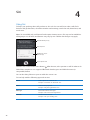
4
Siri
Using Siri
Siri helps you get things done. All you have to do is ask. You can ask Siri to make a call, find a
business and get directions, schedule reminders and meetings, search the web, dictate text, and
much more.
Note: Siri is available only on iPhone 4S and requires Internet access. Siri may not be available in
all languages or in all areas, and features may vary by area. Cellular data charges may apply.
What Siri heard you say
Siri’s response
Related info—tap to
open the app.
Tap to speak to Siri.
Use Siri: Press and hold the Home button
. After the tone, ask a question or tell Siri what to do.
With iPhone earphones or a supported Bluetooth headset, press and hold the center (or
comparable) button.
You can also bring iPhone to your ear while the screen is on.
Siri can help with the following apps and services:
38
Phone
Make a phone or FaceTime call.
Example: “Call Jason.” or “FaceTime Joe.”
Music
Control music playback.
Example: “Play The Light of the Sun.”
Messages
Read and send text messages.
Example: “Tell Susan I’ll be right there.”
Calendar
Create and view events.
Example: “Set up a meeting at 9.”
Reminders
Create, search, and update reminders.
Example: “Remind me to call mom.”
Maps
Find locations, get directions, and contact businesses.
Example: “How do I get home?”
Mail
Send and search email.
Example: “Email Lisa about the trip.”
Weather
Get current weather and forecasts.
Example: “What’s the weather for today?”
Stocks
Get stock info.
Example: “What is Apple’s stock price?”
Clock
Get the date and time for major cities, set alarms, and start the timer.
Example: “Wake me up tomorrow at 7 a.m.”
Contacts
Get and use information about your contacts.
Example: “What’s Michael’s address?”
Notes
Create, search, or add to notes.
Example: “Note that I spent $12 on lunch.”
Safari
Search the web.
Example: “Search the web for Bora Bora.”
WolframAlpha
Answer questions about facts, data, statistics, and mathematical
calculations.
Example: “How many calories in a bagel?”
Find My Friends (available
separately from the App Store)
Locate friends.
Example: “Find Bob.”
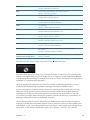
For more examples, ask Siri, “What can you do?” or tap
when Siri opens.
Siri knows which app you’re using, so you can refer to what’s on your screen. For example, when
reading a message in Mail, you can say “Reply, I like it” or “Call him.” Siri also understands different
ways of saying the same thing. For example, you could say “Send a message to Susan saying I’ll be
right there” or “Tell Susan I’ll by right there.”
When Siri displays information on the screen (for example, a calendar appointment), you can
usually tap the displayed info to open the related app for details and further action.
Siri uses information in Contacts to know when you’re referring to your friends and associates.
Make sure you have contacts for the people you want Siri to know about. Include nicknames
and addresses, so that you can say things like “Find restaurants near Bob’s house.” If you refer
to someone by a single name, Siri looks for a match in Favorites (in Phone) or Conversations (in
Messages). Otherwise, Siri asks for clarification, if needed.
On your personal card in Contacts, enter names of Related People (such as mother, brother, or
manager) to enable Siri to respond to requests such as “Call mom.” Enter your home address and
work address, so you can say things like “How do I get home?” and “Remind me to call Bob when I
get to work.” To let Siri know which card is yours, go to Settings > General > Siri > My Info.
Chapter 4    Siri
39
Cancel a request
Say “cancel,” tap , or press the Home button
.
Stop a phone call you started
with Siri
Before Phone opens, press the Home button
tap End.
. If Phone is already open,
Set options for Siri
Go to Settings > General > Siri. See “Siri” on page 148.
Restrict Siri completely or restrict
explicit language
Go to Settings > General > Restrictions.
If Siri doesn’t hear you correctly
On the Siri screen, Siri shows what it heard you say and displays a response. If Siri doesn’t hear you
exactly right, you can make corrections.
Correct what Siri hears you say
On the Siri screen, tap the bubble showing what Siri heard you say. Edit
your request by typing, or tap to dictate. Tap Done when you finish.
Correct a word underlined in blue
Tap the word, then tap one of the alternatives presented, type the
correction, or tap to dictate.
Correct Siri by voice
Tap to speak to Siri again, and restate or clarify your request. For example,
“I meant Boston.”
Correct a mail or text message
When asked if you want to send the message, you can say things like:
ÂÂ “Change it to: Call me tomorrow.”
ÂÂ “Add: See you there question mark.”
ÂÂ “No, send it to Bob.”
ÂÂ “No.” (to keep the message without sending it)
ÂÂ “Cancel.”
If the message is correct, you can say something like “Yes, send it.”
Dictation
When Siri is turned on, you can also dictate text. See “Dictation” on page 24.
40
Chapter 4    Siri
5
Phone
Phone calls
Making a call
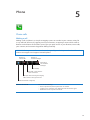
Making a call on iPhone is as simple as tapping a name or number in your contacts, using Siri
to say “call bob” (iPhone 4S), tapping one of your favorites, or tapping a recent call to return it.
Buttons at the bottom of the Phone screen give you quick access to your favorites, recent calls,
your contacts, and a numeric keypad for dialing manually.
WARNING: For important information about driving safely, see the Important Product Information
Guide at www.apple.com/support/manuals/iphone.
Number of
unheard messages
Number of
missed calls
View a list of
your voicemail
messages.
Dial manually.
Call, email, or text someone
in your contacts list.
View your recent incoming and outgoing
calls to return a call or get more info.
Call a favorite with a single tap.
Return a missed call
Do one of the following:
ÂÂ Phone: Tap Recents, then tap the name or number.
ÂÂ Locked screen: Swipe the icon displayed in the alert to the right.
ÂÂ Notification Center: Tap the missed call.
41
Dialing manually
You can use the keypad to dial a phone number manually.
Dial a number: Tap Keypad, enter the number, then tap Call.
Paste a number to the keypad
Tap the screen above the keyboard, then tap Paste.
Enter a soft (2-second) pause
Touch the “*” key until a comma appears.
Enter a hard pause (to pause
dialing until you tap the Dial
button)
Touch the “#” key until a semicolon appears.
Redial the last number
Tap Keypad, tap Call, then tap Call again.
Voice dialing
You can use Siri (iPhone 4S) or Voice Control to call someone in your contacts, or to dial a specific
number. See Chapter 4, “Siri,” on page 38 and “Voice Control” on page 29.
Make a phone call by voice: Activate Siri or Voice Control, say “call” or “dial,” then say the name
or number.
Siri: If the screen isn’t on, press the On/Off or Home button
, then hold iPhone to your ear.
Voice Control or Siri: Press and hold the Home button until you hear the tone. You can also press
and hold the center button on the iPhone earphones.
For example:
ÂÂ Call John Appleseed
ÂÂ Call John Appleseed at home
ÂÂ Call John Appleseed, mobile
For best results, speak the full name of the person you’re calling. When voice dialing a number,
speak each digit separately—for example, say “four one five, five five five, one two one two.”
Note: For the “800” area code in the U.S., you can say “eight hundred.”
Receiving calls
When you receive a call, tap Answer. If iPhone is locked, drag the slider. You can also press the
center button on your iPhone earphones.
Silence a call
Press the On/Off button or either volume button. You can still answer the
call after silencing it, until it goes to voicemail.
Decline a call and send it directly
to voicemail
Do one of the following:
ÂÂ Press the On/Off button twice quickly.
ÂÂ Press and hold the center button on the iPhone earphones for about
two seconds. Two low beeps confirm that the call was declined.
ÂÂ Tap Decline (if iPhone is awake when a call comes in).
Block calls and maintain Wi-Fi
access to the Internet
Go to Settings and turn on Airplane Mode, then tap Wi-Fi to turn it on.
If iPhone is turned off or in Airplane Mode, incoming calls go directly to voicemail.
42
Chapter 5    Phone
While on a call
When you’re on a call, the screen shows call options.
Mute your line.
iPhone 4 or later: Touch and
hold to put your call on hold.
Dial a number or
enter numbers.
Use the
speakerphone
or a Bluetooth
device.
Get contact info.
Make another
call.
iPhone 4 or later:
Make a FaceTime call.
iPhone 3GS (Hold button):
Put a call on hold.
The call options may vary, depending on which iPhone you’re using.
Use another app during a call
Press the Home button , then tap an app icon. To return to the call,
tap the green bar at the top of the screen.
End a call
Tap End Call. Or press the center button on your iPhone earphones.
Second calls
During a call, you can make or receive another call. If you receive a second call, iPhone beeps and
shows the caller’s information and a list of options.
Note: Making and receiving a second call may be an optional service in some areas. Contact your
carrier for more information.
Respond to a second incoming call: ÂÂ To ignore the call and send it to voicemail: Tap Ignore.
ÂÂ To hold the first call and answer the new one: Tap Hold Call + Answer.
ÂÂ To end the first call and answer the new one: When using a GSM network, tap End Call + Answer.
With a CDMA network, tap End Call and when the second call rings back, tap Answer, or drag
the slider if the phone is locked.
If you’re on a FaceTime video call, you can either end the video call and answer the incoming call,
or decline the incoming call.
Make a second call
Tap Add Call. The first call is put on hold.
Switch between calls
Tap Swap. The active call is put on hold.
With CDMA, you can’t switch between calls if the second call was outgoing,
but you can merge the calls. If you end the second call or the merged call,
both calls are terminated.
Merge calls
Tap Merge Calls.
With CDMA, you can’t merge calls if the second call was incoming.
Chapter 5    Phone
43
Conference calls
With GSM, you can set up a conference call to talk with up to five people at a time, depending on
your carrier.
Note: Conference calling may be an optional service in some areas. Contact your carrier for
information.
Create a conference call: 1 Make a call.
2 Tap Add Call and make another call. The first call is put on hold.
3 Tap Merge Calls. The calls are merged on one line and everyone can hear each other.
4 Repeat steps two and three to add additional calls.
Drop one call
Tap Conference and tap
next to a call. Then tap End Call.
Talk privately with a call
Tap Conference, then tap Private next to a call. Tap Merge Calls to resume
the conference call.
Add an incoming call
Tap Hold Call + Answer, then tap Merge Calls.
If your service includes conference calling, iPhone always has a second line available in addition to
the conference call.
Note: You can’t make a FaceTime video call when you’re on a conference call.
Using a Bluetooth device for calls
You can make and receive calls using a Bluetooth device paired with iPhone. See “Pairing a
Bluetooth device with iPhone” on page 33.
For information about using a Bluetooth device, see the documentation that came with the device.
Bypass your Bluetooth device: ÂÂ Answer a call by tapping the iPhone screen.
ÂÂ During a call, tap Audio and choose iPhone or Speaker Phone.
ÂÂ Turn off Bluetooth in Settings > General > Bluetooth.
ÂÂ Turn off the Bluetooth device, or move out of range. You must be within about 30 feet of a
Bluetooth device for it to be connected to iPhone.
Emergency calls
If iPhone is locked with a passcode, you may still be able to make an emergency call.
Make an emergency call when iPhone is locked: On the Enter Passcode screen, tap Emergency
Call, then enter the emergency number and tap the green button.
In the U.S., location information (if available) is provided to emergency service providers when
you dial 911.
With CDMA, when an emergency call ends, iPhone enters Emergency call mode to allow a call back
from emergency services. While in this mode, data transmission and text messages are blocked.
Exit emergency call mode (CDMA): Do one of the following:
ÂÂ Tap the back button.
ÂÂ Press the On/Off button or the Home button
.
ÂÂ Use the keypad to dial a non-emergency number.
Emergency call mode ends automatically after a few minutes, as determined by your carrier.
44
Chapter 5    Phone
Important: You should not rely on wireless devices for essential communications, such as medical
emergencies. Use of iPhone to call emergency services may not work in all areas or all operating
conditions. Emergency numbers and services vary by area, and sometimes an emergency call
cannot be placed due to network availability or environmental interference. Some cellular
networks may not accept an emergency call from iPhone if iPhone is not activated, if iPhone is not
compatible with or configured to operate on a particular cellular network, or (when applicable) if
iPhone does not have a SIM or if the SIM is PIN-locked. If you’re on a FaceTime video call, you must
end that call before you can call an emergency number.
FaceTime
FaceTime video calls (iPhone 4 or later) let you see as well as hear the person you’re talking to. You
can make a video call to someone with a Mac or iOS device that supports FaceTime. No setup is
needed, but you must have a Wi-Fi connection to the Internet. By default, FaceTime uses the front
camera so the person you call can see your face; switch to the rear camera to share what you see
around you.
Note: FaceTime may not be available in all areas.
Make a FaceTime call: In Contacts, choose a name, tap FaceTime, then tap the phone number
or email address the person uses for FaceTime.
To call someone who has an iPhone 4 or later, you can start by making a voice call, then tap
FaceTime.
When the voice call is established, the other person’s image appears on your screen. An inset
shows what the other person sees. Rotate iPhone to use FaceTime in landscape orientation.
Drag your image
to any corner.
Switch cameras.
Mute (you can hear and see;
the caller can see but not hear).
If your Wi-Fi network is unavailable (for example, if you’re out of range), you get an option to redial
the number for a voice call.
Note: When you make a FaceTime video call, your phone number is displayed even if caller ID is
blocked or turned off.
Chapter 5    Phone
45
Make a FaceTime call using Siri
or Voice Control
Press and hold the Home button until you hear the tone. With Siri (iPhone
4S), you can also just hold iPhone to your ear (the screen must be one). Say
“FaceTime,” followed by the name of the person to call.
Block FaceTime calls
Go to Settings > FaceTime and turn off FaceTime. You can also disable
FaceTime in Restrictions. See “Restrictions” on page 150.
Use your Apple ID or an email
address for FaceTime
Go to Settings > FaceTime, then tap “Use your Apple ID for FaceTime” or
Add An Email. See “FaceTime” on page 45.
Visual voicemail
Setting up voicemail
On iPhone, visual voicemail lets you see a list of your messages and choose which ones to listen to
or delete, without having to listen to instructions or prior messages.
Note: Visual voicemail may not be available in all areas, or may be an optional service. Contact
your carrier for more information. If visual voicemail isn’t available, tap Voicemail and follow the
voice prompts to retrieve your messages.
Number of missed calls and
unheard voicemail messages.
The first time you tap Voicemail, iPhone prompts you to create a voicemail password and record
your voicemail greeting.
Change your greeting: Tap Voicemail, tap Greeting, then tap Custom. Tap Record and say your
greeting. When you finish, top Stop.
To review, tap Play. To rerecord, tap Record again. Tap Save when you’re satisfied.
46
Use your carrier’s default greeting
Tap Voicemail, tap Greeting, then tap Default.
Set an alert sound for new
voicemail
Go to Settings > Sounds, then turn New Voicemail on. The alert sounds
once for each new voicemail.
If the Ring/Silent switch is off, iPhone won’t sound alerts.
Change the voicemail password
Go to Settings > Phone > Change Voicemail Password.
Chapter 5    Phone
Checking voicemail
When you tap Phone, iPhone shows the number of missed calls and unheard voicemail messages.
Tap Voicemail to see a list of your messages.
Unheard
messages
Play/Pause
Speakerphone (Audio,
when a Bluetooth device
is connected. Tap to
choose audio output.)
Contact info
Scrubber bar
Drag the playhead to skip
to any point in a message.
Return the call.
Listen to a voicemail message: Tap Voicemail, then tap a message.
If you’ve already heard the message, tap the message again to replay it. Use and
resume playback.
to pause and
Once you listen to a message, it’s saved until your carrier erases it.
Check voicemail from another
phone
Dial your own number or your carrier’s remote access number.
Deleting messages
Delete a message: Swipe or tap the message, then tap Delete.
Note: In some areas, deleted visual voicemail messages may be permanently erased by your
carrier.
Listen to a deleted message
Tap Deleted Messages (at the end of the list), then tap the message.
Undelete a message
Tap Deleted Messages (at the end of the list), then tap the message and
tap Undelete.
Delete messages permanently
Tap Deleted Messages (at the end of the list), then tap Clear All.
Contacts
From a contact’s Info screen, a quick tap lets you make a phone call, create an email message, find
their location, and more. See “Searching contacts” on page 108.
Chapter 5    Phone
47
Favorites
Favorites gives you quick access to your frequently used phone numbers.
Add a contact’s phone number to your favorites list: Tap Contacts, then choose a contact. Tap
“Add to Favorites.” Choose a phone number or email address (for FaceTime calls). On iPhone 4 or
later, choose whether to save as a voice or FaceTime call.
To call a favorite, tap Favorites and choose a contact. If
a FaceTime call.
appears next to a name, iPhone makes
Add a contact to favorites from the
recents list
Tap Recents and tap
Favorites.”
next to the contact’s name, then tap “Add to
Delete a contact from your
favorites
Tap Favorites and tap Edit. Then tap
tap Remove.
Reorder your favorites list
Tap Favorites and tap Edit. Then drag
the list.
next to a contact or number and
next to a contact to a new place in
Call forwarding, call waiting, and caller ID
Call forwarding
You can set iPhone to forward incoming phone calls to a another number.
Note: FaceTime calls are not forwarded.
Turn on call forwarding (GSM): Go to Settings > Phone > Call Forwarding and turn on Call
Forwarding. On the “Forward to” screen, enter the number you’re forwarding calls to.
Turn on call forwarding (CDMA): Enter *72, followed by the number you’re forwarding calls to,
then tap Call.
To turn off call forwarding (CDMA), enter *73, then tap Call.
With GSM, the Call Forwarding icon ( ) appears in the status bar when call forwarding is on.
You must be in range of the cellular network when you set iPhone to forward calls, or calls won’t
be forwarded.
Call waiting
Call waiting gives you the option to take an incoming call when you’re already on the phone.
You can:
ÂÂ Ignore the incoming call
ÂÂ Put the current call on hold and answer the incoming one
ÂÂ End the current call and answer the incoming one
If you’re on a call and call waiting is turned off, incoming calls go directly to voicemail. See “Second
calls” on page 43.
Turn on call waiting (GSM): Go to Settings > Phone > Call Waiting.
With CDMA, call waiting is on by default, but can be disabled for a single call.
Disable call waiting for a call (CDMA): Enter *70, then dial the number.
48
Chapter 5    Phone
Caller ID
Caller ID displays your name or phone number to the person you call—if the recipient’s
equipment has that capability and you haven’t turned off or blocked the feature.
Note: For FaceTime calls, your phone number is displayed even if caller ID is turned off or blocked.
Turn caller ID on or off (GSM): Go to Settings > Phone > Show My Caller ID.
With CDMA, caller ID is on by default, but can be disabled for a single call.
Block caller ID for a call (CDMA): Enter *67, then dial the number.
Ringtones, Ring/Silent switch, and vibrate
iPhone comes with ringtones that sound for incoming calls, Clock alarms, and the Clock timer.
You can also purchase ringtones from songs in iTunes. Use the switch Ring/Silent switch to turn
the ringer on or off, and Sound settings to set the vibrate options. By default, iPhone vibrates
whether it’s in ring mode or silent mode.
Set the default ringtone: Go to Settings > Sounds > Ringtone.
Turn the ringer on or off: Flip the switch on the side of iPhone. See “Ring/Silent switch” on
page 11.
Important: Clock alarms still sound even if you set the Ring/Silent switch to silent.
Set iPhone to vibrate: Go to Settings > Sounds. Separate controls let you set vibrate for both ring
mode and silent mode.
Assign a different ringtone for
a contact
In Contacts, choose a contact, tap edit, then tap Ringtone and choose
a ringtone.
Purchase a ringtone from the
iTunes Store
See “Purchasing music, audiobooks, and tones” on page 100.
For more information, see “Sounds and the Ring/Silent switch” on page 146.
International calls
Making international calls from your home area
For information about making international calls from your home area, including rates and other
charges that may apply, contact your carrier or go to your carrier’s website.
Using iPhone abroad
When traveling abroad, you may be able to use iPhone to make calls, send and receive text
messages, and use apps that access the Internet, depending on available networks.
Enable international roaming: Contact your carrier for information about availability and fees.
Important: Voice, text message, and data roaming charges may apply. To avoid charges for phone
calls and data delivered via the cellular network (including visual voicemail) when roaming
outside your carrier’s network, turn off Voice Roaming and Data Roaming.
If you have an iPhone 4S that’s been activated to work on a CDMA network, you may be able
to roam on GSM networks if the phone has a SIM card installed. See “Installing the SIM card” on
page 15. When roaming on a GSM network, iPhone has access to GSM network features. Charges
may apply. Contact your carrier for more information.
Chapter 5    Phone
49
Turn off Voice Roaming on a
CDMA network
Go to Settings > General > Network.
Turning Voice Roaming off disables phones calls when you’re outside of
your carrier’s network.
Turn off Data Roaming
Go to Settings > General > Network.
Turning Data Roaming off disables data transmission over the cellular
network. Apps that depend on Internet access are disabled unless iPhone
has access to the Internet via a Wi-Fi connection. Visual voicemail delivery is
suspended when roaming unless your carrier does not charge for it.
Set iPhone to add the correct
prefix when dialing from
another country
Go to Settings > Phone, then turn on International Assist (not available in
all areas). This lets you use contacts and favorites to make U.S. calls, without
having to add a prefix or country code.
Set the carrier to use
Go to Settings > Carrier. This option is available only when you’re traveling
outside your carrier’s network, and with carriers that have roaming
agreements with your service provider. For more information, see
“Carrier” on page 146.
Get voicemail when visual
voicemail isn’t available
Dial your own number (with CDMA, dial your number followed by #), or
touch and hold “1” on the numeric keypad.
Turn off cellular data
Go to Settings > General > Network.
Turn off cellular services
Go to Settings, tap Airplane Mode to turn it on, then tap Wi-Fi and turn
Wi-Fi on.
Incoming phone calls are sent to voicemail. To make and receive calls again
and get your voicemail messages, turn airplane mode off.
Setting options for Phone
In Settings, go to Phone to:
ÂÂ See the phone number for your iPhone
ÂÂ Turn call forwarding, call waiting, and caller ID on or off (GSM)
ÂÂ Turn TTY on or off
ÂÂ Change your voicemail password (GSM)
ÂÂ Turn international assist on or off—when calling from abroad, international assist lets you call
contacts and favorites in the U.S. without having to add a prefix or country code (GSM)
ÂÂ Lock your SIM to require a PIN when you turn iPhone on (required by some carriers)
In Settings, go to FaceTime to:
ÂÂ Turn FaceTime on or off
ÂÂ Use your Apple ID for FaceTime
ÂÂ Add an email address for FaceTime
To set ringtones, vibration options, and the sound for new voicemail, go to Settings > Sounds. See
also “Sounds and the Ring/Silent switch” on page 146.
50
Chapter 5    Phone
6
Mail
Mail works with iCloud, Microsoft Exchange, and many of the most popular mail systems—
including Yahoo!, Google, Hotmail, and AOL—as well as other industry-standard POP3 and IMAP
mail systems. You can send and receive photos, videos, and graphics, and view PDFs and other
attachments. You can also print messages, and attachments that open in Quick Look.
Checking and reading email
In Mail, the Mailboxes screen gives you quick access to all your inboxes and other mailboxes.
When you open a mailbox, Mail retrieves and displays the most recent messages. You can set the
number of messages retrieved in your Mail settings. See “Mail accounts and settings” on page 54.
Number of
messages in
thread
Unread messages
Organize messages by thread
Go to Settings > Mail, Contacts, Calendars, then turn Organize By Thread
on or off.
If you organize messages by thread, related messages appear as a single
entry in the mailbox. See “Mail accounts and settings” on page 54.
Check for new messages
Choose a mailbox, or tap
Load additional messages
Scroll to the bottom of the list of messages and tap Load More Messages.
Zoom in on part of a message
Double-tap the area to zoom in on. Double-tap again to zoom out. Or pinch
apart or together to zoom in or out.
at any time.
51
Resize any column of text to fit
the screen
Double-tap the text.
See all the recipients of a message
Tap Details. Tap a name or email address to see the recipient’s contact
information, then tap a phone number or email address to contact
the person.
Add an email recipient to your
contacts list
Tap the message and, if necessary, tap Details to see the recipients. Then
tap a name or email address and tap Create New Contact or “Add to
Existing Contact.”
Flag or mark a message as unread
Open the message and, if necessary, tap Details. Then tap Mark.
To mark multiple messages as unread, see “Organizing mail” on page 54.
Open a meeting invitation
Tap the invitation. See “Responding to invitations” on page 70.
Working with multiple accounts
If you set up more than one account, the Accounts section of the Mailboxes screen lets you access
your accounts. You can also tap All Inboxes to see all of your incoming messages in a single list.
For information about setting up additional mail accounts, see “Mail accounts and settings” on
page 54.
When writing a new message, tap the From field to select the account from which to send
the message.
Sending mail
You can send an email message to anyone who has an email address.
Compose a message: Tap
52
Add a recipient from Contacts
Type a name or email address in the To field, or tap
Rearrange recipients
To move a recipient from one field to another, such as from To to Cc, drag
the recipient’s name to the new location.
Make text bold, italic,
or underlined
Tap the insertion point to display the selection buttons, then tap Select.
Drag the points to select the text that you want to style. Tap , then tap
B/I/U. Tap Bold, Underline, or Italic to apply the style.
Send a photo or video in an
email message
In Photos, choose a photo or video, tap , then tap Email Photo or Email
Video. You can also copy and paste photos and videos.
while viewing thumbnails in an
To send multiple photos or videos, tap
album. Tap to select the photos and videos, tap Share, then tap Email.
Save a draft of a message to
complete later
Tap Cancel, then tap Save. The message is saved in the Drafts mailbox.
to quickly access it.
Touch and hold
Reply to a message
Tap , then tap Reply. Files or images attached to the initial message
aren’t sent back. To include the attachments, forward the message instead
of replying.
Quote a portion of the
message you’re replying to
or forwarding
Touch and hold to select text. Drag the grab points to select the text you
want to include in your reply, then tap .
To change the indentation of quoted text, touch and hold to select text,
then tap . Tap Quote Level, then tap Increase or Decrease.
Forward a message
Open a message and tap
Share contact information
In Contacts, choose a contact, tap Share Contact at the bottom of the
Info screen.
Chapter 6    Mail
.
, then tap Forward.
Using links and detected data
iPhone detects web links, phone numbers, email addresses, dates, and other types of information
that you can use to open a webpage, create a preaddressed email message, create or add
information to a contact, or perform some other useful action. Detected data appears as blue
underlined text.
Tap the data to use its default action, or touch and hold to see other actions. For example, for an
address, you can show its location in Maps or add it to Contacts.
Viewing attachments
iPhone displays image attachments in many commonly used formats (JPEG, GIF, and TIFF) inline
with the text in email messages. iPhone can play many types of audio attachments, such as MP3,
AAC, WAV, and AIFF. You can download and view files (such as PDF, webpage, text, Pages, Keynote,
Numbers, and Microsoft Word, Excel, and PowerPoint documents) that are attached to messages
you receive.
View an attached file: Tap the attachment to open it in Quick Look. (You may need to wait while
the file downloads before viewing it.)
Open an attached file
Touch and hold the attachment, then choose an app to open it. If none of
your apps support the file and it isn’t one that Quick Look supports, you can
see the name of the file but you can’t open it.
Save an attached photo or video
Touch and hold the photo or video, then tap Save Image or Video. The item
is saved to your Camera Roll album in the Photos app.
Quick Look supports the following document types:
.doc, .docx
Microsoft Word
.htm, .html
webpage
.key
Keynote
.numbers
Numbers
.pages
Pages
.pdf
Preview, Adobe Acrobat
.ppt, .pptx
Microsoft PowerPoint
.rtf
Rich Text Format
.txt
text
.vcf
contact information
.xls, .xlsx
Microsoft Excel
Printing messages and attachments
You can print email messages, and attachments that can be viewed in Quick Look.
Print an email message: Tap
, then tap Print.
Print an inline image
Touch and hold the image, then tap Save Image. Then open Photos and
print the image from your Camera Roll album.
Print an attachment
Tap the attachment to view it in Quick Look, then tap
and tap Print.
For more information about printing and printer options, see “Printing” on page 27.
Chapter 6    Mail
53
Organizing mail
You can organize messages in any mailbox, folder, or search results window. You can delete or mark
messages as read. You can also move messages from one mailbox or folder to another in the same
account or between different accounts. You can add, delete, or rename mailboxes and folders.
Delete a message: Open the message and tap .
You can also delete a message directly from the mailbox message list by swiping left or right over
the message title, then tapping Delete.
Some mail accounts support archiving messages instead of deleting them. When you archive
a message, it moves from your Inbox to All Mail. Turn archiving on or off in Settings > Mail,
Contacts, Calendars.
Recover a message
Deleted messages are moved to the Trash mailbox.
To change how long a message stays in Trash before being permanently
deleted, go to Settings > Mail, Contacts, Calendars. Then tap Advanced.
Delete or move multiple messages
While viewing a list of messages, tap Edit, select the messages you want to
delete, then tap Move or Delete.
Move a message to another
mailbox or folder
While viewing a message, tap
Add a mailbox
Go to the mailboxes list, tap Edit, then tap New Mailbox.
Delete or rename a mailbox
Go to the mailboxes list, tap Edit, then tap a mailbox. Enter a new name or
location for the mailbox. Tap Delete Mailbox to delete it and all its contents.
Flag and mark multiple messages
as read
While viewing a list of messages, tap Edit, select the messages you want,
then tap Mark. Choose either Flag or Mark as Read.
, then choose a mailbox or folder.
Searching mail
You can search the To, From, Subject and body text of email messages. Mail searches the
downloaded messages in the current mailbox. For iCloud, Exchange, and some IMAP mail
accounts, you can also search messages on the server.
Search email messages: Open a mailbox, scroll to the top, and enter text in the Search field. Tap
From, To, Subject, or All to choose which fields you want to search. If your mail account supports it,
messages on the server are also searched.
Mail messages can also be included in searches from the Home screen. See “Searching” on page 28.
Mail accounts and settings
Accounts
For Mail and mail accounts, go to Settings > Mail, Contacts, Calendars. You can set up:
ÂÂ Microsoft Exchange
ÂÂ iCloud
ÂÂ MobileMe
ÂÂ Google
ÂÂ Yahoo!
ÂÂ AOL
ÂÂ Microsoft Hotmail
ÂÂ Other POP and IMAP mail systems
54
Chapter 6    Mail
Settings may vary, based on the type of account you’re setting up. Your service provider or system
administrator can provide the information you need to enter.
Change an account’s settings: Go to Settings > Mail, Contacts, Calendars, choose an account,
then make the changes you want.
Changes you make to an account’s settings on iPhone aren’t synced to your computer, so you
can configure your accounts to work with iPhone without affecting the account settings on
your computer.
Stop using an account
Go to Settings > Mail, Contacts, Calendars, choose an account, then turn an
account service (such as Mail, Calendars, or Notes) off.
If an account service is off, iPhone doesn’t display or sync information with
that account service until you turn it back on. This is a good way to stop
receiving work email while on vacation, for example.
Store drafts, sent messages, and
deleted messages iPhone
Go to Settings > Mail, Contacts, Calendars, choose an account, then
tap Advanced. Choose the location for Draft Mailbox, Sent Mailbox, or
Deleted Mailbox.
Set how long before messages are
removed permanently from Mail
Go to Settings > Mail, Contacts, Calendars, choose an account, then tap
Advanced. Tap Remove, then choose a time: Never, or after one day, one
week, or one month.
Adjust mail server settings
Go to Settings > Mail, Contacts, Calendars, then choose an account. Ask
your network administrator or Internet service provider for the correct
settings.
Adjust SSL and password settings
Go to Settings > Mail, Contacts, Calendars, choose an account, then tap
Advanced. Ask your network administrator or Internet service provider for
the correct settings.
Turn Archive Messages on or off
Go to Settings > Mail, Contacts, Calendars, choose your account, then turn
Archive Messages on or off. See “Organizing mail” on page 54.
Delete an account
Go to Settings > Mail, Contacts, Calendars, choose an account, then scroll
down and tap Delete Account.
All email and the contacts, calendar, and bookmark information synced
with the account are removed from iPhone.
Send signed and encrypted
messages
Go to Settings > Mail, Contacts, Calendars, choose an account, then
tap Advanced. Turn on S/MIME, then select certificates for signing and
encrypting outgoing messages.
To install certificates, obtain a configuration profile from your system
administrator, download the certificates from the issuer’s website using
Safari, or receive them in Mail attachments.
Set Push settings
Go to Settings > Mail, Contacts, Calendars > Fetch New Data. Push delivers
new information when iPhone is connected to a Wi-Fi network. You might
want to turn Push off to suspend delivery of email and other information, or
to conserve battery life. When Push is off, use the Fetch New Data setting to
determine how often data is requested. For optimal battery life, don’t fetch
too often.
Set other options for Mail
For settings that apply to all of your accounts, go to Settings > Mail,
Contacts, Calendars.
Chapter 6    Mail
55
Mail settings
Mail settings, except where noted, apply to all your accounts on iPhone.
Set options for mail: Go to Settings > Mail, Contacts, Calendars.
To change the tones played when mail is sent or received, go to Settings > Sounds.
Fetch New Data
This setting lets you turn Push on or off for iCloud, Microsoft Exchange, Yahoo!, and any other
push accounts on iPhone. Push accounts deliver new information to iPhone whenever new
information appears on the server (some delays may occur) and there’s an Internet connection.
You might want to turn Push off to suspend delivery of email and other information, or to
conserve battery life.
When Push is off, and with accounts that don’t support push, data can still be fetched—that
is, iPhone can check with the server to see if new information is available. Use the Fetch New
Data setting to determine how often data is requested. For optimal battery life, don’t fetch too
often. Setting Push to OFF (or setting Fetch to Manually on the Fetch New Data screen) overrides
individual account settings.
Set Push settings: Go to Settings > Mail, Contacts, Calendars > Fetch New Data.
56
Chapter 6    Mail
7
Safari
Viewing webpages
Enter a web address (URL).
Tap the status bar to quickly scroll to the top.
Search the web and
the current page.
Double-tap an item or
pinch to zoom in or out.
Flick through open
webpages or open a
new page.
View your bookmarks or Reading List.
Add a bookmark, add to the Reading List,
add an icon to the Home screen, or share
or print the page.
View a webpage: Tap the address field (in the title bar) to bring up the keyboard. Type the web
address, then tap Go.
If the address field isn’t visible, tap the status bar to quickly scroll to the top.
You can view webpages in portrait or landscape orientation.
Erase the text in the address field
Tap
.
Scroll a webpage
Drag up, down, or sideways.
Scroll within a frame on a webpage Scroll with two fingers inside the frame.
Open a new page
Tap , then tap New Page. You can have up to eight pages open at a time.
A number inside
indicates the number of open pages.
Go to another page
Tap
Stop a webpage from loading
Tap
Reload a webpage
Tap
, flick left or right, then tap the page.
.
in the address field.
57
Close a page
Tap
, then tap
by the page.
Protect private information and
block some websites from tracking
your behavior
Go to Settings > Safari and turn on Private Browsing.
Set options for Safari
Go to Settings > Safari.
Links
Follow a link on a webpage: Tap the link.
See a link’s destination address
Touch and hold the link.
Detected data—such as phone numbers and email addresses—may also appear as links in
webpages. Touch and hold a link to see the available options. See “Using links and detected
data” on page 53.
Reading List
Reading List lets you collect links to webpages to read later.
Add a link to the current page to your Reading List: Tap
, then tap “Add to Reading List.”
Add a link to your Reading List: Touch and hold the link, then choose “Add to Reading List.”
View your Reading List
Tap
, then tap Reading List.
Use iCloud to keep your Reading
List up to date on your iOS devices
and computers
Go to Settings > iCloud, then turn on Documents & Data. See “iCloud” on
page 17.
Reader
Reader displays web articles without ads or clutter so you can read without distrctions. On a
webpage with an article, you can use Reader to view just the article in a continuous window.
View an article in Reader: Tap the Reader button, if it appears in the address field.
Adjust font size
Tap
.
Bookmark, add to Reading List
or Home Screen, share, or print
the article
Tap
Return to normal view
Tap Done.
.
Entering text and filling out forms
Enter text: Tap a text field to bring up the keyboard.
Move to another text field
Tap the text field, or tap Next or Previous.
Submit a form
Tap Go or Search, or the link on the page to submit the form, if available.
To enable AutoFill to help fill out forms, go to Settings > Safari > AutoFill.
58
Chapter 7    Safari
Searching
The search field in the upper-right corner lets you search the web, and the current page or PDF.
Search the web, and the current page or searchable PDF: Enter text in the search field.
ÂÂ To search the web: Tap one of the suggestions that appear, or tap Search.
ÂÂ To find the search text on the current page or PDF: Scroll to the bottom of the screen, then tap
the entry below On This Page.
The first instance is highlighted. To find later occurrences, tap .
Change the search engine
Go to Settings > Safari > Search Engine.
Bookmarks and history
Bookmark a webpage: Open the page, tap
, then tap Add Bookmark.
When you save a bookmark, you can edit its title. By default, bookmarks are saved at the top level
of Bookmarks. Tap Bookmarks to choose another folder.
View previous web pages (history): Tap
, then tap History. To clear the history, tap Clear.
Open a bookmarked webpage
Tap
.
Edit a bookmark or bookmark
folder
Tap
, choose the folder that has the bookmark or folder you want to edit,
then tap Edit.
Use iCloud to keep bookmarks up
to date on your iOS devices and
computers
Go to Settings > iCloud, then turn on Bookmarks. See “iCloud” on page 17.
Sync bookmarks with the web
browser on your computer
See “Syncing with iTunes” on page 18.
Printing webpages, PDFs, and other documents
Print a webpage, PDF, or Quick Look document: Tap
For more information, see “Printing” on page 27.
, then tap Print.
Web clips
You can create web clips, which appear as icons on the Home screen.
Add a web clip: Open the webpage and tap
. Then tap “Add to Home Screen.”
When you open a web clip, Safari automatically zooms to the part of the webpage showing when
you saved the web clip. Unless the webpage has a custom icon, that image is also used for the
web clip icon on the Home screen.
Web clips aren’t synced by MobileMe or iTunes, but they’re backed up by iTunes.
Chapter 7    Safari
59
8
Music
Adding music and audio
To get music and other audio content onto iPhone:
ÂÂ Purchase and download content from the iTunes Store on iPhone. See Chapter 21, “iTunes
Store,” on page 99. (You can also go to the iTunes Store from Music by tapping the Store button
when browsing.)
ÂÂ Use Automatic Download to automatically download new music purchased on your other iOS
devices and computers. See “iCloud” on page 17.
ÂÂ Sync with iTunes on your computer. You can sync all of your media, or you can select specific
songs and other items. See “Syncing with iTunes” on page 18.
You can also use iTunes Match to access your music library in iCloud. See “iTunes Match” on
page 64.
Playing songs and other audio
WARNING: For important information about avoiding hearing loss, see the Important Product
Information Guide at www.apple.com/support/manuals/iphone.
The buttons along the bottom of the screen let you browse content on iPhone by playlists, artists,
songs, and other categories.
Back
Track list
Play/Pause
Next/Fast-forward
AirPlay
Previous/
Rewind
60
Volume
Play a song or other item: Tap the item.
Use the onscreen controls to control playback. You can also use the buttons on the earphones.
See “Apple Earphones with Remote and Mic” on page 32.
Customize the browse buttons
Tap More, tap Edit, then drag an icon over the button you want to replace.
Get more podcast episodes
Tap Podcasts (tap More first, if Podcasts isn’t visible) then tap a podcast to
see available episodes.
Shake to shuffle
Shake iPhone to turn shuffle on and change songs. Shake again to change
to another song.
To turn Shake to Shuffle on or off, go to Settings > Music.
Play music on AirPlay speakers or
Apple TV
Tap
Display a song’s lyrics
Tap the album artwork when playing a song. (Lyrics appear if you’ve added
them to the song using the song’s Info window in iTunes.)
Set options for Music
Go to Settings > Music.
. See “AirPlay” on page 33.
You can display the audio playback controls from another app by double-clicking the Home
button , then flicking from left to right along the bottom of the screen.
The controls operate the currently playing app, or—if the music is paused—the most recent
app that played. The icon for the app appears on the right. Tap it to open the app. Flick right
again to display a volume control and the AirPlay button (when in range of an Apple TV or
AirPlay speakers).
Double-clicking the Home button
is locked.
also displays audio playback controls when the screen
Additional audio controls
To display additional controls, tap the album artwork on the Now Playing screen. You can see
elapsed time, remaining time, and the song number. The song’s lyrics also appear, if you’ve added
them to the song in iTunes.
Playhead
Genius
Scrubber bar
Shuffle
Repeat
Ping like
Chapter 8    Music
Ping post
61
Repeat songs
Tap .
= repeat all songs in the album or list
= repeat the current song only
= no repeat
Shuffle songs
Tap . Tap
again to play songs in order
= shuffle songs
= play songs in order
Skip to any point in a song
Drag the playhead along the scrubber bar. Slide your finger down to slow
down the scrub rate.
Make a Genius playlist
Tap
Use Ping
See “Following artists and friends” on page 100.
. See “Genius” on page 64.
Podcast and audiobook controls
Podcast and audiobook controls and information appear on the Now Playing screen when you
begin playback.
Email
30-second repeat
Playback
speed
Scrubber bar
Playhead
Set the playback speed
Tap
. Tap again to change the speed.
= Play at double speed.
= Play at half speed.
= Play at normal speed.
Skip to any point along the
timeline
Drag the playhead along the scrubber bar. Slide your finger down to slow
down the scrub rate.
Show or hide the controls
Tap the center of the screen.
Hide podcast info
Go to Settings > Music.
Using Siri or Voice Control with Music
You can use Siri (iPhone 4S) or Voice Control to control music playback on iPhone. See
Chapter 4, “Siri,” on page 38 and “Voice Control” on page 29.
62
Control music playback
Say “play” or “play music.” To pause, say “pause” or “pause music.” You can
also say “next song” or “previous song.”
Play an album, artist, or playlist
Say “play,” then say “album,” “artist,” or “playlist” and the name.
Shuffle the current playlist
Say “shuffle.”
Find out more about the currently
playing song
Say “what’s playing,” “what song is this,” “who sings this song,” or “who is this
song by.”
Use Genius to play similar songs
Say “Genius,” “play more like this,” or “play more songs like this.”
Cancel Voice Control
Say “cancel” or “stop.”
Chapter 8    Music
Browsing album artwork in Cover Flow
When you browse music, rotate iPhone to see your iTunes content in Cover Flow and browse your
music by album artwork.
Browse album artwork: Drag left or right.
See the tracks on an album
Tap the album artwork or
Return to the artwork
Tap the title bar. Or tap
. Drag up or down to scroll; tap a track to play it.
again.
Viewing tracks on an album
See all the tracks on the album that contains the current song: On the Now Playing screen,
tap . Tap a track to play it. Tap the thumbnail to return to the Now Playing screen.
Rating bar
Return to the Now
Playing screen.
Album tracks
In track list view, you can assign ratings to songs. You can use ratings when creating smart
playlists in iTunes.
Searching audio content
You can search the titles, artists, albums, and composers of songs, podcasts, and other audio
content on iPhone.
Search music: Enter text in the search field at the top of a song list, playlist, artist list, or other
view of your Music content.
You can also search audio content from the Home screen. See “Searching” on page 28.
Chapter 8    Music
63
iTunes Match
iTunes Match stores your music library in iCloud—even songs imported from CDs—and lets
you enjoy your collection on your iPhone and other iOS devices and computers. iTunes Match is
available as a paid subscription.
Note: iTune Match is available starting in the U.S.
Subscribe to iTunes Match: In iTunes on your computer, choose Store > Turn On iTunes Match,
then click the Subscribe button.
Once you subscribe, iTunes adds your music and playlists to your iCloud library. Any of your songs
that match music already in the iTunes Store are automatically available in your iCloud library. Any
remaining songs are uploaded. You can download and play matched songs at iTunes Plus quality
(256 kbps DRM-free AAC), even if your original was of lower quality. For more information, see
www.apple.com/icloud/features.
Turn on iTunes Match
Go to Settings > Music. Your iCloud library appears automatically in Music.
Any songs already on your device will be removed once you turn on iTunes
Match. Turning on iTunes Match also disables Genius Mixes and Genius
Playlists on your iPhone.
Genius
A Genius playlist is a collection of songs from your library that go great together. You can create
Genius playlists in iTunes and sync them to iPhone. You can also create and save Genius playlists
directly on iPhone.
A Genius Mix is a selection of songs of the same kind of music, recreated from your library each
time you listen to the mix.
To use Genius on iPhone, first turn on Genius in iTunes, then sync iPhone with iTunes. Genius
Mixes are synced automatically, unless you manually manage your music and choose which mixes
you want to sync in iTunes. Genius is a free service, but it requires an Apple ID.
When you sync a Genius Mix, iTunes may select and sync songs from your library that you haven’t
specifically chosen to sync.
Browse Genius Mixes: Tap Genius (tap More first, if Genius isn’t visible). Flick left or right to access
your other mixes. To play a mix, tap .
Make a Genius playlist: View Playlists, then tap Genius Playlist and choose a song in the list.
To make a Genius playlist from the Now Playing screen, tap to display the controls, then tap
Save a Genius playlist
In the playlist, tap Save. The playlist is saved in Playlists with the title of the
song you picked.
Refresh a Genius playlist
In the playlist, tap Refresh.
Make a Genius playlist using a
different song
Tap Genius Playlist, then tap New and pick a song.
Delete a saved Genius playlist
Tap the Genius playlist, then tap Delete.
Genius playlists created on iPhone are copied to your computer when you sync with iTunes.
Note: Once a Genius playlist is synced to iTunes, you can’t delete it directly from iPhone. Use
iTunes to edit the playlist name, stop syncing, or delete the playlist.
64
.
Chapter 8    Music
Playlists
You can create and edit your own playlists on iPhone, or edit playlists synced from iTunes on your
computer.
Create a playlist: View Playlists, then tap “Add Playlist” near the top of the list. Enter a title, tap
to select songs and videos you want to include, then tap Done.
When you make a playlist and then sync iPhone to your computer, the playlist is synced to your
iTunes library.
Edit a playlist: View Playlists and select the playlist to edit. Tap Edit, then:
ÂÂ To add more songs: Tap
ÂÂ To delete a song: Tap
.
. Deleting a song from a playlist doesn’t delete it from iPhone.
ÂÂ To move a song higher or lower in the list: Drag
.
Your edits are copied to the playlist in your iTunes library then next time you sync iPhone with
your computer.
Delete a playlist
In Playlists, tap the playlist you want to delete, then tap Delete.
Clear a playlist
In Playlists, tap the playlist you want to clear, then tap Clear.
Delete a song from iPhone
In Songs, swipe the song, then tap Delete.
The song is deleted from iPhone, but not from your iTunes library on your
Mac or PC.
Home Sharing
Home Sharing lets you play music, movies, and TV shows on iPhone from the iTunes library
on your Mac or PC. iPhone and your computer must be on the same Wi-Fi network. On your
computer, iTunes must be open, with Home Sharing turned on and logged in using the same
Apple ID as Home Sharing on iPhone.
Note: Home Sharing requires iTunes 10.2 or later, available at www.itunes.com/download. Bonus
content, such as digital booklets and iTunes Extras, can’t be shared.
Play music from your iTunes library on iPhone:
1 In iTunes on your computer, choose Advanced > Turn On Home Sharing.
2 Log in, then click Create Home Share.
3 On iPhone, go to Settings > Music, then log in to Home Sharing using the same Apple ID
and password.
4 In Music, tap More, then tap Shared and choose your computer’s library.
Return to content on iPhone
Chapter 8    Music
Tap Shared and choose My iPhone.
65
9
Messages
Sending and receiving messages
WARNING: For important information about driving safely, see the Important Product Information
Guide at www.apple.com/support/manuals/iphone.
Messages supports text messages with other SMS and MMS devices, and with other iOS devices
using iMessage. With MMS and iMessage, you can also include photos, videos, and other info.
Use iMessage to send messages over Wi-Fi or cellular data connections to other iOS 5 users.
You can see when the other person is typing, and let others be notified when you’ve read their
messages. Because iMessages are displayed on all of your iOS 5 devices logged in to the same
account, you can start a conversation on one of your devices, then continue it on another device.
iMessages are also encrypted.
Note: SMS and MMS require a cellular connection, and may not be available in all areas. Cellular
data charges or additional fees may apply.
Send a text message: Tap , then tap
and choose a contact, search your contacts by entering
a name, or enter a phone number or email address manually. Enter the message, then tap Send.
Note: An alert badge
appears if a message can’t be sent. Tap the alert in a conversation to try
sending the message again.
Conversations are saved in the Messages list. A blue dot indicates unread messages. Tap a
conversation to view or continue it. In an iMessage conversation, your outgoing messages appear
in blue.
Tap the attach media
button to include a
photo or video.
Tap to enter text.
66
Use Emoji characters
Go to Settings > General > Keyboard > International Keyboards > Add New
Keyboard, then tap Emoji to make that keyboard available. To enter Emoji
characters when typing a message, tap to bring up the Emoji keyboard.
See “Switching keyboards” on page 153.
Resume a previous conversation
Tap the conversation in the Messages list, then enter a message and tap Send.
Display earlier messages in the
conversation
Scroll to the top (tap the status bar) and tap Load Earlier Messages.
Receive iMessages using another
email address
Go to Settings > Messages > Receive At > Add Another Email.
Follow a link in a message
Tap the link. A link may open a webpage in Safari, or dial a phone number,
for example.
Forward a conversation
Select a conversation, then tap Edit. Select parts to include, then tap Forward.
Add someone to your contacts list
Tap a phone number in the Messages list, then tap “Add to Contacts.”
Notify others when you’ve read
their messages, and set other
options for Messages
Go to Settings > Messages.
Manage notifications for messages
See “Notifications” on page 144.
Set the alert sound for incoming
text messages
See “Sounds and the Ring/Silent switch” on page 146.
Sending messages to a group
Group messaging lets you send a message to multiple recipients. Group messaging works with
iMessage and MMS (not available in all areas).
Send messages to a group: Tap
, then enter multiple recipients.
Note: With MMS, group messaging must also be turned on in Settings > Messages, and replies are
sent only to you—they aren’t copied to the other people in the group.
Sending photos, videos, and more
With iMessage or MMS, you can send photos, videos, locations, contact info, and voice memos.
Send a photo or video: Tap
.
The size limit of attachments is determined by your service provider. iPhone may compress photo
and video attachments, if necessary.
Send a location
In Maps, tap
tap Message.
Send contact info
In Contacts, choose a contact, tap Share Contact (bottom of screen), then
tap Message.
Send a voice memo
In Voice Memos, tap
Save a photo or video you receive
to your Camera Roll album
Tap the photo or video, then tap
Copy a photo or video
Touch and hold the attachment, then tap Copy.
Save contact information
you receive
Tap the contact bubble, then tap Create New Contact or “Add to Existing
Contact.”
Chapter 9    Messages
for a location, tap Share Location (bottom of screen), then
, tap the voice memo, tap Share, then tap Message.
.
67
Editing conversations
If you want to keep just part of a conversation, you can delete the parts you don’t want. You can
also delete entire conversations from the Messages list.
Edit a conversation: Tap Edit, select the parts to delete, then tap Delete.
Clear all text and attachments,
without deleting the conversation
Tap Edit, then tap Clear All.
Delete a conversation
Swipe the conversation, then tap Delete.
Searching messages
You can search the content of conversations in the Messages list.
Search a conversation: Tap the top of the screen to display the search field, then enter the text
you’re looking for.
You can also search conversations from the Home screen. See “Searching” on page 28.
68
Chapter 9    Messages
10
Calendar
About Calendar
Calendar makes it easy to stay on schedule. You can view individual calendars, or several calendars
at once. You can view your events by day, by month, or in a list. You can search the titles, invitees,
locations, and notes of events. If you enter birthdays for your contacts, you can view those
birthdays in Calendar.
You can also make, edit, or cancel events on iPhone, and sync them back to your computer. You
can subscribe to Google, Yahoo!, or iCal calendars. If you have a Microsoft Exchange or iCloud
account, you can receive and respond to meeting invitations.
Viewing your calendars
You can view calendars individually, or as a combined calendar. This makes it easy to manage
work and family calendars at the same time.
Add an event.
Days with dots have
scheduled events.
Events for the
selected day
Respond to a
calendar invitation.
Go to today.
Switch views.
Change views: Tap List, Day, or Month. To view by week, rotate iPhone sideways.
In Day view, swipe left or right to move between dates.
69
View the Birthday calendar
Tap Calendars, then tap Birthdays to include birthdays from your Contacts
with your events.
See the details of an event
Tap the event. You can tap information about the event to get more details.
If an address for the location is specified, for example, tap it to open Maps.
Edit or delete a calendar
Tap Calendars, then tap Edit.
Select calendars to view
Tap Calendars, then tap to select the calendars you want to view. The
events for all selected calendars appear in a single calendar on iPhone.
Adding events
You can create and update calendar events directly on iPhone.
Add an event: Tap
and enter event information, then tap Done.
You can also touch and hold an empty spot on a calendar to create a new event. Drag the grab
points to adjust the event’s duration.
Set an alert
Tap Alert, then set an alert from 5 minutes to two days before the event.
Set a default alert for events
Go to Settings > Mail, Contacts, Calendars > Default Alert Times
Update an event
Tap Edit and change event information.
To quickly adjust an event’s time or duration, touch and hold the event
to select it, then drag it to a new time or use the grab points to change
its duration.
Delete an event
Tap the event, tap Edit, then scroll down and tap Delete Event.
Invite others to an event
Tap Invitees to select people from Contacts. This requires an iCloud, a
Microsoft Exchange, or CalDAV account.
Responding to invitations
If you have an iCloud, Microsoft Exchange account, or a supported CalDAV account, you can
receive and respond to meeting invitations from people in your organization. When you receive
an invitation, the meeting appears in your calendar with a dotted line around it.
appears in the
lower-right corner of the screen.
Respond to an invitation: Tap an invitation in the calendar. Or tap
and then tap an invitation.
to display the Event screen,
See information about the
organizer
Tap “invitation from.”
See other invitees
Tap Invitees. Tap a name to see that person’s contact information.
Add comments in reply
Tap Add Comments. Your comments are visible to the organizer, but not
to other attendees. Comments may not be available, depending on the
calendar service you’re using.
Set your availability
Tap Availability and select “busy” or “free.”
Searching calendars
In List view, you can search the Titles, Invitees, Locations, and Notes fields of the events in your
calendars. Calendar searches just the events for the calendars you’re currently viewing.
Search for events: Tap List, then enter text in the search field.
Calendar events can also be included in searches from the Home screen. See “Searching” on page 28.
70
Chapter 10    Calendar
Subscribing to calendars
You can subscribe to calendars that use the iCalendar (.ics) format. Many calendar-based services
support calendar subscriptions, including iCloud, Yahoo!, Google, and the Mac OS X iCal application.
Subscribed calendars are read-only. You can read events from subscribed calendars on iPhone,
but you can’t edit events or create new ones.
Subscribe to a calendar: Go to Settings > Mail, Contacts, Calendars, then tap Add Account.
Tap Other, then tap Add Subscribed Calendar.
You can also subscribe to an iCal (or other .ics) calendar published on the web, by tapping a link
to the calendar.
Importing calendar events from Mail
You can add events to a calendar by importing a calendar file from an email message. You can
import any standard .ics calendar file.
Import events from a calendar file: In Mail, open the message and tap the calendar file.
Calendar accounts and settings
There are several settings in Settings > Mail, Contacts, Calendars that affect Calendar and your
calendar accounts.
Calendar accounts are also used to sync to-do items for Reminders.
Add a CalDAV account: Go to Settings > Mail, Contacts, Calendars, tap Add an Account, then tap
Other. Under Calendars, tap Add CalDAV Account.
These options apply to all of your calendars:
Set the calendar alert tones
Go to Settings > Sounds > Calendar Alerts.
Sync past events
Go to Settings > Mail, Contacts, Calendars > Sync, then choose time period.
Future events are always synced.
Set alerts to sound when you
receive a meeting invitation
Go to Settings > Mail, Contacts, Calendars and turn on New Invitation Alerts.
Turn on Calendar time zone
support
Go to Settings > Mail, Contacts, Calendars > Time Zone Support.
Set a default calendar
Go to Settings > Mail, Contacts, Calendars > Default Calendar.
Use iCloud to keep Calendar
up-to-date on your iOS devices
and computers
Go to Settings > iCloud, then turn on Calendar. See “iCloud” on page 17.
Important: When Time Zone Support is on, Calendar displays event dates and times in the time
zone of the city you selected. When Time Zone Support is off, Calendar displays events in the time
zone of your current location as determined by the network time. Some carriers don’t support
network time in all areas. When you travel, iPhone may not display events or sound alerts at the
correct local time. To manually set the correct time, see “Date & Time” on page 151.
Chapter 10    Calendar
71
11
Photos
Viewing photos and videos
Photos lets you view photos and videos on iPhone, in your:
ÂÂ Camera Roll album—shots you took with the built-in camera, or save from an email, text
message, or webpage
ÂÂ Photo Stream album—photos streamed from iCloud
ÂÂ Photo Library and other albums synced from your computer
Edit the photo.
Tap the screen to
display the controls.
Delete the photo.
Stream photos using AirPlay.
Play a slideshow.
Share the photo, assign it to a contact,
use it as wallpaper, or print it.
View photos and videos: Tap an album, then tap a thumbnail to see the photo or video in
full screen.
Albums you sync with iPhoto 8.0 (iLife ’09) or later, or Aperture v3.0.2 or later, can be viewed by
events or by faces. You can also view photos by location, if they were taken with a camera that
supports geotagging.
72
Show or hide the controls
Tap the full-screen photo or video.
See the next or previous photo
or video
Flick left or right.
Zoom in or out
Double-tap or pinch.
Pan a photo
Drag the photo.
Play a video
Tap
in the center of the screen.
View a video in full screen, or fit
to screen
Double-tap the video.
Stream a video to an HDTV
See “AirPlay” on page 33.
Edit photos or trim videos
See “Editing photos” or “Trimming videos” on page 77.
Viewing slideshows
View a slideshow: Tap an album to open it, then tap a photo and tap . Select slideshow options,
then tap Start Slideshow.
Stream a slideshow to an HDTV
See “AirPrint” on page 27.
Stop a slideshow
Tap the screen.
Set additional options
Go to Settings > Photos.
Organizing photos and videos
You can create, rename, and delete albums on iPhone to help you organize your photos and videos.
Create a album: When viewing albums, tap Edit, then tap Add. Select photos to add to the new
album, then tap Done.
Note: Albums created on iPhone aren’t synced back to your computer.
Rename an album
Tap Edit, then select an album.
Rearrange albums
Tap Edit, then drag
Delete an album
Tap Edit, then tap
up or down.
.
Sharing photos and videos
Send a photo or video in an email, text message (iMessage or MMS), or Tweet: Choose a photo
or video, then tap . If you don’t see , tap the screen to show the controls.
Note: To post a Tweet, you must be logged in to your Twitter account. Go to Settings > Twitter.
The size limit of attachments is determined by your service provider. iPhone may compress photo
and video attachments, if necessary.
Send multiple photos or videos
While viewing thumbnails, tap
tap Share.
, select the photos or videos, then
Copy a photo or video
Touch and hold the photo or video, then tap Copy.
Copy multiple photos or videos
in the upper-right corner of the screen. Select the photos and
Tap
videos, then tap Copy.
Paste a photo or video in an email Touch and hold where you want to place the photo or video, then
or text (iMessage or MMS) message tap Paste.
Chapter 11    Photos
73
Save a photo or video from an
email message
Tap to download the item if necessary, tap the photo or touch and hold the
video, then tap Save.
Save a photo or video from a text
message
Tap the image in the conversation, tap
Save a photo from a webpage
Touch and hold the photo, then tap Save Image.
Share a video on YouTube
While viewing a video, tap
, than tap Save.
, then tap “Send to YouTube.”
Photos and videos that you receive, or that you save from a webpage, are saved to your Camera
Roll album.
Printing photos
Print a photo: Tap
, then tap Print.
Print multiple photos: While viewing a photo album, tap
then tap Print.
For more information, see “Printing” on page 27.
74
Chapter 11    Photos
. Select the photos you want to print,
12
Camera
About Camera
The built-in camera lets you take both still photos and videos. iPhone 4S and iPhone 4 include a
front camera for FaceTime and self-portraits (in addition to the main camera on the back), and an
LED flash.
View the photos and videos you’ve taken.
Set LED flash mode.
Turn on the grid or HDR.
Switch
between the
main camera
and front
camera.
Camera/Video switch
Tap a person
or object to
focus and set
exposure.
Take a photo.
If Location Services is turned on, photos and videos are tagged with location data that can be
used by some apps and photo-sharing websites. See “Location Services” on page 145.
Note: If Location Services is turned off when you open Camera, you may be asked to turn it on.
You can use Camera without Location Services.
75
Taking photos and videos
You can quickly open Camera when the screen is locked by double-clicking the Home button,
then tapping .
Take a photo: Make sure the Camera/Video switch is set to , then aim iPhone and tap
You can also take a photo by pressing the volume up button.
Record a video: Slide the Camera/Video switch to
or press the volume up button.
, then tap
.
to start or stop recording,
When you take a photo or start a video recording, iPhone makes a shutter sound. You can control
the volume with the volume buttons or the Ring/Silent switch.
Note: In some areas, the shutter sound isn’t silenced by the Ring/Silent switch.
A rectangle shows where the camera is focused and setting the exposure. When you’re
photographing people, iPhone uses face detection (iPhone 4S) to automatically focus on the most
prominent face and balance exposure across up to 10 faces.
Zoom in or out
Pinch the screen (main camera, in camera mode only).
Turn on the grid
Tap Options.
Set focus and exposure
Tap the person or object on the screen. (Face detection is turned off for
the shot.)
Lock the focus and exposure
Touch and hold the screen until the rectangle pulses. AE/AF Lock appears
on the screen, and the focus and exposure remain locked until you tap the
screen again.
Take a screenshot
Press and release the On/Off button and the Home button
time. The screenshot is added to your Camera Roll album.
at the same
HDR photos
HDR (iPhone 4 or later) blends the best parts of three separate exposures into a single “high
dynamic range” photo. For best results, iPhone and the subject should be stationary.
Turn on HDR: Tap Option, then set HDR. When HDR is on, the flash is turned off.
To keep the both the normal and HDR versions, go to Settings > Photos. When both versions are
appears in the upper-left corner of the HDR photo (when viewed in your Camera Roll
kept,
album with the controls visible).
76
Chapter 12    Camera
Viewing, sharing, and printing
The photos and videos you take with Camera are saved in your Camera Roll album.
View your Camera Roll album: Flick left-to-right, or tap the thumbnail image in the lower-left
corner of the screen. You can also view your Camera Roll album in the Photos app.
To take more photos or videos, tap
.
If you have iCloud Photo Stream turned on in Settings > iCloud, new photos also appear in your
Photo Stream album and are streamed to your other iOS devices and computers. See “iCloud” on
page 17.
For more information about viewing and sharing photos and videos, see “Sharing photos and
videos” on page 73 and “Uploading photos and videos to your computer” on page 78.
Show or hide the controls while
viewing a full-screen photo or
video
Tap the screen.
Email or text a photo or video
Tap
Tweet a photo
View the photo in full screen, tap , then tap Tweet. You must be logged
in to your Twitter account. Go to Settings > Twitter.
To include your location, tap Add Location.
Print a photo
Tap
Delete a photo or video
Tap .
.
. See “Printing” on page 27.
Editing photos
You can rotate, enhance, remove red-eye, and crop photos. Enhancing improves a photo’s overall
darkness or lightness, color saturation, and other qualities.
Crop
Remove red-eye
Auto enhance
Rotate
Edit a photo: While viewing a photo in full screen, tap Edit, then choose a tool.
With the red-eye tool, tap each eye to correct it. To crop, drag the corners of the grid, drag the
photo to reposition it, then tap Crop. You can also tap Constrain when cropping, to set a specific
ratio.
Trimming videos
You can trim the frames from the beginning and end of a video that you just recorded, or from
any other video in your Camera Roll album. You can replace the original video, or save the
trimmed version as a new video clip.
Trim a video: While viewing a video, tap the screen to display the controls. Drag either end of the
frame viewer at the top of the video, then tap Trim.
Important: If you choose Trim Original, the trimmed frames are permanently deleted from the
original video. If you choose “Save as New Clip,” a new trimmed video clip is saved in your Camera
Roll album and the original video is unaffected.
Chapter 12    Camera
77
Uploading photos and videos to your computer
You can upload the photos and videos you take with Camera to photo applications on your
computer, such as iPhoto on a Mac.
Upload photos and videos to your computer: Connect iPhone to your computer using the Dock
Connector to USB Cable.
ÂÂ Mac: Select the photos and videos you want, then click the Import or Download button in
iPhoto or other supported photo application on your computer.
ÂÂ PC: Follow the instructions that came with your photo application.
If you delete the photos and videos from iPhone when you upload them to your computer,
they’re removed from your Camera Roll album. You can use the Photos settings pane in iTunes to
sync photos and videos to the Photos app on iPhone (videos can be synced only with a Mac). See
“Syncing with iTunes” on page 18.
Photo Stream
Photo Stream—a feature of iCloud—automatically sends copies of photos that you take on
iPhone to your other iOS devices and computers set up with iCloud and have Photo Stream
turned on. Photos taken with your other devices using Photo Stream automatically appear on
iPhone, in the Photo Stream album in Photos. See “iCloud” on page 17.
Turn on Photo Stream: Go to Settings > iCloud > Photo Stream.
Photos are sent when you leave the Camera app, once iPhone is connected to the Internet via
Wi-Fi. Photos sent from iPhone include all photos added to your Camera Roll album, including
photos downloaded from email and text messages, images saved from web pages, and
screenshots. Photo Stream can share up to 1000 of your most recent photos across your iOS
devices and computers.
78
Chapter 12    Camera
13
YouTube
About YouTube
YouTube lets you watch short videos submitted by people from around the world. Some YouTube
features require a YouTube account. To set up an account, go to www.youtube.com.
Note: YouTube may not be available in all languages or areas.
Browsing and searching for videos
Browse videos: Tap any browse button at the bottom of the screen, or tap More to see additional
browse buttons. If you’re watching a video, tap Done to see the browse buttons.
Tap a video to play it.
See related videos, or
save or share this video.
See additional browse
buttons, or rearrange
the buttons.
Tap a browse button to see a list of videos.
Change the browse buttons
Tap More, then tap Edit. Drag a button to the bottom of the screen, over
the button you want to replace. Drag a button left or right to move it. When
you’re finished, tap Done.
Browse related videos
Tap
Search for a video
Tap Search at the bottom of the screen, then tap the search field.
See more videos submitted by
the same account
next to the current video on the video information screen, then tap
Tap
More Videos.
next to any video in a list.
79
Playing videos
Watch a video: Tap any video as you browse. Playback starts when enough of the video is
downloaded to iPhone. The shaded portion of the scrubber bar shows download progress.
Drag to skip
forward or back.
Download progress
Tap the video
to show or
hide the
controls.
Watch on a
TV with
Apple TV.
Add the video to your
YouTube Favorites.
Drag to adjust the volume.
Pause or resume playback
Tap
or . You can also press the center button on the iPhone earphones.
Start again from the beginning
Tap
while the video is playing. If you’ve watched less than five seconds
of the video, you’ll skip instead to the previous video in the list.
Scan forward or back
Touch and hold
Skip to any point
Drag the playhead along the scrubber bar.
Skip to the next or previous video
in a list
to skip to the next video. Tap
twice to skip to the previous video.
Tap
If you’ve watched less than five seconds of the video, tap only once.
Switch between fill screen and
fit screen
to make the video fill the
Double-tap the video. You can also tap
screen, or tap
to make it fit the screen.
Stop watching a video
Tap Done.
or
.
Watching YouTube on a TV
You can wach YouTube videos, including videos in HD format (iPhone 4), on a TV by connecting
iPhone to your TV or AV receiver using an Apple Component AV Cable, Apple Composite AV Cable,
Apple VGA Adapter, or Apple Digital AV Adapter (iPhone 4), or wirelessly by using AirPlay and
Apple TV. See “Watching videos on a TV” on page 111.
Keeping track of videos you like
Add a video to your list of favorites or to a playlist: Tap
adding the video to a list.
80
next to a video to see buttons for
Add a video to Favorites
Tap “Add to Favorites.” If you’re watching the video, tap
Add a video to a playlist
Tap “Add to Playlist” on the video information screen, then tap an existing
playlist or tap to create a new playlist.
Delete a favorite
Tap Favorites, tap Edit, and then tap
Delete a video from a playlist
Tap Playlists, tap the playlist, tap Edit, then tap
Delete a playlist
Tap Playlists, tap a playlist, tap Edit, then tap
Subscribe to an account
Tap
next to the current video (above the Related Videos list). Then tap
More Videos, scroll to the bottom of the list, and tap “Subscribe to account.”
Unsubscribe from an account
Tap Subscriptions (tap More first if you don’t see it), tap an account in the
list, then tap Unsubscribe.
Chapter 13    YouTube
.
next to the video.
.
.
Sharing videos, comments, and ratings
Show the controls for sharing, commenting, and rating: Tap
next to the video.
Email a link to a video
Tap
next to a video and tap Share Video. Or, if you’re watching the video,
just tap
.
Rate or comment on a video
On the More Info screen, tap “Rate, Comment, or Flag,” then choose “Rate or
Comment.”
Send a video to YouTube
Open the Photos app, select the video, then Tap
.
Getting information about a video
View a description and viewer comments: Tap
when it appears at the top of the screen.
next to the video in a list, then tap
again
Sending videos to YouTube
If you have a YouTube account, you can send videos directly to YouTube. See “Sharing photos and
videos” on page 73.
Chapter 13    YouTube
81
14
Stocks
Viewing stock quotes
Stocks lets you see the latest available quotes for your selected stocks, funds, and indexes.
Quotes may be delayed up to 20 minutes or more, depending upon the reporting service.
Add a stock, fund, or index to the stock reader: Tap
name, fund name, or index, then tap Search.
, then tap . Enter a symbol, company
Show the change in value of a stock, fund, or index over time: Tap the stock, fund, or index in
your list, then tap 1d, 1w, 1m, 3m, 6m, 1y, or 2y.
When you view a chart in landscape orientation, you can touch the chart to display the value for a
specific point in time.
Use two fingers to see the change in value over a specific period of time.
You can also view your stock ticker in Notification Center. See “Notifications” on page 30.
82
Delete a stock
Tap
and tap
next to a stock, then tap Delete.
Change the order of the list
Tap
. Then drag
Switch the view to percentage
change, price change, or market
capitalization
Tap any of the values along the right side of the screen. Tap again to switch
to another view.
Use iCloud to keep your stock list
up to date on your iOS devices
Go to Setting > iCloud > Document & Data, then turn on Documents &
Data (it’s on by default). See “iCloud” on page 17.
next to a stock or index to a new place in the list.
Getting more information
See the summary, chart, or news page for a stock, fund, or index: Select the stock, fund, or
index in your list, then flick the pages underneath the stock reader to view the summary, chart,
or news page.
On the news page, you can scroll up or down to read headlines, or tap a headline to view the
article in Safari.
See more stock information at Yahoo.com: Select the stock, fund, or index in your list, then tap
Chapter 14    Stocks
.
83
15
Maps
Finding locations
WARNING: For important information about driving and navigating safely, see the Important
Product Information Guide at www.apple.com/support/manuals/iphone.
Enter a
search.
Display the location of a business
or person in your contacts list.
More information
Current location
Double-tap to zoom in;
tap with two fingers to
zoom out. Or, pinch to
zoom in or out.
Show your
current
location.
Get directions by
car, public transit,
or walking.
Set options, such as
showing traffic or
satellite view.
Find a location: Tap the search field to bring up the keyboard. Type an address or other
information, then tap Search.
You can search for information such as:
ÂÂ Intersection (“8th and market”)
ÂÂ Area (“greenwich village”)
ÂÂ Landmark (“guggenheim”)
ÂÂ Zip code
ÂÂ Business (“movies,” “restaurants san francisco ca,” “apple inc new york”)
You can also tap
84
to find the location of a contact.
See the name or description of
a location
Tap the pin.
See a list of the businesses found
in a search
Tap , then tap List.
Tap a business to see its location.
Find your current location
Tap .
Your current location is shown by a blue marker. If your location can’t be
determined precisely, a blue circle appears around the marker. The smaller
the circle, the greater the precision.
Show which way you’re facing
Tap again.
The icon changes to
Mark a location
map rotates to show your heading.
Touch and hold the map until the drop pin appears.
Important: Maps, directions, and location-based apps depend on data services. These data services
are subject to change and may not be available in all areas, resulting in maps, directions, or locationbased information that may be unavailable, inaccurate, or incomplete. Compare the information
provided on iPhone to your surroundings, and defer to posted signs to resolve any discrepancies.
If Location Services is turned off when you open Maps, you may be asked to turn it on. You can
use Maps without Location Services. See “Location Services” on page 145.
Getting directions
Get directions:
1 Tap Directions.
2 Enter starting and ending locations.
Tap
in either field to choose a location in Bookmarks (including your current location or the
dropped pin), a recent location, or a contact. If
isn’t visible, tap to delete the contents of
the field.
3 Tap Route, then select directions for driving ( ), public transit ( ), or walking ( ).
4 Do one of the following:
ÂÂ To view directions one step at a time, tap Start, then tap
ÂÂ To view all the directions in a list, tap
to see the next leg of the trip.
, then tap List.
Tap any item in the list to see a map showing that leg of the trip. Tap Route Overview to return
to the overview screen.
5 If multiple routes appear, choose the one you want to use.
Chapter 15    Maps
85
If you’re taking public transit, tap to set your departure or arrival time, and to choose a
schedule for the trip. Tap the icon at a stop to see the departure time for that bus or train, and to
get a link to the transit provider’s website or contact info.
Get directions from a location on
the map
Tap the pin, tap
, then tap Directions To Here or Directions From Here.
Bookmark a location
Tap "Add to Bookmarks.”
Getting and sharing info about a location
Make a
call.
Visit the
website.
Tap
to show
contact info.
Get
directions.
Get or share info about a location: Tap the pin, then tap
Add a business to your contacts
Tap “Add to Contacts.”
Tweet, text, or email your location
Tap Share Location.
.
Note: To post a Tweet, you must be logged in to your Twitter account. Go to
Settings > Twitter.
Showing traffic conditions
You can show traffic conditions for major streets and highways on the map.
Show or hide traffic conditions: Tap
, then tap Show Traffic or Hide Traffic.
Streets and highways are color-coded to indicate the flow of traffic:
ÂÂ Gray—no data is available
ÂÂ Green—posted speed limit
ÂÂ Yellow—slower than the posted speed limit
ÂÂ Red—stop and go
Note: Traffic conditions aren’t available in all areas.
86
Chapter 15    Maps
Satellite view and street view
See a satellite view or hybrid view: Tap
, then select the view you want.
See the Google Street View of a location: Tap . Flick left or right to pan through the 360°
panoramic view (the inset shows your current view). Tap an arrow to move down the street. To
return to map view, tap the map inset in the lower-right corner.
Tap to return to map view
Note: Street view may not be available in all areas.
Chapter 15    Maps
87
16
Weather
Getting weather information
Tap Weather on the Home screen to get the current temperature and six-day forecast for one or
more cities around the world.
See hourly forecast.
Current conditions
Current temperature
Six-day forecast
Add or delete cities.
Number of cities stored
If the weather board is light blue, it’s daytime in that city. If the board is dark purple, it’s nighttime.
Add a city: Tap
88
, then tap . Enter a city or zip code, then tap Search.
Switch to another city
Flick left or right.
Reorder cities
Tap
, then drag
Delete a city
Tap
and tap
Display the temperature in
Fahrenheit or Celsius
Tap
, then tap °F or °C.
Use iCloud to push your list of
cities to your other iOS devices
Go to Setting > iCloud > Document & Data, then turn on Documents &
Data (it’s on by default). See “iCloud” on page 17.
See information about a city
at Yahoo.com
Tap
.
up or down.
, then tap Delete.
17
Notes
About Notes
Type notes on iPhone, and iCloud makes them available on your other iOS devices and computers.
You can also read and create notes in other accounts, such as Gmail or Yahoo.
View the list of notes.
Add a new note.
Tap the note to edit it.
Email or print the note.
Delete the note.
View the previous or next note.
Writing notes
Add a note: Tap , then type your note and tap Done.
Use iCloud to keep your notes
up to date on your devices and
computers
Go to Settings > iCloud and turn on Notes (it’s on by default). See
“iCloud” on page 17.
Create a note in a specific account
Tap Accounts and select the account, before you tap
Set the default account for
new notes
If you tap while viewing All Notes, the note is created in the default
account you select in Settings > Notes.
to create the note.
89
Reading and editing notes
Notes are listed with the most recent at the top. If you use more than one iOS device or computer
with your iCloud account, notes from all devices are listed. If you share notes with an application
on your computer or with other online accounts such as Yahoo or Gmail, those notes are
organized by account.
Read a note: Tap the note in the list. To see the next or previous note, tap
or
.
Change the font
Go to Settings > Notes.
See notes in a specific account
Tap Accounts and choose the account.
See notes in all accounts
Tap Accounts and choose All Notes.
Edit a note
Tap anywhere on the note to bring up the keyboard.
Delete a note
While looking at the list of notes, swipe left or right across the note.
While reading a note, tap .
Searching notes
You can search the text of all your notes.
Search for notes: While viewing a list of notes, flick down to scroll to the top of the list and reveal
the search field, then tap in the field and type what you’re looking for.
You can also search for notes from the iPhone Home screen. See “Searching” on page 28.
Printing or emailing notes
To email a note, iPhone must be set up for email. See “Setting up mail and other accounts” on
page 16.
Print or email a note: While reading the note, tap
90
Chapter 17    Notes
.
18
Clock
About Clock
You can use Clock to check the time anywhere in the world, set an alarm, time an event,
or set a timer.
Delete clocks or change their order.
Add a clock.
View clocks, set an
alarm, time an event,
or set a timer.
Setting world clocks
You can add clocks to show the time in other major cities and time zones around the world.
Add a clock: Tap , then type the name of a city. If you don’t see the city you’re looking for,
try a major city in the same time zone.
Rearrange clocks
Tap Edit, then drag
Delete a clock
Tap Edit, then tap
.
.
91
Setting alarms
You can set multiple alarms. Set each alarm to repeat on days you specify, or to sound only once.
Set an alarm: Tap Alarm and tap .
Change settings for an alarm
Tap Edit, then tap
.
Delete an alarm
Tap Edit, then tap
.
If at least one alarm is set and turned on, appears in the iPhone status bar at the top of the
screen. If an alarm is set to sound only once, it turns off automatically after it sounds. You can turn
it on again to reenable it.
Important: Some carriers don’t support network time in all locations. If you’re traveling, iPhone
alerts may not sound at the correct local time. See “Date & Time” on page 151.
Using the stopwatch
Time an event: Tap Stopwatch, then tap Start.
Stopwatch keeps timing if you switch to another app.
Setting a timer
You can set a timer that keeps running even while you use other apps.
Set a timer: Tap Timer, flick to set the duration, and tap Start.
92
Choose the alert sound
Tap When Timer Ends.
Set a sleep timer for iPhone
Set the duration, tap When Timer Ends, and choose Sleep iPhone.
iPhone stops playing music or video when the timer ends.
Chapter 18    Clock
19
Reminders
About Reminders
Reminders lets you organize your life with lists—complete with due dates and locations. You
can be reminded of an item on a specific day and date, or when you’re approaching or leaving a
location, such as your home or office. Reminders works with your calendar accounts, so changes
you make update automatically on your other iOS devices and computers.
View and edit lists.
Change views.
Add a reminder.
Mark as completed.
Switch between List view and Date view: At the top of the screen, tap List or Date.
93
Setting a reminder
You can set a reminder for a date and time, for a location, or for both.
Add a reminder: In Reminders, tap , then enter a description and tap Done.
After you add a reminder, you can fine-tune its settings.
Set a location for a reminder
Tap the reminder, then tap Remind Me. Turn on “At a Location” and select
When I Leave or When I Arrive, or both.
To change the location to somewhere other than where you are, tap Current
Location, then tap Choose Address and pick a location from Contacts.
See “About location reminders” on page 95.
Set a due date for a reminder
Tap the reminder, then tap Remind Me. Turn on “On a Day,” then set the
date and time you want to be reminded. Reminders that are due and
uncompleted are displayed in Notification Center.
Add notes to a reminder
Tap the reminder, then tap Show More. Tap Notes.
Move a reminder to another list
Tap the reminder, then tap Show More. Tap List and choose a new list.
To create or edit lists, see “Managing reminders in List view” on page 94.
Delete a reminder
Tap the reminder, tap Show More, then tap Delete.
Edit a reminder
Tap the reminder, then tap its name.
Mark a reminder as completed
Tap the box next to the item, so that a checkmark appears.
Completed items are shown in the Completed list. See “Managing
completed reminders” on page 95.
Set the tone played for reminders
Go to Settings > Sound.
Use iCloud to keep Reminders
up-to-date on your iOS devices
and computers
Go to Settings > iCloud, then turn on Reminders. See “iCloud” on page 17.
Managing reminders in List view
Organizing reminders into lists makes it easy to keep your work, personal, and other to-dos
separate from each other. Reminders comes with one list for active reminders, plus a built-in list of
Completed items. You can add other lists of your own.
Create a list: At the top of the screen, tap List, then tap
Quickly switch between lists
. Tap Edit.
Swipe left or right across the screen.
You can also jump to a specific list. Tap
, then tap a list name.
View completed items
Swipe left across the screen until you reach the completed list.
To change the order of lists
, then tap Edit. Drag
next to a list to change the order.
In List view, tap
You can’t move a list to a different account, and you can’t change the order
of reminders in a list.
Delete a list
, then tap Edit. Tap
for each list you want to delete.
In List view, tap
When you delete a list, all items in the list are also deleted.
Change the name of a list
, then tap Edit. Tap the name you want to change, then
In List view, tap
type a new name. Tap Done.
Set a default list for new reminders
Go to Settings > Mail, Contacts, Calendars, then under the Reminders
heading, tap Default List.
You can also create a reminder by speaking. See Chapter 4, “Siri,” on page 38.
94
Chapter 19    Reminders
Managing reminders in Date view
You use Date view to manage reminders that have a due date.
View reminders for a date: At the top of the screen, tap Date to view today’s reminders, as well as
uncompleted items from previous days.
View a recent date
Drag the time slider, located under the list, to a new day.
View a specific day
Tap
, then select a date to view.
About location reminders
Location reminders are available only on iPhone 4 and iPhone 4S, and may not be available in all
areas. Also, you cannot set locations for reminders in Microsoft Exchange accounts.
You can set a location reminder to have Reminders alert you when you approach the location,
and again when you’re no longer near the area. For best results, specify a location that’s well
defined—such as an address instead of city—and remember that the accuracy can vary. iPhone
checks its location less frequently depending on your model of iPhone and whether it’s locked,
so there may be a delay before the reminder is triggered.
When you create a reminder, you can use your current location or a location from your contacts
list. Add locations that you’ll use with Reminders, such as the grocery store or school, to Contacts.
You should also add personal locations, such as your home and work addresses, to your contact
card in Contacts. Reminders shows the locations from your contact card. For information about
setting your contact card in Contacts, see “Contacts accounts and settings” on page 109.
Managing completed reminders
Reminders keeps track of the items you mark as complete. You can see them in List or Date view,
or you can use the Completed list.
View completed items: Tap the List button at the top of the screen, then swipe from left to right
until the Completed list appears.
View the number of completed
items
In List view or Date view, scroll to the top of the reminder list, then pull
down on the list until Completed appears. Tap Completed to view all of the
completed items.
Mark a completed item as not
completed
Tap to remove the checkmark. The item automatically moves back to its
original list.
Sync previous reminders
Go to Settings > Mail, Contacts, Calendars, and, under Reminders, tap Sync.
This setting applies to all of your reminder accounts. For best performance,
don’t sync more previous items than you need.
Searching reminders
You can quickly find pending or completed reminders. Reminders are searched by name.
Search Reminders in Date view: Tap
, then tap Search Reminders and enter a search phrase.
Search Reminders in List view: Tap
, then tap Search Reminders and enter a search phrase.
You can also search Reminders from the Home screen. See “Spotlight Search” on page 149. And
you can ask Siri to find reminders by title. See Chapter 4, “Siri,” on page 38.
Chapter 19    Reminders
95
20
Game Center
About Game Center
Discover new games and share your game experiences with friends around the world in Game
Center. Invite friends to play, or use auto-match to find other worthy opponents. Earn bonus
points by achieving specific accomplishments in a game, see what your friends have achieved,
and check leaderboards to see who the best players are.
Note: Game Center may not be available in all areas, and game availability may vary.
To use Game Center, you need an Internet connection and an Apple ID. If you don’t have an
Apple ID, you can create a new one in Game Center, as described below.
Play the game.
See who’s the best.
See a list of game goals.
Find someone to
play against.
Choose a game to play.
Respond to friend
requests.
Invite friends to play.
Declare your status, change
your photo, or sign out.
96
Signing in to Game Center
Sign in: Open Game Center. If you see your nickname and photo at the top of the screen, you’re
already signed in. If not, enter your Apple ID and password, then tap Sign In. Or, tap Create New
Account to create a new Apple ID.
Add a photo
Tap the photo next to your name.
Declare your status
Tap Me, tap the status bar, and then enter your status.
View your account settings
Tap Me, tap the account banner, then choose View Account.
Sign out
Tap Me, tap the Account banner, then tap Sign Out. You don’t need to sign
out each time you quit Game Center.
Purchasing and downloading games
Games for the Game Center are available from the App Store.
Purchase and download a game: Tap Games, then tap a recommended game or tap Find Game
Center Games.
Purchase a game your friend has
Tap Friends, then tap the name of your friend. Tap a game in your friend’s
list of games, then tap the price of the game below it’s name at the top of
the screen.
Playing games
Play a game: Tap Games, choose a game, then tap Play.
See a list of top scorers
Tap Games, then choose the game and tap Leaderboard.
See the achievements you can
try for
Tap Games, choose a game, then tap Achievements.
Return to Game Center after
playing
Press the Home button, then tap Game Center on the Home screen.
Playing with friends
Game Center can put you in contact with players around the world. You add friends to Game
Center by making a request, or by accepting a request from another player.
Invite friends to a multiplayer game: Tap Friends, choose a friend, choose a game, and tap Play. If
the game allows or requires additional players, choose additional players to invite, then tap Next.
Send your invitation, then wait for the others to accept. When everyone is ready, start the game.
If a friend isn’t available or doesn’t respond to your invitation, you can tap Auto-Match to have
Game Center find another player for you, or tap Invite Friend to try inviting some other friend.
Send a friend request
Tap Friends or Requests, tap +, then enter your friend’s email address or
Game Center nickname. Tap
to browse your contacts. To add several
friends in one request, type Return after each address.
Respond to a friend request
Tap Requests, tap the request, then tap Accept or Ignore. To report a
problem with the request, flick up and tap “Report a Problem.”
See the games a friend plays and
check your friend’s scores
Tap Friends, tap your friend’s name, then tap Games or Points.
Chapter 20    Game Center
97
Search for someone in your list
of friends
Tap the status bar to scroll to the top of the screen, then tap the search
field and start typing.
Prevent game invitations from
others
Turn off Game Invites in your Game Center account settings. See “Game
Center settings” on page 98.
Keep your email address private
Turn off Find Me By Email in your Game Center account settings. See “Game
Center settings” on page 98.
Disable all multiplayer activity
Go to Settings > General > Restrictions > Game Center and turn off
Multiplayer Games.
Disallow friend requests
Go to Settings > General > Restrictions > Game Center and turn off
Adding Friends.
See a list of a friend’s friends
Tap Friends, tap the friend’s name, then tap Friends just below their picture.
Remove a friend
Tap Friends, tap a name, then tap Unfriend.
Report offensive or inappropriate
behavior
Tap Friends, tap the person’s name, then tap “Report a Problem.”
Game Center settings
Some Game Center settings are associated with the Apple ID you use to sign in. Others are
in the Settings app on iPhone.
Change Game Center settings for your Apple ID: Sign in with your Apple ID, tap Me, tap the
Account banner, then choose View Account.
Specify which notifications you want for Game Center: Go to Settings > Notifications >
Game Center. If Game Center doesn’t appear, turn on Notifications.
Change restrictions affecting Game Center: Go to Settings > General > Restrictions >
Game Center.
98
Chapter 20    Game Center
21
iTunes Store
About the iTunes Store
Use the iTunes Store to add content to your iPhone. You can browse and purchase music, TV
shows, audiobooks, alert tones, and ringtones. You can also buy or rent movies, or download and
play podcasts or iTunes U collections. You need an Apple ID to purchased content. See “Store
settings” on page 106.
Note: The iTunes Store may not be available in all areas, and iTunes Store content may vary by
area. Features are subject to change.
To access the iTunes Store, iPhone must have an Internet connection. See “Network” on page 148.
Finding music, videos, and more
Choose a category.
Download
purchases again.
Browse content: Tap one of the content types, such as Music or Videos. Or tap More to browse
other content.
Search for content
Tap Search (tap More first, if Search isn’t visible), tap the search field and
enter one or more words, then tap Search.
Buy, review, or tell a friend about
an item
Tap an item in a list to see more details on its Info screen.
Explore artist and friend
recommendations
Tap Ping (tap More first, if Ping isn’t visible) to find out what’s new from
your favorite artists or see what music your friends are recommending.
For information, see “Following artists and friends” on page 100.
99
Purchasing music, audiobooks, and tones
When you find a song, album, alert tone, ringtone, or audiobook you like in the iTunes Store, you
can purchase and download it. You can preview an item before you purchase it, to make sure it’s
what you want.
Preview a song, ringtone, or audiobook: Tap the item and follow the onscreen instructions.
Redeem a gift card or code
Tap Music (tap More first, if Music isn’t visible), then tap Redeem at
the bottom of the screen and follow the onscreen instructions. When
you’re signed in, your remaining store credit appears with your Apple ID
information at the bottom of most iTunes Store screens.
Complete an album
While viewing any album, tap the discounted price for the remaining songs
below Complete My Album (not available in all areas). To see offers to
complete other albums, tap Music, then tap Complete My Album Offers.
Download a previous purchase
Tap Purchased.
You can also download an item while browsing. Just tap Download where
you usually see the price.
Automatically download purchases Go to Settings > Store, then turn on the kinds of purchases you want to
automatically download.
made on other iOS devices and
computers
Purchasing or renting videos
The iTunes Store (may not be available in all areas) lets you purchase and download movies,
TV shows, and music videos. Some movies can also be rented for a limited time. Video content
may be available in standard-definition (SD, or 480p) format, high-definition (HD, or 720p) format,
or both.
Purchase or rent a video: Tap Buy or Rent.
Once you purchase an item, it begins downloading and appears on the Downloads screen. See
“Checking download status” on page 101.
Preview a video
Tap Preview.
View the preview on a TV with
AirPlay and Apple TV
When the preview starts, tap
page 33.
and choose Apple TV. See “AirPlay” on
Note: If you purchase HD video on iPhone 3GS, the video is downloaded in SD format.
Following artists and friends
Use Ping to connect with the world’s most passionate music fans. Follow favorite artists to learn
about new releases and upcoming concerts and tours, get an insider’s perspective through their
photos and videos, and learn about their musical influences. Read friends’ comments about the
music they’re listening to, and see what they’re buying and which concerts they plan to attend.
Express your musical likes and post comments for your own followers as well.
To create and explore musical connections, you first create a profile.
Create your Ping profile: Open the iTunes application on your Mac or PC, click Ping, and follow
the onscreen instructions.
Tap Ping (if Ping isn’t visible, tap More first), then explore Ping. You can do the following:
100
Chapter 21    iTunes Store
Follow an artist
Tap Follow on their profile page.
Follow a friend
When you follow someone, they don’t automatically follow you. In your
profile, you can choose to approve or decline requests to be followed as
they arrive, or simply accept all new followers without review.
Share your thoughts
As you browse albums and songs, tap Post to comment on a piece of music,
or tap Like just to say you like it. Your friends will see your comments in
their Ping Activity feed.
Share concert plans
Tap Concerts on your profile page to see upcoming concerts by the artists
you follow, and to see which of your friends are going to a concert. Tap
Tickets to buy your own ticket, or tap I’m Going to let others know you’ll be
there too. (Not available in all areas.)
Specify Ping notifications
Go to Settings > Notifications > Ping. Ping can send a text alert, play a
sound, or add an alert badge to the iTunes app icon on iPhone when
someone starts following you or comments on your activities.
Streaming or downloading podcasts
You can listen to audio podcasts or watch video podcasts streamed over the Internet from the
iTunes Store. You can also download audio and video podcasts.
Stream a podcast: Tap Podcasts (tap More first, if Podcasts isn’t visible) to browse podcasts in the
iTunes Store.
Video podcasts are marked with a video icon
Download a podcast
.
Tap the Free button, then tap Download. Downloaded podcasts appear in
the Podcasts playlist.
Listen to or watch a podcast you’ve In Music, tap Podcasts (tap More first, if Podcasts isn’t visible), then tap the
downloaded
podcast. Video podcasts also appear in your list of videos.
Get more episodes of the podcast
you’ve downloaded
In the Podcasts list in Music, tap the podcast, then tap Get More Episodes.
Delete a podcast
In the Podcasts list in Music, swipe left or right over the podcast, then
tap Delete.
Checking download status
You can check the Downloads screen to see the status of in-progress and scheduled downloads,
including purchases you pre-order.
See the status of items being downloaded: Tap Downloads (tap More first, if Downloads
isn’t visible).
Pre-ordered items don’t automatically download when they’re released. Return to the Downloads
screen to begin the download.
Download a pre-ordered item
Tap the item, then tap
.
If a download is interrupted, the download resumes when there’s an Internet connection. Or, if
you open iTunes on your computer, iTunes completes the download to your iTunes library (if your
computer is connected to the Internet and signed in using the same Apple ID).
Chapter 21    iTunes Store
101
Changing the browse buttons
You can replace the Music, Podcasts, Videos, and Search buttons at the bottom of the screen with
ones you use more frequently. For example, if you download audiobooks often but don’t watch
many videos, you could replace Videos with Audiobooks.
Change the browse buttons: Tap More, tap Edit, then drag a button to the bottom of the screen,
over the button you want to replace.
You can drag the buttons at the bottom of the screen left or right to rearrange them. When you
finish, tap Done.
While you browse, tap More to access the browse buttons that aren’t visible.
Viewing account information
To view iTunes Store information for your Apple ID on iPhone, tap your Apple ID (at the bottom of
most iTunes Store screens). Or go to Settings > Store and tap View Apple ID. You must be signed
in to view your account information. See “Store settings” on page 106.
Verifying downloads
You can use iTunes on your computer to verify that all the music, videos, apps, and other items
you bought from the iTunes Store or App Store are in your iTunes library. You might want to do
this if a download was interrupted.
Verify your purchases: In iTunes on your computer, choose Store > Check for Available
Downloads.
To see all of your purchases, sign in using your Apple ID, choose Store > View My Account, and
click Purchase History.
102
Chapter 21    iTunes Store
22
Newsstand
About Newsstand
Newsstand organizes your magazine and newspaper app subscriptions with a shelf that lets you
access your publications quickly and easily. Newsstand apps appear on the shelf, and as new
issues become available, a badge lets you know they’re ready for reading. They’re delivered to
iPhone automatically.
Touch and hold a
publication to rearrange.
Find Newsstand apps: Tap Newsstand to reveal the shelf, then tap Store.
When you purchase a newsstand app, it’s added to your shelf for easy access. After the app is
downloaded, open it to view its issues and subscription options.
Subscriptions are In-App purchases, billed to your store account. See “Store settings” on page 106.
Pricing varies, and Newsstand apps may not be available in all areas.
Reading the latest issues
When a newspaper or magazine has a new issue, Newsstand downloads it when connected to
Wi-Fi and notifies you by displaying a badge on the app icon. To start reading, open Newsstand,
then look for appa with a “New” banner.
Each app has its own method of managing issues. For information about how to delete, find, or
work with individual issues, see the app’s help information or App Store listing.
Turn off automatic downloads: Go to Settings > Store and turn off automatic downloads for
the publication.
103
23
App Store
About the App Store
You can search for, browse, review, purchase, and download apps from the App Store directly
to iPhone.
To browse the App Store, iPhone must be connected to the Internet. See “Network” on page 148.
To purchase apps, you also need an Apple ID (may not be available in all areas). See “Store
settings” on page 106.
Note: The App Store may not be available in all areas, and App Store content may vary by area.
Features are subject to change.
View Genius
recommendations.
Check for app updates.
104
Finding and downloading apps
Browse the featured selections to see new, notable, or recommended apps, or browse Top 25 to
see the most popular apps. To look for a specific app, use Search.
Browse the App Store: Tap Featured, Categories, or Top 25.
Browse using Genius
Tap Genius to see a list of recommended apps, based on what’s already in
your app collection. To turn on Genius, follow the onscreen instructions.
Genius is a free service, but it requires an Apple ID.
Search for apps
Tap Search, tap the search field and enter one or more words, then
tap Search.
Get ratings and read reviews
Tap Ratings near the bottom of the app’s Info screen. You can rate and
review apps you’ve downloaded.
Email a link to the app’s Info page
in iTunes
Tap “Tell a Friend” near the bottom of the app’s Info screen.
Send the app to someone as a gift
Tap “Gift This App” near the bottom of the app’s Info screen, then follow the
onscreen instructions.
Report a problem
Tap “Report a Problem” near the bottom of the app’s Info screen. Select a
problem from the list or type optional comments, then tap Report.
Purchase and download an app
Tap the price (or tap Free), then tap Buy Now.
If you already purchased the app, “Install” appears on the Info screen
instead of the price. You won’t be charged if you download it again.
Redeem a gift card or code
Tap Redeem near the bottom of the Featured screen, then follow the
onscreen instructions.
See the status of downloads
As an app downloads, its icon appears on the Home screen and shows a
progress indicator.
Download a previous purchase
Tap Purchased.
You can also download an item while browsing; just tap Download where
you usually see the price.
Automatically download purchases Go to Settings > Store, then turn on the kinds of purchases you want to
made on other devices
automatically download.
Update an app
At the bottom of the app’s Info screen, tap Updates and follow the
onscreen instructions.
Deleting apps
You can delete apps you install from the App Store. If you delete an app, data associated with the
app is also deleted.
Delete an App Store app: Touch and hold the app icon on the Home screen, until the icons start
to jiggle, then tap . Press the Home button when you finish deleting apps.
For information about erasing every app and all of your data and settings, see “Erase All Content
and Settings” on page 152.
You can download any deleted app that you’ve purchased from the App Store, free of charge.
Download a deleted app
Chapter 23    App Store
In the App Store, tap Updates, then tap Purchased. Tap the app, then
tap Install.
105
Store settings
Use Store settings to sign in to an Apple ID, create a new Apple ID, or edit an existing one. If you
have more than one Apple ID, you can use Store settings to sign out from one account and in to
another. By default, the Apple ID that appears in Store settings is the one you’re signed in to when
you sync iPhone with your computer.
For iTunes Store terms and conditions, go to www.apple.com/legal/itunes/ww/.
Sign in to an Apple ID: Go to Settings > Store, tap Sign In, then tap Use Existing Apple ID and
enter your Apple ID and password.
View and edit your account
information
Go to Settings > Store, tap your Apple ID, then tap View Apple ID. Tap an
item to edit it. To change your account password, tap the Apple ID field.
Sign in using a different Apple ID
Go to Settings > Store, tap your account name, then tap Sign Out.
Create a new Apple ID
Go to Settings > Store, tap Sign In, then tap Create New Apple ID and
follow the onscreen instructions.
Automatically download purchases Go to Settings > Store, then turn on the types of purchases, such as Music
or Books, that you want to automatically download to iPhone. You can also
turn off automatic updating of Newsstand apps.
Download purchases using the
cellular network
106
Chapter 23    App Store
Go to Settings > Store, then turn Use Cellular Data on or off. Downloading
purchases over the cellular network may incur charges from your carrier.
Newsstand apps only update when iPhone is connected to a Wi-Fi network.
See Chapter 22, “Newsstand,” on page 103.
24
Contacts
About Contacts
Contacts lets you easily access and edit your contact lists from personal, business, and
organizational accounts. You can search across all of your groups, and the information in Contacts
is automatically accessed to make addressing emails quick and easy.
Call
Send an email.
See a map and
get directions.
Send a text
message.
Make a FaceTime
video call.
Syncing contacts
You can add contacts in the following ways:
ÂÂ In iTunes, sync contacts from Google or Yahoo!, or sync with applications on your computer.
See “Syncing with iTunes” on page 18.
ÂÂ Access your iCloud contacts. See “iCloud” on page 17.
ÂÂ Set up a Microsoft Exchange account on iPhone, with Contacts enabled. See “Contacts accounts
and settings” on page 109.
ÂÂ Set up an LDAP or CardDAV account to access business or school directories. See “Contacts
accounts and settings” on page 109.
ÂÂ Enter contacts directly on iPhone. See “Adding and editing contacts” on page 108.
ÂÂ Import contacts from a SIM card (GSM). See “Contacts accounts and settings” on page 109.
107
Searching contacts
You can search titles and first, last, and company names in your contacts on iPhone. If you have
a Microsoft Exchange account, an LDAP account, or a CardDAV account, you can also search
those contacts.
Search contacts: In Contacts, tap the search field at the top of any contact list and enter your search.
Search a GAL
Tap Groups, tap Directories at the bottom of the list, then enter your search.
Search an LDAP server
Tap Groups, tap the LDAP server name, then enter your search.
Search a CardDAV server
Tap Groups, tap the searchable CardDAV group at the bottom of the list,
then enter your search.
Save contact information from a
GAL, LDAP, or CardDAV server
Search for the contact you want to add, then tap Add Contact.
Contacts can also be found through searches from the Home screen. See “Searching” on page 28.
Adding and editing contacts
Add a contact on iPhone: Tap Contacts and tap . If
an LDAP, CalDAV, or GAL contact list.
isn’t visible, make sure you’re not viewing
Delete a contact
In Contacts, choose a contact, than tap Edit. Scroll down and tap
Delete Contact.
Add a contact from the numeric
keypad
. Tap Create New Contact or
Tap Keypad, enter a number, then tap
tap “Add to Existing Contact” and choose a contact.
Enter a soft (two-second) pause in
a number
, then tap Pause. One or more pauses may be required by a phone
Tap
system before dialing an extension, for example. Each pause appears as a
comma when the number is saved.
Enter a hard pause in a number
, then tap Wait. A hard pause appears as a semicolon when
Tap
the number is saved. When dialing, iPhone pauses when it reaches the
semicolon and waits until you tap Dial to continue.
Add a recent caller’s phone
number to your contacts
next to the number. Then tap Create New Contact,
Tap Recents and tap
or tap “Add to Existing Contact” and choose a contact.
Edit contact information: Choose a contact, then tap Edit.
108
Add a new field
Tap
Add Field.
Add a contact’s Twitter username
Tap
Add Field, then tap Twitter.
Change a field label
Tap the label and choose a different one. To add a new label, scroll to the
bottom of the list and tap Add Custom Label.
Change the ringtone or text tone
for the contact
Tap the ringtone or text tone field, then choose a new sound. The default
tone is set in Settings > Sounds.
Delete an item
Tap
Assign a photo to a contact
Tap Add Photo, or tap the existing photo. You can take a photo with the
camera or use an existing photo.
To import photos from your contacts’ Twitter profiles, go to Settings >
Twitter. Sign in to your Twitter account, then tap Update Contacts.
Chapter 24    Contacts
, then tap Delete.
Unified contacts
When you sync contacts with multiple accounts, you might have entries for the same person
in more than one account. To keep redundant contacts from appearing in the All Contacts list,
contacts from different accounts that have the same name are linked and displayed as a single
unified contact. When you view a unified contact, the title Unified Info appears at the top of
the screen.
Link a contact: Tap Edit, the tap
and choose a contact.
If you link contacts with different first or last names, the names on the individual contacts won’t
change, but only one name appears on the unified card. To choose which name appears when
you view the unified card, tap the linked card with the name you prefer, then tap Use This Name
For Unified Card.
View contact information from a
source account
Tap one of the source accounts.
Unlink a contact
Tap Edit, tap
, then tap Unlink.
Linked contacts aren’t merged. If you change or add information in a unified contact, the changes
are copied to each source account in which that information already exists.
Contacts accounts and settings
You can add Contacts accounts, and adjust the way contact names are sorted and displayed.
Add a Contacts account: Go to Settings > Mail, Contacts, Calendars, then tap Add Account.
To change Contacts settings, go to Settings > Mail, Contacts, Calendars and set these options:
Set how contacts are sorted
Tap Sort Order to sort by first or last name.
Set how contacts are displayed
Tap Display Order and choose to display by first or last name.
Import contacts from a SIM card
Tap Import SIM Contacts.
Set your My Info card
Tap My Info and select the contact card with your name and information
from the list.
The My Info card is used by Siri and other apps. Use the related persons
fields to define relationships you want to Siri to know, so you can say things
like “call my sister.”
Set a default Contacts account
Tap Default Account, then select an account. New contacts you create
without specifying another account are stored here.
Use iCloud to keep Contacts up
to date on your iOS devices and
computers
Go to Settings > iCloud, then turn on Contacts. See “iCloud” on page 17.
Chapter 24    Contacts
109
25
Videos
About Videos
With iPhone, you can view video content such as movies, music videos, and video podcasts from
iTunes, and, if they’re available in your area, TV shows.
Playing videos
Play a video: Tap the video.
Drag to skip forward or back.
Tap the video
to show or
hide controls.
Watch the
video on a
TV with
Apple TV.
Choose a
chapter.
Drag to adjust
the volume.
Cars 2 will be available on iTunes beginning November 1, 2011. Cars 2 © Disney/Pixar
Show or hide the playback controls While a video is playing, tap the screen.
110
Adjust the volume
Drag the volume slider, or use the volume buttons on the side of iPhone or
the volume buttons on the iPhone earphones.
Scale a video to fill the screen or
fit to the screen
Tap
Pause or resume playback
Tap
Start over from the beginning
If the video contains chapters, drag the playhead along the scrubber bar
all the way to the left. If there are no chapters, tap . If you’re less than 5
seconds into the video, the previous video in your library opens.
Skip to a specific chapter
(if available)
Tap
, then choose a chapter.
Skip to the next chapter
(if available)
Tap
, or press the center button on the iPhone earphones twice quickly.
Skip to the previous chapter
(if available)
Tap , or press the center button on the iPhone earphones three times
quickly. If you’re less than 5 seconds into the video, the previous video in
your library opens.
or
. Or, double-tap the video.
or , or press the center button on the iPhone earphones.
Rewind or fast forward
Touch and hold
or
.
Stop watching a video
Tap Done.
Select a different audio language
(if available)
Tap
, then choose a language from the Audio list.
Show or hide subtitles (if available)
Tap
, then choose a language, or Off, from the Subtitles list.
Show or hide closed captioning
(if available)
Go to Settings > Video.
Searching for videos
You can search the titles of movies, TV shows, and video podcasts on iPhone.
Search your videos: Tap the status bar at the top of the screen to reveal the search field, tap the
field, then enter text.
You can also search for videos from the Home screen. See “Searching” on page 28.
Watching rented movies
You can rent movies from the iTunes Store and watch them on iPhone. You can download rented
movies directly to iPhone, or transfer movies from iTunes on your computer to iPhone. (Rented
movies may not be available in all areas.)
Rented movies expire, and once you start watching, you have a limited amount of time to finish.
The time remaining appears near the title. Rented items are deleted when they expire. Before
renting a movie, check the iTunes Store for the rental period. For information, see “Purchasing or
renting videos” on page 100.
View a rented movie: Tap the video you want to watch. If you don’t see the video in your list, it
might still be downloading.
Transfer rented movies to iPhone: Connect iPhone to your computer. Then select iPhone in the
iTunes sidebar, click Movies, and select the rented movies you want to transfer. Your computer
must be connected to the Internet. Movies rented on iPhone cannot be transferred to a computer.
On iPhone 3GS, you can transfer rented movies between iPhone and your computer. On iPhone 4,
you can transfer rented movies between iPhone and your computer only if they were rented in
iTunes on your computer.
Watching videos on a TV
You can stream videos wirelessly to your TV using AirPlay and Apple TV, or connect iPhone to your
TV using one of the following cables:
ÂÂ Apple Digital AV Adapter and an HDMI cable (iPhone 4 or later)
ÂÂ Apple Component AV Cable
ÂÂ Apple Composite AV Cable
ÂÂ Apple VGA Adapter and a VGA cable
Apple cables, adapters, and docks are available for purchase separately in many areas. Go to
www.apple.com/store or check with your local Apple retailer.
Chapter 25    Videos
111
Stream videos using AirPlay: Start video playback, then tap
and choose your Apple TV from
the list of AirPlay devices. If
doesn’t appear or if you don’t see Apple TV in the list of AirPlay
devices, make sure it’s on the same wireless network as iPhone. For more information, see
“AirPlay” on page 33.
While video is playing, you can exit Videos and use other apps. To return playback to iPhone,
tap
and choose iPhone.
Stream videos using a cable: Use the cable to connect iPhone to your TV or AV receiver and
select the corresponding input.
Connect using an AV cable
Use the Apple Component AV Cable, Apple Composite AV Cable, or other
authorized iPhone-compatible cable. You can also use these cables with the
Apple Universal Dock to connect iPhone to your TV. You can use the dock’s
remote to control playback.
Connect using an Apple Digital AV
Adapter (iPhone 4 or later)
Attach the Apple Digital AV Adapter to the iPhone Dock connector. Use
an HDMI cable to connect the HDMI port of the adapter to your TV or
receiver. To keep iPhone charged while watching videos, use an Apple Dock
Connector to USB Cable to connect the 30-pin port of the adapter to your
computer, or to a USB Power Adapter plugged into a power outlet.
Connect using a VGA Adapter
Attach the VGA Adapter to the iPhone Dock connector. Connect the VGA
Adapter with a VGA cable to a compatible TV, projector, or VGA display.
The Digital AV Adapter supports high-definition video up to 720p, with audio.
When you connect iPhone 4S to a TV or projector using an Apple Digital AV Adapter or VGA
Adapter, the iPhone screen is automatically mirrored on the external display in up to 1080p
resolution, and videos play at a maximum resolution of 720p.
You can also mirror the iPhone 4S screen on a TV wirelessly using AirPlay Mirroring and Apple TV.
See “AirPlay” on page 33.
Deleting videos from iPhone
You can delete videos from iPhone to save space. Deleting a video from iPhone (other than a
rented movie) doesn’t delete the video from your iTunes library. It may reappear on iPhone if the
video in iTunes is still set to sync.
Important: If you delete a rented movie show from iPhone, it’s deleted permanently and cannot
be transferred back to your computer.
Delete a video: In the videos list, swipe left or right over the video, then tap Delete.
Using Home Sharing
Home Sharing lets you play music, movies, and TV shows on iPhone from the iTunes library on
your Mac or PC. See “Home Sharing” on page 65.
112
Chapter 25    Videos
Setting a sleep timer
You can set iPhone to stop playing music or videos after a period of time.
Set a sleep timer: From the Home screen choose Clock > Timer, then flick to set the number of
hours and minutes. Tap When Timer Ends and choose Sleep iPod, tap Set, then tap Start to start
the timer.
When the timer ends, iPhone stops playing music or video, closes any other open app, and then
locks itself.
Converting videos for iPhone
You can add videos other than those purchased from the iTunes Store to iPhone, such as videos
you create in iMovie on a Mac, or videos you download from the Internet and then add to iTunes.
If you try to add a video from iTunes to iPhone and a message says the video can’t play on iPhone,
you can convert the video.
Convert a video to work with iPhone: Select the video in your iTunes library and choose
Advanced > “Create iPod or iPhone Version.” Then add the converted video to iPhone.
Chapter 25    Videos
113
26
Calculator
Using the calculator
Tap numbers and functions in Calculator just as you would with a standard calculator. When you
tap the add, subtract, multiply, or divide button, a white ring appears around the button to let you
know the operation to be carried out.
Clear memory.
Add a number to memory.
Subtract a number
from memory.
Get a number from
memory (a white ring
indicates a number is
stored in memory).
Clear the display.
Scientific calculator
Rotate iPhone to landscape orientation to display the scientific calculator.
114
27
Compass
About Compass
The built-in compass shows which direction your iPhone is pointing and the geographical
coordinates of your current location. You can have the compass point to magnetic north or
true north.
Important: The accuracy of the compass can be affected by magnetic or environmental
interference; even the magnets in the iPhone earbuds can cause a deviation. Use the digital
compass only for basic navigation assistance and don’t rely on it to determine precise location,
proximity, distance, or direction.
If Location Services is turned off when you open Compass, you may be asked to turn it on. You can
use Compass without turning on Location Services. See “Location Services” on page 145.
The direction iPhone
is pointing
Current location
Choose Magnetic
or True readings.
Show your current location in Maps.
Calibrating the compass
You need to calibrate the compass the first time you use it, and occasionally after that. iPhone
alerts you if calibration is needed.
Calibrate the internal compass: Wave iPhone in a figure eight.
115
Finding the direction
Find the direction your iPhone is pointing: Hold iPhone flat in your hand, level with the ground.
Its heading appears at the top of the screen and location is displayed at the bottom.
Switch between true north and
magnetic north
Tap
.
Using Compass with Maps
The Compass app can also show your current location and heading in Maps. For information, see
“Finding locations” on page 84.
See your current location in Maps: Tap at the bottom of the Compass screen. Maps opens and
shows your current location with a blue marker.
Show the direction you’re facing
116
Chapter 27    Compass
In Maps, tap twice. The icon changes to . The angle shows the
accuracy of the compass reading—the smaller the angle, the greater
the accuracy.
28
Voice Memos
About Voice Memos
Voice Memos lets you use iPhone as a portable recording device using the built-in microphone,
iPhone or Bluetooth headset mic, or supported external microphone. Recordings using the
built-in microphone are mono, but you can record stereo using an external stereo microphone.
Note: External microphones must be designed to work with the iPhone headset jack or Dock
Connector. These include Apple-branded earbuds and authorized third-party accessories marked
with the Apple “Made for iPhone” or “Works with iPhone” logo.
Recording level
See your list of
recordings.
Start, pause, or stop recording.
117
Recording
Make a recording: Tap or press the center button on the iPhone earphones. Tap to pause
or to stop recording, or press the center button on the iPhone earphones.
Adjust the recording level
Move the microphone closer to or further away from what you’re recording.
For better recording quality, the loudest level on the level meter should be
between –3 dB and 0 dB.
Play or mute the start/stop tone
Use the iPhone Ring/Silent switch. (In some areas, the sound effects for
Voice Memos are played even if the Ring/Silent switch is set to silent.)
Use another app while recording
Press the Home button and open an app. To return to Voice Memos,
tap the red bar at the top of the screen.
Listening to a recording
Play a recording: Tap
, tap a memo, then tap . Tap to pause.
Listen to the recording.
Trim or relabel the
recording.
Drag to skip to any point.
Attach the recording to an
email or text message.
118
Skip to any point in a recording
Drag the playhead along the scrubber bar.
Listen through the built-in iPhone
speaker instead of the receiver
Tap Speaker.
Trim a recording
next to the recording, then tap Trim Memo. Drag the edges of the
Tap
audio region, then tap to preview. Adjust if necessary, then tap Trim Voice
Memo to save. The portions you trim can’t be recovered.
Chapter 28    Voice Memos
Managing and sharing recordings
A recording is labeled with the time when it was recorded.
Label a recording: Tap
choose Custom.
next to the recording, tap on the Info screen, then choose a label or
Delete a recording
Tap a recording in the list, then tap Delete.
View recording details
Tap
Email a recording or send it in
a message
Tap a recording in the list, then tap Share.
next to the recording.
Sharing voice memos with your computer
iTunes can sync voice memos with your iTunes library when you connect iPhone to your computer.
When you sync voice memos to iTunes, they remain in the Voice Memos app until you delete
them. If you delete a voice memo on iPhone, it isn’t deleted from the Voice Memos playlist in
iTunes. However, if you delete a voice memo from iTunes, it is deleted from iPhone the next time
you sync with iTunes.
Sync voice memos with iTunes: Connect iPhone to your computer and select iPhone in the
iTunes device list. Select Music at the top of the screen (between Apps and Movies), select Sync
Music, select “Include voice memos,” and click Apply.
The voice memos from iPhone appear in the Voice Memos playlist in iTunes.
Chapter 28    Voice Memos
119
29
Nike + iPod
About Nike + iPod
With a Nike + iPod Sensor (sold separately), the Nike + iPod app provides audible feedback
on your speed, distance, time elapsed, and calories burned during a run or walk. You can send
your workout information to nikeplus.com, where you can track your progress, set goals, and
participate in challenges.
Choose a workout type.
Calibrate based on
your last workout.
Choose a
standard
workout.
Choose or
create a
custom workout.
Review your
workout history.
Activating Nike + iPod
The Nike + iPod app doesn’t appear on the Home screen until you turn it on.
For help setting up Nike + iPod, see the Nike + iPod documentation.
Turn on Nike + iPod: Go to Settings > Nike + iPod.
Linking a sensor
Nike + iPod bases its workout data on a signal from a sensor (sold separately) that you attach
to your shoe. The first time you start a workout, you’re prompted to activate your sensor, which
automatically links the sensor to iPhone. You can also use Nike + iPod settings to link a sensor
to iPhone.
Nike + iPod can link to only one sensor at a time. To use a different sensor, use Nike + iPod settings
to link to the new sensor.
120
Link your sensor to iPhone: Attach the sensor to your shoe, then go to Settings > Nike + iPod >
Sensor.
Link to a different sensor to iPhone
Go to Settings > Nike + iPod > Sensor and tap Link New.
Working out with Nike + iPod
After activating Nike + iPod and inserting the Nike + iPod Sensor in your Nike+ ready shoe, you’re
ready to collect workout data.
Important: Before starting any exercise program, you should consult with a physician and have
a complete physical examination. Do a warmup or stretching exercise before beginning any
workout. Be careful and attentive while exercising. Slow down, if necessary, before adjusting your
device while running. Stop exercising immediately if you feel pain, or feel faint, dizzy, exhausted,
or short of breath. By exercising, you assume the risks inherent in physical exercise, including any
injury that may result from such activity.
Work out using Nike + iPod: Open Nike + iPod, tap Workouts, and choose a workout. Data
collection continues while iPhone is asleep.
Pause or resume your workout
If your workout is interrupted, wake iPhone and tap
Tap when you’re ready to go.
End your workout
Wake iPhone, tap , then tap End Workout.
Change workout settings
Go to Settings > Nike + iPod.
on the lock screen.
Calibrating Nike + iPod
To ensure accurate workout data, you can calibrate Nike + iPod to to the length or your walking
or running stride.
Calibrate Nike + iPod: Record a running or walking workout over a known distance of at least
a quarter mile (400 meters). Then, after you tap End Workout, tap Calibrate on the workout
summary screen and enter the actual distance you covered.
Reset to the default calibration
Go to Settings > Nike + iPod.
Sending workout data to Nikeplus.com
At nikeplus.com you can track your progress over time, view a record of all of your past workouts,
set and monitor goals, and compare your results with others. You can even compete with other
Nike + iPod users in online workout challenges.
Send workout data wirelessly to nikeplus.com from iPhone: With iPhone connected to the
Internet, open Nike + iPod, tap History, then tap “Send to Nike+.”
See your workouts on
nikeplus.com
Chapter 29    Nike + iPod
In Safari, go to nikeplus.com, log in to your account, and follow the
onscreen instructions.
121
30
iBooks
About iBooks
iBooks is a great way to read and buy books. Download the free iBooks app from the App Store,
and then get everything from classics to best sellers from the built-in iBookstore. Once you
download a book, it’s displayed on your bookshelf.
To download the iBooks app and use the iBookstore, you need an Internet connection and an
Apple ID. If you don’t have an Apple ID, or if you want to make purchases using another Apple ID,
go to Settings > Store. See “Store settings” on page 106.
Note: The iBooks app and the iBookstore may not be available in all languages or areas.
Using the iBookstore
In the iBooks app, tap Store to open the iBookstore. From there, you can browse featured books
or best sellers, and browse for books by author or topic. When you find a book you like, you can
purchase and download it.
Note: Some features of the iBookstore may not be available in all areas.
Purchase a book: Find a book you want, tap the price, then tap Buy Now. Sign in using your
Apple ID, then tap OK. Some books may be free for downloading.
Get more information
In the iBookstore, you can read a summary of the book, read or write a
review, and download a sample of the book before buying it.
Download a previous purchase
Tap Purchased.
You can also download an item while browsing; just tap Download where
you usually see the price.
Automatically download purchases In Settings, choose Store, then turn on the kinds of purchases you want to
automatically download.
made on other iOS devices and
computers
Syncing books and PDFs
Use iTunes to sync your books and PDFs between iPhone and your computer. When iPhone is
connected to your computer, the Books pane lets you select which items to sync.
You can sync books that you download or purchase from the iBookstore. You can also add DRMfree ePub books and PDFs to your iTunes library. There are several websites that offer books in
ePub and PDF format.
122
Sync an ePub book or PDF to iPhone: In iTunes on your computer, choose File > Add to Library
and select the file. Select the book or PDF in the Books pane in iTunes, and then sync.
To quickly add a PDF to iBooks without syncing, email the PDF to yourself from your computer.
Open the email message on iPhone, then tap the PDF attachement and choose “Open in iBooks”
from the menu that appears.
Reading books
Reading a book is easy. Go to the bookshelf and tap the book you want to read. If you don’t see
the book you’re looking for, tap the name of the current collection at the top of the screen to go
to other collections.
Add a bookmark.
Tap to play.
Go to a different page.
Read a book while lying down: Use the portrait orientation lock to prevent iPhone from rotating
the screen when you rotate iPhone. See “Viewing in portrait or landscape orientation” on page 21.
Turn pages
Tap near the right or left margin of a page, or flick left or right. To
change the direction the page turns when you tap the left margin,
go to Settings > iBooks.
Go to the table of contents
Tap near the center of the current page to show the controls, then tap
. Tap an entry to jump to that location, or tap Resume to return to the
current page.
Add or remove a bookmark
Tap the ribbon button to set a bookmark. You can have multiple bookmarks.
To remove a bookmark, tap it.
You don’t need to set a bookmark when you close a book, because
iBooks remembers where you left off and returns there when you open
the book again.
Add, remove, or edit a highlight
Touch and hold any word until it’s selected. Use the grab points to adjust
the selection, then tap Highlight.
To remove a highlight, tap the highlighted text, then tap Remove Highlight.
To change the color of a highlight, tap the highlighted text, then tap Colors
and select a color from the menu.
Chapter 30    iBooks
123
Add, remove, or edit a note
Touch and hold any word until it’s selected. Use the grab points to adjust
the selection, then tap Note. Type some text, then tap Done.
To view a note, tap the indicator in the margin near the highlighted text.
To remove a note, tap the highlighted text, then tap Delete Note.
To change the color of a note, tap the highlighted text, then tap Colors and
select a color from the menu.
See all your bookmarks, highlights,
and notes
To see the bookmarks, highlights, and notes you’ve added, tap
tap Bookmarks.
To view a note, tap its indicator.
Enlarge an image
Double-tap the image.
Go to a specific page
Tap near the center of the current page to show the controls, then drag the
page navigation control at the bottom of the screen to the desired page.
, then
Return to reading after viewing the Tap Resume.
table of contents or a footnote
Reading PDFs
You can use iBooks to read PDFs. Go to the bookshelf and tap the current collection (the button
in the top middle), select the PDFs collection or another collection, then tap the PDF you want
to read.
Go to a specific page: Tap near the center of the current page to show the controls, then drag
the page navigation control at the bottom of the screen to the desired page, or tap a thumbnail
to jump to that page.
Enlarge a page
Pinch to zoom in on the page, then scroll to see the portion you want.
Turn pages
Flick left or right.
Add or remove a bookmark
Tap the ribbon button to set a bookmark. You can have multiple
bookmarks.
To remove a bookmark, tap it.
You don’t need to set a bookmark when you close a PDF, because iBooks
remembers where you left off and returns there when you open it again.
Go to the table of contents
Tap near the center of the current page to show the controls, then tap
. Tap an entry to jump to that location, or tap Resume to return to the
current page.
If there’s no table of contents, you can tap a page icon instead to go to
that page.
Changing a book’s appearance
To change the appearance of a book, access the controls by tapping near the center of a page.
Change the font or type size: tap
.
Changing the font and size also changes text formatting.
Change the brightness
Tap
, then adjust the brightness.
Change the page and type color
Tap
, then turn the Sepia option on to change the color of the page and
type. This setting applies to all books.
Turn justification and hyphenation
on or off
Go to Settings > iBooks.
These settings only apply to books. You can’t change the appearance of PDFs.
124
Chapter 30    iBooks
Searching books and PDFs
You can search for the title or author of a book to locate it on the bookshelf. You can also search
the contents of a book to find all the references to a word or phrase you’re interested in, or send
a search to Wikipedia or Google to find other related resources.
Search in a book: Tap near the center of the page to show the controls, then tap the
magnifying glass.
Search for a book
Go to the bookshelf. Tap the status bar to scroll to the top of the screen,
then tap the magnifying glass. Searching looks at the title and author’s
name.
Search Wikipedia or Google
Tap Search Google or Search Wikipedia. Safari opens and displays the result.
Search for a word in a book
Touch and hold the word, then tap Search.
Looking up the definition of a word
You can look up the definition of a word using the dictionary.
Look up a word: Select a word in a book, then tap Dictionary in the menu that appears.
Dictionaries may not be available for all languages.
Having a book read to you
Some books have a recording of the book being read and, optionally, can automatically turn
pages for you. Some books also highlight each word as it’s spoken by the narrator.
Listen to a book: Tap near the center of the page to show the controls, then tap
If you don’t see
.
, the book can’t be read aloud.
Stop the narration: Tap to show the controls, then tap
and tap Stop Reading.
If you have a visual impairment, you can also use VoiceOver to have the text of almost any book
spoken. See “VoiceOver” on page 128.
Printing or emailing a PDF
You can use iBooks to send a copy of a PDF via email, or to print all or a portion of the PDF to a
supported printer.
You can only email or print PDFs. These options aren’t available for ePub books.
Email a PDF: Open the PDF, then tap
and choose Email Document. A new message appears
with the PDF attached. When you finish addressing and writing your message, tap Send.
Print a PDF
Chapter 30    iBooks
Open the PDF, then tap
and choose Print. Select a printer and the page
range and number of copies, then tap Print. For more information, see
“Printing” on page 27.
125
Organizing the bookshelf
Use the bookshelf to browse your books and PDFs. You can also organize items into collections.
View collections.
Touch and hold a
book to rearrange.
Move a book or PDF to a collection: Go to the bookshelf and tap Edit. Select the items you want
to move, then tap Move and select a collection.
When you add a book or PDF to your bookshelf, it’s added to the Books or PDF collection. From
there, you can move it to a different collection. You might want to create collections for work and
school, for example, or for reference and leisure reading.
View a collection
Tap the name of the current collection at the top of the screen, then pick a
new one from the list that appears.
Manage collections
Tap the name of the current collection you’re viewing, such as Books or
PDFs, to display the collections list.
To edit the name of a collection, tap its name.
You can’t edit or remove the built-in Books and PDFs collections.
Sort the bookshelf
Tap the status bar to scroll to the top of the screen, then tap
a sort method from the choices at the bottom of the screen.
Delete an item from the bookshelf
Tap Edit, then tap each book or PDF that you want to delete so that a
checkmark appears. Tap Delete. When you finish, tap Done.
If you delete a book you purchased, you can download it again from
Purchases in the iBookstore.
and select
Syncing bookmarks and notes
iBooks saves your bookmarks, notes, and current page information in your Apple account, so
they’re always up to date and you can read a book seamlessly across multiple iOS devices.
For PDFs, the bookmarks and current page information are synced.
Turn bookmark syncing on or off: Go to Settings > iBooks, then turn Sync Bookmarks on or off.
You must have an Internet connection to sync your settings. iBooks syncs information for all of
your books when you open or quit the app. Information for individual books is also synced when
you open or close the book.
126
Chapter 30    iBooks
Accessibility
31
Universal Access features
iPhone incorporates numerous accessibility features, including:
ÂÂ VoiceOver
ÂÂ Call audio routing
ÂÂ Siri
ÂÂ Zoom
ÂÂ Large Text
ÂÂ White on Black
ÂÂ Speak Selection
ÂÂ Speak Auto-text
ÂÂ Mono Audio and balance
ÂÂ Hearing Aid Mode (iPhone 4 GSM)
ÂÂ Custom Vibrations
ÂÂ LED Flash for Alerts
ÂÂ AssistiveTouch
ÂÂ Support for braille displays
ÂÂ Playback of closed-captioned content
With the exception of VoiceOver, these accessibility features work with most iPhone apps,
including third-party apps you download from the App Store. VoiceOver works with all apps
that come preinstalled on iPhone, and with many third-party apps.
For more information about iPhone accessibility features, go to www.apple.com/accessibility.
You can turn individual accessibility features on or off in Accessibility settings on iPhone. You can
also turn some features on or off in iTunes when iPhone is connected to your computer.
Turn on accessibility features using iPhone: Go to Settings > General > Accessibility.
Turn on accessibility features using iTunes: Connect iPhone to your computer and select iPhone
in the iTunes device list. Click Summary, then click Configure Universal Access at the bottom of the
Summary screen.
Large Text can only be turned on or off in iPhone settings. See “Large Text” on page 138.
127
VoiceOver
VoiceOver describes aloud what appears onscreen, so you can use iPhone without seeing it.
VoiceOver tells you about each element on the screen as you select it. When you select an
element, a black rectangle (the VoiceOver cursor) encloses it and VoiceOver speaks the name or
describes the item.
Touch the screen or drag your fingers to hear different items on the screen. When you select text,
VoiceOver reads the text. If you turn on Speak Hints, VoiceOver may tell you the name of the item
and provide instructions for you—for example, “double-tap to open.” To interact with items on the
screen, such as buttons and links, use the gestures described in “Learning VoiceOver gestures” on
page 130.
When you go to a new screen, VoiceOver plays a sound and automatically selects and speaks
the first element of the screen (typically, the item in the upper-left corner). VoiceOver also lets
you know when the display changes to landscape or portrait orientation, and when the screen is
locked or unlocked.
Note: VoiceOver speaks in the language specified in International settings, which may be
influenced by the Region Locale setting. VoiceOver is available in many languages, but not all.
Setting up VoiceOver
Important: VoiceOver changes the gestures you use to control iPhone. Once VoiceOver is turned
on, you must use VoiceOver gestures to operate iPhone—even to turn VoiceOver off again to
resume standard operation.
Note: You can’t use VoiceOver and Zoom at the same time.
Turn VoiceOver on or off: Go to Settings > General > Accessibility > VoiceOver. You can also set
Triple-click Home to turn VoiceOver on or off. See “Triple-Click Home” on page 138.
128
Turn spoken hints on or off
Go to Settings > General > Accessibility > VoiceOver. When Speak Hints
is turned on, VoiceOver may tell you the action of the item or provide
instructions for you—for example, “double-tap to open.” You can also
add Hints to the rotor, then swipe up or down to adjust. See “Using the
VoiceOver rotor control” on page 132.
Set the VoiceOver speaking rate
Go to Settings > General > Accessibility > VoiceOver and drag the Speaking
Rate slider. You can also add Speech Rate to the rotor, then swipe up or
down to adjust. See “Using the VoiceOver rotor control” on page 132.
Change typing feedback
Go to Settings > General > Accessibility > VoiceOver > Typing Feedback.
Use phonetics in typing feedback
Go to Settings > General > Accessibility > VoiceOver > Use Phonetics. Text
is read character-by-character. Voiceover first speaks the character, then its
phonetic equivalent—for example, “f” and then “foxtrot.”
Use pitch change
Go to Settings > General > Accessibility > VoiceOver > Use Pitch Change.
VoiceOver uses a higher pitch when entering a letter, and a lower pitch
when deleting a letter. VoiceOver also uses a higher pitch when speaking
the first item of a group (such as a list or table) and a lower pitch when
speaking the last item of a group.
Set rotor options
Go to Settings > General > Accessibility > VoiceOver > Rotor. Tap to select
or deselect options, or drag
up to reposition an item.
Change VoiceOver pronunciation
Set the rotor to Language and then swipe up or down. The Language rotor
position is available when you select more than one pronunciation.
Select the pronunciations available
in the language rotor
Go to Settings > General > Accessibility > VoiceOver > Language Rotor.
To change the position of a language in the list, drag
up or down.
Chapter 31    Accessibility
Change the language for iPhone
Go to Settings > General > International > Language. Some languages
may be affected by the Region Local setting in Settings > General >
International > Region Format.
Skip images while navigating
Go to Settings > General > Accessibility > VoiceOver > Navigate Images.
You can choose to skip all images or only those without descriptions.
Speak notifications when you
unlock iPhone
Go to Settings > General > Accessibility > VoiceOver > Speak Notifications.
If this is off, iPhone speaks only the time when you unlock it.
Using VoiceOver
Select items on the screen: Drag your finger over the screen. VoiceOver identifies each element
as you touch it. You can move systematically from one element to the next by flicking left or right
with a single finger. Elements are selected from left-to-right, top-to-bottom. Flick right to go to the
next element, or flick left to go to the previous element.
Enable vertical navigation
Add Vertical Navigation to the rotor, use the rotor to select it, then swipe
up or down to move to the item above or below. See “Using the VoiceOver
rotor control” on page 132.
Select the first or last element
on the screen
Flick up or down with four fingers.
Unlock iPhone
Select the Unlock button, then double-tap the screen.
Select an item by name
Triple-tap with two fingers anywhere on the screen to open the Item
Chooser. Then type a name in the search field, or flick right or left to move
through the list alphabetically, or tap the table index to the right of the list
and flick up or down to move quickly through the list of items.
Change the name of a screen item
so it’s easier to find
Tap and hold with two fingers anywhere on the screen.
Speak the text of the selected element: Flick down or up with one finger to read the next or
previous word or character (twist the rotor control to choose characters or words). You can include
the phonetic spelling. See “Setting up VoiceOver” on page 128.
Stop speaking an item
Tap once with two fingers. Tap again with two fingers to resume speaking.
Speaking automatically resumes when you select another item.
Change the speaking volume
Use the volume buttons on iPhone, or add volume to the rotor and swipe
up and down to adjust. See “Using the VoiceOver rotor control” on page 132.
Mute VoiceOver
Double-tap with three fingers. Double-tap again with three fingers to turn
speaking back on. To turn off only VoiceOver sounds, set the Ring/Silent
switch to Silent. If an external keyboard is connected, you can also press the
Control key on the keyboard to mute or unmute VoiceOver.
Use the compact reading voice
iOS 5 includes a new reading voice that is automatically downloaded
to iPhone. If you prefer the original voice, go to Settings > General >
Accessibility > VoiceOver > Use Compact Voice.
Speak the entire screen from
the top
Flick up with two fingers.
Speak from the current item to the
bottom of the screen
Flick down with two fingers.
Speak the iPhone status
information
Tap the top of the screen to hear such information as the time, battery life,
Wi-Fi signal strength, and more.
Chapter 31    Accessibility
129
“Tap” the selected item when VoiceOver is on: Double-tap anywhere on the screen.
“Double-tap” the selected item
when VoiceOver is on
Triple-tap anywhere on the screen.
Adjust a slider
With a single finger, flick up to increase the setting or down to decrease the
setting. VoiceOver announces the setting as you adjust it.
Scroll a list or area of the screen
Flick up or down with three fingers. Flick down to page down through the
list or screen, or flick up to page up. When paging through a list, VoiceOver
speaks the range of items displayed (for example, “showing rows 5 through
10”). You can also scroll continuously through a list, instead of paging
through it. Double-tap and hold. When you hear a series of tones, you can
move your finger up or down to scroll the list. Continuous scrolling stops
when you lift your finger.
Use a list index
Some lists have an alphabetical index along the right side. The index can’t
be selected by flicking between elements; you must touch the index
directly to select it. With the index selected, flick up or down to move along
the index. You can also double-tap, then slide your finger up or down.
Reorder a list
Some lists, such as Favorites in Phone, and Rotor and Language Rotor in
Accessibility settings can be reordered. Select
on the right side of an
item, double-tap and hold until you hear a sound, then drag up or down.
VoiceOver speaks the item you’ve moved above or below, depending on
the direction you’re dragging.
Rearrange the Home screen
On the Home screen, select the icon you want to move. Double-tap and
hold the icon, then drag it. VoiceOver speaks the row and column position
as you drag the icon. Release the icon when it’s in the location you want.
You can drag additional icons. Drag an item to the left or right edge of the
screen to move it to a different page of the Home screen. When you finish,
press the Home button .
Turn the screen curtain on or off
Triple-tap with three fingers. When the screen curtain is on, the screen
contents are active even though the display is turned off.
Unlock iPhone
Select the Unlock switch, then double-tap the screen.
Learning VoiceOver gestures
When VoiceOver is turned on, the standard touchscreen gestures have different effects. These and
some additional gestures let you move around the screen and control individual elements when
they’re selected. VoiceOver gestures include two- and three-fingers gestures to tap or flick. For
best results when using two- and three-finger gestures, relax and let your fingers touch the screen
with some space between them.
You can use standard gestures when VoiceOver is turned on, by double-tapping and holding your
finger on the screen. A series of tones indicates that normal gestures are in force. They remain in
effect until you lift your finger. Then VoiceOver gestures resume.
You can use different techniques to enter VoiceOver gestures. For example, you can enter a
two-finger tap using two fingers from one hand, or one finger from each hand. You can also use
your thumbs. Many find the “split-tap” gesture especially effective: instead of selecting an item
and double-tapping, you can touch and hold an item with one finger, then tap the screen with
another finger. Try different techniques to discover which works best for you.
If your gestures don’t work, try quicker movements, especially for double-tapping and flicking
gestures. To flick, try quickly brushing the screen with your finger or fingers. When VoiceOver is
turned on, the VoiceOver Practice button appears, which gives you a chance to practice VoiceOver
gestures before proceeding.
130
Chapter 31    Accessibility
Practice gestures: Go to Settings > General > Accessibility > VoiceOver, then tap VoiceOver
Practice. When you finish practicing, tap Done.
If you don’t see the VoiceOver Practice button, make sure VoiceOver is turned on.
Here’s a summary of key VoiceOver gestures:
Navigate and read
ÂÂ Tap: Speak item.
ÂÂ Flick right or left: Select the next or previous item.
ÂÂ Flick up or down: Depends on the Rotor Control setting. See “Using the VoiceOver rotor
control” on page 132.
ÂÂ Two-finger tap: Stop speaking the current item.
ÂÂ Two-finger flick up: Read all from the top of the screen.
ÂÂ Two-finger flick down: Read all from the current position.
ÂÂ Two-finger “scrub”: Move two fingers back and forth three times quickly (making a “z”) to
dismiss an alert or go back to the previous screen.
ÂÂ Two-finger triple tap: Open the Item Chooser.
ÂÂ Three-finger flick up or down: Scroll one page at a time.
ÂÂ Three-finger flick right or left: Go to the next or previous page (such as the Home screen, Stocks,
or Safari).
ÂÂ Three-finger tap: Speak additional information, such as position within a list or whether text
is selected.
ÂÂ Four-finger tap at top of screen: Select the first item on the page.
ÂÂ Four-finger tap at bottom of screen: Select the last item on the page.
Activate
ÂÂ Double-tap: Activate the selected item.
ÂÂ Triple-tap: Double-tap an item.
ÂÂ Split-tap: An alternative to selecting an item and double-tapping is to touch an item with one
finger, then tap the screen with another to activate an item.
ÂÂ Touch an item with one finger, tap the screen with another finger (“split-tapping”): Activate the item.
ÂÂ Double-tap and hold (1 second) + standard gesture: Use a standard gesture.
The double-tap and hold gesture tells iPhone to interpret the subsequent gesture as standard.
For example, you can double-tap and hold, then without lifting your finger, drag your finger to
slide a switch.
ÂÂ Two-finger double-tap: Answer or end a call. Play or pause in Music, Videos, YouTube, Voice
Memos, or Photos. Take a photo (Camera). Start or pause recording in Camera or Voice Memos.
Start or stop the stopwatch.
ÂÂ Two-finger double-tap and hold: Open the element labeler.
ÂÂ Two-finger triple-tap: Open the Item Chooser.
ÂÂ Three-finger double-tap: Mute or unmute VoiceOver.
ÂÂ Three-finger triple-tap: Turn the screen curtain on or off.
Chapter 31    Accessibility
131
Using the VoiceOver rotor control
The rotor control is a virtual dial that you can use to change the results of up and down flick
gestures when VoiceOver is turned on.
Operate the rotor: Rotate two fingers on the iPhone screen around a point between them.
Change the options included in the rotor: Go to Settings > General > Accessibility > VoiceOver >
Rotor and select the options you want to be available using the rotor.
The effect of the rotor setting depends on what you’re doing. If you’re reading text in an email
you received, you can use the rotor to switch between hearing text spoken word-by-word or
character-by-character when you flick up or down. If you’re browsing a webpage, you can use the
rotor setting to hear all the text (either word-by-word or character-by-character), or to jump from
one element to another of a certain type, such as headers or links.
Reading text
Select and hear text by:
ÂÂ Character, word, or line
Speaking
Adjust VoiceOver speaking by:
ÂÂ Volume or rate
ÂÂ Use of typing echo, pitch change, or phonetics (using Apple Wireless Keyboard)
See “Controlling VoiceOver using an Apple Wireless Keyboard” on page 135.
Navigating
Select and hear items by:
ÂÂ Character, word, or line
ÂÂ Heading
ÂÂ Link, visited link, non-visited link, or in-page link
ÂÂ Form control
ÂÂ Table or row (when navigating a table)
ÂÂ List
ÂÂ Landmark
ÂÂ Image
ÂÂ Static text
ÂÂ Items of the same type
ÂÂ Buttons
ÂÂ Text fields
ÂÂ Search fields
ÂÂ Containers (screen regions such as the dock)
Zoom in or out
132
Chapter 31    Accessibility
Entering text
Move insertion point and hear text by:
ÂÂ Character, word, or line
Select edit function
Select language
Using a control
Select and hear values by:
ÂÂ Character, word, or line
Adjust the value of the control object
Entering and editing text with VoiceOver
When you select a text field with VoiceOver, you can use the onscreen keyboard or an external
keyboard connected to iPhone to enter text.
There are two ways to enter text in VoiceOver—standard typing and touch typing. With standard
typing, you select a key, then double-tap the screen to enter the character. With touch typing, you
touch to select a key and the character is entered automatically when you lift your finger. Touch
typing can be quicker, but may require more practice than standard typing.
VoiceOver also lets you use the editing features of iPhone to cut, copy, or paste in a text field.
Enter text: Select an editable text field, double-tap to display the insertion point and the
onscreen keyboard, and type characters.
ÂÂ Standard typing: Select a key on the keyboard by flicking left or right, then double-tap to enter
the character. Or move you finger around the keyboard to select a key and, while continuing
to touch the key with one finger, tap the screen with another finger. VoiceOver speaks the key
when it’s selected, and again when the character is entered.
ÂÂ Touch typing: Touch a key on the keyboard to select it, then lift your finger to enter the
character. If you touch the wrong key, move your finger on the keyboard until you select the
key you want. VoiceOver speaks the character for each key as you touch it, but doesn’t enter a
character until you lift your finger.
Note: Touch typing works only for the keys that enter text. Use standard typing for other keys
such as Shift, Delete, and Return.
Move the insertion point: Flick up or down to move the insertion point forward or backward
in the text. Use the rotor to choose whether you want to move the insertion point by character,
by word, or by line. VoiceOver makes a sound when the insertion point moves, and speaks the
character, word, or line that the insertion point moves across.
When moving forward by words, the insertion point is placed at the end of each word, before
the space or punctuation that follows. When moving backward, the insertion point is placed
at the end of the preceding word, before the space or punctuation that follows it. To move the
insertion point past the punctuation at the end of a word or sentence, use the rotor to switch
back to character mode. When moving the insertion point by line, VoiceOver speaks each line as
you move across it. When moving forward, the insertion point is placed at the beginning of the
next line (except when you reach the last line of a paragraph, when the insertion point is moved
to the end of the line just spoken). When moving backward, the insertion point is placed at the
beginning of the line that’s spoken.
Chapter 31    Accessibility
133
Choose standard or touch typing
With VoiceOver turned on and a key selected on the keyboard, use the
rotor to select Typing Mode, then flick up or down.
Delete a character
, then double-tap or split-tap. You must do this even when
Select the
touch typing. To delete multiple characters, touch and hold the Delete key,
then tap the screen with another finger once for each character your want
to delete. VoiceOver speaks the character as it’s deleted. If Use Pitch Change
is turned on, VoiceOver speaks deleted characters in a lower pitch.
Select text
Set the rotor to Edit, flick up or down to choose Select or Select All, then
double tap. If you chose Select, the word closest to the insertion point is
selected when you double-tap. If you chose Select All, the entire text is
selected. Pinch apart or together to increase or decrease the selection.
Cut, copy, or paste
Make sure the rotor is set to edit. With text selected, flick up or down to
choose Cut, Copy, or Paste, then double-tap.
Undo
Shake iPhone, flick left or right to choose the action to undo, then
double-tap.
Enter an accented character
In standard typing mode, select the plain character, then double-tap and
hold until you hear a sound indicating alternate characters have appeared.
Drag left or right to select and hear the choices. Release your finger to enter
the current selection.
Change the language you’re typing Set the rotor to Language, then flick up or down. Choose “default language”
in
to use the language specified in International settings. The Language
rotor appears only if you select more than one language in the VoiceOver
Language Rotor setting. See “Setting up VoiceOver” on page 128.
Making phone calls with VoiceOver
Double-tap the screen with two fingers to answer or end a call. When a phone call is established
with VoiceOver on, the screen displays the numeric keypad by default, instead of showing call
options. This makes it easier to use the keypad to respond to a menu of options when you reach
an automated system.
Display call options: Select the Hide Keypad button in the lower-right corner and double-tap.
Display the numeric keypad again: Select the Keypad button near the center of the screen and
double-tap.
Using VoiceOver with Safari
When you search the web in Safari with VoiceOver on, the Search Results rotor items lets you hear
the list of suggested search phrases.
Search the web: Select the search field, enter your search, then select Search Results using the
rotor. Flick right or left to move down or up the list, then double-tap the screen to search the web
using the current search phrase.
Using VoiceOver with Maps
You can use VoiceOver to zoom in or out, select pins, and get information about locations.
Zoom in or out: Select the map, use the rotor to choose zoom mode, then flick up or down to
zoom in or out.
Select a pin: Touch a pin, or flick left or right to move from one item to another.
Get information about a location: With a pin selected, double-tap to display the information flag.
Flick left or right to select the More Info button, then double-tap to display the information page.
134
Chapter 31    Accessibility
Editing videos and voice memos with VoiceOver
You can use VoiceOver gestures to trim Camera videos and Voice Memo recordings.
Trim a voice memo: On the Voice Memos screen, select the button to the right of the memo
you want to trim, then double-tap. Then select Trim Memo and double-tap. Select the beginning
or end of the trim tool. Flick up to drag to the right, or flick down to drag to the left. VoiceOver
announces the amount of time the current position will trim from the recording. To execute the
trim, select Trim Voice Memo and double-tap.
Trim a video: While viewing a video in Photos, double-tap the screen to display the video
controls, then select the beginning or end of the trim tool. Then flick up to drag to the right, or
flick down to drag to the left. VoiceOver announces the amount of time the current position will
trim from the recording. To execute the trim, select Trim and double-tap.
Controlling VoiceOver using an Apple Wireless Keyboard
You can control VoiceOver on iPhone using an Apple Wireless Keyboard. See “Using an Apple
Wireless Keyboard” on page 27.
You can use VoiceOver keyboard commands to navigate the screen, select items, read screen
contents, adjust the rotor, and perform other VoiceOver actions. All the keyboard commands
(except one) include Control-Option, abbreviated in the table below as “VO.”
VoiceOver Help speaks keys or keyboard commands as you type them. You can use VoiceOver
Help to learn the keyboard layout and the actions associated with key combinations.
VoiceOver keyboard commands
VO = Control-Option
Read all, starting from the
current position
VO–A
Read from the top
VO–B
Move to the status bar
VO–M
Press the Home button
VO–H
Select the next or previous item
VO–Right Arrow or VO–Left Arrow
Tap an item
VO–Space bar
Double-tap with two fingers
VO–”-”
Choose the next or previous
rotor item
VO–Up Arrow or VO–Down Arrow
Choose the next or previous
speech rotor item
VO–Command–Left Arrow or VO–Command–Right Arrow
Adjust speech rotor item
VO–Command–Up Arrow or VO–Command–Down Arrow
Mute or unmute VoiceOver
VO–S
Turn the screen curtain on or off
VO–Shift-S
Turn on VoiceOver help
VO–K
Return to the previous screen,
or turn off VoiceOver help
Escape
Chapter 31    Accessibility
135
Quick Nav
Turn on Quick Nav to control VoiceOver using the arrow keys. Quick Nav is off by default.
Turn Quick Nav on or off
Left Arrow–Right Arrow
Select the next or previous item
Right Arrow or Left Arrow
Select the next or previous item
specified by the rotor setting
Up Arrow or Down Arrow
Select the first or last item
Control–Up Arrow or Control–Down Arrow
"Tap” an item
Up Arrow–Down Arrow
Scroll up, down, left, or right
Option–Up Arrow, Option–Down Arrow, Option–Left Arrow, or Option–
Right Arrow
Change the rotor
Up Arrow–Left Arrow or Up Arrow–Right Arrow
You can also use the number keys on an Apple Wireless Keyboard to dial a phone number in
Phone or enter numbers in Calculator.
Single Letter Quick Nav for the Web
When you view a web page with Quick Nav enabled, you can use the following keys on the
keyboard to navigate the page quickly. Typing the key moves to the next item of the indicated
type. Hold the Shift key as you type the letter to move to the previous item.
136
H
Heading
L
Link
R
Text field
B
Button
C
Form control
I
Image
T
Table
S
Static text
W
ARIA landmark
X
List
M
Element of the same type
1
Level 1 heading
2
Level 2 heading
3
Level 3 heading
4
Level 4 heading
5
Level 5 heading
6
Level 6 heading
Chapter 31    Accessibility
Using a braille display with VoiceOver
You can use a refreshable Bluetooth braille display to read VoiceOver output in braille. In addition,
braille displays with input keys and other controls can be used to control iPhone when VoiceOver
is turned on. iPhone works with many wireless braille displays. For a list of supported displays, go
to www.apple.com/accessibility.
Set up a braille display: Turn on the display, then go to Settings > General > Bluetooth and
turn on Bluetooth. Then, go to Settings > General > Accessibility > VoiceOver > Braille and choose
the display.
Turn contracted braille on or off
Go to Settings > General > Accessibility > VoiceOver > Braille.
Turn eight-dot braille on or off
Go to Settings > General > Accessibility > VoiceOver > Braille.
Choosing a language
The braille display uses the language that’s set for Voice Control. This is normally the language set
for iPhone in Settings > International > Language. You can use the VoiceOver language setting to
set a different language for VoiceOver and braille displays.
Set the language for VoiceOver: Go to Settings > General > International > Voice Control, then
choose the language.
If you change the language for iPhone, you may need to reset the language for VoiceOver and
your braille display.
Controlling VoiceOver with your braille display
You can set the leftmost or rightmost cell of your braille display to provide system status and
other information:
ÂÂ Announcement History contains an unread message
ÂÂ The current Announcement History message hasn’t been read
ÂÂ VoiceOver speech is muted
ÂÂ The iPhone battery is low (less than 20% charge)
ÂÂ iPhone is in landscape orientation
ÂÂ The screen display is turned off
ÂÂ The current line contains additional text to the left
ÂÂ The current line contains additional text to the right
Set the leftmost or rightmost cell to display status information: Go to Settings > General >
Accessibility > VoiceOver > Braille > Status Cell, and tap Left or Right.
See an expanded description of the status cell: On your braille display, press the status cell’s
router button.
Routing the audio of incoming calls
You can have the audio of incoming calls automatically routed to a headset or speaker phone
instead of the iPhone receiver.
Reroute call audio: Go to Settings > General > Accessibility > Incoming Calls and choose where
you want to hear your calls.
Siri
With Siri, you can do things with your iPhone just by asking, and VoiceOver can read Siri responses
to you. For information, see Chapter 4, “Siri,” on page 38.
Chapter 31    Accessibility
137
Triple-Click Home
Triple-click Home provides an easy way to turn some of the Accessibility features on or off when
you press the Home button quickly three times. You can set Triple-click Home to turn VoiceOver
on or off, turn White on Black on or off, or present the options to:
ÂÂ Turn VoiceOver on or off
ÂÂ Turn White on Black on or off
ÂÂ Turn Zoom on or off
Triple-click Home is turned off by default.
Set the Triple-click Home function: Go to Settings > General > Accessibility > Triple-click Home
and choose the function you want.
Zoom
Many iPhone apps let you zoom in or out on specific elements. For example, you can double-tap
or use the pinch gesture to expand webpage columns in Safari.
Zoom is also a special accessibility feature that lets you magnify the entire screen of any app
you’re using, to help you see what’s on the display.
While using Zoom with an Apple Wireless Keyboard (see “Using an Apple Wireless Keyboard” on
page 27), the screen image follows the insertion point, keeping it in the center of the display.
Turn Zoom on or off: Go to Settings > General > Accessibility > Zoom. Or, use Triple-click Home.
See “Triple-Click Home” on page 138.
Note: You can’t use VoiceOver and Zoom at the same time.
Zoom in or out
Double-tap the screen with three fingers. By default, the screen is magnified
200 percent. If you manually change the magnification (by using the tapand-drag gesture, described below), iPhone automatically returns to that
magnification when you zoom in by double-tapping with three fingers.
Increase magnification
With three fingers, tap and drag toward the top of the screen (to
increase magnification) or toward the bottom of the screen (to decrease
magnification). The tap-and-drag gesture is similar to a double-tap, except
you don’t lift your fingers on the second tap—instead, drag your fingers on
the screen. Once you start dragging, you can drag with a single finger.
Move around the screen
When zoomed in, drag or flick the screen with three fingers. Once you start
dragging, you can drag with a single finger so that you can see more of
the screen. Hold a single finger near the edge of the display to pan to that
side of the screen image. Move your finger closer to the edge to pan more
quickly. When you open a new screen, Zoom always goes to the top-middle
of the screen.
Large Text
Large Text lets you make the text larger in alerts, and in Calendar, Contacts, Mail, Messages,
and Notes.
Set the text size: Go to Settings > General > Accessibility > Large Text.
138
Chapter 31    Accessibility
White on Black
Use White on Black to invert the colors on the iPhone screen, which may make it easier to read
the screen. When White on Black is turned on, the screen looks like a photographic negative.
Invert the screen’s colors: Go to Settings > General > Accessibility > White on Black.
Speak Selection
Even with VoiceOver turned off, you can have iPhone read aloud any text you can select.
Turn on Speak Selection and adjust speaking rate: Go to Settings > General > Accessibility >
Speak Selection.
Have text read to you
Select the text, then tap Speak.
Speak Auto-text
Speak Auto-text speaks the text corrections and suggestions iPhone makes when you’re typing.
Turn Speak Auto-text on or off: Go to Settings > General > Accessibility > Speak Auto-text.
Speak Auto-text also works with VoiceOver or Zoom.
Mono Audio
Mono Audio combines the left and right stereo channels into a mono signal played through both
channels. You can adjust the balance of the mono signal for greater volume on the right or left.
Turn Mono Audio on or off: Go to Settings > General > Accessibility > Mono Audio.
Hearing aid compatibility
The FCC has adopted hearing aid compatibility (HAC) rules for digital wireless phones. These
rules require certain phones to be tested and rated under the American National Standard
Institute (ANSI) C63.19-2007 hearing aid compatibility standards. The ANSI standard for hearing aid
compatibility contains two types of ratings: an “M” rating for reduced radio frequency interference
to enable acoustic coupling with hearing aids that are not operating in telecoil mode, and a “T”
rating for inductive coupling with hearing aids operating in telecoil mode. These ratings are given
on a scale from one to four, where four is the most compatible. A phone is considered hearing aid
compatible under FCC rules if it is rated M3 or M4 for acoustic coupling and T3 or T4 for inductive
coupling.
For current iPhone hearing aid compatibility ratings, go to www.apple.com/support/hac.
Hearing aid compatibility ratings don’t guarantee that a particular hearing aid works with a
particular phone. Some hearing aids may work well with phones that don’t meet particular ratings.
To ensure interoperability between a hearing aid and a phone, use them together before purchase.
Hearing Aid Mode
iPhone 4 GSM has a Hearing Aid Mode that, when activated, may reduce interference with some
hearing aid models. Hearing Aid Mode reduces the transmission power of the cellular radio in the
GSM 1900 MHz band and may result in decreased 2G cellular coverage.
Activate Hearing Aid Mode (iPhone 4 GSM): Go to Settings > General > Accessibility.
Chapter 31    Accessibility
139
Custom Vibrations
You can assign special vibration patterns for phone calls or FaceTime calls from important
contacts. Choose from existing patterns or create a new one.
Turn on custom vibrations: Go to Settings > General > Accessibility > Custom Vibrations.
Choose the vibration pattern for
a contact
In Contacts, choose a contact, then tap “vibration.” If you don’t see vibration
in the contact info, tap Edit and add it.
Create a new vibration pattern
If you’re already editing a contact, tap “vibration” and then tap Create
New Vibration. You can also go to Settings > Sounds > Vibration >
Create New Vibration.
Set a custom pattern as the default
Go to Settings > Sounds > Vibration and choose a pattern.
LED Flash for Alerts
If you can’t hear the sounds that announce incoming calls and other alerts, you can have iPhone
flash its LED (next to the camera lens on the back of the iPhone). This works only when iPhone is
locked or asleep. Available for iPhone 4 or later.
Turn on LED Flash for Alerts: Go to Settings > General > Accessibility > LED Flash for Alerts.
AssistiveTouch
AssistiveTouch helps you use iPhone if you have difficulty touching the screen or pressing
the buttons. You can use a compatible adaptive accessory (such as a joystick) together with
AssistiveTouch to control iPhone. You can also use AssistiveTouch without an accessory to perform
gestures that are difficult for you.
Turn on AssistiveTouch: Go to Settings > General > Accessibility > AssistiveTouch. You can also
set Triple-click Home to turn AssistiveTouch on or off; go to Settings > General > Accessibility >
Triple-click Home.
Adjust the tracking speed
Go to Settings > General > Accessibility > AssistiveTouch > Touch speed.
Show or hide the
AssistiveTouch menu
Click the secondary button on your accessory.
Hide the menu button
Go to Settings > General > Accessibility > AssistiveTouch >
Always Show Menu.
Perform a flick or drag that uses
2, 3, 4, or 5 fingers
Tap the menu button, tap Gestures, and then tap the number of digits
needed for the gesture. When the corresponding circles appear on the
screen, flick or drag in the direction required by the gesture. When you
finish, tap the menu button.
Perform a Pinch gesture
Tap the menu button, tap Favorites, and then tap Pinch. When the pinch
circles appear, touch anywhere on the screen to move the pinch circles,
then drag the pinch circles in or out to perform a pinch gesture. When you
finish, tap the menu button.
Create your own gesture
Tap the menu button, tap Favorites, and then tap an empty gesture
placeholder. You can also go to Settings > General > Accessibility >
AssistiveTouch > “Create custom gesture.”
Lock or rotate the screen, adjust
the volume, toggle ring/silent, or
simulate shaking iPhone
Tap the menu button, then tap Device.
Simulate pressing the Home button Tap the menu button, then tap Home.
140
Chapter 31    Accessibility
Move the menu button
Drag it to any location on the screen.
Exit a menu without performing a
gesture
Tap anywhere outside the menu.
Universal Access in Mac OS X
Take advantage of the Universal Access features in Mac OS X when you use iTunes to sync
information and content from your iTunes library to iPhone. In the Finder, choose Help >
Mac Help, then search for “universal access.”
For more information about iPhone and Mac OS X accessibility features, go to
www.apple.com/accessibility.
TTY support
You can use the iPhone TTY Adapter cable (sold separately in many areas) to connect iPhone to
a TTY machine. Go to www.apple.com/store (may not be available in all areas) or check with your
local Apple retailer.
Connect iPhone to a TTY machine: Go to Settings > Phone and turn TTY on, and then connect
iPhone to your TTY machine using the iPhone TTY Adapter.
When TTY is enabled on iPhone, the TTY icon ( ) appears in the status bar at the top of the
screen. For information about using a particular TTY machine, see the documentation that came
with the machine.
Minimum font size for mail messages
To increase readability, you can set the minimum font size for Mail message text to Large, Extra
Large, or Giant.
Set the minimum mail message font size: Go to Settings > Mail, Contacts, Calendars >
Minimum Font Size.
The Large Text setting overrides this minimum font size.
Assignable ringtones
You can assign distinctive ringtones to individuals in your contacts list for audible caller ID. You
can purchase ringtones from the iTunes Store on iPhone. See “Purchasing music, audiobooks, and
tones” on page 100.
Visual voicemail
The play and pause controls in visual voicemail let you control the playback of messages. Drag the
playhead on the scrubber bar to repeat a portion of the message that’s hard to understand. See
“Checking voicemail” on page 47.
Widescreen keyboards
Many apps, including Mail, Safari, Messages, Notes, and Contacts, let you rotate iPhone when
you’re typing, so you can use a larger keyboard.
Chapter 31    Accessibility
141
Large phone keypad
Make phone calls simply by tapping entries in your contacts and favorites lists. When you need to
dial a number, iPhone’s large numeric keypad makes it easy. See “Phone calls” on page 41.
Voice Control
Voice Control lets you make phone calls and control Music playback using voice commands. See
“Voice dialing” on page 42, and “Using Siri or Voice Control with Music” on page 62.
Closed captioning
Turn on closed captioning for videos: Go to Settings > Video > Closed Captioning.
Not all video content includes closed captions.
142
Chapter 31    Accessibility
Settings
32
Settings lets you configure iPhone, set app options, add accounts, and enter other preferences.
Airplane mode
Airplane mode disables the wireless features in order to reduce potential interference with aircraft
operation and other electrical equipment.
Turn on airplane mode: Go to Settings and turn on airplane mode.
When airplane mode is on, appears in the status bar at the top of the screen. No phone,
Wi-Fi, or Bluetooth signals are emitted from iPhone and GPS reception is turned off, disabling
many of iPhone‘s features. You won’t be able to apps for features that require these signals,
such as connecting to the Internet, placing or receiving phone calls or messages, getting visual
voicemail, and so on.
If allowed by the aircraft operator and applicable laws and regulations, you can continue to listen
to music, watch videos, browse email, calendar, and other data you’ve previously received, and use
apps that don’t require an Internet connection.
If Wi-Fi is available and allowed by the aircraft operator and applicable laws and regulations, go to
Settings > Wi-Fi to turn it on. You can turn on BlueTooth in Settings > General > BlueTooth.
Wi-Fi
Joining Wi-Fi networks
Wi-Fi settings determine whether iPhone uses local Wi-Fi networks to connect to the Internet.
When iPhone is joined to a Wi-Fi network, the Wi-Fi icon in the status bar at the top of the
screen shows signal strength. The more bars you see, the stronger the signal. If no Wi-Fi networks
are available, or if you’ve turned Wi-Fi off, then iPhone connects to the Internet via your cellular
data network when available.
Once you join a Wi-Fi network, iPhone automatically connects to it whenever the network is in
range. If more than one previous used network is in range, iPhone joins the one last used.
You can also use iPhone to set up a new AirPort base station that provides Wi-Fi services to your
home or office. See “Setting up an AirPort base station” on page 144.
Turn Wi-Fi on or off: Go to Settings > Wi-Fi.
143
Set iPhone to ask if you want to
join a new network
Choose Wi-Fi and turn “Ask to Join Networks” on or off.
If “Ask to Join Networks” is off, you must manually join a network to connect
to the Internet when a previously used network isn’t available.
Forget a network, so iPhone
doesn’t join it
Choose Wi-Fi and tap
“Forget this Network.”
Join a closed Wi-Fi network
To join a Wi-Fi network that isn’t shown in the list of scanned networks,
choose Wi-Fi > Other, then enter the network name.
You must already know the network name, password, and security type to
connect to a closed network.
Adjust settings for connecting to
a Wi-Fi network
Choose Wi-Fi, and tap
next to a network you’ve joined before. Then tap
next to a network.
Setting up an AirPort base station
An AirPort base station provides a Wi-Fi connection to your home, school, or small business
network. You can use iPhone to set up a new AirPort Express, AirPort Extreme or Time Capsule
base station.
Use the AirPort Setup Assistant: Go to Settings > Wi-Fi. Under “Set up an AirPort base station,”
tap the name of the base station you want to set up. Then follow the onscreen instructions.
Some older AirPort base stations cannot be set up using an iOS device. For setup instructions, see
the documentation that came with the base station.
If the base station you want to set up isn’t listed, make sure that it has power, that you’re within
range, and that it hasn’t already been configured. You can only set up base stations that are new
or have been reset.
If your AirPort base station is already configured, the AirPort Utility app from the App Store lets
you change its settings and monitor its status on iPhone.
Notifications
Push notifications appear in Notification Center and alert you to new information, even when an
app isn’t running. Notifications vary by app, but may include text or sound alerts, and a numbered
badge on the app icon on the Home screen.
You can turn off notifications if you don’t want to be notified, and you can change the order
notifications appear in.
Turn notifications on or off: Go to Settings > Notifications. Tap an item in the list, then turn
notifications on or off for that item.
Apps that have notifications turned off are shown in the “Not In Notification Center” list.
Change the number of notifications Tap Notifications, then choose an item in the In Notification Center list.
Tap Show to set how many notifications of this type appear in
Notification Center.
144
Change the alert styles
Tap Notifications, then choose an item in the In Notification Center list.
Select None to turn off new notifications alerts.
Change the order of notifications
Tap Notifications, then tap Edit. Drag the notifications into the order you
want. To turn off a notification, drag it to the Not In Notification Center list.
Chapter 32    Settings
Display numbered badges on apps
with notifications
Tap Notifications, then choose an item in the In Notification Center list and
turn off Badge App Icon.
Hide alerts when iPhone is locked
Tap Notifications, then choose an app in the In Notification Center list. Turn
off “View in Lock Screen” to hide alerts from the app when iPhone is locked.
Some apps have additional options. For example, Messages lets you specify how many times the
alert sound repeats and whether message previews appear in the notification.
Location Services
Location Services lets apps such as Reminders, Maps, Camera, and third-party location-based apps
gather and use data indicating your location. The location data collected by Apple isn’t collected
in a form that personally identifies you. Your approximate location is determined using available
information from cellular network data, local Wi-Fi networks (if you have Wi-Fi turned on), and GPS
(may not be available in all areas). To conserve battery life, turn Location Services off when you’re
not using it.
When an app is using Location Services,
appears in the menu bar.
Every app and system service that uses Location Services appears in the Location Services settings
screen, showing whether Location Services is turned on or off for that app or service.You can turn
Location Services off for some or for all apps and services, if you don’t want to use this feature. If
you turn Location Services off, you’re prompted to turn it on again the next time an app or service
tries to use this feature.
If you have third-party apps on iPhone that use Location Services, review the third-party terms
and privacy policy for each app to understand how it uses your location data.
Turn Location Services on or off: Go to Settings > Location Services.
VPN
VPNs used within organizations allow you to communicate private information securely over a
non-private network. You may need to configure VPN, for example, to access your work email.
This setting appears when you have VPN configured on iPhone, allowing you to turn VPN on or
off. See “Network” on page 148.
Personal Hotspot
You can use Personal Hotspot (iPhone 4 or later) to share an Internet connection with a computer
or other device—such as an iPod, iPad, or other iPhone—connected to your iPhone via Wi-Fi. You
can also use Personal Hotspot to share an Internet connection with a computer connected to
iPhone via Bluetooth or USB. Personal Hotspot works only if iPhone is connected to the Internet
over the cellular data network.
Note: This feature may not be available in all areas. Additional fees may apply. Contact your carrier
for more information.
Share an Internet connection: Go to Settings > General > Network and tap Set Up Personal
Hotspot—if it appears—to set up the service with your carrier.
After you turn on Personal Hotspot, other devices can connect in the following ways:
ÂÂ W-Fi: On the device, choose your iPhone from the list of available Wi-Fi networks.
Chapter 32    Settings
145
ÂÂ USB: Connect your computer to iPhone using the Dock Connector to USB Cable. In your
computer’s Network preferences, choose iPhone and configure the network settings.
ÂÂ Bluetooth: On iPhone, go to Settings > General > Bluetooth and turn on Bluetooth. To pair and
connect iPhone with your device, refer to the documentation that came with your computer.
When a device is connected, a blue band appears at the top of the iPhone screen. Personal
Hotspot remains on when you connect with USB, even when you aren’t actively using the
Internet connection.
Note: The Personal Hotspot icon
Personal Hotspot.
appears in the status bar of iOS devices using the
Change the Wi-Fi password
for iPhone
Go to Settings > Personal Hotspot > Wi-Fi Password, then enter a password
of at least 8 characters.
Monitor your cellular data
network usage
Go to Settings > General > Usage > Cellular Usage.
Carrier
This setting appears on GSM networks when you’re outside your carrier’s network and other
local carrier data networks are available to use for your phone calls, visual voicemail, and cellular
network Internet connections. You can make calls only on carriers that have a roaming agreement
with your carrier. Additional fees may apply. Roaming charges may be billed to you by the other
carrier, through your carrier.
Select a carrier: Go to Settings > Carrier and select the network you want to use.
Once you select a network, iPhone uses only that network. If the network is unavailable, “No
service” appears on the iPhone.
Sounds and the Ring/Silent switch
You can set iPhone to play a sound whenever you get a new message, email, call, Tweet, voicemail,
or reminder. Sounds can also play for appointments, sending an email, keyboard clicks, and when
you lock iPhone.
When set to silent, iPhone doesn’t play any ring, alert, or effects sounds. It does, however, play
Clock alarms.
Switch between ring and silent mode: Flip the Ring/Silent switch on the side of iPhone.
Note: In some areas, the sound effects for Camera and Voice Memos are played even if the
Ring/Silent switch is set to silent.
Set whether iPhone vibrates when
you get a call
Go to Settings > Sounds and turn on Vibrate.
Adjust the ringer and alerts volume Go to Settings > Sounds and drag the slider. Or, if “Change with Buttons” is
turned on, use the volume buttons on the side of iPhone.
146
Allow the volume buttons to
change the ringer or alerts volume
Go to Settings > Sounds and turn on “Change with Buttons.”
Set the ringtone
Go to Settings > Sounds > Ringtone.
Set the ringer and alerts sounds
Go to Settings > Sounds and select tones for the items in the list.
Chapter 32    Settings
Brightness
Screen brightness affects battery life. Dim the screen to extend the time before you need to
recharge iPhone, or use Auto-Brightness.
Adjust the screen brightness: Go to Settings > Brightness and drag the slider.
Set whether iPhone adjusts screen
brightness automatically
Go to Settings > Brightness and turn Auto-Brightness on or off. If
Auto-Brightness is on, iPhone adjusts the screen brightness for current
light conditions using the built-in ambient light sensor.
Wallpaper
Wallpaper settings let you set an image or photo as wallpaper for the Lock screen or Home screen.
See “Adding wallpaper” on page 23.
General
General settings include network, sharing, security, and other iOS settings. You can also find
information about your iPhone, and reset various iPhone settings.
About
Go to Settings > General > About to get information about iPhone, including storage space
available, serial numbers, network addresses, IMEI (International Mobile Equipment Identity) and
ICCID (Integrated Circuit Card Identifier, or Smart Card) (GSM), MEID (Mobile Equipment Identifier)
(CDMA), and legal and regulatory information.
Change the device name: Go to Settings > General > About, then tap Name.
The device name appears in the sidebar when it’s connected to iTunes, and it’s used by iCloud.
Software Update
Software Update lets you download and install iOS updates from Apple.
Update to the latest iOS version: Go to Settings > General > Software Update.
If a newer version of iOS is available, follow the onscreen instructions to download and install
the update.
Note: Make sure iPhone is connected to a power source so that the installation, which can take
several minutes, completes successfully.
Usage
Usage lets you view cellular usage, battery status, and available storage. You can also view and
manage iCloud storage.
View cellular network usage, battery status, and available storage: Go to Settings > General > Usage.
See your cellular usage
Go to Settings > General > Usage > Cellular Usage.
Manage iCloud storage
Go to Settings > General > Usage > Manage Storage.
For information, see “iCloud” on page 17.
View app storage
Go to Settings > General > Usage. Each installed app’s total storage space is
shown. For more details, tap the app’s name.
Reset your usage statistics
Go to Settings > General > Usage > Cellular Usage, then tap Reset Statistics
to clear the data and cumulative time statistics.
Show battery percentage
Go to Settings > General > Usage and turn on Battery Percentage.
Chapter 32    Settings
147
Siri
Siri lets you control iPhone just by asking. You can make a phone call, send a message, create a
reminder, find a restaurant, or even dictate text.
Note: Siri is available on iPhone 4S only and requires Internet access. Siri may not be available in
all languages or in all areas, and features may vary by area. Cellular data charges may apply.
Enable Siri: Go to Settings > General > Siri.
For information about using Siri, see Chapter 4, “Siri,” on page 38.
Set the language you use to talk
to Siri
Go to Settings > General > Siri > Language.
Set when you want voice feedback
Go to Settings > General > Siri > Voice Feedback.
Select “Handsfree Only” to have Siri respond audibly only when you’re using
earphones or a Bluetooth device.
Choose your contact card for
personal info
Go to Settings > General > Siri > My Info.
Setting your Contacts card allows Siri to use locations and other
information you’ve added to the card such as the address of your home or
office, and personal relationships with others in your contacts.
Turn “raise to speak” on or off
Go to Settings > General > Siri > Raise to Speak.
This setting allows you to activate Siri by raising iPhone to your ear when
the screen is on. When this setting is off, raising iPhone to your ear doesn’t
activate Siri.
Network
Use Network settings to configure a VPN (virtual private network) connection, access Wi-Fi
settings, or turn cellular data roaming on or off.
When an app needs to use the Internet, iPhone does the following, in order, until connected:
ÂÂ Connects over the most recently used available Wi-Fi network .
ÂÂ Shows a list of Wi-Fi networks in range, and connects using the one you choose.
ÂÂ Connects over the cellular data network, if available.
If iPhone is connected to the Internet via the cellular data network, the
(EDGE), or (GPRS/1xRTT) icon appears in the status bar.
(UMTS/EV-DO ),
The 3G (UMTS) cellular network supports simultaneous voice and data communications on GSM
networks. For all other cellular connections, you can’t use Internet services while you’re talking on
the phone unless iPhone also has a Wi-Fi connection to the Internet. Depending on your network
connection, you may not be able to receive calls while iPhone transfers data over the cellular
network—when downloading a webpage, for example.
GSM networks: On an EDGE or GPRS connection, incoming calls may go directly to voicemail
during data transfers. For incoming calls that you answer, data transfers are paused.
CDMA: On EV-DO connections, data transfers are paused when you answer incoming calls.
On 1xRTT connections, incoming calls may go directly to voicemail during data transfers. For
incoming calls that you answer, data transfers are paused.
Data transfer resumes when you end the call.
Turn Cellular Data on or off: Go to Settings > General > Network, then turn Cellular Data on or off.
148
Chapter 32    Settings
If Cellular Data is turned off, all data services will use only Wi-Fi—including email, web browsing,
push notifications, and other services. If Cellular Data is turned on, carrier charges may apply. For
example, certain features and services such as Siri and Messages transfer data, and your use of
these features and services could impact charges to your data plan.
Turn Voice Roaming on or off
(CDMA)
Go to Settings > General > Network, then turn Voice Roaming on or
off. Turn Voice Roaming off to avoid charges from using other carrier’s
networks. When your carrier’s network isn’t available, iPhone won’t have
cellular (data or voice) service.
Turn Data Roaming on or off
Go to Settings > General > Network, then turn Data Roaming on or off.
Data Roaming permits Internet access over a cellular data network when
you’re in an area not covered by your carrier’s network. When you’re
traveling, you can turn off Data Roaming to avoid roaming charges. See
“Carrier” on page 146.
Turn Personal Hotspot on or off
Go to Settings > General > Network > Personal Hotspot, then turn Personal
Hotspot on or off. See “Personal Hotspot” on page 145.
Add a new VPN configuration Go to Settings > General > Network > VPN > Add VPN Configuration.
Ask your network administrator which settings to use. In most cases, if
you set up VPN on your computer, you can use the same VPN settings for
iPhone. See “VPN” on page 145.
Bluetooth
iPhone can connect wirelessly to Bluetooth devices such as headsets, headphones, and car kits
for music listening and and hands-free talking. You can also connect the Apple Wireless Keyboard
with Bluetooth. See “Using an Apple Wireless Keyboard” on page 27.
Turn Bluetooth on or off: Go to Settings > General > Bluetooth and turn Bluetooth on or off.
iTunes Wi-Fi Sync
You can sync iPhone with iTunes on a computer that is connected to the same Wi-Fi network.
Enable iTunes Wi-Fi Sync: To set up Wi-Fi syncing for the first time, connect iPhone to the
computer that you want to sync with. For instructions see “Syncing with iTunes” on page 18
After you configure Wi-Fi Sync, iPhone syncs with iTunes automatically, once a day, when it’s
connect to a power source and:
ÂÂ iPhone and your computer are both connected to the same Wi-Fi network.
ÂÂ iTunes on your computer is running.
See the date and time of the
last sync
Go to Setting> General > iTunes Wi-Fi Sync.
Immediately sync with iTunes
Go to Settings > General > iTunes Wi-Fi Sync, then tap Sync Now.
Spotlight Search
The Spotlight Search setting lets you specify the content areas searched by Search, and rearrange
the order of the results.
Set which content areas are searched by Search: Go to Settings > General > Spotlight Search,
then select the items to search.
Set the order of search result
categories
Chapter 32    Settings
Go to Settings > General > Spotlight Search. Touch
drag up or down.
next to an item, then
149
Auto-Lock
Locking iPhone turns off the display in order to save your battery and prevent unintended
operation of iPhone. You can still receive calls and text messages, and you can adjust the volume
and use the mic button on the iPhone earphones when listening to music or on a call.
Set the amount of time before iPhone locks: Go to Settings > General > Auto-Lock, then
choose a time.
Passcode Lock
By default, iPhone doesn’t require you to enter a passcode to unlock it.
Set a passcode: Go to Settings > General > Passcode Lock and set a 4-digit passcode.
If you forget your passcode, you must restore the iPhone software. See “Updating and restoring
iPhone software” on page 159.
Turn passcode lock off or change
your passcode
Go to Settings > General > Passcode Lock.
Set how long before your passcode Go to Settings > General > Passcode Lock and enter your passcode. Tap
is required
Require Passcode, then select how long iPhone can be locked before you
need to enter a passcode to unlock it.
Turn Simple Passcode on or off
Go to Settings > General > Passcode Lock.
A simple passcode is a four-digit number. To increase security, turn off
Simple Passcode and use a longer passcode with a combination of
numbers, letters, punctuation, and special characters.
Turn Voice Dial on or off
Go to Settings > General > Passcode Lock.
Turning off Voice Dial prevents someone from placing a call when iPhone
is locked.
Erase data after ten failed passcode Go to Settings > General > Passcode Lock and tap Erase Data.
attempts
After ten failed passcode attempts, all settings are reset, and all your
information and media are erased by removing the encryption key to the
data (which is encrypted using 256-bit AES encryption).
Restrictions
You can set restrictions for some apps and for purchased content. For example, parents can
restrict explicit music from being seen on playlists, or turn off YouTube access entirely.
Turn on restrictions: Go to Settings > General > Restrictions, then tap Enable Restrictions.
Important: If you forget your passcode, you must restore the iPhone software. See “Updating and
restoring iPhone software” on page 159.
You can set the following restrictions:
150
Safari
Safari is disabled and its icon is removed from the Home screen. You cannot use Safari to browse
the web or access web clips.
YouTube
YouTube is disabled and its icon is removed from the Home screen.
Camera
Camera is disabled and its icon is removed from the Home screen. You cannot take photos.
FaceTime
You cannot make or receive FaceTime video calls.
iTunes
The iTunes Store is disabled and its icon is removed from the Home screen. You cannot preview,
purchase, or download content.
Ping
You cannot access Ping or any of its features.
Installing Apps
The App Store is disabled and its icon is removed from the Home screen. You cannot install apps
on iPhone.
Chapter 32    Settings
Deleting Apps
You cannot delete apps from iPhone.
the Home screen.
doesn’t appear on app icons when you’re customizing
Siri
You cannot use Siri. Voice commands and dictation are disabled.
Explicit
Language
Siri attempts to replace explicit words you speak by replacing them with asterisks and
beep sounds.
Location
Turn off Location Services for individual apps. You can also lock Location Services so that
changes to the settings can’t be made, including authorizing additional apps to use the services.
Accounts
The current Mail, Contacts, Calendar settings are locked. You cannot add, modify, or delete
accounts. You also cannot modify iCloud settings.
In-app
Purchases
Turn off In-App Purchases. When enabled, this feature lets you purchase additional content or
functionality within apps you download from the App Store.
Require
Password
for In-App
Purchases
Requires you to enter your Apple ID for in-app purchases after the time period you specify.
Set content
restrictions
Tap Ratings For, then select a country from the list. You can set restrictions using a country’s
ratings system for music, podcasts, movies, TV show, and apps. Content that doesn’t meet the
rating you select won’t appear on iPhone.
Restrict
multiplayer
games
When Multiplayer Games is off, you can’t request a match, send or receive invitations to play
games, or add friends in Game Center.
Restrict adding When Adding Friends is off, you can’t make or receive friend requests in Game Center. If
friends
Multiplayer Games is turned on, you can continue to play with existing friends.
Date & Time
These settings affect the time shown in the status bar at the top of the screen, and in world clocks
and calendars.
Set whether iPhone shows 24-hour time or 12-hour time: Go to Settings > General > Date &
Time, then turn 24-Hour Time on or off. (24-Hour Time may not be available in all areas.)
Set whether iPhone updates the
date and time automatically
Go to Settings > General > Date & Time, then turn Set Automatically on
or off.
If iPhone is set to update the time automatically, it gets the correct time
over the cellular network and updates it for the time zone you’re in.
Some carriers don’t support network time in all areas. If you’re traveling,
iPhone may not be able to automatically set the local time.
Set the date and time manually
Go to Settings > General > Date & Time, then turn Set Automatically off. Tap
Time Zone to set your time zone. Tap the Date & Time button, then tap Set
Date & Time and enter the date and time.
Keyboard
You can turn on keyboards for writing in different languages, and you can turn typing features,
such as spell-checking, on or off. For information about the keyboard, see “Typing” on page 24.
For information about international keyboards, see Appendix A, “International Keyboards,” on
page 153.
International
Use International settings to set the language for iPhone, turn keyboards for different languages
on or off, and set the date, time, and telephone number formats for your area.
Set the language for iPhone: Go to Settings > General > International > Language.
Chapter 32    Settings
151
Set the calendar format
Go to General > International > Calendar, then choose the format.
Set the language for Siri and
Voice Control
Go to Settings > General > International > Voice Control, then choose
a language.
Set the date, time, and telephone
number formats
Go to Settings > General > International > Region Format, and choose
your region.
The Region Format also determines the language used for the days and
months that appear in apps.
Accessibility
To turn on accessibility features, choose Accessibility and choose the features you want. See
Chapter 31, “Accessibility,” on page 127.
Profiles
This setting appears if you install one or more profiles on iPhone. Tap Profiles to see information
about the profiles you’ve installed.
Reset
You can reset the word dictionary, network settings, home screen layout, and location warnings.
You can also erase all of your content and settings.
Erase all content and settings: Go to Settings > General > Reset, then tap Erase All Content
and Settings.
After confirming that you want to reset iPhone, all content, your information, and settings are
removed. iPhone cannot be used until it’s set up again.
Reset all settings
Go to Settings > General > Reset and tap Reset All Settings.
All your preferences and settings are reset.
Reset network settings
Go to Settings > General > Reset and tap Reset Network Settings.
When you reset network settings, your list of previously used networks and
VPN settings not installed by a configuration profile are removed. Wi-Fi is
turned off and then back on, disconnecting you from any network you’re
on. The Wi-Fi and “Ask to Join Networks” settings remain turned on.
To remove VPN settings installed by a configuration profile, go to Settings >
General > Profile, then select the profile and tap Remove. This also removes
other settings or accounts provided by the profile.
Reset the keyboard dictionary
Go to Settings > General > Reset and tap Reset Keyboard Dictionary.
You add words to the keyboard dictionary by rejecting words iPhone
suggests as you type. Tap a word to reject the correction and add the word
to the keyboard dictionary. Resetting the keyboard dictionary erases all
words you’ve added.
Reset the Home screen layout
Go to Settings > General > Reset and tap Reset Home Screen Layout.
Reset location warnings
Go to Settings > General > Reset and tap Reset Location Warnings.
Location warnings are requests made by apps to use Location Services.
iPhone presents a location warning for an app the first time the app
makes a request to use Location Services. If you tap Cancel in response,
the request isn’t presented again. To reset the location warnings so you
get a request for each app, tap Reset Location Warnings.
Settings for apps
See other chapters for information about settings for apps. For example, for Safari settings, refer to
Chapter 7, “Safari,” on page 57.
152
Chapter 32    Settings
A
Appendix
International Keyboards
International keyboards let you type text in many different languages, including Asian languages
and languages that are written from right to left.
Adding and removing keyboards
To type text in different languages on iPhone, you use different keyboards. By default, only
the keyboard for the language you’ve set is available. To make keyboards for other languages
available, use Keyboard settings. For a list of supported iPhone keyboards, go to
www.apple.com/iphone/specs.html.
Add a keyboard: Go to Settings > General > International, tap Keyboards, then choose a
keyboard from the list. Repeat to add more keyboards.
Remove a keyboard: Go to Settings > General > International > Keyboards, then tap Edit. Tap
next to the keyboard you want to remove, then tap Delete.
Edit your keyboard list: Go to Settings > General > International > Keyboards. Tap Edit, then drag
next to a keyboard to move it to a new place in the list.
Switching keyboards
To enter text in a different language, switch keyboards.
Switch keyboards while typing: Touch and hold the Globe key to show all enabled keyboards.
To choose a keyboard, slide your finger to the name of the keyboard, then release. The Globe key
appears when you enable more than one keybaord.
You can also tap . When you tap , the name of the newly activated keyboard appears briefly.
Continue tapping to access other enabled keyboards.
Many keyboards provide letters, numbers, and symbols that aren’t visible on the keyboard.
Enter accented letters or other alternate characters: Touch and hold the related letter, number,
or symbol, then slide to choose a variant. On a Thai keyboard, for example, you can choose native
numbers by touching and holding the related Arabic number.
Chinese
You can use keyboards to type Chinese in several different ways, including Pinyin, Cangjie,
Wubihua, and Zhuyin. You can also use your finger to write Chinese characters on the screen.
Typing using Pinyin
Use the QWERTY keyboard to type Simplified or Traditional Pinyin. As you type, suggested
characters appear. Tap a suggestion to choose it, or continue typing to see more options.
If you keep entering Pinyin without spaces, sentence suggestions appear.
153
Typing using Cangjie
Build Chinese characters from the component Cangjie keys. As you type, suggested characters
appear. Tap a character to choose it, or continue typing up to five components to see more
character options.
Typing using Stroke (Wubihua)
Use the keyboard to build Chinese characters using up to five strokes in the correct writing
sequence: horizontal, vertical, left falling, right falling, and hook. For example, the Chinese
character 圈 (circle) should begin with the vertical stroke 丨.
As you type, suggested characters appear, with the most commonly used characters appearing
first. Tap a character to choose it.
If you’re not sure of the correct stroke, type an asterisk (*). To see more character options, type
another stroke, or scroll through the character list.
Tap the match key (匹配) to show only characters that match exactly what you typed.
Typing using Zhuyin
Use the keyboard to enter Zhuyin letters. As you type, suggested Chinese characters appear. Tap
a suggestion to choose it, or continue entering Zhuyin letters to see more options. After you type
an initial letter, the keyboard changes to show more letters.
If you keep typing Zhuyin without spaces, sentence suggestions appear.
Drawing Chinese characters
When Simplified or Traditional Chinese handwriting formats are turned on, you can draw or write
Chinese characters directly on the screen with your finger. As you write character strokes, iPhone
recognizes them and shows matching characters in a list, with the closest match at the top. When
you choose a character, its likely follow-on characters appear in the list as additional choices.
Touchpad
Some complex characters, such as 鱲 (part of the name for the Hong Kong International Airport),
𨋢 (elevator), and 㗎 (particle used in Cantonese), can be typed by writing two or more component
characters in sequence. Tap the character to replace the characters you typed.
Roman characters are also recognized.
Converting between Simplified and Traditional Chinese
Select the character or characters you want to convert, then tap Replace. See “Editing text” on
page 25. You can type an entire phrase or sentence before converting.
154
Appendix A    International Keyboards
Japanese
You can type Japanese using the Romaji or Kana keyboards. You can also type facemarks.
Typing Japanese Kana
Use the Kana keypad to select syllables. For more syllable options, tap the arrow key and select
another syllable or word from the window.
Typing Japanese Romaji
Use the Romaji keyboard to type syllables. Alternative choices appear along the top of the
keyboard, tap one to type it. For more syllable options, tap the arrow key and select another
syllable or word from the window.
Typing Facemarks or Emoticons
Using the Japanese Kana keyboard, tap the ^_^ key.
Using the Japanese Romaji keyboard (QWERTY-Japanese layout), tap the Number key
the ^_^ key.
, then tap
Using the Chinese (Simplified or Traditional) Pinyin or (Traditional) Zhuyin keyboards, tap the
Symbols key , then tap the ^_^ key.
Typing Emoji characters
Use the Emoji keyboard to add picture characters. You also can type Emoji characters using a
Japanese keyboard. For example, type はーと to get ♥.
Using the candidate list
As you type on Chinese, Japanese, or Arabic keyboards, suggested characters or candidates
appear at the top of the keyboard. Tap a candidate to enter it, or flick to the left to see more
candidates.
Use the extended candidate list: Tap the up arrow at the right to view the full candidate list.
Flick up or down to scroll the list. Tap the down arrow to go back to the short list.
Using shortcuts
When using certain Chinese or Japanese keyboards, you can create a shortcut for word and input
pairs. The shortcut is added to your personal dictionary. When you type a shortcut while using a
supported keyboard, the associated word or input pair is substituted for the shortcut. Shortcuts
are available for the following keyboards:
ÂÂ Chinese - Simplified (Pinyin)
ÂÂ Chinese - Traditional (Pinyin)
ÂÂ Chinese - Traditional (Zhuyin)
ÂÂ Japanese (Romaji)
ÂÂ Japanese (Kana)
Turn shortcuts on or off: Go to Settings > General > Keyboard > Shortcuts.
Appendix A    International Keyboards
155
Vietnamese
Touch and hold a character to see the available diacritical marks, then slide to choose the one
you want.
You can also type the following key sequences to enter characters with diacritical marks:
ÂÂ aa—â (a circumflex)
ÂÂ aw—ă (a caron)
ÂÂ as—á (a acute)
ÂÂ af—à (a grave)
ÂÂ ar—ả (a question mark)
ÂÂ ax—ã (a rising accent)
ÂÂ aj—ạ (a drop tone)
ÂÂ dd—đ (d dash)
ÂÂ ee—ê (e circumflex)
ÂÂ oo—ô (o circumflex)
ÂÂ ow—ơ (o hook)
ÂÂ w—ư (u hook)
156
Appendix A    International Keyboards
B
Appendix
Support and Other Information
iPhone Support site
Comprehensive support information is available online at www.apple.com/support/iphone.
You can also use Express Lane for personalized support (not available in all areas). Go to
expresslane.apple.com.
Restarting or resetting iPhone
If something isn’t working right, try restarting iPhone, forcing an app to close, or resetting iPhone.
Restart iPhone: Hold down the On/Off button until the red slider appears. Slide your finger across
the slider to turn off iPhone. To turn iPhone back on, hold down the On/Off button until the Apple
logo appears.
Force an app to close: Hold down the On/Off button for a few seconds until a red slider appears,
then hold down the Home button until the app closes.
You can also remove an app from the recents list to force it to close. See “Opening and switching
apps” on page 19.
If you can’t turn off iPhone or if the problem continues, you may need to reset iPhone. A reset
should be done only if turning iPhone off and on doesn’t resolve the problem.
Reset iPhone: Hold down the On/Off button and the Home button
least ten seconds, until the Apple logo appears.
at the same time for at
Backing up iPhone
You can use iCloud or iTunes to automatically back up iPhone. If you choose to automatically back
up using iCloud, you can’t also automatically backup to your computer using iTunes, but you can
use iTunes to back up manually to your computer.
Backing up with iCloud
iCloud automatically backs up iPhone daily over Wi-Fi when it’s connected to a power source and
iPhone is locked. The date and time of the last backup is listed at the bottom of the Storage &
Backup screen. iCloud backs up your:
ÂÂ Purchased music, TV shows, apps, and books
ÂÂ Photos in your Camera Roll album
ÂÂ iPhone settings and app data
ÂÂ Home screen and app organization
ÂÂ Messages (iMessage, SMS, and MMS)
ÂÂ Ringtones
Note: Purchased music is not backed up in all areas and TV shows are not available in all areas.
157
If you didn't enable iCloud backup when you first set up iPhone, you can turn it on in iCloud
settings. When you turn on iCloud backup, iPhone no longer backs up to your computer
automatically when you sync with iTunes.
Turn on iCloud backups
Go to Settings > iCloud, then log in with your Apple ID and password,
if required. Go to Storage & Backup, then turn on iCloud Backup.
Back up immediately
Go to Settings > iCloud > Storage & Backup, then tap Back Up Now.
Manage your backups
Go to Settings > iCloud > Storage & Backup, then tap Manage Storage.
Tap the name of your iPhone.
Turn Camera Roll backup on or off
Go to Settings > iCloud > Storage & Backup, then tap Manage Storage.
Tap the name of your iPhone, then turn Camera Roll backup on or off.
View the devices being backed up
Go to Settings > iCloud > Storage & Backup > Manage Storage.
Stop iCloud automatic backups
Go to Settings > iCloud > Storage & Backup > Backup, then off turn
iCloud Backup.
Music that isn’t purchased in iTunes isn't backed up in iCloud. You have to use iTunes to restore
and backup that content. See “Syncing with iTunes” on page 18.
Important: Backups for music or TV show purchases are not available in all areas. Previous
purchases may be unavailable if they are no longer in the iTunes Store, App Store, or iBookstore.
Purchased content, as well as Photo Stream content, doesn’t count against your 5 GB of free
iCloud storage.
Backing up with iTunes
iTunes creates a backup of photos in your Camera Roll or Saved Photos album, and in text
messages, notes, call history, contact favorites, sound settings, and more. Media files, such as
songs, and some photos, aren’t backed up, but can be restored by syncing with iTunes.
When you connect iPhone to the computer you normally sync with, iTunes creates a backup each
time you:
ÂÂ Sync with iTunes: iTunes syncs iPhone each time you connect iPhone to your computer.
iTunes won’t automatically back up an iPhone that isn’t configured to sync with that computer.
See “Syncing with iTunes” on page 18.
ÂÂ Update or restore iPhone: iTunes automatically backs up iPhone before updating and restoring.
iTunes can also encrypt iPhone backups to secure your data.
Encrypt iPhone backups: Select "Encrypt iPhone backup" in the iTunes Summary screen.
Restore iPhone files and settings: Connect iPhone to the computer you normally sync with,
select iPhone in the iTunes window, and click Restore in the Summary pane.
For more information about backups, including the settings and information stored in a backup,
go to support.apple.com/kb/HT1766.
Removing an iTunes backup
You can remove an iPhone backup from the list of backups in iTunes. You may want to do this, for
example, if a backup was created on someone else’s computer.
Remove a backup:
1 In iTunes, open iTunes Preferences.
ÂÂ Mac: Choose iTunes > Preferences.
ÂÂ Windows: Choose Edit > Preferences
158
Appendix B    Support and Other Information
2 Click Devices (iPhone doesn’t need to be connected).
3 Select the backup you want to remove, then click Delete Backup.
4 Click Delete, to confirm you wish to remove the selected backup, then click OK.
Updating and restoring iPhone software
You can update iPhone software in Settings or by using iTunes. Use iCloud or iTunes to restore
iPhone from a backup.
Deleted data is no longer accessible via the iPhone user interface, but it isn’t erased from iPhone.
For information about erasing all content and settings, see “Reset” on page 152.
For more information about updating and restoring iPhone software, go to support.apple.com/
kb/HT1414.
Updating iPhone
You can update software in iPhone Settings or by using iTunes.
Update wirelessly on iPhone: Go to Settings > General > Software Update. iPhone checks for
available software updates.
Update software in iTunes: iTunes checks for available software updates each time you sync
iPhone using iTunes. See “Syncing with iTunes” on page 18.
Restoring iPhone
You can use iCloud or iTunes to restore iPhone from a backup.
Restore from an iCloud backup: Reset iPhone to erase all settings and information. Sign in to
iCloud and choose Restore from a Backup in the Setup Assistant. See “Reset” on page 152.
Restore from an iTunes backup: Connect iPhone to the computer you normally sync with, select
iPhone in the iTunes window, and click Restore in the Summary pane.
When the iPhone software is restored, you can either set it up as a new iPhone, or restore your
music, videos, app data, and other content from a backup.
File sharing
File Sharing lets you transfer files with a USB cable between iPhone and your computer, using
iTunes. You can share files created with a compatible app and saved in a supported format.
Apps that support file sharing appear in the File Sharing Apps list in iTunes. For each app, the Files
list shows the documents that are on iPhone. See the app’s documentation for information about
how it shares files; not all apps support this feature.
Transfer a file from iPhone to your computer: In iTunes, go to your device’s Apps pane. In the File
Sharing section, select an app from the list. On the right, select the file you want to transfer, then
click “Save to.”
Transfer a file from your computer to iPhone: In iTunes, go to your device’s Apps pane. In the File
Sharing section, select an app, then click Add. The file is immediately transferred to your device for
use with the app you selected.
Delete a file from iPhone: In iTunes, go to your device’s Apps pane. In the File Sharing section,
select the file, then press the Delete key.
Appendix B    Support and Other Information
159
Safety, software, and service information
This table describes where to get more iPhone-related safety, software, and service information.
To learn about
Do this
Using iPhone safely
See the Important Product Information Guide at
www.apple.com/support/manuals/iphone for the latest safety
and regulatory information.
iPhone service and support,
tips, forums, and Apple software
downloads
Go to www.apple.com/support/iphone.
Service and support from your
carrier
Contact your carrier or go to your carrier’s website.
The latest information about
iPhone
Go to www.apple.com/iphone.
Creating an Apple ID
Go to appleid.apple.com.
Using iCloud
Go to www.apple.com/support/icloud.
Using iTunes
Open iTunes and choose Help > iTunes Help. For an online iTunes tutorial
(may not be available in all areas), go to www.apple.com/support/itunes.
Using iPhoto in Mac OS X
Open iPhoto and choose Help > iPhoto Help.
Using Address Book on Mac OS X
Open Address Book and choose Help > Address Book Help.
Using iCal in Mac OS X
Open iCal and choose Help > iCal Help.
See the documentation that came with those apps.
Microsoft Outlook, Windows
Address Book, or Adobe Photoshop
Elements
Finding your iPhone serial number,
IMEI, ICCID, or MEID
You can find your iPhone serial number, International Mobile Equipment
Identity (IMEI), ICCD, or Mobile Equipment Identifier (MEID) on the iPhone
packaging. Or, on iPhone, choose Settings > General > About. For more
information, go to support.apple.com/kb/ht1267.
Obtaining warranty service
First follow the advice in this guide and online resources. Then go to
www.apple.com/support or see the Important Product Information Guide at
www.apple.com/support/manuals/iphone.
Battery replacement service
Go to www.apple.com/batteries/replacements.html.
Using iPhone in an enterprise environment
Go to www.apple.com/iphone/business to learn more about the enterprise features of iPhone,
including Microsoft Exchange, IMAP, CalDAV, CardDAV, VPN, and more.
Using iPhone with other carriers
Some carriers let you unlock iPhone for use with their network. To determine if your carrier offers
this option, go to support.apple.com/kb/HT1937.
Contact your carrier for authorization and setup information. You need to connect iPhone to
iTunes to complete the process. Additional fees may apply.
For troubleshooting information, go to support.apple.com/kb/TS3198.
160
Appendix B    Support and Other Information
Disposal and recycling information
Apple Recycling Program (available in some areas): For free recycling of your old mobile phone, a
prepaid shipping label, and instructions, see: www.apple.com/recycling
iPhone disposal and recycling: You must dispose of iPhone properly according to local laws and
regulations. Because iPhone contains electronic components and a battery, iPhone must be
disposed of separately from household waste. When iPhone reaches its end of life, contact local
authorities to learn about disposal and recycling options, or simply drop it off at your local Apple
retail store or return it to Apple. The battery will be removed and recycled in an environmentally
friendly manner. For more information, see: www.apple.com/recycling
European Union—electronics and battery disposal information: This symbol means that according to local laws and regulations your product and its battery
should be recycled separately from household waste. When this product reaches its end of
life, take it to a collection point designated by local authorities for the recycling of electronic
equipment. The improper disposal of waste electronic equipment from the consumer may be
subject to fines. The separate collection and recycling of your product and its battery at the time
of disposal will help conserve natural resources and ensure that it is recycled in a manner that
protects human health and the environment.
For collection and recycling services for iPhone, go to:
www.apple.com/recycling/nationalservices/europe.html
Battery replacement for iPhone: The rechargeable battery in iPhone should be replaced only by
Apple or an Apple Authorized Service Provider. For more information about battery replacement
services, go to: www.apple.com/batteries/replacements.html
Deutschland: Dieses Gerät enthält Batterien. Bitte nicht in den Hausmüll werfen. Entsorgen
Sie dieses Gerätes am Ende seines Lebenszyklus entsprechend der maßgeblichen gesetzlichen
Regelungen.
Nederlands: Gebruikte batterijen kunnen worden ingeleverd bij de chemokar of in een speciale
batterijcontainer voor klein chemisch afval (kca) worden gedeponeerd.
Türkiye: EEE yönetmeliğine (Elektrikli ve Elektronik Eşyalarda Bazı Zararlı Maddelerin
Kullanımının Sınırlandırılmasına Dair Yönetmelik) uygundur.
Brasil: Informações sobre descarte e reciclagem
O símbolo acima indica que este produto e/ou sua bateria não devem ser descartadas no lixo
doméstico. Quando decidir descartar este produto e/ou sua bateria, faça-o de acordo com as leis
e diretrizes ambientais locais. Para informações sobre o programa de reciclagem da Apple, pontos
de coleta e telefone de informações, visite www.apple.com/br/environment.
Appendix B    Support and Other Information
161
Apple and the environment
At Apple, we recognize our responsibility to minimize the environmental impacts of our
operations and products. For more information, go to: www.apple.com/environment
iPhone operating temperature
If the interior temperature of iPhone exceeds normal operating temperatures, you may experience
the following as it attempts to regulate its temperature:
ÂÂ iPhone stops charging.
ÂÂ The screen dims.
ÂÂ The cellular signal is weak.
ÂÂ A temperature warning screen appears.
Important: You can't use iPhone while the temperature warning screen is displayed, except to
make an emergency call. If iPhone can’t regulate its internal temperature, it goes into deep sleep
mode until it cools. You can’t make an emergency call when iPhone is in this mode. Move iPhone
to a cooler location and wait a few minutes before trying to use iPhone again.
162
Appendix B    Support and Other Information
KKApple Inc.
© 2011 Apple Inc. All rights reserved.
Apple, the Apple logo, AirPlay, AirPort, AirPort Express,
AirPort Extreme, Aperture, Apple TV, Cover Flow, FaceTime,
Finder, iBooks, iCal, iLife, iMovie, iPad, iPhone, iPhoto, iPod,
iPod touch, iTunes, iTunes Extras, Keynote, Mac, Macintosh,
Mac OS, Numbers, Pages, Safari, Siri, Spotlight, and the Works
with iPhone logo are trademarks of Apple Inc., registered in the
U.S. and other countries.
AirPrint, iMessage, the Made for iPhone logo, Multi-Touch, and
Retina are trademarks of Apple Inc.
Apple Store, iCloud, and iTunes Store are service marks of
Apple Inc., registered in the U.S. and other countries.
App Store, iBookstore, iTunes Match, and MobileMe are service
marks of Apple Inc.
IOS is a trademark or registered trademark of Cisco in the U.S.
and other countries and is used under license.
Ping is a registered trademark of Karsten Manufacturing
Corporation and is used in the U.S. under license.
NIKE and the Swoosh Design are trademarks of NIKE, Inc. and its
affiliates, and are used under license.
The Bluetooth® word mark and logos are registered trademarks
owned by Bluetooth SIG, Inc. and any use of such marks by
Apple Inc. is under license.
Adobe and Photoshop are trademarks or registered trademarks
of Adobe Systems Incorporated in the U.S. and/or other
countries.
Other company and product names mentioned herein may be
trademarks of their respective companies.
Map data © 2010 Google.
Mention of third-party products is for informational
purposes only and constitutes neither an endorsement nor
a recommendation. Apple assumes no responsibility with
regard to the performance or use of these products. All
understandings, agreements, or warranties, if any, take place
directly between the vendors and the prospective users. Every
effort has been made to ensure that the information in this
manual is accurate. Apple is not responsible for printing or
clerical errors.
019-2049/2011-10-20