1
Inserting Text Into an Application Using mimio Text Tool
Using Write Anywhere
With Write Anywhere you can enter text into any text-entry box, field, or page, by writing
anywhere on the screen with the mimio Mouse while in Interactive mode. You can also use Write
Anywhere with your mouse or other input device from your computer.
Note Write Anywhere is not supported on Windows XP 64-bit or Windows Vista.
To use Write Anywhere
1
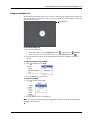
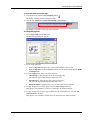
Start Write Anywhere.
The Write Anywhere on-screen buttons are displayed.
2
Click the cursor in the text-entry box, field, or page where you want to enter the text.
3
Using your mouse or mimio Mouse write anywhere on the screen.
Your handwriting is automatically converted to text and entered into the text-entry box, field,
or page that you selected.
4
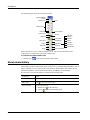
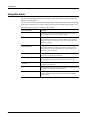
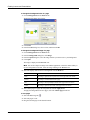
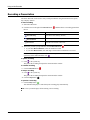
Use the on-screen buttons for commonly used keys.
Button
Description
Backspace
Enter
Tab
Space
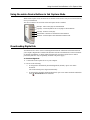
Write Anywhere also supports gesture recognition for commonly used keys. See "Using Gesture
Recognition" on page 18.
Using Writing Pad
With Writing Pad you can enter text through a small on-screen writing pad using the mimio Mouse
while in Interactive mode. You can also use Writing Pad with your mouse or other input device
from your computer.
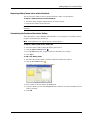
To use Writing Pad
1
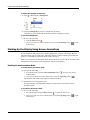
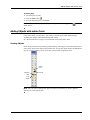
Start Writing Pad.
The on-screen writing pad appears.
2
Click the cursor in the text-entry box, field, or page where you want to enter the text.
17