1
Getting Started
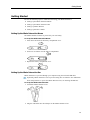
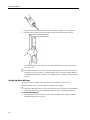
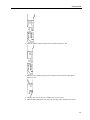
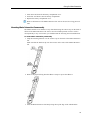
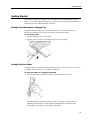
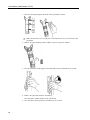
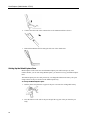
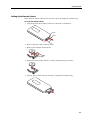
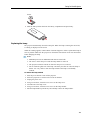
3. Replace the battery compartment cover.
Setting Up MimioStudio Notebook for Capture
To begin capturing digital ink, you must first do the following:
n
Set the size of your whiteboard in MimioStudio Preferences.
n
Start MimioStudio Ink Capture mode.
Setting the Whiteboard Size
Before you begin capturing digital ink, you must first set the size of your whiteboard in
MimioStudio Preferences. The default size is 96 inches by 48 inches.
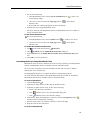
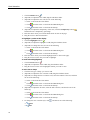
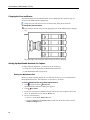
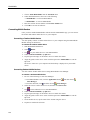
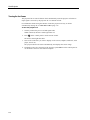
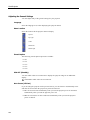
To set the whiteboard size for a Mimio Interactive device
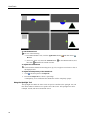
1. Click , and then choose
Preferences.
The MimioStudio Preferences dialog box appears.
2. Click
Ink Capture.
3. If you have more than one Mimio Interactive bar connected to your computer, choose
the device to change the size for from the Device list.
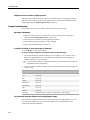
4. Do one of the following:
l
Choose a size from the Surface Size list.
l
Choose Custom from the Surface Size list and enter the desired values into the
Width and Height boxes.
l
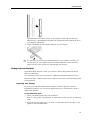
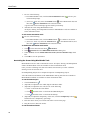
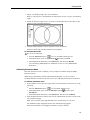
Click Auto Size and touch a Mimio Capture Kit pen to the whiteboard at the
location shown in the Auto Size dialog box.
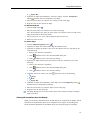
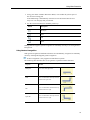
Starting Ink Capture Mode
Using MimioStudio Ink Capture mode, you can make notes on your whiteboard and
instantaneously capture them into a MimioStudio Notebook.
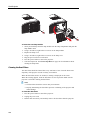
Your Mimio Interactive bar can capture and store ink while disconnected from your
computer. However, you need to supply power to your Mimio Interactive bar using
batteries or a wall adapter. See Downloading Digital Ink for more information about
capturing and downloading digital ink for an offline session.
103