1
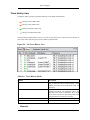
The <oXygen/> User Guide
SyncRO Soft Ltd.
Sean Wheller
The <oXygen/> User Guide
SyncRO Soft Ltd.
Sean Wheller
Copyright © 2002-2004 SyncRO Soft Ltd. All Rights Reserved.
Many of the designations used by manufacturers and sellers to distinguish their products are claimed as trademarks. Where those
designations appear in this book, and SyncRO Soft Ltd., was aware of a trademark claim, the designations have been printed in
caps or initial caps. While every precaution has been taken in the preparation of this book, the publisher assumes no responsibility
for errors or omissions, or for damages resulting from the use of the information contained herein.
Third party software components are distributed in the <oXygen/> installation packages, including the Java Runtime Environment
(JRE), DocBook DTD and style sheets. This product includes software developed by the Apache Software Foundation (http://www.apache.org): the Apache FOP, Xerces XML Parser and Xalan XSLT. These products are not the property of SyncRO
Soft Ltd.. To the best knowledge of SyncRO Soft Ltd. owners of the aforesaid products granted permission to copy, distribute and/
or modify the software and its documents under the terms of the Apache Software License, Version 1.1. Other packages are used
under the GNU Lesser General Public License. Users are advised that the JRE is provided as a free software, but in accordance
with the licensing requirements of Sun Microsystems. Users are advised that SyncRO Soft Ltd. assumes no responsibility for errors or omissions, or for damages resulting from the use of <oXygen/> and the aforesaid third party software. Nor does SyncRO
Soft Ltd. assume any responsibility for licensing of the aforesaid software, should the relevant vendors change their terms. By using <oXygen/> the user accepts responsibility to maintain any licenses required by SyncRO Soft Ltd. or third party vendors. Unless SyncRO Soft Ltd. declares in writing that the <oXygen/> license is inclusive of third party licensing.
Table of Contents
1. Introduction ............................................................................................................ 1
Key Features ...................................................................................................... 1
About the <oXygen/> Handbook ............................................................................ 2
2. Installation ............................................................................................................. 3
Installation Requirements ..................................................................................... 3
Platform Requirements ................................................................................. 3
Operating System, Tools and Environment Requirements ................................... 3
Installation Instructions ........................................................................................ 4
Starting <oXygen/> plugin .................................................................................... 4
Obtaining and Installing an <oXygen/> License ........................................................ 4
Upgrading <oXygen/> ......................................................................................... 6
Uninstalling the <oXygen/> plugin ......................................................................... 6
3. Getting Started ........................................................................................................ 7
Preferences ........................................................................................................ 7
Global ....................................................................................................... 7
Editor ....................................................................................................... 7
XML Catalog ........................................................................................... 13
XML Parser Options .................................................................................. 14
XSLT Options .......................................................................................... 15
Debugger Settings ..................................................................................... 16
FO processors ........................................................................................... 17
Proxy Configuration .................................................................................. 20
Colors ..................................................................................................... 21
<oXygen/> plugin wizards .................................................................................. 21
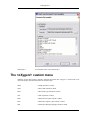
The <oXygen/> custom menu .............................................................................. 28
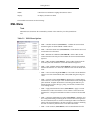
XML Menu .............................................................................................. 29
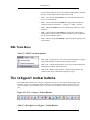
XML Tools Menu ..................................................................................... 30
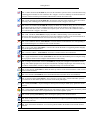
The <oXygen/> toolbar buttons ........................................................................... 30
The Editor Pane ................................................................................................ 32
Outliner Panel .................................................................................................. 33
XML Document Overview .......................................................................... 34
Modification Follow-up .............................................................................. 34
Document Tag Selection ............................................................................. 34
The <oXygen/> Text View ................................................................................. 34
The <oXygen/> XPath View ............................................................................... 35
4. Transforming Documents ........................................................................................ 36
Transformation Scenarios ................................................................................... 38
Creating a Scenario ................................................................................... 41
The default scenario .................................................................................. 41
Import/Export Transformation Scenarios ....................................................... 41
Example Transformation Scenarios ...................................................................... 42
PDF Output ............................................................................................. 42
PS Output ................................................................................................ 43
TXT Output ............................................................................................. 43
HTML Output .......................................................................................... 44
HTML Help Output ................................................................................... 44
JavaHelp Output ....................................................................................... 44
XHTML Output ........................................................................................ 45
5. XSLT Debugger .................................................................................................... 46
Overview ......................................................................................................... 46
Layout ............................................................................................................ 46
Source document view (XML) ..................................................................... 47
Stylesheet document view (XSL) ................................................................. 47
iv
Output document view ............................................................................... 47
Control view ............................................................................................ 47
Working with Debugger ..................................................................................... 49
Getting Started ......................................................................................... 50
The Debug Process .................................................................................... 50
Output to Source Mapping .......................................................................... 51
Understanding Information Views ................................................................ 52
6. WSDL Support ...................................................................................................... 62
Web Services Description Language Overview ....................................................... 62
Editing WSDL files ................................................................................... 62
Validating WSDL files ............................................................................... 62
Analysing and testing WSDL files. ............................................................... 63
7. XQuery Support .................................................................................................... 66
XQuery Overview ............................................................................................. 66
Syntax Highlight and Content Completion ..................................................... 66
XQuery Validation .................................................................................... 67
Transforming XML Documents Using XQuery ............................................... 67
v
List of Figures
2.1. Registration Dialog ................................................................................................ 5
3.1. The Global preferences ........................................................................................... 7
3.2. The Aspect pane ................................................................................................... 8
3.3. The Format pane ................................................................................................... 8
3.4. The Tag Insight Features pane ............................................................................... 10
3.5. The Tag Insight Default pane ................................................................................. 12
3.6. The Tag Insight XSL pane .................................................................................... 13
3.7. The XML Catalog pane ........................................................................................ 13
3.8. The XML Parser Options pane ............................................................................... 15
3.9. The JAXP XSLT Transformer option ...................................................................... 15
3.10. Debugger Settings ............................................................................................. 16
3.11. The FO processors pane ...................................................................................... 17
3.12. Configure the external processors ......................................................................... 18
3.13. The Proxy Configuration Dialog ........................................................................... 20
3.14. The Colors pane ................................................................................................ 21
3.15. The Create an XML Document - XML Schema Tab ................................................. 23
3.16. The Create an XML Document - DTD Tab ............................................................. 23
3.17. The Create an XML Document - Relax NG Tab ...................................................... 24
3.18. The Create an XML Document - NRL Tab ............................................................. 25
3.19. Import HTML ................................................................................................... 26
3.20. The Templates Dialog ........................................................................................ 27
3.21. The <oXygen/> Toolbar Buttons .......................................................................... 30
3.22. The Editor Pane ................................................................................................. 32
3.23. The Outliner Panel ............................................................................................. 33
3.24. The <oXygen/> Text View .................................................................................. 34
3.25. The <oXygen/> XPath View ................................................................................ 35
4.1. The Configure Transformation Dialog ..................................................................... 38
4.2. Edit cascade stylesheets list dialog .......................................................................... 40
5.1. Debugger Mode Interface ..................................................................................... 47
5.2. Control Toolbar .................................................................................................. 48
5.3. Output to Source Mapping .................................................................................... 51
5.4. The Context node view ......................................................................................... 52
5.5. The XPath watch view ......................................................................................... 53
5.6. The Breakpoints view .......................................................................................... 54
5.7. The Messages view .............................................................................................. 55
5.8. The Stack view ................................................................................................... 56
5.9. The Trace History View ....................................................................................... 57
5.10. The Templates view ........................................................................................... 58
5.11. The Node Set view ............................................................................................. 59
5.12. The Variables view ............................................................................................ 60
6.1. Tag insight for WSDL .......................................................................................... 62
6.2. Validating a WSDL file ........................................................................................ 63
6.3. WSDL Analyser .................................................................................................. 63
7.1. XQuery Tag Insight ............................................................................................. 66
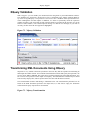
7.2. XQuery Validation .............................................................................................. 67
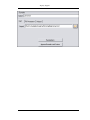
7.3. XQuery Transformation ........................................................................................ 67
vi
List of Tables
3.1. XML Menu Options ............................................................................................ 29
3.2. XML Tools Menu Options .................................................................................... 30
3.3. Description of <oXygen/> Toolbar Buttons .............................................................. 30
3.4. Description of <oXygen/> Editor Types .................................................................. 32
5.1. Context node details ............................................................................................ 53
5.2. XWatch details ................................................................................................... 54
5.3. Breakpoints details .............................................................................................. 55
5.4. Messages details ................................................................................................. 55
5.5. Stack details ....................................................................................................... 56
5.6. Trace History details ............................................................................................ 57
5.7. Templates details ................................................................................................ 58
5.8. Node set details ................................................................................................... 59
5.9. Variables details .................................................................................................. 60
vii
Chapter 1. Introduction
Welcome to the <oXygen/> XML Editor User Manual. This chapter provides an overview of
<oXygen/>'s features and benefits and the organization of this book.
The <oXygen/> XML Editor is a cross-platform application for document development using structured
mark-up languages such as XML, XSD, XSL, DTD.
<oXygen/> offers developers and authors a powerful Integrated Development Environment. Based on
proven Java technology the <oXygen/> XML Editor's intuitive Graphical User Interface is easy-to-use
and provides robust functionality for editing, project management and validation of structured mark-up
sources. Coupled with XSLT and FOP transformation technologies, <oXygen/> supports output to multiple target formats, including: PDF, PS, TXT, HTML and XML.
<oXygen/> is the XML Editor of choice for developers, authors and integrators that demand highquality output with a flexible and robust, single-source, structured mark-up environment.
Key Features
The <oXygen/> XML Editor offers the following key features and benefits.
Multiplatform availability: Windows, Mac OS X, Multilanguage support: English, German, French, ItaliLinux, Solaris.
an and Japanese.
Can be used as standalone desktop application, run Non blocking operations, you can perform validation
through Java Web Start or as an Eclipse plugin.
and transformation operations in background.
Support for XML, XSLT, XML Schema, Relax NG , Ready to use FOP support to generate PDF or PS docuDTD, NRL schemas, WSDL and XQuery.
ments.
Validate XML Schemas, Relax NG schemas, DTDs, Validate XML documents with XML Schemas, Relax
NRL schemas, WSDL, XQuery and CSS.
NG schemas, DTDs or NRL schemas.
Outliner.
Bookmark support.
Support for editing remote files over FTP, HTTP/ Experimental XInclude support.
WebDAV and HTTPS/WebDAV.
Easy error tracking - locate the error source by clicking Spell checking supporting English, German and French
on it.
including locals.
Generate HTML documentation from XML Schemas.
Support for document frameworks: Docbook and TEI.
Conversions from DTD, Relax NG schema or a set of Context sensitive content assistant driven by XML
documents to XML Schema, DTD or Relax NG Schema, DTD or by the edited document structure.
schema.
XML Catalog support.
Unicode support.
New XML document wizards to easily create docu- Syntax coloring for XML, DTD, Relax NG compact
ments specifying a schema or a DTD.
syntax, Java, C++, C, PHP, Perl, etc.
Pretty-printing of XML files.
Easy configuration for external FOPs.
Apply XSLT and FOP transformations.
XPath search and evaluation support.
Preview transformation results as XHTML or XML or Support for document templates to easily create and
in your browser.
share documents.
Drag&drop support.
XML project manager.
Tree view/edit support for XML documents.
Batch validate selected files in project.
Configurable external tools.
Configurable actions key bindings.
Find and replace support allows regular expressions, is All the usual editor capabilities (cut, copy, paste, find,
1
Introduction
XML aware, handle multiple files.
replace, windows management).
Associate extensions with <oXygen/> on Windows.
Plugin support.
Mac OS X ready.
Print documents.
Import HTML documents.
Multidocument environment.
Model View.
Text transparency levels adjuster.
WSDL Support.
XQuery 1.0 support.
SVG Editor and Viewer.
XPath 2.0 support.
Debugger Backmapping support.
XSLT 2.0 full support.
About the <oXygen/> Handbook
This User Manual gives a complete overview of the <oXygen/> XML Editor and describes the basic
process of authoring, management, validation of structured mark-up documents and their transformation
to multiple target outputs. Throughout this manual it is assumed that you are proficient in the use of your
operating system and the concepts related to structured mark-up.
The <oXygen/> XML Editor User Manual is comprised of the following parts:
•
Chapter 1, Introduction : Introduction - you are reading it.
•
Chapter 2, Installation : Installation - defines the platform and environment requirements of
<oXygen/> and instructions for application installation, license installation, starting <oXygen/>, upgrade and uninstalling.
•
Chapter 3, Getting Started : Getting Started with the <oXygen/> Interface - provides general orientation, explains concepts and defines functionality of the components that comprise the <oXygen/>
Graphic User Interface (GUI).
•
Chapter 4, Transforming Documents : Transforming - explains the considerations for transformation
of structured sources to multiple target format and how to obtain maximum benefit.
•
Chapter 5, XSLT Debugger : XSLT Debugger - This chapter explains the Debugger modes functionality, which provides a rich set of features for development, testing and solving of XSL problems.
•
Chapter 6, WSDL Support : WSDL Support - This chapter explains the facilities offered by
<oXygen/> for WSDL support.
•
Chapter 7, XQuery Support : XQuery Support - This chapter explains the support offered by
<oXygen/> for editing, validating and running XQuery expressions.
Feedback and input to the <oXygen/> Handbook is welcomed.
2
Chapter 2. Installation
This section explains platform requirements and installation procedures. It also provides instructions on
how to obtain and apply an <oXygen/> license, how to perform upgrades and uninstall <oXygen/> if required.
If you need help at any
<[email protected]>.
point
during
these
procedures
please
send
email
to
Caution
If you want to execute <oXygen/> with Java WebStart directly from <oXygen/> Java WebStart
page [http://www.oxygenxml.com/javawebstart/] or your intranet server please configure your
Java WebStart not to ask for desktop integration (File -> Preferences, Shortcuts), otherwise it
will show up a dialog in the same time with the <oXygen/> license registration dialog leading
to a blocking situation.
Installation Requirements
Platform Requirements
Minimum run-time requirements are listed below.
•
Pentium Class Platform
•
128 MB of RAM
•
80 MB free disk space
Operating System, Tools and Environment Requirements
Operating System
Windows
All versions
Mac OS
minimum Mac OS X 10.0
UNIX/Linux
All versions/flavors
Tools
Installation packages are supplied in compressed archives. Ensure you have installed a suitable archive
extraction utility with which to extract the archive.
Environment Prerequisites
Prior to installation ensure that your installed Eclipse platform has at least the following:
3
Installation
•
Version 3.0 or higher.
•
JRE 1.4 or higher
Installation Instructions
Prior to proceeding with the following instructions, please ensure that your system complies with the
prerequisites detailed in the installation requirements.
Procedure 2.1. Eclipse platform
1.
Start Eclipse. Choose the menu option: Help / Software Update / Find and Install. Select the checkbox: "Search for new features to install" and press the "Next" button..
2.
From the dialog "Update sites to visit" press the button "Add update site" or "New Remote Site".
3.
Enter "oXygen XML Editor" in the "Name" field and the value http://www.oxygenxml.com/InstData/Eclipse/site.xml into the "URL" field of the "New Update Site"
dialog. Press the "OK" button.
4.
Select the checkbox "oXygen XML Editor" and press the "Next" button.
5.
Select the new feature to install "oXygen XML Editor and XSLT debugger" and press the "Next"
button in the following install pages. You must accept the Eclipse restart.
6.
Paste the <oXygen/> license information received in the registration email when prompted. This
will happen when you use one of the <oXygen/> wizards to create an XML project or document,
when you open or create a document associated with <oXygen/> or when accessing the <oXygen/>
Preferences.
7.
The <oXygen/> plugin is installed correctly if you can create an XML project with an <oXygen/>
wizard: File->New (Ctrl+N) -> <oXygen/> - XML Project.
Starting <oXygen/> plugin
The <oXygen/> plugin will be activated automatically by the Eclipse platform when you use one of the
<oXygen/> wizards to create an XML project or document, when you open or create a document associated with <oXygen/> or when accessing the <oXygen/> Preferences.
Obtaining and Installing an <oXygen/> License
<oXygen/> is not free software and requires a license in order to enable the application.
For demonstration and evaluation purposes a time limited license is available upon request from the
<oXygen/> Web Site [http://www.oxygenxml.com]. This license is supplied at no cost for a period of 30
days from date of issue. During this period <oXygen/> is fully functional enabling you to test all aspects
of the application. Thereafter, the application is disabled and a permanent license must be purchased in
order to use the application. For special circumstances, if a trial period of greater than 30 days is required, please contact <[email protected]>. All licenses are obtained from <oXygen/>
Web Site [http://www.oxygenxml.com].
4
Installation
Once you have obtained a license the installation procedure is as follows:
Procedure 2.2. License Installation
1.
Save a backup copy of the message containing the new license file.
2.
Start the <oXygen/> application.
3.
Copy to the clipboard the license text as explained in the message.
4.
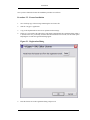
If there is a new install of the editor then it will display automatically the registration dialog when it
is started. In the case you already used the editor and obtained a new license, use the menu option
Help/Register to make the registration dialog appear.
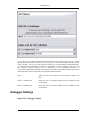
Figure 2.1. Registration Dialog
5.
Paste the license text in the registration dialog, and press ok.
5
Installation
Upgrading <oXygen/>
From time to time, upgrade and patch versions of <oXygen/> are released to provide enhancements that
rectify problems, improve functionality and the general efficiency of the application.
This section explains the procedure for upgrading <oXygen/> while preserving any personal configuration settings and customizations.
Procedure 2.3. Upgrade Procedure
1.
Uninstall the <oXygen/> plugin (see Uninstall procedure).
2.
Follow the Installation instructions.
3.
Restart the Eclipse platform.
4.
Start the <oXygen/> plugin to ensure that the application can start and that your license is recognized by the upgrade installation.
5.
If you are upgrading to a major version, for example from 4.2 to 5.0, then you will need to enter the
new license text into the registration dialog that is shown when the application starts.
6.
Select Window->Preferences -> Plug-In Development -> Target Platform and next to the
com.oxygenxml.editor list entry you should see the version number of the newest installed plugin. If
the previous version was 4.2.0, the list entry should now contain 5.0.0.
Uninstalling the <oXygen/> plugin
Warning
The following procedure will remove the <oXygen/> plugin from your system. It will not remove the Eclipse platform. If you wish to uninstall Eclipse please see its uninstall instructions.
Procedure 2.4. Uninstall Procedure
1.
Choose the menu option: Help / Software Update / Manage Configuration and from the list of
products select <oXygen/> XML Editor and XSLT Debugger.
2.
From the right section of the displayed window choose Uninstall and accept the Eclipse restart after
the uninstall procedure is complete.
6
Chapter 3. Getting Started
This section provides an overview of the <oXygen/> Graphic User Interface (GUI). It provides you with
an explanation for each of the interface components and a short description of its purpose or usage.
The <oXygen/> plugin GUI is integrated in the Eclipse platform by the following components:
•
The <oXygen/> preferences
•
<oXygen/> plugin wizards
•
The <oXygen/> custom menu
•
The <oXygen/> toolbar buttons
•
The editor pane
•
The outline view
•
The <oXygen/> text view
•
The <oXygen/> XPath view
Preferences
Once <oXygen/> is installed you may want to use the following preferences to customize <oXygen/>
for your requirements and network environment.
Global
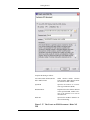
Figure 3.1. The Global preferences
Check well-formedness on save
If selected the <oXygen/> plugin will perform a well-formed
check every time the user saves a document.
Default Internet browser
The path to a web browser executable to be used to open XSLT or
PDF transformation results.
Editor
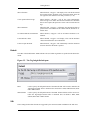
7
Getting Started
Use these options to configure the visual aspect, formatting parameters, and behaviour of the content assistant.
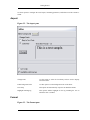
Aspect
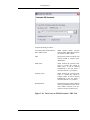
Figure 3.2. The Aspect pane
Change Fonts
Use this option to select the font family and size used to display
text in the editor.
Editor background color
Use this option to set the background color of the editor.
Line Wrap
This option will automatically wrap lines in edited documents.
Highlight matching tag
This options enables highlight for the tag matching the one on
which the caret is situated.
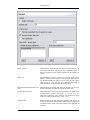
Format
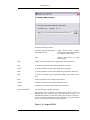
Figure 3.3. The Format pane
8
Getting Started
Indent with tabs
When checked enables 'Indent with tabs' to sets the indent to a tab
unit. When unchecked, 'Indent with tabs' is disabled and the indent will measure as many spaces as defined by the 'Indent size'
option.
Indent size
Sets the number of spaces or the tab size that will equal a single
indent. The Indent can be spaces or a tab, select the preference using the Indent With Tabs option. If set to 4 one tab will equal 4
white spaces or 1 tab with size of 4 characters depending on
which option was set in the Indent With Tabs option.
Format and indent the document on
open
When checked, the Format and indent the document on open operation will format and indent the document before open
Expand empty elements
When checked the Format and Indent operation will output empty
elements with a separate closing tag, ex. <a atr1="v1"></a>.
When not checked the same operation will represent an empty
element in a more compact form: <a atr1="v1"/>
Sort attributes
When checked the Format and Indent operation will sort the attributes of an element alphabetically. When not checked the same
operation will leave them in the same order as before applying the
operation.
9
Getting Started
Line width - pretty print
Defines the point at which the "Format and Indent" (Pretty-Print)
function will perform line wrapping. So if set to 100 Pretty-Print
will wrap lines at the 100th space inclusive of white spaces, tags
and elements.
Preserve space elements
This list contains the names of the elements for which the contained white spaces like blanks, tabs and newlines are preserved
by the Format and Indent operation exactly as before applying the
operation.
Strip space elements
This list contains the names of the elements for which contiguous
white spaces like blanks, tabs and newlines are merged by the
Format and Indent operation into one blank.
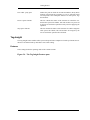
Tag-Insight
The Tag-Insight feature enables inline syntax lookup and Auto Completion of mark-up elements and attributes to streamline mark-up and reduce errors while editing.
Features
These settings define the operating mode of the content assistant.
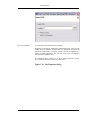
Figure 3.4. The Tag Insight Features pane
10
Getting Started
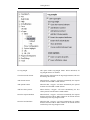
Use Tag-Insight
This option enables Tag-Insight feature. When unchecked, all
Tag-Insight features are disabled.
Close the inserted element
When inserting elements from the Tag-Insight assistant, both start
and end tags are inserted.
Add element content
When checked, <oXygen/> will insert automatically the required
elements from the DTD or XML Schema.
Add optional content
When checked, <oXygen/> will insert automatically the optional
elements from the DTD or XML Schema.
Add first Choice particle
When checked, <oXygen/> will insert automatically the first
Choice particle from the DTD or XML Schema.
Insert the required attributes
When checked, <oXygen/> will insert automatically the required
attributes from the DTD or XML Schema for an element inserted
with the help of the Tag-Insight assistant.
Insert the fixed attributes
When checked, <oXygen/> will insert automatically any FIXED
attributes from the DTD or XML Schema for an element inserted
with the help of the Tag-Insight assistant.
11
Getting Started
Show all entities
When checked, <oXygen/> will display a list with all the internal
and external entities declared in the current document when the
user types the start character of an entity reference (i.e. &).
Cursor position between tags
When checked, <oXygen/>, will set the cursor automatically
beetween tags. Even if the auto-inserted elements have attributes
that are not required, the position of cursor can be forced between
tags.
Show annotation
When checked, <oXygen/>, will display the annotations that are
present in the used schema for the current element, attribute or attribute value.
Use DTD comments as annotation
When checked, <oXygen/> will use all DTD comments as annotation.
Learn attributes values
When checked, <oXygen/> will display a list with all attributes
values learned from the current document.
Learn on open document
When checked, <oXygen/> will automaticaly learn the document
structure when the document is opened.
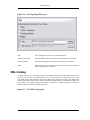
Default
The URL of the default DTD / XML Schema to be used when no grammar is specified in the edited document.
Figure 3.5. The Tag Insight Default pane
DTD
Used to specify the full path location of the DTD file that will be used to initialize the
Tag-Insight assistant when a document does not define a DTD, XML Schema, Relax
NG or NRL schema.
XML Schema
Used to specify the full path location of the XML Schema file that will be used to initialize the Tag-Insight assistant when a document does not define a DTD, XML
Schema, Relax NG or NRL schema.
XSL
These settings define what elements are suggested by the content assistant in addition to the XSL ones.
12
Getting Started
Figure 3.6. The Tag Insight XSL pane
None
The Tag-Insight will offer only the XSL information.
XHTML transitional
Includes XHTML Transitional elements as substitutes for xsl:element.
Formating objects
Includes Formating Objects elements as substitutes for xsl:element.
Other
Includes elements from a DTD file or a XML Schema file specified from a
URL as substitutes for xsl:element.
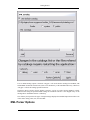
XML Catalog
An XML catalog is a set of mappings between remote DTD and/or XML Schema and/or Relax NG files
and local copies of these files. When Internet access is not available or the connection is slow, one or
more XML catalogs can be added to the list in the dialog below and the local copies of the DTD and/or
XML Schema and/or Relax NG files will be used during validation. When you add/delete an XML catalog to/from the list of XML catalogs in the Options -> Preferences -> XML Catalog pane you must restart the application so that the changes take effect.
Figure 3.7. The XML Catalog pane
13
Getting Started
If "Use default catalog" option is checked <oXygen/> will use the built-in catalogs for DocBook, TEI
and XHTML documents located in the frameworks subdirectory of the installation directory. Otherwise
<oXygen/> will use the catalogs specified in the list.
The Prefer option is used to specify whether <oXygen/> will try to resolve first the PUBLIC or SYSTEM reference using the specified XML catalogs. If a PUBLIC reference is not mapped in any of the
catalogs then a SYSTEM reference is looked up.
The verbosity level specifies the types of output messages displayed to standard output and can have one
of the values: debug, warn, info, error and fatal.
XML Parser Options
14
Getting Started
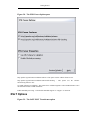
Figure 3.8. The XML Parser Options pane
http://apache.org/xml/features/validation/schema - This option sets the 'schema' feature to true.
http://apache.org/xml/features/validation/schema-full-checking - This option sets the 'schemafull-checking' feature to true.
Use XML Schema For Validation - This option forces validation against a referred XML Schema even if
the document includes a DTD declaration.
Enable XInclude processing - if checked the XInclude support in <oXygen/> is turned on.
XSLT Options
Figure 3.9. The JAXP XSLT Transformer option
15
Getting Started
If you want to use an XSLT transformer different than the ones that ship with <oXygen/> namely
Apache Xalan and Saxon all you have to do is to specify the name of the transformer's factory class
which <oXygen/> will set as the value of the Java property "javax.xml.transform.TransformerFactory".
To perform an XSLT transformation with Saxon 7 for instance you have to place the Saxon 7 jar file in
the <oXygen/> libraries directory (the lib subdirectory of the installation directory), set
"net.sf.saxon.TransformerFactoryImpl" as the property value and select JAXP as the XSLT processor in
the transformation scenario associated to the transformed XML document.
Value
Allows the user to enter the name of the transformer factory Java
class.
XSLT 1.0 Validate with
Allows the user to set the XSLT Engine used for validation of XSL
1.0 documents.
XSLT 2.0 Validate with
Allows the user to set the XSLT Engine used for validation of XSL
2.0 documents.
Debugger Settings
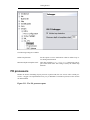
Figure 3.10. Debugger Settings
16
Getting Started
The following settings are available:
Infinite loop detection
Set this option to receive notifications when an infinite loop occurs during transformation.
Maximum depth in templates stack
How many templates (<xsl:templates>) instructions can appear on the current stack. This setting is used by the infinite loop
detection.
FO processors
Besides the built-in formatting objects processor (Apache FOP) the user can use other external processors. <oXygen/> has implemented an easy way to add XEP as external FO processor if the user has
the XEP installed.
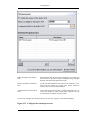
Figure 3.11. The FO processors pane
17
Getting Started
Enable the output of the built-in
FOP
When checked all FOP output will be displayed in a results pane
at the bottom of the editor window including warning messages
about FO instructions not supported by FOP.
Memory available to the built-in
FOP
If your FOP transformations fail with an "Out of Memory" error
select from this combo box a larger value for the amount of
memory reserved for FOP transformations.
Configuration file for the built-in
FOP
You should specify here the path to a FOP configuration file, necessary for example to render to PDF using a special true type
font a document containing Unicode content.
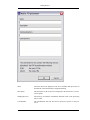
The users can configure the external processors for use with <oXygen/> in the following dialog.
Figure 3.12. Configure the external processors
18
Getting Started
Name
The name that will be displayed in the list of available FOP processors on
the FOP tab of the Transforming Configuration dialog.
Description
The description of the FO processor displayed in the Preferences->FO Processors option.
Working directory
The directory in which the intermediate and final results of the processing
will be stored.
Command line
The command line that will start the FO processor, specific to each processor.
19
Getting Started
Proxy Configuration
Some networks use Proxy servers to provide Internet Services to LAN Clients. Clients behind the Proxy
may therefore, only connect to the Internet via the Proxy Service. The Proxy Configuration dialog enables this configuration. If you are not sure whether your computer is required to use a Proxy server to
connect to the Internet or the values required by the Proxy Configuration dialog, please consult your
Network Administrator.
Open the Proxy Configuration dialog by selecting Options->Preferences->Proxy Configuration.
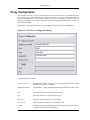
Figure 3.13. The Proxy Configuration Dialog
Complete the dialog as follows:
Use proxy server
When checked enables <oXygen/> to use the specified Proxy Server. When
unchecked, Proxy Server is disabled.
Web Proxy (HTTP)
The IP address or Fully Qualified Domain Name (FQDN) of the Proxy Server.
Port
The TCP Port Number, normally set to 80 or 8080.
User
The Name of the user if required. Can be empty.
Password
The Password for authentication. Can be empty.
No proxy for
Specify domains for which no proxy should be used.
SOCKS
When checked enables SOCKS using the specified host and port for the server. When unchecked, SOCKS is disabled.
20
Getting Started
Host
The SOCKS host you wish to connect to.
Port
The SOCKS port you wish to connect to.
Colors
<oXygen/> supports Syntax Highlight for XML, DTD, Relax NG (XML and Compact Syntax), Java,
JavaScript, XQuery, C++, C, PHP,CSS, Perl, Properties, SQL, Shell and Batch documents. While
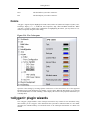
<oXygen/> provides a default color configuration for highlighting the tokens, you may choose to customize, as required, using the Colors dialog.
Figure 3.14. The Colors pane
Open the Colors dialog by selecting Options->Preferences->Colors and choose one of the supported
Document Types. Each document type contains a set of Tokens. When the Document Type is selected
the associated tokens are listed. Selecting a token displays the current color properties and enables you
to modify them.
<oXygen/> plugin wizards
The <oXygen/> plugin installs a series of Eclipse wizards for easy creation of new documents. Using
these wizards you let <oXygen/> fill in details like the system ID or schema location of a new XML
document, the minimal markup of a Docbook article or the namespace declarations of a Relax NG
schema.
21
Getting Started
You can access them from File->New -> Other ...-> <oXygen/> (Ctrl+N)
The available wizards are the following:
XML
An XML wizard that creates sample XML document.
The Create an XML Document dialog enables definition of a XML Document Prolog using the system identifier of a XML Schema, DTD, Relax
NG (full or compact syntax) schema or NRL (Namespace Routing Language) schema. As not all XML documents are required to have a Prolog,
you may choose to skip this step by clicking OK. If the prolog is required
complete the fields as the following.
22
Getting Started
Figure 3.15. The Create an XML Document - XML
Schema Tab
Complete the dialog as follows:
Use a DTD, XML Schema, Relax
NG or NRL schema
When checked enables selection
between DTD, XML Schema, Relax
NG schema or NRL schema.
URL
Specifies the location of an XML
Schema Document (XSD).
Document Root
Populated from the elements defined
in the specified XSD, enables selection of the element to be used as
document root.
Namespace
Specifies the document namespace.
Figure 3.16. The Create an XML Document - DTD Tab
23
Getting Started
Complete the dialog as follows:
Use a DTD, XML Schema, Relax
NG or NRL schema
When checked enables selection
between DTD, XML Schema, Relax
NG schema or NRL schema.
System ID
Specifies the location of a Document Type Definition (DTD).
Document Root
Populated from the elements defined
in the specified DTD, enables selection of the element to be used as
document root.
Public ID
Specifies the PUBLIC identifier declared in the Prolog.
Figure 3.17. The Create an XML Document - Relax NG
Tab
24
Getting Started
Complete the dialog as follows:
Use a DTD, XML Schema, Relax
NG or NRL schema
When checked enables selection
between DTD, XML Schema, Relax
NG schema or NRL schema.
URL
Specifies the location of a Relax NG
schema in XML or compact syntax
(RNG/RNC).
XML syntax
When checked the specified URL
refers to a Relax NG schema in
XML syntax. It will be checked
automatically if the user selects a
document with the .rng extension.
Compact syntax
When checked the specified URL
refers to a Relax NG schema in
compact syntax. It will be checked
automatically if the user selects a
document with the .rnc extension.
Document Root
Populated from the elements defined
in the specified RNG or RNC document, enables selection of the element to be used as document root.
Figure 3.18. The Create an XML Document - NRL Tab
25
Getting Started
Complete the dialog as follows:
Use a DTD, XML Schema, Relax
NG or NRL schema
When checked enables selection
between DTD, XML Schema, Relax
NG schema or NRL schema.
URL
Specifies the location of a NRL
schema (NRL).
NRL
A NRL schema wizard that creates sample NRL schema document.
XSL
A stylesheet wizard that creates sample stylesheet document.
XSD
A schema wizard that creates sample XML schema document.
RNG
A schema wizard that creates sample RNG full syntax schema document.
RNC
A schema wizard that creates sample RNG compact syntax schema document.
DTD
A DTD wizard that creates sample DTD document.
WSDL
A WSDL wizard that creates sample WSDL document.
XQuery
An XQuery wizard that creates sample XQuery document.
Import from HTML
A wizard that imports HTML documents.
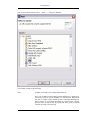
Import HTML files to XHTML 1.0 Transitional or Strict. It results an
XHTML file which contains a DOCTYPE declaration referring to the
XHTML DTD definition on the Web and the parsed content of the imported file as XHTML Transitional or Strict depending on what radio button
the user chose when performing the import operation.
Figure 3.19. Import HTML
26
Getting Started
New from Templates
A wizard that creates document from templates.
Templates are documents containing a predefined structure. They provide
starting points on which to rapidly build new documents that repeat the
same basic characteristics. <oXygen/> installs a rich set of templates for a
number of XML applications. You may also create your own templates
and share them with other users.
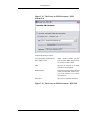
The Templates dialog, enables you to select templates that have already
been created in previous sessions or by other users.
Figure 3.20. The Templates Dialog
27
Getting Started
XML Project
A wizard that creates a new XML Project.
The <oXygen/> custom menu
When the current editor window contains a document associated with <oXygen/> a custom menu is added to the Eclipse menu bar named after the document type:
XML
A XML document is edited
XSD
A W3C XML Schema is edited
DTD
A Document Type Definition is edited
XSL
A XSL Stylesheet is edited
RNG
A Relax NG full syntax schema is edited
RNC
A Relax NG compact syntax schema is edited
NRL
A Namespace Routing Language schema is edited
28
Getting Started
WSDL
A Web Services Definition Language document is edited
XQuery
An XQuery document is edited
The available menu actions are the following:
XML Menu
Note
Macintosh users should use the command key instead of the control key for all keyboard shortcuts.
Table 3.1. XML Menu Options
•
XML-> Validate document (Ctrl+Shift+V) : Validate the current edited
document against its declared DTD or XML Schema.
•
XML-> Check document form (Ctrl+Shift+W) : Check that the current edited document is well-formed.
•
XML-> RELAX NG validation (Ctrl+Shift+R) : Select a RELAX NG
schema from the local filesystem and validate the current edited document
against it.
•
XML-> NRL validation (Ctrl+Shift+N) : Select a NRL schema from the
local filesystem and validate the current edited document against it.
•
XML-> Clear validation markers (Ctrl+Shift+K): Clear the error markers
added to the Problems view at the last validation of the current edited document.
•
XML-> Convert with Trang (Ctrl+Shift+\): Convert the current edited document to one of the formats RNG, RNC, DTD, XSD using the Trang converter.
•
XML-> Associate schema (Ctrl+Shift+S): Displays the Templates dialog
used to discover, select and open a new document based on an existing template document. Template documents act as starting points that have predefined properties such as file type, prolog, root element, containers and
even existing content.
•
XML-> Apply transformation scenario (Ctrl+Shift+T): Apply to current
document the scenario associated to it. If no scenario is associated to the
document the "Configure transformation scenario" action will be launched
first.
•
XML-> Configure transformation scenario (Ctrl+Shift+C): Open the scenario configuration dialog containing all the scenarios that can be applied to
the current document, that is scenarios containing the URL of an XML document if the current document is an XSL stylesheet or scenarios containing
the URL of an XSL stylesheet for the rest of edited documents.
•
XML-> Learn structure (Ctrl+Shift+L): Infer an internal DTD from the
29
Getting Started
current document that can be used for content assistant when the document
declares no DTD, XML Schema or Relax NG schema.
•
XML-> Save structure (Ctrl+Shift+S): Save the learned document structure to an external dtd file.
•
XML-> Format and indent (Ctrl+Shift+F): Apply format and indent according to settings in Preferences -> <oXygen/> -> Editor -> Format.
•
XML-> XPath (Ctrl+Shift+/): Execute a XPath query against the current
document.
•
XML-> Add to templates (Ctrl+Shift+A): Displays the Add Templates
dialog used to define the name by which the template will be recognized in
the "New from templates" option.
•
XML-> Check spelling (Ctrl+Shift+Q) : Start checking the spelling of current document.
XML Tools Menu
Table 3.2. XML Tools Menu Options
•
XML Tools-> Trang converter: Converts the current document to a supported grammar language using the integrated Trang converter.
•
XML Tools-> Schema documentation: A tool used to generate HTML documentation for an XML Schema document.
•
XML Tools-> WSDL SOAP Analyser: Contains a SOAP analyser and
sender for Web Services Description Language file types.
The <oXygen/> toolbar buttons
The toolbar buttons added by the <oXygen/> plugin provide easy access to common and frequently used
functions. Each icon is a button that acts as a shortcut to a related function. Hold the pointer-cursor over
an icon to display a context label that will give you a hint as to its function. Click an icon to use its function.
Figure 3.21. The <oXygen/> Toolbar Buttons
Table 3.3. Description of <oXygen/> Toolbar Buttons
30
Getting Started
XML->Validate document (Ctrl+Shift+V): Executes the Validation operation on the current document using
a validating parser. Returns an error result-list in the <oXygen/> Text View. Mark-up of current document is
checked to conform with the specified DTD, XML Schema or Relax NG schema rules.
XML->Check document form (Ctrl+Shift+W): Executes the well-form check operation on the current document using a non-validating parser. Returns an error result-list in the <oXygen/> Text View.
XML->Relax NG validation (Ctrl+Shift+R): Displays the Relax NG validation dialog, used to select the Relax NG schema and to execute the Validation operation on the current document. The schema file can be
either in Relax NG XML syntax, or in Relax NG compact syntax. In case of errors the validation returns an
error result-list in the <oXygen/> Text View.
XML->NRL Validation (Ctrl+Shift+N): Displays the NRL Validation dialog, used to select the NRL
(Namespace Routing Language) schema and to execute the Validation operation on the current document. In
case of errors the validation returns an error result-list in the <oXygen/> Text View.
XML->Clear validation markers (Ctrl+Shift+K): Clears the markers in the Problems view corresponding to
errors obtained during the last validation of the current document.
XML->Convert with Trang (Ctrl+Shift+\): Converts the current document to a supported grammar language
using the integrated Trang converter.
XML->Associate schema ... (Ctrl+Shift+S): Associates a schema with the current document.
XML->Apply transformation scenario (Ctrl+Shift+T): Executes the transformation process using the configuration properties defined in the Configure transformation scenario dialog.
XML->Configure transformation scenario (Ctrl+Shift+C): Displays the Configure transformation scenario
dialog, used to define properties for conversion of documents to multiple output targets. Also enables saving
of scenarios. Each scenario, can store a unique configuration ready to be used in the future.
XML->Learn structure (Ctrl+Shift+L): Reads the mark-up structure of the current document so that it can be
used for content assistance.
XML->Save structure (Ctrl+Shift+S): Saves the learned document structure into an external dtd file.
XML->Format and indent (Ctrl+Shift+F): Also referred to as "Pretty print", "Format and indent" performs
layout functions to make mark-up easier to read on screen and in print output.
XML->XPath (Ctrl+Shift+/): Opens a dialog for entering and executing an XPath query against the current
document.
XML->Add to templates (Ctrl+Shift+A)Displays the Add templates dialog used to define the name by which
the current document content will be recognized in the "New from templates" option.
XML->Check spelling (Ctrl+Shift+Q): Starts checking the spelling of the current document.
XML Tools->Trang converter: Converts the current document to a supported grammar language using the integrated Trang converter.
XML Tools->Schema documentation: A tool used to generate HTML documentation for an XML Schema
document.
31
Getting Started
XML Tools->WSDL SOAP Analyser: Contains a SOAP analyser and sender for Web Services Description
Language file types.
The Editor Pane
The editor pane is where you edit your documents opened or created by the <oXygen/> Eclipse plugin.
You know the document is associated with <oXygen/> from the special icon displayed in the editor's
title bar which has the same graphic pattern painted with different colors for different types of documents:
Table 3.4. Description of <oXygen/> Editor Types
The icon for XML documents
The icon for XSL stylesheets
The icon for XML Schema grammars
The icon for Document Type Definition grammars
The icon for RELAX NG full syntax grammars
The icon for RELAX NG compact syntax grammars
The icon for Namespace Routing Language grammars
The icon for XQuery documents
The icon for WSDL documents
Figure 3.22. The Editor Pane
32
Getting Started
Outliner Panel
The Outliner pane has the following available functions:
•
XML Document Overview
•
Modification Follow-up
•
Document Tag Selection
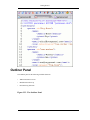
Figure 3.23. The Outliner Panel
33
Getting Started
XML Document Overview
The Outliner displays a general tag overview of the current edited XML Document. It also shows the
correct hierarchical dependencies between the tag elements, making it easier for the user to be aware of
the document's structure and the way tags are nested.
Modification Follow-up
When editing, the Outliner dynamically follows the modifications introduced by the user, showing in the
middle of the panel the node which is currently being modified .This gives the user better insight on location where in the document one is positioned and how the structure of the document is affected by one's
modifications.
Document Tag Selection
The Outliner can also be used to search for a specific tag's location and contents in the edited document.
Intuitively, by selecting with the left mouse button the desired tag in the Outliner Panel, the document is
scrolled to the position of the selected tag. Moreover, the tag's contents are selected in the document,
making it easy to notice the part of the document contained by that specific tag and furthermore to easily
copy and paste the tag's contents in other parts of the document or in other documents.
The <oXygen/> Text View
The <oXygen/> text view is automatically showed in the views pane of the Eclipse window to display
FO processor's info, warning and error messages.
Figure 3.24. The <oXygen/> Text View
34
Getting Started
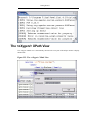
The <oXygen/> XPath View
The <oXygen/> XPath view is automatically showed in the views pane of the Eclipse window to display
XPath results.
Figure 3.25. The <oXygen/> XPath View
35
Chapter 4. Transforming Documents
XML is designed to store, carry, and exchange data, not to display data. When we want to view the data
we must either have an XML compliant user agent or transform it to a format that can be read by other
user agents. This process is known as transformation.
Within the current version of <oXygen/> you can transform your XML documents to the following
formats without having to exit from the application. For transformation to formats not listed simply install the tool chain required to perform the transformation and process the xml files created with
<oXygen/> in accordance with the processor instructions.
PDF
Adobe Portable Document Format (PDF) is a compact binary file format that can be
viewed and printed by anyone, anywhere across a broad range of hardware and software
using
the
free
PDF
Viewer
from
Adobe
[http://www.adobe.com/products/acrobat/readstep.html].
PS
PostScript
is
the
leading
printing
technology
from
Adobe
[http://www.adobe.com:80/products/postscript/main.html] for high-quality, bestin-class printing solutions ranging from desktop devices to the most advanced digital presses, platemakers, and large format image setters in the world. Postscript files
can be viewed using viewers such as GhostScript, but are more commonly created
as a prepress format.
TXT
Text files are Plain ASCII Text and can be opened in any text editor or word processor.
XML
XML stands for EXtensible Markup Language and is a W3C
[http://www.w3c.org/XML/] standard markup language, much like HTML, which
was designed to describe data. XML tags are not predefined in XML. You must
define your own tags. XML uses a Document Type Definition (DTD), an XML
Schema or a Relax NG schema to describe the data. XML with a DTD, XML
Schema or Relax NG schema is designed to be self-descriptive. XML is not a replacement for HTML. XML and HTML were designed with different goals:
XHTML
•
XML was designed to describe data and to focus on what data is.
•
HTML was designed to display data and to focus on how data looks.
•
HTML is about displaying information, XML is about describing information.
XHTML stands for EXtensible HyperText Markup Language, a W3C
[http://www.w3c.org/MarkUp/] standard. XHTML is aimed to replace HTML.
While almost identical to HTML 4.01, XHTML is a stricter and cleaner version of
HTML. XHTML is HTML defined as an XML application.
All formatting during a transformation is provided under the control of an Extensible Stylesheet
(XSLT). Specifying the appropriate XSLT enables transformation to the above formats and preparation
of output files for specific user agent viewing applications, including:
HTML
HTML stands for Hyper Text Markup Language and is a W3C Standard
[http://www.w3c.org/MarkUp/] for the World Wide Web. HTML is a text file containing small markup tags. The markup tags tell the Web browser how to display the page.
An HTML file must have an htm or html file extension. An HTML file can be created
using a simple text editor.
36
Transforming Documents
HTML Help
Microsoft
HTML
Help
[http://msdn.microsoft.com/library/default.asp?url=/library/en-us/htmlhelp/html/vsconH
H1Start.asp?frame=true] is the standard help system for the Windows platform. Authors
can use HTML Help to create online help for a software application or to create content
for a multimedia title or Web site. Developers can use the HTML Help API to program a
host application or hook up context-sensitive help to an application.
JavaHelp
JavaHelp software is a full-featured, platform-independent, extensible help system from
Sun Microsystems [http://java.sun.com/products/javahelp/index.html] that enables developers and authors to incorporate online help in applets, components, applications, operating systems, and devices. JavaHelp is a free product and the binaries for JavaHelp
are redistributable.
Many other target formats are possible, these are the most popular. The basic condition for transformation to any format is that your document is valid against a given DTD and that the XSLT (XSL), used
for transformation is compatible with the DTD.
An XSL stylesheet specifies the presentation of a class of XML documents by describing how an instance of the class is transformed into an output document by using special formatting vocabulary.
<oXygen/> supports XSLT/XPath version 1.0 using Saxon 6.5.3, Xalan and XSLT/XPath 2.0 by using
Saxon 8.1B. The editor switches between the tag-insight list of elements for the two standards automatically by examining the version attribute of the stylesheet. Also the validation is done in function of the
stylesheet version.
XSL consists of three parts:
XSL Transformations
XSLT is a language for transforming XML documents.
XML Path Language
XPath is an expression language used by XSLT to access or refer parts of an
XML document. (XPath is also used by the XML Linking specification).
XSL Formatting Objects
XSL-FO is an XML vocabulary for specifying formatting semantics.
The <oXygen/> installation package is distributed with the Apache [http://www.apache.org] FOP
[http://xml.apache.org/fop/index.html] (Formatting Objects Processor) for rendering your XML documents to PDF. FOP is a print and output independent formatter driven by XSL Formatting Objects. FOP
is implemented as a Java application that reads a formatting object tree and renders the resulting pages
to a specified output.
Tip
To include PNG images in the final PDF document you need the JIMI
[http://java.sun.com/products/jimi/] or JAI [http://java.sun.com/products/java-media/jai/] libraries. For TIFF images you need the JAI [http://java.sun.com/products/java-media/jai/] library.
The JIMI and JAI libraries are not bundled with <oXygen/> due to Sun's licensing. Using them
is as easy as downloading them and copying the necessary jar files (required by the library documentation) in the lib subdirectory of the <oXygen/> installation directory. This means JimiProClasses.zip for JIMI and jai_core.jar, jai_codec.jar and mlibwrapper_jai.jar for JAI. For the
JAI package you also need to include the directory containing the native libraries (mlib_jai.dll
and mlib_jai_mmx.dll on Windows) in the PATH system variable.
The MacOS X version of the JAI library can be downloaded from http://www.apple.com/downloads/macosx/apple/java3dandjavaadvancedimagingupdate.html. In
order to use it, install the downloaded package.
37
Transforming Documents
Other FO processors can be configured in the Preferences -> FO Processors option for use in document
transformation.
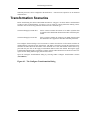
Transformation Scenarios
Before transforming the current edited XML document in <oXygen/> one must define a transformation
scenario to apply to that document. A scenario is a set of values for various parameters defining a transformation. It is not tied to any particular document but to a document type:
Scenarios that apply to XML files
Such a scenario contains the location of an XSLT stylesheet that
is applied on the edited XML document and other transform parameters.
Scenarios that apply to XSL files
Such a scenario contains the location of an XML document that
the edited XSL file is applied on and other transform parameters.
The Configure Scenario dialog is used to associate a scenario from the list of all scenarios with the edited document by selecting an entry from the list. The dialog is opened by pressing the Configure Transformation Scenario button on the toolbar of the document view. Once selected the scenario will be applied with only one click on the Apply Transformation button on the same toolbar. Pressing the Apply
Transformation button before associating a scenario with the edited document will invoke first the Configure Scenario dialog and then apply the selected scenario.
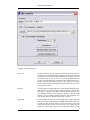
Open the Configure Transformation dialog by selecting XML->Configure transformation scenario
(Ctrl+Shift+C).
Figure 4.1. The Configure Transformation Dialog
38
Transforming Documents
Complete the dialog as follows:
XSLT Tab
Use the XSLT tab to specify an input XSL file to be used for the transformation. You can also add XSLT parameters and append header and
footer URL's to be included in the transformation. To apply a cascade
of stylesheets the user can set the list of stylesheets applied after the
stylesheet from the XSL URL field in the dialog displayed after pressing the "Cascade Stylesheets" button.The user can choose between
Xalan and Saxon when configuring the transformation. Saxon is faster
on Docbook stylesheets.
FOP Tab
Use the FOP tab to enable/disable use of FOP during a transformation.
FOP input may be provided from the XSLT output or the edited document source. <oXygen/> is supplied with the Apache FOP, but supports definition and use of any third party processor. Default output
method is set to use PDF, but PS and TXT are also configured. You
may add and define any method supported by your FOP.
Output Tab
Use the Output Tab to specify the output path where target output files
will be saved. When performing an XHTML transformation the relative path for image locations must be provided in order to ensure that
image paths will be correctly resolved in order to be displayed in the
output files. When using FOP this is not required as images will be
39
Transforming Documents
embedded within the output PDF or PS. This option will therefore be
disabled during FOP transformations.
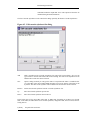
The list of cascade stylesheets can be edited in the dialog opened by the button "Cascade Stylesheets".
Figure 4.2. Edit cascade stylesheets list dialog
Add
Adds a stylesheet in the "Cascade stylesheets" list using a file browser dialog , also you can
type a macro in the file name field of the browser dialog. The name of the stylesheet will be
added in the list after the current selection.
New
Opens a dialog in which you can type the name of a stylesheet.The name is considerd relative to the URL of the current edited XML document..You can use macros in the name of the
stylesheet. The name of the stylesheet will be added in the list after the current selection.
Remove
Deletes the selected stylesheet from the "Cascade stylesheets" list.
Up
Move the selected stylesheet up in the list.
Down
Move the selected stylesheet down in the list.
In the fields reserved for: input URL (XSL URL or XML URL, depending on scenario type), header
URL, footer URL, the URLs in the list of cascade stylesheets, image base URL, the user can use the following macros:
${home}
the path of the user home
40
Transforming Documents
${cfdu}
current file directory url - the path of the current edited document up to the name of the parent directory as URL
${cfn}
current file name - the name of the current edited document without extension and parent
directory
In the Save As field from the Output tab, the user can use the following macros: ${home}, ${cfd},
${cfn}.
${cfd}
current file directory - the path of the current edited document up to the name of the parent
directory
The macros defined here can also be used in the values set for the parameters of the transformation (e.g.
base.dir).
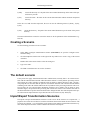
Creating a Scenario
Use the following procedure to create a scenario.
1.
Select XML->Configure transformation scenario (Ctrl+Shift+C) to open the Configure Transformation dialog.
2.
Click the Duplicate Scenario icon to the right of the top combo box to create a copy of the current
"Scenario".
3.
Double-click in the "Name" field to select the exiting text.
4.
Type a new name.
5.
Click OK or Transform Now to save the "Scenario".
The default scenario
If one presses the Apply Transformation Scenario toolbar button, currently there is no scenario associated with the edited document and the edited document contains a "xml-stylesheet" processing instruction reffering to a XSLT stylesheet (commonly used for display in Internet browsers), then <oXygen/>
will prompt the user and offer him the option to associate the document with a built-in default scenario
containing in the XSL URL field the URL from the href attribute of the processing instruction. This scenario will have the "Use xml-stylesheet declaration" checkbox set by default, will use Saxon as transformation engine, will perform no FO processing and will store the result in a file with the same URL as
the edited document except the extension which will be changed to html. The name and path will be preserved because the output file name is specified in terms of two macros: ${cfd} and ${cfn}.
Import/Export Transformation Scenarios
The option to Export Transformation Scenarios is used to store all the scenarios in a separate file , a
properties file. In this file will also be saved the associations between document urls and scenarios. The
saved urls are absolute . You can load the saved scenarios using Import Transformation Scenarios option. All the imported scenarios will have added to the name the word 'import'.
41
Transforming Documents
Example Transformation Scenarios
The following examples use the DocBook XSL Stylesheets to illustrate how to configure <oXygen/> for
transformation to the various target formats.
The following steps are common to all the example procedures below.
1.
Set the editor focus to the document to be transformed.
2.
Select XML->Configure transformation scenario (Ctrl+Shift+C) to open the Configure Transformation dialog.
3.
Select the XSLT tab.
4.
Click the "Browse for an input XSL file button". The Open dialog is displayed.
Note
During transformations the Editor Status Bar will show "Transformation - in progress". The
transformation is successfully complete when the message "XSL transformation successful"
displays. If the transform fails the message "XSL transformation failed" is displayed as an error
message in the Messages Panel. The user can stop the transformation process at any point by
pressing the "Stop transformation" button. In this case the message displayed in the status bar
will be "Transformation stopped by user".
PDF Output
1.
Change directory to [oxygen]/frameworks/docbook/xsl/fo/.
2.
Select docbook.xsl, click Open. The dialog closes.
3.
Select the FOP tab.
4.
Check the Perform FOP option. The remaining options are enabled.
5.
Select the following options:
a.
XSLT result as input.
b.
PDF as method.
c.
Built-in(Apache FOP) as processor.
6.
Select the Output tab.
7.
In the "Save As" field enter the output file name relativ to the current directory (YourFileName.pdf) or the path and output file name (C:\FileDirectory\YourFileName.pdf).
8.
Optionally, uncheck the XHTML and XML check boxes in the Show As group.
9.
Click Transform Now. The transformation is started.
42
Transforming Documents
PS Output
1.
Change directory to [oxygen]/frameworks/docbook/xsl/fo/.
2.
Select docbook.xsl, click Open. The dialog closes.
3.
Select the FOP tab.
4.
Check the Perform FOP option. The remaining options are enabled.
5.
Select the following options:
a.
XSLT result as input.
b.
PS as method.
c.
Built-in(Apache FOP) as processor.
6.
Select the Output tab.
7.
In the "Save As" field enter the output file name relativ to the current directory (YourFileName.ps) or the path and output file name (C:\FileDirectory\YourFileName.ps).
8.
Optionally, uncheck the XHTML and XML check boxes in the Show As group.
9.
Click Transform Now. The transformation is started.
TXT Output
1.
Change directory to [oxygen]/frameworks/docbook/xsl/fo/.
2.
Select docbook.xsl, click Open. The dialog closes.
3.
Select the FOP tab.
4.
Check the Perform FOP option. The remaining options are enabled.
5.
Select the following options:
a.
XSLT result as input.
b.
TXT as method.
c.
Built-in(Apache FOP) as processor.
6.
Select the Output tab.
7.
In the "Save As" field enter the output file name relativ to the current directory (YourFileName.txt) or the path and output file name (C:\FileDirectory\YourFileName.txt).
43
Transforming Documents
8.
Optionally, uncheck the XHTML and XML check boxes in the Show As group.
9.
Click Transform Now. The transformation is started.
HTML Output
1.
Change directory to [oxygen]/frameworks/docbook/xsl/html/.
2.
Select docbook.xsl, click Open. The dialog closes.
3.
Select the FOP tab.
4.
Uncheck the Perform FOP option. The FOP options are disabled.
5.
Select the Output tab.
6.
In the "Save As" field enter the output file name relativ to the current directory (YourFileName.html)
or
the
path
and
output
file
name
(C:\FileDirectory\YourFileName.html).
7.
a.
If your pictures are not located relative to the out location, check the XHTML check box in the
Show As group.
b.
Specify the path to the folder or URL where the pictures are located
Click Transform Now. The transformation is started.
HTML Help Output
1.
Change directory to [oxygen]/frameworks/docbook/xsl/htmlhelp/.
2.
Select htmlhelp.xsl, click Open. The dialog closes.
3.
Set the XSLT parameter base.dir, it identifies the output directory. (If not specified, the output directory is system dependent.)
4.
Select the FOP tab.
5.
Uncheck the Perform FOP option. The FOP options are disabled.
6.
Click Transform Now. The transformation is started.
JavaHelp Output
44
Transforming Documents
1.
Change directory to [oxygen]/frameworks/docbook/xsl/javahelp/.
2.
Select javahelp.xsl, click Open. The dialog closes.
3.
Set the XSLT parameter base.dir, it identifies the output directory. (If not specified, the output directory is system dependent.)
4.
Select the FOP tab.
5.
Uncheck the Perform FOP option. The FOP options are disabled.
6.
Click Transform Now. The transformation is started.
XHTML Output
1.
Change directory to [oxygen]/frameworks/docbook/xsl/xhtml/.
2.
Select docbook.xsl, click Open. The dialog closes.
3.
Select the FOP tab.
4.
Uncheck the Perform FOP option. The FOP options are disabled.
5.
Select the Output tab.
6.
In the "Save As" field enter the output file name relativ to the current directory (YourFileName.html)
or
the
path
and
output
file
name
(C:\FileDirectory\YourFileName.html).
7.
a.
If your pictures are not located relative to the out location, check the XHTML check box in the
Show As group.
b.
Specify the path to the folder or URL where the pictures are located
Click Transform Now. The transformation is started.
45
Chapter 5. XSLT Debugger
Overview
The <oXygen/> plugin adds two perspectives into Eclipse. The first is the standard editing perspective
that provides general features and functions for the development of XML documents and other programming languages. The second is the Debugger perspective. The Debugger perspective is started by clicking the <oXygen/> XSLT Debugger button located on the perspective toolbar or selecting the
<oXygen/> XSLT Debugger from Window->Open Perspective->Other. To switch back to Editor perspective simply click the <oXygen/> XML button that is adjacent to the <oXygen/> XSLT Debugger
button on the perspective toolbar or select <oXygen/> XML from Window->Open Perspective->Other.
Users can toggle between Debugger and Editor modes as required by clicking either buttons.
This chapter explains the Debugger mode functionality, which provides a rich set of features for development, testing and solving of XSL problems, including:
•
Support for Saxon and Xalan XSLT engines.
•
Stepping capabilities: step in, step over, step out, run, run to cursor, run to end, pause, stop.
•
Back mapping between every piece of output and style element /source context who generate it .
•
Breakpoints on both source and style documents.
•
Call stack view on both source and style documents.
•
Trace history on both source and style documents.
•
Support for XPath expression evaluation during debugging.
•
Step into imported/included stylesheets as well as included source entities.
•
Available templates and hits count.
•
Variables view.
•
Dynamic output generation.
Layout
An example of what the Debugger interface might look like is shown below. This interface is comprised
of four panes as follows:
1.
Source document view (XML)
2.
Stylesheet document view (XSL)
3.
Output View
4.
Control view
XML documents and XSL stylesheets that are opened in Editor perspective are automatically sorted into
46
XSLT Debugger
the first two panes. When multiple files of each type are opened, the individual documents/stylesheets
are separated using the familiar tab management system of the Editor perspective. Selecting a tab brings
the document/stylesheet into focus and enables editing without toggling back to the Editor perspective.
During debugging the current execution node is highlighted on both document (XML) and stylesheet
(XSL) views.
Figure 5.1. Debugger Mode Interface
Source document view (XML)
Displays and allows editing of data or document oriented XML files (documents).
Stylesheet document view (XSL)
Displays and allows editing of XSL files(stylesheets).
Output document view
Displays the transformed output that results from the input of a selected document (XML) and selected
stylesheet (XSL) to the transformer. The result of transformation is dynamically written as the transformation is processed.
Control view
The control view provides functionality for configuration and control of debugging operations. It also
47
XSLT Debugger
provides a series of Information View types. This pane is comprised of two parts:
•
Control Toolbar
•
Information View
Control Toolbar
The toolbar contains all actions needed in order to configure and control the debug process. Items are
described below from left to right as they appear in the toolbar.
Figure 5.2. Control Toolbar
XML source selector
The selection represents the source document to be used as input by the transformation engine. The selection list is filled-in with all opened files (the XML
ones being emphasized). This gives you the possibility to use other file types as
source.
XSL stylesheet selector
The selection represents the stylesheet document to be used by the transformation engine. The selection list is filled-in with all opened files (the XSL ones
being emphasized).
XSLT engine selector
Lists the available XSLT processors
(Saxon and Xalan Java - see specifications.)
ers
XSLT paramet-
XSLT parameters to be used by the transformation.
Step into
Starts the debugging process and runs until the next stylesheet node (next step
in transformation).
Step over
Executes the current stylesheet node (including its sub-elements) and goes to
next node in document order (usually the next sibling of the current node).
Step out
Steps out to the parent node (equivalent to the Step over on the parent).
Run
Starts the debugging process and runs until the first breakpoint is encountered
or until the end of transformation occurs, if no breakpoints are encountered (see
Breakpoints view).
Run to cursor
Starts the debugging process and runs until one of the following conditions occur: the line of cursor is reached, a valid breakpoint is reached or end of execution.
Run to end
Runs the transformation until the end, without taking into account any enabled
breakpoints that might be set.
Pause
Interrupts the current transformation. This is useful for long transformations
(Docbook for instance) when you want to find out what point the transformation has reached. The transformation can be resumed after.
48
XSLT Debugger
Stop
Ends the transformation process.
Show current
Highlights the current execution nodes in both the document and stylesheet
files. This feature is useful when you lost the current selection.
context
Current step info
Shows information about the current node reached by the debugging process.
The details shown are:
•
Icon to show the action (entering or leaving node).
•
Node name.
•
Resource file where the node is located.
•
Line number inside resource file where the node is located.
Information View
The information view is comprised of two panes that are used to display various types of information
that can be used to understand the transformation process. For each information type there is a corresponding tab. While running a transformation, relevant events are displayed in the various information
views. This enables the developer to obtain a clear view of the transformation progress. Using the Debug
controls developers can easily isolate parts of stylesheet therefore they may be understood and modified.
The information types include (for a more detailed discussion on each information type see Understanding Information Views):
Left side Information View Classes
•
Context node view
•
XPath watch view
•
Breakpoints view
•
Messages view
•
Variables view
Right side Information View Classes
•
Stack view
•
Trace history view
•
Templates view
•
Node set view
Working with Debugger
This section explains the working process involving the use of Debugger perspective.
49
XSLT Debugger
Getting Started
<oXygen/> provides two perspectives, Editor and Debugger. <oXygen/> starts by default in the Editor
perspective. Switching between Editor and Debugger perspectives is easy and can be done at any time
during a working session even when no files have been opened. To switch to Debugger perspective click
the
button or select <oXygen/> XSLT Debugger from Window->Open Perspective->Other .
Unlike Editor perspective, Debugger perspective requires that at least one document (XML) and one
stylesheet (XSL) are opened before the debug functionality and features become of any use. These files
can be opened while in Editor perspective before switching to Debugger perspective, or directly from
within the Debugger perspective. You can switch back to Editor perspective by clicking the Editor
button or select <oXygen/> XML from Window->Open Perspective->Other .
When switching from Editor perspective to Debugger perspective, the opened files are sorted by extension into the Source document view (XML) and Stylesheet document view (XSL) panes.
The Debug Process
The debug procedure described below (see Typical Debug Process), assumes <oXygen/> is already in
Debugger perspective and at least one document (XML) and one stylesheet (XSL) are already opened.
Some samples have been provided in order to get used with the XSLT debugging process. They can be
found in the samples/debugger subdirectory of your <oXygen/> installation.
When a debug process is running, it is adviseable to stop the process before attempting to edit source
documents or stylesheets. Editing during an active debug process will result in inaccurate informations
being displayed in the Information View.
During the debug process, if the transformation engine reaches a node from a file that has not been
opened, this file will be opened into the corresponding pane and the node will be highlighted. This is
most likely to happen in the cases of XML entity files or XSL imported/included files.
Errors encountered during debugging are reported on problems view.
At the end of debugging process, only the content from the following views is preserved (all other views
are cleared):
•
XPath watch view
•
Messages view
•
Trace history view
•
Templates view
Procedure 5.1. Typical Debug Process
1.
From Source document view (XML) select a source document.
2.
From Stylesheet document view (XSL) select a stylesheet document.
3.
From the Control Toolbar use the XML source selector control to select a source document.
50
XSLT Debugger
4.
From the Control Toolbar use the XSL stylesheet selector control to select a stylesheet.
5.
From the Control Toolbar use the XSLT engine selector control to select one of the available processing engines.
6.
Configure the XSLT parameters. Once set, these parameters are preserved between debugging sessions.
7.
Start the debugging using the active control buttons (see Control view for description of control
functions).
Note
Initially only the two available Saxon XSLT Processors are active in the Debugger perspective.If you select Xalan XSLT Processor an warning message is shown requiring Xalan version
2.5.1. To set Xalan 2.5.1 you need to copy xalanOxygen;.zip from [oxygen]/lib and put it to the
endorsed folder from your JRE/JDK used for running Eclipse (you can find it in Help->About
Eclipse Platform+Configuration Details java.endorsed.dirs entry) and restart Eclipse.
Output to Source Mapping
Every section of the output it is generated by an XSL stylesheet element in the context of an XML
source node.
During debugging, it is important to know this mapping from output to source in order to quickly spot
the templates with problems. Some of the debugging capabilities, for example "Step in" can be used for
this purpose. Using "Step in" you can see how output is generated and link it with the style element being executed in the current source context. However, this can become difficult on complex stylesheets
that generates a large output.
Output to source mapping is a powerful feature that makes this mapping persistent that is you can click
on th text from the Output document view and the editor will select the XML source context and the
XSL element that generated the text.
Figure 5.3. Output to Source Mapping
51
XSLT Debugger
Understanding Information Views
Detailed informations about the debugger status are provided using the information views.
Context node view
The context node is a source node corresponding to the XSL expression being evaluated. It is also called
the context of execution. The context node implicitly changes as the processor hits various steps (at the
point where XPath expressions are evaluated). This node has the same value as evaluating '.' (dot) XPath
expression on XPath watch view.
Figure 5.4. The Context node view
52
XSLT Debugger
Table 5.1. Context node details
Column
Description
Name
Name of source (XML) node.
Attributes/Value
Attributes or value of the XML node. If attributes
exist, they are shown under the form of attributeName="attributeValue", otherwise the
text content of the node is shown.
XPath watch view
Shows XPath expressions to be evaluated during debugging. Expressions are evaluated dynamically as
the processor changes its source context.
Figure 5.5. The XPath watch view
53
XSLT Debugger
Table 5.2. XWatch details
Column
Description
Expression
XPath expression to be evaluated (should be XPath
1.0 or 2.0 compliant).
Value
Result of XPath expression evaluation. Value has a
type (see Possible Values in the section Variables
view). For Node Set results the number of nodes in
the set is shown in parenthesis.
Remarks
•
Expressions reffering to variables names are not evaluated. In case of an XPath error, you
get an Error line.
•
The expression list is not deleted at the end of transformation (it is preserved during sessions).
•
To insert a new expression click the last line on the expression column and enter it. Press
enter on cell to add and evaluate.
•
To delete an expression click on its Expression column and delete its content. Press enter on
cell to commit changes.
•
If the expression result type is a Node Set you can click on it (Value column) and you will
see on the right side its value. (see Node set view).
Breakpoints view
Lists all breakpoints set on opened documents. Once you set a breakpoint it is automatically added in
this list. Breakpoints can be set on both XML and XSL documents.
Figure 5.6. The Breakpoints view
54
XSLT Debugger
Table 5.3. Breakpoints details
Column
Description
Resource
Resource file where the breakpoint is set.
Line
Line number inside resource where the breakpoint
is set.
Valid Breakpoint
•
Not all set breakpoints are valid. For example if the breakpoint is set on one empty or commented line or the line is not reached by the processor (no template to match it, line containing only an end tag), that breakpoint is invalid.
•
Clicking a record highlights the breakpoint line into the document.
Messages view
<xsl:message> instructions are one way to signal special situations encountered during transformation as well as a raw way of doing the debugging. This view shows all <xsl:message> calls executed by the XSLT processor during transformation.
Figure 5.7. The Messages view
Table 5.4. Messages details
Column
Description
Message
Message content.
Terminate
Signals if processor will terminate the transformation or not once it encounters the message
(true/false respectively)
Resource
Resource file where <xsl:message> instruction
is defined.
Remarks
55
XSLT Debugger
•
Clicking a record from the table highlights the <xsl:message> declaration line.
Stack view
Shows the current execution stack of both source and style nodes. During transformation two stacks are
managed: one of source nodes being processed and the other for stylesheet nodes being processed.
<oXygen/> shows both node types into one common stack. The source (XML) nodes are preceded by a
red color icon while stylesheet nodes are preceded by a green color icon. The advantage of this approach
is that you can always see the source scope on which a stylesheet instruction is executed (the last red
color node on the stack). The stack is oriented upside down.
Figure 5.8. The Stack view
Table 5.5. Stack details
Column
Description
#
Order number, represents the depth of the node (0
is the stack base).
XML/XSL Node
Node from source or stylesheet document currently
being processed. One particular stack node is the
document root, noted as #document.
Attributes
Attributes of the node (list of id="value" pairs).
Resource
Resource file where the node is located.
Remarks
•
Clicking a record from the stack highlights that node's location inside resource.
•
Using Saxon, the stylesheet elements are qualified with XSL proxy, while on Xalan you
only see their names. (example <xsl:template> on Saxon and template on Xalan).
•
Only Saxon processor shows element attributes.
•
Xalan processor shows the "built-in" rules.
56
XSLT Debugger
Trace history view
Usually the XSLT processors signal the following events during transformation:
•
entering a source (XML) node.
•
leaving a source (XML) node.
•
entering a stylesheet (XSL) node.
•
leaving a stylesheet (XSL) node.
The trace history catches all these events, so you can see how the process evolved. The red icon lines denote source nodes while the green icon lines denote stylesheet nodes.
Figure 5.9. The Trace History View
Table 5.6. Trace History details
Column
Description
Depth
Starts from 0 and represents the level of overlapping for that node. This is similar with the # order
number from stack at the moment the node was
processed.
XML/XSL Node
Represents the node from the processed source or
stylesheet document. One particular node is the
document root, noted as #document. Every node
has an arrow in front of it representing what action
was performed on it (entering or leaving).
Attributes
Attributes of the node (list of id="value" pairs).
Resource
Resource file where the node is located.
Remarks
57
XSLT Debugger
•
Clicking a record highlights that node's location inside the resource.
•
Only Saxon processor shows element attributes.
•
Xalan processor shows the "built-in" rules.
Templates view
The <xsl:template> is the basic element for stylesheets transformation. This view shows all
<xsl:template> instructions used by the transformation. By seeing the number of hits for each of
the templates you get an idea of the stylesheet coverage by template rules with respect to the input
source.
Figure 5.10. The Templates view
Table 5.7. Templates details
Column
Description
Match
Match attribute of the <xsl:template>.
Hits
Number of hits for the <xsl:template>.
Shows how many times the XSLT processor used
this particular template.
Priority
Template priority as established by XSLT processor.
Mode
Mode attribute of the <xsl:template>.
Name
Name attribute of the <xsl:template>.
Resource
Resource file where template is located.
Remarks
•
Clicking a record highlights that template definition inside resource.
•
Saxon only shows the applied templates having at least one hit from the processor. Xalan
shows all defined templates, with or without hits.
58
XSLT Debugger
•
The template list is sorted descending on the number of hits.
•
Xalan shows the "built-in" rules.
Node set view
This view is always used in relation with Variables view and XPath watch view and shows a nodeset
value. Once you click a variable having as value a nodeset or tree fragment or an XPath expression evaluated to a nodeset in the above views the node set view gets updated with the respective value.
Figure 5.11. The Node Set view
Table 5.8. Node set details
Column
Description
Name
Name of source (XML) node.
Attributes/Value
Attributes or text content(Value) of the XML
node. If attributes exist, these are shown under the
form
of
attributeName="attributeValue", otherwise the text content of the node is shown.
Remarks
•
In case of longer values for Value/Attributes column content, the interface shows three suspension points (...) at the end. A more detailed value is available as tooltip.
•
Clicking a record highlights the location of that node into the source or stylesheet view.
Variables view
During transformation variables and parameters play an important role.
<oXygen/> uses the following icons to differentiate variables/parameters:
59
XSLT Debugger
•
Global variable.
•
Local variable.
•
Global parameter.
•
Local parameter.
The values types of a variable are marked by icons explained below:
Possible Values
•
Boolean.
•
String.
•
Numeric.
•
Node set.
•
Tree fragment.
•
Object.
•
Any.
Figure 5.12. The Variables view
Table 5.9. Variables details
60
XSLT Debugger
Column
Description
Name
Name of the variable/parameter.
Value
Current value for the variable/parameter.
Remarks
•
Clicking a record highlights the variable definition line.
•
Variable values could differ depending on the transformation engine used or stylesheet version set.
•
If the value of the variable is a node-set or a tree-fragment, clicking on it causes the Node
set view to be shown with corresponding set of values.
61
Chapter 6. WSDL Support
Web Services Description Language Overview
Web Services Description Language (WSDL) is an XML format for describing network services as a set
of endpoints operating on messages containing either document-oriented or procedure-oriented information.
<oXygen/> offers the following facilities for WSDL support :
•
Editing WSDL files.
•
Validating WSDL files.
•
Analysing and testing WSDL files.
Editing WSDL files
The WSDL files contain information about the published services, like the name, the message types and
the bindings. The editor is offering a way to edit the WSDL files that is similar to editing XML, the taginsight being driven by a mix of the WSDL and SOAP Schema.
To create a WSDL file, use the File/New and then choose WSDL file.
Figure 6.1. Tag insight for WSDL
Validating WSDL files
62
WSDL Support
While editing the Web-Services descriptors you can check their conformance to the WSDL and SOAP
schema. You do not need to specify the schema location for the WSDL standard namespaces. In the following example you can see how the errors are reported.
Figure 6.2. Validating a WSDL file
Analysing and testing WSDL files.
After defining the descriptor you can check it to see if the defined messages are accepted by the Web
Services server. <oXygen/> is providing two ways of testing, one for the currently edited WSDL file
and other for the remote WSDL files that are published on a web server.
Figure 6.3. WSDL Analyser
63
WSDL Support
In case of a remote file you must use the menu option "WSDL SOAP Analyser". In case of the edited
document, you can start the analyser from the first button of the tool bar.
The analyser fields are:
•
The List of Services. The list of services defined by the WSDL file.
•
The List of Ports. The ports for the selected service.
•
The List of Operations. The list of available operations for the selected service.
•
The Action URL. This is not editable and it shows the script that serves the operation.
64
WSDL Support
•
The SOAP Action. This is not editable and identifies the action performed by the script.
•
The Request Editor. It allows you to compose the web service request. When an action is selected,
<oXygen/> tries to generate as much content as possible for the call skeleton. Usually you just have
to change few values in order for the request to be valid. The tag-insight is available for this editor
and is driven by the schema that defines the type of the current message.
•
The Attachments List. You can define a list of file's URLs to be attached to the request.
•
The Response Area. It presents the message received from the server in response to the Web Service
request. It may show also error messages.
•
The Errors List. There may be situations in which the WSDL file is respecting the WSDL XML
Schema, but it fails to be valid for example in the case of a message that is defined by means of an
element that is not found in the types section of the WSDL. In such a case, the errors will be listed
here. This list is presented only when there are errors.
•
The Send Button. Executes the request. A status dialog is shown when <oXygen/> is connecting to
the server.
The testing of a WSDL file is straight-forward, you just have to click on the WSDL analysis button, then
select the service, the port and the operation. The editor will generate the skeleton for the request. You
can edit the request, eventually attach files to it and send it to the server. Watch the server response in
the response area.
65
Chapter 7. XQuery Support
XQuery Overview
XQuery is the query language for XML. The many benefits of XQuery include:
•
XQuery allows you to work in one common model no matter what type of data you're working with:
relational, XML, or object data.
•
XQuery is ideal for queries that must represent results as XML, to query XML stored inside or outside the database, and to span relational and XML sources.
•
XQuery allows you to create many different types of XML representations of the same data.
•
XQuery allows you to query both relational sources and XML sources, and create one XML result.
XQuery is currently under development at the W3C.
<oXygen/> XML Editor includes an XQuery editor featured with:
•
syntax highlight for XQuery documents
•
code insight for XQuery functions, operators and keywords
•
XQuery validation and execution
•
support for applying your queries on XML documents
To create a new XQuery document you can select File-> New (Ctrl+N) and when the New Document
dialog appears select XQuery entry.
Syntax Highlight and Content Completion
Once you created the new document <oXygen/> provides syntax highlight for keywords and all known
XQuery functions and operators. Also for these there is available a code-insight component that can be
activated by pressing Ctrl+Space keys. The functions and operators are presented together with a comment about parameters and functionallity.
Figure 7.1. XQuery Tag Insight
66
XQuery Support
XQuery Validation
With <oXygen/> you can validate your documents before using them in your transformation scenarios.
The validation uses the Saxon 8.1B processor. This is conformant to the XQuery Working Draft http://www.w3.org/TR/xquery/. The processor is used in two cases: validation of the expression and execution. Although the execution implies a validation, it is faster to syntactically check the expression
without executing it. The errors that occured in the document are presented in the messages view at the
bottom of editor window, with a full description message. As with all error messages, if you click on
one entry, the line where the error appeared is highlighted.
Figure 7.2. XQuery Validation
Transforming XML Documents Using XQuery
XQueries are very similar to the XSL stylesheets in the sense they both are capable of transforming an
XML input into another format. You can define transformation scenarios that specify the input URL, the
preview mode, XML or XHTML. The result can be saved and opened in the associated application. You
can even run a FO processor on the output of an XQuery. The transformation scenarios may be shared
between many XQuery files, and are exported at the same time with the XSLT scenarios.
The Transformation Scenario Edit dialog is illustrated below. The transformation performed can be
based on the XML document specified in the Input field, or, if this field is empty, the documents
reffered from the query expression are used instead.
Figure 7.3. XQuery Transformation
67
XQuery Support
68