1
Operating Instructions
Model No.
KX-TSC11HGW
Preparation
Integrated Telephone System
Pulse-or-tone dialing capability
Basic Operation
Advanced Operation
PLEASE READ BEFORE USE AND SAVE.
Useful Information
Caller ID Compatible
Before Initial Use
Thank you for purchasing your new Panasonic integrated
telephone.
Caller ID, where available, is a telephone company’s service. After
subscribing to Caller ID, this phone will display a caller’s phone number.
For your future reference
Serial No.
Date of purchase
(found on the bottom of the unit)
Name and address of dealer
Copyright:
This material is copyrighted by Panasonic Communications (Malaysia) Sdn. Bhd.,
and may be reproduced for internal use only. All other reproduction, in whole
or in part, is prohibited without the written consent of Panasonic
Communications (Malaysia) Sdn. Bhd.
Accessories (included)
2
Handset (p. 6)
Handset Cord (p. 6)
Telephone Line
Cord (p. 6)
one
one
one
Contents
Preparation
Display . . . . . . . . . . . . . . . . . . . . 5
Basic Operation
Making Calls . . . . . . . . . . . . . . . 13
Answering Calls . . . . . . . . . . . . 14
Using the Caller List . . . . . . . . . 15
Viewing the Caller List . . . . . . . 15
Calling Back from the Caller
List . . . . . . . . . . . . . . . . . . . . . 17
Editing the Caller’s Phone
Number . . . . . . . . . . . . . . . . . 17
Storing Caller List Information in
the Phone Book List . . . . . . . 18
Erasing Caller List
Information . . . . . . . . . . . . . . 19
Special Features . . . . . . . . . . . . 27
Temporary Tone Dialing
(For Rotary or Pulse Service
Users) . . . . . . . . . . . . . . . . . . 27
Using the PAUSE Button
(For PBX Line/Long Distance
Calls) . . . . . . . . . . . . . . . . . . . 27
For Call Waiting Service
Users . . . . . . . . . . . . . . . . . . . 28
RECALL Button . . . . . . . . . . . . 28
Setting the Password . . . . . . . . 29
Dial Lock . . . . . . . . . . . . . . . . . 30
Call Restriction . . . . . . . . . . . . . 31
Advanced Operation
Caller ID Service . . . . . . . . . . . . 14
Phone Book . . . . . . . . . . . . . . . . 20
Storing Names and Phone
Numbers in the Phone Book
List . . . . . . . . . . . . . . . . . . . . . 20
Dialing from the Phone Book . . 23
Chain Dial . . . . . . . . . . . . . . . . 24
Editing . . . . . . . . . . . . . . . . . . . 25
Erasing . . . . . . . . . . . . . . . . . . . 26
Basic Operation
Settings . . . . . . . . . . . . . . . . . . . . 6
Installing the Batteries . . . . . . . . 6
Connecting the Handset/
Telephone Line Cord . . . . . . . . 6
Programming Summary . . . . . . . 7
Time and Date . . . . . . . . . . . . . . 8
Dialing Mode . . . . . . . . . . . . . . 10
LCD Contrast . . . . . . . . . . . . . . 11
Ringer Volume . . . . . . . . . . . . . 11
Display Language . . . . . . . . . . 12
Preparation
Location of Controls . . . . . . . . . 4
Advanced Operation
Useful Information
Wall Mounting . . . . . . . . . . . . . . 32
Battery Replacement . . . . . . . . 33
Troubleshooting . . . . . . . . . . . . 34
Safety Instructions . . . . . . . . . . 36
Useful Information
Specifications . . . . . . . . . . . . . . 38
3
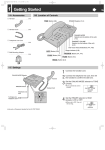
Location of Controls
Button
Button
C
(p. 7, 18, 20)
OK
(p. 17, 19, 20, 26)
Button
(p. 7, 15, 20)
Display (p. 5)
RINGER Selector (p. 11)
C
1
4
2
I
RS
8
NE
DE
3
F
M
6 NO
TU
0
TO
C
J
5 KL
PQ
7
OK
AB
GH
V
W
9 XYZ
R
Button
Button
Button
R
▼
▼
TONE Button [ ]
▼
Navigator Key
([ ▼], [ ], [ ], [ ])
(see below)
Button
(p. 30)
(p. 28)
(p. 27)
(p. 13)
How to use the Navigator key
This key has four active areas that are indicated by arrows.
• Pressing the up and down arrows allows you to enter the
Caller List and select the function menu, the Caller List and
the Phone Book List. The up and down arrows are also used
to adjust the receiver volume while talking.
• Pressing the right and left arrows allows you to enter the
Phone Book List and move the cursor when entering items.
▼
▼
4
▼
Throughout these Operating Instructions, the navigator key is indicated by
the arrows [ ▼], [ ], [ ] or [ ].
Display
1234567890123456
12:34 24/11
While the unit is not in use, the display
shows the current time and date, and the
number of new calls.
If the display continuously shows “0:00
31/12” or “12:00AM 31/12”, the clock
needs adjustment (p. 8, 9).
0:00 31/12
During a conversation, the display shows
the length of the call (Ex. 1 hour, 6 minutes
and 35 seconds).
01-06-35
12:34 24/11
1114447777
11:50 23/11
Preparation
10 MISSED CALLS
(This display shows all of the possible
configurations.)
NEW
x3
This is a display from the Caller List. The
display shows:
— the caller’s number,
— the time and date of the last call
(Ex. Nov. 23, 11:50),
— the caller’s information is new and has
not been viewed (“NEW” is displayed),
and
— the number of times called (Ex. 3 times).
: The dial lock mode is set (p. 30).
: The unit enters in the Phone Book List (p. 18).
:
was pressed while the handset is on the cradle (p. 13).
: This display flashes, when the battery power is low. Replace the
batteries (p. 33).
P
:
F
:
was pressed while dialing or storing phone numbers.
R
was pressed while storing phone numbers.
5
Settings
Installing the Batteries
-
down in the direction of the arrow
1 Press
and remove the battery cover ( ).
the batteries in the proper order
2 Install
as shown ( ), matching the correct
+
+
-
+
1
2
2
polarity.
1
3 Close the battery cover.
• Batteries are not included in the unit.
• Install three high quality “AA” size Alkaline (LR6) or Manganese (R6, UM-3)
batteries. We recommend to use Panasonic Alkaline batteries.
Battery life is: —about six months in use of Alkaline batteries.
—about three months in use of Manganese batteries.
Battery life may depend on usage conditions and ambient temperature.
• Make sure batteries were inserted properly in phase to ensure the functionality of
this unit.
THE UNIT MAY NOT WORK PROPERLY WITHOUT BATTERIES.
Connecting the Handset/Telephone Line Cord
After connection, lift the handset to check for a dial tone.
Handset
To Single-Line
Telephone Jack
6
Telephone Line
Cord
Handset Cord
Preparation
• Use only a Panasonic Handset for the KX-TSC11HGW.
• Use only a telephone line cord included in the unit.
• If your unit is connected to a PBX which does not support Caller ID services,
you cannot access those services.
Programming Summary
You can program the following functions. The display shows the
programming instructions. See the corresponding pages for function
details.
Make sure that the handset is on the cradle.
Press
.
<Function menu>*
SAVE PHONEBOOK ? . . . . .To store names and phone numbers in
memory (p. 20).
SET CLOCK ? . . . . . . . . . .To adjust the time and date (p. 8).
CHANGE PASSWORD? . . . . .To change the password for the dial lock
and call restriction (p. 29).
CALL RESTRICT ? . . . . . .To set the call restriction (p. 31).
SET FLASH TIME ? . . . . .To select the flash time (p. 28).
SET DIAL MODE ? . . . . . .To select the dialing mode (p. 10).
LCD CONTRAST ? . . . . . . .To select the LCD contrast (p. 11).
CHANGE LANGUAGE? . . . . .To select the display language (p. 12).
During programming
* To select a desired function item, scroll through the items by pressing [ ▼]
or [ ]. Then press OK to go to the next step.
▼
• You can exit the programming mode any time by pressing
.
• If you do not press any buttons for 60 seconds, the unit will exit the programming
mode.
7
Settings
Time and Date
You can select 24-hour clock or AM/PM by programming.
Make sure that the handset is on the cradle.
3
Press
.
Scroll to “SET CLOCK ?” by
pressing [ ▼] or [ ].
▼
1
2
Press
OK
.
SET CLOCK ?
ENTER YEAR
2004
00:00 31/12
4
Enter the current year.
(Ex. To set 2004, enter “04”.)
• You can set the year 2000 to 2099.
5
Press
OK
.
ENTER YEAR
00:00 31/12
ENTER TIME
00:00 31/12
6
Enter the current time (hour and
minute) using a 4-digit number.
(Ex. To set 9:30, enter “0930”.)
ENTER TIME
09:30 31/12
• For 24-hour clock: Enter numbers
between 0000 and 2359.
• For AM/PM setting: Enter numbers
between 0100 and 1259.
7
8
Press
OK
.
• If numbers between 0000 and 0059, or
1300 and 2359 are entered, the time will
automatically be set using the
24-hour clock. Go to the step 10.
#=AM/PM
09:30 31/12
2004
8
Display
(Blank display)
#=AM/PM
09:30 31/12
Preparation
Press [#] to select 24-hour clock, “AM”
or “PM”.
(Ex. You select “24-hour clock”.)
Option
24-hour clock
AM
AM
PM
PM
• Each time you press [#], the selection will
change on the display.
9
Press
OK
.
ENTER DAY/MONTH
09:30 31/12
10
11
Enter the current day and month using
a 4-digit number.
(Ex. To set Dec. 27, enter “2712”.)
Press
OK
.
• The clock starts working.
• The display will return to step 2. To exit
the programming mode, press
or
wait for 60 seconds.
ENTER DAY/MONTH
09:30 27/12
SAVED
• If the time and date entered are not correct, “ERROR” will be displayed and you
cannot continue with setting. Enter the correct time and date.
If the batteries installed in the unit expired, the time and date will be shown as
“0:00 31/12” or “12:00AM 31/12” while talking or after the battery
replacement. Readjust the time/date.
For Caller ID service users (p. 14)
If a time display service is available with the Caller ID service:
The Caller ID information will re-set the clock after the ring if the adjusted time
and/or date is incorrect. However, if the time/date has not previously been set,
the Caller ID information will not adjust the clock.
9
Settings
Dialing Mode
You can select the dialing mode by programming. If you have touch tone
service, set to Tone. If rotary or pulse service is used, set to Pulse. Your
phone comes from the factory set to Tone.
Make sure that the handset is on the cradle.
1
Press
2
Scroll to “SET DIAL MODE ?”
by pressing [ ▼] or [ ].
3
Press
4
Select “PULSE” or “TONE”
by pressing [ ▼] or [ ].
5
Press
.
▼
OK
.
SET DIAL MODE ?
:TONE
▼
OK
.
• The display will return to step 2.
To exit the programming mode,
press
or wait for 60 seconds.
SAVED
• You can exit the programming mode any time by pressing
10
.
LCD Contrast
4
.
Scroll to “LCD CONTRAST ?” by
pressing [ ▼] or [ ].
Press
OK
LCD CONTRAST ?
.
• The current setting is displayed.
Select the desired contrast by
pressing [ ▼] or [ ].
▼
3
Press
▼
1
2
Preparation
You can select the LCD contrast level from 1 to 4 by programming.
Your phone comes from the factory set to 2.
Make sure that the handset is on the cradle.
▼
• Each time you press [ ▼] or [ ],
the LCD contrast will change.
5
Press
OK
.
• The display will return to step 2.
To exit the programming mode,
press
or wait for
60 seconds.
SAVED
• You can exit the programming mode any time by pressing
.
Ringer Volume
You can select the ringer volume to HIGH, LOW or OFF. Your phone comes
from the factory set to HIGH.
RINGER Selector:
Set to HIGH, LOW or
RINGER
HIGH
OFF
OFF.
≥When set to OFF,
the unit will not ring.
11
Settings
Display Language
You can select either “English” or “Hungary” as the display language.
Your phone comes from the factory set to “English”.
Make sure that the handset is on the cradle.
1
Press
2
Scroll to “CHANGE LANGUAGE?” by
pressing [ ▼] or [ ].
3
Press
4
Select “ENGLISH” or “HUNGARIAN”
by pressing [ ▼] or [ ].
5
Press
.
SAVE PHONEBOOK ?
▼
OK
.
CHANGE LANGUAGE?
:ENGLISH
▼
OK
.
• The display will return to step 2.
To exit the programming mode,
press
or wait for
60 seconds.
SAVED
• You can exit the programming mode any time by pressing
12
.
Making Calls
To make a call, this unit can dial up by 2 methods as below steps.
1
Enter a phone number, then lift the handset.
OR
Lift the handset, then dial a phone number.
• The dialed number is displayed.
• After a few seconds, the display will show
the length of the call.
• If you misdial, hang up and start again
from step 1.
1234567890
12:34 24/11
00-00-00
12:34 24/11
Basic Operation
2
When finished talking, hang up.
To redial the last number dialed
Lift the handset
press
.
To redial using the redial list (Memory Redial)
The last 20 phone numbers dialed are stored in the redial list.
Make sure that the handset is on the cradle.
1. Press
.
▼
• The last number dialed and “
” are displayed.
• When the dialed number has been stored in the Phone Book List, the name is
displayed instead of the number. To see the number, press [ ].
▼
2. Select the desired number by pressing [ ▼] or [ ].
• You can also select through the list by pressing
• To exit the list, press
.
.
3. Lift the handset.
• The displayed phone number is dialed.
• To erase an item, repeat steps 1 and 2, and press C .
• If “NO ITEMS STORED” is displayed, the list is empty.
To adjust the handset volume (4 levels) while talking
▼
To increase, press [ ].
To decrease, press [ ▼].
• The display shows the volume level for a few
seconds.
Ex. Handset volume level: 2
12:34 24/11
13
Answering Calls
When a call is received, the unit rings, “INCOMING CALL” is displayed.
If you subscribe to a Caller ID service, the calling party’s information will be
displayed when the unit is ringing (see below).
1
2
When the unit rings, lift the handset.
When finished talking, hang up.
• When the ringer volume is set to OFF (p. 11), the unit will not ring.
Caller ID Service
This unit is compatible with a Caller ID service offered by your telephone
company. If you subscribe to a Caller ID service, the calling party’s
information will be displayed when the unit is ringing.
The unit can record information of up to 50 different callers, including the
time and date received and the number of times called, in the Caller List.
The Caller List information is sorted from the most recent to the oldest call.
When the 51st call is received, the oldest call is deleted.
Using the list, you can automatically call back a caller. You can store the
callers’ numbers from the Caller List in the Phone Book memory.
How caller information is displayed when a call is received
The display shows the caller’s phone
number when the unit is ringing.*
• After you answer the call, the display
will show the length of the call.
1114447777
11:50 24/11
*Private name display
If you receive a call from one of the same
phone numbers stored in the Phone Book
List, the caller’s name will be displayed.
• To use this function, names and phone numbers
must be stored in the Phone Book List (p. 20).
14
TINA ROBINSON
11:50 24/11
• Caller information will not be displayed in the following cases:
— If the caller dialed from an area which does not provide a Caller ID service, the
display will show “OUT OF AREA”.
— If the caller has requested not to display his/her information, the display will
show “PRIVATE CALLER”.
— If a long distance call is identified and caller’s name and/or number cannot be
received, the display will show “LONG DISTANCE”.
• If your unit is connected to a PBX which does not support Caller ID services, you
cannot access those services.
Basic Operation
• If the batteries installed in the unit have expired, Caller ID services will not be
available.
• If the name and the time/date display service is available in your area, the
display will show caller’s names and the time/date the calls were received. For
further information, please contact your telephone company.
Using the Caller List
If you have received 10 new calls, the
number of new calls will be displayed as
shown, while the unit is not in use.
10 MISSED CALLS
12:34 24/11
Viewing the Caller List
To check who has called, follow the steps below.
1
Press [ ▼] or [ ] to enter the Caller
List.
2
To search from the most recent call,
press [ ▼].
• To search from the oldest call, press [ ].
• To scroll between callers, press [ ▼] or
[ ].
3
To exit the Caller List, press
1114447777
11:50 24/11
NEW
.
• If “NO ITEMS STORED” is displayed, the Caller List is empty.
• If more than one call is received from the same caller, the date and time of the
most recent call will be recorded.
15
Using the Caller List
Ex. When you search from the most recent call:
Press [ ▼] to enter the list.
To return to the previous
caller, press [ ].
To exit the Caller List, press
.
1114447777
11:50 24/11
NEW
x4
Press [ ▼].
▼
Press [ ].
10:50 23/11
▼
1234567890
▼
* JACK SMITH
10:50 23/11
Press [ ▼].
▼
Press [ ].
10:00 22/11
0123
▼
▼
** 456789012345678
10:00 22/11
Press [ ▼].
12:34 24/11
Press [ ▼].
▼
▼
** If you receive a call from one of the same phone numbers stored in the Phone
Book List, the caller’s name will be displayed (Private name display).
To see the phone number, press [ ]. Each time you press [ ], the display will
change alternately.
** If an arrow ( ) is displayed after the number, the whole phone number has not
been shown. Press [ ] to see the remaining numbers or to return to the previous
display. Each time you press [ ], the display will change alternately.
▼
▼
▼
Display meaning:
Caller’s phone
number or name
JACK SMITH
x4
The number of times
The time and date the call has
the same caller
been received.
called (up to 9).
(ex. November 23, 10:50)
The indication of the call which
you have not checked.
16
Calling Back from the Caller List
▼
Press [ ▼] or [ ] to enter the Caller List.
Scroll to the desired caller by pressing
[ ▼] or [ ].
▼
• To exit the Caller List, press
for 60 seconds.
3
JACK SMITH
▼
1
2
10:50 23/11
or wait
Lift the handset.
1234567890
10:50 23/11
Basic Operation
• The displayed phone number is dialed
automatically.
• After a few seconds, the display will show
the length of the call.
00-00-00
10:50 23/11
• In some cases, you may have to edit the number before dialing (see below).
• If a phone number is not displayed in the caller information, you cannot call back
that caller.
Editing the Caller’s Phone Number
You can edit a phone number recorded in the Caller List.
▼
Press [ ▼] or [ ] to enter the Caller List.
Scroll to the desired caller by pressing
[ ▼] or [ ].
▼
1
2
1234567890
10:50 23/11
▼
3
Press [ ] or
OK
To add a number
Add a number to the current number.
To erase a number
Press C or [#] to erase the number.
4
NEW
x4
.
01234567890
After editing, you can continue with calling back or storing
procedures.
To call back, lift the handset.
To store the number in the Phone Book memory, follow steps 4 to 5
on page 18 to complete the operation.
• To exit the Caller List during editing, press
or wait for 60 seconds.
17
Using the Caller List
Storing Caller List Information in the Phone
Book List
You can store numbers in the Caller List to the Phone Book List.
Make sure that the handset is on the cradle.
1
2
Press [ ▼] or [ ] to enter the Caller List.
3
Press [ ] or
Scroll to the caller you want to store by
pressing [ ▼] or [ ].
1234567890
4
5
▼
10:50 23/11
OK
.
• If the number requires editing,
see page 17.
Press
OK
OK
x4
1234567890
.
If there is no name information for
the caller, “ENTER NAME” will be
displayed.
a) If a name is required, enter the
name (p. 22). When finished,
go to step 5.
b) If a name is not required,
go to step 5.
If there is name information for
the caller, you can edit name
information.
a) If you need to change the
name, enter the name (p. 22).
When finished, go to step 5.
b) If you do not need to change
the name, go to step 5.
Press
NEW
.
• After a few seconds, the display will
return to the Caller List. You can continue
storing other items. To exit the Caller List,
press
or wait for 60 seconds.
ENTER NAME
SAVED
• If the display shows “PHONEBOOK FULL” in step 4, press
to exit the list. To
erase other stored items from the Phone Book List, see page 26.
• To cancel during programming, press
. Start again from step 1.
• You cannot store caller information in the Phone Book List if a phone number is
not displayed.
18
Erasing Caller List Information
After checking the Caller List, you can erase some or all of the entries.
Make sure that the handset is on the cradle.
To erase a specific caller from the Caller List
▼
Press [ ▼] or [ ] to enter the Caller List.
Scroll to the caller you want to erase
by pressing [ ▼] or [ ].
JACK SMITH
▼
▼
1
2
10:50 23/11
Press
C
.
• The information is erased.
• After a few seconds, the display will show
the previous caller information.
• To exit the Caller List, press
or wait
for 60 seconds.
Basic Operation
3
ERASED
To erase all entries in the Caller List
1
Press
2
Press
C
.
• To stop erasing, press
OK
.
.
• All entries are erased.
• The unit will exit the Caller List.
ALL ERASE ?
ALL ERASED
19
Phone Book
Storing Names and Phone Numbers in the
Phone Book List
You can store up to 50 names and phone numbers in the Phone Book.
Make sure that the handset is on the cradle.
1
Press
2
Press
3
Enter a name, up to 15 characters
with the dialing buttons (p. 22).
.
OK
SAVE PHONEBOOK ?
.
• The display will show the number of
stored items.
• After a few second the display will
change.
12 ITEMS STORED
ENTER NAME
▼
▼
• To move the cursor while entering name,
press [ ] or [ ].
• If a name is not required, press OK and
go to step 5.
4
Press
5
Enter a phone number up to 22 digits.
OK
.
• If you want to return to step 3 for editing,
press [ ].
20
▼
▼
• If you entered a wrong number, press
C and enter the correct number.
• To move the cursor while entering
number, press [ ] or [ ].
ENTER PHONE NO.
1234567890
6
Press
OK
.
• To continue storing other items, repeat
from step 2.
• The display will return to step 1. To exit
the programming mode, press
or wait
for 60 seconds.
SAVED
Advanced Operation
• If the display shows “PHONEBOOK FULL” in step 2, press
to exit. To erase other
stored items from the Phone Book List, see page 26.
• You can exit the programming mode any time by pressing
.
• If a pause is required for dialing, press
where needed. If required, you can
also store R in a phone number. Pressing
or R counts as one digit
(p. 27, 28).
• To store numbers for calling card access (see “Chain Dial” on page 24), we
recommend you add pauses after each item. Storing pauses with numbers will
prevent misdialing (p. 27). The delay time necessary will depend on your
telephone company.
• When using the Dial Lock (p. 30) or Call Restriction feature (p. 31), you cannot
store the emergency number in the Phone Book.
• If the display shows “DIAL LOCKED” or “CALL RESTRICTED” in step 4, you cannot
store the emergency number in the Phone Book. See page 30, 31.
• When the dialing buttons are locked (p. 30), only numbers stored in the Phone
Book as emergency numbers can be dialed.
• When storing a name, you can also enter space by pressing [0] twice. Items with
space at the beginning will be displayed with first priority.
See page 23.
To store an emergency number:
When storing a name in step 3 on page 20, enter # at the beginning of the
name by pressing [#]. See page 22.
• Items with # at the beginning will be displayed with first priority if DIAL LOCK or
CALL RESTRICTION is set to ON. See page 30, 31.
21
Phone Book
Selecting characters to enter names
The dialing buttons ([0] to [9]) can be used to enter letters and symbols.
Pressing each button selects a character as shown below.
Number of times key is pressed
Keys
1
2
3
4
5
6
7
8
9
[1]
&
’
(
)
,
–
.
/
1
[2]
A
B
C
2
[3]
D
E
F
3
[4]
G
H
I
4
[5]
J
K
L
5
[6]
M
N
O
6
[7]
P
Q
R
S
[8]
T
U
V
8
[9]
W
X
Y
Z
[0]
0
Space
[#]
#
7
9
[ ]
[
]
To move the cursor to the left
[
]
To move the cursor to the right
▼
▼
If you make a mistake while entering a name
Use [ ] or [ ] to move the cursor to the incorrect character, press
delete and enter the correct character. Each time you press C , a
character is erased.
For example, to enter “TOM JONES”:
22
Press [8].
T
TO
Press [6] once, then press [ ] twice.
TOM
Press [5], press [6] three times, then
press [ ].
Press [6] twice, press [3] twice, then
press [7] four times.
TOM JO
▼
▼
Press [6] three times, then press [ ].
▼
1
2
3
4
5
TOM JONES
C
to
Dialing from the Phone Book
Make sure that the handset is on the cradle.
2
Scroll to the desired item by
pressing [ ] or [ ].
▼
Press [ ] or [ ] to enter the Phone
Book List.
▼
1
PHONEBOOK LIST
Press [ ].
• All Phone Book items are stored in
the order shown on the right.
• Items with # at the beginning will
be displayed with first priority if
DIAL LOCK or CALL
RESTRICTION is set to ON.
3
Lift the handset.
4
To hang up, place the handset on the
cradle.
Space + Alphabet
Alphabet
Symbol (excluding # and )
Number
# and
Telephone number
(When a name is not stored)
Advanced Operation
To search for a name by initial:
1. Press the dialing button for the
first letter of the desired name
until any name with the same
initial is displayed (see the
Index table on page 24).
Ex. To find “Frank”, press [3]
repeatedly until the first item
under “F” is displayed.
2. Press [ ] repeatedly until the
name is displayed.
Press [ ].
• The number is dialed automatically.
• If “NO ITEMS STORED” is displayed in step 1, the Phone Book is empty.
• You can exit the Phone Book List any time by pressing
.
• You can also dial the stored number as follows:
1. Lift the handset.
2. Find the desired item (above step).
3. Press OK .
• If there is no battery, this function will not operate.
23
Phone Book
Index table
Keys
Index
Keys
Index
[1]
Symbols, 1
[7]
P, Q, R, S, 7
[2]
A, B, C, 2
[8]
T, U, V, 8
[3]
D, E, F, 3
[9]
W, X, Y, Z, 9
[4]
G, H, I, 4
[ ]
[5]
J, K, L, 5
[0]
0, Space
[6]
M, N, O, 6
[#]
#
Chain Dial
You can dial a combination of the Phone Book or manual key pad entries
while making a call. This feature can be used, for example, to first
automatically dial a calling card access number that you have stored in the
Phone Book, then manually or automatically dial your PIN and then
automatically dial the destination number from the Phone Book.
Ex. Using a long distance calling card
• To prevent misdialing, we recommend you add pauses where needed when
storing numbers. For example, add pauses after a calling card access number
and your PIN when storing in the Phone Book (p. 21).
1. Search and dial from the Phone Book: 18000123456 (Calling card access number)
• The voice guidance may be announced.
2. Search and dial from the Phone Book: 1234 (Calling card PIN)
3. Search and dial from the Phone Book: 15550123456 (Destination number)
While you are on a call;
Press [ ] or [ ].
2
Search for the desired item by pressing [ ] or [ ].
3
▼
1
• To search for an item by initial, see page 23.
Press
OK
.
• The phone number is dialed.
• If required, repeat steps 1 to 3 for any remaining numbers.
▼
• If you have rotary or pulse service, you need to press [ ] before pressing [ ] or
[ ] in step 1 to change the dialing mode temporarily to tone.
24
Editing
Make sure that the handset is on the cradle.
Press [ ] or [ ] to enter the Phone Book List.
2
Scroll to the Phone Book item you
want to change by pressing [ ] or [ ].
▼
▼
1
▼
JANE
• To search for the item by initial,
see page 23.
4
Press [ ] or
▼
3
OK
.
• If you do not need to change the name,
go to step 5.
JANE
Edit the name using the dialing buttons (p. 22).
▼
▼
• To clear an incorrect character, move the
cursor to the character by using [ ] or
[ ], then press C .
Press
OK
.
To add a number
Add a number to the current number.
Advanced Operation
5
00123456789
To erase a number
Press C to erase the number.
6
Press
OK
▼
▼
• To move the cursor, press [ ] or [ ].
.
• To continue editing other items repeat
from step 2.
25
Phone Book
Erasing
Make sure that the handset is on the cradle.
Press [ ] or [ ] to enter the Phone Book List.
2
Scroll to the Phone Book item that you want to erase by pressing [ ]
or [ ].
▼
1
• To search for the item by initial, see page 23.
4
26
Press
C
.
• To stop erasing, press [ ].
▼
3
Press
OK
.
• To erase other items, repeat from step 2.
• To exit the Phone Book List, press
.
ERASE ?
ERASED
Special Features
OK
C
[ ]
▼
[ ▼], [ ]
R
Temporary Tone Dialing
(For Rotary or Pulse Service Users)
Advanced Operation
Press [ ] (TONE) before entering access numbers which require tone
dialing.
• The dialing mode changes to tone. You can enter numbers to access an
answering service, electronic banking service, etc. When you hang up, the mode
will return to pulse.
Using the PAUSE Button
(For PBX Line/Long Distance Calls)
We recommend you press
if a pause is required for dialing with a PBX
or to make a long distance call.
Ex. Line access number [9] (PBX)
Phone number
[9]
• Pressing
once creates a 3.5 second pause.
This prevents misdialing when you redial or dial a stored number.
• Pressing
more than once increases the length of the pause between
numbers.
27
Special Features
For Call Waiting Service Users
Press
•
•
•
•
R
if you hear a call-waiting tone while talking.
The first call is put on hold and you can answer the second call.
To return to the first caller, press R again.
The call waiting service cannot be used when a parallel connected telephone is in use.
If this function does not operate properly, consult your telephone company for
details.
RECALL Button
Pressing R allows you to use special features of your host PBX such as
transferring an extension call or accessing special telephone services
(optional) such as call waiting.
Selecting the recall time
The recall time depends on your telephone exchange or host PBX. You can
select the following recall times: “80, 90, 100, 110, 200, 250, 300, 400, 600,
700 ms (milliseconds)”. Your phone comes from the factory set to “600 ms”.
Make sure that the handset is on the cradle.
1
2
Press
3
4
5
Press
.
Scroll to “SET FLASH TIME ?” by
pressing [ ▼] or [ ].
▼
OK
.
SET FLASH TIME ?
:600MS
Select the desired time by pressing
[ ▼] or [ ].
▼
Press
OK
.
• The display will return to step 2. To exit
the programming mode, press
or
wait for 60 seconds.
SAVED
• You can exit the programming mode any time by pressing
.
• If the unit is connected via a PBX, PBX functions (transferring a call, etc.) might
not work correctly. Consult your PBX supplier for the correct setting.
• If there is no battery, Flash function may not operate appropriately.
28
Setting the Password
You can change the password for the dial lock and call restriction.
The factory preset password is “1111”.
To set the password
Make sure that the handset is on the cradle.
1
2
Press
3
Press
4
Enter the current password.
5
Press
6
Enter a new password using a 4-digit
number. (Ex. “1234” is entered.)
7
Press
.
Scroll to “CHANGE PASSWORD?” by
pressing [ ▼] or [ ].
▼
OK
OK
.
.
OK
.
• The display will return to step 2. To exit
the programming mode, press
or
wait for 60 seconds.
CURRENT PASSWORD
:
NEW PASSWORD
Advanced Operation
• If the wrong password was entered at
step 4, “ERROR” will be displayed, then
“– – – –” will be displayed. Enter the
correct password.
CHANGE PASSWORD?
:1234
SAVED
• You can exit the programming mode any time by pressing
.
Please write down your password. If you forget your password, consult your
nearest Panasonic service center.
29
Special Features
Dial Lock
The Dial Lock feature allows you to prevent others from making calls. To
use this feature, turn the feature ON. The factory preset is OFF.
Before using the Dial Lock or Call Restriction feature (p. 31), we recommend
storing emergency numbers in the Phone Book (p. 20, 21). When the Dial Lock
is ON, only numbers stored in the Phone Book as emergency numbers can be
dialed.
To set the dial lock
1
Press
•“
.
” flashes on the display.
2
Enter the password (p. 29).
3
Press
OK
ENTER PASSWORD
:
.
•“
” displays.
• If the wrong password was entered,
“ERROR” will be displayed, then “– – – –”
will be displayed. Enter the correct
password.
If the dial buttons are pressed after lifting the handset, “DIAL LOCKED” will be
displayed.
You can use the following features while the dialing buttons are locked.
• Dialing # emergency items which programmed into the memory of the Phone
Book by pressing [ ] (p. 21)
• Selecting the ringer volume (p. 11)
• Adjusting the handset volumes (p. 13)
• Answering the second call by pressing R (p. 28)
• Programming (except storing/erasing # emergency items in the Phone Book
List)
• Finding an item in the following lists
—Caller list (p. 15)
—Phone Book List (p. 23)
—Redial list (p. 13)
To cancel the dial lock
Follow above steps 1 through 3. In step 3, “
30
” will go out.
Call Restriction
You can prevent the unit from dialing phone numbers beginning with
specified digit(s) (1 digit or 2 digits). Phone numbers with the restricted
leading digits cannot be dialed out except the emergency numbers stored
in the Phone Book.
To set the call restriction
Make sure that the handset is on the cradle.
1
2
3
Press
.
Scroll to “CALL RESTRICT ?” by
pressing [ ▼] or [ ].
Press
OK
CALL RESTRICT ?
.
RESTRICT NO.:––
4
Enter the number(s) (1 digit or 2
digits) you want to restrict ([0] to [9]).
ENTER PASSWORD
:
Advanced Operation
If you changed the password “1111”
(factory set), the display on the right
will be shown. Follow below steps 1
and 2.
1. Enter the password (p. 29).
2. Press OK . Go to step 4.
• If the wrong password was entered,
“ERROR” will be displayed, then
“– – – –” will be displayed. Enter the
correct password.
RESTRICT NO.:9–
• If the wrong number was entered, press
C and enter the correct number.
5
Press
OK
.
SAVED
• The display will return to step 2. To exit
the programming mode, press
or
wait for 60 seconds.
• When dialing a phone number with the restricted leading digit(s), “CALL
RESTRICTED” is displayed.
• If the display shows “CALL RESTRICTED”, you cannot store the emergency
numbers in the Phone Book.
To cancel the call restriction
Follow steps 1 through 3. In step 4, press
and press OK .
C
to clear the restricted digits,
31
Wall Mounting
This unit can be mounted on a wall.
1
Press the tabs in the
direction of the arrows
( 1 ), then remove the
wall mounting adaptor
( 2 ).
2
1
2
1
Tuck the telephone
line cord inside the
wall mounting adaptor,
and push it in the
direction of the arrow
( 1 and 2 ).
2
• The word “UP WALL”
should face upward.
3
4
Install screws using
the wall template
below. Connect the
telephone line cord.
Mount the unit, and
slide down.
1
Screws
Hooks
Adjust the LCD
contrast level for best
view (p. 11).
8.3 cm
To Single-Line
Telephone Jack
To temporarily set the handset down
during a conversation, place it as shown
here.
Wall Template
8.3 cm
32
Battery Replacement
If “ ” flashes, the battery power is low. Install new batteries as soon as
possible.
+
+
-
+
2
1
1
Disconnect the telephone line
cord from the unit.
2
Press down in the direction of the
arrow and remove the battery
cover ( 1 ).
3
Replace the batteries with new
ones using correct polarity (+, –)
( 2 ), and close the battery cover.
4
Connect the telephone line cord
to the unit.
• After the battery replacement, the information stored in the Redial List will be
cleared. Store the desired item in the Phone Book List and Caller List.
• The time will be shown as “0:00 31/12” or “12:00AM 31/12” after replacing
the batteries, readjust the time and date.
Battery Precautions:
The batteries should be used correctly, otherwise the unit may be damaged by
battery leakage.
—Do not mix different types of batteries.
—Do not charge, short-circuit, disassemble, heat or dispose of in fire.
—Remove all the batteries when replacing.
Useful Information
Note:
— If you do not install the batteries or if the battery power is low, the time will be
shown as “0:00 31/12” or “12:00AM 31/12”. Readjust the time and
date after the battery replacement.
— Replace all the batteries every six months if using Alkaline batteries, or
misoperation may occur. (When you use Manganese batteries, replace all of
them every three months.)
— Do not use nickel-cadmium batteries.
33
Troubleshooting
Problem
34
Cause and Remedy
The unit does not work.
• Check the settings (p. 6 – 12).
• Remove the batteries and reinstall them
to reset the unit.
The unit does not ring.
• The ringer selector is set to OFF. Set to
HIGH or LOW (p. 11).
The display is blank.
• Install new batteries (p. 33).
You cannot dial.
• Check that the dialing mode selection is
correct (p. 10).
• Dial lock mode is set. To cancel the
mode, see page 30.
• The dialed number is restricted. To
cancel, see page 31.
You cannot program items
such as the dialing mode.
• Programming is not possible when the
handset is off the cradle.
• Do not pause for over 60 seconds while
programming.
You cannot store a name
and phone number in
memory.
• When using the Dial Lock (p. 30) or Call
Restriction feature (p. 31), you cannot
store an emergency number in the
Phone Book List.
• If “PHONEBOOK FULL” is displayed,
erase other stored items from the Phone
Book List (p. 26).
• Programming is not possible when the
handset is off the cradle.
• Check that the batteries are installed in
the unit and that the battery power is not
low.
• Do not pause for over 60 seconds while
storing.
• Do not enter a phone number more than
22 digits long.
Problem
Cause and Remedy
While programming or
searching, the unit starts to
ring and stops the program/
search.
• To answer the call, lift the handset. Start
again from the beginning after hanging
up.
The unit does not display
the caller’s phone number.
• You need to subscribe to a Caller ID
service.
• Install or replace the batteries.
• Other telephone equipment may be
interfering with your phone. Disconnect
it and try again.
• Telephone line noise may be interfering
with the Caller ID information. Consult
your telephone company.
The display exits the Caller
List.
• Do not pause for over 60 seconds while
searching.
You cannot redial by
pressing
.
• If the last number dialed was more than
32 digits long, the number will not be
redialed correctly.
Information stored in the
Redial List is erased.
• If “ ” flashes, replace the batteries as
soon as possible. Otherwise,
information stored in the Redial List may
be erased. Store the desired item in the
Phone Book List, if necessary.
Useful Information
35
Safety Instructions
Take special care to follow the safety suggestions listed below.
Installations
Environment
1) Do not use this unit near water—for example, near a bathtub, washbowl, sink,
etc. Damp basements should also be avoided.
2) The unit should be kept away from heat sources such as radiators, kitchen
range, etc. It also should not be placed in rooms where the temperature is less
than 5°C or greater than 40°C.
Placement
1) Do not place heavy objects on top of this unit.
2) Care should be taken so that objects do not fall onto, and liquids are not spilled
into the unit. Do not subject this unit to excessive smoke, dust, mechanical
vibration or shock.
3) Place the unit on a flat surface.
CAUTION:
To reduce the risk of fire or injury to persons, read and follow these instructions.
1. Use only the battery(ies) specified.
2. Do not dispose of the battery(ies) in a fire. It (they) may explode.
3. Do not open or mutilate the battery(ies). Released electrolyte is corrosive and
may cause burns or injury to the eyes or skin. The electrolyte may be toxic if
swallowed.
4. Exercise care in handling the battery(ies) in order not to short the battery(ies)
to conductive materials such as rings, bracelets, and keys. The battery(ies)
and/or conductor may overheat and cause burns.
5. Do not recharge the battery(ies) provided with or identified for use with this
product. The battery(ies) may leak corrosive electrolyte or explode.
6. Do not attempt to rejuvenate the battery(ies) provided with or identified for use
with this product by heating. Sudden release of battery electrolyte may occur
causing burns or irritation to the eyes or skin.
7. Replace all batteries at the same time. Mixing fresh and discharged batteries
could increase internal cell pressure and rupture the discharged batteries.
(Applies to products employing more than one separately replaceable primary
battery.)
8. When installing batteries observe the proper polarity or direction. Incorrect
installation can cause charging, and may result in leakage or explosion.
(Applies to products employing more than one separately replaceable primary
battery.)
9. Remove the battery(ies) from this product if the product will not be used for a
long period of time (several months or more). During this time the battery(ies)
could leak in the product.
10. Discard the dead battery(ies) as soon as possible. The dead battery(ies) may
leak in the product.
11. Do not store this product, or the battery(ies) provided with or identified for use
with this product, in high temperature areas. Batteries that are stored in a
freezer or refrigerator for the purpose of extending shelf life should be
protected from condensation during storage and defrosting. Batteries should
be stabilized at room temperature prior to use after cold storage.
36
Lightning surge
This unit has already been equipped with a built-in lightning protection
circuit. However, we recommend you to install lightning protection on the
telephone line, if your area has a high incidence of lightning strikes.
WARNING:
TO PREVENT FIRE OR SHOCK HAZARD, DO NOT EXPOSE THIS
PRODUCT TO RAIN OR ANY TYPE OF MOISTURE.
If there is any trouble, disconnect the unit from the telephone line and
connect a known working phone. If the known working phone operates
properly, do not reconnect the unit to the telephone line until the trouble has
been repaired. If the known working phone does not operate properly,
consult your telephone company.
Useful Information
37
Specifications
Power Source:
From 3 AA (R6, UM-3, LR6) batteries
Dimensions (H x W x D): Approx. 96 mm x 150 mm x 200 mm
Mass (Weight):
Approx. 550 g
Dialing Mode:
Tone (DTMF)/Pulse
Operating Environment: 5 ˚C – 40 ˚C
Specifications are subject to change without notice.
38
1999/5/EC
This equipment is designed for use on Hungary only.
In the event of problems, you should contact your equipment supplier in the
first instance.
Manufactured by Panasonic Communications (Malaysia) Sdn. Bhd.
Senai Malaysia
PQQX14361ZA F1004-0
D