1
Aqualung User’s Manual
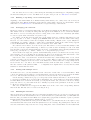
7.1.3
23
Lua extension file
This section is only available if Aqualung is compiled with Lua extension support. If so, it specifies the
file to use for the extension support See the Extending Aqualung section for details about what’s possible
to include in this file.
7.1.4
Systray
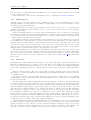
This page is present only if Aqualung was compiled with systray support. Even if it is supported, it can
be turned off here, which naturally makes further configuration useless. If systray is enabled, Aqualung
can start in minimized state – a useful feature if the program is launched automatically from the startup
script of the window manager.
Mouse button and wheel events on the tray icon are supported and can be assigned configurable
commands. You can assign separate commands to the vertical and horizontal mouse wheels. Choose the
desired command from the list displayed by the corresponding combo box.
The left and right mouse buttons are reserved for hiding/showing the windows and popping up the
context menu, respectively. Any other buttons can be bound to a custom command by adding a new
button to the list. In the presented dialog, move the cursor over the test panel and press the button you
want to configure. Below the test panel, choose the appropriate action to be taken when you click on the
tray icon with the selected mouse button. One button can be assigned only one command at a time. To
change an already configured button, remove it from the list first and add it again.
7.1.5
Miscellaneous
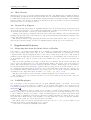
The so-called Implicit command line is something you should pay attention to. It exists mainly for those
who have a stable sound setup and always use the program with the same output device, e.g. they have
only OSS and don’t plan to upgrade. For such users it may be cumbersome to always specify the desired
output device on the command line, along with its optional parameters if needed. So here you may enter
something that you would otherwise enter on the command line every time.
But beware: you cannot override or turn off every option, so for example if you enter ‘--help’ here, the
program will always display the standard message and exit immediately; and there is no way to override
that from the command line. If you get into trouble, all you have to (or can) do is grab a text editor and
hack it out of ~/.aqualung/config.xml where it is stored. You will find it between ‘<default param>’
and ‘</default param>’.
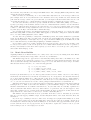
There are also some options to handle the display of album cover art. This feature is automatically
triggered when an image file is found in the same directory as the track being played. The filenames
that will at first be looked for are ‘cover.ext’, ‘.cover.ext’, ‘front.ext’, ‘.front.ext’, ‘folder.ext’, ‘.folder.ext’,
where ‘ext’ is one of ‘jpg’, ‘jpeg’, ‘png’, ‘gif’, ‘bmp’, ‘tif’, ‘tiff’. If none of them exists, the first image file
having an appropriate extension will be used. If you select a record (or one of its tracks) in the Music
Store, the image will be displayed in the comment pane. It is also shown in the File Info dialog as well as
the main window during the playback of a track from this album. Clicking the image will show a zoomed
version of the cover.
When playing files or viewing them in the File info dialog, embedded pictures are also used for cover
display. If an embedded picture frame is found in file metadata, it is displayed instead of any separate
image file. If there is more than one embedded picture in the file, the first one is used. In these cases no
separate image file is used, so the embedded image found in file metadata is displayed regardless of any
separate image in the audio file’s directory.
There are some global options to set here as well, which should be quite obvious to use.
7.2
Playlist
The Playlist is embedded in the Main window by default to achieve a more compact look. Turn it off to
put the Playlist into a separate window.
You can set whether to use Album mode by default when adding songs from Music Store to the
Playlist. Regardless of this setting, you can always add tracks without using Album mode by using the
Add to playlist popup menu in Music Store.