1
Adding a New Customer
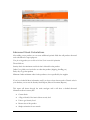
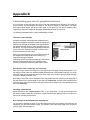
The ability to add a new customer right from your BackOffice+ may come of use to you
especially if you deal with resellers (wholesale customers). Indeed, you can make it even easier for
your resellers to use your online store, by using this feature to register them in advance with your
store. You can then e-mail them their user name and password, and a link to your storefront.
When they place an order, they will not have to register with the store, as their account has already
been set up. All they will have to do is log in with the user name and password that you provided,
and contact, billing, and shipping information will already be there.
Note: If you set up a new customer, remember to provide him/her with the login information that you created (user name & password). The customer’s e-mail
address is the user name.
Note: For security purposes, billing information such as credit card details are
not kept in the customer database unless you are using Off Line Credit Card
option. The drawback is that customers will have to re-enter their credit card
information (if that is the payment option of choice) the next time they place an
order.
Orders
You can locate one specific order with the order number, list all orders or list orders by status.
Once you have selected one order you can view all the details of that order such as Date, Total,
Tax, Shipping Details, Products, etc
You can also add information about the Shipping Tracking like date shipped, UPS, USPS, FedEx
tracking numbers and any other information about shipping. This information will be available
from Order Tracking listing to the final customer. Shipping Tracking can be updated using
BackOffice +, included with Power Pack Medium and Premium. An e-mail will be sent to the
customer with tracking information and the order will be marked as Delivered.
One of the most important functions of the Order Display is the ability to change the status of
the order. By default all orders are stored as Pending. Once the payment is submitted, the status
may change automatically with a Silent Response from the payment gateway.
You can view other topics about Silent Response Configuration. Remember that not all payment
gateways have this feature and that you will need to define the URL of the Silent Response script
in the control panel provided by the payment gateway.
If your Payment Gateway has no Silent Response functionality you can still use the BackOffice to
mark orders as paid. Marking an order as paid will:
1. Decrease the stock
57