1
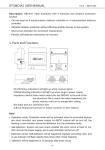
USER MANUAL (English)
SMILE KIT MODEL
Item No. : 13501 & 13502
The designs and specifications of this manual can be changed without
notification to the user. All copyrights and interpretation rights
are reserved to FETRONIC.
www.fetronic.gr , www.xvox.gr , [email protected]
Version2.0.1.1.3.28
CONTENTS
1.Parts and Functions
Camera Lens
Night View LED
Speaker
Nameplate
Call Button
Microphone
Rainy Guard
90 mm
23 mm
Note: 13502 has two call buttons.
2.Terminal Descriptions
ON
Lock Control Jumper
Doorstation Code DIP
MIC adjustment
SPK adjustment
BUS
-1-
www.fetronic.gr , www.xvox.gr , [email protected]
1 2
ON
1 2 3
1 2
2.Terminal Descriptions - - - - - - - - - - - - - - - - - - - - - - - - - - 1
4.Mounting and Setting - - - - - - - - - - - - - - - - - - - - - - - - - - - 2
4.1 Door station Mounting - - - - - - - - - - - - - - - - - - - - - - - 2
4.2 Placing Name Label - - - - - - - - - - - - - - - - - - - - - - - - - - 3
4.3 Adjusting Camera Angle - - - - - - - - - - - - - - - - - - - - - - 3
4.4 Button Mode Setting - - - - - - - - - - - - - - - - - - - - - - - - - 4
5.System Wiring and Connections - - - - - - - - - - - - - - - - - - - 4
5.1 Basic Connection - - - - - - - - - - - - - - - - - - - - - - - - - - - - 4
5.2 Electric Lock Connection - - - - - - - - - - - - - - - - - - - - - - 5
5.2.1 Door Lock Controlled by Internal Power - - - - - - 5
5.2.2 Door Lock Controlled by Dry Contact - - - - - - - - - 5
5.2.3 How to setup the unlock parameter in Monitor - - 6
5.3 Multi Door stations Connection - - - - - - - - - - - - - - - - 7
5.4 Multi Monitors Connection - - - - - - - - - - - - - - - - - - - 8
5.4.1 Basic IN-OUT Wiring Mode - - - - - - - - - - - - - - - - 8
5.4.2 With DBC-4 Wiring Mode - - - - - - - - - - - - - - - - 9
6.DIP Setting - - - - - - - - - - - - - - - - - - - - - - - - - - - - - - - - - 10
6.1 DIP Switches Settings of Doorstation - - - - - - - - - - - 10
6.2 DIP Switches Settings of Monitor - - - - - - - - - - - - - - 10
6.3 Notices - - - - - - - - - - - - - - - - - - - - - - - - - - - - - - - - - 12
7.Cables Requirements - - - - - - - - - - - - - - - - - - - - - - - - - 13
176 mm
1.Parts and Functions - - - - - - - - - - - - - - - - - - - - - - - - - - - - 1
2.Specification - - - - - - - - - - - - - - - - - - - - - - - - - - - - - - - 1
S2+ SPL S1+
Main Connect Port
4.2 Mounting With Rainy Guard
• Lock Control Jumper: To select the lock type: see 5.2.1 , 5.2.2
• Doorstation Code DIP: Total 4 doorstations can be supported,see 6.1
•
•
•
•
•
Main Connect Port: To connect the bus line and the electronic locks.
BUS: Connect to the bus line, no polarity.
PL: External lock power input, connect to the power positive(power +).
S1+, S2+: Lock power(+) output, to connect 2 locks.
S-: Lock power(-) output, connect to the power(-) input of locks (only when using the camera
to power the locks, if using the external power supply for the locks, the S- will not be connected).
1
2
3
4
1
3.Specification
2
160-165cm
Lock Power supply:
Power Consumption:
NO, COM dry contact:
Unlocking time:
Working temperature:
12Vdc, 300mA(Internal Power)
1W in standby, 12W in working
Max. 48V dc 1.5A
1 to 9 seconds, set by Monitor
-10ºC ~ 45ºC
4.3 Placing Name Label
Move the plastic cover away to open the transparent name label cover, insert a name paper,
then put the plastic cover back on the panel.
ON
4.1 Mounting Without Rainy Guard
1
2
3
4
1
name label
2
160-165cm
-2 -
-3-
www.fetronic.gr , www.xvox.gr , [email protected]
1 2
4.Mounting
4.4 Adjusting Camera Angle
5.2 Electric Lock Connection
5.2.1 Door Lock Controlled with Internal Power
Note:
1.
Only applicable to the power on to unlock type of electronic locks.
2.
The door lock is limited to 12V, and holding current must be less than 250mA.
3.
The door lock control is not timed from Exit Button(EB)
4.
The Unlock Mode Parameter of Monitor must be set to 0 (by default)
connect one lock
use a screwdriver to loosen the screw and then
adjust the angle of the camera, then fix the screw.
connect two locks
1 2 3
ON
BUS
1 2
ON
Jumper position in 1-2
BUS
PL S1+ S2+ S-
EB
Jumper position in 1-2
PL S1+ S2+ S-
-
-
5.System Wiring and Connections
1 2
1 2 3
EB
+
+
-
EB
5.1 Basic Connection
+
Note:
1 2
ON
5.2.2 Door Lock Controlled by Dry Contact
monitor
DPS
PS4
L1 L2 PL S1+ S2+ S-
1.
The external power supply must be used according to the lock
2.
The inside relay contact is restricted to AC or DC 24V/3A
3.
The jumper must be taken off before connecting
4.
Setup the Unlock Mode of Monitor for different lock types
• Power-on-to-unlock type:Unlock Mode=0 (by default)
• Power-off-to-unlock type:Unlock Mode=1
+
AC~
-4 -
-5-
www.fetronic.gr , www.xvox.gr , [email protected]
lock #2
lock #1
connect one lock
1 2 3
ON
ON
1 2
1 2
1 2 3
Take off the Jumper
Take off the Jumper
BUS PL S1+ S2+ S-
BUS PL S1+ S2+ S-
+
+
monitors
lock #2
-
-
+
-
5.3 Multi Doorstations Connection
connect two locks
+
Power supply
Power supply
+
lock #1
-
5.2.3 How to setup the unlock parameter in Monitor
01
--
05
intercom
Monitor Time
-- 1min
Password:
0
Advanced Set...
setup
Auto Record
exit
--
* **
OFF
85~260VAC
Exit
3.The default password is 2008
press
/
button to increase/
/
decrease the value,Press
button to select the location,after
finishing,press MENU button to
enter next step.
0
--
0
Unlock Time
1
Software ver
0168
Guard Unit Set
Unlock Mode
0
Voltage
22.4V
Date/Time Set...
00.0T
Other Settings...
Manufacture
Exit
Restore to default
3# Camera
ID=11
ON
to select the
to change
/
the value of the item. Select Exit
press MENU button to save the
settings automatically.
ID=00
ON
5.Press UNLOCK button
and hold for 2s
L1 L2 PL S1+ S2+ S-
L1 L2 PL S1+ S2+ S-
L1 L2 PL S1+ S2+ S-
4.Select Information...
and press MENU button to
enter next page.
Note:
1.must connect DT591/592 correctly before setting
2.the parameter will be saved in DT591/592 automatically, so you need only set on one monitor
-6 -
-7-
www.fetronic.gr , www.xvox.gr , [email protected]
ON
1 2
1 2
Information...
L1 L2 PL S1+ S2+ S-
/
ON
1 2
12
1# Camera
ID=10
Exit
Exit
item, use
2# Camera
ID=01
ON
--
ON
Slave Addr Set
1 2
0302
1 2
4# Camera
Hardware ver
ON
2.Select Advanced Set...
and press MENU button to
enter, password is required
1 2
1.Press MENU button two
times to enter the MAIN MENU
page,then press setup.
6.Use
PS5
DPS
ON
--
Intercom Tone
1 2
Outdoor Tone
monitor
5.4.2 With DBC-4 Wiring Mode
5.4 Multi Monitors Connection
Attention: You must follow the dip switch settings in the table on page 11 .
So, 1st monitor all switches down, 2nd monitor switch 1 up, 3rd monitor
switch 2 up, etc.
5.4.1 Basic IN-OUT Wiring Mode
Attention: You must follow the dip switch settings in the table on page 11 .
So, 1st monitor all switches down, 2nd monitor switch 1 up, 3rd monitor
switch 2 up, etc.
ON
ON
1 2 3 4 5 6
monitor
monitor
Code=14, DIP-6=on
Code=15, DIP-6=on
ON
1 2 3 4 5 6
monitor
1 2 3 4 56
Code=15, DIP-6=on
ON
ON
1 2 3 4 5 6
monitor
ON
1 2 3 4 5 6
monitor
Code=12, DIP-6=on
Code=13, DIP-6=on
monitor
1 2 3 4 5 6
Code=14, DIP-6=off
ON
ON
1 2 3 4 5 6
monitor
monitor
Code=2, DIP-6=on
Code=3, DIP-6=on
ON
1 2 3 4 5 6
monitor
1 2 3 4 5 6
Code=0, DIP-6=off
ON
ON
1 2 3 4 5 6
monitor
Code=1, DIP-6=on
1 2 3 4 5 6
monitor
Code=0, DIP-6=on
PS5
DPS
DPS
PS5
85~260AC
85~260AC
ID=00
ID=00
ON
ON
1 2
1 2
-8 -
-9-
www.fetronic.gr , www.xvox.gr , [email protected]
6.Setup
Bit-1 to Bit-5 are used to User Code setting. The value is from 0 to 31, which have
32 different codes .
Bit state
ON(1)
ON
OFF(0)
=
Code=1
Code=2
Code=3
Code=4
ON
Code=5
Code=6
ID = 2(01), set to the third Door Station.
Code=8
Code=19
1 2 3 4 5 6
1 2
Code=9
ON
Code=20
1 2 3 4 5 6
Code=10
ON
ON
Code=26
ON
Code=27
ON
Code=28
ON
Code=29
ON
Code=30
ON
Code=31
1 2 3 4 5 6
Code=21
ON
1 2 3 4 5 6
Code=25
1 2 3 4 5 6
ON
1 2 3 4 5 6
ON
1 2 3 4 5 6
ON
1 2 3 4 5 6
6.2 DIP Switches Settings of Monitor
Code=18
1 2 3 4 5 6
ON
ID = 3(11), set to the fourth Door Station.
ON
Code=24
1 2 3 4 5 6
ON
1 2 3 4 5 6
1 2
Code=17
ON
Code=7
ON
1 2 3 4 5 6
1 2 3 4 5 6
ON
ON
Code=23
1 2 3 4 5 6
Code=16
ON
1 2 3 4 5 6
1 2
Code=15
1 2 3 4 5 6
ON
ID = 1(10), set to the second Door Station.
ON
1 2 3 4 5 6
ON
1 2 3 4 5 6
ON
Code=14
1 2 3 4 5 6
ON
Code=22
1 2 3 4 5 6
1 2 3 4 5 6
1 2 3 4 5 6
1 2
Code=13
ON
1 2 3 4 5 6
User Code
1 2 3 4 5 6
1 2 3 4 5 6
ON
ON
Code=12
ON
1 2 3 4 5 6
Bit state
ON
1 2 3 4 5 6
1 2 3 4 5 6
ON
Descriptions
Code=11
ON
1 2 3 4 5 6
Bit state
User Code
1 2 3 4 5 6
ON
6.1 DIP Switches Settings of Doorstation
Bit state
ON
1 2 3 4 5 6
ON
=
User Code
Code=0
ON
1 2 3 4 5 6
There are 6 bit switches in total. The DIP switches are used to configure the User Code for
each Monitor.
Bit-6 is line terminal switch, which have to be set to ON if the Monitor is at the end of the
vline(bus), otherwise set to OFF.
Note:Monitors response button A must set the user code
from 0 to 15.and button B set the user code from 16 to 31.
B
A
Bit state
ON
1 2 3 4 5 6
Setting
The monitor is
not at the end
of the bus.
Bit state
ON
1 2 3 4 5 6
A
Setting
The monitor is
at the end of
the bus.
-1 0 -
-11-
www.fetronic.gr , www.xvox.gr , [email protected]