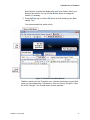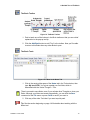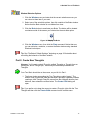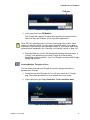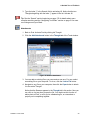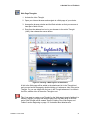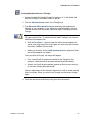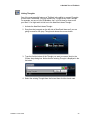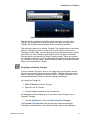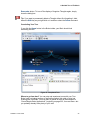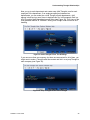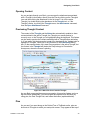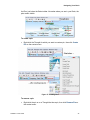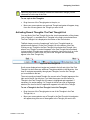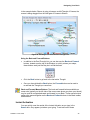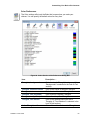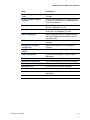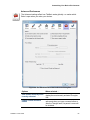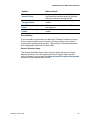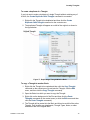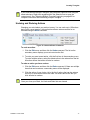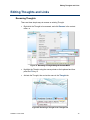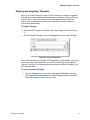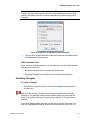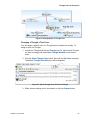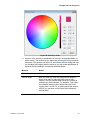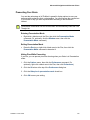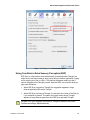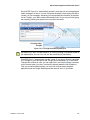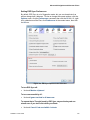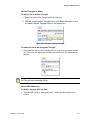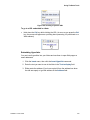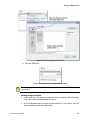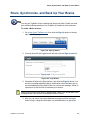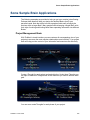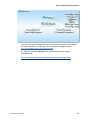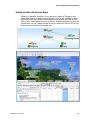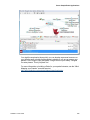
1
USER GUIDE Companion for using Version 7 of TheBrain. Posted May, 2012 © 2012. TheBrain Technologies LP. All Rights Reserved. TheBrain, PersonalBrain, Brain, Thought, Thoughts, and Work the Way You Think are trademarks or registered trademarks of TheBrain Technologies LP. Other trademarks or service marks appearing herein are the property of their respective owners. Table of Contents Table of Contents Introduction .................................................................................................................. 1 Thoughts are Information .................................................................................... 2 Dynamic Graphical Interface ............................................................................... 2 Operating Systems ............................................................................................. 2 About this Guide ................................................................................................. 2 Note to Macintosh Users ..................................................................................... 3 Opening Older Brains ......................................................................................... 7 Suggestions for Transitioning to Your New Brain ................................................ 9 A Guided Tour of TheBrain .........................................................................................10 Part 1: Explore the Brain Window ..................................................................... 10 Start Up ............................................................................................................ 11 Part 2: Create New Thoughts ............................................................................ 14 Part 3: Find, Add Attachments, Link, and Delete Thoughts ............................... 18 Understanding Thought Relationships ......................................................................27 Families of Thoughts......................................................................................... 29 Navigating Your Brain .................................................................................................31 Opening a Brain ................................................................................................ 32 Opening Content ............................................................................................... 33 Previewing Thought Content ............................................................................. 33 Pins................................................................................................................... 33 Activating Recent Thoughts: The Past Thought List .......................................... 35 Instant Activation............................................................................................... 36 Customizing Your Brain’s Environment ....................................................................39 TheBrain’s Default Settings ............................................................................... 39 Customizing The Brain Window ........................................................................ 40 Using Your Brain in Transparent Mode ........................................................ 43 Switching to Mini-Mode ................................................................................ 44 Maximizing and Restoring the Plex ................................................................... 45 Moving and Resizing the Plex ........................................................................... 45 Customizing Your Brain’s Appearance .............................................................. 46 Themes ........................................................................................................ 46 Wallpaper ..................................................................................................... 49 TheBrain Toolbar ......................................................................................... 49 Setting Other Preferences ................................................................................. 51 General Preferences .................................................................................... 52 Look & Feel Preferences .............................................................................. 54 UI Preferences ............................................................................................. 57 TheBrain 7 User Guide i Table of Contents Views Preferences ....................................................................................... 60 Search Preferences ..................................................................................... 61 Color Preferences ........................................................................................ 63 Advanced Preferences ................................................................................. 65 Accelerators Preferences ............................................................................. 67 Creating Thoughts.......................................................................................................71 Creating a Single Thought ................................................................................ 71 Creating Multiple Thoughts at Once .................................................................. 72 Creating Context-Sensitive Thought Names Using Commas ............................ 73 Swapping a Thought’s Name with its Label ....................................................... 74 Copying Thoughts Within and Between Brains ................................................. 74 Undoing and Redoing Actions ........................................................................... 77 Editing Thoughts and Links........................................................................................78 Renaming Thoughts.......................................................................................... 78 Deleting and Forgetting Thoughts ..................................................................... 79 Selecting Multiple Thoughts .............................................................................. 82 Advanced Selection ..................................................................................... 83 Other Selection Uses ................................................................................... 84 Unlinking Thoughts ........................................................................................... 84 Linking Existing Thoughts ................................................................................. 85 Link to Thoughts Visible in the Plex .............................................................. 85 Link to Thoughts Not Visible in the Plex ....................................................... 85 Link by Dragging to a Pin ............................................................................. 86 Link by Dragging to the Past Thought List .................................................... 86 Link by Selecting a Thought in the Create Child Dialog Box ......................... 87 Link Using the Selection ............................................................................... 88 Cancel Creation of a Link ............................................................................. 88 Changing Relationships Using Drag and Drop .................................................. 88 Thought and Link Properties ......................................................................................90 Changing the Appearance of a Thought ............................................................ 90 Thought Drop Shadows and Backgrounds ................................................... 90 Changing the Size of Thought Text .............................................................. 91 Changing a Thought’s Text Color ................................................................. 92 Viewing a Thought’s Details ......................................................................... 94 Adding a Label to a Thought ............................................................................. 95 Attaching Images to Thoughts........................................................................... 96 Thought Types .................................................................................................. 99 Creating a Thought Type.............................................................................. 99 Visible Thought Types .................................................................................. 99 Managing Thought Types........................................................................... 101 TheBrain 7 User Guide ii Table of Contents Assigning a Type During Thought Creation ................................................ 102 Capturing Pictures for a Thought Type ....................................................... 102 Super Types............................................................................................... 103 Making Thoughts Private ................................................................................ 103 Thought URLs................................................................................................. 103 Changing Link Properties ................................................................................ 105 Link Types ...................................................................................................... 107 Link Directionality ............................................................................................ 110 Setting Link Direction ................................................................................. 111 Setting Direction for Link Types .................................................................. 111 Adding Files, Web Pages, and Folders ....................................................................112 Opening and Renaming Attachments.............................................................. 112 Drag and Drop ................................................................................................ 113 Adding Attachments Using Drag and Drop ................................................. 113 Copying and Moving to Other Locations with Drag and Drop ..................... 115 Moving a File into a Brain After It Is Attached as a Shortcut to a Thought ...................................................................................................... 116 Moving a File Out of TheBrain .................................................................... 116 Copy and Paste .............................................................................................. 116 Copying an Attachment from One Thought to Another ............................... 117 Capturing a Picture for an Attachment ........................................................ 117 Using the Save As Command ......................................................................... 118 Attachment List Context Menus ...................................................................... 118 File Attachment Context Menu ................................................................... 119 URL Attachment Context Menu .................................................................. 119 Attachment List Settings ................................................................................. 120 Working with Multiple Attachments ................................................................. 120 Creating Virtual Thoughts by Dragging and Dropping Folders......................... 122 Adding a Template File to Your Brain.............................................................. 124 Advanced Navigation and Alternate Views..............................................................126 Changing How You View Your Thoughts ........................................................ 126 Using Outline View.......................................................................................... 128 Using Expanded View ..................................................................................... 129 Expanding All Thoughts by One Generation............................................... 132 Maintaining the Active Thought While Expanding the View ........................ 132 Collapsing All Thoughts.............................................................................. 132 Expanding and Collapsing Individual Thoughts .......................................... 133 Panning and Scaling the Expanded View ................................................... 133 Adjusting the Distance Between Thoughts ................................................. 134 Dragging Thoughts to Different Locations in the Plex ................................. 134 Saving Expanded Views............................................................................. 135 TheBrain 7 User Guide iii Table of Contents Managing Saved Views .............................................................................. 136 Scroll Bars ...................................................................................................... 138 Filtering Thoughts from the View..................................................................... 138 Presenting Your Brain ..................................................................................... 140 Entering Presentation Mode ....................................................................... 140 Exiting Presentation Mode ......................................................................... 140 Hiding Pins While Presenting ..................................................................... 140 Using Your Brain’s Extra Sensory Perception (ESP) ....................................... 141 Setting ESP Sync Preferences ................................................................... 143 Analyze Main Thoughts................................................................................... 144 Using TheBrain Tools ...............................................................................................146 Tools Overview ............................................................................................... 146 Notes .............................................................................................................. 151 Using Notes Menu Commands................................................................... 152 Using the Notes Toolbar............................................................................. 152 Entering Notes ........................................................................................... 152 Saving Notes.............................................................................................. 153 Printing Notes ............................................................................................ 153 Checking Your Spelling .............................................................................. 153 Copying Formatting .................................................................................... 154 Insert Horizontal Rules ............................................................................... 155 Inserting Tables.......................................................................................... 155 Create Task Lists ....................................................................................... 157 Link to Thoughts in Notes........................................................................... 158 Insert URL Addresses ................................................................................ 158 Embedding Hyperlinks ............................................................................... 159 Adding Images to Notes ............................................................................. 160 Counting Your Words ................................................................................. 161 Customize the Date and Time Format ........................................................ 161 Thought .......................................................................................................... 163 Using the Thought Toolbar ......................................................................... 164 Keeping the Thought Tool Open ................................................................ 164 Tags................................................................................................................ 165 Creating a Tag ........................................................................................... 165 Assigning and Removing Tags ................................................................... 166 Assigning a Tag During Thought Creation .................................................. 167 Deleting a Tag ............................................................................................ 167 Renaming a Tag......................................................................................... 167 Defining How Tags will Display .................................................................. 168 Displaying Thoughts Based on Their Tags ................................................. 169 Reporting on Tags...................................................................................... 169 TheBrain 7 User Guide iv Table of Contents Adding Notes and Attachments to Tags ..................................................... 170 Search ............................................................................................................ 170 Using the Search Toolbar ........................................................................... 172 Performing an Advanced Search ................................................................ 173 Fine-Tuning Your Advanced Searches ....................................................... 173 Using Advanced Search Features .............................................................. 175 Customizing How Search Results are Handled .......................................... 177 iCal, Address Book, and Mail Integration .................................................... 179 Reports ........................................................................................................... 179 Creating and Saving Custom Reports ........................................................ 181 Managing Custom Reports ............................................................................. 182 Calendar ......................................................................................................... 184 Adding an Event ......................................................................................... 184 Reoccurring Events .................................................................................... 186 Reminders.................................................................................................. 187 Viewing All Events for the Active Thought .................................................. 187 Navigating Your Calendar .......................................................................... 188 Marking Events as Complete...................................................................... 189 Deleting an Event ....................................................................................... 189 Snoozing and Dismissing Events ............................................................... 189 Synchronizing with Google Calendar.......................................................... 190 Printing Your Brain....................................................................................................192 Using Outlook with Your Brain .................................................................................194 Adding Contacts to Thoughts .......................................................................... 194 Adding Messages to Thoughts ........................................................................ 195 Adding Other Outlook Objects with Drag and Drop ......................................... 196 Copying Contacts into Notes ........................................................................... 196 Emailing Attachments ..................................................................................... 196 Using Web Mail with Your Brain ...............................................................................197 Adding Contacts to Thoughts .......................................................................... 198 Adding Messages to Thoughts ........................................................................ 198 Mac OS X: Email and Other Features .......................................................................200 iCal, Address Book, and Mail Integration ........................................................ 200 Additional Email Capabilities ........................................................................... 200 Searching File Attachments ............................................................................ 202 Share, Synchronize, and Back Up Your Brains .......................................................203 Synchronizing Your Brain................................................................................ 204 Creating Online Backup Copies of Your Brain................................................. 205 Editing Your Online Brain ................................................................................ 206 TheBrain 7 User Guide v Table of Contents Automatic Brain Cloud Synchronization .......................................................... 207 Using BrainZip to Send Your Brain to Others .................................................. 208 Creating a BrainZip ......................................................................................... 209 Downloading BrainZips ................................................................................... 210 Publishing Your Brain on TheBrain Cloud ....................................................... 211 Exporting Your Brain to a SiteBrain Web Site ................................................. 212 Exporting Your Brain as a Simple HTML ......................................................... 215 Exporting Your Brain as XML for BrainEKP..................................................... 216 Copying Thoughts into Other Applications as an Outline................................. 216 Importing Word Outlines............................................................................. 217 Copying Outlines with Notes ...................................................................... 218 Pasting Outlines ......................................................................................... 218 Importing Information Into Your Brain .....................................................................219 Importing Bookmarks, Folders, and Mind Maps .............................................. 219 Merging Brains ................................................................................................ 220 Importing BrainXMLs ...................................................................................... 221 Importing Outlines from Word or Excel into a Brain ......................................... 221 Brain Maintenance.....................................................................................................223 Backing Up Your Brain .................................................................................... 223 Looking Under the Hood: Where Your Brain Stores Content ........................... 223 Some Sample Brain Applications.............................................................................225 Project Management Brain .............................................................................. 225 Hobby and Special Interest Brain .................................................................... 227 Travel Brain .................................................................................................... 229 Personal or Business Finance Brain ............................................................... 230 Research and Analysis Brain .......................................................................... 231 “My People Network” Brain ............................................................................. 232 Glossary .....................................................................................................................233 Index ...........................................................................................................................237 TheBrain 7 User Guide vi Introduction Introduction Welcome to TheBrain™, your ultimate digital memory and no limits mind mapping software. Intelligence comes from the mind’s ability to think associatively—that is, to leap from Thought to Thought, building webs of greater and greater complexity, until new ideas are built. Associations are our inspirations. TheBrain allows you to organize your information in the same way, without limiting you to a predetermined file structure. In fact, with your digital Brain there are no limits. You can create a small project focused Brain or grow your Brain to hundreds of thousands of Thoughts! Now you don't have to force any idea or project into a single folder. TheBrain organizes information as Thoughts. Unlike standard folder directories and search lists a “Thought” in your Brain can have many connections and contexts. Moreover, TheBrain displays your Thoughts by concept or project, linked according to how you think. Now you can get the big picture and discover information that might otherwise be overlooked. Thoughts contain relevant notes, web pages, and files and can be synced for easy access from your desktop to TheBrain Cloud. Figure 1. TheBrain Interface TheBrain 7 User Guide 1 Introduction Thoughts are Information TheBrain Thoughts can represent just about any type of information, including concepts, people, documents, spreadsheets, images, shortcuts, and Web pages. By letting you create links and associations between Thoughts, TheBrain expands to become a visual interface that reflects the way you think. Using simple click-and-drag techniques, you’ll be able to create and navigate through networks of Thoughts in a conceptual space unique to your work habits. When you begin using TheBrain, you will find that your computer becomes easier to use—faster, more enjoyable, and less frustrating—helping you use your time more efficiently. Dynamic Graphical Interface TheBrain lets you create a simple, dynamic graphical map in which to input and navigate all your information. Your Brain starts with a single Thought, to which several other Thoughts can be visually linked. These Thoughts have their own links to other Thoughts and, possibly, to each other. TheBrain’s flexible structure allows any Thought to be linked to any other Thought, so you are never more than a few steps away from the information you are seeking. It’s simple to make connections between Thoughts so that they reflect the connections you make in your mind. Operating Systems Brain data is accessible from multiple platforms. The Brain file format is compatible across Operating Systems. TheBrain currently runs on Windows, Mac OS X, Linux, and Unix. About this Guide The following icons are used throughout this guide to flag categories of information: This icon is used to identify notes. This icon is used to flag tips and suggestions. TheBrain is offered in two editions—Free and Pro. Icons are used throughout the guide to flag features that are specific to the Pro edition. Features that are available in both editions are not designated with a special icon. This icon is used to indicate that the feature is available in the Pro edition only. TheBrain operates under multiple Operating Systems—Windows, Mac, and Linux/Unix. OS-specific features are flagged with icons throughout the guide. TheBrain 7 User Guide 2 Introduction Features that are available for all Operating Systems are not designated with a special icon. This icon is used to indicate that the information applies only to computers running Windows 2000, XP, and Vista. This icon is used to indicate that the information applies only to computers running Mac OS X 10.3+. This icon is used to indicate that the information applies only to Linux/Unix. In addition: Labels Names of buttons, menus, commands, keys, and icons appear in this font throughout the guide in order to stand out. Note to Macintosh Users Right-clicking: Most features in TheBrain can be accessed with just a single click of your primary mouse button. However, there are several context-sensitive shortcuts available in context menus which appear when right-clicking. On a Macintosh, many systems do not have a right mouse button. To access a context menu, just hold down the Control key while you click. Note that many mice can be set up to interpret clicks on each side of the main button differently so that Control-clicking is not necessary. To enable this, alter the Mouse settings in the System Preferences area of your Mac. Select “Secondary Button” for the right side of the mouse. Here is a list of working definitions for the basic terms used throughout TheBrain. Brain A collection of associated Thoughts, each of which can have content. You can create multiple Brains. Thought The topics that you link together in your Brain are called Thoughts and are the basic unit of a Brain. A Thought can represent anything you want it to. It can include an icon, notes, or one or more attachments (such as files and Web sites) or it can have no content at all and simply act as a subject heading or organizer. Minimally, a Thought has a name. Plex The visible, graphical portion of your Brain that displays your Thoughts. TheBrain 7 User Guide 3 Introduction Tools Window The portion of the Brain window that displays tabs for TheBrain’s six Tools—Notes, Calendar, Tags, Search, Reports, and Thought. When the link between two Thoughts is highlighted or selected, the Thought tool temporarily becomes a Link tool and offers commands for working with the link. When a link is no longer highlighted or selected, the tool automatically becomes the Thought tool again. Figure 2. TheBrain Plex and Tools Window Active Thought TheBrain 7 User Guide The active Thought appears in the center of the Plex and is the current focus. Any items attached to the Thought are described in the Thought tab and any notes you have entered for it appear in the Notes tab. 4 Introduction Figure 3. What a Thought Looks Like As shown below, when you click a Thought it moves to the center of the Plex and it becomes the active Thought. Figure 4. Activating a Thought Thought Relationships A Thought is said to be a “parent Thought,” “child Thought,” “sibling Thought,” or “jump Thought” based on its relationship to other Thoughts with which it is linked. In your own life, you may be someone’s parent, and someone’s child, and someone’s sibling, and someone’s peer, advisor, or colleague. So, who are you? The answer to that question is relative—it depends on the circumstances and what hat you’re wearing at the moment. TheBrain 7 User Guide 5 Introduction Figure 5. Relationships are Relative to You The same applies to Thoughts. The relationships between Thoughts are displayed automatically, based on which Thought is active at the moment. Whether a Thought is a parent, child, or sibling depends on its current relationship to the active Thought. Figure 6. Thought Relationships are Relative to the Active Thought Child Thought Child Thoughts are subtopics of the active Thought. They appear in the “child zone,” below the active Thought. In the picture above, the active Thought “Hobbies” has four child Thoughts. Parent Thought Parent Thoughts represent super ordinate topics of the active Thought. They appear in the parent zone, above the active Thought. Sibling Thought Sibling Thoughts share a parent with the active Thought. They appear in the sibling zone, to the right of the active Thought. In the picture above, “Entertainment” and “Family” are siblings of “Hobbies” because they are all children of “Personal.” TheBrain 7 User Guide 6 Introduction Jump Thought Jump Thoughts are related to the active Thought but are neither child nor parent topics. They appear in the jump zone to the left of the active Thought. Jump Thoughts have an “equal weight” relationship with the Thought to which they are related. For example, as shown above, “Hobbies” has the various hobbies “Ballet,” “Banjo,” “Golf” and “Hockey” linked as child Thoughts since they are types of hobbies. “Budgets” affect the amount of resources available to spend on the various hobbies and so it is closely related, but it is not a hobby itself. Therefore, it makes a perfect jump Thought―related, but not part of the main Thought grouping. Gate Thoughts in the Plex have three circular “gates,” each of which is used to link a specific type of relation: The parent gate is above a Thought, the child gate is below it, and the jump gate is beside it. A gate is hollow when there are no links attached to it, and solid when one or more links are attached. Gates are highlighted in green when there are other Thoughts linked to them that are not currently visible. Figure 7. Thought Gates Link A link is the line that connects two Thoughts. When used as a verb, to “link” is the act of connecting Thoughts to establish close relationships. Links can also show direction to help you visualize relationships. Opening Older Brains If you have been using a previous version of TheBrain you may want to download one of the transition guides (based on the version you’re most familiar with) at http://www.thebrain.com/manual. You will find complete information about what is new and different in the current version. TheBrain 7 User Guide 7 Introduction When you’re looking at old and new Brain files, note that Brains created in TheBrain 7 have filename extensions of .brain. Brains created in some earlier versions have a .brn filename extension. To open a Brain that you created in an earlier version: 1. Open TheBrain 7. 2. Click the File menu, click the Open command, navigate to the Brain of your choice, then click the Open button when the file is selected. The following message box will be displayed: Figure 8. Convert Brain Message Box 3. Click the OK button and TheBrain will begin the conversion process. The information will be stored in the same location as the original file. If an older .brn file was being converted, the original .brn file and .brn folder will not be affected. As TheBrain converts your Brain, you will see a running account of its progress. Upon completion, your converted Brain will appear in the Plex. Figure 9. File Conversion Progress Bar Brains are upwardly compatible—you may open (and convert) earlier Brains in TheBrain 7. However, Once you open a Brain in version 7, it will be incompatible with earlier versions. Be sure to make a backup copy of your Brain prior to opening it with version 7 if there’s a chance you’ll want to open it in an earlier version at some point. You can make a backup copy of your Brain by creating a BrainZip. For information on how to create a BrainZip, please watch our video tutorial at http:/www.thebrain.com/brainzip or see “Creating a BrainZip” on page 209. TheBrain 7 User Guide 8 Introduction Suggestions for Transitioning to Your New Brain Here are some tips for establishing a happy relationship with your Brain: Begin by taking yourself on the guided tour provided in the next section of this guide. As you exit the tour, you’ll already have hands-on skills for getting your Brain up and running quickly and easily. You may also want to attend one of TheBrain’s free online seminars on getting started―TheBrain 101. To learn more about TheBrain 101, go to http://www.thebrain.com/101. Avoid “converting” to a Brain-only environment all at once. Make the transition on a file-by-file basis so that every piece of information your Brain contains will be useful. Build your Brain as you go—associating Thoughts as they occur naturally. Avoid the temptation to move large folders into your Brain. TheBrain can handle this, but your Brain will be cluttered with Thoughts you may not need; trying to create the proper links between relevant Thoughts could become a chore. Remember that your first Brain doesn’t need to be your only Brain or your last Brain. Experiment! Create a Brain just for fun, to try out the possibilities—give yourself room to stretch and explore. Your Brain is waiting! TheBrain 7 User Guide 9 A Guided Tour of TheBrain A Guided Tour of TheBrain The best way to build your comfort level with your Brain is to build one yourself— with your very own hands. This guided tour will walk you through the basics, pointing out items of interest along the way. There’s no need to take notes and you’ll never get left behind, because you’ll be going at the most strategic pace— your own. During this tour, you’ll be asked to enter specific information to make it easier to refer to items and areas as the tour proceeds. Naturally, when you’re on your own, you’ll use your own ideas to create Brains that reflect your thinking. Here are the sign posts you’ll see along the way: Enter here—the startup action for this phase of your guided tour Point of interest—take out your virtual camera Tip—where you can find more details about this step your guided tour Take five—this is a good place to take a break if you want one Exit here—this marks the end of your guided tour Let’s go! Part 1: Explore the Brain Window Itinerary: You’ll start up TheBrain, create a new Brain, and tour through the components of the Brain window. Start up TheBrain, unless it’s already running. You can select TheBrain from the Start menu. Figure 10. Starting TheBrain TheBrain 7 User Guide 10 A Guided Tour of TheBrain Start Up When you start, you must log in to your Brain account. This enables integration with any subscriptions you may have. The Welcome dialog box provides the ability to a sign up for an account and also provides a link for choosing to not connect to any server. Figure 11. TheBrain 7 Welcome Screen If you do not have a Brain account, click the Sign Up button to create one. If you do not wish to run a registered version of TheBrain, click the Do Not Connect to the Server link to run the free version of TheBrain. 1. Click the New Brain button on the welcome screen (or click the File menu, then click the New Brain command). 2. In the empty field, type: Tour Figure 12. New Brain Dialog Box TheBrain 7 User Guide 11 A Guided Tour of TheBrain Notice that the Location field displays the path of the folder in which your Brain will be created. You can use the Browse button to change the location, if necessary. 3. Press the Enter key or click the OK button to finish creating a new Brain named “Tour.” Your screen should look similar to this: Figure 13. The Parts of the Brain Window TheBrain creates your first Thought for you. It has the same name as your Brain (which you can change later if you want to). Since it’s the only Thought, it’s also the “active Thought”—the Thought that’s currently selected. TheBrain 7 User Guide 12 A Guided Tour of TheBrain The Brain Toolbar Figure 14. TheBrain Toolbar 1. Point at each one of the buttons in the Brain toolbar so that you see a brief explanation in the pop-up tool tip. 2. Click the Add Brain button to add “Tour” to the toolbar. Now you’ll be able to return to this Brain when any other Brain is open. The Brain Tools Figure 15. A Note in the Notes Tab 1. Click in the empty white space of the Notes tab in the Tools window, then type: My tour of PB. You’ve just created your first Note, which is associated with the “Active Thought”—Tour. There’s no need to save Notes, even if you activate other Thoughts or close your Brain. Although your Notes are saved automatically, you can click the Save command on the File menu or press Ctrl-S to save if you want to. 2. Click any of the other Tool tabs if you want a quick peek. Tip: See the section beginning on page 148 for details about working with the Notes tool. TheBrain 7 User Guide 13 A Guided Tour of TheBrain Window Behavior Options 1. Click the Window menu and note what the current selections are so you can return to them later if you want. 2. Select one of the auto-hide options, then click outside of the Brain window. Notice that the Brain window is now hidden from view. 3. Click the Brain button to reactivate your Brain. The button will be located on whatever side of the screen you selected via the auto-hide option. Figure 16. Display TheBrain 4. Click the Window menu, then click the Float command. Notice that now you can minimize, maximize, or restore the Brain window using standard Windows’ techniques. Tip: See “TheBrain’s Default Settings” beginning on page 39 for details about controlling the behavior of the Brain window. Part 2: Create New Thoughts Itinerary: You’ll create a single Thought, multiple Thoughts, a Thought from an existing file, and a Thought “pin,” and modify the relationship between two Thoughts. Your Tour Brain should be on the screen, as you left it in Part 1. 1. The three circles surrounding the Tour Thought are called “gates.” The bottom circle is called the child gate because it provides a gateway towards creating a child Thought. Drag the mouse from the child gate down a short distance, then release the mouse button. The Create Child dialog will open. Tip: If you prefer not to drag the mouse to create a Thought, right-click the Tour Thought and then click the Create Child command on the context menu. TheBrain 7 User Guide 14 A Guided Tour of TheBrain Figure 17. Dragging from the Child Gate 2. In the empty field, type: PB Buddies This Thought will organize Thoughts about people you’re going to talk to about how they use TheBrain, so you can share experiences. Since “PB” isn’t a standard word, you’ll see a red squiggly line under it. Spell checking is active by default. You can ignore the word or add it to your Brain’s dictionary by right-clicking it and selecting the option of your choice. Spell check preferences are explained in the “Checking Your Spelling” section on page 153. 3. Press the Enter key (or click the green button showing the check mark). A “pulsing” circle appears around a new Thought for a few seconds, highlighting it for easy visibility. Your Tour Thought now has a child Thought named “PB Buddies.” Creating Multiple Thoughts at Once You can create more than one Thought at a time by typing a semicolon to separate each Thought. 1. Create four new child Thoughts for Tour, all at the same time. To begin, drag Tour’s child gate down a bit, then release the mouse button. 2. In the empty field, type: Tips; Reminders; To-Do; New Brain Ideas Figure 18. Create Multiple Thoughts at Once TheBrain 7 User Guide 15 A Guided Tour of TheBrain Tip: The semicolon (;) between each Thought name tells TheBrain that these are separate Thoughts. 3. Press the Enter key (or click the green button with the check mark). Create a Thought by Dragging and Dropping an Existing File You can create a Thought by dragging a file from the desktop or from your file manager (such as File Explorer on Windows or Finder on a Mac). The new Thought will have the same name as the file (minus its extension) and it will automatically have the file as an attachment. You’ll learn more about attachments in the next part of this tour. 1. Choose any file, from your desktop or from any other location. Your original file will not be affected by being moved into your Tour Brain―you’re just creating a shortcut. 2. Size the TheBrain window so that you can also see either the portion of the desktop containing the file you’re going to use or the window in which the file is listed. 3. Drag the file into the Plex. Figure 19. File Dragged into Plex Becomes a Thought The new Thought will appear in the Plex and it will include an icon that represents the type of file. Any time you click this icon in the Plex, the related file will open. If TheBrain is in auto-hide mode, dragging the file to the Brain icon opens the window automatically. See ”TheBrain’s Default Settings” on page 39 for information about the different way the Brain window can operate. TheBrain 7 User Guide 16 A Guided Tour of TheBrain Thought Pins Figure 20. Thought Pins in an Existing Brain The area at the top of the Plex, just below the Brain toolbar functions like a bulletin board on which you can “thumbtack” Thoughts you want to keep at your fingertips. These quick-access shortcuts to Thoughts are called “pins.” No matter where you are in the Plex, the pins remain visible. 1. Right-click the Thought named Reminders, then click Create Pin on the context menu. 2. Click any other Thought in the Plex. When you want to return to the Reminders Thought, click the Reminders pin to get there instantly. Relationship Changes 1. Create a new child of Tour named “Experiments.” (Drag from Tour’s child gate down a bit, type: Experiments and then press the Enter key.) 2. Now you’ve decided that the Experiments Thought should really have an equal relationship with Tour, and not be one of its children—because you’ll use experimenting as much as touring to develop your Brain skills. TheBrain 7 User Guide 17 A Guided Tour of TheBrain Drag Experiments up to the left side of the Plex so that it is level with Tour, then release the mouse button. Figure 21. Dragging a Thought to Change its Relationship Tip: See the section beginning on page 74 for details about changing Thought relationships. This is a good place for a break if you’d like to take one. You can leave your Brain open or close the Brain window. Just start up TheBrain again when you’re ready to continue. Part 3: Find, Add Attachments, Link, and Delete Thoughts Itinerary: You’ll find Thoughts, add an attachment to a Thought, add a Web page to a Thought, use a Thought to open an application, link some Thoughts, and delete a Thought. Your Tour Brain should be on the screen, as you left it in Part 2. You’ll begin by creating a few more Thoughts for a little more scenery along the way. 1. Create four new child Thoughts under PB Buddies: John; Jill; Fred; Ann (Drag from PB Buddies’ child gate, then type each name, separated by a semicolon, then press the Enter key.) TheBrain 7 User Guide 18 A Guided Tour of TheBrain Figure 22. Four New Thoughts PB Buddies should be the active Thought—you should see the rotating active Thought indicator behind the Thought and it should be in the middle of the Plex. 2. Enter a Note for PB Buddies: We should compare Brains sometime 3. Point the mouse at the Tour Thought and notice how the Note changes. Then point back to the active Thought and see how the Note reflects the Thought being pointed to. 4. Click the Reminders pin up at the top of the Plex to go quickly to your Reminders Thought. Instant Activation “Instant Activation” is a Brain feature that lets you quickly find a Thought by typing a few letters, and choosing from a list of “hits.” After you click the Thought of your choice, that Thought is automatically activated. Say you’re ready to work with Fred’s Thought—you want to add an attachment to it. With such a small Brain, you could click around and find it pretty quickly, or you could speed things up: 1. Click in the Search field and type: f Figure 23. Instant Activation Because you only have one Thought that begins with the letter “f,” it is found instantly. If other Thoughts begin with the same letter you will see them in the box. The more characters you type, the more finely-tuned your search will become. 2. Click on “Fred” in the one-item list above the Search field where you typed the “f.” Fred will be activated. TheBrain 7 User Guide 19 A Guided Tour of TheBrain 3. Type the letter “j” in the Search field to activating Jill. Notice that the two Thoughts beginning with the letter “j” appear in the list. Activate Jill. Tip: See the “Search” section beginning on page 170 for details about more complex searching and the “Navigating Your Brain” section on page 31 for more on cruising around your Brain. Attachments 1. Back to Fred. Activate Fred by clicking his Thought. 2. Click the Add Attachment button in the Thought tab of the Tools window. Figure 24. Add an Attachment 3. You can add an existing file or you can create a new one. For now, select an existing file on your computer. To do so, click the Link to File button. 4. Navigate to any file on your computer, then click the Open button to attach it to the active Thought. Notice that the filename appears in the Thought tab’s list section. Now you can click on it at any time to open the file. You might use this function to add a photo of Fred, or a file you’re collaborating on, or notes about a project you’re completing together. TheBrain 7 User Guide 20 A Guided Tour of TheBrain Web Page Thoughts 1. Activate the John Thought. 2. Open your Internet browser and navigate to a Web page of your choice. 3. Arrange the browser window and the Brain window so that you can see at least part of both of them. 4. Drag from the address bar icon in your browser to the active Thought (John), then release the mouse button. Figure 25. Inserting a Web Page as an Attachment A link to the Web page will be added to the attachment list in the Thought tool and you can launch the page by double-clicking on it whenever John is the active Thought. Or, you can single-click the icon in the Thought whenever it is visible in the Plex, whether John is the active Thought or not. Tip: If you want to create a new Thought for the Web page instead of adding it to existing Thought, just drag and drop the page icon to a blank area of the Plex and a child Thought will be created. See the “Adding Files, Web Pages, and Folders” section beginning on page 112 for details about attachments. TheBrain 7 User Guide 21 A Guided Tour of TheBrain Creating Attachments from a Thought 1. Activate the New Brain Ideas Thought by typing an “n” in the Search field and then clicking on “New Brain Ideas” in the list. 2. Click the Add Attachment button in the Thought tool. 3. Click Microsoft Office Word Document (assuming this application is installed on your computer—if not, select any other application in the list). The new document will be named “New Brain Ideas,” matching the active Thought. If you are not using Windows, there will not be any automatically created file types to select from. To create files from within TheBrain, you’ll need to add some file templates first: Click the Templates… button to open the folder where templates are stored, then copy empty files of the types you want to be able to create from within TheBrain into the folder. When you are done, click the Add Attachment button again and chose one of the templates you added. Once you select a file type, two things will happen: First, a new file will be created and added to the Thought (in this example, a Microsoft Word document named “New Brain Ideas”). Second, the file will be automatically opened so that you can work on it (in this case, starting Microsoft Word). After you add content to the document and save it, it will be saved internally within your Brain. When you click on the Thought, the document will open again. 4. Close the new document before moving on to the next section. TheBrain 7 User Guide 22 A Guided Tour of TheBrain Linking Thoughts One of the most powerful features of TheBrain is the ability to connect Thoughts to each other. Remember, you can connect any Thought to any other Thought. For example, say one of your PB Buddies, Ann, is full of ideas on how to use your Brain. You might want to link her to the New Brain Ideas Thought. 1. Activate the New Brain Ideas Thought. 2. Drag from the jump gate on the left side of New Brain Ideas as if you are going to create a new jump Thought and release the mouse button. 3. Type the first few letters of the Thought you want to connect (Ann) in the Create Jump dialog box. Notice that the existing Thought is displayed in the list below. 4. Select the existing Thought from the list and then click the check mark. TheBrain 7 User Guide 23 A Guided Tour of TheBrain Figure 26. Jump Thought Linked to an Existing Thought Now that Ann is connected to New Brain Ideas, whenever you look at this Thought, her Thought will be just a click away. Also, when you are at Ann’s Thought, the New Brain Ideas Thought will be conveniently available. There are many ways to link existing Thoughts. The method above is convenient when the Thoughts you want to connect are not both visible, however if the Thoughts are both visible, you can simply draw the link between the two, starting from either one of the Thoughts’ gates. Both the Past Thought List below the Plex and the pins can be used for linking Thoughts visually. When you connect two Thoughts visually, the resulting relationship will be determined by which gate you selected to start the linking―it does not matter where you release the mouse button over the destination Thought. Forgetting and Deleting Thoughts If you’ve entered a Thought in error or you simply don’t need to keep it around anymore, you can easily remove it from your Brain. TheBrain offers two ways to remove Thoughts―forgetting and deleting. When a Thought is forgotten, it can be remembered later if need be, however, deleting is permanent. Let’s forget the Thought Jill. 1. Make PB Buddies the active Thought. 2. Right-click the Jill Thought. 3. Click the Forget command on the context menu. Jill disappears from the display. Now, if you want to show Jill again, turn on Forgotten Thoughts: Click the Options menu, then click Show Forgotten Thoughts. The Forgotten Thoughts dialog box can be used to permanently delete Thoughts or remember them. Just click the Thought, then click the Delete or TheBrain 7 User Guide 24 A Guided Tour of TheBrain Remember button. To turn off the display of forgotten Thoughts again, simply close the dialog box. Tip: If you want to permanently delete a Thought without first forgetting it, hold down the Shift key as you right-click on it and then select the Delete command. Concluding Your Tour If you click the Home button in the Brain toolbar, your Brain should look something like this: Figure 27. Completed Tour Where to go from here? You can stay and experiment more with your Tour Brain, begin reviewing sections of interest throughout this guide, or dive into creating your own Brain. You may want to glance at some of the examples in “Some Sample Brain Applications,” beginning on page 225, for more ideas—but you probably already have plenty of your own! TheBrain 7 User Guide 25 A Guided Tour of TheBrain Tip: If you are ready to dive into beginning your own Brain, start by creating a few Thoughts for broad categories before you go to the detail level. For example, if your name is Ed, “Ed’s Brain” might be the name of your Brain (and your first Thought) and its first children might be Work, Family, Hobbies, and Friends. This concludes your guided tour—-thanks for coming along! TheBrain 7 User Guide 26 Understanding Thought Relationships Understanding Thought Relationships There are no rules governing the relationships between Thoughts—whatever makes sense to you is the way your Brain ought to be organized. The three primary relationship types―child, parent, and jump―can be used to express different types of relationships. Sibling is a relationship that is derived from child/parent relationships. The examples in this section can help you understand the variety of relationships and how they are used. The core concepts behind each type of relationship are as follows: Children: Child relationships are usually used to link more specific information or information that represents a subcategory. Parents: Parent relationships are usually used to link more general information. Parents can also be thought of as higher level categories to classify groups of information. They serve to indirectly connect their child Thoughts as siblings. Jumps: Jump relationships are usually used to link two pieces of information that are exclusively related, meaning that the two items are related to each other but neither represents a group that the other is a part of. Let’s move on to an example to explore these relationship types. Imagine that you are the owner of a company and you are reviewing personnel files. Each employee has a file. You decide it makes sense to organize your employees by department. Your Brain is called My Brain. From My Brain, you create a child Thought called My Company (see Figure 28). My Brain is now My Company’s parent Thought. You create four child Thoughts from My Company— Manufacturing, Sales, Service, and Billing. These departments are sibling Thoughts of each other. Figure 28. Sample Brain TheBrain 7 User Guide 27 Understanding Thought Relationships Now you go to each department and create more child Thoughts, one for each employee of the department. If an employee splits time between two departments, you can make him a child Thought of both departments—he’ll appear in both and you won’t have to duplicate his file. In this example, Bob is a child Thought of both Manufacturing and Sales (see Figure 29). This is one of the most powerful features of TheBrain—having one Thought under more than one heading. Figure 29. Child Thought Link to Two Headings If you own more than one company, but have one accountant for all of them, you might want to make a Thought called Accountant and link it as a jump Thought to each company (see Figure 30). Figure 30. Jump Thoughts to the Active Thought TheBrain 7 User Guide 28 Understanding Thought Relationships Imagine that Joe’s company has just purchased one of your companies. Since Joe’s company now owns this company, Joe’s Company becomes a parent (see Figure 31). Figure 31. New Parent Thought Because Joe wants to avoid a conflict of interest, the acquired company (My Other Company) no longer uses the same accountant. So its jump gate is hollow, while its sibling’s jump gate (My Company) maintains that Link and is filled. As you use TheBrain, you will develop a sense of the types of relationships you wish to make between Thoughts. It is always possible to change relationships (see ”Changing Relationships Using Drag and Drop” on page 88). Families of Thoughts It is tempting to view Thought relationships as families, and indeed these different parts of your Brain are types of families, with their ancestry visually spread before you, represented by subjects and categories. But unlike human families, a child Thought can be a parent of one of its siblings and a Thought can have more than two parents. The complex relationships you can form in TheBrain are the source of its power. Let’s consider sibling Thoughts that also share a parent/child relationship. Let’s say you are studying philosophy. You might have a Thought called Philosophy (see Figure 32). Individual philosophers such as Plato and Aristotle could be child Thoughts of Philosophy. Each of these siblings, in turn, may have child Thoughts. Aristotle was a student of Plato, so you may want to make Aristotle not only a child of Philosophy, but of Plato, so that when you’re working with Aristotle, Plato is only a Thought away. TheBrain 7 User Guide 29 Understanding Thought Relationships Figure 32. Example of Parent/Child Relationships Notice that when Philosophy and Plato are in Aristotle’s parent zone, their relationship (Philosophy is a parent Thought of Plato) is shown by the line linking the child gate of Philosophy to the parent gate of Plato. Clearly, TheBrain is a powerful method of organizing ideas and information. No hierarchical file structure can provide as much cross-referenced information at a glance. And our example is pretty basic—a fully developed Brain can hold many more relationships and much more information. TheBrain 7 User Guide 30 Navigating Your Brain Navigating Your Brain All Thoughts can be connected—directly or indirectly—even Thoughts that may seem to have nothing to do with each other can be related through a chain of links. Let’s look at an example, say, the Queen of England and asparagus. You have a Thought called Queen of England. One of its child Thoughts is Prince of Wales, which has a parent Thought Famous Princes that is also linked to the story of the Frog Prince. The story has another parent Thought called Fairy Tales. A sibling of Frog Prince is Jack and the Beanstalk, which has child Thoughts called Giant and Jack. Giant has another parent Thought called Famous Giants, which has a child Thought called Jolly Green Giant. Jolly Green Giant has child Thoughts named after canned vegetable products, one of which is Asparagus. Figure 33 illustrates this series of connections. Figure 33. The Queen of England’s Connection to Asparagus Depending on the relationship you create between them, Thoughts may be closely or distantly related. Thoughts are considered to be closely related when they are linked directly or are siblings. In the default view of the Plex, only close Thoughts of the active Thought are always displayed in the Plex. Thoughts that are one additional step (generation) away from the active Thought can be displayed using the “Expanded” view. In Figure 33, many distant Thoughts are displayed using the Expanded view. See “Advanced Navigation and Alternate Views” on page 126 for information about the different view options. TheBrain 7 User Guide 31 Navigating Your Brain Opening a Brain When there is no Brain is open, TheBrain shows a list of all your available Brains, both locally and online. Figure 34. Available Brains By default, Brains are listed according to how recently they have been accessed. You can also see the list of Brains be sorted alphabetically. All Brains that are locally available are shown first, followed by Brains that are available online. You can open a Brain that isn’t shown in the list by clicking the File menu, then the Open Brain command. The next time the list is shown, it will include Brains from the new location. Click on a Brain in the list to open it. The status of whether each Brain is available locally, online, or both is also displayed. Right-click on a Brain or click on the status to display a menu of options for that Brain, as seen below. Local Brains TheBrain 7 User Guide Local & Online Brains Online Brains Figure 35. Brain Options Based on Status 32 Navigating Your Brain Opening Content As you navigate through your Brain, you can open the attachments associated with a Thought in three ways: directly from the Plex by clicking on the Thought’s icon and then clicking the attachment in the list (even if it is not the active Thought), by double-clicking the attachment in the Thought tool, or if the Thought is active, by clicking the Thought menu, the Attachments command, then the Open Attachment command. Previewing Thought Content The content of the Thought and the Notes tabs automatically updates to show content related to the active Thought, the Thought your mouse pointer is currently over, or the Thought you’ve highlighted using the keyboard. This feature can be used to preview the content associated with a Thought before activating it. (If you prefer, this feature can be turned off by deselecting the “Update tools on highlight of Thoughts” check box in the UI section of the Preferences dialog box.) In the example below, My Latest Preoccupations is the active Thought, but the content in the Thought tab (below the Plex) belongs to Chocoholics Anonymous, where the mouse is pointing. Figure 36. A Word File for an Inactive Thought As your Brain grows and becomes more complex, this preview feature can be a big time saver. Additionally, you can navigate and explore more efficiently by using pins, the Past Thought List, and Instant Activation (explained below). Pins As you saw if you went along on the Guided Tour of TheBrain earlier, pins are shortcuts to Thoughts to which you want quick access. They appear at the top of TheBrain 7 User Guide 33 Navigating Your Brain the Plex, just below the Brain toolbar. No matter where you are in your Brain, the pins remain visible. To create a pin: Right-click the Thought for which you want to create a pin, then click Create Pin on the context menu Figure 37. Creating Pins To remove a pin: Right-click the pin or on a Thought that has a pin, then click Remove Pin on the context menu TheBrain 7 User Guide 34 Navigating Your Brain Removing a pin does not remove or delete the associated Thought, just the reference to it at the top of the Plex. To use a pin to link Thoughts: Drag from one of the Thought gates to the pins, or Move your mouse pointer over a pinned Thought and gates will appear; drag from one of these gates to the Thought you want to link Activating Recent Thoughts: The Past Thought List You can think of the Past Thought List as the visual representation of the phrase, “train of thought”—a scrollable list of Thoughts in the order you activated them. The Past Thought List is displayed at the bottom of the Plex window. TheBrain keeps a running “breadcrumb” trail of your Thoughts based on activation and displays it in the Past Thought List at the bottom of the Plex. Clicking on any Thought in the Past Thought List activates that Thought. Also, when a new Thought is created it appears in the Past Thought list immediately (unless multiple Thoughts were created by using the “semi-colon trick“ or via an imported outline, in which case only one of the Thoughts will automatically appear in the Past Thought list). Figure 38. Past Thought List Scroll arrows displayed as triangles are located to the left and right of the Past Thought List when there are additional Thoughts available in that direction. Use them to navigate sequentially through past Thoughts, from the first Thought you’ve activated to the last. The most recently activated Thought (the current active Thought) appears at the right end of the list. As with pins, if you hold the mouse over the name of a Thought in the Past Thought List, the name is highlighted and expanded, if necessary, for easier reading. If a Thought in the list has a file or Web page attached, the icon for the file’s application appears to the left of the Thought. To use a Thought in the Past Thought List to link Thoughts: Drag from one of the Thought gates to one of the Thoughts in the Past Thought List, or Move your mouse pointer over a Thought in the Past Thought List and gates will appear; drag from one of these gates to the Thought you want to link TheBrain 7 User Guide 35 Navigating Your Brain In the example below, Sharon is going to become a child Thought of Causes; the mouse is being dragged from the child gate of Causes to Sharon. Figure 39. Creating a Link from the Past Thought List Using the Back and Forward Buttons: In addition to the Past Thought List, you can also use the Back and Forward buttons, located near the top of the Window, to quickly retrace your steps; these buttons work just like they do in a Web browser Click the Back button to go back to the last active Thought Once you have clicked the Back button, the Forward button can be used to re-activate the Thought you came from Back and Forward Mouse Buttons: The back and forward buttons available on some mice (typically on the left side of the mouse near where you place your thumb) may be used to navigate backward and forward in your Brain. These mouse buttons perform the same navigation as the Back and Forward buttons in the Brain toolbar, shown above. Instant Activation You can quickly scan the results of the Instant Activation as you type in the Search box—they appear just above your typing. To activate one of these TheBrain 7 User Guide 36 Navigating Your Brain results, click it with your mouse or use the up-arrow, down-arrow, page up, and page down keys on the keyboard then press the Enter key. The search includes every word in Thought names. Results are displayed starting with first word matches and are prioritized based on how recently they have been activated. Figure 40. Instant Activate Uses All Words Within Thought Names Accents are ignored when matching Thought names. Also, when two or more matches with the same name are found, the names of their parent or jump Thoughts are also displayed so you can differentiate them. You can search for Thoughts by typing the first letter(s) of separate words and the letters can be in any sequence; for example, to find the “Family and Friends” Thought you could type “fa fr,” or “fr fa,” or “fa and fri,” or even “f a f.” Figure 41. Use First Letters of Separate Words for Instant Activate You can make the Instant Activation field wider or narrower by dragging its right-most border. Figure 42. Resizing the Instant Activation Field TheBrain 7 User Guide 37 Navigating Your Brain You can also resize the list box that appears as you begin typing in the Instant Activation field. Figure 43. Resizing the Instant Activation Results List In addition to the results that appear as you type, you can do a full search of all the content of your Brain by clicking the Search button or pressing the Enter key once you have entered the word or phrase you are looking for. For more information about advanced navigation, please see the “Advanced Navigation and Alternate Views” section beginning on page 126. For more information about searching your Brain, please see the “Search” section beginning on page 170. TheBrain 7 User Guide 38 Customizing Your Brain’s Environment Customizing Your Brain’s Environment You may choose to use your Brain just as it’s offered “out of the box” or you may choose to change some of the environmental settings to suit your personal preferences. TheBrain’s Default Settings Without making any changes, here’s what your Brain looks like: The Brain window will behave like a regular window. This is called the “Float” window option. The area where your Thoughts appear (the Plex) will be shades of dark blue with white text and blue links—this is the default “Theme.” The top half of the Brain window will display your Thoughts and the bottom half of the window will display a set of tabs (which are the Brain “Tools”). Your Thoughts will be displayed in “Normal” view, meaning that you will see only the direct parents, children, jumps, and siblings of the active Thought. Figure 44. TheBrain Window with Default Settings TheBrain 7 User Guide 39 Customizing Your Brain’s Environment Customizing The Brain Window There are four basic options for how the Brain window behaves: As a standard window that can be minimized, maximized, restored, and dragged by its title bar to different locations on the screen (the Float option) As a standard window that will always appear on top of any other open windows (the Float option plus the Always on Top option) As a window that automatically hides when not in use and appears in a designated location when you click an icon (the Auto-hide options) As a transparent window that lets you view your Brain on top of whatever else is on the screen―the desktop, or any application To make your Brain float: Click the Window menu, then click the Float command. To make your Brain always stay on top of the desktop or any other window: Click the Window menu, then click the Always on Top command. To make your Brain automatically hide when not in use: 1. Click the Window menu, then click either the Auto-hide Left, Auto-hide Right, Auto-hide Top, or Auto-hide Bottom command. 2. When you click outside of the Brain window, your Brain is reduced to a Brain icon that appears in the side of the screen you selected in Step 1. Click the icon to unhide your Brain. Figure 45. Icon for Unhiding Your Brain Tip: You can drag the icon to any area of the screen’s border. To make your Brain transparent: Use either of the following two methods to switch to Transparent Mode: Click the Window menu, then click the Transparent Mode command Right-click in an empty area of the Plex, then click the Transparent Mode command TheBrain 7 User Guide 40 Customizing Your Brain’s Environment A minimum of Java 6, update 14 is needed to use Transparent Mode on a Mac. To return to the mode your Brain was in before you switched to Transparent Mode: Use either of the following methods: Right-click the rotating active Thought indicator, then click the Transparent Mode command Figure 46. Transparent Brain Context Menu TheBrain 7 User Guide 41 Customizing Your Brain’s Environment Click the small circular button in the top-right corner of the transparent Brain Figure 47. Toggling Off Transparent Mode If you have defined an accelerator to switch to Transparent Mode, pressing the accelerator again will toggle back to the previous mode. TheBrain 7 User Guide 42 Customizing Your Brain’s Environment Using Your Brain in Transparent Mode Figure 48. A Transparent Brain Your Brain will remain in whatever view was active before you activated Transparent Mode. To do this ... Do this ... Move your Brain Drag the title bar Resize your Brain Drag the resizing handle in the bottom-right corner when the mouse appears as a doubleheaded arrow View current information or reminders based on current activity Point to the red button in the top-right area of the Plex Switch to Mini-Mode Click the title bar (see the next section for information about Mini-Mode) Hide the Notes tool and Thought tool Click the down-arrow above the Notes tool Restore the Notes tool and Thought tool Click the up-arrow when the tools are hidden TheBrain 7 User Guide 43 Customizing Your Brain’s Environment To do this ... Do this ... Fill the transparent Plex with the Notes tool and Thought tool Click the up-arrow above the Notes tool, when the tools are showing Restore the default Transparent Mode view Click the down-arrow when the Plex is hidden Hide the Notes tool, extend the Click the left-arrow between the tools, just Thought tool below the past Thought list Hide the Thought tool, extend the Notes tool Click the right-arrow between the tools, just below the past Thought list Restore the Notes tool when it is hidden Click the right-arrow at the left edge of the Thought tool Restore the Thought tool when it is hidden Click the left-arrow at the right edge of the Notes tool Switching to Mini-Mode Once your Brain is transparent, you can switch to “Mini-Mode.” In Mini-Mode, your Brain displays just the active Thought and the Instant Activation text box. To switch to Mini-Mode: Click the title bar Figure 49. Switching to Mini-Mode Figure 50. TheBrain in Mini-Mode To do this in Mini-Mode ... Move your Brain Activate a different Thought Switch back to Transparent Mode TheBrain 7 User Guide Do this ... Drag the Brain button. Type in the Instant Activation text box, then select the Thought of your choice. Click the Brain button. 44 Customizing Your Brain’s Environment Maximizing and Restoring the Plex You can click the button in the upper-right corner of the Plex to maximize the Plex area. Click the button again to restore the Plex to the previous size. Figure 51. Maximize Plex Button Moving and Resizing the Plex When the default settings are in use and the Plex is in “Normal” view, you can move the Thoughts in the Plex up or down by dragging (up or down) in any blank area of the Plex background. Figure 52. Dragging the Plex Vertically TheBrain 7 User Guide 45 Customizing Your Brain’s Environment To change the size of the Thought’s text, you can either move the mouse wheel up or down while hovering over the active Thought or you can drag the resizing circle behind the active Thought. Figure 53. Before and After Dragging the Resizing Circle Customizing Your Brain’s Appearance Themes The Themes feature lets you choose from several built-in designs to customize the look of your Brain. In addition, you can save the look of your Brain as a new Theme and quickly switch from one saved Theme to another. TheBrain 7 User Guide 46 Customizing Your Brain’s Environment Figure 54. Sample Themes To select a Theme: 1. Click the Options menu. 2. Click the Set Themes command, then click the Theme of your choice. Figure 55. Selecting a Theme TheBrain 7 User Guide 47 Customizing Your Brain’s Environment The Theme you selected will be applied. If you aren’t pleased with the result, select a different theme. Note that the default Theme (Dark Blue) can be selected from the menu. All of the options that are contained in a Theme can also be adjusted individually as described below. Once you have adjusted the look of your Brain, you can save it as a new Theme for easy access or to use with other Brains: 1. Click the Options menu. 2. Click the Save Themes As command. The following dialog box will be displayed: Figure 56. Save Theme Dialog Box 3. Type a name for the new Theme, then click the OK button. The Theme will be listed on the Set Theme sub-menu the next time you open it. Figure 57. Newly Saved Theme on Set Theme Menu TheBrain 7 User Guide 48 Customizing Your Brain’s Environment To return to the original appearance of the Plex at any time, set the Theme back to “Default (Dark Blue).” Wallpaper To select an image to use as Wallpaper: 1. Click the Options menu. 2. Click the Select Wallpaper command, navigate to the location of your Wallpaper file, and then click the Open button. Supported wallpaper file formats include .jpg, .gif, and .png. To dynamically select new Wallpaper from a Web site: 1. Go to a Web site that offers Wallpaper files, right-click the design of your choice, then select Copy on the context menu. 2. Return to your Brain, right-click in any blank area of the Plex, then select Paste Wallpaper on the context menu. Figure 58. Context Menu on the Plex After you select your Wallpaper you may want to adjust your Thought colors and links. See “Setting Other Preferences” on page 51. TheBrain Toolbar You can customize the Brain toolbar by adding (or removing) buttons that, when clicked, close the active Brain and open the designated Brain. Click the Add Brain button to insert a button for the active Brain. Note that the Add Brain button will only be enabled if there isn’t already a toolbar button for the active Brain. Click the Remove Brain button to remove the button for the active Brain (assuming the button has been added previously). Note that the Remove Brain button will only be enabled if there is a toolbar button for the active Brain. TheBrain 7 User Guide 49 Customizing Your Brain’s Environment Figure 59. Modifying the Toolbar In addition to adding and removing buttons to the toolbar, you can also hide the toolbar if you do not plan on using it. Use the Show Toolbar command on the Options menu to toggle the toolbar on or off. TheBrain 7 User Guide 50 Customizing Your Brain’s Environment Setting Other Preferences TheBrain’s Preferences dialog box is where you’ll find many of the settings for adjusting how your Brain works, both mechanically and visually. To open the Preferences dialog box: Click the Options menu, then click the Preferences command (under Mac OS, the Preferences command is located in the Brain menu), or Right-click a blank area of the Plex, then click the Preferences command on the context menu Figure 60. Two Methods of Accessing Preferences The choices you can make within the Preferences dialog box are explained on the following pages. TheBrain 7 User Guide 51 Customizing Your Brain’s Environment General Preferences The General settings affect how TheBrain works globally―no matter which Brain is open when you make your choices. Figure 61. General Section of the Preferences Dialog Box User Account The Entry in the Logged in as field identifies the user’s Brain account. This can be the user’s email address or user name. General Options When selected … Open when Windows starts TheBrain launches automatically when Windows opens. Check for major updates on startup A notice appears if there is a new major program update available. TheBrain 7 User Guide 52 Customizing Your Brain’s Environment General Options When selected … Open the last used Brain at startup The most recently open Brain will automatically load on TheBrain launch. Copy/cut/paste notes as text always By default, all meta data and formatting will be removed when content is copied, cut or pasted into a Thought note. Interface Language You can change the default language at any time. 1. Open the drop-down Interface Language list on the General tab, then select the language of your choice. Figure 62. Choosing a Default Language 2. Click the OK button to save your settings. 3. Click the OK button in the message box to acknowledge that you must restart TheBrain for the new language to be applied. Exit TheBrain and then open it again to work in the selected language. TheBrain 7 User Guide 53 Customizing Your Brain’s Environment Look & Feel Preferences With the exception of wallpaper and font settings, the Look & Feel settings affect how TheBrain works globally―no matter which Brain is open when you make your choices. Wallpaper and font settings affect only the Brain that is open when you make your choices. Figure 63. Look & Feel Section of the Preferences Dialog Box Thoughts Options When selected … Text Shadows Displays a drop shadow behind each Thought using the color selected in the Colors section of the Preferences dialog box. TheBrain 7 User Guide 54 Customizing Your Brain’s Environment Thoughts Options When selected … Backgrounds Includes draws a colored background behind all Thoughts using the color selected in the Colors section of the Preferences dialog box. Load thumbnails for large images Large image attachments are loaded as thumbnails and displayed as zoomable icons. Fade distant Distant Thoughts gradually fade when in Expanded or Outline view. Shrink in outline and expanded view Distant Thoughts gradually shrink when in Expanded or Outline view. Show icons when notes are present Plex displays a small yellow notepad next to all Thoughts that contain notes. Hide tag hints When selected, tags are not shown next to Thoughts in the Plex. Plex Options When selected … Animation Drag the slider right to reduce or left to increase the speed with which a Thought becomes active when you click it in the Plex. Active Thought indicator The rotating active Thought indicator displays. Show siblings Sibling Thoughts for non-active Thoughts are included in the Plex. Maximum child columns (normal view) The number selected dictates the maximum number of columns for child Thoughts when in Normal view mode. Links Thickness Select the default thickness for all links. Draw links Links between Thoughts are displayed (otherwise a link displays only when the mouse hovers over it). Curved links Links will be curved (otherwise all links will appear as a straight line). Hide link labels When checked, link labels will be hidden and only display when the mouse hovers over it. Add “glow” effect A light glow effect will be added to all links Thicken highlighted links Links will appear thicker when mouse hovers over it or a connected thought. Brain Specific Settings Plex Font TheBrain 7 User Guide Specifies the font setting for all Thoughts in TheBrain. 55 Customizing Your Brain’s Environment Apply colors to Determines whether the color selected in the Display properties for an individual Thought will apply to the Thought’s text or background. Wallpaper The currently-selected image will fill the Plex, behind your Thoughts; if no image is in use, selecting this check box opens the Select Wallpaper dialog box as does clicking the associated Change button when there is an image in use. Tile wallpaper Wallpaper image appears replicated in squares (“tiles”) instead of a single image filling the Plex. Set Default Notes Style Click the Set Default Notes Style button to select the initial attributes for text you enter in the Notes tool. 1. In the Set Default Notes Style dialog, select a font, size, background color, and text color of your choice. Your selections will be previewed in the area below the settings. Figure 64. Set Default Notes Style Dialog Box 2. Click the OK button. Any changes you make will apply to the current Brain and will apply to new Brains you create. Other pre-existing Brains will not be affected. Font Use the drop-down list to select a font for all Thoughts in the Plex. TheBrain 7 User Guide 56 Customizing Your Brain’s Environment UI Preferences The UI settings affect how TheBrain works globally―no matter which Brain is open when you make your choices. Figure 65. UI Section of the Preferences Dialog Box General User Interface When selected … Mouse wheel resizing Font size in the Plex can be made larger or smaller adjusted using the mouse wheel when pointing at the active Thought. Resizing circle is draggable Clicking and dragging on the resizing circle in the plex will make the Thought size smaller or larger, depending on the direction of the drag. TheBrain 7 User Guide 57 Customizing Your Brain’s Environment General User Interface When selected … Click active Thought to open/create Clicking on the active Thought will open its attachment (or the Add Attachment dialog box if the Thought currently has no attachment). Update tools on mouseover of Thoughts Tools will display the content for any Thought that the mouse is hovering over or that is highlighted by using the keyboard; otherwise, tools always display content for the active Thought. Automatically capitalize Thoughts on creation Capitalizes the first letter of each word in a Thought name when a new Thought’s name is entered in all lower case; this excludes articles such as “a” and “the” within the name. Forget Thoughts before deleting Right clicking on a thought will give the option to forget a Thought (displayed in Forgotten Thought List) rather than deleting. Show virtual Thoughts for folders Subfolders of linked folders are displayed in the Plex. Activate last created Thought A newly-created Thought automatically becomes the active Thought. Hide pins in presentation mode Pins are temporarily hidden while your Brain is in Presentation mode. Highlight recently created Thoughts A temporary highlight ring will appear over recently created Thoughts. Double-click maximizes plex Double clicking on the plex background (behind the thoughts) will expand the plex to full application size and minimize the Tool Tabs. Double clicking again will restore the previous settings. On drag and drop of files to TheBrain “Link to dropped files” causes attachments to maintain a link to the originals when dragged and dropped into TheBrain. “Move dropped files” causes attachments to relocate when dragged and dropped into TheBrain. Destination for Explorer “Sent To” Integration When you right-click a file or folder in Windows Explorer and select the Send to TheBrain command: “Active Thought” sends the file or a folder directly to the active Brain’s active Thought. “Home Thought” sends a file or a folder directly to the active Brain’s Home Thought. TheBrain 7 User Guide 58 Customizing Your Brain’s Environment ESP Sync When selected … Monitor clipboard TheBrain checks the content of the clipboard for the names of Thoughts or linked attachments to suggest or activate their Thoughts. Monitor keyboard TheBrain checks what is being typed in other applications and looks for matching Thoughts to suggest or activate (not currently available in a Windows Vista environment). Ignore text that is all lowercase Will not engage the ESP Sync feature if the relevant text is comprised of all lowercase letters. Cancel if not used within 1 minute Cancels the ESP Sync feature, returning to the previous state if not used within the first minute of activation. Activation “Suggest only” instructs ESP Sync to display the matching Thought name in the Plex as a suggestion instead of actually activating the matching Thought . “Automatically activate” causes a Thought found by ESP Sync to become active automatically. TheBrain 7 User Guide 59 Customizing Your Brain’s Environment Views Preferences The Views settings affect how TheBrain works globally―no matter which Brain is open when you make your choices. Figure 66. Views Section of the Preferences Dialog Box Expanded View When selected … Collapse on activate Clicking on a Thought will hide Thoughts that are not connected to the clicked Thought; otherwise, all Thoughts remain visible unless they are manually hidden using the collapse controls (while in Expanded view). Automatically recenter Places the active Thought in the center of the Plex automatically (while in Expanded view). Expanded Normal View Setup Use the four sliders in this section―Distant Thought size, Spacing, Distant Thought Spacing, and Distant Thought Columns―to specify the size and spacing TheBrain 7 User Guide 60 Customizing Your Brain’s Environment of Thoughts when the Plex is in Expanded view. The farther to the right, the larger and more spaced out the Thoughts will be. Outline View Setup Use the two sliders in this section to specify the distance between Thoughts and the indentation of Thoughts when the Plex is in Outline view. Active Thought Distance (drag the slider towards “far” for greater separation between the active Thought and the other Thoughts) Thought Indentation (drag the slider towards “far” for a larger indentation between Thoughts at different levels of the outline) Search Preferences The UI settings affect how TheBrain works globally―no matter which Brain is open when you make your choices. Figure 67. Search Section of the Preferences Dialog Box TheBrain 7 User Guide 61 Customizing Your Brain’s Environment Search When selected … Merge Thought and content results All search results will be merged into one large group. Only display one search result per Thought If both the Thought name and the content have a search result, the Thought will only show up once in the search results list. Index File attachments All file attachments (external links and internally stored) will be indexed when possible. Index URL attachments All URL attachments will be indexed when possible. Additional Search Instructions Maximum results size Select the number of search results to find (100, 1,000, or 10,000). Results per page Select the number of search results to display per page (10, 25, or 50). Default sort “Relevance” sorts based on the density of matching terms and other criteria. “Date modified” sorts based on when the items were most recently modified. Maximum file size to index Select the maximum size allowed for a file to be indexed (1 MB, 3 MB, 5 MB, 7 MB, 10 MB, 15 MB, 20 MB, or 25 MB). Refresh Web pages index Select how often to refresh the index for URL attachments (Never, Daily, Weekly, or Monthly). Filter under active up to n clicks away Select how many generations below the active Thought that TheBrain will search when using the “Only Under Active” search filter (3, 5, or 7). TheBrain 7 User Guide 62 Customizing Your Brain’s Environment Color Preferences The Color settings affect only the Brain that is open when you make your choices. You can specify the default colors for every item. Figure 68. Colors Section of the Preferences Dialog Box Item Description … Thoughts, background Default color of a Thought's background (if “Backgrounds” is selected in the Look & Feel section). Thoughts, selection outline Color of the outline of selected Thoughts. Thoughts, text Default color of the text of Thoughts. Thoughts, text (forgotten) Color of text for forgotten Thoughts. Thoughts, text (private) Color of text for private Thoughts. Thoughts, text shadow Color of the shadow behind the text of Thoughts (if “Text Shadows” is selected in the Look & Feel section). Active Thought, outline Color of the outline for the active Thought. TheBrain 7 User Guide 63 Customizing Your Brain’s Environment Item Description … Active Thought, resizing circle Color of the resizing circle around the active Thought. Active Thought, rotating indicator Color of the rotating active Thought indicator (if “Active Thought indicator” is selected in the Look & Feel section). Background, center Color of the background in the center of the Plex if no wallpaper is in use. Background, top and bottom Color of the background on the top and bottom of the Plex if no wallpaper is in use. Gates, highlighted Color of the gates used to indicate that there are linked Thoughts connected that are not currently visible. Gates, normal Color of gates that lead to another visible Thought. Highlighted Thoughts, background Color of the background of a highlighted Thought. Highlighted Thoughts, outline Color of the outline of a highlighted Thought. Links, highlighted Color of the link between Thoughts when highlighted. Links, normal Color of links between Thoughts. Messages, background Color of the background of a Brain message. Messages, outline Color of the outline of a Brain message. Messages, text Color of the text of a Brain message. Scrollbar, fill Color of the interior of a Plex scroll bar. Scrollbar, highlighted Interior color of the Plex scroll bar when highlighted. Scrollbar, outline Color of the outline of a Plex scroll bar. TheBrain 7 User Guide 64 Customizing Your Brain’s Environment Advanced Preferences The Advanced settings affect how TheBrain works globally―no matter which Brain is open when you make your choices. Figure 69. The Advanced Tab of the Preferences Dialog Box Options Sort instant results by most recently activated Enable context-sensitive names TheBrain 7 User Guide When selected … Results of instant activation searches will display the most recently activated Thoughts first. The context-sensitive name feature will be active and when you type a comma before or after the Thought name, its parent’s name will be included. 65 Customizing Your Brain’s Environment Options When selected … Save images from the Internet locally Images copied and pasted into TheBrain from the Internet will be saved locally in the Brain rather than linked to the original URL. Hide temporary files in Thought folders Temporary files are hidden the Thought folders. Use Tablet-compatible edit boxes Edit boxes that are compatible with Tablets are displayed. TheBrain’s memory usage is displayed in the toolbar. Show memory usage in toolbar Proxy Settings If you are unable to synchronize your Brain with TheBrain Cloud due to a proxy server or restricted ports on your network, the Proxy settings can be used to customize the synchronization process. Check with your network administrator for the appropriate information for these fields. Wander Animation Setup The “Wander Animation Setup” section lets you specify the amount of delay between activations. You can drag the slider left or right for faster or slower action. Optionally, you can select the Show Activated Thought as Background checkbox, which is deselected by default. TheBrain 7 User Guide 66 Customizing Your Brain’s Environment Accelerators Preferences The Accelerator settings affect how TheBrain works globally―no matter which Brain is open when you make your choices. Most Brain commands be accessed by keyboard commands, which you can customize based on your preferences. You can even export your settings to share them with others or to transfer them from one computer to another. TheBrain keyboard shortcuts are called accelerators. Figure 70. Accelerators Tab of Preferences TheBrain 7 User Guide 67 Customizing Your Brain’s Environment Controls for working with accelerators: To remove an accelerator: Click it in the list, then press the Backspace key. Button Description Clear Removes ALL accelerators. Import Imports a saved .csv file of your choice. Export Saves the current set of defined accelerators as a file that can be shared with others. Reset Restores the default accelerators. Default accelerators: Command Accelerator TheBrain Hot Key Alt+Ctrl+Z New Brain... Ctrl+N Open Brain... Ctrl+O Create BrainZip Ctrl+R Print Plex Ctrl+P Paste into Plex Ctrl+Shift+V Tags Ctrl+T Thought Type Ctrl+Shift+T Create Child F6 Create Parent F7 Create Jump F8 Create Child from Active Thought Insert Capture Thought Icon Ctrl+Shift+I Open Thought Folder Ctrl+Shift+F Create Duplicate Child Thought Ctrl+D Rename F2 Normal View Ctrl+Shift+1 Outline View Ctrl+Shift+2 Last Expanded View Ctrl+Shift+3 New Expanded View Ctrl+Shift+4 Expand All Ctrl+= (equal sign) Collapse All Ctrl+- (minus sign) Presentation Mode Ctrl+Shift+P Search Web F4 TheBrain 7 User Guide 68 Customizing Your Brain’s Environment Command Accelerator Getting Started F1 Back Alt+Left Forward Alt+Right Home Home Focus on Plex (Instant Activate) F3 Focus on Notes F5 Maximize Plex Ctrl+Backquote (` above Tab) Pin 1 Ctrl+1 Pin 2 Ctrl+2 Pin 3 Ctrl+3 Pin 4 Ctrl+4 Pin 5 Ctrl+5 Pin 6 Ctrl+6 Pin 7 Ctrl+7 Pin 8 Ctrl+8 Pin 9 Ctrl+9 Pin 10 Ctrl+0 Advanced Search F9 Arrow Up (up arrow key) Arrow Down (down arrow key) Arrow Left (left arrow key) Arrow Right (right arrow key) Expand/Collapse Thought in outline view Space bar Forget/Delete highlighted Thought or link Delete Activate Thought Enter Open/Add Attachment Shift+Enter The default keyboard accelerators for Mac OS are standardized to be Macfriendly. In particular, function keys are not used, and most accelerators use the Command key instead of the Ctrl key. Create Child Command + (down arrow key) Create Parent Command + (up arrow key) Create Jump Command + (left arrow key) Rename Command + Enter Focus on Plex Command + G TheBrain 7 User Guide 69 Customizing Your Brain’s Environment Focus on Notes Command + M Search Web Command + E To define your own accelerators: 1. Open the Preferences dialog box by either clicking the Options menu, then clicking the Preferences command or by right-clicking in a blank area of the Plex, and then clicking the Preferences command. 2. Click the Accelerators icon. 3. Click on the command of your choice in the left column, then press the Function key or keyboard combination of your choice. For example, you might choose to assign the “Create Pin” command to Ctrl+Shift+P. You can’t assign keys that are already used for common operations (such as Ctrl-C) nor can you use letter or number keys by themselves. 4. Click the OK button to save your customizations and close the dialog box. TheBrain 7 User Guide 70 Creating Thoughts Creating Thoughts Creating a Single Thought There are four ways to create a Thought, but each starts with the same step— choosing the Thought with which the new Thought will have a relationship. You will use the chosen Thought as a starting place when creating the new Thought. When you create a Thought in your Brain, you first decide what relationship it will have with an existing Thought—will it be a parent, child, or a jump Thought? Generally speaking, you’ll create child Thoughts more often than parents or jumps. There are certainly exceptions, but usually, using a “top-down” approach is helpful if you are just getting started: Create children (and jumps, as appropriate) and let parents happen naturally. Once you have activated the Thought that will have a relationship with your new Thought, use any of these techniques to begin creating a new Thought: Click the Thought menu, then click the Create Child, Create Parent, or Create Jump command Or, press the F6 key (for a child Thought), F7 (for a parent Thought), or F8 (for a jump Thought) Or, right-click the Thought, then click the Create Child, Create Parent, or Create Jump command Or, drag from the Thought’s parent, child, or jump gate TheBrain 7 User Guide 71 Creating Thoughts Figure 71. Gates to Drag for Creating Thoughts Tip: We recommend using the drag method—it’s the quickest! No matter which method you use to begin creating your new Thought, the next thing you’ll see is a field for typing in the name of your new Thought. (The field will be labeled according to the type of Thought you’re creating.) Figure 72. Create Child Dialog Box 1. Type the name of your new Thought in the field provided. 2. Press the Enter key or click the green check mark button to save your new Thought (or click the X button to cancel the process). Automatic initial-capitalization: If you type a Thought name using all lowercase letters, the first letters of words will be capitalized for you automatically. TheBrain uses “smart rules” to determine which words should be lowercase (such as “a,” “and,” and “of”). For example, if you’ve typed “visit the statue of liberty” the Thought title will automatically become “Visit the Statue of Liberty.” This feature is active, by default, but you can turn it off in the UI tab of the Preferences dialog box. Creating Multiple Thoughts at Once TheBrain offers a timesaver (affectionately known as the “semi-colon trick”) for creating more than one Thought at a time. There is virtually no limit to the number of Thoughts you can create at the same time. TheBrain 7 User Guide 72 Creating Thoughts Type a semicolon (;) to separate multiple Thought names in the Create dialog box Figure 73. Creating Multiple Thoughts Creating Context-Sensitive Thought Names Using Commas It’s always good to be specific with your Thought names. TheBrain has some time savers to help you if you have repetitive information that needs to be added to your Brain. For example, say you have Thoughts for each of your clients, each of which has a billing department. You’d like a child Thought named “Billing Info” for each of your client Thoughts. However, you may not want to have identical Thought names because when you see these Thoughts later you won’t be able to tell them apart without looking at their parents. To remedy this potential dilemma, when you type the name of the new Thought, start or end the name with a comma. The parent Thought name will be added automatically. When this Thought is displayed, its name will vary depending on the context in which it’s viewed. If the client Thought is active, the client’s name will be hidden and it will appear as just “Billing Info.” But when you activate this Thought, the full name along with the client’s name will appear. Figure 74. Sub-Category Thoughts The Thought will display its full name when it is active. When its parent Thought is active, you’ll see only the portion of the name that does not repeat the parent’s TheBrain 7 User Guide 73 Creating Thoughts name. Ensuring that each of your Thoughts has a unique name will help find and identify them more easily. Tip: The part of the Thought’s name that is hidden is context sensitive. Say for example that you wanted to have a single place to see the billing information for all your clients. You might create a Thought called “Billing Info” and then link to the billing information Thoughts for each of your clients, such as “NewGuys, Billing Info.” If you do this, when Billing Info is active then NewGuys, Billing Info will appear as just NewGuys, whereas when NewGuys is active, that same Thought will appear as Billing Info. Try it―you’ll see how this can be very useful. Swapping a Thought’s Name with its Label You can swap a Thought’s name with its label by clicking the Switch button in the Thought tool tab. This can be very useful when the default label and name are assigned based on a URL and the automatic naming isn’t optimal for your purposes. Figure 75. Swapping Label and Thought Names Copying Thoughts Within and Between Brains Thoughts, including all of their notes, properties, events, and attachments, can be copied and pasted between Brains or duplicated within a Brain. When Thoughts are copied, associated Thought types and link types are automatically copied as well. To copy a Thought within the same Brain: 1. Right-click the Thought to be copied and then click the Copy Thought command on the context menu. TheBrain 7 User Guide 74 Creating Thoughts 2. Activate the Thought that will be the parent of the newly copied Thought. 3. Right-click within any blank area of the Brain and click Paste Thoughts on the context menu. 4. The copied Thought will automatically be linked as a child of the active Thought and it will also retain all of its original relationships. Figure 76. Copied Thought TheBrain 7 User Guide 75 Creating Thoughts To create a duplicate of a Thought: If you just want to make a duplicate of a single Thought without retaining any of its links, the Create Duplicate Child Thought command is convenient. 1. Right-click the Thought to be duplicated and then click the Create Duplicate Child Thought command on the context menu. 2. The duplicated Thought will appear as a child of the original, as shown in the figure below. Figure 77. Duplicating a Thought Within a Brain To copy a Thought to another Brain: 1. Right-click the Thought to be copied and then click the Copy Thought command on the context menu (or activate the Thought, click the Edit menu, and then click the Copy Thought command). 2. Open the Brain into which you want to copy the Thought. 3. Right-click on the background of the Plex and then click the Paste Thoughts command on the context menu (or click the Edit menu and then click the Paste Thoughts command). 4. The Thought will be pasted into the Brain and linked as a child of the active Thought. It will include any attachments, Thought Types, Notes, or other attributes it had in the original Brain. TheBrain 7 User Guide 76 Creating Thoughts If you have selected multiple Thoughts, they can all be copied at once using the same technique. Right-click anyplace within the Selection box to open the context menu. See “Selecting Multiple Thoughts” beginning on page 82 for complete instructions about selecting multiple Thoughts. Undoing and Redoing Actions Changing your mind about your actions is easy. You can undo up to 100 actions during your current session. Actions that have been undone can also be reexecuted using the Redo command. Figure 78. Undo and Redo Commands To undo an action: 1. Click the Edit menu and then click the Undo command. The list on the secondary menu displays your most recent action first. 2. To undo your most recent action, click the first item in the secondary menu. To undo multiple actions, select the oldest action to be undone from the list. All actions above that action will also be undone. To redo an action you have undone: 1. Click the Edit menu and then click the Redo command. If there are multiple items that can be redone, a secondary menu will be displayed. 2. Click the action of your choice. As in the list of actions that can be undone, the list is in most-recent-action-first order. All actions above the item you click will also be undone. Once you close your Brain, the Undo and Redo lists are cleared. TheBrain 7 User Guide 77 Editing Thoughts and Links Editing Thoughts and Links Renaming Thoughts There are three simple ways to rename an existing Thought: Right-click the Thought to be renamed, and click Rename in the context menu, or Figure 79. Renaming a Thought Using the Context Menu Highlight the Thought using the mouse pointer or the keyboard and then press the F2 key, or Activate the Thought, then revise the name in the Thought tab Figure 80. Renaming a Thought in the Thought Tab TheBrain 7 User Guide 78 Editing Thoughts and Links Deleting and Forgetting Thoughts When you no longer need a Thought, it can be forgotten or deleted. A forgotten Thought may be remembered and restored later, or deleted. A deleted Thought is gone forever. This works very much like the Windows Recycle Bin/Trash feature on your desktop which stores your deleted files until you choose to remove them permanently. To forget a Thought: Right-click the Thought to be deleted, then click Forget in the context menu, or Click the Forget Thought icon on the Thought tab for the active Thought Figure 81. Forget Thought Icon Once a Thought has been forgotten it will disappear from the display. If you want to access it again later temporarily, you can do so by turning on the display of forgotten Thoughts. You can also permanently delete forgotten Thoughts or you can remember them. To access forgotten Thoughts: 1. Click the Options menu, then click the Forgotten Thoughts command. The Forgotten Thoughts dialog box will be displayed and your forgotten Thoughts will appear grayed out in the Plex. TheBrain 7 User Guide 79 Editing Thoughts and Links Figure 82. Forgotten Thoughts Dialog Box 2. You can click on the Thoughts in the dialog box to activate them. You can use forgotten Thoughts just like normal Thoughts as long as they are displayed. To delete all forgotten Thoughts using the Forgotten Thoughts dialog box: Click the Select All button, then click the Delete button. You will be prompted to confirm the deletion. Alternately, you can use the Ctrl key to select multiple individual forgotten Thoughts and then delete only those. Closing the Forgotten Thoughts dialog box hides the forgotten Thoughts. You can also reinstate forgotten Thoughts by selecting them, then clicking the Remember button. Click the Refresh button to update the list, this may be necessary if you rename some Thoughts or forget, remember, or delete some Thoughts. It is generally recommended to forget Thoughts when you don’t need them so that you can easily retrieve them if you change your mind. If you are sure you will never need a Thought again and you do not want to be able to remember it in the future, you can delete it immediately without forgetting it first. To delete a Thought instantly: 1. Hold down the Shift key as you right-click the Thought to be deleted. The context menu will be displayed, showing the Delete command in place of the Forget command. TheBrain 7 User Guide 80 Editing Thoughts and Links Figure 83. Shift-Right-Click Context Menu for a Thought 2. Click the Delete command, then click the OK button in the confirmation dialog box that displays. The Thought will be permanently deleted. Any internal attachment that may have been linked to this Thought will be moved to the computer’s recycle bin. To forget or delete multiple Thoughts: 1. Hold down the Ctrl key as you click each Thought. 2. Right-click in the Selection box, then click the Forget Selection command on the context menu. Hold down the Shift key while opening the menu to display the Delete Selection command instead. Figure 84. Selection Box Context Menu TheBrain 7 User Guide 81 Editing Thoughts and Links Selecting Multiple Thoughts You can select multiple Thoughts and then apply actions—link, unlink, delete, set Thought type, and other actions you would apply to an individual Thought—to the selected Thoughts en masse. When multiple Thoughts are selected they are listed in a selection box on the left side of the Plex and they are highlighted in the Plex itself. Figure 85. Selection Box and Selected Thoughts Throughout this section, wherever you see “Ctrl key,” use the Command key. To resize the Selection box: Figure 86. Resizing the Selection Box To select Thoughts: Hold down the Ctrl key as you click a Thought. Hold down the Ctrl key as you click a gate to select all the Thoughts connected to that gate. To de-select Thoughts: Click the close button at the top right of the selection box to de-select all selected Thoughts. TheBrain 7 User Guide 82 Editing Thoughts and Links Hold down the Ctrl key as you click a Thought (either in the Plex or in the selection box) to de-select just that Thought. To perform actions on selected Thoughts: Right-click in the selection box and select the action of your choice on the context menu. The entries in this menu are also displayed in the Edit menu. Figure 87. Selection Box Context Menu Advanced Selection If you have a section of your Brain that you want to modify but you don’t want to select each Thought from the Plex, you can use the following techniques to quickly build a large selection. Click the Edit menu, then click the Crawl Brain and Modify Selection command to select sets of connected Thoughts. You can choose what types of connections to follow to build the selection. With Crawl Brain selected you can add to the selection box from any direction around the Active Thought. Childward will be the Thoughts below, Parentward TheBrain 7 User Guide 83 Editing Thoughts and Links will be the Thoughts above, and Jumpward are Thoughts to the left of the active Thought. We recommend going to the top Thought of the area you want, and selecting Childward, as this is usually the easiest way to select a big group of Thoughts. Figure 88. Crawl Brain and Modify Selection Dialog Box You can also use the Edit menu to add the results from the Search tab or the Reports tab to the selection. Other Selection Uses Once you have created a selection, you can also use it for other things besides what you see in the menu: Searches can be limited to the content of the selection Exporting Thoughts from your Brain can be limited to the selection Unlinking Thoughts To unlink a Thought: Double-click or right-click the link, then click the Unlink command on the context menu Tip: If you are moving a Thought from one place to another by linking and unlinking it, it is generally easier to do the unlinking after you have done the linking. This avoids making the Thought into an “orphan,” a Thought with no relatives. If you have difficulty telling which link you are pointing at with the mouse, just look at the highlighted Thoughts. When the mouse pointer is over a link, it is TheBrain 7 User Guide 84 Editing Thoughts and Links highlighted along with the two Thoughts it connects. This makes it easy to tell which Thoughts will be unlinked if you click on the link. In addition to being able to unlink Thoughts one link at a time, you can also use the multiple Thought selection function to unlink several Thoughts at once. To do so: Select the Thoughts you want to unlink by holding down the Ctrl key and clicking on each one Activate the Thought from which you wish to unlink the selected Thoughts Right-click in the selection box and select the Unlink command Linking Existing Thoughts As noted previously, links are power. Not only do links allow for associations that group Thoughts conceptually, they allow information to be stored in and accessible from numerous places. A single Thought may have relationships with multiple Thoughts. For example, you may want a Thought named “Aunt Mary” to be a child of your “Mentors” Thought and also a child of your “Family” Thought. If your Aunt Mary is also helping you plan your next vacation, her Thought may also be a child or jump Thought to your “Vacation” Thought. The possibilities are endless. There are several ways to link to existing Thoughts, as described in the following sections. Link to Thoughts Visible in the Plex When the Thoughts you want to link are both visible in the Plex, you can simply drag from the desired gate of one Thought in the Plex to another Thought in the Plex. Note that the Thought you drag from does not have to be the Active Thought. In the Normal view, the display of Thoughts is limited to close relations. You may find it useful to use the Expanded view when linking Thoughts, because you can see more Thoughts at once. Link to Thoughts Not Visible in the Plex If both Thoughts are not displayed in the Plex they can still be easily linked in any of four ways. If the Thought you can’t see in the Plex has a pin or a name in the Past Thought List, you can drag links to them, or you can link by using the Existing Thoughts list in the Create Child dialog box to quickly find the Thought to which you want to link. Finally, you can also link using the selection. TheBrain 7 User Guide 85 Editing Thoughts and Links Link by Dragging to a Pin You can Link to a Thought that is not visible in the Plex if it has a pin. Simply drag from the appropriate gate to the pin (see Figure 89). Pins help you save time. When you want to link a Thought to many other Thoughts, create a pin of the Thought and link to it. Figure 89. Dragging to a Pin Although pins do not normally have gates displayed, when they are highlighted with the mouse pointer, gates appear and can be used to create links. The relationship you establish by linking a Thought to a pin is between the Thoughts; if you delete the pin, the Link between the Thoughts will remain. Link by Dragging to the Past Thought List As with pins, you can link a Thought in the Plex to other Thoughts by dragging a Link from the appropriate gate of the Thought in the Plex to a Thought in the past Thought list (see Figure 90). Like pins, Thoughts in the Past Thought List do not have gates displayed normally, but when they are highlighted with the mouse pointer, gates appear and can be used to create links. TheBrain 7 User Guide 86 Editing Thoughts and Links Figure 90. Dragging to the Past Thought List Link by Selecting a Thought in the Create Child Dialog Box You can also link by using the Create Thought dialog box: 1. Start creating a Thought by dragging or using the Thought menu. The Create Thought dialog box appears. 2. Type the first few letters of the name of the Thought you want to link to. TheBrain will fill in the rest (see Figure 91). 3. Select the Thought and click the checkmark. Figure 91. Use the Create Child Dialog Box to Link TheBrain 7 User Guide 87 Editing Thoughts and Links Link Using the Selection Thoughts in the selection can be linked to the active Thought using the Selection menu: 1. Select the Thought or Thoughts you want to link using Ctrl-click. 2. Activate the Thought to which you want to link. 3. Right-click the Selection box, then click the link command of your choice in the context menu. Figure 92. Linking Using the Selection Cancel Creation of a Link Press the Esc key while dragging a link to abort the process. (The mouse button should still be held down while you press Esc.) Changing Relationships Using Drag and Drop Say that you decide that your “Marketing” Thought shouldn’t really be a child of your “My Clients” Thought. Instead, it should be the child of “My Web Services.” You can quickly change relationships between Thoughts in a single step: Hold down the Shift key while linking a Thought to a new parent. All of the current parents will be unlinked automatically. Note that even if a Thought has more than one parent, all of the former parents will be unlinked. TheBrain 7 User Guide 88 Editing Thoughts and Links Figure 93. Changing Relationships TheBrain 7 User Guide 89 Thought and Link Properties Thought and Link Properties Changing the Appearance of a Thought Thought Drop Shadows and Backgrounds You can add drop shadows globally to all Thought names so they can be seen more prominently. You can also turn on and off the display of backgrounds behind Thought names. The colors of both shadows and backgrounds can be customized as described below. Figure 94. Text Shadows (Before and After) To toggle the display of shadows and backgrounds: 1. Open the Preferences dialog box by selecting Preferences on the Options menu or the Plex context menu. 2. Click the Look & Feel icon at the top of the box. 3. Check or uncheck boxes next to Text shadows and Backgrounds as appropriate, then click OK. To change the colors of shadows and backgrounds: 1. Open the Preferences dialog box by selecting Preferences on the Options menu or the Plex context menu. 2. Click the Colors icon at the top of the box. 3. Click either the item you want to change (Thoughts, text shadow or Thoughts, background). The color selection dialog box will be displayed: TheBrain 7 User Guide 90 Thought and Link Properties Figure 95. Colors Section of Preferences Dialog Box 4. Click the color of your choice, then click the OK button. 5. Click the OK button in the Preferences dialog box. Changing the Size of Thought Text You can change the size of your Thoughts by using the mouse wheel. Sliding the wheel up (away from you) while hovering the mouse over the active Thought makes all Thoughts larger; sliding it down (towards you) makes all Thoughts smaller. You can also change the size of all Thoughts by dragging the resizing circle that appears behind the active Thought. TheBrain 7 User Guide 91 Thought and Link Properties Figure 96. Changing Size of Thought Text Changing a Thought’s Text Color You can assign a specific color to a Thought so that it stands out visually. To assign a color to a Thought: 1. Activate the Thought and click the Thought tool. Or, right-click the Thought you want to change and select Open Thought Window on the context menu. 2. Click the Select Thought Color button, then click the Set Color command. The Select Thought Color dialog box will be displayed. Figure 97. Select Thought Color for Active Thought 3. Either click an existing color in the palette, or click the Custom button. TheBrain 7 User Guide 92 Thought and Link Properties Figure 98. Selecting a Color 4. Use any of the controls or combination of controls, as described below, to select a color. The controls let you adjust the colors while locking a specific dimension. The squares and circles in the Choose a Color dialog box help you visualize the interplay with the colors so you can make adjustments at a glance without needing to manipulate individual sliders. Method Notes Click in the circle Click on any color in the large circle. Use the slider After you click any color in the large circle, drag the slider up or down to make the color more or less intense. The long vertical slider becomes a control for whatever you have selected. For example, if you have red selected, then the slider adjusts the level of red ranging from 0 to 255. Or, to quickly adjust the amount of blue, you can click in a blue area, then adjust the vertical slider. TheBrain 7 User Guide 93 Thought and Link Properties Method Notes Use the radio buttons and spinner arrows Selecting a radio button not only changes the large circle to a square (or changes the square back to a circle depending on the option.) This also locks or selects that color. For example, if you select the radio button next to red, and click within the square it will change the color, but it will not change the level of red in the color. It's locked down at whatever setting you selected for red. Hue: Using the Hue spinner arrows moves the slider indicator up or down, based on the values. Sat: Using the Saturation spinner arrows moves the small selection circle within the large color square left or right, based on the values. Bri: Using the Brightness spinner arrows moves the small selection circle within the large color square up or down, based on the values. The Bri radio button is selected by default each time the Choose a Color dialog box is accessed. Red: Adjust the amount of red in the current color, or click the radio button to lock in the shade. Green: Adjust the amount of green in the current color, or click the radio button to lock in the shade. Blue: Enter a hex value Adjust the amount of blue in the current color, or click the radio button to lock in the shade. If you know the hex value for the shade of your choice, you can type it in the corresponding field. 360 is equivalent to 0 for the Hue control. 5. Click the OK button to activate your choice. 6. If you used the right-click method to open the properties window, close it when you are through making changes. Viewing a Thought’s Details To access the active Thought’s details, either click the Details command on the Thought menu or right-click the Thought, then click the Details command. TheBrain 7 User Guide 94 Thought and Link Properties Figure 99. Details of a Thought Details include the date and time of the most recent modification to the Thought, the total size of the Thought’s attachments, date and time of original creation, internal identification number, and GUID (the folder containing the Thought) identification. These values may be used for future integrations when publishing content or interfacing with TheBrain through an application program interface (API) or an XML file. When a Thought’s attachments are modified, the modification date of the Thoughts is also automatically updated, improving the accuracy of your searches and filters. Adding a Label to a Thought Labels are hints that appear below Thoughts when the mouse cursor is placed over them. Figure 100. A Thought label To add a label to a Thought: 1. Activate the Thought and click the Thought tool or right-click the Thought you want to change and select Open Thought Window on the context menu. 2. Type the text for the label in the Label field. When you point at the Thought, the label text will appear in a box below the Thought. TheBrain 7 User Guide 95 Thought and Link Properties Figure 101. Label Field in Thought Tab 3. If you used the right-click method to open the Thought window, close it when you are through making changes. Attaching Images to Thoughts You can attach pictures to your Thoughts to provide a visual boost to your Brain. When you point to the icon next to the Thought, the picture zooms to a larger size automatically. Figure 102. A Thought Icon TheBrain has its own built-in camera for taking instant pictures of anything on the screen. You can use these pictures to create Thought icons or icons for Thought Types, or save them as attachments. You can use this feature to add instant previews of documents and Web pages you have added to a Thought. While the captured item will become a picture, the source can be anything―a company logo, a photo, or part of an Excel worksheet or PDF file. To capture an area of the screen as a Thought icon: 1. Make sure the screen item you want to capture is visible, then activate the Thought that will receive the new icon. 2. Right-click the Thought (or click the Thought menu), then click the Capture Thought Icon command (or press Ctrl+Shift+I). Your Brain will be hidden temporarily and red cross hairs will appear on the screen. TheBrain 7 User Guide 96 Thought and Link Properties 3. Drag a rectangle around the area to be captured by dragging the mouse in a diagonal line from one corner of the rectangle to the opposite corner, then releasing the mouse button. Figure 103. Capturing an Image as a Thought Icon When the mouse button is released, the area that was selected will appear as the Thought’s icon. To capture an area of the screen and copy it to the clipboard: 1. Click the Edit menu, then click the Capture Image to Clipboard command. Figure 104. Capturing an Image to the Clipboard 2. Drag a rectangle around the area to be captured by dragging the mouse in a diagonal line from one corner of the rectangle to the opposite corner, then releasing the mouse button. Images in the clipboard can be pasted as attachments, pasted into Notes or the Plex, or used as icons. Tips: To capture from the Brain window itself, press the Tab key to toggle its visibility. To capture the entire workspace, type the letter “A.” To add an existing image icon to a Thought: 1. Copy the image you want to use into the clipboard. For example, if the image is on a Web page, open the page in your browser, right-click the picture, then click the Copy command on the context menu. If the image TheBrain 7 User Guide 97 Thought and Link Properties isn’t on a Web page, right-click it from within any document, then click the Copy command on the context menu. 2. Right-click the Thought, then click the Paste Thought Icon command on the context menu. Figure 105. Paste Thought Icon Command To change a Thought’s icon, repeat the steps above. The icon will be replaced. To delete a Thought’s icon: 1. Activate the Thought that has the icon to be removed. 2. Click the Thought tab. Figure 106. Removing a Thought Icon 3. Click the icon (to the left of the Thought name), then click the Delete Icon command. Images that you have attached to Thoughts are automatically loaded as thumbnails. When you point to the image, the picture zooms to a larger size automatically. Supported file formats for images include .jpg, png, and .gif. TheBrain 7 User Guide 98 Thought and Link Properties Thought Types If you have several Thoughts with which you want to share common attributes, such as color and an icon, you may want to create a Thought type so that these attributes can be easily applied to many Thoughts. This is one use of Thought types. For example, you may want to create a “person” type for all Thoughts that represent people in your Brain. This type might have a label— “Person”—and a specific color and icon so that all people in your Brain stand out and can be easily recognized. Figure 107. Three “Person” Type Thoughts Once a type has been applied to a set of Thoughts, it can also be used to filter searches in your Brain and to create reports of all Thoughts of that type. When a type has been assigned to a Thought, that Thought is said to be an “instance” of the type. For example, if you have a Thought named “Jane” of the “Person” type, the Jane Thought is said to be an instance of the Person type. Creating a Thought Type To create a Thought type: 1. Activate the Thought you want to be the first instance of the new type. 2. Click the Thought tool, click the button next to Type button, then click the New Type command. Alternately, you can right-click the Thought, click the Thought Type command, then click the New Type command. 3. Enter the name of the type you want to create, then click the OK button. 4. The new type will appear as a Thought in the Plex. Visible Thought Types Thought Types are visible as special Thoughts, similar to tag Thoughts. Type Thoughts are displayed in the Plex with all Thoughts that are associated to them as their children. Type Thoughts have a dotted outline to distinguish them from other Thoughts. In addition, “This is a Thought Type” is displayed just below the Thought tab when a Thought Type is active. TheBrain 7 User Guide 99 Thought and Link Properties Figure 108. An Active Type Thought (“Dinner Places”) Type Thoughts can be edited by activating them and using the Thought tool, just as you would for any other Thought. To do this ... Do this ... Activate a Type Type the Type’s name in the instant activation field or click the Activate button in the Thought tool when the active Thought is associated with the Type you want to activate. Delete a Type Activate the Type Thought in the Plex, click the Thought menu or right-click the Thought, then click the Delete command. Set a Thought’s Type Set the Type by using the Thought menu or context menu as in prior versions of TheBrain, or drag from the Thought’s parent gate to the Type Thought, making the Type Thought a parent of the Thought to receive the new Type. Remove a Type from a Thought Right-click the link from the Thought to the Type Thought, then click the Unlink command. Or, right-click the Thought, click the Thought Type command, then click the Untyped command. Create new Thoughts linked to the active Type Thought Drag down from the Type Thought’s child gate and continue creating the Thought as usual. Create a Super Type Drag up from the parent gate of a Type Thought, then continue creating the Super Type as usual. TheBrain 7 User Guide 100 Thought and Link Properties To do this ... Do this ... Reuse a Type in another Brain Copy and paste Type Thoughts from one Brain to another the same way you copy and paste other Thoughts. Managing Thought Types The Thought Types window provides a centralized place to see and manage Thought Types. You can create Types without assigning them to a Thought. Figure 109. Thought Types Window To manage Types using the Thought Types window: 1. Click the Options menu, then click the Thought Types Window command. To add a new Type, click the Add New button, type the name of the new Thought Type, then click the OK button To delete a Thought Type, click the Type to select it, click the Delete button, then click the OK button to confirm the deletion 2. Click any Type to display all Thoughts associated to that Type in the Plex. These Thoughts will remain visible in the Plex after you close the Thought Types window. Tip: To arrange your display by Thought types, right-click on the Plex background, click Arrange Thoughts by, then click Type. TheBrain 7 User Guide 101 Thought and Link Properties Attributes that are assigned to a Thought type are inherited by all instances of the Type but will be overridden if there are attributes assigned directly to the Thought itself. For example, if you have a Thought named “Jane” of the type “Person,” you can assign an icon of a smiley face to the Person type and it will appear next the Jane Thought and all other instances of the Person type. But, if you then assign a picture of Jane as the icon for that Thought, the picture will appear on that Thought (only) instead of the smiley face. Likewise, a label assigned to a specific Thought would override the label of any Thought type assigned to that Thought. Assigning a Type During Thought Creation 1. Activate the parent Thought, drag down from the child gate, then release the mouse button. The Create Child dialog will open. Type names for one or more new Thoughts as usual. Figure 110. Create Child Dialog Box 2. Click the Type button, then click the Type of your choice. 3. Click the green button showing a check mark to save the new Thought(s) and close the dialog box as usual. Capturing Pictures for a Thought Type 1. Navigate to where the picture is so that it is ready to be captured, then return to TheBrain and open the Thought tool. 2. Activate a Thought that has a type for which you want to capture a picture. Click the Type button and select the Edit Type command. 3. Click the Icon button to the left, then select Capture Thought Icon. Crosshairs will appear on the screen. 4. Click on the two opposite corners of the area of the screen you want to use. If you make a mistake, press the Esc key start over. The area you selected will instantly be added as the Thought type’s icon. TheBrain 7 User Guide 102 Thought and Link Properties Super Types TheBrain supports multiple levels of types for advanced modeling. Just like a Thought can have a type, each type may in turn have a super type. Super types are set on the dialog box for the type in the same way a type is set in a Thought’s Thought tab. The attributes assigned to a super type are inherited by its sub types and instances. Super types can be used when there is a category of Thoughts which is subset of a larger category. For example, the Thought type “Person” could be the super type of the type “Executive.” If there are multiple attributes you would like to add to your Thoughts, you can create Thought tags. For information about creating and using tags, please see the Tags section beginning on page 165. Making Thoughts Private Thoughts may be marked “Private.” Private Thoughts will appear in a different color (based on the Preference settings for Thought colors). When you export your Brain, you have an opportunity to include or exclude private Thoughts. Activate the Thought, then select the Private check box in the Thought tab to mark the Thought as private. Figure 111. A Private Thought Thought URLs Each Thought in TheBrain has been assigned a unique URL. A URL can be used to create links to Thoughts in the same Brain or in other Brains. Thought URLs can also be added as attachments to Thoughts and can also be used in Notes. For Windows only: Thought URLs can be added as hyperlinks so that when the link is activated, TheBrain will go to the referenced Thought. For this feature to work, allow TheBrain to communicate over the network if your firewall currently blocks this communication. For the Windows Firewall, click the “Allow” command when you are prompted to do so after first running TheBrain. To copy a Thought URL: Right-click the Thought (or click the Edit menu), then click the Copy Thought URL command. TheBrain 7 User Guide 103 Thought and Link Properties Figure 112. Copying a Thought URL To paste a copied Thought URL so it will be another Thought’s attachment: 1. Activate the Thought to which it should be copied (which may be in the original Brain or any active Brain), then right-click the Thought (or click the Edit menu). 2. Click the Paste Web Link command. The URL will be added to the Thought as an attachment. Figure 113. Pasting a Thought URL To paste a Thought URL after it has been copied so that it becomes a hyperlink in a Note: 1. Select the text that will be the link, then click the Insert menu. 2. Click the Insert Hyperlink command. TheBrain 7 User Guide 104 Thought and Link Properties Figure 114. Inserting a Hyperlink in a Note 3. Press the Ctrl-V combination key to paste the copied URL into the Address field where the cursor is blinking, then click the OK button. Figure 115. Pasting the Thought URL as a Hyperlink To use the link in the Note, hold down the Ctrl key while clicking the text that has been associated with the URL. Changing Link Properties Links are created automatically when you create Thoughts. Just like Thoughts, links can have notes and attachments. You can control the way they appear in order to clarify relationships or just to create a more pleasing view of your Brain, based on your personal preference. You can also manipulate links in order to add or change relationships between your Thoughts. TheBrain 7 User Guide 105 Thought and Link Properties To change the appearance of a link: 1. Click the link whose properties you want to change. 2. When a link is highlighted or selected, the Notes and Link tabs show the Notes, properties, and attachments associated with the link. Figure 116. Link Notes TheBrain 7 User Guide Floating windows can also be opened for link properties, attachments and notes by right clicking on a link. To display a label for the link, type the text in the Label field of the Link tab. 106 Thought and Link Properties Figure 117. Link Tool Tab To change the link’s color, click the color icon, click the color of your choice or click the Custom button, choose a color, then click the OK button. For information about using the Choose a Color dialog box, see “Changing a Thought’s Text Color” on page 92. To change the width of the line used for the link, select from the dropdown list for Thickness. Figure 118. Link labels being displayed You might want to thicken links to illustrate the strength of particular relationships between Thoughts. Link Types Link types are used to assign commonly-used relationships between Thoughts that share a label, color, and thickness so they can be easily recognized. Link properties and types will be retained even if the two linked Thoughts change their TheBrain 7 User Guide 107 Thought and Link Properties relationship but remain linked (for example, if a child Thought becomes a jump Thought of the original Thought). In addition to setting their color, you can add labels to link types and you can change the thickness of the link to call special attention to relationships. 1. Right-click the link for which you want to create a type, click the Link Type command, then click the New Type command. Figure 119. Link Context Menu 2. In the dialog box, enter the name for the link type you want to create. 3. Click the link to display the Link tab, then click the Activate Link Type Window button. Figure 120. Link Type Window Button Whatever is typed in the Label field will automatically display when you point to the link in the Plex. Changing the Label text will also automatically change the name of the link type. TheBrain 7 User Guide 108 Thought and Link Properties Figure 121. Link Type Editing Box 4. To change the thickness of the link, click the drop-down list button for the Thickness field, then click the thickness of your choice. 5. Click the Color icon if you want to change the color of the link type. 6. Close the dialog box when you are done. The new link type you created will now appear in the Link Type submenu whenever a link is clicked. Figure 122. Link Type Editing Box To delete a link type: Click the link that is attached to the type you want to delete, click the Activate Link Type button, then click the trash can icon. TheBrain 7 User Guide 109 Thought and Link Properties Link Directionality Links can now include a directional arrow pointing to or from the source Thought. Figure 123. Directed Links By default, links do not show a directional arrow. You can set a direction for the selected link from the Link tab. Non-directed links do not show any indication of either Thought being the source of the link. A directed link shows an arrow in the middle of the link. The link becomes animated when the mouse hovers on it. The animation shows movement from the source Thought toward the target Thought. This visual cue is particularly useful when there’s a link label. For example, for the link label “Inspired” (shown below), the link’s directional arrow shows that “Hank Williams” was a source of the inspiration for Elvis. This is also very useful when you want to represent flows between items like financial relationships. Figure 124. Hank Williams Inspired Elvis One-way links appear when the source of the link is active and the source Thought is already visible. TheBrain 7 User Guide 110 Thought and Link Properties One-way links are indicated by an arrow with a rectangle at its base. Figure 125. One-way Link One-way links are useful where Thought A is relevant when Thought B is active, but Thought B is not relevant when Thought A is active. For example, you may want to see what company a person worked for when the person is the active Thought. However, for a large company with thousands of employees, you may not want to see all of the employees when that company is the active Thought. Creating a “works for” link type and making it one-way is a good way to do this. Setting Link Direction Click the icon to the left of the One-way check box on the Link tab to switch a link between non-directed, directed, and directed in the reverse. Select the One-way check box to make the selected a link one-way. This option must be unchecked in order to make a link non-directed. Setting Direction for Link Types You can also set link direction for link types. The direction of a link type is inherited by instances of the type and can be overridden by the instance. TheBrain 7 User Guide 111 Adding Files, Web Pages, and Folders Adding Files, Web Pages, and Folders You can add any number of files, Web pages, and folders to your Brain. There are many ways to do this as covered in this section, but in general, the simplest way to integrate all of these items is to simply drag and drop them into the Plex. Attachments are displayed in the Thought tool. An attachment may have the same name as its Thought, but it doesn’t have to—attachments can be renamed easily. You can view the attachment list for non-active Thoughts by right clicking on them and then clicking Open Thought Window on the context menu. All of the information in your Brain is contained in the .brain file and _brain folder. Internal attachments are stored in the “Files” subfolder of that folder. For example, if you’ve named a Brain “Market Research,” any Thought attachments will be stored within a folder named “Market Research_brain\Files.” The Files folder contains subfolders for each Thought with attachments that organize content stored in your Brain. The Thought folder is also used to store Thought icons and images inserted into Thought Notes. Opening and Renaming Attachments There are many ways to open an attachment. To open an attachment directly from the Plex: Click on the icon next to the Thought with which the attachment is associated. If there are multiple attachments, a list will be displayed for you to use to choose which attachment you want to open. If there is only one attachment, it will be opened immediately. Use any of these methods to open an attachment from the attachment list: Double-click the attachment, or Click the attachment, then click the Open the selected attachments button on the toolbar located above the attachment list, or Right-click the attachment, then click the Open command on the context menu To rename an attachment: 1. Activate the Thought that contains the attachment to be renamed. 2. Click the Thought tab. TheBrain 7 User Guide 112 Adding Files, Web Pages, and Folders 3. Click the attachment’s name so it is selected, pause, and then click it a second time to indicate that you want to rename it or right-click the attachment in the list, then click the Rename command in the context menu. Tip: You can also rename a selected attachment by pressing the F2 key and then making your changes. The location of URL attachments may also be edited using the steps above except that you should click on the attachment’s location instead of its name. Drag and Drop “Drag and drop” techniques can be used to add information into your Brain from other programs as well as move information from your Brain into other programs. Adding Attachments Using Drag and Drop You can use standard “drag and drop” techniques to add attachments to a Thought or to create new Thoughts by dragging and dropping from: Your Web Browser: For Windows, Firefox and Internet Explorer are both supported. For Mac OS X, Firefox, Safari, and Camino are supported. Other browsers that support drag and drop of URLs will also work. Your File Manager: The desktop and file Explorer can be used as a source for drag and drop operations. The desktop and Finder can be used as a source for drag and drop operations. Other applications that support drag and drop of files will also work. Microsoft Outlook: TheBrain 7 User Guide If you use Outlook for email, contacts, or other data, you can drag and drop many types of information into TheBrain and a link to the original item will be created. 113 Adding Files, Web Pages, and Folders When you drop an item in TheBrain, you may drop it in different locations to accomplish different results. For example: Drop items on an empty area in the Plex to create new Thoughts: New child Thoughts will be created and named based on the items that were dropped. The Thoughts will be linked to the active Thought. Drop items on any Thought visible in the Plex to attach them to that Thought: The dropped items will be attached to the Thought on which it was dropped. Drop items on the attachment list: The dropped item will be added to the list. Note that items can be dropped both on the attachment list of the active Thought as well as any other attachment lists you may have opened via the right-click context menu. TheBrain 7 User Guide 114 Adding Files, Web Pages, and Folders When adding attachments, not only can you create links to them, but you can choose to move or copy some items into your Brain. Moving or copying files into your Brain makes it easy back up all the information in your Brain easily and also makes it easier to share this information since it is all in one place. Link attachment: Drag and drop defaults to creating a link to the item. The original version stays in its original location and the attachment is not moved or copied. Whenever you open a linked item, you are opening the originally dragged item. If the original item is moved or deleted, it will no longer be accessible from your Brain. Copy attachment: Holding down the Ctrl key as you drop the item into your Brain makes a copy of that item and stores it internally, inside of your Brain. If you make revisions in the attachment in your Brain, the revisions will not be reflected in the original source file and if the original source file is moved or deleted, it will not affect the copy that is in your Brain. Move attachment: Holding down the Ctrl and Shift keys as you drop an item into your Brain will move that item into your Brain, removing it from its original location. Only files can be copied or moved. Web pages are always attached as links. If you want to copy the content of a Web page into your Brain, either save it as a file or copy and paste its content into a Thought’s Notes. Figure 126. Dragging New Attachments Copying and Moving to Other Locations with Drag and Drop You can also use drag and drop on items in the attachments list to move or copy them to locations outside of your Brain. Move the attachment: Dragging the item out of your Brain removes it from the brain and places it in the destination to which you drag. TheBrain 7 User Guide 115 Adding Files, Web Pages, and Folders Copy the attachment: Holding down the Ctrl key as you drag the item from your Brain places a copy in the destination and retains the original attachment in your Brain. Tip: You can also drag and drop attachments from your Brain onto other programs that support drag and drop so that the other application will open the file. For example, you can drag and drop a Web page from the attachment list to a browser window to have the browser open that page. Drag and drop can also be used to move and copy attachments between Thoughts—drag from the attachment list to the Plex or to another attachment list. Moving a File into a Brain After It Is Attached as a Shortcut to a Thought Right-click the filename in the Thought tab, then click the Move File into Brain command. The small arrow in the icon to the left of the Thought name will disappear once the file is moved into the Brain and the location will appear as “Internal.” Tip: You can change the default for what happens when you drag and drop files into your Brain. In the UI section of the Preferences dialog box, select “Move dropped files” instead of “Link to dropped files” for the On drag and drop of files to TheBrain setting. This will move the file into your Brain instead of only creating a shortcut to it. Moving a File Out of TheBrain To move a file out of TheBrain, drag the file out of the Thought tab and drop it into the location of your choice. Copy and Paste You can use standard copy and paste techniques to add items to the attachment list in the Thought tab. 1. Activate the Thought in which you want to add the attachment and click the Thought tab. 2. Copy the attachment in the application of your choice (for example, if you want to add a file from your desktop, right-click the file’s icon). 3. Right-click below any attachments in the list, then click the Paste Files/Folders command on the context menu. You can also click the Paste button in the toolbar at the top of the attachment list. You can also use the Thought menu to paste into the active Thought or you can right-click on any Thought and paste into it via the context menu. TheBrain 7 User Guide 116 Adding Files, Web Pages, and Folders Figure 127. Attachments Context Menu Tip: The context menu displays a different set of commands based on where you click. Clicking below the list in an empty area will show fewer commands because those that are applicable to a specific attachment will not be displayed. Copying an Attachment from One Thought to Another You can easily copy attachments between Thoughts using context menus. 1. Activate the Thought containing the attachment you want to copy and click the Thought tab. 2. Right-click the attachment in the list, then click the Copy command on the context menu. 3. Right-click the Thought to receive the copied attachment, then click the Paste Attachments command on the context menu. Tip: If you prefer, instead of using the context menus, you can Ctrl-drag an attachment from the list to any Thought in the Plex to copy the attachment from one Thought to another. Capturing a Picture for an Attachment 1. Navigate to where the picture is so that it is ready to be captured, then return to TheBrain. Open the Thought tool for the Thought you want to add the picture to. 2. Click the Add Attachment button, then select Capture Image. Cross-hairs will appear on the screen. TheBrain 7 User Guide 117 Adding Files, Web Pages, and Folders 3. Click on the two opposite corners of the area of the screen you want to use. If you make a mistake, press the Esc key start over. The area you selected will instantly be added as an attachment. Using the Save As Command You can use any application’s “Save as” command to create a new file inside your Brain. For example, if you have opened a Word file that is an internal attachment to a Thought, you would click the File menu, click the Save as command, then enter the name of the new file to create. The new file will automatically appear in the Thought’s attachment list. Attachment List Context Menus The attachment list in the Thought tab makes it easy to view and change information quickly. Right-click an attachment to display all available commands. Figure 128. Attachments Shortcut Menu TheBrain 7 User Guide 118 Adding Files, Web Pages, and Folders File Attachment Context Menu The file attachment context menu includes the following commands: Open: Open the selected attachment in its default application Open with …: Open the selected attachment in an application that you will specify Select Related Thoughts: All Thoughts that have content mentioned in the attachment will appear in the Selection box. Copy to Templates: Create a template that you can use to create new attachments based on the selected attachment Move File out of/into Brain: Switch this attachment between internal and external storage; if you are moving the file out of your Brain, you will be prompted to specify the destination folder Copy: Copy the selected attachment to the clipboard Cut: Place the selected attachment into the clipboard; the attachment will be removed from its current location when it is pasted elsewhere in your Brain Paste Files/Folders: Paste a file or folder you have previously copied (this command is only visible if there is a file or folder in the clipboard) Delete: Delete the selected attachment (you will be prompted to confirm the deletion) Rename: Change the name of the selected attachment Email Attachment Using Outlook: Open Outlook (unless it is already open), start a new message, and automatically add the selected attachment as an attachment of the new message Add Attachment: Create a new attachment Open Thought Folder: Open the folder where attachments for the Thought are stored. URL Attachment Context Menu An attachment that is a Web address has a slightly different context menu. When you right-click an attachment that is a Web address and select the Email URL command, a new message will be started in Outlook and the address will be inserted into the message text area. TheBrain 7 User Guide 119 Adding Files, Web Pages, and Folders Figure 129. URL Shortcut Menu Attachment List Settings You can sort the list of attachments by their name, date, size, type, or location. To do so, click the down-arrow to the right of the current sort option, then click the option of your choice. The current sort order is indicated by the small arrow displayed next to the item on which the list can be sorted. Figure 130. Sorting Attachments Working with Multiple Attachments You can add multiple attachments to Thoughts and you can have many types of attachments for a single Thought. For example, if you have a Thought for a TheBrain 7 User Guide 120 Adding Files, Web Pages, and Folders person, you might attach their blog as a Web page, their resume in a file, and their contact information as an Outlook link—all in the same Thought. When there is more than one attachment, the number of attachments is displayed on the Thought icon. For example, the Thought shown below has two attachments: Figure 131. Number of Attachments Indicator To add a new attachment: 1. Activate the Thought to which you want to add an attachment. 2. Use any of these four methods to begin adding an attachment: Click the Thought menu, then click the Attachment command, then click the Add Attachment subcommand. Right-click the Thought, then click the Add Attachment command. Click the Thought tab, then click the Add Attachment button or double-click in an empty area of the attachment list. Drag and drop an item into the attachment list. Figure 132. Adding Additional Attachments TheBrain 7 User Guide 121 Adding Files, Web Pages, and Folders If you selected the Add Attachment command, the following dialog box will be displayed: Figure 133. Add Attachment Dialog Box To create a new file, click the type of file you wish to create from the list. You can add files to use as templates by clicking the Templates… button. New file types will appear on this list automatically when you install new software on your computer. To select an existing file, click the Link to File button, navigate to the file of your choice, then click the Open button. To select an existing folder, click the Link to Folder button, navigate to the folder of your choice, then click the OK button. To select a Web address, click the Link to URL button, type or paste in the Internet address, then click the OK button. Creating Virtual Thoughts by Dragging and Dropping Folders Virtual Thoughts are used to represent folders that connect to your Brain but are not stored inside your Brain. They are created automatically when you drag a folder into the Plex. TheBrain 7 User Guide 122 Adding Files, Web Pages, and Folders Files within virtual Thoughts do not appear in the Plex as child Thoughts; they appear in the Thought tab. If a virtual Thought contains folders, the folders will appear in the Plex as child Thoughts. In addition to allowing you to navigate through the folders, Virtual Thoughts also have the following capabilities: You can enter Notes (including images) for virtual Thoughts. You can create, delete, rename, copy and move files within virtual Thought folders just as you would with regular Thoughts. You can create Thoughts from virtual Thoughts and link Virtual Thoughts to other Thoughts. You can add zoomable Thought icons just like for regular Thoughts. Figure 134. A Virtual Thought Represented by a Folder When you open and save files that are in virtual Thoughts, they remain in their original locations and are not converted into internal files. Any changes you make to the contents of the folder that a virtual Thought represents are reflected automatically in TheBrain. TheBrain 7 User Guide 123 Adding Files, Web Pages, and Folders Figure 135. Files Inside of a Virtual Thought Folder “Show virtual Thoughts for folders” must be selected in the UI section of the Preferences dialog box in order for the files to show. To remove a virtual Thought from your Brain: Click the link of the virtual Thought Click the Unlink command Figure 136. Deleting a Virtual Thought Adding a Template File to Your Brain There may be types of files that you create frequently that share a common look and feel. For example, you may prepare correspondence using a common letterhead. You can designate template files that will be at your fingertips whenever you create attachments. TheBrain 7 User Guide 124 Adding Files, Web Pages, and Folders To create a template file: 1. Click the Add Attachment button in the Thought tab. 2. Click the Templates button. Figure 137. Adding a New Template 3. Click the Yes button to confirm that you want to open the templates folder. 4. Click the Yes button to confirm that you want to open the templates folder. 5. Drag the file of your choice into the window, then close the window. If your file is on the desktop, you can drag it from there; otherwise, use your file manager to navigate to the file of your choice. The next time you open the Add Attachment dialog box, the file you added will be available in the list of attachments. Tip: If you edit one of the files in your templates folder, save it under a new name in order to preserve your original template. TheBrain 7 User Guide 125 Advanced Navigation and Alternate Views Advanced Navigation and Alternate Views Changing How You View Your Thoughts There are three views for displaying your Thoughts: Normal view: For focusing on the active Thought and displaying information pertaining to it parent Thoughts above, child Thoughts below, and jump Thoughts to the left. In Normal view, you can expand the generations of Thoughts you see by clicking the Expand All button. Clicking the button restores the view to the previous number of generations. Figure 138. Viewing or Hiding Distant Thoughts in Normal View Outline view: For a more expanded, primarily hierarchical view of your Thoughts. Expanded view: For displaying a limitless number of generations at once. TheBrain automatically remembers the last view you used and selects it by default. For example, if you select Outline view and then close TheBrain, the next time you open it, Outline view will be active. There are three ways to change to a different view—use the Switch View button, use the View menu, or use the context menu. To use the Switch View button to change the view: Click the Switch View button at the top of the screen (just below the menu bar), then click the view of your choice. Figure 139. Switch Views Button TheBrain 7 User Guide 126 Advanced Navigation and Alternate Views To use the View menu or context menu to change the view: Click the View menu or right-click in the Plex background, click the View command, then click the view of your choice. To use the context menu to change the view: Right-click in the Plex, click the View command, then click the view of your choice. Figure 140. Menus for Switching Views Tip: One way of quickly identifying the current view is to note which view has the check mark. A rule of thumb for when you might use each view is to use Normal view when you’re creating Thoughts and navigating the Plex, use Outline view when you want to see a more traditional structure, and to use Expanded view for viewing and analyzing Thoughts. TheBrain 7 User Guide 127 Advanced Navigation and Alternate Views Using Outline View Figure 141. Plex in Outline View Providing a clean, organized way of looking at your Thoughts, Outline view enables a fast, easily understood overview of the active area of your Thought network. The level of detail can go as deep as you want while maintaining an ordered view. Outline view provides unlimited expansion in a parent-ward direction. Parents can be expanded to show grandparents, great-grandparents, and so on, just like children but in reverse. The expand all and collapse all controls affect both children and parents. The Expand All and Collapse All commands on the View menu and the Brain button bar let you show and hide entire levels of the display at once. TheBrain 7 User Guide 128 Advanced Navigation and Alternate Views Figure 142. Expanding or Collapsing from the View Menu You can expand or collapse Thoughts one level at a time or on a case-by-case basis by clicking the Collapse or Expand buttons that appear when you point at a Thought. This gives you everything from fine-grained control to the power of seeing large amounts of information in just a few clicks. Figure 143. Collapse or Expand a Thought Much like a conventional outline, in this view, parent Thoughts appear to the upper-left and child Thoughts appear to the lower-right of the active Thought. In addition, each child’s children appear indented below them when they are expanded. In contrast to a standard outline, however, jump Thoughts are also displayed. They appear to the lower-left of the active Thought. This view also differs from normal outlines in that network relationships are represented by additional links that appear between Thoughts. For example, if a Thought is both the child of the active Thought as well as a child of one of the active Thought’s parents, this will be shown by a line connecting the two. When hovering the mouse pointer over these lines the related Thoughts are highlighted. Using Expanded View Using the Expanded Thoughts view along with the Expand All command lets you see all generations of your Thoughts. Using the Expanded view gives you ultimate flexibility and control over which Thoughts are displayed and how they are arranged. Not only can you expand your view in every direction at once, but you can even choose to expand or collapse some Thoughts while TheBrain 7 User Guide 129 Advanced Navigation and Alternate Views leaving others as they are. You can also save expanded views for easy access later. Figure 144. Jane’s Brain in Normal View Figure 145. Jane’s Brain in Expanded View after Expanding All TheBrain 7 User Guide 130 Advanced Navigation and Alternate Views Figure 146. 5 Generations of Thoughts A border around a Thought indicates that all of its generations are currently showing. When you switch to Expanded Thoughts view, additional generations do not initially display. Click the Expand All and Collapse All buttons on the toolbar to show and hide distant Thoughts. You can also use the Expand All and Collapse All commands on the Options menu or the context menu. TheBrain 7 User Guide 131 Advanced Navigation and Alternate Views Expanding All Thoughts by One Generation When your Brain is in Expanded view you can expand all visible Thoughts by one generation by clicking the Expand All button. Each time you click this button, another generation of all Thoughts will appear in the Plex. Figure 147. Expand All Button Maintaining the Active Thought While Expanding the View To maintain the current active Thought and other linked Thoughts and switch the Plex to Expanded view, click the New Expanded command (on the View menu or context menu. To return to how the Plex looked the last time it was in Expanded view, reactivating whatever Thought was active at that time, click the Last Expanded command (on the View menu or context menu. Collapsing All Thoughts When your Brain is in Expanded view you can collapse all Thoughts by clicking the Collapse All button. Only the active Thought will remain in the Plex. Figure 148. Collapse All Button TheBrain 7 User Guide 132 Advanced Navigation and Alternate Views When your Brain is in Normal view, clicking the Collapse All button hides one generation of Thoughts (the youngest). Expanding and Collapsing Individual Thoughts When your Brain is in Expanded view you can expand or collapse one or more Thoughts by using controls that appear when you point at a Thought with the mouse. You can expand an individual Thought up to two generations using these controls. Figure 149. Expand and Collapse Thought Controls The Thought will remain as you left it (expanded, collapsed, or however it was previously) even when you point at a different Thought and expand or collapse it. Visual cues appear when the mouse is over a Thought’s collapse or expand control. Pointing at the collapse control displays a line crossing out each Thought that will be hidden. Pointing at the expand control displays a rounded rectangle around each Thought that will be expanded. Thoughts that are surrounded by a dotted-line border have already been fully expanded. Figure 150. Appearance of Expanded Thoughts Panning and Scaling the Expanded View When in Expanded view, Thoughts may be displayed anywhere within the Plex window; the network of Thoughts may be too large to display all Thoughts onscreen at once. To move all of the Thoughts onscreen at once, use your mouse to drag any blank area of the Plex window. You can drag up, down, left, or right to position the TheBrain 7 User Guide 133 Advanced Navigation and Alternate Views Thoughts in the Plex as you want to see them. Your Brain will retain its current structure as you reposition it within the Plex. To see more of the view at once, you can resize Thoughts using the mouse wheel or by dragging the resizing circle behind the active Thought. Tip: When you use Expanded view, you may find it more convenient to switch the Plex to full screen. Double-click within the Plex to maximize it. Double-click a second time to restore the Tools tabs. Adjusting the Distance Between Thoughts When your Brain is in Expanded view you can change the distance between Thoughts by holding down the Ctrl key as you move the mouse wheel up or down. Ctrl-wheel up to increase the distance between Thoughts Ctrl-wheel down to decrease the distance between Thoughts You can also adjust the spacing between Thoughts and the size of Thought text independently. Just spin the mouse wheel over an empty area of the Plex to adjust spacing and spin the mouse wheel over the active Thought to adjust text size. Dragging Thoughts to Different Locations in the Plex When your Brain is in Expanded view you can adjust the layout of Thoughts by dragging them to a new location in the Plex. Dragging a Thought will automatically pull along connected Thoughts and push other Thoughts out of the way as you drag. Thoughts that have been dragged will be anchored to their assigned location unless you move them again, you change the view, or unanchor them using the Anchor control described below. Before you drag a Thought, the circle in its Anchor control will be empty. After you drag a Thought, the circle in its Anchor control will be filled. When the control is filled, the Thought will not move unless you move it yourself. When the Anchor control is empty, the Thought will automatically be repositioned based on the location of the connected Thoughts. You can click the Anchor control to toggle its state. TheBrain 7 User Guide 134 Advanced Navigation and Alternate Views Figure 151. The Anchor Control Figure 152. A Thought Dragged and Anchored Saving Expanded Views You can save and recall customized Thought layouts just how you left them. Saved expanded views are also included in BrainZips. TheBrain 7 User Guide 135 Advanced Navigation and Alternate Views Figure 153. Options for Saving and Managing Expanded Views To save an expanded view: 1. Expand the view and arrange the Thoughts as you prefer, including activating the Thought you want to be active when you display the view. 2. Click the View menu. 3. Click the Save Expanded View command. 4. Type a name for the view and then click OK. To load an expanded view: 1. Click the View menu. 2. Open the Load Expanded View submenu and click the view of your choice. Managing Saved Views After you’ve saved an expanded view, you’ll be able to give it a different name or delete it. It’s a good practice to delete views you believe you’ll never want to access again. To save the View under a new name: 1. Click the View menu. 2. Click the Save Expanded View As command, type in a new name, then click OK. To rename a saved view: 1. Click the View menu. 2. Click the Manage Saved Views command TheBrain 7 User Guide 136 Advanced Navigation and Alternate Views 3. Click the view to be renamed. 4. Click the Rename button, make any revisions to the name, then click OK. 5. Click the Close button. To delete a saved view: 1. Click the View menu. 2. Click the Manage Saved Views command 3. Click the view to be deleted. 4. Click the Delete button, then click OK to confirm. 5. Click the Close button. Tip: Use the mouse wheel to scroll through your Thoughts or adjust spacing, based on the active view: TheBrain 7 User Guide When the Plex is in … The mouse wheel … Normal view Scrolls through the set of Thoughts where the mouse is pointing (children, parents, jumps or siblings) Expanded view Adjusts the spacing between Thoughts Outline view Scrolls through the entire display 137 Advanced Navigation and Alternate Views Scroll Bars When your Brain is in Normal view and there are more Thoughts linked to the active Thought than those currently showing in the Plex, you will see TheBrain’s vertical and/or horizontal scroll bars. You can drag the scroll box in the bar to view Thoughts that are off the screen. The size of the scroll box automatically adjusts to give you an approximate idea of how much content there is offscreen—a smaller scroll box means there is more off-screen data. Figure 154. Appearance of Scroll Bars Indicates Off-screen Volume Filtering Thoughts from the View You can temporarily hide or show Thoughts in the Plex based on the current report. This display filtering feature lets you apply your report criteria to the display. This can be used to show or hide only Thoughts that match the criteria you select. Filter by tag, type, date range, attachment, or anything else you can report on. To filter the display in the Plex: 1. Create a report or select a saved custom report. Then: TheBrain 7 User Guide Select “Normal” in the drop-down Filter list on the report toolbar to hide all Thoughts that are not included in the report. Select “Inverse” in the drop-down Filter list to hide all Thoughts that meet your report’s criteria. This is called “inverse filtering.” Select “Off” in the drop-down Filter list to stop filtering the Plex based on report criteria. 138 Advanced Navigation and Alternate Views Figure 155. Plex Filtering Options Pins and Calendar items are not filtered. When a pin or Calendar item doesn’t meet the filtering criteria, an “X” is displayed on the item (as if it is “crossed out”). This lets you use the item as usual without having to first toggle the filter off, while providing a visual cue that the item doesn’t meet the current filtering conditions. Tip: Remember to check this setting if you can’t find something that you remember putting into your Brain. TheBrain 7 User Guide 139 Advanced Navigation and Alternate Views Presenting Your Brain You can take advantage of all TheBrain’s powerful display options to wow your audience while enhancing their understanding. You can leverage the connections in your Brain to help you tailor a presentation according to the audience’s interest. Presentation mode takes over the entire screen and automatically hides the Past Thought list. Entering Presentation Mode Right-click a blank area in the Plex, then click the Presentation Mode command. (Or, optionally, click the Window menu, then click the Presentation Mode command.) Exiting Presentation Mode Press the Esc key or right-click a blank area in the Plex, then click the Presentation Mode command to de-select it. Hiding Pins While Presenting If you like, you can prevent pins from showing when your Brain is in Presentation mode. 1. Click the Options menu, then click the Preferences command. (Or, optionally, right-click a blank area in the Plex, then click Preferences.) 2. Click the UI button at the top of the Preferences dialog box. 3. Click the Hide pins in presentation mode check box. 4. Click OK to save your setting. TheBrain 7 User Guide 140 Advanced Navigation and Alternate Views Figure 156. Hiding Pins in Presentation Mode Using Your Brain’s Extra Sensory Perception (ESP) ESP Sync is a feature that works automatically to anticipate what Thought you might want to activate, based on what you’re doing in another application—typing text or copying text, files, or URLs. This intuitive assistance means you don’t need to navigate to the Thought yourself. Note that ESP only monitors what you type under Windows. When ESP Sync suggests a Thought, the suggestion appears in large dimmed type below the active Thought. When ESP Sync activates a Thought, it is moved to the center of the Plex as if you activated it yourself. The name of the most recent active Thought appears in large dimmed type below the ESP Sync-activated Thought. Whether ESP Sync suggests or activates a Thought is based on the current Preferences settings (explained below). TheBrain 7 User Guide 141 Advanced Navigation and Alternate Views Say that ESP Sync is in “automatically activate” mode and you are composing an email message to a friend. You don’t recall her husband’s name and you’d like to include it in your message. Assuming you’ve entered that information in the Note for her Thought, your Brain would automatically find it for you as you finish typing her name by pressing the space bar or any other terminator. Figure 157. A Thought Activated by ESP Sync By default, ESP Sync is case-sensitive, so it will be looking for matches based on the capitalization you use. You can turn this sensitivity off (see below). With ESP Sync in “automatically activate” mode, if you copy a file that is attached to a Thought on your hard drive, that Thought will be activated. So, to activate a Thought that is linked to a file, you can right-click it and click the Copy command on the context menu (you don’t ever have to actually paste the file anywhere). This is a convenient feature when you find a file using an external search application such as Google Desktop and then want to see it in your Brain. TheBrain 7 User Guide 142 Advanced Navigation and Alternate Views Setting ESP Sync Preferences By default, ESP Sync is on in Suggestion mode, but you can de-activate it as well as change how it behaves. To view or change the current settings, click the Options menu, click the Preferences command, then click the UI icon. Or, rightclick a blank area of the Plex, click Preferences in the context menu, then click the UI icon. Figure 158: ESP Sync Options in the UI Section To turn ESP Sync off: Uncheck Monitor clipboard To turn case-sensitivity off: Uncheck Ignore text that is all lowercase To request that a Thought found by ESP Sync stays active beyond one minute even if you don’t click within your Brain: Uncheck Cancel if not used within 1 minute TheBrain 7 User Guide 143 Advanced Navigation and Alternate Views To have ESP Sync automatically activate a Thought instead of only making a suggestion: Open the drop-down Activation list and select Automatically activate To have ESP Sync only suggest a Thought instead of making it active: Open the drop-down Activation list and select Suggest only Analyze Main Thoughts The Analyze Main Thoughts command places a ring around your Brain’s most important Thoughts and lists these Thoughts in the Selection box. Most important Thoughts are listed first in the Selection box, as calculated based on a network analysis of the links and content of your Brain. Click the File menu, click the Utilities command, then click the Analyze Main Thoughts command. Figure 159. Analyze Main Thoughts Command TheBrain 7 User Guide 144 Advanced Navigation and Alternate Views Figure 160. The Plex with Main Thoughts Analyzed To remove the rings around main Thoughts, click the File menu, click the Utilities command, then click the Hide Main Thoughts Analysis command. Closing the Selection box removes the dashed borders around Thoughts in the Plex as usual, but does not remove the rings. TheBrain 7 User Guide 145 Using TheBrain Tools Using TheBrain Tools You can think of each of TheBrain’s six Tools as a personal assistant who is ready to help when asked. You can give any of them the day, week, or year off if you choose not to use their services, but they’re all standing by, ready to assist you—-at the click of your mouse. Figure 161. TheBrain’s Six Tool Tabs Tools Overview Each of the six Tool tabs can be displayed on any side of the Brain window. You can change their size to suit your preferences. Here are general guidelines that apply to all Tools: To access a Tool, click its tab. For example, to access the Calendar Tool, click the Calendar tab. To enter information using a Thought-specific Tool, activate the Thought, then click the Tool’s tab. To view Thought-specific Tool information for a particular Thought, use the mouse to point to that Thought or press an arrow key on the keyboard and highlight it. If no Thought is highlighted, the information displayed is for the active Thought. Because the Search Tool and the Reports Tool do not pertain to specific Thoughts, their window content is not affected by the active or highlighted Thought. TheBrain 7 User Guide 146 Using TheBrain Tools Figure 162. Some Tools Pertain to Specific Thoughts To make the Tools window taller or shorter: Point at the area just above the Tools window. When the sizing mouse pointer appears, drag up or down to make the window taller or shorter. To make a Tools tab wider or narrower: Drag the middle border left or right. Figure 163. Sizing the Tools Window TheBrain 7 User Guide 147 Using TheBrain Tools To separate a Tool from other Tools: Drag its tab to the side of the Plex or any other Tool pane. You can drop tabs on the side area of any pane to move the associated Tool there. Figure 164. Docking a Tool in the Plex TheBrain 7 User Guide 148 Using TheBrain Tools To merge a Tool into another Tool’s window: Drag its tab to the center of another Tool’s window. Figure 165. Merging a Tool with Other Tools TheBrain 7 User Guide 149 Using TheBrain Tools To maximize or restore a Tool: Double-click on the Tool’s tab. Figure 166. Maximizing and Restoring a Tool To open Notes in floating windows that remain open when another Thought is active: Activate the Thought whose Note should remain open in a separate window, click the Thought menu, then click the Open Notes Window command. Tip: Click the Reset Tools Layout command on the Options menu any time to restore the Tools to the default layout. TheBrain 7 User Guide 150 Using TheBrain Tools Figure 167. Restoring the Default Tool Tabs Layout Notes Figure 168. Notes Tab Notes associated with a Thought are visible when the Notes tab is active. They can be extremely useful for annotating or expanding information about your Thought. Notes are HTML-based, making it easy to embed hyperlink, images, and more. Also, HTML-based notes can be conveniently published on the Web. TheBrain 7 User Guide 151 Using TheBrain Tools Using Notes Menu Commands The menu bar at the top of the Notes tab contains menus that pertain only to Notes. Some commands are global for all Notes and some apply to just the active note. For example, all View menu commands pertain to Notes for all Thoughts while the Format menu commands pertain to the specific Note that is active. Using the Notes Toolbar The Notes toolbar includes tools for basic word processing activities. You’ve probably used many of these buttons before in multiple applications. Figure 169. Notes Toolbar Entering Notes To enter a Note, activate the Thought to which the Note pertains, then click in the open area below the Notes toolbar buttons and begin typing. By default, text appears in Design view, but you can switch to the HTML view if needed. Optionally, you can select a different typeface, font size, text color, or other attribute first, and then begin typing. Notes are saved automatically when another Thought is activated. The standard techniques you use in other text editors when you type, revise, and format in TheBrain Notes: Allow automatic word wrapping to control line endings, except when you want to begin a new paragraph—press the Enter key to begin a new paragraph. If you want to change the appearance—type face, size, color, highlighting— and want to have control over exactly which text becomes formatted, select the text first. Standard text selection techniques work in Notes: Drag the mouse through text to select it, or Click at the beginning of the text, then hold down the Shift key as you click at the end of the text to select all text in between, or Double-click to select an entire word, triple-click to select an entire line Standard keyboard shortcuts—such as Ctrl-C for Copy, Ctrl-V for Paste, and Ctrl-A for Select All—work as you would expect in Notes. (On Mac OS, the standard Command key shortcuts also work.) You can copy and paste within Notes and between TheBrain and other applications. TheBrain 7 User Guide 152 Using TheBrain Tools One special feature for TheBrain Notes is that if no text is selected and you select a formatting command such as bold, highlighting, or change in typeface or font size, the formatting will apply to the entire word in which the cursor is currently blinking. Tip: You can press Ctrl-Z (or click the Edit menu, then click the Undo command) to immediately undo your most recent action in Notes. Saving Notes While Notes are saved automatically when another Thought is activated, if you are typing a note that is very long you may want to perform manual “interim saves” to guard against losing information in the event of a power failure. To save a note manually: 1. Click the File menu within the Notes tab. 2. Click the Save command. Figure 170. Notes Saved Message A “Notes saved” message will appear in the upper-right area of the Plex to confirm the success of your action. The Save command will be grayed in the File menu until you make a new change in the active Note. Tip: Ctrl-S is the keyboard shortcut for saving the active Note. Printing Notes To print the active Note, click the File menu within the Tools window, then click the Print command. The Print dialog box will open and you can fine-tune your print request. Notes may be printed when using a Mac by clicking the Print command on the File menu in the Notes tool. Checking Your Spelling A spell checker is automatically at work for your Notes. Potential misspellings are automatically highlighted and you can right-click to view suggested spellings. Click the suggestion of your choice to replace the misspelled word. You can customize the dictionary by adding words to it. TheBrain 7 User Guide 153 Using TheBrain Tools Figure 171. Spell Checker in a Note If you prefer not to see misspellings flagged as you type: 1. Click the Tools menu in the Notes tab. 2. Click the Disable Check Spelling As You Type command. Figure 172. Disabling Spell Checking This is a toggle command. When you want to turn the feature on again, click the Tools menu and click the Enable Check Spelling As You Type command. You can always check spelling manually by clicking the Check Spelling command. Copying Formatting You can use the Format Painter button to copy formatting you’ve used in a Note to other text within the same Note. You may have used a Format Painter button in other applications and it works similarly. 1. Use the mouse to select one or more characters that have formatting you want to copy (or just click within text that has the formatting you want to copy). 2. Click the Format Painter button. TheBrain 7 User Guide 154 Using TheBrain Tools 3. Select the text that should receive the formatting. Figure 173. Format Painter Button Insert Horizontal Rules To insert a horizontal rule (line) for organizing Notes into sections visually: 1. Click in the Note where you want the horizontal rule to appear. 2. Either click the Insert Horizontal Rule button in the Notes tab toolbar or click the Insert Horizontal Rule button on the Insert menu. Figure 174. Inserting a Horizontal Rule To remove a horizontal rule: Click within the rule to select it, then press the Delete key (or press the Ctrl-X combination key). Inserting Tables You can insert tables into your Notes. 1. Click where you want the table to be inserted within the Note. 2. Click the Insert menu, then click the Insert Table command. The Insert Table dialog box will be displayed. TheBrain 7 User Guide 155 Using TheBrain Tools Figure 175. Insert Table Dialog Box 3. By default, the table will have two rows and two columns. You can change these settings or any of the other default settings to suit your needs. Click the OK button when the settings are as you want them to be. 4. Unless you’ve changed the default settings, the table will span 100% of the Note width. You can change the width of any column by dragging the vertical bar on the right border of the column. Figure 176. Changing Column Width Tip: Wait for the mouse pointer to appear as a double-headed arrow before you try to drag a column border. If you are accustomed to using tables in other applications, the techniques will be very familiar to you: Move from cell to cell: Press the Tab key Add a new row to the end of the table: Click in the last cell, then press the Tab key TheBrain 7 User Guide 156 Using TheBrain Tools Delete a row or column: Select the row (by dragging through it or pointing at its left-most border) or select the column (by dragging through it or pointing at its top-most border), then press the Delete key Figure 177. Selecting Table Rows or Columns Format table content: Select the table cells (by dragging or pointing) then apply text formatting as usual, using the buttons in the Notes tab Create Task Lists To create a quick task list with selectable check boxes: 1. Click in the Note where you want the check box to appear. 2. Either click the Insert Checkbox button in the Notes tab toolbar or click the Insert Checkbox button on the Insert menu. Figure 178. Inserting a Check Box 3. When a task is complete, you can click in the check box to display a check mark. TheBrain 7 User Guide 157 Using TheBrain Tools Link to Thoughts in Notes To insert a link to another Thought: 1. Select the name of the Thought within the Note text. 2. Click the Insert Link to a Thought button in the Notes tab toolbar or click the Insert Link to a Thought button on the Insert menu. Figure 179. Inserting a Link to a Thought To follow the link to the designated Thought: Hold down the Ctrl key while clicking the link. As soon as you press the Ctrl key, the mouse will appear as a pointing hand (assuming it is positioned on the link). After the link has been created, you can change the text of the link and rename the Thought without breaking the link. Insert URL Addresses To insert a dynamic URL in a Note: Type the URL (such as “www.yahoo.com”) following it with a space or a comma. TheBrain 7 User Guide 158 Using TheBrain Tools Figure 180. Inserting a Dynamic URL To go to a URL embedded in a Note: Hold down the Ctrl key while clicking the URL. As soon as you press the Ctrl key, the mouse will appear as a pointing hand (assuming it is positioned on a Web address). Embedding Hyperlinks You can insert hyperlinks into your Notes and use them to open Web pages or email addresses. 1. Click the Insert menu, then click the Insert Hyperlink command. 2. Enter the text you want to see in the Note in the Text to display field. 3. Either paste the address (if you have copied it from the address bar when the site was open) or type the address in the Address field. TheBrain 7 User Guide 159 Using TheBrain Tools Figure 181. Insert a Hyperlink in a Note 4. Click the OK button. Figure 182. Appearance of a Hyperlink in a Note To use the hyperlink once it’s embedded in your Note, hold down Ctrl while you click the link. Adding Images to Notes 1. In the Notes tool, click where you want the picture to display, click the Image menu, then click the Insert Image command. 2. Click the Browse button to navigate to the image file of your choice. After you click the filename, click the Insert button. TheBrain 7 User Guide 160 Using TheBrain Tools 3. Click the OK button. The picture will display in the Notes tab. To change the size of the inserted picture, click it once to select it, then drag any of the handles to make the picture larger or smaller. To delete the picture, just click on it, then press the Delete key. Counting Your Words You can find out how many words and characters are in the active Note. 1. Click the Tools menu in the Notes tab. 2. Click the Word Count command. Figure 183. Counting Words 3. When you are finished looking at the information in the Word Count message box, click the OK button. Figure 184. Word Count Message Box Customize the Date and Time Format You can choose the exact style you want to use for dates and times inserted into your Notes. To customize the date format: 1. In the Notes tab, click the File menu, then click the Set Date Format command. TheBrain 7 User Guide 161 Using TheBrain Tools Figure 185. Setting the Date Format 2. In the Set Date Format dialog box, type or edit the template in the text field. Click the Show Template Help button for explanations of what each template character means. Some example templates: To see this ... Enter this template ... Tue Jul 13, 2010 01:36 PM EE MMM 33, yyyy hh:mm a July 13, 2010 01:36 PM “PDT” MMMM 33, yyyy hh:mm a “zzz” 07/13/10 01:36 PM MM/dd/yy hh:mm a TheBrain 7 User Guide 162 Using TheBrain Tools Thought Figure 186. Thought Tab All attachments associated with a Thought are visible when the Thought tab is active. This offers a central, consolidated location for viewing and managing a Thought’s name, type, display characteristics, label, tags, and attachments. The Thought tab is temporarily replaced by the Link tab when a link is highlighted or selected. See “Changing Link Properties,” beginning on page 105 for information about the Link tool. A message is shown when the active Thought is a Type or a tag. Figure 187. Thought Tool for a Tag When “Spell Check Thoughts” is selected on the Options menu (as it is by default), spelling is also automatically checked in the Label field. TheBrain 7 User Guide 163 Using TheBrain Tools Figure 188. Spell-Checking for Labels Using the Thought Toolbar Here is an overview of what you can accomplish using the buttons in the Thought tab. Add Attachment: Create a new file or attach an existing file, folder, or URL. Open Folder: Open the folder that contains all internal files for the Thought. This folder is also referred to as the “GUID” (Global Unique Identifying Directory). Open Attachment: Open the currently-selected attachment in list. Delete Attachment: Delete the currently-selected attachment in list. Copy Attachment: Copy the currently-selected attachment in list to the clipboard. Cut Attachment: Copy the currently-selected attachment in list to the clipboard and delete it from its current location. Paste Attachment: Place the clipboard contents into the list of attachments. Sort: Select an item (Name, Size, Type, Modified, or Location) on which you want to sort the attachment list in ascending or descending order. Click the item a second time to change the sort order. Private: Select to make the Thought private. Keeping the Thought Tool Open You can keep multiple Thought windows for multiple Thoughts open at once. This may come in handy when you want to transfer attachments from one Thought to another. TheBrain 7 User Guide 164 Using TheBrain Tools To open the Thought tool in a separate window: Right-click the Thought, then click the Open Thought Window command on the context menu A separate Thought window will open. You can move and size this window as you would other windows. Close the window by clicking its close [X] button when you no longer need it open. See “Adding Files, Web Pages, and Folders” beginning on page 112 for more information about working with attachments. Tags Figure 189. The Tags Tool Tags are useful for flagging Thoughts that you want to be able to reference as a group, but don’t want to have to share a common parent. For example, you may want to create a “To do” tag so you can get a list of all of these Thoughts very quickly. Almost everything related to tags can be done from the Tags tool. Tags can be created, deleted, edited, assigned, and activated from here. Thoughts can have one or many tags at the same time. Tag Thoughts are global for a Brain and can be toggled on and off for the active Thought in the Tags tool. When a Tag Thought is active, the Thought tab displays the tag properties. Each tag that is applied to the active Thought is displayed in bold and with the check box filled. A number to the right of each tag’s name indicates how many Thoughts that tag has been applied to. Creating a Tag 1. Either click the Tags tool or right-click a Thought, then click the Tags command. 2. Click the Create button or the New Tag command on the context menu. TheBrain 7 User Guide 165 Using TheBrain Tools 3. Type a name for the new tag and then click OK. The new tag will appear in alphabetical order in the tab and will be assigned to the active Thought. Assigning and Removing Tags 1. Right-click the Thought to or for which you would like to add or remove a tag. 2. Open the Tags submenu from the context menu. Tags assigned to the Thought are shown with a check next to them. Click the tag of your choice to toggle its status. Tags appear in the Plex once they have been attached. Alternatively, you can also activate the Thought and then use the Tags tool to click the check box next to the tag you want to change. This method is preferable if you have many tags you want to change on a single Thought. If you want to assign tags to multiple Thoughts at once, first select them, then right-click on the selection. The Tags submenu also appears on the selection’s context menu. TheBrain 7 User Guide 166 Using TheBrain Tools Assigning a Tag During Thought Creation 1. Activate the parent Thought, drag down from the child gate, then release the mouse button. The Create Child dialog will open. Type names for one or more new Thoughts as usual. Figure 190. Create Child Dialog Box 2. Click the Tags button, then click one or more tags of your choice. 3. Click the green button showing a check mark to save the new Thought(s) and close the dialog box as usual. Deleting a Tag 1. Open the Tags Tool. 2. Select the tag to be deleted, then click the Delete Tag button. (Or, optionally, right-click the tag and then click Delete Tag.) 3. Click the Yes button to confirm the deletion. To delete multiple tags at one time: 1. Hold down the Shift key or the Ctrl key (or the Command key on a Mac) as you click each tag name in the Tags tool. 2. Press the Delete key to delete all selected tags. Deleting a tag removes it from your entire Brain. Renaming a Tag 1. Click the Tag tool tab. 2. Click the check box next to the tag to be renamed, then click the Tag Properties button. (Or, optionally, right-click the tag and then click Tag Properties.) TheBrain 7 User Guide 167 Using TheBrain Tools 3. Make any revisions to the tag name and then click OK. Renaming a tag changes its name throughout your entire Brain. Defining How Tags will Display A “hint” can constantly display the tag name in small print, next to the Thought in the Plex. To hide all hints: 1. Click the Options menu, then click the Preferences command. (Or, optionally, right-click a blank area in the Plex, then click Preferences.) 2. Click the Look & Feel button at the top of the Preferences dialog box. 3. Click the Hide tag hints check box. Figure 191. Hiding or Showing Tag Hints If tags are hidden globally, no hints will display. However, if tags are not hidden globally, individual hints may be hidden (or unhidden) on a tag-by-tag basis. To hide one specific hint: 1. Make sure that “Hide tag hints” is NOT selected in “Look & Feel” section of the of the Preferences dialog box. 2. Click the Tag tool tab. TheBrain 7 User Guide 168 Using TheBrain Tools 3. If the tag is already selected, click the Tag Properties button. If the tag is not selected, right-click the tag and then click Tag Properties. 4. Click the check box next to “Show hint in Plex” to remove the check mark and then click OK. To change the text color of a hint: 1. Click the Tag tool tab. 2. If the tag is already selected, click the Tag Properties button. If the tag is not selected, right-click the tag and then click Tag Properties. 3. Click the Color icon, click on the color of your choice, or click the Custom button. Select the color of your choice, and then click OK. 4. Click OK again to save your change. Displaying Thoughts Based on Their Tags You can show all Thoughts with the same tag by using Instant Activate or by using the Tags tool tab. To Use Instant Activate: Begin typing the tag name in the Search field, then click the tag name as soon as it appears. Tags are indicated using a special icon and are colored using the hint color assigned to them. To Use the Tags Tool: Click the name of the tag to activate it in the Plex. Once you have activated a tag, it appears in the Plex as the active Thought with all the Thoughts it applies to shown as children. These “tag Thoughts” can be pinned for fast reference. Also, linking or unlinking a tag Thought adds or removes the tag to/from the linked/unlinked Thought. Reporting on Tags The reports tool contains an additional drop list that allows you to generate a report of all Thoughts with a specific tag. Once a report is generated, it can be used to select all of the tagged Thoughts by clicking the Edit menu then Add Report Results to Selection. TheBrain 7 User Guide 169 Using TheBrain Tools Figure 192. Reporting Based on Tags Adding Notes and Attachments to Tags 1. Click the Tags tab to open the Tags tool, then click the tag of your choice. 2. Click the Thought tab to display the tag’s properties. Type Notes and add attachments as you would with other kinds of Thoughts. A label indicating that this Thought is a tag appears automatically at the top of the Thought tool (when the active Thought is a tag). Figure 193. Thought Tool for a Tag Search TheBrain includes powerful search capabilities. You can: Search for a Thought and activate it instantly—the Instant Activation feature lets you quickly find a Thought by typing a few letters, and choosing from a list of “hits.” After you click the Thought of your choice, that Thought is automatically activated. Search within Notes—a robust full text index provides a fast natural language search through all of your notes. Search within attached Web pages—your searches will automatically extend into any Web pages you have attached to your Thoughts. TheBrain 7 User Guide 170 Using TheBrain Tools Search for missing files—If an external file attachment is moved to a different folder and then the link to that attachment is clicked, TheBrain offers to search for the missing file automatically. Search and replace attachment locations—The Utilities Replace Attachment Locations command on the File menu lets you search and replace attachment locations. This is useful when all of the attachments at a given location have moved. An example of when this may happen is if the server hosting them is renamed. Search inside Mind Maps―the search indexes the contents of MindManager and FreeMind files that have been attached to a Thought. Search within attachments—your searches automatically include the contents of attachments. If the text you’re searching for exists within documents including PDFs, Word, Excel, PowerPoint and many other file formats, the documents containing the text will be found. Figure 194. Search Tab Before a Search If you click the Search tab before searching for something, it looks like Figure 194 (above). As soon as you perform an extended search, additional features become available, as shown below. If a search result is a Thought in your Brain, clicking on it in the results list activates that Thought. TheBrain 7 User Guide 171 Using TheBrain Tools Figure 195. Search Tab After an Advanced Search Using the Search Toolbar Following is an overview of what you can accomplish using the buttons in the Search tab. Under Active: When selected, limits possible search results to the active Thought and its child Thoughts. In Selection: When selected, limits possible search results to Thoughts in the Selection box. (When you Ctrl-click on one or more Thoughts, the names of each of these Thoughts displays in the Brain Selection box.) Sort: Search results may appear in order based on their relevance or by date modified (how recently the item was revised). Clear Results: The search results are removed and only the Advanced button remains in the Search tab. Advanced: Opens the Advanced Search dialog box to let you fine-tune your search further. TheBrain 7 User Guide 172 Using TheBrain Tools Performing an Advanced Search To perform an Advanced search: Type what you’re looking for in the Instant Activation Search field, then click the Search button Your Search results will appear in the Search tab. The terms you searched for are highlighted in yellow in the results list. By default, the most relevant items appear first on the list—that is, the items you that have the most content relevant to the terms you searched for. Alternately, you can use the Sort drop-down list to order the list of results by the dates the items were last modified. Figure 196. Search Results Click on any link in the Search results to go directly to the item, whatever it may be. For example, in the first found item above, clicking on “Jane” would activate the Thought named “Jane” (whose parent is “Personal”) and clicking on the item shown in green type would open that file in its native application. Fine-Tuning Your Advanced Searches Your Brain makes certain assumptions automatically: You don’t want common words that occur in most documents—a, an, or, the, you, it, to, etc.—to be included in the search TheBrain 7 User Guide 173 Using TheBrain Tools You would like variations of the word you’re searching for to be included in the search Example: You enter the word swim—TheBrain looks for swim, swims, swimming, and swam You don’t care in what sequence the words you’re looking for appear Example: You enter the words change directions—TheBrain also looks for sequences such as “change in directions,” “direction changes,” and “changing his direction” If you do care in what sequence the words you’re looking for appear, indicate this by using quotation marks Example: You enter the words “change directions”—within quotation marks—TheBrain will not find sequences such as “change in directions,” “direction changes,” and “changing his direction” (but will find occurrences such as “change directions,” “changing direction,” and “change directional”) The following are other ways to customize your searches: To do this … Do this … Make one or more search terms optional Type OR (in upper-case letters) between the terms Example: dinner OR lunch OR restaurant will find all items that have ANY of these terms Make some search terms required and some terms optional Use a combination of AND and OR between terms and type parentheses to indicate priority Example: (dinner OR lunch) AND restaurant will only find items that contain “restaurant,” but some items may also include “dinner” or they may also include “lunch” Eliminate search results that contain specified search terms Type NOT (in upper-case letters) before the term Example: restaurant NOT brunch will only find items that include the term “restaurant” but do NOT include the term “brunch” Search for all terms starting with specified characters Type an asterisk (*) after the term Example: car* will find terms such as card, cart, cartilage, and carriage TheBrain 7 User Guide 174 Using TheBrain Tools To do this … Do this … Search for all terms starting with specified characters and ending with only one character Type a question mark (?) after the term Example: ten? will find terms such as tent and tens Using Advanced Search Features You can use the Advanced Search feature to fine-tune your search to increase the likelihood of finding exactly what you’re looking for. 1. Click the Advanced button in the Search tab. Figure 197. Advanced Search Dialog Box TheBrain 7 User Guide You can toggle which types of information you wish to search through, which enables searching only tags and name for example while ignoring attachments and notes. Type information in any of the first four fields, none of which are casesensitive, and/or Select a Thought type from the drop-down Thought Type list, and/or Select the second radio button for Modified Since (which will limit the search to items that were modified since the date you specify) 175 Using TheBrain Tools 2. Click the OK button to begin the search. The more fields you use in the Advanced Search dialog box, the fewer results will appear. Each field has an “and” relationship with the other fields. In order to qualify for being included in your results, items will need to match ALL of the conditions you specify—whatever is in the All of the words field AND in the Exact phrase field, and so on. Tip: Here are ways you can use the Advanced Search dialog box fields: All of the words: Type any words that all MUST be included in the item(s) you want to find. Separate each word with a space, comma, or semi-colon. Exact phrase: Type one or more words exactly as they must appear in the item(s) you want to find. You don’t need to enter punctuation and remember that none of these fields are case-sensitive. At least one of the words: This is an “either/or” field. If you type multiple words here and an item includes one or more of them, but not necessarily all of them, the item is a valid candidate for matching your search conditions. Thought Type: If you are searching for Thoughts that have an assigned type, select the type from the drop-down list. Modified Since: By default, the search will ignore the date on which items were last modified. Optionally, select the alternate radio button which will allow you to specify a date. TheBrain 7 User Guide 176 Using TheBrain Tools Figure 198. Sample Results of an Advanced Search Notice that when TheBrain displays the results of your Advanced Search, you have an opportunity to check what you requested. Your search criteria displays after the “Search results for” heading at the top of the Search results window. This makes it easier to trouble-shoot any unexpected results. Hyperlinks inside of Thought Notes are also searchable. For example, if a link to www.yahoo.com is added to a Note, but this link is not part of the text (such as: <a href=”http://www.yahoo.com>my link</a>), searching for “yahoo” will find this Note. Customizing How Search Results are Handled Use the Search tab in the Preferences dialog box to manage how search results are handled. (Click the Preferences command on the Options menu to open the dialog box.) TheBrain 7 User Guide 177 Using TheBrain Tools Figure 199. Search Tab in the Preferences Dialog Box TheBrain 7 User Guide Select the Merge Thought and content results check box to consolidate Search results into a single list instead of showing Thought name matches separately Select the Only display one search result per Thought check box to only show the single most relevant occurrence of the search terms within a Thought regardless of how many different places the terms may appear in the Thought Click the Maximum file size to index drop-down arrow to select the largest file size you want to allow to be indexed; enabling larger files to be indexed gives greater coverage, but may provide less relevant results in some cases 178 Using TheBrain Tools iCal, Address Book, and Mail Integration TheBrain integrates with iCal, Address Book and Mail. To link to an item in one of these applications, do a search from TheBrain. The search result will automatically display matches for content within all of these applications. These special results show in the External Mail, Address Book, and iCal Items section. A search result from one of these applications has an Open and an Add button. Clicking Open opens the particular item in the appropriate application. Clicking Add button creates a new child Thought from the active Thought with a link to the item. Click on the icon next to the Thought to open its attachment and get instant access to the information inside of iCal, Address Book, or Mail. Of course, these Thoughts can be linked and used like any other Thought in TheBrain. Optionally, you can even drag and drop or copy and paste the attachments from these Thoughts to other Thoughts. Reports Figure 200. Reports Tab The Reports tab provides another way of seeing the contents of your Brain and activating Thoughts quickly. You can generate most simple reports with just two clicks using the “quick-pick” menu. When you click the Reports tab, you see a list of Thoughts with their icons and colors set according to their properties. Clicking on a Thought in the list activates that Thought. The bars to the left of each Thought provide a visual cue for how many times you’ve activated each Thought in the last 30 days—the wider the bar, the more times you’ve activated the Thought. The total number of Thoughts currently showing is provided in the bottom-left corner of the window. To specify “from/to” date ranges: You can indicate both a start date and end date to further fine-tune the content of Reports. Click the drop-down arrow button dates, then click on any of the options except “All dates.” A default start date and end date will appear TheBrain 7 User Guide 179 Using TheBrain Tools in two separate fields. Click on either or both of the date fields to display a calendar from which you can select a different date. Figure 201. Date Filter Options To specify sort order: Click the Sort drop-down arrow button to specify in what sequence you want the report data to be displayed. Figure 202. Changing Report Sort Order Keep in mind that the date options for the Sort field are separate from the date options for filtering the Report contents. Sorting and filtering provide separate ways of fine-tuning report results. To refresh report data: Click the Refresh button to update the list of Thoughts that match your report criteria. Figure 203. The Refresh Button TheBrain 7 User Guide 180 Using TheBrain Tools Creating and Saving Custom Reports Custom reports can be saved and used again at any time. You can define custom reports using multiple types, tags, attachments, and other criteria. To create a custom report: 1. Click the Reports tool tab, then click the “quick-pick” button (which shows “All” by default). 2. Click the Custom command, then click Custom report. You’ll see the Custom Report dialog box. Figure 204. Custom Report Dialog Box Your custom report may include multiple Thought types and multiple tags. You can also request specific types of attachments, or accept the default of ignoring attachments. TheBrain 7 User Guide 181 Using TheBrain Tools To select a type, click its check box. The report will include Thoughts whose type matches any of the selected types. To select a tag, click it and it will be marked with a plus (+) sign. Clicking the tag again marks it with a minus (-) sign. Clicking a third time clears the tag. The report will include Thoughts with all of the tags marked with a plus sign and none of the tags marked with a minus sign. Tags that are not marked are ignored. 3. Make your selections, then click the OK button (or click the Reset button to return to the original settings). To save a custom report: 1. Click the “quick-pick” button (which shows “Custom report” when you have just created a custom report). 2. Click the Custom command, then click Save custom report. You’ll see the Save Report dialog box. 3. Type a name for your report, then click the OK button. The “quick-pick” button will now display the name of your new report. To open a saved custom report: 1. Click the “quick-pick” button on the Reports tool tab. 2. Click the Custom command, click Load custom report, then click the name of the report you want to open. Managing Custom Reports You can rename or delete the custom reports you create. You can also save a custom report using a new name, which preserves the original report. To rename a custom report: 1. Click the Reports tool tab, then click the “quick-pick” button (which shows “All” by default or the name of the open custom report). 2. Click the Custom command, then click Manage saved reports. You’ll see the Saved Reports dialog box. 3. Click on the report of your choice, then click the Rename button. 4. Type the new name, then click the OK button. Click the Close button to close the Saved Reports dialog box. If the custom report you renamed was open at the time, you will still see its original name in the “quick-pick” button until you select a different report option. Then you can open the newly-named custom report. TheBrain 7 User Guide 182 Using TheBrain Tools To save the open custom report using a new name: 1. Click the “quick-pick” button (which shows the name of the open custom report). 2. Click the Custom command, then click Save custom report as. You’ll see the Save Report As dialog box. 3. Type the new name, then click the OK button. To delete a custom report: 1. Click the “quick-pick” button. 2. Click the Custom command, then click Manage saved reports. You’ll see the Saved Reports dialog box. 3. Click on the report of your choice, then click the Delete button. 4. Click the OK button to confirm, then click the Close button to close the Saved Reports dialog box. If the custom report deleted was open at the time, you will still see its name in the “quick-pick” button until you select a different report. Note that custom reports are unique for each Brain you create. TheBrain 7 User Guide 183 Using TheBrain Tools Calendar Your Brain has its own built-in Calendar. You can add and modify events that are integrated with your Thoughts. You can view your Calendar a day, week, month, or year at a time. Figure 205. Calendar Views Click an event on your Calendar to automatically activate the Thought with which the event is associated. Adding an Event All events must be associated with a Thought, so before you add an event, decide which Thought it belongs with or create a new Thought if needed. 1. Activate the Thought with which you want the new event to be associated. 2. Click the Calendar tab. The view will be as you left it the last time you accessed your Calendar—you will see a day, a week, a month, or twelve months in the left panel of the Calendar tab. TheBrain 7 User Guide 184 Using TheBrain Tools Figure 206. Add Event Button 3. Click the Add Event button or double-click the day in the Calendar. 4. Type the description of the new event in the “What” field. 5. Whatever date was selected on the Calendar in the left panel will appear in the first “When” field. To change the event date, click on it. A calendar will display just below the new event. Use this calendar to select a new date for the event, if necessary. 6. Select or type starting and ending times. Optionally, select the “All day” check box. By default, events are set to a duration of one hour. Figure 207. The Add Event Dialog Box 7. You can change the priority of the event in the Priority section of the Edit Event dialog box. TheBrain 7 User Guide 185 Using TheBrain Tools The priority you assign to an event will determine the color in which it displayed on the Calendar. 8. Click the Save button to save your event. The event will appear on the currently selected day in the Calendar. To change the default date for new events, you can click on a day in the Calendar. The current default day is displayed in blue. To make today the default day, click the Today button above the calendar. Tip: Remember to activate the relevant Thought before you add an event to the Calendar so that the event is automatically connected to the Thought. Events for the active Thought are shown in bold type. Reoccurring Events Reoccurring events can be set daily, weekly, monthly, yearly, and virtually everything in between. To create a reoccurring event: 1. Make sure the Thought with which the event will be associated is active, then click the Calendar tool tab. 2. Click the Add button to open the Edit Event dialog box. 3. Enter the name of the event in the What field. 4. Select beginning and ending dates and times in the When fields, or click the All day checkbox. You can also add an event to a Thought by right-clicking on it and selecting Add Event from the context menu. 5. Select “Daily,” “Weekly,” “Monthly,” or” Yearly” in the Repeats field, then select the number of recurrences you want in the Repeat Every field. 6. The name of the field immediately below the Repeats field will reflect what you have selected in the Repeats field. Select the appropriate option. For Weekly events, choose the day of the week For Monthly events, choose either the day of the month or the day of the week on which you want the event to repeat 7. Select either “Never ends” or “Until” (and then select a date) for the Event Range field. TheBrain 7 User Guide 186 Using TheBrain Tools 8. Optionally, type information in the Where and Description fields, set up a reminder (see the Reminders section below), and indicate the priority of this event. 9. Click the Save button when you’re finished. Events lasting more than 31 days will not be displayed for their entire duration on the Calendar. An information box on the Edit Event dialog box will notify you of this if you are creating an event where this would apply. Reminders Reminders are optional and you can customize how far in advance of the event the reminder should be activated. To set a reminder: 1. If the Edit Event dialog box for the event isn’t already open, double-click the event in the event list or the Calendar to open it. 2. Select the Set reminder check box. 3. Select a unit of measure in the Reminder field that has a drop-down arrow, then type an appropriate number in the field to the left of the unit of measure. Figure 208. Setting a Reminder 4. Click the Save button when you’re finished. Viewing All Events for the Active Thought To display all events for the active Thought: Click the number of events indicator in the Calendar toolbar. TheBrain 7 User Guide 187 Using TheBrain Tools Navigating Your Calendar Whether you’re looking at your Calendar a day, week, or month at a time, each view has a back and forward arrow for moving one unit of time in the associated direction. For example, if you are looking at a week view, click the forward arrow to see the following week. Figure 209. Moving Backward and Forward Clicking the Calendar’s header changes the Calendar to the next larger unit of duration. For example, if you are in week view and you click on the week indicator at the top of the Calendar, you will see the Calendar for the whole month. Similarly, if you are in month view and you click on the month indicator at the top of the Calendar, you will see all the months in the year. You can move forwards and backwards between years by, again, clicking the back and forward arrows. You can also go directly to a different year by revising the year in the edit box that appears when you click on the year label at the top of the calendar. Figure 210. Changing the Year TheBrain 7 User Guide 188 Using TheBrain Tools Marking Events as Complete You can mark a Calendar event as complete by right-clicking it and then clicking “Completed” in the context menu. To change the Completed status, double-click the event and change the number in the Percent complete field. Once the event is marked as complete, associated reminders will no longer display. Figure 211. A Completed Event Completed events are automatically crossed off in the Calendar. Deleting an Event To delete an event on the Calendar, click on it and then click the Delete button. In Day view, you can delete multiple events on the same day by holding down the Ctrl key as you click each event to select non-adjacent events, or click the first event in the list and then hold down the Shift key as you click the last event to be included in the selection. All selected events will be deleted when you click the Delete button. Figure 212. Deleting an Event Snoozing and Dismissing Events Events can be snoozed and dismissed in the Past Due Reminders dialog box, which displays when one or more events are past due or a reminder is activated. Click the row for the entry of your choice, then click the Dismiss or Snooze button. Optionally, select when you want to be reminded in the Remind again in field. TheBrain 7 User Guide 189 Using TheBrain Tools Figure 213. Dismissing or Snoozing Individual Events To “Snooze” all reminders: Click the Snooze All button in the Past Due Events and Reminders dialog box. (This dialog box appears automatically when a reminder is due.) You can apply commands to multiple events at the same time by first selecting the events. Hold down the Ctrl key as you click each event (in a Windows environment) or hold down the Command key (for Mac). Synchronizing with Google Calendar You can import your Google Calendar events into your Brain’s Calendar. 1. Click the File menu, then click the Synchronize Calendar with Google Calendar command. Figure 214. Synchronize Calendar Command 2. In the Google Calendar Settings dialog box, enter the email address and password associated with your Google Calendar account, then click the OK button. TheBrain 7 User Guide 190 Using TheBrain Tools Figure 215. Logging into Google Calendar Settings 3. A progress bar will indicate the status of the process. When it is complete, your events will be added to your Brain’s Calendar and Brain events will be added to your Google Calendar. Imported events are not associated with Thoughts. If you want to link an event to a Thought, activate the Thought, right-click the event in the Calendar, then click the Link to [active Thought name] command. Figure 216. Linking an Event to the Active Thought TheBrain 7 User Guide 191 Printing Your Brain Printing Your Brain You can print views of your Brain easy and accurately. Printing huge views scaled across multiple pages is supported for up to 100 pages. Your Brain may fill an entire wall! Regardless of the number of pages you select for your print action, all Thoughts that are currently displayed in the Plex will be included in the print version. To specify how your Brain will be printed: 1. Make sure that all Thoughts that you want to print are visible in the Plex. To print many Thoughts at once, switch to expanded view (see “Using Expanded View” on page 129) first and expand the areas you want visible. 2. Click the File menu, then click the Page Setup and Multi-Page Poster Printing command. The Page Setup dialog box will be displayed. The default margins for the printed copy are 0.25” on all sides. Figure 217. Page Setup Dialog Box TheBrain 7 User Guide 192 Printing Your Brain 3. If appropriate, change settings for paper size, orientation, or margins, then click the OK button. The Print Settings dialog box will be displayed: Figure 218. Print Settings Dialog Box 4. Select the number of pages you would like your Brain to span. Optionally, deselect the Print using a white background check box. When selected, the background will automatically be set to white. When not selected, printouts will show the same background as onscreen, including wallpapers. 5. Click the OK button. When you use the Print command on the File menu to actually print your Brain, these settings will be in effect. The settings will also be saved. TheBrain 7 User Guide 193 Using Outlook with Your Brain Using Outlook with Your Brain You can integrate Microsoft Outlook messages, contacts, journal items, and meeting notes into your Brain. You can drag and drop any of these items into your Brain and they will be maintained as links directly to the original item inside of Outlook. These features apply only to Outlook and are not applicable to Outlook Express. Adding Contacts to Thoughts Contacts added to your Thoughts are automatically linked directly to the original item inside of Outlook. 1. Activate the Thought with which the Contact will be associated. 2. In Outlook, navigate to the Contact of your choice and drag it to your Brain. Drop the Contact in an empty area of the Plex to create a new Thought or drop it on top of an existing Thought to add an attachment for the Contact to that Thought. Or, hold down the Ctrl key while dragging and dropping to create a copy of the item instead of linking to the item that is stored inside Outlook. TheBrain 7 User Guide 194 Using Outlook with Your Brain Figure 219. Adding a Contact to a Thought The Contact will be added as a child of the active Thought. When you open the attachment, the Contact will open inside of Outlook. You can also add multiple Contacts at the same time. Hold down the Shift key as you click on each Contact, then drag the selected Contacts into the Plex all at once. Adding Messages to Thoughts Messages added to your Thoughts are automatically linked directly to the original item inside of Outlook. 1. Activate the Thought with which the message will be associated. 2. In Outlook, navigate to the message of your choice and drag it to your Brain. The message will become a child of the active Thought. You can also drop a message on top of an existing Thought. Additionally, a text copy of the message will be pasted into the Note for this Thought. TheBrain 7 User Guide 195 Using Outlook with Your Brain Figure 220. Adding a Message to a Thought Adding Other Outlook Objects with Drag and Drop In addition to contacts and messages, many other items can be dragged from Outlook into TheBrain. The list of supported objects includes: Messages Contacts Journal Items Meetings Notes Appointments Tasks Copying Contacts into Notes You can also drag a contact into the Notes tab of the active Thought to insert the contact details into notes. Emailing Attachments You can email any Attachment in your Brain as an Outlook attachment. Right-click on any attachment and click Email Attachment Using Outlook on the context menu. Outlook will open automatically (unless it is already open) and start a new message. The attachment will be added to the Attachment list. TheBrain 7 User Guide 196 Using Web Mail with Your Brain Figure 221. Email Attachment Using Outlook Command You can also drag attachments from the attachments list in TheBrain to messages you have already started composing in Outlook and they will be added as attachments. Using Web Mail with Your Brain The following sections describe how your Brain can integrate information with Yahoo! Mail and Gmail. The first step is the same, no matter which Web mail program you are using: Activate the Thought that will be the parent of the Yahoo! Mail or Gmail content. TheBrain 7 User Guide 197 Using Web Mail with Your Brain Adding Contacts to Thoughts Yahoo! Mail Description Drag the screen name link for the contact from the Contacts tab in Yahoo! Mail into the Plex. The new child Thought will be named “Sign in to Yahoo!” and it will automatically have an attachment with the same name. You may want to rename it based on the contact’s name. If you are signed in to Yahoo! Mail, opening the attachment will open the contact in the Yahoo! Mail program. To facilitate opening a pre-addressed message to a contact: Drag the email address link for the contact from the Contacts tab in Yahoo! Mail into the Plex. The new child Thought will be named “The best web-based email” and it will automatically have an attachment with the same name. You may want to rename it based on the contact’s name. If you are signed in to Yahoo! Mail, opening the attachment will open a Yahoo! Mail Compose Mail window, with a message pre-addressed to this contact. Adding Messages to Thoughts Web Mail Description Yahoo! Mail Drag the email message’s subject from any Yahoo! Mail folder into the Plex. The new child Thought will have a “Yahoo! Mail” label and it will automatically have an attachment with the same name as the Thought. If you are signed in to Yahoo! Mail, opening the attachment will open the message. TheBrain 7 User Guide 198 Using Web Mail with Your Brain Web Mail Description Gmail With the message open, drag the URL in the Address bar from the Gmail window into the Plex. The new child Thought will have a “Gmail” label and it will automatically have an attachment with the same name as the Thought. If you are signed in to Gmail, opening the attachment will open the message. TheBrain 7 User Guide 199 Mac OS X: Email and Other Features Web Mail Description You can also create a new Thought out of any Gmail message folder. Drag the folder into the Plex. The new child Thought will have a “Gmail” label and it will automatically have an attachment with the same name as the Thought. If you are signed in to Gmail, opening the attachment will open the folder in the Gmail application. Mac OS X: Email and Other Features iCal, Address Book, and Mail Integration TheBrain integrates with iCal, Address Book and Mail. To link to an item in one of these applications, do a search from TheBrain. The search result will automatically display matches for content within all of these applications. These special results show in the External Mail, Address Book, and iCal Items section. A search result from one of these applications has an Open and an Add button. Clicking Open opens the particular item in the appropriate application. Clicking Add button creates a new child Thought from the active Thought with a link to the item. Click on the icon next to the Thought to open its attachment and get instant access to the information inside of iCal, Address Book, or Mail. Of course, these Thoughts can be linked and used like any other Thought in TheBrain. Optionally, you can even drag and drop or copy and paste the attachments from these Thoughts to other Thoughts. Additional Email Capabilities Attachments have an Email Attachment Using Mail command in the context menu. This opens Mail and attaches the selected file or files to a new message, ready to send. Emailing URLs is also an option. TheBrain 7 User Guide 200 Mac OS X: Email and Other Features Figure 222. Email Attachment Using Mail Command Use Quick Look to preview attachments. The Quick Look command appears in context menus for both Thoughts and attachments. Individual attachments can be selected on the Thought tab, or you can select Quick Look from the context menu of a Thought to open all its attachments in Quick Look. If multiple files are opened in Quick Look, you can browse through them using the arrows at the bottom of the window or click on the index icon to view a grid of all the items. TheBrain 7 User Guide 201 Mac OS X: Email and Other Features Figure 223. Quick Look Command Searching File Attachments TheBrain integrates with Spotlight to provide search results from within files that are attached (either internally or as shortcuts) to Thoughts in your Brain. Any file that can be indexed by Spotlight and is linked in your Brain will automatically be searched whenever you do a search in TheBrain. No setup or additional steps are required to enable this functionality. TheBrain 7 User Guide 202 Share, Synchronize, and Back Up Your Brains Share, Synchronize, and Back Up Your Brains You can use TheBrain Cloud to publish and share your Brain. People can view your published Brains whether or not TheBrain is installed on their machines. To create a Brain account: 1. Go to http://www.TheBrain.com, then click the Sign Up button in the topright area of the page. Figure 224. Sign Up Button 2. You may also click the Login button and then click the Sign up now link. Figure 225. Login Button 3. Complete all fields in the Sign Up form, then click the Sign Up button. You will see a message explaining that a confirmation notice has been sent to the email address you provided. When you receive the message, follow its instructions to click the link and activate your account. Allow a few minutes for the email to be delivered. Check your SPAM folder if the message doesn’t arrive within a reasonable amount of time. 4. Now you can return to the www.thebrain.com page and click the Login button to log in using the information you provided when you signed up. TheBrain 7 User Guide 203 Share, Synchronize, and Back Up Your Brains Synchronizing Your Brain With TheBrain and TheBrain Cloud Services you can use your Brain on multiple computers and synchronize changes. Any changes you make to your Brain on one machine will be reflected on every other machine through synchronization! Cloud synchronization is protected using 128-bit AES Encryption. (This is the same encryption used by the US government to protect classified information.) Port 443 is used for encrypted syncs. If your firewall does not enable an SSL connection, you can disable encryption by clicking the Options menu, the Preferences command, then the Advanced tab, and then typing http://webbrain.com in the Server address field. (If no protocol is specified, the default is https). Make sure you have created an account on TheBrain.com before you begin synchronizing. Some Cloud services require a subscription fee. To synchronize your Brain: 1. With the Brain to be synchronized open, click the File menu, then click the Synchronize with TheBrain Cloud Services … command. Figure 226. Synchronize with TheBrain Cloud Services Command 2. Enter your Brain account Username or Email address, then click the OK button. A progress bar will display the status of the transfer. TheBrain 7 User Guide 204 Share, Synchronize, and Back Up Your Brains Figure 227. Synchronize with TheBrain Cloud Services Window You can keep working while the synchronization process is continuing in the background. If there is an interruption during an initial upload of your Brain, TheBrain will offer to resume from where it was stopped the next time you synchronize. 3. When the process is complete, just go to the other computer on which you want to access your Brain. Open TheBrain application. If another Brain is already loaded, click the File menu, then the Close Brain command. From the list of available Brains, find the Brain that was recently synced to the Cloud. Click the down-arrow next to Online, then click the Download for Local Use command. Figure 228. Download for Local Use 4. To synchronize at any time, run the Synchronize with TheBrain Cloud Services command on the File menu again. The active copy of your Brain will include the latest changes. Creating Online Backup Copies of Your Brain You can save copies of your Brains online in TheBrain Cloud so that if something happens to your working file, you can always retrieve a backup copy. Follow the same steps for synchronizing your Brain (as described beginning on page 211). Select “Private” for the Visibility option unless you want others to be able to view your backup copy. TheBrain 7 User Guide 205 Share, Synchronize, and Back Up Your Brains Figure 229. Make Your Backup Copy Private Editing Your Online Brain You can edit your online Brains by performing any of the following activities: Create and Forget Thoughts Change Thought locations (child to jump) Unlink Thoughts Set Pins Edit Notes Add Attachments You can only edit Brains that YOU own. To edit Notes in your online Brain: 1. Click the Edit link in the bottom-right area just below the Plex. Figure 230. Editing Your Online Brain’s Notes 2. Use any of the text formatting buttons on the toolbar that appears. TheBrain 7 User Guide 206 Share, Synchronize, and Back Up Your Brains Figure 231. Buttons for Editing Notes Automatic Brain Cloud Synchronization TheBrain toolbar has a Synchronize with TheBrain Cloud Services button. Figure 232. Synchronize with TheBrain Cloud Services Button To select or deselect automatic Brain synchronization: 1. Click the Synchronize with TheBrain Cloud Services button. 2. Click the Sync this Brain Automatically check box to perform an automatic synchronization every five minutes. Otherwise, leave the check box unselected. Synchronization only occurs when there is an Internet connection. After synchronization, any changes made locally can no longer be undone. To prevent accidental loss of undo functionality, automatic synchronizations are not performed within 30 seconds of any undoable activity. This provides a 30-second window in which to undo actions, if needed. To perform a synchronization as of a specific date: 1. Click the Synchronize with TheBrain Cloud Services button. 2. Click the Force re-sync check box to select it. TheBrain 7 User Guide 207 Share, Synchronize, and Back Up Your Brains Figure 233. Force Re-Sync Check Box 3. Click the down-arrow button for the date field, click the date of your choice, then click the OK button. Figure 234. Selecting a Date The synchronization process will begin. Using BrainZip to Send Your Brain to Others You can send your Brain as an attachment to an email message. To make the attachment as small as possible, you can use TheBrain’s BrainZip feature to create a compact file with all the information inside your Brain. TheBrain 7 User Guide 208 Share, Synchronize, and Back Up Your Brains Creating a BrainZip To create a BrainZip: 1. Click the File menu, then click the Create BrainZip command. 2. In the Create BrainZip Options dialog box, select or deselect the check boxes for including file attachments and/or the search index. Figure 235. Create BrainZip Options 3. Click the Browse button, if necessary, to change the Output folder where the BrainZip will be saved. Then, click the OK button. Make a note of where you are saving your BrainZip file so that you can locate it easily when needed. You will see a progress bar as the files are compressed and the new file will be saved with a “brainzip” extension. This message box will be displayed when the process is complete: Figure 236. BrainZip Created Message Box 4. Click the Yes button if you want to open the folder where the BrainZip resides, or click the No button to continue where you were before beginning the process. TheBrain 7 User Guide 209 Share, Synchronize, and Back Up Your Brains BrainZip files are NOT .zip files. The BrainZip format uses zip compression, but also optimizes the Brain data in other ways to eliminate redundant information. You should not use zip file utilities to modify or access your BrainZip files as doing so may corrupt them. Downloading BrainZips There are two different ways to download a Brain from TheBrain Cloud for local use. From TheBrain Application 1. Open TheBrain application on your computer. If another Brain is already loaded, click the File menu, then the Close Brain command. From the list of available Brains, find the Brain that is located on TheBrain Cloud that you wish to download. Click the down-arrow next to Online, then click the Download for Local Use command. Figure 237. Download for Local Use From TheBrain Cloud 1. Log in to your Brain account at www.thebrain.com, then click the BrainZip link next to the Brain of your choice. TheBrain 7 User Guide 210 Share, Synchronize, and Back Up Your Brains Figure 238. Selecting a BrainZip File 2. Click the Download button. Figure 239. Downloading a BrainZip File 3. Navigate to the location of your choice, then click the Save button in the Save As window. When the process is complete, click the Close button. You may log out of TheBrain Cloud at this point. 4. In TheBrain, open the BrainZip by clicking the Open command on the File menu, navigating to the BrainZip of your choice, then clicking the Open button. Publishing Your Brain on TheBrain Cloud To prepare your Brain to be shared: 1. Activate the Thought that you want to be the Home Thought when your Brain is viewed. It will be the first Thought your viewers see. TheBrain 7 User Guide 211 Share, Synchronize, and Back Up Your Brains Right-click the Thought, then click the Set as Home Thought command The current wallpaper and color theme will be included in your published Brain. Exporting Your Brain to a SiteBrain Web Site You can place your Brain on the Web—why keep it all to yourself? This export format features a fully animated Brain that requires no plug-ins to access. SiteBrain is a technology that creates an animated Web page using Ajax Web standards so that it can be quickly and easily seen in most Web browsers. The result is a stunning Web site that will both impress your users and help them find information more easily. SiteBrains published for individual use that are accessible to everyone via the public Web do not require any additional license and can be published free of charge from TheBrain. Publishing to a non-Web based file share or onto a CD or other removable media is also free of charge. SiteBrains published to a private intranet for commercial use and SiteBrains that incorporate any kind of username/password authentication require that you obtain a commercial license from TheBrain. A SiteBrain is compatible with iPhone. The Plex of the SiteBrain window can be resized and SiteBrains include the Past Thought list. In addition, the SiteBrain has a Search field for finding content within your Brain instantly, based on the starting characters of Thought names. To export your Brain as a SiteBrain to a Web site: 1. Click the File menu, point to the Export submenu, then click the SiteBrain HTML command. The Export Options dialog box will be displayed. TheBrain 7 User Guide 212 Share, Synchronize, and Back Up Your Brains Figure 240. SiteBrain HTML with XML Data Export Options Dialog Box 2. You can change any of the default settings in the dialog box, as appropriate. Click OK to begin the export. During the export process, you will see a running indication of the progress. After a short time, depending on how big your Brain is, the exported file will open in your default browser. You will see a functioning representation of your Brain, ready for sharing with others. If you export your Brain again later to the same location, only the changes you made will be exported. This makes the export process much faster next time. TheBrain 7 User Guide 213 Share, Synchronize, and Back Up Your Brains Figure 241. An Exported Brain If you open a SiteBrain in Internet Explorer from a local file, it will show a security warning and will not display your Brain immediately. Select the message at the top of the window and choose "Allow Blocked Content..." to proceed. There is no security risk. This warning will not appear once you have placed your SiteBrain on a Web server. Brains can also be copied to CDs or USB drives using these steps. Indicate the destination of your choice in the Output Folder field or simply copy the output files to the location of your choice after the export has completed. TheBrain 7 User Guide 214 Share, Synchronize, and Back Up Your Brains Exporting Your Brain as a Simple HTML The Simple HTML Export creates a Web site that uses a more conventional menu style layout. Content exported using the view may be freely posted to any Web server at no charge. To export your Brain as a Simple HTML Web site: 1. Click the File menu, point to the Export submenu, then click the Simple HTML command. The Export Options dialog box will be displayed. Figure 242. Simple HTML Export Options Dialog Box 2. You can change any of the default settings in the dialog box, as appropriate. Click OK to begin the export. During the export process, you will see a running indication of the progress. After a short time, depending on how big your Brain is, the exported HTML file will open in your default browser. TheBrain 7 User Guide 215 Share, Synchronize, and Back Up Your Brains Figure 243. Exported Simple HTML Brain Exporting Your Brain as XML for BrainEKP TheBrain can also export your Brain as a single file containing all the data. This format is intended for use with TheBrain’s enterprise product, BrainEKP, which offers a multiple user collaborative environment for building an organization wide Brain. The resulting file is a Brain Archive (PBA) file which contains XML for all your Brain’s data, HTML for notes, and files for attachments. This file format may also be used by some third-party software. To export your Brain as XML for BrainEKP: 1. Click the File menu, point to the Export submenu, then click the XML for BrainEKP command. The Export Options dialog box will be displayed. 2. You can change any of the default settings in the dialog box, as appropriate. Click OK to begin the export. Copying Thoughts into Other Applications as an Outline You can copy Thoughts from the Selection box into other programs such as Microsoft Word or Excel and the Thoughts will be formatted as an indented hierarchical list. TheBrain 7 User Guide 216 Share, Synchronize, and Back Up Your Brains To copy one or more Thoughts into another program as an outline: 1. Select all of the Thoughts you want to include in the outline (Ctrl-click on a Thought to add it to the selection or use the commands on the Edit menu to quickly create a selection). 2. Click the Edit menu and then click the Copy as Text Outline command. Figure 244. Copying Thoughts as an Outline 3. Open the other application and click where the outline version of the Thoughts should be inserted. 4. Right-click and then click the Paste command on the context menu (or click the Edit menu and then click the Paste command). Figure 245. Samples of Outlines Created by Pasting Thoughts from TheBrain Importing Word Outlines If you’re importing a Word document that contains outline levels or heading styles, these organizational attributes are retained when the document is imported. The Thought hierarchy will be based on these levels. TheBrain 7 User Guide 217 Share, Synchronize, and Back Up Your Brains To import a Word document: 1. Activate the Thought that will be the parent of the Word content. 2. Click the File menu, click the Import command, then click Word Outline (.docx). 3. Navigate to the Word file of your choice and when the filename is selected, click the Open button. 4. Click OK in the confirmation dialog box. Copying Outlines with Notes You can copy selected Thoughts along with their notes and place them in a tabbed outline. 1. Select the Thoughts to be copied, then right-click in the Selection box to open the context menu. 2. Click the Copy as Text Outline with Notes command. 3. Switch to Word or any other text application of your choice and press Ctrl-V (or use the program’s command for pasting). Pasting Outlines Pasted outlines may include labels, attachments, and Notes. If a URL is included, it is added as an attachment to the Thought in the outline entry above the entry containing the URL. To do this ... Do this ... Create a label when the outline is imported Type the pipe symbol (|) before the text that should appear as a label. Create a Note when the outline is imported Type a hyphen (-) before the text that should appear in the Note. It is not necessary to place the Note text within parentheses. Example: The following text adds a Thought named “Steve Jobs” with the label “Founder of Apple,” a link to Wikipedia, and a Note containing a quotation. Steve Jobs | Founder of Apple http://en.wikipedia.org/wiki/Steve_Jobs -" I want to put a ding in the universe." TheBrain 7 User Guide 218 Importing Information Into Your Brain The Import command on the File menu imports a file with a .txt extension and supports importing a text outline using the same formatting as is used when pasting a text outline. Importing Information Into Your Brain Importing Bookmarks, Folders, and Mind Maps You can import Internet bookmarks (such as Internet Explorer favorites), folders, and Mind Maps into your Brain. When you import a folder, it becomes a child Thought of the active Thought. To Begin Importing: 1. Activate the Thought that will receive the imported information. 2. Click the File menu, then click the Import command. For Bookmarks: Click IE Favorites, then click Yes to confirm that you understand this import can’t be undone. Each of your favorites will become a separate child Thought of the active Thought. TheBrain 7 User Guide 219 Importing Information Into Your Brain For a Folder: Click Folder, navigate to the folder of your choice, then click the Save button. Click Yes to confirm that you understand this import can’t be undone. Each of the files in the imported folder will become a separate child Thought of the active Thought. For a Mind Map: Click MindManager File (.mmap or .xmmap) or FreeMind File (.mm), navigate to the file of your choice, then click the Open button. Each of the topics or ideas will become a separate child Thought of the active Thought. Merging Brains You can copy all Thoughts from one Brain to another by using the Merge Brain feature. 1. Open the Brain into which you want to merge another Brain. 2. Click the File menu and then click the Merge Brain command. Figure 246. Merging Brains 3. Use the Select TheBrain File dialog box to choose the Brain you want to merge into the active Brain. 4. Click the Yes button to acknowledge that merging is not an action that can be undone. 5. A progress bar will display as the Brains are merged. When the merge is complete, the Thought that was active at the start of the merge will be linked to the last active Thought from the merged Brain. The only Brain that is changed is the one that is open when you begin the merge procedure. The Brain you select during step 3 is not changed at all. TheBrain 7 User Guide 220 Importing Information Into Your Brain Importing BrainXMLs Brains that have been exported into an XML format (or properly-formatted XML that has been generated outside of TheBrain) can easily be imported back into another Brain as a child of the active Thought. 1. Activate the Thought that will receive the imported XML. 2. Click the File menu, then click the Import command. 3. Click Brain XML, navigate to the file of your choice, then click the Open button. Importing Outlines from Word or Excel into a Brain You can copy content that has been set up in an outline format within Word or Excel into a Brain. Once pasted into the Brain, the content will retain the same hierarchical structure as in the source file. 1. In the source application, select the text to be included, then copy it by right-clicking within the selection and clicking the Copy command on the context menu (or click the Edit menu and then click the Copy command). If you are using Word, make sure that a hard return (paragraph break) separates each paragraph and that the Tab key has been used to indent each entry to the proper position. TheBrain offers many other import options such as IE favorites, Firefox bookmarks, XML, MindManager files, OPML, FreeMind, and OWL. Figure 247. Information Ready for Import from Word Bulleted or ordered lists created in Word 2007 and saved as “.docx” files can be imported and will be converted to a hierarchical set of Thoughts for each bullet point. If you are using Excel, each item that will become a Thought needs to be in a separate column and row. Columns are used to indicate the level of indentation and show which Thoughts will become children. TheBrain 7 User Guide 221 Importing Information Into Your Brain Figure 248. Information Ready for Import from Excel The information you have entered into the source application will be turned into Thoughts. Figure 249. After Importing 2. In your Brain, activate the Thought that will be the parent of the inserted outline, click the Edit menu, and then click the Paste Outline command. A progress bar will show the new Thoughts being pasted in. Figure 250. Pasting an Outline from Another Application 3. In the event of duplicate names, the Thought Name Exists box will display. In this case, select the option of your choice from the drop-down list and then click the OK button. TheBrain 7 User Guide 222 Brain Maintenance Figure 251. Handing Duplicate Thought Names Click Link to (Thought name) to avoid inserting a new Thought with an existing name and, instead, to automatically create a link from the existing Thought to the new Thoughts being pasted in Click Create New to allow duplicate Thought names and not link to the original Thought with the same name Click Cancel Paste to abort the operation Brain Maintenance Backing Up Your Brain You can back up your Brain by using TheBrain’s BrainZip feature to create a compact file containing all the information used by your Brain. Everything in your Brain can be recreated from a BrainZip with the exception of externally linked files. We recommend storing your backup in a safe location, preferably not in the same physical location as your computer in case of a fire or other emergency. See the previous section for a description of how to create BrainZip files. You can also back up your Brain by simply copying the .brain file and _brain folder; however this method will take more time and occupy more storage space. See the following section for more information on where your Brain data is stored. Looking Under the Hood: Where Your Brain Stores Content The data for your Brain is stored in the folder that you specified when you created it. This defaults to your user folder where your other documents are or the “My Brains” folder if you upgraded from an earlier version of TheBrain. Each Brain you create is stored in a file with the extension “.brain” and folder that has a name ending in “_brain.” The file and folder must be kept together in order to work properly. If you have named a Brain “Pat Green,” its file and folder will be named “Pat Green.brain” and “Pat Green_brain,” respectively. TheBrain uses its own database to track the relationships between all information in your Brain. This database, as well as the search index and other information, TheBrain 7 User Guide 223 Brain Maintenance is all stored inside the _brain folder. Attachments for your Thoughts are stored in the “Files” subfolder of the _brain folder. The size of a _brain folder depends on how many Thoughts it contains and how much content is associated with each Thought. TheBrain 7 User Guide 224 Some Sample Brain Applications Some Sample Brain Applications The following examples are provided to help you get your creative juices flowing. Perhaps these ideas will help you design and develop Brains that fit your personal needs. Note that topics in these examples could easily all simply be sections within a larger Brain. Many people find that keeping a single Brain suits their style of working and thinking better than separating information into different Brains. Project Management Brain With TheBrain’s visual interface you can create an all encompassing view of your projects to see even the most complex relationships more intuitively. Your project brain will help you take control of your information and execute more effectively. Create a Thought for each project goal and objective. Under these Thoughts you can spin off additional Thoughts with all the resources you need to achieve each goal. You can even create Thoughts for each phase of your project. TheBrain 7 User Guide 225 Some Sample Brain Applications You can also have a Thought that links all your active projects for fast access. For more information on using your brain for project management go to: http://blog.thebrain.com/from-ideas-to-action/ Or, watch our recorded highlights from our last Web event on project management at: http://www.thebrain.com/products/thebrain/apps/project-management/ TheBrain 7 User Guide 226 Some Sample Brain Applications Hobby and Special Interest Brain Whether it’s baseball, antiquing, or your pet parrot, adding a Thought on your latest preoccupation or hobby is very satisfying. You can use TheBrain’s search Web feature with your favorite search engine to find the best web sites on your hobby. Then drag and drop links into your Brain. Special interests are even more special when you can “instant activate” them on a moment’s notice or link to your buddy who you are going to the game with. TheBrain 7 User Guide 227 Some Sample Brain Applications You might be surprised at how quickly you can develop a personal resource on your favorite sport or hobby that becomes invaluable to you as you pursue your passion. Don’t forget to copy and paste Thought icons to your hobby Thoughts for extra pizzazz. This is just plain fun! For more information on building a Brain for your special interests, see the “Mind Mapping your Passion” recorded event at http://www.thebrain.com/products/thebrain/apps/inspiration. TheBrain 7 User Guide 228 Some Sample Brain Applications Travel Brain We live in a global village of cities and countries. Even if you’re not a jetsetter, this section of your Brain is invaluable to anyone who wants to maximize their time in the right places when away from home. Create a Thought for the location you are visiting: link to key destination sites, hotels and tourist attractions. For instance, if there is a specific hotel you like, drag and drop its Web page into your Brain to create a Thought for it. You can also use this area of your Brain to create a list of cities that interest you so you can link to activities that you might like to do there sometime down the road. In time, you’ll be able to see the places you should visit based on all the things you want to see there and the people you want to visit. Plus, when you do go you’ll be sure not to have forgotten anything! TheBrain 7 User Guide 229 Some Sample Brain Applications Personal or Business Finance Brain Staying on top of your finances and planning for the future is a daunting task for everyone. Your Brain makes it easy by giving you a complete picture of all your upcoming bills, financial assets and research on your future. This is also a great place to link to any online bill paying or banking sites that you may use. You can also add a Thought for “Bills paid” and add in any notes on dates bills are due or when they were last paid. For more time sensitive and important items like property taxes you can create separate Thoughts and set a calendar item so TheBrain will remind you when they are due. If you are into scanning receipts or important documentation, TheBrain makes it easy to store and categorize this information. For more information on using your Brain for personal finance, watch our recorded seminar at: http://www.thebrain.com/recordings TheBrain 7 User Guide 230 Some Sample Brain Applications Research and Analysis Brain TheBrain is ideal for aggregating information on hot products, competing strategies, and the strengths and weaknesses of your competition. For example, in product analysis, often relationships between product genres will cross various categories. A product or feature might fit under multiple concepts and ideas, crossing genres so to speak. This can only be visualized associatively with one Thought having multiple parents and connections. With TheBrain the full context is captured and powerful analysis is enabled with a few connections. For more information on creating brains to understand your business landscape, watch our recorded event at: http://www.thebrain.com/products/thebrain/apps/operations/ TheBrain 7 User Guide 231 Some Sample Brain Applications “My People Network” Brain Frank used to have a rolodex file (and before that a “little black book”) where he kept all his names and addresses but it got unwieldy. He’s a technically savvy guy and knows there are lots of applications available for keeping track of his friends, relatives, and acquaintances electronically. Having used TheBrain for a while he’s come to the conclusion that it would be most efficient to just keep a separate Brain for this purpose. Then, not only can he look up information quickly, but he can readily see relationships he might have otherwise missed and he can easily track who knows who and how he met people. Here’s what Frank’s “My Address Book” Brain might look like: TheBrain 7 User Guide 232 Glossary Glossary Activate To bring a Thought to the center of the Plex and make it the active Thought. Active Thought The Thought you are working on right now. The active Thought occupies the center of the Plex. The active Thought’s details are described in the Thought tab. Only the active Thought can be opened by clicking it. A Thought that is not active can be activated by clicking it, its pin, or its name in a list and pressing Enter. Application A program such as a word processor, database, Web browser, game, or photo editor. Brain button When TheBrain window is set to Auto Hide, it disappears when you begin working in another application and is replaced by the Brain button. Click the Brain button to show the Brain window or attach files by dragging them to the Brain button. Brain A collection of associated Thoughts each of which can have content. TheBrain can create multiple Brains. Child Thought A Thought with at least one parent. Children of the active Thought appear in the child zone, below the active Thought. In turn, the active Thought is a child of any Thought that appears above it in the parent zone. Delete The complete removal of a Thought and/or its content from a Brain. Deletion is permanent. Drag and drop To use this feature, select the item you want to drag, click the mouse button and drag the item to where you want it to appear. Forget To remove a Thought from TheBrain without deleting it, its links, its content, or its note. Forgotten Thoughts can be “remembered.” Forgotten Thought A Thought that is removed from TheBrain without deleting it, its links, its content, or its note. Forgotten Thoughts can be “remembered.” TheBrain 7 User Guide 233 Glossary Gate The active Thought and its close relatives have three circular “gates,” each of which is used to link to a specific relation: The parent gate is above a Thought; the child gate is below it; and the jump gate is beside it. A gate is hollow when there are no links through it, and solid when links exist. Home Thought The Home Thought is the main or top Thought of your Brain. It is the Thought that is activated when you click the Home button in the Brain toolbar. Jump Thought A jump Thought is linked to another Thought through its jump gate and appears in the jump zone to the left of the active Thought. Activating a jump Thought produces a more significant reconfiguration of the Plex than activating a child Thought or parent Thought. This is because jump Thoughts of the active Thought are related exclusively to the active Thought and not to other Thoughts in the Plex. Link The act of connecting Thoughts thereby establishing close relations. Also, the line connecting two Thoughts in the Plex. Link Type A category of links that allows you to distinguish how Thoughts are related visually. For example, you could have a Link Type called “writes” set so that links between authors and books display brown with the label “writes.” Navigate To move from Thought to Thought by activating Thoughts. Notes Every Thought can have Notes, displayed in the Notes tab of the Tools window. Notes can hold any combination of text, images, sound, or shortcuts. The Notes function includes a word processor. Parent Thought A Thought that has at least one child. A parent Thought is linked to its child Thoughts through its child gate. The active Thought is a parent of any Thought displayed in its child zone, below it. Parent Thoughts of the active Thought appear in the parent zone, above the active Thought. Parentless Thought A Thought without a parent Thought. A parentless Thought is often a jump Thought or a Thought representing a subject heading or organizer. Usually, the first Thought in a Brain (generally named after the user) is a parentless Thought. TheBrain 7 User Guide 234 Glossary Past Thought list The scrollable list of Thoughts at the bottom of the Plex, arranged in the order activated. The most recently activated Thought is the rightmost Thought in the list. Pin An entry point to a Brain. Click a pin to activate its Thought. A pin is created by dragging a Thought to the area immediately below the menu bar. The pin stays there until it is removed by being dragged into the menu bar or title bar. You can also create a pin of the active Thought from the Thought menu. Plex The visible portion of your Brain; includes the active Thought, its close relations, and the links between them. It also includes the Search box, the Past Thought List, and navigation tools. Remember A Thought that has been removed from the Plex by “forgetting” can be remembered by dragging a Link from it to any existing Thought in the Plex window that is not forgotten. Search field The field to the left of the Search button at the bottom of the Plex. Type text in this field to perform an Instant Activation search. Search button The button at the bottom of the Plex that is used to perform an extended search for the item typed in the Search field. Siblings Two or more Thoughts with a common parent. When a Thought that has siblings is active, its siblings are displayed in the sibling zone, to the right of the active Thought. Template A file used as the basis for creating other files. Template files can be added to the window of the Add Attachment dialog box. Thought The basic unit of a Brain. A Thought can represent anything the user wants it to. A Thought can have content in the form of a file, shortcut, or Web page, or it can be devoid of content and simply act as a subject heading or organizer. Thought Type A way to categorize Thoughts and give them distinct colors. For example, you can have a “Person” Thought type so that all Thoughts that are people display as green. TheBrain 7 User Guide 235 Glossary Unlink Unlink Thoughts that you no longer want to be related to any other Thought in your Brain, or when you want to remove a superfluous link. You cannot unlink a Thought’s only Link to the active Thought. URL Universal Resource Locator; the address of a Web site. Virtual Thought A Thought created when a folder is dragged into TheBrain. Virtual Thoughts are not searchable. Wander The option to step randomly through TheBrain, to let you see Thought associations. Zones Areas in the Plex devoted to specific relations of the active Thought. There are four zones: the parent zone above the active Thought, the child zone below it, the jump zone to its left, and the sibling zone to its right. TheBrain 7 User Guide 236 Index Index A Activate · 233 active Thought · 4 Active Thought · 233 Address Book · 200 Advanced tab · 66 Analyze Main Thoughts · 144 anchor Thoughts · 134 attachments · 20, 74 Attachments · 92, 95, 112, 115, 116, 117, 118, 119, 121, 196 Auto Hide · 233 Auto Hide button · 233 auto-hide mode · 16 B backgrounds · 90 Backup Brain · 205 Brain window, auto-hide · 40 Brain window, float · 40 BrainZip · 208, 209, 223 BrainZip, create · 209 button bar · 13, 17, 25, 34, 152, 234 C Calendar · 184, 186, 188, 189 case-sensitivity · 143 Child · 234, 236 Child Thought · 6, 233 circle highlight · 15 Collapse All · 128 collapse Thought · 133 color · 90, 91, 99, 107, 108, 109 Color, Preferences · 60, 63 compatibility · 8 Compatibility · 8 convert older Brains · 8 copy a Thought to another Brain · 76 copy a Thought within a Brain · 74 copy and paste · 115, 116 copy formatting · 154 copy outlines into a Brain · 221 copy Thoughts into another program · 217 counting words · 161 TheBrain 7 User Guide create multiple Thoughts · 15 create Thoughts · 14 custom reports, create · 181 custom reports, delete · 183 custom reports, manage · 182 custom reports, open · 182 custom reports, save · 182 custom reports, save as · 183 D Date and Time Format · 161 default Brain settings · 39 delete a Thought · 80 Details tab · 196 Dismiss event · 189 display filtering · 138 Drag and drop · 113, 115, 116 dragging sticking · 134 Dragging · 85, 233 drop shadows · 90 duplicate of a Thought · 76 E Email Attachment Using Mail command · 200, 201 ESP Sync · 141, 142, 143, 144 Event, snooze · 189 events · 186 Excel · 216, 219, 220, 221 Expand All · 128 expand Thought · 133 Expanded Thoughts · 129, 131, 192 Expanded view setup · 61 export to a Web page · 212, 215 F filename extensions · 8 filter display · 138 Forgetting Thoughts · 233 forgotten Thoughts · 79, 80 Format Painter button · 154 G gate · 7 Gates 237 Index filled · 234 hollow · 234 Jump · 234 Parent · 234 Sibling · 234 General , Preferences · 52 Google Calendar · 190 guided tour · 10 H Home Thought · 234 Horizontal Rules · 155 I iCal · 200 icons removing · 98 zoom · 98 images attaching · 96 importing · 217 Instant activation · 19, 170 Instant Activation field · 37 J jump Thought · 7 Jump Thought · 234 K keyboard shortcuts · 67 L label Thoughts · 95 Language, change default · 53 Last Expanded · 132 link · 7, 85, 86, 234 add directional arrow · 110 directional arrow · 110 labels · 106 one-way · 110, 111 set direction · 111 Link an event · 191 Link by dragging · 86 Link by Selecting a Thought in the Create Child Dialog Box · 87 Linking existing Thoughts · 85 Look & Feel, Preferences · 54 M Mail integration · 200 Maximize Plex · 45 TheBrain 7 User Guide merging entire Brains · 220 Mini-Mode · 44 mouse wheel · 134, 137 Move File into Brain command · 116 multiple platforms · 2 multiple Thoughts · 82 de-select · 82 select · 82 N New Expanded · 132 Notes · 123, 151, 153, 154, 155, 157, 159, 161, 170, 196 images · 160 O Open a Brain · 32 Operating Systems · 2, 3 Outline view · 128 Outline view setup · 61 outlines · 217 Outlook · 119, 194, 195, 196, 197 P Parent · 234 parent Thought · 5 Parentless Thoughts · 234 Past Thought list · 35, 212 Past Thought List · 35, 86, 235 Pasting Outlines · 218 pictures for attachments · 117 pictures for Thought types · 102 Pins · 17, 86, 235 create · 86 pins, create · 34 Pins, hiding · 140 pins, remove · 34 Plex · 3, 4, 5, 8, 16, 17, 19, 21, 31, 33, 34, 35, 39, 45, 49, 51, 79, 83, 108, 112, 114, 116, 117, 122, 123, 127, 132, 133, 134, 138, 141, 143, 153, 192, 194, 233, 234, 235, 236 maximize · 45, 134 move and resize · 45 panning · 134 restore · 45 scaling · 133 Preferences · 168 Preferences dialog box · 51 Presentation mode · 140 238 Index previous version of TheBrain · 7 Print using a white background · 193 printing · 192 Publish your Brain · 210, 211 Q quick-pick menu · 179 R recurring events · 186 redo and undo actions · 77 relationships, change using links · 88 Remember · 235 reminders · 187 rename Thoughts · 78 Replace Attachment Locations · 171 Reports · 179 Reset Tools Layout · 150 S Save as · 118 Save Expanded view · 135 screen captures · 96 scroll bars · 138 Search file attachments · 202 Search, Preferences · 61, 65, 67 searching · 171 selection · 82, 83 semicolon trick · 15, 16, 18, 73 Send to TheBrain · 58 Sibling · 235 sibling Thought · 6 spell checker · 153 Start-up · 11 sticking Thoughts · 134 super type · 103 Swap Thought name and label · 74 Switch button · 74 Switch View button · 126 Synchronize Brain · 204 Synchronize with TheBrain Cloud Services button · 207 Synchronize with TheBrain Cloud Services command · 204 T tables · 155 Tags · 165, 169 Templates · 235 TheBrain 7 User Guide TheBrain Cloud · 203 TheBrain toolbar · 49 TheBrain window · 10 Themes · 46, 47, 48 Thought Types window · 101 Thoughts · 3, 85, 235 collapsing · 132 creating multiple · 72 distance between · 134 expanding · 132, 133 forget · 79 images · 96 relocacting · 134 select multiple · 82 sizing · 91 unlink · 84 virtual · 122 Tool tabs · 146 Transparent mode · 40 U UI, Preferences · 57 undo and redo actions · 77 Unlinking Thoughts · 236 URL · 236 URL, insert · 158 Use the Create Child Dialog Box to Link · 87 V view expanded · 129 virtual Thoughts · 122 Visible Thought Types · 99 W Wallpaper · 49 Wander Animation Setup · 66 Web page attachments · 21 WebBrain account, create · 203 Word · 216, 219, 220, 221 Word outlines · 217 Z Zones · 236 Child · 236 Jump · 236 Parent · 236 Sibling · 236 239