1
ManageEngine Support Center Plus :: User Guide
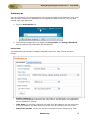
To change the date, select the calendar icon and
choose the date of your
choice. From the time drop down box, choose the time at which the task is
scheduled.
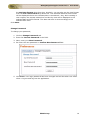
5. Select the reminder duration say before 1 hr or 2 hr from the Remind me
before combo box. By default the message would be Never.
6. Click Add. The new reminder is added along with the list of already existing
reminders in the ascending order based on date and time.
Viewing all Reminders
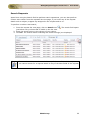
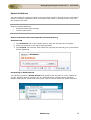
You can view all the open and completed reminders along with the reminder details such
as Reminder Date and Module. The Link is specified only if the reminder is added from
the request module.
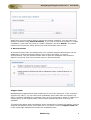
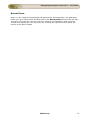
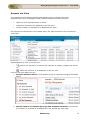
1. Click on Reminders link.
2. From My Reminders pop up, select >Show All link. By default, you can view All
the reminders from this page.
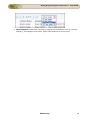
3. If you wish to view all the open reminders alone then select Open option from
Showing drop down box.
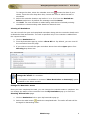
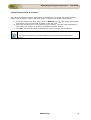
Note 1. From this page, you can Add New Reminder, Delete bulk reminders and
Change the status of a reminder.
2. This option is available to contacts if Show Reminders to Contact(s) option
is enabled in the Admin module.
Change the Reminder status
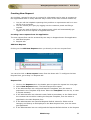
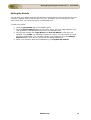
Once you have completed the task, you can change the reminder state to complete. You
can change the status of the reminder from the My Reminders pop up or from the
Showing All Reminder page.
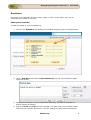
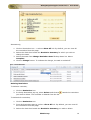
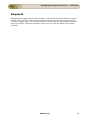
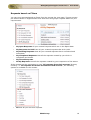
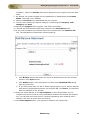
1. Click on Reminders link to open My Reminders pop up.
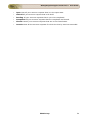
2. Select the radio button
beside the completed task. The strike off task will be
arranged in descending order.
ZOHO Corp.
9