1
Gesture
Touch Gesture
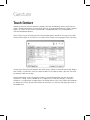
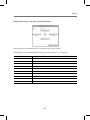
Selecting “Gesture” from the above list provides one with the following screen. Here, one can
make a connection between a certain touch gesture, an action performed with a finger, multiple
fingers, or a palm, or to a certain mouse button, a keyboard button, or a combination of a
mouse and keyboard buttons.
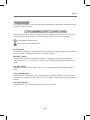
The CTOUCH sensor classifies gestures into a bundle and this bundle is what we call a Profile.
There are five Profiles in all and users can select which Profile to use thgrough Touch Gestrures.
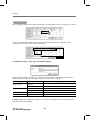
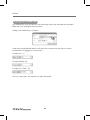
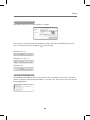
On top of the Touch Gesture window, the name of each Profile is listed from left to right. Before
each Profile is a check box. One can check the Mac OS X Profile to select it but also view what
the General Profile has to offer.
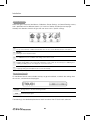
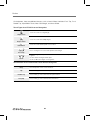
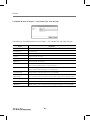
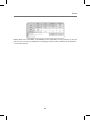
The example above shows the General Profile. On the horizontal upper strip are the actions,
whether it is a drag, a tap, a double tap, or a lengthy tap. On the left, vertically, is the type,
whether it is a single finger, multiple fingers, the whole hand or a put & tap. When one combines
the above, one comes up with the functions of the mouse i.e., left-click and drag, right click, or
left double click.
21