1
World’s First Blu-ray 3D HTPC
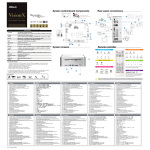
System motherboard components
Rear panel connections
Connect to ODD
SATA & Power Connections
HDD
Connect to SATA Connector (4)
ODD
21
Connect to ATX5V Power Connector (3)
Connect to HDD
Connect to SATA Connector (1)
13
12
20
11
1
23
24
USB 3.0
HM65-MXM
2
22
19
18
MXM1
17
ErP/EuP Ready
3
MP3
25
16
Fan connector
+12V Rotation
Ground
** Note: For barebone system, it may not contain CPU, memory, HDD or ODD
Vision 3D series
Processor
Chipset
Mobile Intel® HM65 Express chipset
Memory
Supports DDR3 1600 /1333/1066MHz, 2xSO-DIMM slots , maximun up to 16GB
14
Display
NVIDIA® GeForce GT540M Graphics, NVIDIA® 3D Vision capable
HDD
Support 2.5" SATA HDD
4
26
DDR3_A1
DDR3_B1
SONY
5
BD Combo or DVD Super Multi
Front I/O
2 x USB 3.0, 1 x MIC, 1 x Head phone, 4-in-1 Card reader (MMC/SD/MS/MS Pro)
Rear I/O
1 x HDMI, 1 x DVI-I (Dual-Link), 4 x USB 2.0, 1 x S/PDIF, 1 x eSATA3 , 2 x USB3.0
Audio
7.1 Ch HD Audio with THX TruStudio™
Lan
Gigabit LAN
WiFi
802.11b/g/n wireless LAN (300Mbps)
Remote Controller
Support MCE function
Power
90W/19V Adapter
Dimension
200mm(W)x70mm(H)x200mm(L)
*2
Volume
USB 2.0
9
*1
ODD
15
10
Intel® Mobile Sandy Bridge Processor, supports 2nd Generation Intel®
Corei7/i5/i3 Dual-Core Mobile Sandy Bridge Processor Family
6
7
8
Remote controller
System chassis
NAVIGATION BUTTONS
START
2.8L
UP
OK
DOWN
32
BACK
PLAYBACK BUTTONS
RECORD
Information
LEFT
REWIND
RIGHT
SHORTCUT BUTTONS
Free bundle software:
*1 Supports DDR3 1600MHz depends on CPU type. (eg. Core i5 series or above CPU.)
* 2 For eSATA function, Hot Plug function is supported in AHCI mode only. IDE mode does not support Hot Plug
function.
* 3 CyberLink PowerDVD 10 OEM software is bundled with Vision 3D BD only.
GUIDE
Quick Guide
+
POWER
31
AC Power Cord
AC/DC Adapter
DVI to D-Sub Adapter
English
1. SATA connector: For HDD SATA data cable
2. SATA 3.0 connector: For HDD SATA data cable
3. ATX5V output power connector for slim ODD & 2.5” HDD
4. SATA connector: For ODD SATA data cable
5. SATA power cable connector (+5V/+12V) for second HDD
6. Fan connector
7. HM65 PCH chipset
8. Memory socket
9. Infrared module header
10. CPU
11. Clear CMOS jumper
12. Mini-PCI Express expansion slot: For WiFi module
13. MXM 3.0 slot
14. HDMI connector
15. eSATA3 connector
16. DVI-I port (Dual-Link)
17. USB3.0 ports: USB devices
18. Mic In (Pink): Microphone
19. Optical S/PDIF Out port
20. DC-In jack
21. Side port for side speakers
22. Center/LFE (Orange): Center / subwoofer speakers
23. Front L/R Out (Lime): Stereo speakers or headphones
24. Line In (Blue) for 2/4/6 channel; Rear (Blue) for 8 channel
25. LAN (RJ-45) port: Local Area Network
26. USB2.0 ports: USB devices
27. Headphone
28. Microphone
29. USB3.0 ports: USB devices
30. 4-in-1 Card reader (MMC/SD/MS/MS Pro)
31. Power ON/OFF button with status indicator
32. Slot-in Optical Disc Drive
Remote Controller
SATA and Power Cables
Deutsch
1.SATA插槽:用於連接硬碟SATA傳輸線
2. SATA 3.0插槽:用於連接硬碟SATA傳輸線
3. 用於Slim光碟機及2.5”硬碟的ATX5V輸出電源插槽
4. SATA插槽:用於連接光碟機SATA傳輸線
5. 用於第二顆硬碟的SATA電源插槽 (+5V/+12V)
6. 風扇插槽
7. HM65 PCH晶片組
8. 記憶體插槽
9. 紅外線模組
10. CPU
11. 清除CMOS跳線
12. Mini-PCI Express擴充槽:用於WiFi模組
13. MXM 3.0插槽
14. HDMI
15. eSATA3
16. DVI-I (Dual-Link)
17. USB3.0
18. 麥克風輸入(粉紅色)
19. 光纖S/PDIF輸出孔
20. DC-In插孔
21. 側邊聲道輸出接口:用於連接側邊喇叭
22. 中央聲道/ LEF輸出(橙色):連接中央聲道/超重低音喇叭
23. 前置左/右聲道輸出(淺綠色):連接立體聲喇叭或耳機
24. Line In埠(藍色),用於 2/4/6 聲道;後置聲道輸出接口(藍色),用於 8 聲道
25. LAN (RJ-45)接口:連接區域網路
26. USB2.0界面:連接USB裝置
27. 耳機
28. 麥克風
29. USB3.0
30. 4合1讀卡機 (MMC/SD/MS/MS Pro)
31. 電源開關,支援狀態指示功能
32. 吸入式光碟機
1. SATA-Anschluss: Für SATA-HDD-Datenkabel
2. SATA 3.0-Anschluss: Für SATA-HDD-Datenkabel
3. ATX5V-Netzanschluss für schmales ODD & 2,5 Zoll-HDD
4. SATA-Anschluss: Für SATA-ODD-Datenkabel
5. SATA-Netzkabelanschluss (+5 V/+12 V) der zweiten HDD
6. Lüfteranschluss
7. HM65 PCH-Chipsatz
8. Speichersteckplatz
9. Infrarotmodul-Header
10. CPU
11. Clear CMOS-Jumper
12. Mini-PCI-Express-Erweiterungssteckplatz: Für Wi-Fi-Modul
13. MXM 3.0-Steckplatz
14. HDMI-Anschluss
15. eSATA3-Anschluss
16. DVI-I-Port (Dual-Link)
17. USB 3.0-Ports: USB-Geräte
18. Mikrofoneingang (rosa): Mikrofon
19. Optischer S/PDIF-Ausgang
20. DC-Eingang
21. Seitlicher Port für seitliche Lautsprecher
22. Mitte/LFE (orange): Mittlerer / Subwoofer-Lautsprecher
23. Vorderer L/R-Ausgang (grün): Stereolautsprecher oder Kopfhörer
24. Line-In (blau) für 2-/4-/6-Kanal; hinten (blau) für 8-Kanal
25. LAN- (RJ-45-) Port: Lokales Netzwerk
26. USB 2.0-Ports: USB-Geräte
27. Kopfhörer
28. Mikrofon
29. USB 3.0-Ports: USB-Geräte
30. 4-in-1-Kartenleser (MMC/SD/MS/MS Pro)
31. Ein-/Austaste mit Statusanzeige
32. Optisches Einstecklaufwerk
1. Разъем SATA: для SATA-кабеля данных жесткого диска
2. Разъем SATA 3.0: для SATA-кабеля данных жесткого диска
3. Разъем выхода питания ATX 5 В для тонкого привода оптических дисков и
2,5-дюймового жесткого диска
4. Разъем SATA: для SATA-кабеля данных привода оптических дисков
5. Разъем кабеля питания SATA (+5 В, +12 В) для второго жесткого диска
6. Разъем вентилятора
7. Набор микросхем HM65 PCH
8. Гнездо для модуля памяти
9. Разъем для подключения инфракрасного модуля
10. Центральный процессор
11. Перемычка очистки CMOS-памяти
12. Слот расширения Mini-PCI Express: для модуля WiFi
13. Слот MXM 3.0
14. Разъем HDMI
15. Разъем eSATA3
16. Порт DVI-I (Dual-Link)
17. Порты USB 3.0: для подключения USB-устройств
18. Микрофонный вход (розовый): для подключения микрофона
19. Порт оптического выхода S/PDIF
20. Вход питания постоянного тока
21. Боковой порт для боковых акустических систем
22. Выход центрального и низкочастотного каналов (оранжевый):
для подключения центральной АС и сабвуфера
23. Выход фронтальных левого и правого каналов (зеленый): для подключения
акустических систем или наушников
24. Линейный вход (синий) для 2, 4, 6 каналов; выход тыловых каналов (синий)
для 8 каналов
25. Порт ЛВС (RJ-45): для подключения локальной вычислительной сети
26. Порты USB 2.0: для подключения USB-устройств
27. Наушники
28. Микрофон
29. Порты USB 3.0: для подключения USB-устройств
30. Устройство чтения карт памяти «4 в 1» (MMC/SD/MS/MS Pro)
31. Кнопка включения и выключения питания с индикатором состояния
32. Привод оптических дисков со щелевой загрузкой
1. Conector SATA: Para cabo de dados HDD SATA
2. Conector SATA 3.0: Para cabo de dados HDD SATA
3. Conector de saída de alimentação ATX5V Unidade de Disco Óptico compacta
e Unidade de Disco Rígido de 2,5”
4. Conector SATA: Para cabo de dados da Unidade de Disco Óptico SATA
5. Conector do cabo de alimentação SATA (+5V/+12V) para a segunda Unidade
de Disco Rígido
6. Conector da ventoinha
7. Chipset PCH HM65
8. Ranhura para memória
9. Conector do módulo de infra-vermelhos
10. CPU
11. Jumper CMOS vazio
12. Ranhura de expansão mini-PCI Express: Para módulo WiFi
13. Ranhura MXM 3.0
14. Conector HDMI
15. Conector eSATA3
16. Porta DVI-I (Dual-Link)
17. Portas USB 3.0: Dispositivos USB
18. Entrada de microfone (Rosa): Microfone
19. Porta de Saída Óptica S/PDIF
20. Ficha de Entrada DC
21. Porta lateral para altifalantes laterais
22. Central/LFE (Laranja): Altifalantes central / subwoofer
23. Saída E/D frontal (Verde lima): Altifalantes estéreo ou auscultadores
24. Entrada de linha (Azul) para 2/4/6 canais; Traseira (Azul) para 8 canais
25. Porta LAN (RJ-45): Rede Local
26. Portas USB 2.0: Dispositivos USB
27. Auscultadores
28. Microfone
29. Portas USB 3.0: Dispositivos USB
30. Leitor de cartões 4-em-1 (MMC/SD/MS/MS Pro)
31. Botão Ligado/Desligado com indicador de estado
32. Unidade de Disco Óptico de ranhura
Español
1. Conector SATA: para cable de datos de unidad HDD SATA
2. Conector SATA 3.0: para cable de datos de unidad HDD SATA
3. Conector de salida de alimentación ATX5V para unidades ODD y HDD de 2,5”
compactas
4. Conector SATA: para cable de datos de unidad ODD SATA
5. Conector para cable de alimentación SATA (+5 V/+12 V) destinado a la segunda
unidad HDD
6. Conector de ventilador
7. Conjunto de chips HM65 PCH
8. Zócalo de memoria
9. Cabecera para módulo de infrarrojos
10. CPU
11. Puente para el restablecimiento de la memoria CMOS
12. Ranura de expansión Mini-PCI Express: para módulo WiFi
13. Ranura MXM 3.0
14. Conector HDMI
15. Conector eSATA3
16. Puerto DVI-I (Dual-Link)
17. Puertos USB 3.0: dispositivos USB
18. Entrada de micrófono (rosa): micrófono
19. Puerto óptico de salida S/PDIF
20. Toma de entrada DC
21. Puerto lateral para altavoces laterales
22. Canal central/LFE (naranja): altavoces central/subwoofer
23. Salida I/D frontal (lima): altavoces o auriculares estéreo
24. Entrada de línea (azul) para sistemas de 2/4/6 canales; canal posterior (azul)
para sistemas de 8 canales
25. Puerto LAN (RJ-45): red de área local
26. Puertos USB 2.0: dispositivos USB
27. Auriculares
28. Micrófono
29. Puertos USB 3.0: dispositivos USB
30. Lector de tarjetas “4 en 1” (MMC/SD/MS/MS Pro)
31. Botón de ENCENDIDO/APAGADO con indicador de estado
32. Unidad de disco óptico de tipo “slot-in”
CHANNEL
UP/ DOWN
FAST
SKIP
BACK
SKIP
FORWARD
1
2
3
4
5
6
7
8
9
*
0
#
TELETEXT BUTTONS
MUTE
Media Center supports Teletext when it is available. The
colored Fastext buttons on the remote control for Media
Center PC work much like the Teletext buttons on a
standard Teletext-enabled TV.
Some remote controller functions listed above are only available with the relative hardware equipments. If the hardware equipments you
adopt are not compatible with the system, you are not allowed to use these functions. This product is designed to meet MCE standards.
3.5mm Audio Cable
繁體中文
VOLUME
UP/ DOWN
PLAY
The numeric keypad consists of numbers from 0 through
9 and two other keys: ENTER and CLEAR.
+
30
28
Accessories
Support CD
ZOOM
AV AND POWER BUTTONS
29
27
STOP
NUMERIC KEYPAD
*3
1. CyberLink PowerDVD 10 OEM version. (Blu-ray 3D movie playback, 2D-to-3D video file playback,
Enhanced TrueTheater 3D to convert 2D-to-3D for DVDs and video files etc.)
2. Symantec Norton AntiVirus Software (trial version)
3. CyberLink MediaEspresso 6.5 (trial version)
4. ASRock MAGIX Multimedia Suite (OEM version)
5. ASRock XFast LAN
PAUSE
Français
Italiano
1. Connecteur SATA: pour câble de données SATA du disque dur
2. Connecteur SATA 3.0: pour câble de données SATA du disque dur
3. Connecteur d’alimentation de sortie ATX5V pour unité de disque optique
mince et disque dur de 2,5"
4. Connecteur SATA: pour câble de données SATA de l’unité optique
5. Connecteur de câble d’alimentation SATA (+5V/+12V) pour second disque dur
6. Connecteur du ventilateur
7. Chipset PCH HM65
8. Emplacement pour module de mémoire
9. Embase pour module infrarouge
10. Processeur
11. Cavalier d’effacement de la CMOS
12. Emplacement d’extension Mini-PCI Express: pour module WiFi
13. Emplacement MXM 3.0
14. Connecteur HDMI
15. Connecteur eSATA3
16. Port DVI-I (Dual-Link)
17. Ports USB3.0: périphériques USB
18. Entrée micro (Rose): Microphone
19. Port de sortie S/PDIF optique
20. Prise entrée CC
21. Port latéral pour haut-parleurs latéraux
22. Centre/LFE (Orange): haut-parleurs centre / subwoofer
23. Sortie G/D avant (Jaune): haut-parleurs ou écouteurs stéréo
24. Entrée de ligne (Bleu) pour 2/4/6 canaux; Arrière (Bleu) pour 8 canaux
25. Port LAN (RJ-45): réseau local
26. Ports USB 2.0: périphériques USB
27. Écouteurs
28. Microphone
29. Ports USB3.0: périphériques USB
30. Lecteur de cartes 4 en 1 (MMC/SD/MS/MS Pro)
31. Bouton Marche/Arrêt avec indicateur d’état
32. Unité optique à insérer
1. Connettore SATA: per cavo dati HDD SATA
2. Connettore SATA 3.0: per cavo dati HDD SATA
3. Connettore uscita potenza ATX5V per unità ODD Slim e HDD 2,5”
4. Connettore SATA: per cavo dati ODD SATA
5. Connettore cavo d’alimentazione SATA (+5V/+12V) per la seconda unità HDD
6. Connettore ventola
7. Chipset HM65 PCH
8. Socket memoria
9. Collettore modulo infrarossi
10. CPU
11. Jumper cancellazione CMOS
12. Alloggio d’espansione Mini-PCI Express: per modulo WiFi
13. Alloggio MXM 3.0
14. Connettore HDMI
15. Connettore eSATA3
16. Porta DVI-I (Dual-Link)
17. Porte USB3.0: Dispositivi USB
18. Ingresso microfono (rosa): Microfono
19. Porta uscita S/PDIF ottica
20. Connettore ingresso DC
21. Porta laterale per casse laterali
22. Centrale/LFE (arancione): Cassa centrale/Subwoofer
23. Uscita L/R frontale (verde): Casse stereo o cuffie
24. Ingresso linea (blu) per 2/4/6 canali; posteriore (blu) per 8 canali
25. Porta LAN (RJ-45): LAN (Local Area Network)
26. Porte USB2.0: Dispositivi USB
27. Cuffie
28. Microfono
29. Porte USB3.0: Dispositivi USB
30. Lettore di schede 4 in 1 (MMC/SD/MS/MS Pro)
31. Tasto accensione / spegnimento con indicatore di stato
32. Unità ottica ad inserimento (Slot-in)
1. SATA 커넥터: HDD SATA 데이터 케이블용
2. SATA 3.0 커넥터: HDD SATA 데이터 케이블용
3. 슬림 ODD 및 2.5” HDD용 ATX5V 출력 전원 커넥터
4. SATA 커넥터: ODD SATA 데이터 케이블용
5. 보조 HDD용 SATA 전원 케이블 커넥터(+5V/+12V)
6. 팬 커넥터
7. HM65 PCH 칩세트
8. 메모리 소켓
9. 적외선 모듈 헤더
10. CPU
11. 투명 CMOS 점퍼
12. 미니-PCI Express 확장 슬롯: WiFi 모듈용
13. MXM 3.0 슬롯
14. HDMI 커넥터
15. eSATA3 커넥터
16. DVI-I 포트(Dual-Link)
17. USB3.0 포트: USB 장치
18. 마이크 입력(분홍색): 마이크
19. 광학 S/PDIF 출력 포트
20. DC 입력 잭
21. 측면 스피커용 측면 포트
22. 중앙/LFE(주황색): 중앙/서브우퍼 스피커
23. 전면 L/R 출력(회색): 스테레오 스피커 또는 헤드폰
24. 2/4/6채널용 라인 입력(청색). 8채널용 뒷면 입력(청색)
25. LAN (RJ-45) 포트: LAN
26. USB2.0 포트: USB 장치
27. 이어폰
28. 마이크
29. USB3.0 포트: USB 장치
30. 4-in-1 카드 리더(MMC/SD/MS/MS Pro)
31. 상태 표시등을 탑재한 전원 ON/OFF 버튼
32. 슬롯 삽입형 광학 디스크 드라이브
1. SATA コネクタ:HDD SATAデータケーブル用
2. SATA 3.0 コネクタ:HDD SATAデータケーブル用
3. スリムODD&2.5”HDD用ATX5V出力電源コネクタ
4. SATA コネクタ:ODD SATAデータケーブル用
5. 2機目のHDD用SATA電源ケーブルコネクタ(+5V/+12V)
6. ファン コネクタ
7. HM65 PCH チップセット
8. メモリソケット
9. 赤外線モジュールヘッダー
10. CPU
11. クリアCMOSジャンパー
12. ミニPCI Express 拡張スロット:WiFiモジュール用
13. MXM 3.0 スロット
14. HDMI コネクタ
15. eSATA3 コネクタ
16. DVI-I ポート(Dual-Link)
17. USB3.0ポート:USBデバイス
18. マイク入力(ピンク):マイク
19. 光S/PDIF出力ポート
20. DC入力ジャック
21. サイドスピーカー用サイドポート
22. 中央/LFE(オレンジ):中央/サブウーハー スピーカー
23. フロントL/R出力(ライム):ステレオスピーカーまたはヘッドホン
24. 2/4/6 チャンネル用ライン入力(青)、8チャンネル用リア(青)
25. LAN(RJ-45)ポート:ローカルエリアネットワーク
26. USB2.0ポート:USBデバイス
27. イヤホン
28. マイク
29. USB3.0ポート:USBデバイス
30. 4-in-1 カードリーダー (MMC/SD/MS/MS Pro)
31. ステータス インジケータ付 電源オン/オフ ボタン
32. スロットイン光学ディスクドライブ
Português
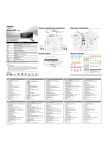
Opening the chassis
Reinstalling the ODD/HDD
1. Press the button on the rear I/O to
open the top side of the chassis.
Reinstalling the DIMMs
Reinstalling the MXM card
1. U n l o c k t h e D I M M s l o t b y p r e s s i n g
the retaining clips outward to
change the DIMM.
1. After you remove the top shield, you
will see the ODD/HDD bracket.
1. U n s c r e w t h e s c r e w s o f t h e h e a t p i p e
on the MXM card.
Safety instructions
Your system is designed and tested to meet the latest standards of safety for
information technology equipment. However, to ensure your safety, it is
important that you read the following safety instructions.
Setting up your system
• Read and follow all instructions in the documentation before you operate your
system.
• Do not use this product near water or a heated source such as a radiator.
• Set up the system on a stable surface.
• Openings on the chassis are for ventilation. Do not block or cover these
openings. Make sure you leave plenty of space around the system for
ventilation. Never insert objects of any kind into the ventilation openings.
• Use this product in environments with ambient temperatures between 0˚C and
40˚C.
• If you use an extension cord, make sure that the total ampere rating of the
devices plugged into the extension cord does not exceed its ampere rating.
2. A f t e r t h e c h a s s i s i s o p e n e d , you
will see the top shield inside the
chassis.
2. D i s c o n n e c t t h e O D D / H D D S A T A
power cable, and take out the
ODD/HDD bracket.
3. U n s c r e w t h e s c r e w s o n t h e c o r n e r
o f t h e top shield.
3. D i s c o n n e c t a l l t h e O D D / H D D S A T A
power cables inside the chassis.
Reinstalling the CPU
2. U s e y o u r f i n g e r s t o p u l l t h e o u t e r
side of the heatpipe upward.
1. Unscrew the screws of the CPU fan.
Care during use
• Do not walk on the power cord or allow anything to rest on it.
• Do not spill water or any other liquids on your system.
• When the system is turned OFF, a small amount of electrical current still
flows. Always unplug all power, modem, and network cables from the power
outlets before cleaning the system.
• If you encounter the following technical problems with the product, unplug
the power cord and contact a qualified service technician or your retailer.
• The power cord or plug is damaged.
• Liquid has been spilled into the system.
• The system does not function properly even if you follow the operating
instructions.
• The system was dropped or the cabinet is damaged.
• The system performance changes.
NOTE: The warranty does not apply to products that have been
disassembled by users.
2. Unscrew the screws on the corner of
the CPU socket.
3. F i n a l l y y o u c a n t a k e o u t t h e
heatpipe and change a new MXM
card.
Safety cautions and warnings
Optical Drive Safety Information
Optical drives sold with this system contains a CLASS 1 LASER PRODUCT.
CAUTION: Invisible laser radiation when open. Do not stare into beam or view
directly with optical instruments.
WARNING: Making adjustments or performing procedures other than those
specified in the user’s manual may result in hazardous laser exposure. Do not
attempt to disassemble the optical drive. For your safety, have the optical drive
serviced only by an authorized service provider.
Product disposal notice
IMPORTANT: This symbol of the crossed out wheeled bin indicates that the
product (electrical and electronic equipment) should not be placed in municipal
waste. Check local regulations for disposal of electronic products.
Nordic Lithium Cautions (for lithium-ion batteries)
4. C a r e f u l l y t a k e t h e top shield o u t .
4. T h e n y o u c a n c h a n g e t h e n e w
ODD/HDD to upgrade your system.
CAUTION! Danger of explosion if battery is incorrectly replaced. Replace only
with the same or equivalent type recommended by the manufacturer. Dispose of
used batteries according to the manufacturer’s instructions.
3. Now you can reinstall a new CPU to the
system.
English
繁體中文
Deutsch
Opening the chassis
1. Press the button on the rear I/O to pen the top side of the chassis.
2. After the chassis is opened, you will see the top shield inside the
chassis.
3. Unscrew the screws on the corner of the top shield.
4. Carefully take the top shield out.
打開機箱
1.按後面I/O面板上的按鈕以利打開塑膠上蓋的頂部。
2. 上蓋打開後, 您會在機箱內看到鐵上蓋。
3. 擰開鐵上蓋各個螺絲。
4. 小心的取下鐵上蓋。
Gehäuse öffnen
1. Drücken Sie zum Öffnen der oberen Gehäuseblende die Taste am
hinteren E/A.
2. Nachdem das Gehäuse geöffnet ist, sehen Sie die obere Abdeckung
im Inneren des Gehäuses.
3. Lösen Sie die Schrauben in den Ecken der oberen Abdeckung.
4. Nehmen Sie die obere Abdeckung vorsichtig heraus.
Ouverture du châssis
1. Appuyez sur le bouton sur la panneau E/S arrière pour ouvrir la face
supérieure du châssis.
2. Une fois que le châssis est ouvert, vous pouvez voir la plaque de
protection supérieure dans le châssis.
3. Dévissez les vis sur le coin de la plaque de protection supérieure.
4. Sortez soigneusement la plaque de protection supérieure.
Neue ODD/HDD installieren
1. Nachdem Sie die obere Abdeckung entfernt haben, sehen Sie die
ODD-/HDD-Halterung.
2. Ziehen Sie das ODD-/HDD-SATA-Netzkabel; nehmen Sie die
ODD-/HDD-Halterung heraus.
3. Ziehen Sie alle ODD-/HDD-SATA-Netzkabel im Inneren des Gehäuses.
4. Anschließend können Sie das neue ODD/die neue HDD zum Aufrufen
Ihres Systems einbauen.
Réinstallation de l’unité optique/du disque dur
1. Après avoir retiré la plaque de protection supérieure, vous pouvez voir le
suppport pour unité optique/disque dur.
2. Débranchez le câble d’alimentation SATA pour unité optique/disque dur,
et sortez le support pour unité optique/disque dur.
3. Débranchez tous les câbes d’alimentation SATA pour unité optique/disque
dur qui se trouvent à l’intérieur du châssis.
4. Vous pouvez alors changer l’unité optique ou le disque dur pour mettre
votre système à niveau.
Reinstalling the ODD/HDD
1. After you remove the top shield, you will see the ODD/HDD bracket.
2. Disconnect the ODD/HDD SATA power cable, and take out the
ODD/HDD bracket.
3. Disconnect all the ODD/HDD SATA power cables inside the chassis.
4. Then you can change the new ODD/HDD to upgrade your system.
Reinstalling the DIMMs
1. Unlock the DIMM slot by pressing the retaining clips outward to
change the DIMM.
Reinstalling the CPU
1. Unscrew the screws of the CPU fan.
2. Unscrew the screws on the corner of the CPU socket.
3. Now you can reinstall a new CPU to the system.
Reinstalling the MXM card
1. Unscrew the screws of the heatpipe on the MXM card.
2. Use your fingers to pull the outer side of the heatpipe upward.
3. Finally you can take out the heatpipe and change a new MXM card.
重新安裝光碟機/硬碟
1. 取下鐵上蓋後, 您會看到光碟機/硬碟托盤架子。
2. 拔掉光碟機/硬碟的SATA電源線後, 即可順利取出光碟機/硬碟托架。
3. 並且拔掉主機板上所有的SATA Cable線。
4. 然後方便讓你更換新的光碟機/硬碟及更新系統。
重新安裝DIMM
1.扳開兩側記憶體固定夾後,即可更換記憶體。
重新安裝CPU
1. 擰開CPU散熱模組的螺絲。
2. 擰開CPU固定螺絲。
3. 現在您就可以更換安裝你所需CPU到系統。
重新安裝MXM顯示卡
1.. 擰開MXM顯示卡散熱管上的螺絲。
2. 用指尖將MXM顯示卡微拉向上。
3. 之後順勢拔起MXM顯示卡。
Neue CPU installieren
1. Lösen Sie die Schrauben des CPU-Kühlers.
2. Lösen Sie die Schrauben in den Ecken des CPU-Sockels.
3. Nun können Sie eine neue CPU im System installieren.
Neue MXM-Karte installieren
1. Lösen Sie die Schrauben vom Wärmerohr der MXM-Karte.
2. Ziehen Sie die Außenseite des Wärmerohrs mit Ihren Fingern nach
oben.
3. Nehmen Sie das Wärmerohr schließlich heraus; setzen Sie eine neue
MXM-Karte ein.
Español
Réinstallation des modules DIMM
1. Déverrouillez l’emplacement pour module DIMM en appuyant sur les
clips de fixation de façon à les écarter vers l’extérieur pour changer le
module DIMM.
Réinstallation du processeur
1. Dévissez les vis du ventilateur du processeur.
2. Dévissez les vis sur le coin du socle du processeur.
3. Vous pouvez maintenant installer le nouveau processeur dans le système.
Réinstallation de la carte MXM
1. Dévissez les vis sur le caloduc de la carte MXM.
2. Servez-vous de vos doigts pour soulever l’extrémité extérieure du caloduc.
3. Vous pouvez enfin retirer le caloduc et mettre en place une nouvelle carte
MXM.
Italiano
Apertura del telaio
1. Premere il tasto sul pannello I/O posteriore per aprire la parte superiore
del telaio.
2. Dopo avere aperto il telaio, si vedrà la protezione superiore all’interno.
3. Togliere le viti sugli angoli della protezione superiore.
4. Estrarre delicatamente la protezione superiore.
Installazione dell’unità ODD/HDD
1. Dopo avere rimosso la protezione superiore si vedrà il supporto
ODD/HDD.
2. Scollegare il cavo d’alimentazione ODD/HDD SATA ed estrarre il
supporto ODD/HDD.
3. Scollegare tutti i cavi d’alimentazione ODD/HDD SATA all’interno del
telaio.
4. Poi si può installare la nuova unità ODD/HDD per aggiornare il sistema.
Installazione dei moduli DIMM
1. Sbloccare l’alloggio DIMM premendo verso l’esterno i fermagli ed
installare il modulo DIMM.
Installazione della CPU
1. Togliere le viti della ventola CPU.
2. Togliere le viti sugli angoli del socket CPU.
3. Adesso si può installare la nuova CPU sul sistema.
Installazione della scheda MXM
1. Togliere le viti del tubo termovettore (heatpipe) della scheda MXM.
2. Con le dita sollevare l'estremità del tubo termovettore.
3. Infine, estrarre il tubo termovettore ed installare la nuova scheda MXM.
Português
Apertura del chasis
1. Pulse el botón situado en el panel posterior de E/S para abrir la parte
superior del chasis.
2. Una vez abierto el chasis, podrá ver la cubierta protectora superior en
su interior.
3. Desenrosque los tornillos situados en las esquinas de la cubierta
protectora superior.
4. Extraiga la cubierta protectora superior con cuidado.
Процедура открытия корпуса
1. Нажмите кнопку на задней панели ввода-вывода, чтобы открыть
верхнюю часть корпуса.
2. После открытия корпуса будет виден верхний экран,
расположенный внутри корпуса.
3. Отвинтите винты в углах верхнего экрана.
4. Осторожно извлеките верхний экран.
Sustitución de la unidad ODD/HDD
1. Una vez extraída la cubierta protectora superior, podrá ver la abrazadera
de la unidad ODD/HDD.
2. Desconecte el cable de alimentación SATA de la unidad ODD/HDD
instalada y extraiga la abrazadera de la unidad ODD/HDD.
3. Desconecte todos los cables de alimentación SATA de las unidades
ODD/HDD instaladas en el interior del chasis.
4. A continuación, instale la nueva unidad ODD/HDD para actualizar el
sistema.
Процедура замены привода оптических дисков и жестких дисков
1. После удаления верхнего экрана будет виден кронштейн для
привода оптических дисков и жестких дисков.
2. Отсоедините кабель питания SATA привода оптических дисков и
жестких дисков и извлеките кронштейн для привода оптических
дисков и жестких дисков.
3. Отсоедините все кабели питания SATA привода оптических
дисков и жестких дисков внутри корпуса.
4. Затем можно установить новые жесткие диски и привод
оптических дисков для модернизации системы.
Sustitución de los módulos DIMM
1. Desbloquee una ranura DIMM presionando las pinzas de retención
hacia fuera y sustituya el módulo DIMM correspondiente.
Процедура замены модулей памяти DIMM
1. Откройте гнездо DIMM, нажатием раскрыв фиксаторы наружу,
чтобы заменить модуль памяти DIMM.
Sustitución de la CPU
1. Desenrosque los tornillos del ventilador de la CPU.
2. Desenrosque los tornillos situados en las esquinas del zócalo de la CPU.
3. Ahora podrá instalar una nueva CPU en el sistema.
Процедура замены центрального процессора
1. Отвинтите винты вентилятора центрального процессора.
2. Отвинтите винты в углах гнезда центрального процессора.
3. Теперь можно установить в систему новый центральный
процессор.
Sustitución de la tarjeta MXM
1. Desenrosque los tornillos que mantienen sujeto el tubo de disipación de
la tarjeta MXM.
2. Extraiga la parte externa del tubo de disipación tirando de ella hacia
arriba con los dedos.
3. Por último, extraiga el tubo de disipación y sustituya la tarjeta MXM por
una nueva.
Neue DIMMs installieren
1. Lösen Sie den DIMM-Steckplatz, indem Sie die Halteklammern zum
Auswechseln des DIMM nach außen drücken.
Français
Замена MXM-карты
1. Отвинтите винты тепловой трубки на MXM-карте.
2. Пальцами потяните вверх наружную сторону тепловой трубки.
3. Теперь можно снять тепловую трубку и установить новую
MXM-карту.
Abrir o chassis
1. Prima o botão E/S na traseira para abrir a parte superior do chassis.
2. Depois de abrir o chassis, irá ver a protecção superior no interior do
chassis.
3. Desaperte os parafusos no canto da protecção superior.
4. Remova a protecção superior com cuidado.
Reinstalar a Unidade de Disco Óptico/Disco Rígido
1. Depois de remover a protecção superior, irá ver o suporte da Unidade
de Disco Óptico/Disco Rígido.
2. Desligue o cabo de alimentação SATA da Unidade de Disco
Óptico/Disco Rígido e retire o suporte da Unidade de Disco
Óptico/Disco Rígido.
3. Desligue todos os cabos de alimentação SATA da Unidade de Disco
Óptico/Disco Rígido no interior do chassis.
4. Pode agora trocar a Unidade de Disco Óptico/Disco Rígido para
actualizar o seu sistema.
섀시 열기
1. 뒷면 I/O의 버튼을 눌러 섀시의 위쪽을 고정합니다.
2. 섀시가 열리면 섀시 내부의 상부 쉴드가 보입니다.
3. 상부 쉴드 귀퉁이의 나사를 풀어 줍니다.
4. 상부 쉴드를 조심스럽게 꺼냅니다.
シャーシを開ける
1. 背面I/Oのボタンを押してシャーシの上部を開けます。
2. シャーシを開けると、シャーシの内側のトップシールドが見えます。
3. トップシールドの角にあるねじを外します。
4. トップシールドをゆっくりと取り外します。
ODD/HDD 재설치하기
1. 상부 쉴드를 제거하면 ODD/HDD 브래킷이 보입니다.
2. ODD/HDD SATA 전원 케이블을 분리하고 ODD/HDD 브래킷을
꺼냅니다.
3. 섀시 내의 모든 ODD/HDD SATA 전원 케이블을 분리합니다.
4. 이제 ODD/HDD를 교환해 시스템을 업그레이드할 수 있습니다.
ODD/HDDの交換
1. トップシールドを取り外すと、ODD/HDDブラケットが見えます。
2. ODD/HDD SATA電源ケーブルを取り外し、ODD/HDDブラケットを外
します。
3. シャーシの中のODD/HDD SATA電源ケーブルをすべて取り外します。
4. これで新規ODD/HDDに交換し、システムをアップグレードすること
ができます。
DIMM 재설치하기
1. 고정 클립을 바깥쪽으로 눌러 DIMM 슬롯의 잠금을 해제해 DIMM을
교환합니다.
Reinstalar os módulos DIMM
1. Abra a ranhura DIMM pressionando para fora os clipes de retenção
para trocar o módulo DIMM.
CPU 재설치하기
1. CPU 팬의 나사를 풀어 줍니다.
2. CPU 소켓 귀퉁이의 나사를 풀어 줍니다.
3. 이제 새 CPU를 시스템에 재설치할 수 있습니다.
Reinstalar a CPU
1. Desaperte os parafusos da ventoinha da CPU.
2. Desaperte os parafusos no canto do suporte da CPU.
3. Pode agora instalar uma nova CPU no seu sistema.
MXM 카드 재설치하기
1. MXM 카드 히트파이프의 나사를 풀어 줍니다.
2. 손가락을 사용해 히트파이프의 바깥쪽을 잡아당겨 올립니다.
3. 마지막으로 히트파이프를 꺼낸 후 새 MXM 카드를 교환할 수 있습니다.
Reinstalar a placa MXM
1. Desaperte os parafusos do dissipador de calor da placa MXM.
2. Utilize os dedos para puxar para cima a parte exterior do dissipador de
calor.
3. Por fim, pode remover o dissipador de calor e trocar a placa MXM.
DIMMの交換
1. DIMMスロットの保持クリップを外側に押してロックを解除し、DIMM
を交換できるようにします。
CPUの交換
1. CPUファンのねじを外します。
2. CPUソケットの角にあるねじを外します。
3. これで新しいCPUをシステムに設置することができます。
MXMカードの交換
1. MXMカードのヒートパイプのねじを外します。
2. 指でヒートパイプの外側を上に向かって引き上げます。
3. ヒートパイプを取り外し、新しいMXMカードに交換します。