1
GEODESY User Guide
Database Update
Since new SDD locations are installed and mobile SDD locations relocated, typically at road works, a
regular download/update is advised. To update the database, simply insert the GEODESY into the
Desktop Modem. Once an update is complete, the GEODESY will display all ten scale lights in green.
NOTE
The GEODESY will only dial if the line is free.
The GEODESY will not interrupt a busy line but will test for a free line every two minutes. To avoid this
process simply remove the GEODESY from the Desktop Modem.
Once an update is complete, or in the event of difficulties in making a connection do not leave the
GEODESY unattended in the Modem base. Morpheous/RoadPilot Limited take no responsibility for
phone bills if the equipment is left unattended and makes multiple attempts to download data. Please
update at least once a week.
Update ServIce
The update service is free for the first six months following purchase and £50.00 incl VAT per year
thereafter. Failure to renew your update service in advance of your expiry date will affect the operation
of your GEODESY
Desktop Modem
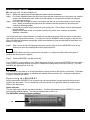
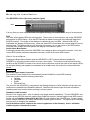
Once inserted into the Desktop Modem, the GEODESY goes through a sequence of events before
dialing. The power indicator shows these as follows:
Green
Green
All 10 Scale Lights
Green
9th Scale Light
Blue
Flashing
The GEODESY is waiting for the connection to the
telephone network
The GEODESY has completed all database updates
and uploaded new locations to the RoadPilot network.
The GEODESY is ready for use.
The GEODESY will dial 9 first (press the button to
delete the dial 9 action)
The GEODESY is online with the RoadPilot network.
UpdatIng: step by step
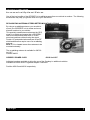
Step1 Make sure that the Desktop Modem is correctly installed i.e. the power and telephone line are
connected
Step2 Insert the GEODESY into the Modem until you hear a click. You should only be able to remove it
from the Modem by depressing the button on the Modem.
If the option to dial 9 for an outside line has been set, then the 9th scale light is displayed green.
To
turn this off press the button. The GEODESY will reboot and dial the RoadPilot network without
using a 9 first (such as a home telephone line). To turn on press the button until the 9th light is
illuminated
Step4 The blue flashing light shows the Modem is online (All lights may go out for approx. 30 sec before
the blue light starts flashing)
Step5 The Modem completes all communication, disconnects and displays all ten scale lights as green.
The GEODESY returns to Step3 every two minutes until updated. If any of the display LED lights
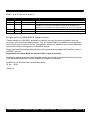
are showing red, then the GEODESY cannot dial because of one of the following errors:
page six