1
As your project progresses you will make use of some, or all, of the above items to aid collaboration
Note: Requests for new/further eRooms must go through your ITSP who will raise a request (AR) ticket with AACS
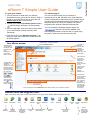
Basic actions:
in the button bar on either the upper and lower half of the front page
Create an item
Click
screen.
Import a file
Click add file, browse button, then select your file.
Delete a file
Right-mouse-click on item and select Delete.
Display a menu
Right-mouse-click menus give you access to context-sensitive actions such as
starting a real-time meeting and sharing a file at the same time, or linking a file to a
Documentum repository.
Edit a file or item
properties.
Right-click the icon and pick Edit from the pop-up menu.
Open an item
Click it, either in the map or in the item box.
Act on an item
Right-click the icon and pick a command from the pop-up menu.
Act on multiple
items
). Select each item (
) you want to
On the command bar, click view details (
act on. Then, either right-click and pick a command, or click a command in the
command bar.
Standard controls:
next unread
Click to open the next item marked unread( ). Click repeatedly to cycle through
all new information in your eRoom.
intercom
Click to open the eRoom intercom so you can chat with other members or alert
them to join you there. This function acts as a chat-room format for all to view your
conversations; if you want to chat privately with remote members: click on a
member’s name to open an Outlook email message window.
alert
Click to send an alert message in email to other members.
help
Click to open eRoom online help.
members
present
More than one head icon indicates more than one member being online. Click to
open intercom window.
Command buttons:
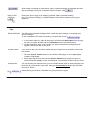
Click to create items.
Click to open the “Search the eRoom” page, from which you can search for items in your
eRoom based on text, ownership, or date created or modified. Also, on this page you can
click
to launch a site-wide search for items or eRooms.
Click to open the eRoom’s Meetings & Events page, which lists current and upcoming
online meetings and calendar events in your eRoom. On this page you can also start or
join online meetings.
Click to open the task pane, which lists all your open tasks from all project plans and task
databases in your eRoom.
Click to open the task pane, which lists all your open tasks from all project plans and task
databases in your eRoom.
Click to open the eRoom Members page. You can edit your own membership information
or view information about other members.