1
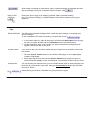
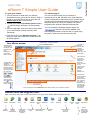
Click to add a comment to a discussion; type a comment heading in the single-line field
(this is mandatory) and your comments in the box below. Click
Reply to this
Comment
Click arrow icon to reply to an existing comment. Add a comment heading
(e.g.: Re: Projects Posting by J.Smith Feb08) to show which comment your reply is
related to.
Tips:
Email notification
You will receive an email message when a particular item changes, or anything in an
eRoom changes.
To turn notifications off: within the email you receive click on link
1. In the map or item box, right-click an item’s icon and pick Notification from the popup menu or select the item and click notification on the command button.
2. On the Notification page, pick whether you want to know about changes as they
happen, just once a day, or not at all.
Access control
If you own an item, you can edit it (rather than just comment on it) and also control who
has access:
•
•
Create a link
Click the access control button on the Create or Edit page, or in the appropriate
Create or Edit wizard.
Either right-click the icon and choose Access Control from the pop-up menu, or
select it and click access on the command bar. You can also click the owner’s name.
You can access your eRooms from your OU Intranet Home page for quick and easy use:
From the ‘My Links section’ click ‘edit’, then type eroom.open.ac.uk into the URL field,
click ‘Save’ button.
When leaving your eRoom, remember it is good practice to logout.