1
Using the
Tool
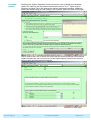
Guidance on using the tool is available at a number of locations;
• general instructions within the annex of the H1 Overview document;:
• ‘help’ pages on each page of the tool: and
• content of this user guide.
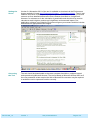
Data entry by the user is highlighted within the tool by the use of blue cells. ‘Box’ help
within the Help pages gives advice on the specifics of what should be entered in each
blue cell. Within each ‘Help’ window there is a link to the Environment Agency’s H1
webpage: “See EA H1 webpage”. By clicking within the window a scroll bar appears
which may reveal more text lower down. The Help window may be cancelled using the
‘X’ on the window and restored using the ‘question mark’ key on the top toolbar.
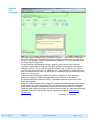
Comment boxes are available at the bottom of each data entry page enabling the user
to clarify any points they wish to make.
An ‘Import utility’ button on the Reference Information page is a new addition and
enables the user to upload a previous tool dataset, saving the user time and energy if
wanting to simply modify a previous entry, for example in support of a permit variation
application.
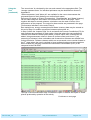
By selecting the appropriate button in the page ‘Describe the Objectives’ the user is
required to choose between a simple assessment or a more detailed evaluation.
Called the ‘Options Appraisal’ this enables users to include more than one option to
secure environmental protection and each option can then be ranked on the basis of
costs and benefits. This enables the Best Available Technique (BAT) to be identified.
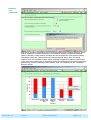
Please note that whichever option is chosen steps 1,2 and 3 of the tool are the same
with screening results presented graphically at the end of step 3. It is only when more
than one option is available that steps 4,5 and 6 come into play.
If the Environmental Assessment button is chosen the tool moves on to ’Scope of the
Environmental Assessment’ and then Step 2. The first part of Step 2 is ‘Air release
points’.
Users may find the ‘Go To’ drop down menu on the top tool bar useful in navigating
around the various pages of the tool. This is particularly useful when more than one
option is being considered
Continues on next page
Doc No 520_12
Version 1
Last printed 08/08/12
Page 3 of 9