1
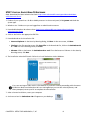
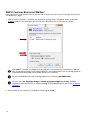
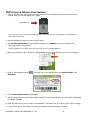
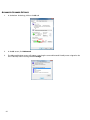
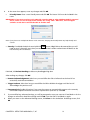
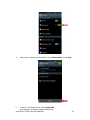
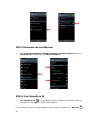
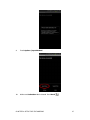
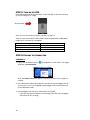
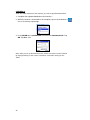
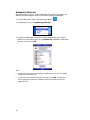
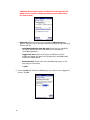
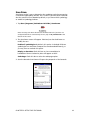
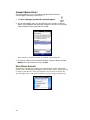
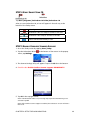
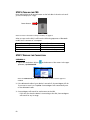
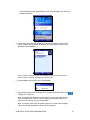
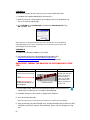
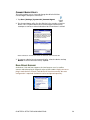
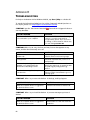
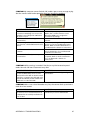
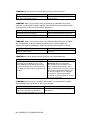
4. In the screen that appears, enter any changes and click OK. Friendly Name: Enter a new friendly name and click OK. The letters ‘CRS’ must be included in the name. IMPORTANT! If you want to also use the CRS with a Socket SoMo or other Windows Mobile powered device, make sure the friendly name includes the string “CRS”. Otherwise, Connect!Agent software on the device will not be able to find the CRS. Note: If you plan to use multiple CRS devices in the same area, changing the Friendly Name may help identify each scanner. Security: If enabled, the default security PIN is 0000. A new 4 digit PIN can be entered, but you will need to enter it manually every time you connect. This PIN is used to authenticate the device to the host PC every time it connects. If desired, click Delete Bonding to delete any bonding/pairing data. After making any changes, click OK. Remote Acknowledgement: Select how you would like the CRS to indicate that the host PC has successfully received scanned data. Trigger Lockout: Select how long you would like the CRS to disable the trigger until the host PC acknowledges the previous scan. Permanent Pair: Enable this option if you want the scanner to automatically connect to the currently connected computer whenever the scanner is powered on (Scenario 2). Click OK. 5. If you modified any advanced settings, you will be prompted to turn your scanner off and back on for the changes to take effect. Read the message and click OK. Turn the CRS off and back on again. 6. When you return to the Advanced Settings screen, click Close. In the SocketScan 10 Settings screen, click OK. CHAPTER 3: SETUP FOR WINDOWS 8, 7, XP 21