1
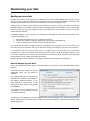
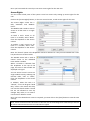
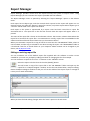
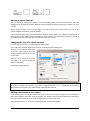
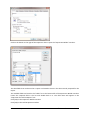
Maintaining your data Backing up your data Changes you make to your data and new data that you create when adding new records is saved when you click on the [Save] button on the relevant screen. Although this should be sufficient, we strongly recommend that you also create a backup of your data on a regular basis. A backup file, as created by the software, is a zip file that contains a copy of your data, from all the individual tables in the dataset, compressed into a single portable file. If needed, you can restore the contents of this file using the software and put your data back to the position it was in when the backup file was created. If anything happens to your computer, for example it is damaged or stolen, all you need to do to be up and running again is to: download the software from our website and install it register the software using the registration code you were provided with create a new dataset and restore from a backup file into it It is a good idea to create your backup files on a USB flash drive or memory stick. You can then store this away from your computer and not run the risk of losing your backups if you lose your computer. It is important that you back up your data on a regular basis. This will help you to overcome problems that result, for example, from entering incorrect data or accidentally deleting data. If you have made a backup of your data, you can restore from the backup, which will place your data back at the position it was in when the backup was made. Backups should also be made before carrying out important procedures in the software. How to backup up your data Select the "Backup Data Files" option from the software's File menu to open the Backup Data Files window. A filename for the backup file will be suggested, which can be edited as required. The suggested filename is based on the filename stem which can be changed in the Dataset defaults window. If you have elected to add the date to the filename the date will be in filing order (YYYYMMDD). The backup file will automatically be saved with a ".ZIP" extension, so there is no need to add one. A location for the backup file will be suggested but can be changed using the [Pick file] button. Where backups have previously been carried out from this computer the location previously used will be suggested. Home Inventory User Guide 22 © EZPZ Software Limited 2014