1
E-Quotes
User Guide
Once you have logged in with your unique username and password (supplied separately) you are presented
with the landing page to our quotation system.
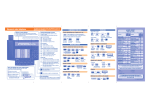
Click on the ‘Quotations’ link on the left hand side of the screen.
This will then take you to a secondary menu containing the following links detailed below.
Vehicle Search
New Quote
This menu option will search
for multiple vehicles of your
choice then allow you to
select one for progression to
order request.
This menu option will allow
you to obtain a quote on a
specific vehicle.
View Quote
This menu option allows you to search for and retrieve
all your saved quotes.
NEW QUOTE
1.
2.
3.
4.
5.
Click on the menu option of New Quote.
Click on Manufacturer.
Click on Model
Click on Derivative.
This will display the options page.
Std. Equipment
Click on Std.
Equipment for
detailed standard
vehicle
specification.
Add/Remove
Accessories
Click on the ‘Plus’
button to add or
remove the option
from your vehicle.
Factory Accessories
Click on Factory
Accessories Tab to
choose required
options.
Intelligent Option
Linking
Roll over option
icons for more
details about the
option.
6.
7.
8.
9.
If you select options that exceed your rental limit a warning message will be displayed.
Click on the Technical Specs Tab for full technical details of the vehicle.
Click on the Plan Tab to view financial details and benefit in kind taxation implications of
chosen vehicle.
From the plan page click on Save Quote (left hand menu) if you wish to request an order on this
vehicle or wish to return to it at a later date.
Save Quote
Click on the save quote
button to save this
quote to your basket.
10.
On the quotation complete screen you can download the pdf quote to save and/or print. You
can also push this quote through for order request if you are happy with this choice.
Request Order
Click here to progress
this quote to an order.
11.
Download Quote
Click here to download
your quote to pdf for
saving/printing.
Complete your first and second colour and trim choice, type any applicable notes in the notes
field and then click the Request Order button. This will notify your fleet manager of your
request to order this vehicle subject to final approval.
VEHICLE SEARCH
1.
2.
3.
4.
5.
6.
Click on the menu option of Vehicle Search.
Select filters on this screen as required and then click the Continue button.
Tick the Manufacturers you wish to include in your search and then click the Continue button.
You can select any number of Manufacturers.
Tick the Models you wish to include in your search and then click the Continue button. You can
select any number of Models.
A list of vehicles that meet your search requirements will be returned. If required click the Excel
link to export all of the vehicles into the spread sheet.
To progress to an order request click on the derivative of your choice and follow New Quote
instructions from point 7.
VIEW QUOTE
1.
2.
3.
4.
5.
Click on the menu option View Quote.
Select date from and to.
Click in the Status Box and then tick the relevant status you wish to retrieve.
After completing your parameters click on the Search button to view a list of quotes.
From this list you can re-print a quote by clicking on the Print Quote icon or you can return to a
quote by clicking on the Quote Name.