1
OrderMaster - sending an order
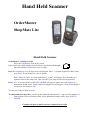
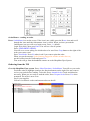
Press: OrderMaster icon on the screen. If the icon is not visible press the House icon and scroll
through the icons until the Ordermaster icon is visible. When you have pressed the
Ordermaster icon you will see a login screen. Press: 1. (default
Login ID is 0001), then press Enter. You will see a list of options.
Press: SEND/PRINT ORDER.
You will see a screen asking for which order to be sent. Press: Prep button to the right of the
order you want to send.
Press: Send Order. Press No when it ask if you want to print the order.
When you get the message Is the Scanner plugged in and the switcher box set,
put the scanner into the cradle and press Yes.
Your order will go from the handheld scanner on to the ShopMate Epos System.
Ordering from the Till
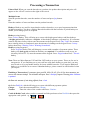
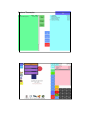
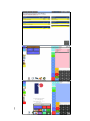
Go to the ShopMate Epos system. Press: Other Functions / OrderMaster. You will see your order.
Touch the order to highlight it and use the function buttons on the right. You may want to
review your order before sending. To do this, Press: Amend Order. Check and amend as
necessary. When you are ready to send the order, Press: Prepare Order. Press: Yes when
prompted. The order is now on its
way to your supplier.
You can view historic orders and unsent orders on the till.