1
PhotoCapture Center®: Printing photos from a memory card
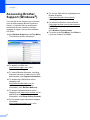
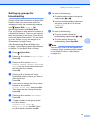
Adjusting Brightness,
Contrast and Color
Brightness
a
Press a or b to choose Brightness.
Press OK.
b
Press d to make a darker print or press c
to make a lighter print.
Press OK.
c
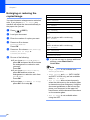
Cropping
8
8
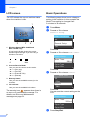
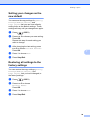
You can choose the contrast setting.
Increasing the contrast will make an image
look sharper and more vivid.
a
Press a or b to choose Contrast.
Press OK.
b
Press c to increase the contrast or press
d to decrease the contrast.
Press OK.
c
If you do not want to change additional
settings, press Color Start to print.
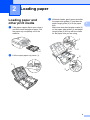
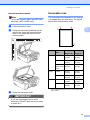
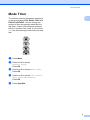
If your photo is too long or wide to fit the
available space on your chosen layout, part
of the image will automatically be cropped.
The factory setting is On. If you want to print
the whole image, turn this setting to Off.
When you set Cropping to Off, also set
Borderless to Off. (See Borderless
printing on page 36.)
If you do not want to change additional
settings, press Color Start to print.
Contrast
8
8
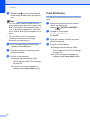
a
Press a or b to choose Cropping.
Press OK.
b
Press a or b to choose Off (or On).
Press OK.
c
If you do not want to change additional
settings, press Color Start to print.
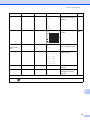
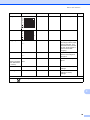
Cropping: On
8
8
Cropping: Off
8
35