1
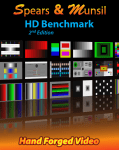
High Definition Benchmark
Blu-ray Edition
User’s Guide
Disc Navigation and Help Screen Access
Use the arrow keys on your remote to navigate the main menu and select a pattern.
• The "Setup & Evaluation" patterns are static patterns for calibrating and
evaluating equipment.
• The "Source Adaptive" patterns are to test deinterlacing of film-source material.
• The "Edge Adaptive" patterns are to test deinterlacing of video-source material.
The video clips are available in several codecs and resolutions, selectable in the Setup
menu.
Patterns will loop continuously unless the "loop" feature is turned off in the Setup menu.
Remote controls usable while displaying a pattern:
• Up arrow displays the help screen for that pattern.
• Down arrow exits the help screen.
• Right and left arrows move to the next and previous patterns.
Device Setup
Please refer to the instruction manuals of your Blu-ray Disc player and display device
(television or projector) for how to setup each device.
Player Video Output Resolution - To evaluate the player, set the output resolution to
best match the display’s native resolution. To evaluate the display, set the output
resolution to "Source Direct" if your player supports it.
Aspect Ratio - The disc uses 16:9 aspect ratio.
Color Space - To evaluate the player, test all available color spaces. To evaluate the
display, set the player to output YCbCr 4:2:2 to avoid extra color space conversion.
-1-
Setup and Evaluation Patterns
PLUGE Low - PLUGE stands for Picture Line-Up GEnerator, the name of the device
that generated patterns similar to this in the early days of television. It is used to set the
black level of the display by adjusting the brightness control. First turn up the brightness
until all four bars are visible. Then turn the brightness down until the left two bars
disappear and the right two bars are still barely visible. If you cannot see the left two
bars even if you turn up the brightness, turn down the brightness until the second bar from
the right disappears and the far right bar is barely visible, then raise the brightness one
notch.
PLUGE High - This is a pattern used to check that the black level looks correct even when
there is another bright image on the screen. To set the black level properly, start with the
PLUGE Low pattern, then come back to this pattern to verify the black level still looks right.
Contrast - This pattern is designed for fine-tuning the settings of the brightness and
contrast controls. All of the numbered white bars should be visible and distinct from the
surrounding background. The numbered black bars should be distinct from the
background starting at bar 17. The ramp that goes from black to white and back should not
have an extra-wide center white stripe. The ramp that goes from white to black and back
should have a wider black stripe in the center. Both of the center ramps should be smooth
and free of visible steps. Note that it may be difficult to see the highest and lowest three or
four levels clearly unless you are in a dark room with your eyes fully adjusted to the
ambient level.
Color Bars - This pattern is designed for setting the color (sometimes called "picture")
control on the display. This requires a blue filter or the ability to turn off the red and green
channels on the display. Look at the display through the filter or with only the blue channel
visible and adjust the color control until all of the blue, white, magenta, and cyan bars look
as close as possible in brightness. Most displays will not need much, if any, color
adjustment. Note: this is no longer the recommended pattern for setting brightness. The
best pattern for initial brightness setting is the "PLUGE Low" pattern.
HD Color Bars - This is an alternate color bar pattern designed for modern displays. To
set color, look through a blue filter, or put the display in "blue only" mode if available, and
adjust the blue, cyan, and magenta bars so they match the brightness of the white bar
beneath them. The ramp below the solid white bar should be smooth and free of
stairsteps. Note: this is not the recommended pattern for setting brightness. The best
pattern for initial brightness setting is the "PLUGE Low" pattern.
-2-
Sharpness - This pattern is used to check for sharpening artifacts such as ripples near
hard edges. The vertical and horizontal lines should have clean, sharp edges with no
ghost lines or bright halos next to them. The circles and diagonal lines should be smooth
and free of stairstepping. To set the sharpness control on your display, turn it up until you
start to see artifacts, then turn it down until the artifacts just disappear.
Clipping - This pattern is designed to show clipping of the peaks in both the luma channel
and the three RGB display channels. Each pattern has concentric squares that range from
the reference level to the peak level for luma (white) and the four color channels. A
properly adjusted display should be able to reproduce all of the levels. If the patterns all
are solid with no visible steps, the display or player is clipping all levels above reference
level. If some of the steps look wider than others, the display or player is clipping some of
the levels above reference or merging them into one output level. If either of those occurs,
try lowering the contrast control just until all levels are distinct and visible, and all of the
steps are the same width.
Image Cropping - This pattern is designed to show how much of the image encoded on
the disc is visible on screen. It can also be used to center the picture on screen. Look at
the top, bottom, left and right for the highest numbered box that is missing the outermost
white line near the edge of the screen. That tells you how many pixels are being cropped
from that edge. If the outermost line on the box numbered "1" is visible, there is no
cropping on that edge. If the outermost line on the box numbered "30" is missing, there is
at least 30 pixels of cropping on that edge, and possibly more. If your display has controls
that can move the image, move the image up, down, left and right so the amount of
cropping is the same on left and right, and the same on top and bottom.
Chroma Alignment - This pattern is designed to test alignment of color channels. To
check RGB alignment, look closely at the white crosshairs in the center and corners. If you
see color fringes or separate colored lines instead of solid white, then the RGB alignment
of the display is incorrect, or the lens is introducing chromatic aberration. To check
encoded color channels, look at the colored diamond shapes on the top, bottom, and
sides. The colored lines should be exactly centered in the thin diamond shapes. If the
colored lines are shifted to the left or right then the chroma channels are misaligned with
the luma channels. Every element of this pattern should look symmetrical, with the right
side matching the left side and the top matching the bottom.
Dynamic Range High - This pattern is designed to show whether the display is
reproducing all the levels above reference white up to peak white. On a properly adjusted
display all the bars except the brightest one should be visible and distinct from the
background. If they are not, adjust the contrast control until the brightest bar just barely
-3-
fades into the background, or adjust until the second-brightest bar fades into the
background, then raise the contrast control one notch.
Dynamic Range Low - This pattern allows you to check if all of the range possible in the
video signal is being sent to the display. Under normal circumstances, only bars 18 and
above should be clearly visible, and possibly just barely bar 17. But if you turn the
brightness control up, all of the bars should be visible except possibly the darkest bar at
the far left (level 2).
NOTE: Do not adjust the display to show all of the bars, except for testing purposes. Only
bars 18 and above should be distinct from the background under normal conditions. Only
raise the brightness to check that the lower levels are being sent to the display, then lower
the brightness again to the correct level.
11 Step Crossed Gray Scale - There are 11 levels from black to white on this chart, and
all 11 levels should be clearly visible. The far left and right bars are slightly wider; this is
normal. If the borders between the darkest bars aren't visible, raise the brightness control
until you can see the difference between them clearly. Then fine-tune the brightness using
the "PLUGE Low" pattern. If the borders between the lightest bars aren't visible, lower the
contrast control until you can see the difference between them clearly. Then use the
clipping pattern to fine-tune the contrast control.
Luma Multiburst - This pattern is designed to test the bandwidth of the luma channel. All
of the burst patterns should be clear, with the peaks at essentially the same intensity as
the stripes on the far left. If the thinnest lines turn gray or are lower in intensity than the
rest, then the full resolution of the luma channel is not being reproduced by the display.
Note: this is a perfectly normal result for a display that has native resolution lower than
1920x1080.
Chroma Multiburst - This pattern is designed to test the bandwidth of the chroma
channels. All of the burst patterns should show clear blue and red stripes, with the peaks
at essentially the same intensity as the stripes on the far left. If the thinnest lines turn gray
or are lower in color intensity than the rest, then the chroma channels are not being
reproduced accurately.
Luma Zone Plate - This pattern is designed to check overall luma resolution and
reproduction. The center of the pattern should be clear, bright, and smooth. No
stairstepping should appear on the edges of the concentric circles. The peaks should look
rounded and not flat or clipped. On the far left and right side, a small amount of
stairstepping is normal, as are faint moiré patterns scattered near the edges, which look
-4-
like a fainter version of the center of the pattern. The stairstepping at the edges of the
pattern should be nearly invisible from your seating position. The edges of the pattern
should show detail and should not turn gray. Note: if the resolution of your display is less
than 1920x1080, the edges of the pattern will be gray and the moiré will be more
pronounced. This is normal.
Chroma Zone Plate - This pattern is designed to check overall chroma resolution and
reproduction. The center of the pattern should be clear, bright, and smooth. No
stairstepping should appear on the edges of the concentric circles. The brightest peaks
should look rounded and not flat or clipped. On the far left and right side, a small amount
of stairstepping is normal, as is a faint moiré, which looks like a ghost version of the center
of the pattern. The moiré should not occupy more than the middle third of the screen,
vertically, and the stairstepping at the edges of the pattern should be nearly invisible from
your seating position. The brightness and colorfulness of the pattern should be even and
consistent all the way out to the edges.
Chroma Upsampling Error - This pattern checks whether the MPEG-2, VC-1, or AVC
decoder in your player is properly upconverting the chroma channel for progressive 4:2:0
content. Look carefully at the diagonal lines. They should be smooth and free of obvious
jaggies, steps, or streaks. If there are horizontal streaks or obvious steps in the diagonals,
or the patterns appear to shimmer as the clip plays, the decoder is not correctly
upsampling the chroma channel.
Geometry - This pattern is designed to facilitate measuring whether the display is
distorting the height or width of the picture. Using a tape measure, measure the height and
width of the circles and squares. They should be equal. The diagonals in the center should
also be equal length.
Geometry 4x3/16x9 PIP - These patterns check whether the player is rendering
Picture-in-Picture (PIP) with the correct aspect ratio. The circles and squares in the PIP
frame should not be distorted. The diagonal lines of the main frame and the PIP frame
should be aligned properly.
Source Adaptive Deinterlacing Clips
Wedge Pattern:
This clip is designed to check overall deinterlacing performance. As the wedges move, the
narrow end of the horizontal wedge should have clear alternating black and white lines
rather than blurry or flickering lines. There should be moiré only in the last quarter or less
-5-
of the wedges, just near the tips. The overall brightness of the wedge should be the same
across the entire length. Both wedges should remain steady and not flicker for the length
of the clip.
Racecar Clip:
This clip is designed to check overall deinterlacing performance. As the car moves across
the screen, the bleachers in the background should be detailed and free of obvious moiré.
They should remain steady at all times and not flicker for the entire length of the clip.
Cadence Details:
2•2 - The cadence of this clip is 2•2, meaning that there are 2 fields (1 frame) of each
image. This is equivalent to 30 frames per second, which is commonly used in computer
graphics rendered for video and in some high-speed camera footage.
2•2•2•4 - The cadence of this clip is 2•2•2•4, which is 2 fields (1 frame) of each of the first
three images, then 4 fields (2 frames) of the fourth image, repeating to the end of the clip.
This cadence is a less common way of converting 24p film to 60i video, used occasionally
for film transfers and on some camcorders that have a "film look" mode.
2•3•2•3 (PF-T) - The cadence of this clip is 2•3•2•3, which is 2 fields (1 frame) of the first
image, then 3 fields (one frame plus one field) of the next image, repeating to the end of
the clip. This cadence is the most common one used for transferring 24p film to 60i video.
This version of the clip is encoded using individual progressive frames, which is more
commonly used in professional film encoding. This version should produce results
identical to the alternate version which uses interlaced frames.
2•3•2•3 - The cadence of this clip is 2•3•2•3, which is 2 fields (1 frame) of the first image,
then 3 fields (1 frame plus 1 field) of the next image, repeating to the end of the clip. This
cadence is the most common one used for transferring 24p film to 60i video. This version
of the clip is encoded using interlaced fields, which is somewhat less commonly used in
professional film encoding. This version should produce results identical to the standard
version which uses progressive frames.
2•3•3•2 - The cadence of this clip is 2•3•3•2, which is 2 fields (1 frame) of the first image,
then 3 fields (1 frame plus 1 field) of the next image, then 3 fields of the next, then 2 fields
of the next, repeating to the end of the clip. This cadence is used by a few camcorders that
have a 24p "film look" mode.
-6-
3•2•3•2•2 - The cadence of this clip is 3•2•3•2•2, which is 3 fields (1 frame plus 1 field) of
the first image, then 2 fields (1 frame) of the next image, then 3 fields of the next, then 2
fields of the next, then 2 fields of the next, repeating to the end of the clip. This cadence
can occur when film is transferred at slightly higher-than-normal speed, usually to
condense a film for time.
5•5 - The cadence of this clip is 5•5, which is 5 fields (2 frames plus 1 field) each image.
This cadence is the most common one used when 12 fps animation (often used in TV
shows), is transferred to 60i video.
6•4 - The cadence of this clip is 6•4, which is 6 fields (3 frames) of the first image, then 4
fields (2 frames) of the next image, repeating to the end of the clip. This cadence is a less
common pattern used when 12 fps animation (often used in TV shows), is transferred to
60i video.
8•7•8•7 - The cadence of this clip is 8•7•8•7, which is 8 fields (4 frames) of the first image,
then 7 fields (3 frames plus 1 field) of the next image, repeating to the end of the clip. This
cadence is most commonly used when 8 fps animation (often used for Japanese anime),
is transferred to 60i video.
24p - This clip is encoded as true 24 fps progressive, and any cadence used to convert the
24 fps content to the native display rate is being done by the player or display. If your
player is outputting 24p video, and your display can display it at 24 fps or a simple multiple
of 24 (like 48 or 72 fps), you should see smooth motion with no stuttering or hitching.
Difficult edits - This clip is representative of material that was originally shot on film, but
edited on video. Within each section, the 2•3 pulldown cadence is perfect, but just before
and/or just after every other edit, the pattern is slightly different. All film frames have been
encoded with at least 2 fields, so a good deinterlacer should be able to reconstruct each
original film frame and stay in film mode at each edit. The image should retain all its
resolution and not show any moiré or artifacts.
Time-adjusted - This clip was originally transferred using standard 2•3•2•3 cadence, then
sped up by a small amount by dropping a field every half-second or so. This causes the
cadence to "break" regularly. A good deinterlacer should play the clip in film mode with no
flickering, and it should look essentially identical to the 2•3•2•3 cadence clips.
-7-
Edge Adaptive Deinterlacing Clips
Jaggies - This clip is designed to evaluate the player or display's ability to deinterlace true
video content without distracting jagged stairstep patterns on edges. Look at the diagonal
edges of the bar as it rotates. They should look clean and not obviously jagged. In
addition, the alternating black and white lines should stay solid and not flicker or turn solid
white, black, or gray. There may be thin gray or black borders next to the solid white line
where it passes through the alternating black and white horizontal lines. Different
deinterlacers will have slightly different results on this test. The two samples shown here
represent the extremes from best to worst.
Bridge - This clip is designed to evaluate the player or display's ability to deinterlace true
video content without distracting jagged stairstep patterns on edges. Look at the diagonals
on the bridge cables. They should be smooth and solid, and not look like stairsteps or a
dashed line. The diagonals on the flag should be smooth and not stairstepped.
Hockey - This clip is designed to evaluate the player or display's ability to deinterlace true
video content without distracting jagged stairstep patterns on edges. Look at the diagonal
edges of the top of the glass in the foreground, the lines on the ice, and the edge of the
rink in the background. They should be smooth and not jagged or stairstepped.
Ropes - This clip is designed to evaluate the player or display's ability to deinterlace true
video content without distracting jagged stairstep patterns on edges. Look at the thin
ropes, especially the ones that are nearly horizontal. They should be smooth and solid
looking, not jagged, stairstepped, or broken into small segments.
Ship - This clip is designed to evaluate the player or display's ability to deinterlace true
video content without distracting jagged stairstep patterns on edges. Look at the thin ropes
that crisscross the ship, especially the ones that are close to horizontal, and the yellow trim
on the side of the ship. They should be smooth and solid looking, not jagged, stairstepped,
or broken into small segments.
Mixed Film & Video - This clip is designed to test the ability of the deinterlacer to handle
a composite image with two different cadences overlaid on each other. In this case, a
film-cadence clip has scrolling text over it that is interlaced. A good deinterlacer will
recognize that the text is video encoded and stay in video mode. A bad deinterlacer will
lock on to the cadence of the main video and cause the text to comb badly.
-8-
Stacey Spears and Don Munsil, who created the highly-regarded DVD
Player Benchmark™ and Progressive Scan Shootout at Secrets of Home
Theater and High Fidelity®*, have applied all their technical wizardry to
* www.hometheaterhifi.com
this Blu-ray test and evaluation disc.
Features:
· Calibration patterns for all major display controls
· Evaluation patterns for measuring display and player quality
· Clips to test deinterlacing performance
· Samples of different video and audio codecs
· All patterns created at 1080p in native color space using custom software
© 2008 Stacey Spears & Don Munsil.
Dolby and the double-D symbol are trademarks of Dolby Laboratories. DTS-HD™ and DTS-HD Master Audio™ are trademarks of DTS, Inc.