1
Editing and Undoing
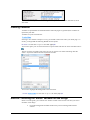
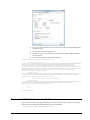
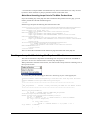
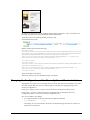
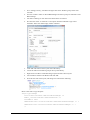
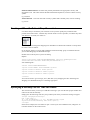
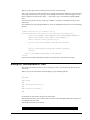
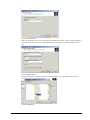
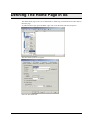
You can make a change to the HTML of a layout and then click the 'Apply' button to see what
effect this has on the store.
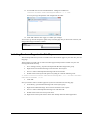
The preview will be automatically updated when you click 'Apply'.
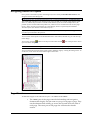
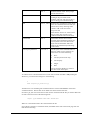
If you are not happy with the results, click the 'Undo' button on the toolbar to undo the change .
You can also edit layouts using Dreamweaver. This is described in the main help in a section called
'Working With Dreamweaver'.
Remember when making changes that this layout is probably going to be inserted within another
layout, so be careful when making changes that you don't do anything that might distort or corrupt
this 'parent' layout.
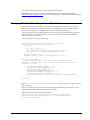
If you have made a mistake with a layout, and you cannot work out how to get the layout working
again then you can always revert the layout back to its 'factory settings'. This is described in the
next section.
The Library
The Design tab allows you to edit the layouts that are used within a page, but the Library allows
you to search through and edit all the layouts within SellerDeck.
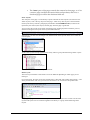
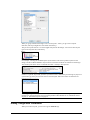
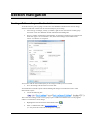
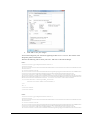
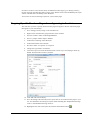
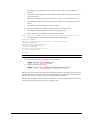
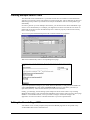
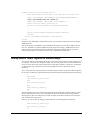
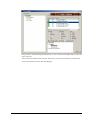
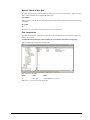
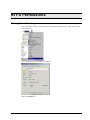
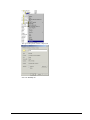
You can open the library by going to 'Design | Library', then change to the 'Layouts' tab.
Highlighting the layouts you've edited
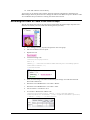
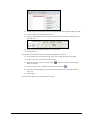
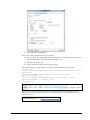
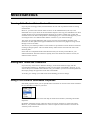
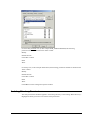
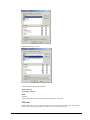
If you click the 'Highlight edited library layouts (*)' checkbox at the bottom of the 'Layouts' tab,
you will highlight any layouts you've customised, and new layouts you've created.
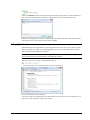
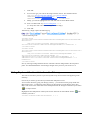
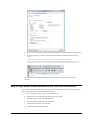
Layouts you've customised will be marked with a (*) and have a
icon.
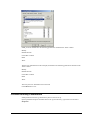
You can also highlight any new layouts you've added by selecting the 'Highlight new user layouts
(+)' checkbox.
Searching for layouts
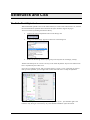
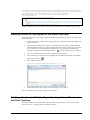
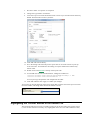
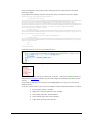
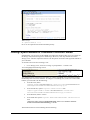
Right-click anywhere within the Layouts tab and select 'Find'.
Advanced Users Guide - 10