1
EXAMINE OTHER FEATURES
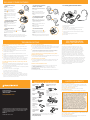
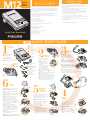
1 To receive calls with your
headset
1.1 Put on your headset.
1.2 When your telephone rings,
push the headset / handset
button 6 (colored indicator is
showing).
1.3 Remove the handset from the
cradle and place it on your desk.
Your working system should look like this:
4 To switch from your telephone
handset to your headset
1.1
4.1 Alert your caller that there will
be a short delay, mount and adjust
your headset.
4.2 Push the headset/handset
button (colored indicator showing).
1.2
4.3 Resume talking through your
headset.
1.4 Begin talking to your calling
party.
1.5 To end a call, hang up the
handset.
5 To switch from your headset
to your telephone handset
1.3
5.1 Alert your caller that there will
be a short delay then release the
headset / handset button (colored
indicator not showing).
2 To make and receive calls with
your telephone handset
2.1 Release the headset / handset
button (colored indicator not
showing).
5.2 Remove your headset and pick
up your handset.
It provides the following benefits:
5.3 Resume talking through your
telephone handset.
2.2 Use the telephone handset as
normal.
Amplifier Features
2.2
3 To test the necessity of
batteries
If your compatibility slide switch 2 was set to 1
or 2, batteries may not be required.
SoundGuard® Plus™ technology quickly reduces the level
of harsh noises, such as fax tones
■
Call Clarity™ improves incoming and outgoing sound
■
Switch easily with one button selection between headset
and handset
■
Incoming and outgoing volume control
■
Mute control
6 To use the mute function.
6.1 Depress the Mute Button 7
(colored indicator showing). You will
be able to hear them but they can’t
hear you.
3.1 Remove the batteries.
3.2 Follow the instructions to make a call, Steps 6.1 to 6.3.
6.2 Release the mute button (colored indicator
not showing) to deactivate the mute function.
3.3 If you do not get a dial tone, your telephone model requires
batteries or maybe installed incorrectly (check set up steps).
FCC REGISTRATION
AND INFORMATION
TROUBLESHOOTING
I do not hear a dial tone when I try to make or receive a
telephone call.
■
If you are using batteries, confirm that they are good and placed
in the battery compartment correctly.
■
If you are using an AC power supply, confirm that it is plugged in
and the power outlet is turned on.
■
Confirm that the headset/handset selector button is depressed
(colored indicator showing).
I do not hear the caller clearly.
FCC Requirements–Part 68
■
If you are using batteries, confirm that they are good.
■
If your telephone has adjustable volume, set the volume on your phone to
mid or below mid-range. Use the listen volume control on your amplifier
to adjust the headset volume to a comfortable level.
■
Confirm that the compatibility slider switch is in the correct setting for
your telephone (see Step 5). You may want to try moving the switch
through all of the positions until you hear a clear dial tone.
■
Confirm that you have lifted the telephone handset out of the
cradle.
I get a low pitched hum in my headset speaker and/or my callers
complain they can hear hum.
■
Confirm that the telephone handset cable and the short cord to the
telephone are connected to the correct jacks (see Step 3).
■
■
Confirm that the compatibility slider switch is in the correct setting
for your telephone (see Step 5). You may want to try moving the
switch through all of the positions until you hear a clear dial tone.
My callers say that they can’t hear me at all or they can’t hear
me very well.
■
■
Make sure the headset microphone is positioned in front of or near
your mouth. If you are using a noise-canceling headset, the position
of the microphone is very important.
■
You may need to adjust the outgoing volume. See Adjusting Headset
Speak Volume Step 6.5.
■
If you have a voice tube, it may be clogged.
Try rinsing it with luke warm water only.
Try moving the telephone/amplifier compatibility slider switch through all
of the positions until the hum disappears.
I hear three ‘beeps’ in the headset.
■
If you are using batteries to power the M12 Amplifier, three ‘beeps’ tell
you that the batteries are low and need to be replaced. See “Install
Batteries” Step 2.
Plantronics Technical Assistance Center
This equipment complies with Part 68 of the FCC rules.
On the baseline underside is a label that contains, among
other information, the FCC registration number and ringer
equivalence number (REN) for this equipment. If requested,
this information must be provided to the telephone company.
The telephone company may make changes in its facilities,
equipment, operation or procedures that could affect the
operation of the equipment. If this happens, the telephone
company should provide you advance notice in order for you
to make the necessary modifications to maintain uninterrupted
services.
If you experience problems with your headset, please refer to the
warranty section for information on warranty and repair service.
If the problem is causing harm to the telephone network, the
telephone company may request that you remove the equipment
until the problem is resolved. In extreme cases, the telephone
company may be forced to disconnect your service before
notifying you of the problem.
The Plantronics Technical Assistance Center (TAC) is ready to assist you!
Dial (800) 544-4660 x5538 Sunday 5 p.m. through Friday, 5 p.m.
Pacific Standard Time or visit the Support section of our website at
www.plantronics.com.
For accessibility information also call the Technical Assistance Center (TAC).
Shake it and wait until it is completely dry.
Then put it back on the silver stem of your headset.
■
Confirm that the compatibility slider switch is correct for your telephone (see Set the Telephone/Amplifier Compatibility Slider Switch
Step 5). You may want to try moving the switch through all of the
positions until your caller hears you clearly.
PARTS AND ACCESSORIES
AC Power Supply
Amplifier Security Device
26503-01
40696-01
Attaches amplifier to desk
345 Encinal Street
Santa Cruz, California 95060
Telephone/Amplifier
Compatibility Slide Switch Door
26609-02
(800) 544-4660
www.plantronics.com
Plantronics Custom
Cradle Mate
40715-01
Battery Door
26609-02
Holds handset “off-hook” and
a flashing “BUSY” light indicates
when headset is in use
Amplifier to Telephone
Coil Cable
40974-01
Male to male
modular plugs
Amplifier to
QD Coil Cable
26716-01
QD to male
modular plug
© 2002-2003 Plantronics Inc. All rights reserved. Plantronics, the logo design,
Plantronics and logo design combined, and Quick Disconnect are trademarks
or registered trademarks of Plantronics Inc. All other trademarks are the
property of the respective owners.
Patents
US 5,259,780
Printed in USA. 63719-01 (2-03)
Cradle Mate only
40714-01
Easy-to-use device that
mechanically lifts the handset
“off-hook”
Velcro® Amplifier
Attachment Kit
17521-01
For information on accessories and spare parts, call Plantronics at
(800) 544-4660 x5538, or visit the Plantronics web site at
www.plantronics.com
LIMITED WARRANTY
What does this warranty cover?
This warranty covers any defects in workmanship or materials in this
product purchased in the U.S. or Canada. For warranty information in
other countries, contact your local distributor.
How long does the coverage last?
This warranty runs for two years from the date of purchase.
What will Plantronics do?
If the product is found defective, we will exchange it at no charge.
What does this warranty not cover?
Damage caused by, OR PERFORMANCE PROBLEMS RESULTING
FROM, USING THIS PRODUCT WITH AN UNAPPROVED NONPLANTRONICS headset AND/OR CONNECTOR CABLE, accident,
abuse, misuse, or an act of God (such as a flood) are not
covered. IMPLIED WARRANTIES, INCLUDING THOSE OF
MERCHANTABILITY, FITNESS FOR A PARTICULAR PURPOSE
AND NON-INFRINGEMENT SHALL (A) HAVE NO DURATION
GREATER THAN 2 YRS FROM THE DATE OF PURCHASE, (B)
TERMINATE AUTOMATICALLY AT THE END OF THAT PERIOD,
AND (C) TO THE EXTENT PERMITTED BY LAW, BE EXCLUDED.
Consequential and incidental damages, INCLUDING WITHOUT
LIMITATION, LOSS OF PROPERTY AND THOSE ARISING FROM
BREACH OF ANY EXPRESS OR IMPLIED WARRANTY, ARE NOT
THE RESPONSIBILITY OF PLANTRONICS, AND TO THE EXTENT
PERMITTED BY LAW, are excluded. Some states do not allow
the exclusion or limitation of incidental or consequential
damages, so the above exclusion may not apply to you.
How do you get service?
To obtain service in the U.S. contact Plantronics at 800.544.4660 x5538
and in Canada call (800) 540-8363.
How does state law apply?
This warranty gives you specific legal rights, and you may also have
other rights which vary from state to state.