1
3. About your Router
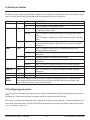
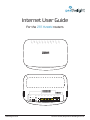
On the top of your router, you will find a number of status LEDs that indicate the status of the device. These
lights can be useful to help you troubleshoot any problems with your connection.
LED
POWER
WLAN
WPS
WAN
LAN 1-4
WPS
Button
COLOUR STATUS
Green
On
Off
Green
On
DESCRIPTION
The ZTE H298N is receiving power and functioning properly.
The ZTE H298N is not receiving power.
The ZTE H298N is ready, but is not sending/receiving data
through the wireless LAN.
Blinking
The ZTE H298N is sending/receiving data through the wireless
LAN.
The ZTE H298N is negotiating a WPS connection with a wireless
client.
Off
The wireless LAN is not ready or has failed.
Press the WLAN button on the back of your router to turn WiFi
services on.
Green
On
The ZTE H298N is ready, but is not sending/receiving data
through the WPS connection.
Blinking
The ZTE H298N is sending/receiving data through the WPS
connection.
Off
The WPS connection not ready or has failed.
Green
On
The ZTE H298N has a successful 10/100/1000 MB WAN
connection.
Blinking
The ZTE H298N is sending/receiving data through the WAN.
Off
The WAN connection is not ready, or has failed.
Green
On
The ZTE H298N has a successful 10/100/1000 MB Ethernet
connection.
Blinking
The ZTE H298N is sending/receiving data through the LAN.
Off
The LAN is not connected.
Press this button for 1 second to set up a wireless connection via WiFi Protected Setup
with another WPS-enabled client. You must press the WPS button on the client side
within 120 seconds for a successful connection.
3.1 Configuring your router
Note: If you plan to connect your computer via a wireless connection then please configure your computer as
described in 6. Connecting to wireless networks and then continue with this section.
Your router is shipped pre-configured and is ready to be connected to the network. If you do need to login to
your router, then enter http://192.168.1.254 into your web browser and when promoted, enter the username
admin and the password quick.
10
Internet User Guide, ZTE H298N
Last amended: 21/10/2014