1
v
LIST OF FIGURES
Page
Figure 1 Software installation – step 1 .................................................................................................................3
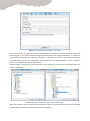
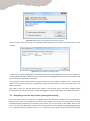
Figure 2 Installation window requesting where the software will be installed, and who will have access to it ..3
Figure 3 GEM Mobile Tools splash screen and start menu. .................................................................................4
Figure 4 Form used to enter mandatory survey details .......................................................................................5
Figure 5 Windows to select the projection of the survey project ........................................................................5
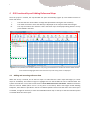
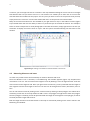
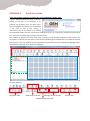
Figure 6 The map window; the red box outlines the tools; the green dashed box is the table of contents while
the blue cross-hatched box highlights where the reference maps and survey points are displayed. ........6
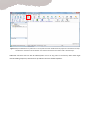
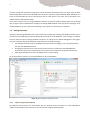
Figure 7 Map window before any reference or survey data have been added. Note the projection information
and map coordinates in the bottom of the window. The red box outlines the tool used to add a new
data layer. ....................................................................................................................................................7
Figure 8 Window to define the spatial reference system of layers ......................................................................9
Figure 9 Data layer projection checking results ...................................................................................................9
Figure 10 Right-clicking in the table of contents activates a set of tools .......................................................... 10
Figure 11 Length and area measuring tool ........................................................................................................ 11
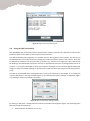
Figure 12 GPS Communication Settings window............................................................................................... 11
Figure 13 Display GPS Information window ...................................................................................................... 12
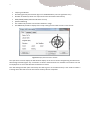
Figure 14 GPS Settings window ......................................................................................................................... 13
Figure 15 The Add New Observation window. .................................................................................................. 14
Figure 16 The Favourites tool ............................................................................................................................ 15
Figure 17 Photographs and Media collection form ........................................................................................... 17
Figure 18 Copying a media file to the media folder .......................................................................................... 18
Figure 19 The Sketch window, using the Paint Program ................................................................................... 19
Figure 20 GEM Data Management window ...................................................................................................... 20
Figure 21 Photo and Media Manager ................................................................................................................ 21
Figure 22 The ‘Move vertex’ tool to edit the location of a point. Airphoto © UKP/Getmapping Licence No.
UKP2006/01. ............................................................................................................................................. 22
Figure 23 Help message when no context has been provided .......................................................................... 23
Figure 24 Context-dependent help for Vertical Irregularity allows the GEM Glossary to be accessed inside the
Mobile Tools. Image from Brzev (2012) ................................................................................................... 24
Figure 25 SQLite database management tools .................................................................................................. 26
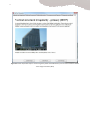
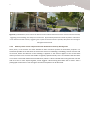
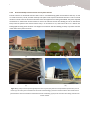
Figure 26 (a) 595 Market St, San Francisco CA. Note the vertical and horizontal seams on the concrete
columns and walls, suggesting precast cladding, most likely over a steel frame. (b) UC Berkeley Art