1
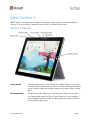
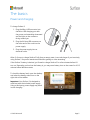
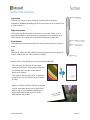
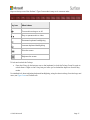
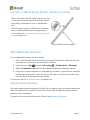
Surface Pen features
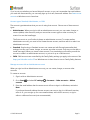
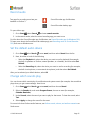
Top button.
Click the top button to open OneNote. Double-click to capture a
screenshot. Bluetooth technology links the top button of your Surface Pen
to your Surface 3.
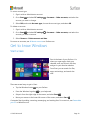
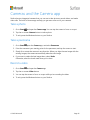
Right-click button.
This button acts like the right-click button on a mouse. Click it once in
apps like OneNote to open a menu to choose pen color, thickness, and
other options. You can also click and hold the button to select text.
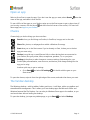
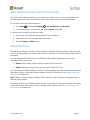
Eraser button.
Hold down the eraser button and move the tip over the area you want to
erase.
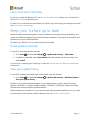
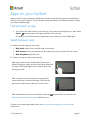
Tip.
The fine tip, along with Palm Block technology and multi-point sensitivity
in your Surface, lets you write and draw naturally.
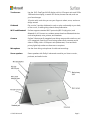
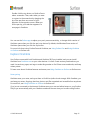
Here are a few of the things you can do with the Surface Pen:
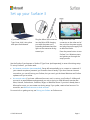
Click the top of the Surface Pen and start
writing a Quick Note—like a yellow sticky that
you’ll never lose. You don’t even need to
unlock your Surface.
Click again to write another note, or press the
power button on your Surface to put Surface
to sleep.
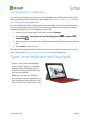
Sign in to Surface, and click the top of the pen
to open your latest notes. Add a Quick Note,
write in any of your OneNote notebooks, or
review and organize the notes you wrote
while Surface was locked.
© 2015 Microsoft
Page 14