1
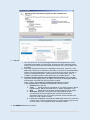
a. Restart the SERVICE. To restart, open the Manager and click the “Start” button on the
“Service Details” tab.
b. We advise you monitor this. If it fails again for no apparent reason please contact us
without restarting the service, so we can diagnose the reason.
e. Activation Fails: This is normally due to proxy settings preventing access. Ensure you are using
the latest MANAGER, select the “Proxy” tab, and sign on with the proxy server username and
password
2. Network Port 9001 not available for the program to use: Try a different port. The program may
start to install, but then fail and roll back. Open the MANAGER program. On the Service Details
tab, change the Service Port to an unused number. As with any change, restart the SERVICE and
MANAGER using the “Start” button shown below and the “Restart Manager” button.
3
Exemption Lists: If your network restricts the executables that users may run, and depending on
your network security, you may need to allow execute permission to Wordshark4nrun.exe (in the
wordshark-programs folder) and javaw.exe (in the wordshark-programs\bin folder) before running.
See also “Error Code 10” below.
4. Error Code 9: Most commonly results from a desktop icon whose Properties/ “Start in” address
does not point to the server wordshark-shared folder. Correct this, restart the SERVICE and
MANAGER. Attempt to run the program again.
5. Error Code 10: displaying results from incorrectly set permissions. Check back to Section H of
the Installation Guide, www.wordshark.co.uk/support/net500 Note that Impero, Ranger, or
standard Windows networks using MS File Screen Manager may also experience this during OR
3|Page