1
MIGRATE FACILITY V4.0
CONTENTS
9
If the utility reports this error for a plugin supported by your supplier, or you see any other problems, contact your supplier and give details.
Note: If the “From” RIP is any release of version 4.1, you will see a dialog box saying that
filemap.dat does not exist. This is harmless; click OK to continue.
7.
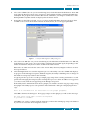
If there are no problems, the utility displays a dialog box asking:
The migration was successful. Do you wish to merge the migrated files with your
originql SW folder?
Click OK to merge the temporary files and commit the changes. Again, the Messages text panel
shows the progress of copying the files. Alternatively, click Cancel if you wish to leave your new
RIP unchanged.
Note: Delete the newSW folder inside the SW folder if you click Cancel.
8.
The utility displays a dialog asking:
The migrate session was successfull
Do you wish to quit the Migration Utility?
If you answer Yes, the utility exits.
If you answer No, you can transfer settings to or from other RIPs in the same session. Change the
“From” or “To” RIP using the appropriate button before clicking Migrate again.
5.2 Copy or re-create any items not transferred by the utility
Start the new RIP and if required, do the following.
•
Make any other settings required in the Configure RIP dialog box, for example, memory settings
and so on.
•
Copy or install any custom screens.
•
Install any custom fonts.
•
If your old installation used any custom page features, copy them from the old RIP to the
SW/Page Features folder of the new RIP.
•
Create any color management setups needed.
The utility does transfer color setups, but some setups (those transferred from version 4.5 to version 5.1) will appear for the Printing Press device rather than the original device, as described
on page 5.
•
Enable the use of ColorPro in Eclipse Release or later RIPs. This is not necessary if the original
RIP had HIPP enabled.
•
If migrating to Eclipse Release or later RIPs, you need to import any emulation profiles that were
associated with color setups in the original RIP.
•
Check the locations used by file-based output plugins.
5.3 Check the new RIP
First, check the listing of page setups in the Page Setup Manager dialog box. If the listing appears correct, edit each page setup that may use custom page features, color management, trapping, or a filecreating output device. If a page setup uses one of these options, check that you have supplied a suitable item of the correct name. “Copy or re-create any items not transferred by the utility” on page 9
summarizes what you may need to do.
CONTENTS
9