1
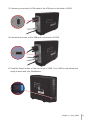
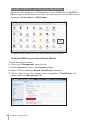
6 Click on the “VisualStation” tab to enter the setup page. Follow the steps in “Help”
(the icon with question mark) to finish setup.
Live-view
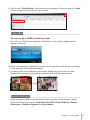
To turn on your VS60 to start live-view:
1 Turn on your VS60 by pressing the Power button. The loading image should
appear on screen.
2 When the loading is completed, the live-view will appear on the screen according
to the settings on Surveillance Station.
3 To see any one of the channels in full screen, double-click on it in the live-view.
Double-click anywhere on the screen to return to the multiple-channel view.
More Functions
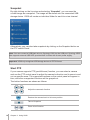
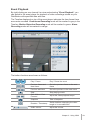
Right-clicking anywhere on the screen will bring up the functions menu, which
offers the following functions: Snapshot, Start PTZ, Event Playback, Switch
Resolution, Firmware Upgrade and Information.
Chapter 2: Using VS60
11