1
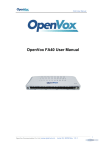
FB40/FD40 User Manual OpenVox FB40/FD40 User Manual OpenVox Communication Co. Ltd | www.openvox.cn June 22, 2009 Rev. 1.0.1 1 FB40/FD40 User Manual OpenVox-Best Cost Effective Asterisk Cards OpenVox Communication Co. Ltd. Address: F/2, Building No.14,Shangsha Science & Technology Park, No.9283,Binhe Road, Futian District, ShenZhen ,Guangdong 518048,China Tel:+86-755-82535095,82535461, Fax:+86-755-82535174 Email for Sales: [email protected] Email for Technical Support: [email protected] Business Hours: 9:00AM-18:00PM from Monday-Friday Website:www.openvox.cn Thank You for Choosing OpenVox Products! OpenVox Communication Co. Ltd | www.openvox.cn June 22, 2009 Rev. 1.0.1 2 FB40/FD40 User Manual Contents FB40/FD40 Description....................................................................................................................4 FB40/FD40 Features .........................................................................................................................4 FB40/FD40 Installation Guide..........................................................................................................5 Hardware Connection ...............................................................................................................5 Device Driver Detection ...........................................................................................................6 FB40/FD40 Working Instruction ..............................................................................................7 FB40/FD40 Software Installation .....................................................................................................9 Software Download...................................................................................................................9 Software Installation .................................................................................................................9 Explanation of Configuration Files.........................................................................................11 Steps to Use.............................................................................................................................11 Software Installation by the res_failover.so ............................................................................12 Technical Support ...........................................................................................................................13 Reference ........................................................................................................................................13 OpenVox Communication Co. Ltd | www.openvox.cn June 22, 2009 Rev. 1.0.1 3 FB40/FD40 User Manual FB40/FD40 Description In most of the time, users need to reconnect the BRI/PRI line to a redundant server maintained by UPS when main PBX Server is power off. It may cause a little extra work for people who use simple and small PBX servers. But for those who run complex PBXs in server rooms, it becomes real problems. How to eliminate this problem? The release of OpenVox FB40/FD40 failover box for BRI/PRI answers it. The FB40/FD40 can automatically switch the BRI/PRI line to the redundant server when the power of the main PBX server has been cut off and will automatically switch back to normal when the power is on again. In this way, no more worries about getting the BRI/PRI line connected to the redundant server when the main server is down. FB40/FD40 is controlled through an Asterisk loadable module res_failover.so. This module keeps sending “running” signal to redundant server when Asterisk is running. Once Asterisk is down or system power is cut off, the module will not be able to send out the “running” signal to FB40/FD40 and thus FB40/FD40 will automatically switch to the redundant server. FB40/FD40 provides a reliable and flexible solution to Asterisk PBX FB40/FD40 Features Easy installation; uses USB to connect computer or server. Industry standard USB type B connector. USB 2.0 and 1.1 compliant. Low power consumption, takes power from USB bus. Standard length type A to type B cable provided. Supports software watchdog. Supports up to 4 ISDN BRI/PRI interfaces. Supports multiple FB40/FD40 devices in one system. Fully supports Asterisk (Version1.2/1.4/1.6). Supports Elastix, Trixbox. Small plastic enclosure: 285mm x 110mm x 34mm. 4 power supply indicator lights. 5 year warranty. FB40 supports all OpenVox BRI cards, Digium, Sangoma BRI cards and other compatible BRI cards. FD40 supports all OpenVox PRI cards, Digium, Sangoma PRI cards and other compatible PRI cards. OpenVox Communication Co. Ltd | www.openvox.cn June 22, 2009 Rev. 1.0.1 4 FB40/FD40 User Manual FB40/FD40 Installation Guide Hardware Connection Take the FD40 for example: P1 OpenVox Communication Co. Ltd | www.openvox.cn June 22, 2009 Rev. 1.0.1 5 FB40/FD40 User Manual Device Driver Detection The device driver of FB40/FD40 has been integrated with many Linix distributions. Users can run the following command to see if the FB40/FD40 has been recognized or detected by the system. (Please connect the FB40/FD40 to the server with attached USB cable that comes together with the product. Note: Please make sure that all the lights are on by switching the on-of button when the FB40/FD40 is connected to the server.) # dmesg | grep FTDI User can also run the lsusb command to check if the FB40/FD40 device is connected. # lsusb OpenVox Communication Co. Ltd | www.openvox.cn June 22, 2009 Rev. 1.0.1 6 FB40/FD40 User Manual FB40/FD40 Working Instruction The following picture shows how the FB40/FD40 works when the PBX Server is ON. The BRI/PRI signal goes from: 1->2->3- P2 OpenVox Communication Co. Ltd | www.openvox.cn June 22, 2009 Rev. 1.0.1 7 FB40/FD40 User Manual When the main PBX Server stops working (poweroff) or the FB40/FD40 stops, the BRI/PRI signal goes from 1->2->3: P3 The Dashed shows the auto-switch line goes in FB40/FD40. OpenVox Communication Co. Ltd | www.openvox.cn June 22, 2009 Rev. 1.0.1 8 FB40/FD40 User Manual FB40/FD40 Software Installation Software Download # wget www.openvox.cn/download/drivers/failover/failover-1.0-current.tar.gz Software Installation Installation with asterisk 1.2.X 1) Unzip the file # tar -xzvf failover-1.0-current.tar.gz # cd failover 2) Copy the file to res directory under asterisk # cp res_failover.c $asterisksource/res/ 3) Copy the configuration file to /etc/asterisk directory # cp failover.conf /etc/asterisk/ 4) Compile Makefile in res directory under asterisk # vi /usr/src/asterisk/Makefile 5) Modify Makefile MODS=res_indications.so res_monitor.so res_adsi.so res_agi.so res_features.so To: MODS=res_indications.so res_monitor.so res_adsi.so res_agi.so res_features.so res_failover.so 6) If asterisk is installed, please compile it and re-install # cd $asterisksource # make # make install 7) Configure the /etc/asterisk/failover.conf file on requirements. 8) Reboot asterisk OpenVox Communication Co. Ltd | www.openvox.cn June 22, 2009 Rev. 1.0.1 9 FB40/FD40 User Manual Installation with asterisk 1.4.X 1) Unzip the file # tar -xzvf failover-1.0-current.tar.gz # cd failover 2) Copy the file to res directory under asterisk # cp res_failover.c $asterisksource/res/ 3) Copy the configuration file to /etc/asterisk directory # cp failover.conf /etc/asterisk/ 4) If asterisk is installed, please compile it and re-install # cd $asterisksource # make # make install 5) Configure the /etc/asterisk/failover.conf file on requirements. 6) Reboot asterisk Installation with asterisk 1.6.X 1) Unzip the file # tar -xzvf failover-1.0-current.tar.gz # cd failover 2) Copy the file to res directory under asterisk # cp res_failover.c $asterisksource/res/ 3) Copy the configuration file to /etc/asterisk directory # cp failover.conf /etc/asterisk/ 4) If asterisk is installed, please compile it and re-install # cd $asterisksource # make # make install 5) Configure the /etc/asterisk/failover.conf file on requirements. 6) Reboot asterisk OpenVox Communication Co. Ltd | www.openvox.cn June 22, 2009 Rev. 1.0.1 10 FB40/FD40 User Manual Explanation of Configuration Files [openvox_failover_1] device=/dev/ttyUSB0 ;kick_time_interval=4000 ;event_cmd=logger ;autorun=yes [openvox_failover_2] device=/dev/ttyUSB1 kick_time_interval=500 event_cmd=logger autorun=no [openvox_failover_1]:Name of FB40/FD40 Device, to distinguish from different devices, a must to configuration; device=/dev/ttyUSB0 : Name of USB device that FB40/FD40 uses, a must to configuration; kick_time_interval:the time interval of software watch dog; the default time is 4000ms, user can customize the time with 100ms for Minimum and 9000ms for Maximum; event_cmd:event command, the default is logger, it will record the FB40/FD40 status in system log; autorun:this decides if FB40/FD40 will start when asterisk boots; the default is yes which means the FB40/FD40 starts when asterisk boots; if no, the FB40/FD40 will not start when asterisk boots and user may need manually boot the device by running failover start command. Steps to Use 1) Start asterisk # asterisk –vvvgc 2) Start FB40/FD40 device *CLI> failover start or *CLI> failover start 1 # This command can start all the FB40/FD40 devices. # This command can be use to start the first FB40/FD40. A difference number means to start a specific FB40/FD40 in the server. 3) Stop FB40/FD40 device OpenVox Communication Co. Ltd | www.openvox.cn June 22, 2009 Rev. 1.0.1 11 FB40/FD40 User Manual *CLI> failover stop *CLI> failover stop 1 # This command can stop all the FB40/FD40 devices. # This command can be use to stop the first FB40/FD40. A difference number means to stop a specific FB40/FD40 in the server. 4) Show FB40/FD40 device information *CLI> failover show # Show FB40/FD40 device information 5) Reload FB40/FD40 device configuration file *CLI> failover stop *CLI> failover reload # All the FB40/FD40 device must be stopped before reloading the configuration file # Reload the configuration file Software Installation by the res_failover.so If you do not have the gcc compiler and the source code of the asterisk, you can also download the res_failover.so and use it directly as below. 1) Download res_failover.so Check the asterisk version # asterisk –V Download the suitable version from http://www.openvox.cn/download/drivers/failover/ 2) Unzip the file # tar -xzvf res_failover-1.X.X.so-for-asterisk-1.X.X.tar.gz # cd res_failover-1.X.X.so-for-asterisk-1.X.X 2) Copy the so module file to /usr/lib/asterisk/modules # cp res_failover.so /usr/lib/asterisk/modules 3) Copy the configuration file to /etc/asterisk directory # cp failover.conf /etc/asterisk/ 4) Configure the /etc/asterisk/failover.conf file on requirements. 5) Reboot asterisk OpenVox Communication Co. Ltd | www.openvox.cn June 22, 2009 Rev. 1.0.1 12 FB40/FD40 User Manual Technical Support If you meet any technical problems when using OpenVox products, you can check our Forum for help or contact us directly be the following ways: I. Email Support You can email your technical problems to the following emails: [email protected] [email protected] Unless it is an emergency, this is always the most efficient way to get support. II. Phone Support If it is an emergency, the fastest way to have your problem solved is to call our technical department at +86-755-82535362 +86-755-82535462 +86-755-82535095 Our work time is 9:30am to 17:30pm, from Monday to Friday, (GMT +8 Beijing Time). Reference www.openvox.cn www.digium.com www.asterisk.org www.voip-info.org www.asteriskguru.com OpenVox is a trademark of OpenVox Communication Co. Ltd. All other trademarks are of their respective owners. OpenVox Communication Co. Ltd | www.openvox.cn June 22, 2009 Rev. 1.0.1 13