1
English
6. Testing your scanner
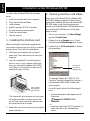
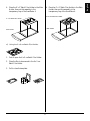
4. Place a reflective document with faced down on
the scanner glass. Center the top of the
document along the horizontal ruler on the
scanner.
1. Restart Windows NT. Before you restart the
computer , make sure your scanner is on and
ready.
2. Click Start, Programs, Microtek ScanWizard
for Windows NT,, and then select Scanner
Test..
Horizontal ruler
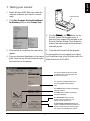
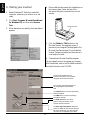
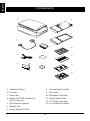
3. When started up successfully, the screen below
appears.
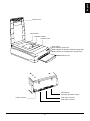
5. Click the Flatbed or TMA button on the
Microtek Scanner Test program screen. A
preview of your image will be displayed in the
Microtek ScanTest window. This indicates the
Scanner Test was successful and the scanner is
now ready to be used.
6. Close and exit Microtek ScanTest program.
For more details on how to operate your scanner
with ScanWizard, refer to the file ScanWizard.pdf in
the folder Manuals on the CD-ROM.
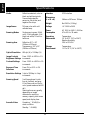
The Scanner Model shows the
scanner connected to your computer
along with the scanner's SCSI ID.
The “aic78xx” message indicates you
are using Adaptec SCSI interface
card.
The Flatbed button is used for previewing
reflective material.
The TMA button is used for previewing
transparent material.
The SCSI Check acts as a SCSI
probe to verify the location of your
scanner and the scanner ID.
The Reconfigure Equipment allows the
system to update its own internal reference
file and is useful when you have changed
your setup or reconfigured your system.
10