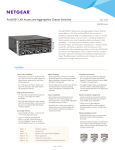
1
NETGEAR M6100 Chassis Switch Hardware Installa tion Guide September 2014 202-11459-01 350 East Plumeria Drive San Jose, CA 95134 USA NETGEAR M6100 Chassis Switch Support Thank you for selecting NETGEAR products. After installing your device, locate the serial number on the label of your product and use it to register your product at https://my.netgear.com. You must register your product before you can use NETGEAR telephone support. NETGEAR recommends registering your product through the NETGEAR website. For product updates and web support, visit http://support.netgear.com. Phone (US & Canada only): 1-888-NETGEAR. Phone (Other Countries): Check the list of phone numbers at http://support.netgear.com/general/contact/default.aspx. Compliance For regulatory compliance information, visit http://www.netgear.com/about/regulatory. See the regulatory compliance document before connecting the power supply. Trademarks NETGEAR, the NETGEAR logo, and Connect with Innovation are trademarks and/or registered trademarks of NETGEAR, Inc. and/or its subsidiaries in the United States and/or other countries. Information is subject to change without notice. © NETGEAR, Inc. All rights reserved. 2 NETGEAR M6100 Switch Chassis Contents Chapter 1 About the M6100 Chassis Switch Overview of the M6100 Chassis Switches . . . . . . . . . . . . . . . . . . . . . . . . . . . . . . . Management Ports . . . . . . . . . . . . . . . . . . . . . . . . . . . . . . . . . . . . . . . . . . . . . . . . . . . M6100 Three Slot Switch Chassis XCM8903 . . . . . . . . . . . . . . . . . . . . . . . . . . . . Package Contents . . . . . . . . . . . . . . . . . . . . . . . . . . . . . . . . . . . . . . . . . . . . . . . . . . . . Chapter 2 6 6 6 7 M6100 Switch Blades Blade and Accessory Features . . . . . . . . . . . . . . . . . . . . . . . . . . . . . . . . . . . . . . . . . 10 M6100 Switch Blade Front Panels . . . . . . . . . . . . . . . . . . . . . . . . . . . . . . . . . . . . . 11 Safety Instructions . . . . . . . . . . . . . . . . . . . . . . . . . . . . . . . . . . . . . . . . . . . . . . . . . . 14 Chapter 3 Power Supply Units Overview of the 100-240 VAC Power Supply Unit APS1000W . . . . . . . . . . . 18 Specifications . . . . . . . . . . . . . . . . . . . . . . . . . . . . . . . . . . . . . . . . . . . . . . . . . . . . . . . 18 Safety . . . . . . . . . . . . . . . . . . . . . . . . . . . . . . . . . . . . . . . . . . . . . . . . . . . . . . . . . . . . . 19 Install a PSU . . . . . . . . . . . . . . . . . . . . . . . . . . . . . . . . . . . . . . . . . . . . . . . . . . . . . . . . 20 Remove or Replace a PSU. . . . . . . . . . . . . . . . . . . . . . . . . . . . . . . . . . . . . . . . . . . . . 21 Install Blank PSU Panels . . . . . . . . . . . . . . . . . . . . . . . . . . . . . . . . . . . . . . . . . . . . . . 22 Chapter 4 Site Preparation Plan Your Site . . . . . . . . . . . . . . . . . . . . . . . . . . . . . . . . . . . . . . . . . . . . . . . . . . . . . . . 24 Operating Environment Requirements. . . . . . . . . . . . . . . . . . . . . . . . . . . . . . . . 24 Power Supply Requirements . . . . . . . . . . . . . . . . . . . . . . . . . . . . . . . . . . . . . . . . . . 29 Chapter 5 Install an M6100 Series Chassis Unpack the XCM8903 Chassis . . . . . . . . . . . . . . . . . . . . . . . . . . . . . . . . . . . . . . . . 32 Install the M6100 Switch Chassis. . . . . . . . . . . . . . . . . . . . . . . . . . . . . . . . . . . . . . 32 Attach the Sliding Rails . . . . . . . . . . . . . . . . . . . . . . . . . . . . . . . . . . . . . . . . . . . . . 33 Rack-Mount the Chassis . . . . . . . . . . . . . . . . . . . . . . . . . . . . . . . . . . . . . . . . . . . 36 Bracket-Mount the Chassis. . . . . . . . . . . . . . . . . . . . . . . . . . . . . . . . . . . . . . . . . 37 Ground the M6100 Chassis Switch . . . . . . . . . . . . . . . . . . . . . . . . . . . . . . . . . . . . 38 Chapter 6 Install M6100 Series Switch Blades Install an M6100 Series Switch Blade . . . . . . . . . . . . . . . . . . . . . . . . . . . . . . . . . . 42 Connect Network Interface Cables. . . . . . . . . . . . . . . . . . . . . . . . . . . . . . . . . . . . . 44 Verify the Switch Blade Installation . . . . . . . . . . . . . . . . . . . . . . . . . . . . . . . . . . . . 44 Displaying Slot Status Information . . . . . . . . . . . . . . . . . . . . . . . . . . . . . . . . . . . 44 Remove an M6100 Switch Blade . . . . . . . . . . . . . . . . . . . . . . . . . . . . . . . . . . . . . . 45 Blank Front Panels . . . . . . . . . . . . . . . . . . . . . . . . . . . . . . . . . . . . . . . . . . . . . . . . . . . 46 3 NETGEAR M6100 Switch Chassis Install a Blank Front Panel . . . . . . . . . . . . . . . . . . . . . . . . . . . . . . . . . . . . . . . . . . 47 Remove a Blank Front Panel . . . . . . . . . . . . . . . . . . . . . . . . . . . . . . . . . . . . . . . . 47 Chapter 7 Install or Remove Daughter Cards Install a Daughter Card . . . . . . . . . . . . . . . . . . . . . . . . . . . . . . . . . . . . . . . . . . . . . . . 50 Remove a Daughter Card . . . . . . . . . . . . . . . . . . . . . . . . . . . . . . . . . . . . . . . . . . . . . 51 Chapter 8 Replace M6100 Series Switch Chassis Components Install the Fan Tray. . . . . . . . . . . . . . . . . . . . . . . . . . . . . . . . . . . . . . . . . . . . . . . . . . . 54 Remove the Fan Tray. . . . . . . . . . . . . . . . . . . . . . . . . . . . . . . . . . . . . . . . . . . . . . . . . 54 Appendix A Safety Information Considerations Before Installing . . . . . . . . . . . . . . . . . . . . . . . . . . . . . . . . . . . . . . . Maintenance Safety . . . . . . . . . . . . . . . . . . . . . . . . . . . . . . . . . . . . . . . . . . . . . . . . . General Safety Precautions . . . . . . . . . . . . . . . . . . . . . . . . . . . . . . . . . . . . . . . . . . . Installing Power Supply Units. . . . . . . . . . . . . . . . . . . . . . . . . . . . . . . . . . . . . . . . . . Selecting Power Supply Cords. . . . . . . . . . . . . . . . . . . . . . . . . . . . . . . . . . . . . . . . . PoE Devices . . . . . . . . . . . . . . . . . . . . . . . . . . . . . . . . . . . . . . . . . . . . . . . . . . . . . . Fiber Optic Ports—Optical Safety . . . . . . . . . . . . . . . . . . . . . . . . . . . . . . . . . . . . . SFP (Mini-GBIC) and SFP+ Regulatory Compliance . . . . . . . . . . . . . . . . . . . . Sicherheitshinweise. . . . . . . . . . . . . . . . . . . . . . . . . . . . . . . . . . . . . . . . . . . . . . . . . . Hinweise zur Installation. . . . . . . . . . . . . . . . . . . . . . . . . . . . . . . . . . . . . . . . . . . . . . Installation von Netzteilen . . . . . . . . . . . . . . . . . . . . . . . . . . . . . . . . . . . . . . . . . . Wartungssicherheit. . . . . . . . . . . . . . . . . . . . . . . . . . . . . . . . . . . . . . . . . . . . . . . . Allgemeine Sicherheitsvorkehrungen . . . . . . . . . . . . . . . . . . . . . . . . . . . . . . . . Auswahl der Stromkabel . . . . . . . . . . . . . . . . . . . . . . . . . . . . . . . . . . . . . . . . . . . Lichtleiteranschlüsse: Optische Sicherheit . . . . . . . . . . . . . . . . . . . . . . . . . . . . Appendix B 58 58 59 59 60 61 61 62 62 63 64 65 66 66 67 Technical Specifications M6100 Switch Chassis. . . . . . . . . . . . . . . . . . . . . . . . . . . . . . . . . . . . . . . . . . . . . . . 70 Switch Blades for M6100 Switch Chassis . . . . . . . . . . . . . . . . . . . . . . . . . . . . . . . 76 Connector Pinouts. . . . . . . . . . . . . . . . . . . . . . . . . . . . . . . . . . . . . . . . . . . . . . . . . . . 76 4 1. About the M6100 Chassis Switch 1 This chapter describes the NETGEAR M6100 Switch Chassis and includes the following sections: • Overview of the M6100 Chassis Switches • Management Ports • M6100 Three Slot Switch Chassis XCM8903 • Package Contents For information about installing the switches, see Chapter 5, Install an M6100 Series Chassis. 5 NETGEAR M6100 Switch Chassis Overview of the M6100 Chassis Switches The switches are chassis-based, Ethernet service L3 switches designed for access, server and storage, distribution, and core layer applications. The features of these switches include the following: • Hot-swappable blades that include Gigabit Ethernet copper ports (10/100/1000) and Gigabit Ethernet fiber ports (SFP), or 10 Gigabit Ethernet ports (SFP+ and 10GBASE-T) • Supervisory capability that provides the active switching fabric and CPU control subsystem • Redundant, load-sharing, hot-swappable power supplies • Field-replaceable, hot-swappable fan trays • Autonegotiation for half-duplex or full-duplex operation on 10/100/1000 Mbps ports • Load sharing on multiple ports The switch blades for the M6100 Switch Chasis provide high port density and scalability for midsized networks. The specific capabilities of the switch are determined by the switch blades installed in the chassis. For more information about individual switch blades, see Chapter 2, M6100 Switch Blades. For more information about configuring a switch, see the NETGEAR M6100 User Manual and the NETGEAR M6100 CLI Manual. Management Ports Each switch blade includes a 10/100/1000BASE-TX Ethernet management port. This port allows you to communicate directly with the central processing unit (CPU) of the switch. You can plug an Ethernet cable directly from your laptop into the management port for direct access into the switch. This access allows you to view and locally manage the switch configurations. M6100 Three Slot Switch Chassis XCM8903 The chassis includes the following physical features: • One three slot chassis with backplane • Power supply bay that accommodates up to four power supplies, accessed from the front of the unit • Connectors at the rear of the chassis to connect up to four additional external power supplies • One fan tray, accessed from the rear of the unit About the M6100 Chassis Switch 6 NETGEAR M6100 Switch Chassis Depending on the blades installed, the XCM8903 chassis can support up to 88 gigabits per second of bandwidth per slot. The following figure shows the front of an XCM8903 chassis equipped with three blades. Figure 1. Front of the XCM8903 chassis The following figure shows the rear panel of the XCM8903 chassis. Figure 2. Rear panel of the XCM8903 chassis The rear panel of the XCM8903 chassis provides the following: • Chassis serial number • Ethernet MAC address of the switch • Symbols of safety certification • Access to the fan controllers • Attachment point for optional chassis ground Package Contents The M6100 Chassis Switch is packed and shipped separately. The XCM8903SK package contains the following items: • M6100 Chassis Switch • XCM8944 switch blade • XCM89P daughter board • APS1000W power supply • One pair of slide rails • Australian power cord About the M6100 Chassis Switch 7 NETGEAR M6100 Switch Chassis • Japanese power cord • C14 to C15 cable • Resource CD: The CD includes either these documents or links to access them: • - Managed switch CLI manual, version 10.2 - Managed switch administration guide - Managed switch installation guide - This hardware installation guide Installation guide Individual switch blades are packaged separately and include the following items: • XCM8944, XCM8944F, XCM8948, or XCM8924X switch blade • RJ-45 cable • Mini USB cable • Resource CD: The CD includes either these documents or links to access them: • - Managed switch CLI manual, version 10.2 - Managed switch administration guide - Managed switch installation guide - This hardware installation guide Installation guide Individual daughter cards are packaged separately and the package includes the following items: • XCM89P or XCM89UP daughter card • Installation guide About the M6100 Chassis Switch 8 2. M6100 Switch Blades This chapter includes the following sections: • Blade and Accessory Features • M6100 Switch Blade Front Panels • Safety Instructions 9 2 NETGEAR M6100 Switch Chassis Blade and Accessory Features The NETGEAR M6100 Series Switch Blades are state-of-the-art, high-performance, IEEE-compliant network solutions. They include powerful management features that you can use to eliminate bottlenecks, boost performance, and increase productivity. The M6100 Chassis Switch supports the following blades and daughter cards: • XCM8944 blade. Features forty Gigabit RJ-45 ports and four 10G ports (two SFP+ ports and two 10GBASE-T ports). • XCM8948 blade. Features forty-eight Gigabit RJ-45 ports. • XCM8944F blade. Features forty Gigabit SFP ports and four 10G ports (two SFP+ ports and two 10GBASE-T ports). • XCM8924X blade. Features twenty-four 10GBASE-T ports including sixteen SFP+ ports (shared). • • XCM89P PoE+ daughter card. For use with XCM8944 and XCM8948 blades. XCM89UP UPoE daughter card. For use with XCM8944 and XCM8948 blades. The M6100 Chassis Switch can be freestanding, or rack-mounted in a wiring closet or an equipment room. For information about features for this product, visit the NETGEAR website at http://www.netgear.com. M6100 Switch Blades 10 NETGEAR M6100 Switch Chassis M6100 Switch Blade Front Panels The following figures show the front panels of the M6100 Series Switch Blades. The front panel contains LEDs, a Reset button, 1G copper ports or 1G fiber ports, 1G copper/fiber combo ports, and 10G copper/fiber combo ports. The SFP+ ports support any combination of ProSAFE 10GBASE-SR SFP+ Module AXM761, ProSAFE 10GBASE-LR SFP+ Module AXM762, or ProSAFE 10GBASE-LRM SFP+ Module AXM763. It also supports directly attached cables AXC761 and AXC763 as well as Gigabit SFP Modules AGM731F and AGM732F. XCM8924X Console ports OoB port USB port 10G SFP+ ports 10G RJ-45 ports XCM8944 Console ports OoB port USB port 1G RJ-45 ports OoB port USB port 1G SFP ports 10G SFP+ ports 10G RJ-45 ports XCM8944F Console ports 10G SFP+ ports 10G RJ-45 ports XCM8948 Console ports OoB port USB port 1G RJ-45 ports Note: OoB stands for Out of Band management for web management interface, Telnet or SSH access. M6100 Switch Blades 11 NETGEAR M6100 Switch Chassis Figure 3. M6100 series front panels Table 1. LED descriptions for M6100 Series Switches LED Description Blade Power • • • • • Solid green. The system is operating normally. Blinking green. A PoE daughter board is present and the system is operating normally. Solid yellow. The system is booting. Blinking yellow. System boot failed or some other failure has occurred. Off. Power is disconnected. Chassis Power/Status (at rear of chassis) • • • • • Solid green. The chassis is powered by power bank. Blinking green. The chassis is powered by power bank, and RPS MCU failed. Solid yellow. The chassis is powered by an RPS device. Blinking yellow. The chassis is powered by RPS and RPS MCU failed. Off. The I/O controller failed. Supervisor LED • • • • Off. The blade acts as a member blade of the chassis. Solid green. The blade acts as supervisor blade of the chassis. Solid yellow. The blade acts as backup supervisor blade of the chassis. Blinking yellow. The blade is a member but without a supervisor blade. 1G copper ports Right side - SPD/ Link/ACT LED: • Off. No link is established on the port. • Solid green. A valid 1000 Mbps link is established on the port. • Blinking green. Packet transmission or reception is occurring on the port at 1000 Mbps. • Solid yellow. A valid 10/100 Mbps link is established on the port. • Blinking yellow. Packet transmission or reception is occurring on the port at 10/100 Mbps. If a combo port media changes to SFP+, the copper port LED turns off. Left side - PSE Status LED (LED is off when the PoE module is absent): • Off. No PoE-powered device (PD) is connected. • Solid green. The PoE-powered device (PD) is connected and the port is supplying power successfully. • Solid yellow. One of the following failures resulted in stopping power to that port: - Short circuit on the PoE power circuit - PoE power demand exceeds power available - PoE current exceeds PD’s classification - Out of proper voltage band (44-57 VDC for PoE 802.3af, 50-57 VDC for PoE+ 802.3at, and UPoE) M6100 Switch Blades 12 NETGEAR M6100 Switch Chassis Table 1. LED descriptions for M6100 Series Switches (continued) LED Description 1G SFP ports (1 LED per port) SPD/Link/ACT LED: • Off. No SFP module link is established on the port. • Solid green. A valid 1000 Mbps SFP module link is established on the port. • Blinking green. Packet transmission or reception is occurring on the port at 1000 Mbps. • Solid yellow. A valid 100 Mbps SFP module link is established on the port. • Blinking yellow. Packet transmission or reception is occurring on the port at 100 Mbps. 10G copper ports SPD/Link/ACT LED: • Off. No link is established on the port. • Solid green. A valid 10Gbps link is established on the port. • Blinking green. Packet transmission or reception is occurring on the port at 10Gbps. • Solid yellow. A valid 1000 Mbps link is established on the port. • Blinking yellow. Packet transmission or reception is occurring on the port at 1000 Mbps. Note: If the combo port of the XCM8924X media changes to SFP+, the copper port LED turns off. 10G SFP+ ports SPD/Link/ACT LED: • Off. No link is established on the port. • Solid green A valid 10Gbps link is established on the port. • Blinking green. Packet transmission or reception is occurring on the port at 10Gbps. • Solid yellow. A valid 1000 Mbps link is established on the port. • Blinking yellow. Packet transmission or reception is occurring on the port at 1000 Mbps. Note: If the combo port of the XCM8924X media changes to SFP+, the copper port LED turns off. OOB Port Left side LED - 1Gbps Link/ACT LED: • Off. No link is established on the port. • Solid green. A valid 1000 Mbps link is established on the port. • Blinking green. Packet transmission or reception is occurring on the port at 1000 Mbps. Right side LED - 10/100 Mbps Link/ACT LED: • Off. No link is established on the port. • Solid yellow. A valid 10/100Mbps link is established on the port. • Blinking yellow. Packet transmission or reception is occurring on the port at 10/100 Mbps. M6100 Switch Blades 13 NETGEAR M6100 Switch Chassis Safety Instructions Use the following safety guidelines to ensure your own personal safety and to help protect your system from potential damage. To reduce the risk of bodily injury, electrical shock, fire, and damage to the equipment, observe the following precautions: • • Observe and follow service markings. • Do not service any product except as explained in your system documentation. • Opening or removing covers that are marked with the triangular symbol with a lightning bolt can expose you to electrical shock. NETGEAR recommends that only a trained service technician service components inside these compartments. If any of the following conditions occur, unplug the product from the electrical outlet and replace the part or contact your trained service provider: • The power cable, extension cable, or plug is damaged. • An object fell into the product. • The product was exposed to water. • The product was dropped or damaged. • The product does not operate correctly when you follow the operating instructions. • Keep your system away from radiators and heat sources. Also, do not block cooling vents. • Do not spill food or liquids on your system components, and never operate the product in a wet environment. If the system gets wet, see the appropriate section in your troubleshooting guide, or contact your trained service provider. • Do not push any objects into the openings of your system. Doing so can cause fire or electric shock by shorting out interior components. • Use the product only with approved equipment. • Allow the product to cool before removing covers or touching internal components. • Operate the product only from the type of external power source indicated on the electrical ratings label. If you are not sure of the type of power source required, consult your service provider or local power company. • To avoid damaging your system, be sure that the voltage selection switch (if provided) on the power supply is set to match the power at your location: • 115 volts (V), 60 hertz (Hz) in most of North and South America and some Far Eastern countries such as South Korea and Taiwan • 100V, 50 Hz in eastern Japan and 100V, 60 Hz in western Japan • 230V, 50 Hz in most of Europe, the Middle East, and the Far East • Be sure that attached devices are electrically rated to operate with the power available in your location. • Use only approved power cables. If you were not provided with a power cable for your system or for any AC-powered option intended for your system, purchase a power cable M6100 Switch Blades 14 NETGEAR M6100 Switch Chassis approved for your country. The power cable must be rated for the product and for the voltage and current marked on the product electrical ratings label. The voltage and current rating of the cable must be greater than the ratings marked on the product. • To help prevent electric shock, plug the system and peripheral power cables into properly grounded electrical outlets. • The peripheral power cables are equipped with three-prong plugs to help ensure proper grounding. Do not use adapter plugs or remove the grounding prong from a cable. If you must use an extension cable, use a three-wire cable with properly grounded plugs. • Observe extension cable and power strip ratings. Make sure that the total ampere rating of all products plugged into the extension cable or power strip does not exceed 80 percent of the ampere ratings limit for the extension cable or power strip. • To help protect your system from sudden, transient increases and decreases in electrical power, use a surge suppressor, line conditioner, or uninterruptible power supply (UPS). • Position system cables and power cables carefully; route cables so that they cannot be stepped on or tripped over. Be sure that nothing rests on any cables. • Do not modify power cables or plugs. Consult a licensed electrician or your power company for site modifications. • Always follow your local and national wiring rules. M6100 Switch Blades 15 NETGEAR M6100 Switch Chassis M6100 Switch Blades 16 3. 3 Power Supply Units The M6100 Switch Chassis is powered by 100-240 VAC power supply units (PSUs). AC power supplies in the M6100 series switch chassis are fully fault tolerant and load-sharing in an N+1 configuration. After the system is properly configured, if one PSU fails, the others provide sufficient power to operate a fully loaded switch. This chapter includes the following sections: • Overview of the 100-240 VAC Power Supply Unit APS1000W • Specifications • Safety • Install a PSU • Remove or Replace a PSU • Install Blank PSU Panels 17 NETGEAR M6100 Switch Chassis Overview of the 100-240 VAC Power Supply Unit APS1000W The following figure shows the 100-240 VAC UL-listed accessory power supply unit (PSU). The power supply bay in an M6100 series switch can accommodate up to four hot-swappable PSUs. Back Front Figure 4. Power supply unit APS1000W The front panel on each PSU provides a handle for insertion and removal of the unit. A cooling fan draws air in through the rear vents on the PSU and exhausts the air through the front vents of the switch. Airflow through the PSU is independent of the airflow through the rest of the switch. WARNING: Field operators must not attempt to open the PSU enclosure for any reason; the PSU does not contain user-serviceable parts. If the PSU fails, return the defective PSU for repair or replacement. Specifications The APS1000W PSU functions from 90V to 264V and 47 Hz to 63 Hz AC input. Each PSU provides 700W to the system if the AC input is in the 110V low-line output power range and 1000W to the system if the AC input is in the 220V high-line output power range. More installed PSUs are needed to support the load if the low-line power range is used to power the switch. The software determines the maximum available power required for the switch and enables the modules accordingly. Power Supply Units 18 NETGEAR M6100 Switch Chassis CAUTION: The PSU does not include a switch for turning the unit on and off. Remove the plug from the electrical outlet to disconnect power to the PSU. Make sure that this connection is easily accessible. Make sure that the PSU circuit is not overloaded. Use proper overcurrent protection, such as a circuit-breaker, to prevent overcurrent conditions. Safety NETGEAR recommends only trained service personnel perform service to NETGEAR switches and their components. Trained service personnel read all related installation manuals, posses the technical training and experience necessary to be aware of the hazards to which they are exposed in performing a task, and are aware of measures to minimize the danger to themselves or other persons. Before installing a NETGEAR PSU into your network, do the following: • Read the latest installation and safety information provided in this chapter and in Appendix A, Safety Information. • See Appendix A, Safety Information for additional information regarding regulatory compliance certifications. CAUTION: Building codes vary worldwide; therefore, NETGEAR strongly recommends that you consult an electrical contractor to ensure proper equipment grounding and power distribution for your specific installation. WARNING: Field operators must not attempt to open the PSU enclosure for any reason; the PSU does not contain user-serviceable parts. In the event of failure, return the defective PSU for repair or replacement. WARNING: The PSUs do not have switches for turning the unit on and off. Remove the wall plug from the electrical outlet to disconnect the power to a PSU. Make sure that this connection is easily accessible. Power Supply Units 19 NETGEAR M6100 Switch Chassis When the PSU is outside the chassis (not installed), do not plug the PSU into an electrical outlet. Plugging an uninstalled PSU into an electrical outlet exposes you to a hazardous energy and is a potential fire hazard. Install a PSU To install the PSU: 1. Carefully slide the power supply all the way into the power supply bay until it clicks into place. CAUTION: Do not slam the power supply into the system backplane. Use the locking handle to secure the power supply in the power supply bay. 2. Repeat step 1 to install each additional power supply. 3. After all the power supplies are installed, connect an AC power cord to the AC input connector below each power supply. WARNING: Be sure that the source outlet is properly grounded before plugging the AC power cord into the input connector. Power Supply Units 20 NETGEAR M6100 Switch Chassis Remove or Replace a PSU CAUTION: The PSU might be hot to the touch; use thermal protective gloves when handling the PSU during removal. To remove or replace a PSU: 1. Leave the AC power cord in place or replace it: • If you are replacing only the power supply and you will use the existing AC power cord for the new PSU, you do not need to unplug the AC power cord. • If you are removing and replacing an AC power cord, do the following: a. Completely disconnect and remove the old power cord. b. Connect the new AC power cord to the AC input on the front of the switch and then connect the opposite end of the AC power cord to the wall outlet. 2. Lift the handle on the PSU. 3. Push the locking handle in with your thumb and pull the handle of the PSU to disconnect the PSU from the power connector at the back of the power supply bay. Slide the PSU partway out of the bay. Supe rviso PWR / Status XCM 8 r 948 Rese t OOB Cons ole USB 1 2 3 4 5 6 7 8 9 10 11 PoE (M 12 ax 60 W pe r port): Off = 13 no PD 14 Gree n= 15 16 PoE po wered 17 Yello w= 18 PoE fau lt 19 RJ45 20 SPD/ Link/A ct 4. Wearing thermal protective gloves, place both hands underneath the PSU to support the weight as it is pulled out from the switch. 5. To install a replacement PSU, follow the steps in Install a PSU on page 20. Power Supply Units 21 NETGEAR M6100 Switch Chassis Install Blank PSU Panels To install a blank PSU panel: 1. Remove the PSU from the PSU slot. CAUTION: The PSU might be hot to the touch; use thermal protective gloves when handling the PSU during removal. For more information about removing a PSU, see Remove or Replace a PSU on page 21. 2. Pinch the side tabs of the blank PSU panel and slide it into the empty PSU slot. Power Supply Units 22 4. 4 Site Preparation The information in this chapter is intended for the system administrator, network equipment technician, network manager, or facilities manager responsible for installing and managing the network hardware. The chapter assumes a working knowledge of local area network (LAN) operations and a familiarity with communications protocols that are used on interconnected LANs. Note: Before installing or removing any components of the system, or before carrying out any maintenance procedures, read the safety information provided in Appendix A, Safety Information. This chapter includes the following sections: • Plan Your Site • Operating Environment Requirements • Power Supply Requirements 23 NETGEAR M6100 Switch Chassis Plan Your Site By carefully planning your site, you can maximize the performance of your existing network and ensure that it is ready to migrate to future networking technologies. The site planning process consists of three major parts: • Meeting site requirements The physical installation site must meet the following requirements for a safe and successful installation: • - Building and electrical code requirements - Environmental, safety, and thermal requirements for the equipment that you plan to install - Equipment rack requirements Evaluating and meeting cable requirements After examining your physical site and verifying that all environment requirements are met, evaluate and compare your existing cable plant with the requirements of the equipment to determine if you must install new cables. • Meeting power requirements To run your equipment safely, you must meet the specific power requirements for each power supply unit installed in the system. For switch blade specifications, see Switch Blades for M6100 Switch Chassis on page 76. Operating Environment Requirements Verify that your site meets all environmental and safety requirements. Virtually all areas of the United States are regulated by building codes and standards. During the early planning stages of installing or modifying your LAN, it is important that you develop a thorough understanding of the regulations that pertain to your location and industry. Building and Electrical Codes Building and electrical codes vary depending on your location. Comply with all code specifications when planning your site and installing cable. The following resources are provide additional information. Information about major building codes is located at the websites of the following organization: • International Code Council (ICC); 5203 Leesburg Pike; Falls Church, Virginia 22041 USA. http://www.iccsafe.org http://www.sbcci.org Five authorities on electrical codes are as follows: Site Preparation 24 NETGEAR M6100 Switch Chassis • National Electrical Code (NEC) Classification (USA only). A recognized authority on safe electrical wiring. Federal, state, and local governments use NEC standards to establish their own laws, ordinances, and codes on wiring specifications. The NEC classification is published by the National Fire Protection Association (NFPA). The address is NFPA; 1 Batterymarch Park; Quincy, Massachusetts 02169 USA. http://www.nfpa.org. • Underwriters’ Laboratory (UL) (USA only). An independent research and testing laboratory. UL evaluates the performance and capability of electrical wiring and equipment to determine whether they meet certain safety standards when properly used. Acceptance is usually indicated by the words “UL Approved” or “UL Listed.” The address is UL; 333 Pfingsten Road; Northbrook, Illinois 60062-2096 USA. http://www.ul.com. • National Electrical Manufacturing Association (NEMA) (USA only). An organization of electrical product manufacturers. Members develop consensus standards for cables, wiring, and electrical components. The address is NEMA; 1300 N. 17th Street; Rosslyn, Virginia 22209. http://www.nema.org. • Electronics Industries Alliance (EIA). A trade association that develops technical standards, disseminates marketing data, and maintains contact with government agencies in matters relating to the electronics industry. The address is EIA; 2500 Wilson Boulevard; Arlington, Virginia 22201 USA. http://www.eia.org. • Federal Communications Commission (FCC) (USA only). A commission that regulates all interstate and foreign electrical communication systems that originate in the United States according to the Communications Act of 1934. The FCC regulates all U.S. telephone and cable systems. The address is FCC; 445 12th Street S.W.; Washington, D.C. 20554 USA. http://www.fcc.gov. Wiring Closet Considerations Be aware of the following recommendations for your wiring closet: • Be sure that your system is easily accessible for installation and service. • Use appropriate AC or DC power, power distribution, and grounding for your specific installation. • Use a vinyl floor covering in your wiring closet. (Concrete floors accumulate dust, and carpets can cause static electricity.) • Prevent unauthorized access to wiring closets by providing door locks. Install the equipment in a secured, enclosed, and restricted access location, ensuring that only qualified service personnel can access the equipment. • Provide adequate overhead lighting for easy maintenance. • Be sure that each wiring closet has a suitable ground. All distribution racks and equipment installed in the closet should be grounded. • Be sure that all system environmental requirements are met, such as ambient temperature and humidity. Note: NETGEAR recommends that you consult an electrical contractor for commercial building and wiring specifications. Site Preparation 25 NETGEAR M6100 Switch Chassis Temperature This equipment generates a significant amount of heat. It is essential that you provide a temperature-controlled environment for both performance and safety. Install the equipment only in a temperature-controlled and humidity-controlled indoor area that is free of airborne materials that can conduct electricity. Too much humidity can cause a fire. Too little humidity can produce electrical shock and fire. Follow these general thermal recommendations for your wiring closet: • Be sure that the ventilation in the wiring closet is adequate to maintain a temperature below 104°F (40°C). • Install a reliable air conditioning and ventilation system. • Keep the ventilation in the wiring closet running during non-business hours; otherwise, the equipment can overheat. • Maintain an ambient operating temperature of 32° to 104°F (0° to 40°C). • Maintain a storage temperature of -40° to 158°F (-40° to 70°C). Note: As with all electrical equipment, your product lifetime can degrade with increased temperature. If possible, keep temperatures at approximately 78°F (25°C) or lower. Humidity To maximize equipment life, keep operating humidity between 50 percent and 70 percent relative humidity (non-condensing) during typical operation. The equipment can operate between 10 percent and 95 percent relative humidity (non-condensing) for short intervals. Chassis Spacing Requirements NETGEAR recommends placing no more than three chassis next to each other because of chassis-to-chassis heating. Use the following spacing guidelines when you install your M6100 chassis switch: • Leave a minimum of one empty 19-inch rack between two sets of three adjacent switches. or • Place patch panels between two sets of three adjacent switches. A patch panel does not require any power and does not generate any heat. Site Preparation 26 NETGEAR M6100 Switch Chassis Note: Up to five adjacent switches will continue to function without safety concerns. However, product lifetime might degrade with continued exposure to high temperatures in close proximity, and long-term reliability might be compromised. Chassis Airflow Requirements To ensure proper airflow through a switch, refer to the following recommendations when you install the switch: • The M6100 chassis switch requires a minimum of 1.5 inches (4 cm) around both the left and right sides of the chassis from any cabinet wall or other obstruction for proper airflow. • Air temperature measured approximately 1 inch (2.5 cm) from the fan inlet must be less than 104°F (40°C). In the M6100 chassis switch, air moves through the power supplies independently of the airflow through the modules, as shown in the following figure. Superv isor PWR / Status XCM Reset 894 8 OOB Consol e USB 1 2 3 4 5 6 7 8 9 10 11 PoE (Max 60W 12 per port): Off = 13 no PD 14 Green 15 = PoE 16 powered Yellow 17 = PoE 18 fault 19 RJ45 20 SPD/Link /Act 21 Mode: 22 Green = link 23 at 1G 24 Yellow = Link 25 at 10/100M 26 Blink 27 = ACT 28 29 30 31 32 33 34 35 36 37 38 39 40 41 42 43 44 45 46 47 48 Figure 5. Airflow through the XCM8903 chassis Mechanical Recommendations for the Rack Use equipment racks that meet the following mechanical recommendations: • Use an open style, 19-inch rack to facilitate easy maintenance and to provide proper ventilation. • Use a rack made of steel or aluminum. • Make sure that the rack uses the universal mounting rail hole pattern that is identified in IEC Standard 297. • The rack must have designated earth grounding connections (typically on the base). • The rack must meet earthquake safety requirements equal to that of the installed chassis. • The mounting holes must be flush with the rails to accommodate the chassis. Site Preparation 27 NETGEAR M6100 Switch Chassis • The rack must support approximately 600 pounds (272 kilograms). Protective Grounding for the Rack Use a rack grounding kit and a ground conductor that is carried back to earth or to another suitable building ground. All switches are designed with mounting brackets that provide a solid metal-to-metal connection to the rack. If you do not use equipment racks, you can attach wiring terminals directly to the mounting brackets for appropriate grounding. There are grounding terminals that are mounted on the back of the chassis. At a minimum, follow these guidelines to ground equipment racks to the earth ground: • CAD-weld appropriate wire terminals to building I-beams or earth ground rods. • Use the appropriate chassis grounding wire for your system, which depends on the available input current to the power supply. - For AC systems using a 20A breaker per PSU (SSI AC), the chassis ground can be as small as 14 AWG. Use a power cable ground that is the same size as the primary. - For DC systems using a 15A breaker per PSU, the chassis ground can be as small as 14 AWG. Use a power cable ground that is the same size as the primary. - For DC systems using a 40A breaker per PSU (SSI DC), the chassis ground can be as small as 10 AWG. Use a power cable ground that is the same size as the primary. Note: For complete details on power supplies and power supply cords, see Chapter 3, Power Supply Units and Appendix A, Selecting Power Supply Cords. • Drill and tap wire terminals to equipment racks. • Position the earth ground as close to the equipment rack as possible to maintain the shortest wiring distance possible. • Use a ground impedance tester or micro-ohm meter to test the quality of earth ground connection at the chassis. This ensures good grounding between the chassis, rack, and earth ground. Note: Because building codes vary worldwide, NETGEAR strongly recommends that you consult an electrical contractor to ensure proper equipment grounding for your specific installation. Space Requirements for the Rack Provide enough space in front of and behind the switch so that you can service it easily. Allow a minimum of 48 inches (122 cm) in front of the rack and 24 inches (61 cm) behind the rack. When using a relay (two-post) rack, provide a minimum of 24 inches (61 cm) of space behind the mounted equipment. Extra room on each side is optional. Site Preparation 28 NETGEAR M6100 Switch Chassis Securing the Rack Attache the rack to the wiring closet floor with 3/8-inch (9.5 mm) lag screws or equivalent hardware. The floor under the rack must be level within 3/16-inch (5 mm). Use a floor-leveling cement compound if necessary or bolt the racks to the floor as shown in the following figure. Figure 6. Correctly secured rack Brace open equipment racks if the channel thickness is less than 1/4 inch (6.4 mm). Power Supply Requirements Follow these recommendations when you plan power supply connections for your equipment: • Place the equipment in an area that accommodates the power consumption and component heat dissipation specifications. • Be sure that your power supply meets the site DC power or AC power requirements of the network equipment. • When you connect power to installed equipment, do not make this connection through an extension cord or power strip. • If your switch includes more than one power supply, connect each power supply to a different, independent power source. If a power source fails, it will affect only the power supply to which it is connected. If all switch power supplies are connected to a single power source, the entire switch is vulnerable to a power source failure. • In regions that are susceptible to electrical storms, NETGEAR recommends that you plug your system into a surge suppressor. For power specifications of the power supplies, see Appendix B, Technical Specifications. Site Preparation 29 NETGEAR M6100 Switch Chassis WARNING: The chassis does not have a switch for turning power to the unit on and off. For systems using an AC power supply, power to the chassis is disconnected by removing the wall plug from the electrical outlet. Site Preparation 30 5. Install an M6100 Series Chassis 5 This chapter includes the following sections: • Unpack the XCM8903 Chassis • Install the M6100 Switch Chassis • Ground the M6100 Chassis Switch The M6100 series chassis fits into a standard 19-inch (48.26 cm) rack. Note: Read the information in this chapter thoroughly before you attempt to install the M6100 series switch chassis. CAUTION: Correct lifting of the M6100 Switch Chassis requires two people. Before you lift a M6100 Switch Chassis, make sure that the chassis is empty to prevent unnecessary weight. This also prevents damage to the system components due to possible system chassis flex when you are lifting. 31 NETGEAR M6100 Switch Chassis Unpack the XCM8903 Chassis CAUTION: The XCM8903 chassis weighs almost 65 pounds. Proper lifting and moving of the chassis requires two people. To unpack the XCM8903 chassis: 1. Place the container on a clean flat surface, and cut all straps securing the container. 2. Unpack the hardware from the boxes. Carefully remove the hardware, and place it on a secure and clean surface. Remove all packing material. 3. Make sure that all items are present. See Package Contents on page 7. Note: If any item is missing or damaged, contact your local NETGEAR reseller for replacement. Inspect the products and accessories for damage. Report any damage immediately. CAUTION: Do not use the fan tray handle to lift or maneuver the XCM8903 chassis. This handle is not designed to support the weight of the chassis. Install the M6100 Switch Chassis You must provide the following tools and equipment: • Four rack-mount screws appropriate for your rack system. • Screwdriver that fits the rack-mounting screws you will use. Install an M6100 Series Chassis 32 NETGEAR M6100 Switch Chassis Attach the Sliding Rails To attach the front bracket to the sliding rails: 1. Pull out the inner and intermediate rails until they are securely locked. 2. Place the front bracket on the outer rail. 3. Align the first hole of the outer rail with the sixth hole of the bracket and screw the bracket to the rail. Install an M6100 Series Chassis 33 NETGEAR M6100 Switch Chassis 4. Press the release button on the intermediate rail and adjust the intermediate rail so that the holes are visible. 5. Secure the long oval hole of the front bracket to the third hole of the outer rail. 6. Repeat Steps 1-5 for the other rail. To attach the sliding rails to the chassis: 1. Release and detach the inner rail from the sliding rail. 2. Align the five holes on the inner rail to the switch chassis. Install an M6100 Series Chassis 34 NETGEAR M6100 Switch Chassis 3. Screw the inner rail to the switch chassis. Superv isor PWR / Status XCM Reset 894 8 OOB Consol e USB 1 2 3 4 5 6 7 8 9 10 11 PoE (Max 60W 12 per port): Off = 13 no PD 14 Green 15 = PoE 16 powered Yellow 17 = PoE 18 fault 19 RJ45 20 SPD/Link /Act 21 Mode: 22 Green = link 23 at 1G 24 Yellow = Link 25 at 10/100M 26 Blink 27 = ACT 28 29 30 31 32 33 34 35 36 37 38 39 40 41 42 43 44 45 46 47 48 4. Repeat Steps 1-3 for the other inner rail. 5. Attach each outer rail to the rack with two screws in the front and two screws in the back. To install the outer sliding rail: 1. Place the left outer rail on the inner left of the rack where you plan to rack-mount the switch chassis, aligning the front and rear brackets with the screw holes in your rack. 2. Screw the rail to the rack as shown in the following illustration. 3. Place the right outer rail on the inner right of the rack opposite from the left outer rail, aligning the front and rear brackets with the screw holes in your rack. 4. Screw the rail to the rack as shown in the following illustration. Install an M6100 Series Chassis 35 NETGEAR M6100 Switch Chassis Rack-Mount the Chassis To rack-mount the chassis: 1. Slide the outer sliding rails forward and out of the rack. 2. Verify that each outer sliding rail is locked in the forward position. 3. Horizontally install the system halfway into the sliding outer rails. Install an M6100 Series Chassis 36 NETGEAR M6100 Switch Chassis 4. Slide the release tab and push the switch chassis into the rack. Supervisor XCM8 948 OOB PWR / Status Reset Console USB 1 2 3 4 5 6 7 8 9 10 11 PoE (Max 60W 12 per port): Off = 13 no PD 14 Green 15 = PoE 16 powered Yellow 17 = PoE 18 fault 19 RJ45 20 SPD/Link/A 21 ct Mode: 22 Green = link 23 at 1G 24 Yellow = Link 25 at 10/100M 26 Blink 27 = ACT 28 29 30 31 32 33 34 35 36 37 38 39 40 41 42 43 44 45 46 47 48 Release Lock In Bracket-Mount the Chassis To bracket-mount the chassis: 1. Partially screw two of the included screws into the rack where you want the bottom of the chassis to rest. 2. Rest the bottom of the chassis’s brackets on the two screws. Install an M6100 Series Chassis 37 NETGEAR M6100 Switch Chassis 3. Screw the rest of the bracket to the rack. Supervi sor XCM 8948 OOB PWR / Status Reset Console USB 1 2 3 4 5 6 7 8 9 10 11 PoE (Max 60W 12 per port): Off = 13 no PD 14 Green 15 = PoE 16 powered Yellow 17 = PoE 18 fault 19 RJ45 20 SPD/Link /Act 21 Mode: 22 Green = link 23 at 1G 24 Yellow = Link 25 at 10/100M 26 Blink 27 = ACT 28 29 30 31 32 33 34 35 36 37 38 39 40 41 42 43 44 45 46 47 48 Ground the M6100 Chassis Switch Although grounding the M6100 chassis switch is optional, NETGEAR recommends that you do this. A grounding point with integrated pem-nuts is provided on the back of the chassis. You need the following materials to ground the chassis: • Two 10-24 screws • One copper, standard barrel two hole compression grounding lug, type LDC, equivalent to Panduit part number LCD4-14A-L or Thomas & Betts part number LCN4-14 • Appropriate grounding wire for your system, based on the available input current for the power supply: • For AC systems using a 20A breaker per PSU (SSI AC), the chassis ground can be as small as 14 AWG. • For DC systems using a 40A breaker per PSU (SSI DC), the chassis ground can be as small as 10 AWG. Install an M6100 Series Chassis 38 NETGEAR M6100 Switch Chassis To ground the chassis: 1. Locate the grounding point on the back of the chassis. 2. Strip 0.5 inch (1.2 cm) of insulation from the stranded copper wire cable. 3. Insert the stripped wire into the cable lug. CAUTION: Be sure that no copper is visible between the lug and the cable insulation. 4. Crimp the lug onto the cable according to the manufacturer’s specifications. 5. Insert the screws through the lug and into the grounding point on the back of the chassis. 6. Connect the other end of the wire to a known reliable earth ground point at your site. Install an M6100 Series Chassis 39 NETGEAR M6100 Switch Chassis Install an M6100 Series Chassis 40 6. Install M6100 Series Switch Blades 6 The chapter describes how to install the switch blades in the M6100 chassis switch. All switch blade types are hot-swappable. The chapter includes the following sections: • Install an M6100 Series Switch Blade • Connect Network Interface Cables • Verify the Switch Blade Installation • Remove an M6100 Switch Blade • Blank Front Panels on page 46 Read the information in this chapter thoroughly before you attempt to install or remove an M6100 series switch blade. 41 NETGEAR M6100 Switch Chassis Install an M6100 Series Switch Blade You need the following tools and equipment to install an M6100 series switch blade: • No. 2 Phillips screwdriver • Appropriate type of cable for any ports on the module To install a switch blade in a M6100 series chassis switch: 1. Select a slot for the switch blade. 2. Remove a blank front panel from the chassis slot, if necessary. A blank faceplate must be installed in any unoccupied switch blade slot in the chassis to ensure satisfactory protection from EMI and to maintain adequate airflow through the chassis. 3. Remove the switch blade from the antistatic packaging. CAUTION: To prevent ESD damage, hold the switch blade by the metal rail and front panel only. Never touch the components on the PCB or the pins on any of the connectors. 4. Verify that the switch blade injector/ejector handles are open. 5. Keep the injector/ejector handles in the open position as you slide the switch blade into the chassis slot. CAUTION: Do not slide the switch blade into the open chassis slot if the injector/ejector handles are in the latched position. Install M6100 Series Switch Blades 42 NETGEAR M6100 Switch Chassis 6. Using both hands, push both handles toward the center of the switch blade, as shown. Supe rviso r PWR / Statu s XCM8 948 Rese t OOB Cons ole USB 1 2 3 4 5 6 7 8 9 10 11 PoE (Max 60W 12 per port): Off = 13 no PD 14 Gree n= 15 16 PoE powe 17 red Yellow = PoE 18 fault 19 RJ45 20 SPD/L ink/A 21 ct Mode 22 : Gree n= 23 link at 24 1G Yellow = Link 25 26 at 10/10 0M Blink 27 = ACT 28 29 30 31 32 33 34 35 36 37 38 39 40 41 42 43 44 45 46 47 48 7. Finger-tighten or use a screwdriver to turn the front panel screws on each injector/ejector handle clockwise and completely down. When the screw is fully tightened, the yellow band around the captive screw is completely hidden. CAUTION: Be careful to avoid over torquing and stripping the screw heads. Install M6100 Series Switch Blades 43 NETGEAR M6100 Switch Chassis Connect Network Interface Cables Use the appropriate type of cable to connect the ports of your switch to another switch or router. To cable the switch blade: 1. Verify that you identified the correct cable for the port. 2. Use an alcohol wipe or other appropriate cleaning agent to clean the cable connectors; make sure that they are free of dust, oil, and other contaminants. 3. If you are using optical fiber cable, align the transmit (Tx) and receive (Rx) connectors with the correct corresponding connectors on the switch or the I/O module. 4. Press the cable connectors into their mating connectors on the switch or I/O module until the cable connector is firmly seated. 5. Repeat Steps 1 through 4 for the remaining cables on this or other switches or I/O modules. Verify the Switch Blade Installation After you install a switch blade, verify that it is working correctly by checking the LEDs on the front panel of the blade. The following table shows normal LED operation for correctly installed supervisor switch blades and I/O switch blades. Use the command-line interface (CLI) show slot <slot number> command to display slot-specific information about the newly installed switch blade. Table 2. Blade LED activity for normal operation Supervisor Switch Blade Switch Blades Status LED Blinking green. PoE daughter card installed. Green. No PoE daughter card installed. Status LED Blinking green when PoE daughter card is present or green when no PoE daughter card is installed. Supervisor LED Green. Primary Supervisor module Amber. Backup Supervisor module Supervisor LED Off Port LED Solid yellow or green. Port link up. Blinking yellow or green. Packet activity detected. Port LED Solid yellow or green. Port link up. Blinking yellow or green. Packet activity detected. For more information about LED activity, see M6100 Switch Blade Front Panels on page 11. Displaying Slot Status Information Assuming that no problems occurred with the module, the command show chassis displays information about the module including general information about the module Install M6100 Series Switch Blades 44 NETGEAR M6100 Switch Chassis (name, serial number, part number), the state of the module (power down, operational, mismatch between the slot configuration and the module in the slot), and the number of ports on the module. For more information about slot status information, see the NETGEAR M6100 Chassis Switch User Manual and the NETGEAR M6100 Chassis Switch CLI Manual. Remove an M6100 Switch Blade This section describes how to remove blades from a M6100 series switch chassis. Switch blades are hot-swappable. You do not need to power the system off to remove a module. You need the following tools and equipment to remove a switch blade: • No. 2 Phillips screwdriver • Replacement module or blank faceplate if you are not replacing the module To remove a module: 1. To unlock the module, turn each captive screw counter clockwise. Verify that the yellow band around the captive screw head of each injector/ejector handle is completely visible. This position ensures that the module is unlocked. CAUTION: Be sure to turn each captive screw only 90 degrees or one-quarter turn counter clockwise. Loosening the captive screws beyond 90 degrees will damage the injector/ejector handles on the module. Install M6100 Series Switch Blades 45 NETGEAR M6100 Switch Chassis 2. Pull both handles outward to disconnect the module from the chassis backplane. Supe rviso r PWR / Statu s XCM8 948 Rese t OOB Cons ole USB 1 2 3 4 5 6 7 8 9 10 11 PoE (Max 60W 12 per port): Off = 13 no PD 14 Gree n= 15 16 PoE powe 17 red Yellow = PoE 18 fault 19 RJ45 20 SPD/L ink/A 21 ct Mode 22 : Gree n= 23 link at 24 1G Yellow = Link 25 26 at 10/10 0M Blink 27 = ACT 28 29 30 31 32 33 34 35 36 37 38 39 40 41 42 43 44 45 46 47 48 3. Slide the module out of the chassis slot. 4. Immediately place the module into the antistatic bag to protect it from potential ESD damage. The bag also prevents dust from collecting on the module connectors. 5. If you are not going to install a replacement module, install a blank front panel. To install a replacement module, see Install an M6100 Series Switch Blade on page 42. Blank Front Panels The switches are shipped with blank front panels installed over one or more chassis slots. You can remove or install a blank front panel at any time without disrupting network services. Complete the action of installing a blank front panel in a reasonable time frame to avoid disruption to adequate airflow. CAUTION: Blank front panels must be correctly installed in all unoccupied slots in a M6100 series switch chassis to ensure conformance to FCC requirements as well as to maintain adequate airflow through the switch. Install M6100 Series Switch Blades 46 NETGEAR M6100 Switch Chassis Install a Blank Front Panel To install the blank front panel: 1. Align the blank front panel over the open slot on the chassis. Verify that the EMI gasket is on the top of the panel and the stenciled part number is right side up. 2. Use a No. 2 Phillips screwdriver to tighten the captive screws at each end of the blank front panel. • Tighten the screws of each installed blank front panel before inserting additional modules or blank front panels. Otherwise, you might unseat modules or blank front panels that you did not secure yet. • Leave the ESD-preventive wrist strap permanently connected to the chassis so that it is always available when you must touch ESD-sensitive components. Remove a Blank Front Panel To remove a blank front panel: 1. Loosen the captive screw at each end of the blank front panel, using a No. 2 Phillips screwdriver. 2. Remove the blank front panel from the front of the switch. 3. Install a switch blade in the open slot. For more information about installing switch blades, see Install an M6100 Series Switch Blade on page 42. Install M6100 Series Switch Blades 47 NETGEAR M6100 Switch Chassis Install M6100 Series Switch Blades 48 7. Install or Remove Daughter Cards This chapter includes the following sections: • Install a Daughter Card on page 50 • Remove a Daughter Card on page 51 49 7 NETGEAR M6100 Switch Chassis Install a Daughter Card The PoE and UpoE daughter cards XCM89P and XCM89UP add PoE functionality to the ports on the XCM8944 and XCM8948 switch blades. You must remove the switch blades from the M6100 Switch Chassis before you install the daughter card. To install the PoE daughter card XCM89P or XCM89UP: 1. Remove the switch blade from the chassis. 2. Identify the daughter card connectors on the switch blade. 3. Remove the daughter card from its antistatic packaging. 4. Align the PoE card with the connectors on the I/O module. 5. Following the sequence indicated in the following figure, carefully press the connectors into place. Make sure that all the connectors seat securely. 6. Align and finger-tighten the retaining screws, starting with the two middle screws. Supe rviso XCM8 r PWR / Statu s 948 Rese t OOB Con sole USB 1 2 3 4 5 6 7 8 9 10 11 PoE (Max 60W 12 per port): Off = 13 no PD 14 Gree n= 15 16 PoE powe 17 red Yellow = PoE 18 fault 19 RJ45 20 SPD/ Link/ 21 Act Mode 22 : Gree n= 23 link at 24 1G Yellow = Link 25 26 at 10/1 00M Blink 27 = ACT 28 29 30 31 32 33 34 35 36 37 38 39 40 41 42 43 44 45 46 47 48 7. Reinstall the switch blade. For more information about installing switch blades, see Install an M6100 Series Switch Blade on page 42. Install or Remove Daughter Cards 50 NETGEAR M6100 Switch Chassis Remove a Daughter Card To remove a PoE card: 1. Remove the switch blade from the M6100 chassis switch. For more information about removing switch blades, see Remove an M6100 Switch Blade on page 45. 2. Loosen the spring-loaded captive retaining screws on the PoE card until they pop up. If the retaining screws are too tight to loosen by hand, use a 3/8-inch flat-blade screwdriver. 3. At each end of the card, grasp the top and bottom edges and carefully lift the card to disengage the connectors. 4. Place the PoE card on an ESD-preventive work surface or into antistatic packaging. 5. If you are replacing the PoE card, install the replacement card. For more information about installing daughter cards, see Install a Daughter Card on page 50. 6. Re-install the switch blade. For more information about installing switch blades, see Install an M6100 Series Switch Blade on page 42. Install or Remove Daughter Cards 51 NETGEAR M6100 Switch Chassis Install or Remove Daughter Cards 52 8. Replace M6100 Series Switch Chassis Components The chapter includes the following sections: • Install the Fan Tray • Remove the Fan Tray 53 8 NETGEAR M6100 Switch Chassis Install the Fan Tray To install the fan tray: 1. Carefully slide the fan tray all the way into the fan tray bay at the rear of the chassis. The fan tray is connected to power when it is inserted completely into the fan tray bay. 2. Screw the fan tray to the rear of the chassis using the included screws. Remove the Fan Tray Note: To avoid long periods of operation without forced air cooling, make sure that the replacement fan tray is ready before you start the replacement procedure. To remove a fan tray from the M6100 series switch chassis: 1. Locate the captive screws at the top and bottom of the fan tray. Replace M6100 Series Switch Chassis Components 54 NETGEAR M6100 Switch Chassis 2. Loosen each captive screw. 3. Pull the fan tray halfway out from the fan tray slot. This action disconnects the fan tray from the switch power. 4. Wait for the fan blades to stop turning. WARNING: Be sure that all fan blade motion has ceased before continuing to remove the fan tray. 5. Support the bottom of the fan tray with your free hand as you slide the fan tray completely out from the fan tray slot. CAUTION: Be sure that you use both hands to support the weight of the fan tray during removal. Replace M6100 Series Switch Chassis Components 55 NETGEAR M6100 Switch Chassis Replace M6100 Series Switch Chassis Components 56 A. A Safety Information WARNING: Read the following safety information thoroughly before installing your products. Failure to follow this safety information can lead to personal injury or damage to the equipment. NETGEAR recommends that only trained service personnel perform service to the switches and their components. Trained service personnel have read all related installation manuals, have the technical training and experience necessary to be aware of the hazards to which they are exposed in performing a task, and are aware of measures to minimize the danger to themselves or other persons. This appendix includes the following sections: • Considerations Before Installing on page 58 • Maintenance Safety on page 58 • General Safety Precautions on page 59 • Installing Power Supply Units on page 59 • Selecting Power Supply Cords on page 60 • Fiber Optic Ports—Optical Safety on page 61 • Sicherheitshinweise on page 62 (Safety information in German) 57 NETGEAR M6100 Switch Chassis Considerations Before Installing Consider the following items before installing equipment. • The system is designed to operate in a typical environmentally controlled Telco environment. Choose a site with the following characteristics: - Temperature-controlled and humidity-controlled, such that the maximum ambient room temperature shall not exceed 50ºC (122ºF). - Clean and free from airborne materials that can conduct electricity. - Well ventilated and away from sources of heat including direct sunlight. - Away from sources of vibration or physical shock. - Isolated from strong electromagnetic fields produced by electrical devices. - Secured, enclosed, and restricted access, ensuring that only trained and qualified service personnel can access the equipment. • Establish at least 3 inches of clearance on all sides for effective ventilation. Do not obstruct the air intake vent on the front, side, or rear ventilation grills. Locate the system away from heat sources. • Make sure that your equipment is placed in an area that accommodates the power consumption and component heat dissipation specifications. • Make sure that your power supplies meet the site DC power or AC power requirements of all network equipment. Maintenance Safety When you perform maintenance procedures on your equipment, follow these recommendations: • Use only original accessories or components approved for use with this system. Failure to follow these instructions might damage the equipment or violate required safety and EMC regulations. • The chassis cover should be removed only by NETGEAR personnel. This system contains no customer-serviceable components. Repairs to the system must be performed by a factory service technician. • To remove power from the system, you must unplug all power cords from wall outlets. The power cord is the device used to disconnect from the main power source. • Disconnect all power before removing the back panel of any NETGEAR switch, unless otherwise instructed by a product specific maintenance procedure. • Disconnect all power cords before working near power supplies, unless otherwise instructed by a product-specific maintenance procedure. • When you handle modules, optical devices, power supplies, or other modular accessories, put on an ESD-preventive wrist strap to reduce the risk of electronic damage to the equipment. Connect the other end of the strap to the ESD connector on the front of Safety Information 58 NETGEAR M6100 Switch Chassis the chassis. Leave the ESD-preventive wrist strap permanently attached to the chassis so that it is always available when you must handle ESD-sensitive components. • Install all cables in a manner that avoids strain. Use tie wraps or other strain relief devices. • Replace a power cord immediately if it shows any signs of damage. General Safety Precautions Follow these guidelines: • Do not attempt to lift objects that you think are too heavy for you. • When you install equipment in a rack, load heavier devices in the lower half of the rack first to avoid making the rack top-heavy. • Only use tools and equipment that are in perfect condition. Do not use equipment with visible damage. • Route cables in a manner that prevents possible damage to the cables and avoids causing accidents, such as tripping. Installing Power Supply Units For the ratings and power requirements of each power supply unit, see Appendix B, Technical Specifications, or the data sheet for the power supply at www.netgear.com. WARNING: Be sure that the requirements listed in this section are satisfied when installing all power supplies. When you install power supplies, do the following: • Plug power supplies only into properly grounded electrical outlets to help prevent electrical shock and comply with international safety standards. • Use only power cords that are certified for use within the country of use. Do not attempt to modify AC power cords. • Make sure that the wall outlet is installed near the equipment and is easily accessible for quick disconnect. • Make sure that the voltage and frequency of your power outlet match the system electrical ratings for the equipment. The building or power source must provide overload protection. • Use a surge suppressor, line conditioner, or uninterruptible power supply to protect the system from momentary increases or decreases in electrical power. • When inserting a hot-swappable power supply into the bay, do not use excessive force. Safety Information 59 NETGEAR M6100 Switch Chassis • When you install multiple power supplies, connect each power supply to a different, independent overcurrent protection device, such as a circuit breaker. If a single power source fails, it affects only that power supply to which it is connected. If all the power supplies on a single switch are connected to the same power source, the entire switch is vulnerable to a power failure. WARNING: The power supplies do not have switches for turning the unit on and off. Remove the wall plug from the electrical outlet to disconnect the power from an AC power supply. Make sure that this connection is easily accessible. Do not connect a power supply to an electrical outlet when the power supply is not installed in the chassis; doing so would expose a hazardous energy and poses a potential shock and fire hazard. Do not put your hand into an open power supply bay when a power supply is not present. Empty power supply bays require a cover plate at all times. Selecting Power Supply Cords The following power cord requirements apply to cords used with the APS1000W PSU: • The power supply cord must be agency-certified for country of use, and rated at 10A by in-country regulatory authority. • The power supply must have an IEC 320 C13, 90-degree angle plug to connect to the IEC320 C14 connector on the power supply. • The power cord requires an appropriately rated and approved wall plug applicable to the country of installation. • For cords up to 6 feet (2 m) long, the wire size must be 18 AWG (.75 mm2) minimum; over 6 feet, the minimum wire size is 16 AWG (1.0 mm2). WARNING: Make sure that the source outlet is properly grounded according to the country’s local electrical requirements before plugging the AC supply power cord into a PSU. For specific product input power requirements, refer to the data sheet of the product or PSU at www.netgear.com or to Appendix B, Technical Specifications. Safety Information 60 NETGEAR M6100 Switch Chassis Note: This equipment is not intended to be directly powered by power distribution systems where phase-phase voltages exceed 240 VAC (2P+PE), such as those used in Norway, France, and other countries. For these applications NETGEAR recommends that a transformer be used to step down the voltage to < 240 VAC from phase-phase, or that you make a connection to a (P+N+PE) power distribution where voltages do not exceed 240 VAC. For all installations, you must confirm that the product is reliably grounded according to the country’s local electrical codes. Note: Building codes vary worldwide; therefore, NETGEAR strongly recommends that you consult an electrical contractor to ensure proper equipment grounding and power distribution for your specific installation and country. PoE Devices When you are connecting power over Ethernet (PoE) devices to a PoE-capable I/O module, all connections between the PoE device and the module must be inside the same building and use a low-voltage power distribution system per IEEE 802.3af. Fiber Optic Ports—Optical Safety The following safety warnings apply to all optical devices used in NETGEAR equipment that are removable or directly installed in an I/O module or chassis system. Such devices include but are not limited to small form-factor pluggable (SFP) modules (or mini-GBICs) and enhanced small form-factor pluggable (SFP+) modules. WARNING: Laser optic modules become very hot after prolonged use. Take care when removing a laser optic module from the chassis or option card. If the laser optic module is too hot to touch, disengage the laser optic module and allow it to cool before removing it completely. WARNING: When working with laser optic modules, always take the following precautions to avoid exposure to hazardous radiation. Safety Information 61 NETGEAR M6100 Switch Chassis • Never look at the transmit LED/laser through a magnifying device while it is powered on. • Never look directly at a fiber port on the switch or at the ends of a fiber cable when they are powered on. • Invisible laser radiation can occur when the connectors are open. Avoid direct eye exposure to the beam when optical connections are unplugged. • Never alter, modify, or change an optical device in any way other than suggested in this document. SFP (Mini-GBIC) and SFP+ Regulatory Compliance NETGEAR pluggable optical modules meet the following regulatory requirements: • Class 1 Laser Product • EN60825-1+A2:2001 or later, European laser standard • FCC 21 CFR Chapter 1, Subchapter J in accordance with FDA & CDRH requirements • Application of CE Mark in accordance with 89/336/EEC EMC and 73/23/EEC Low Voltage Directives • UL and/or CSA registered component for North America • 47 CFR Part 15, Class A when installed into NETGEAR products Note: NETGEAR optical modules are tested to work in all supported NETGEAR switches. NETGEAR recommends that all customers use NETGEAR optical modules in their NETGEAR switches. NETGEAR assumes no liability for third-party optical modules. Although NETGEAR does not block third-party optical modules, we cannot ensure that all third-party optical modules operate properly in all NETGEAR switches. The customer assumes all risks associated with using third-party optical modules in NETGEAR switches. Sicherheitshinweise WARNING: Vor der Installation der Produkte von NETGEAR sind die nachfolgenden Sicherheitshinweise aufmerksam zu lesen. Die Nichtbeachtung dieser Sicherheitshinweise kann zu Verletzungen oder Schäden an der Ausrüstung führen. Installation, Wartung und Ausbau eines Switch, einer Grundplatte oder einer seiner Komponenten dürfen nur von geschultem und qualifiziertem Servicepersonal Safety Information 62 NETGEAR M6100 Switch Chassis durchgeführt werden! Geschulte und qualifizierte Servicetechniker verfügen über die erforderliche technische Ausbildung und Erfahrung, um mögliche Gefahren bei der Durchführung von Servicearbeiten zu erkennen und Maßnahmen zur Minimierung der Gefahr für sich bzw. andere zu treffen. Hinweise zur Installation WARNING: Beachten Sie vor der Installation der Ausrüstung folgende Punkte. Stellen Sie sicher, dass die nachfolgend aufgeführten Bedingungen erfüllt sind: • Das System ist für den Einsatz in einer typischen Umgebung gemäß Telco-Vorgaben vorgesehen. Wählen Sie einen Aufstellort mit den folgenden Eigenschaften: • Innenbereich mit Temperatur- und Feuchtigkeitsregelung, wobei die maximale Raumtemperatur 40°C (104ºF) nicht überschreiten darf. • Sauber und frei von elektrisch aufladbaren Teilchen in der Luft. • Ausreichende Belüftung und Abstand zu Wärmequellen, einschließlich direktem Sonnenlicht • Ausreichender Abstand zu Quellen, die Erschütterungen oder Schläge/Stöße hervorrufen können • Isolierung von starken elektromagnetischen Feldern, wie sie durch Elektrogeräte erzeugt werden • Sicherer, abgeschlossener Arbeitsbereich mit beschränktem Zugang, sodass nur geschultes und qualifiziertes Servicepersonal Zugriff auf das Gerät hat • In für elektrische Stürme anfälligen Gebieten wird empfohlen, das System an einen Spannungsstoßunterdrücker anzuschließen. • Die Ausrüstung im unteren Teil des Gestells installieren, um zu vermeiden, dass der obere Teil des Gestells zu schwer wird. • Auf allen Seiten für mindestens 7,5 cm (3") Abstand sorgen, um eine ausreichende Belüftung zu gewährleisten. Die Lufteinlassöffnung an den vorderen, seitlichen und hinteren Entlüftungsgittern nicht blockieren. Das System nicht in der Nähe von Wärmequellen aufstellen. • Sicherstellen, dass die Ausrüstung in einem Bereich aufgestellt wird, der den Spezifikationen für Leistungsaufnahme und Wärmeabstrahlung der Komponenten entspricht. • Sicherstellen, dass Ihre Netzteile die Anforderungen an die Strom- oder Wechselstromversorgung vor Ort für alle Netzwerkgeräte erfüllen. • Bei den NETGEAR-Produkten handelt es sich um digitale Geräte der Klasse A gemäß Teil 15 der FCC-Richtlinien und anderen internationalen Richtlinien. Der Gerätebetrieb unterliegt den folgenden Voraussetzungen: (1) Das Gerät kann schädliche Interferenzen Safety Information 63 NETGEAR M6100 Switch Chassis verursachen, und (2) das Gerät muss jede empfangene Interferenz zulassen, einschließlich einer Interferenz, die einen unerwünschten Betrieb verursachen kann. Installation von Netzteilen WARNING: Bei der Installation sämtlicher Netzteile von NETGEAR muss sichergestellt werden, dass die nachfolgend aufgeführten Anforderungen erfüllt sind. Angaben zu Nennleistung und Leistungsbedarf finden sich in den Installationsanweisungen für das jeweilige Netzteil (Power Supply Unit, PSU). Folgende Anforderungen müssen unbedingt erfüllt sein: • Wenn der mit Wechsel- oder Gleichstrom betriebene Switch von NETGEAR mit einem externen grünen/gelben Erdungskabel ausgestattet ist, dann muss zunächst dieses Erdungskabel zwischen der Grundplatte und einem geeigneten Erdungspunkt angeschlossen werden, bevor andere Verbindungen zum Gerät hergestellt werden; dies gilt auch für den Anschluss an das Wechsel- bzw. Gleichstromnetz. Beim Ausbau des Geräts aus dem Gestell muss das Erdungskabel als letztes getrennt werden. • Netzteile nur an vorschriftsmäßig geerdete Steckdosen anschließen, um die Gefahr elektrischer Schläge zu vermeiden und die Konformität mit internationalen Sicherheitsnormen zu gewährleisten. • Nur Stromkabel verwenden, die für den Einsatz in dem jeweiligen Land zugelassen sind. Wechselstromkabel dürfen nicht manipuliert werden. • Die Wandsteckdose muss in der Nähe der Anlage installiert und leicht zugänglich sein, um eine schnelle Trennung vom Netz zu ermöglichen. • Spannung und Frequenz der Steckdose müssen den elektrischen Nenndaten des Systems entsprechen. Das Gebäude bzw. die Stromquelle muss mit einem Überlastschutz ausgestattet sein. • Einen Spannungsstoßunterdrücker, einen Netzfilter oder eine unterbrechungsfreie Stromversorgung verwenden, um das System vor einer vorübergehenden Zu- oder Abnahme der elektrischen Leistung zu schützen. • Bei laufendem Betrieb austauschbare Netzteile: Das Netzteil vorsichtig, nicht mit Kraft in das Aufnahmefach einsetzen. • Bei Einsatz mehrer Netzteile in einem Switch sind die Netzteile jeweils an unterschiedliche, unabhängige Stromquellen anzuschließen. Auf diese Weise ist bei einem Ausfall einer einzelnen Stromquelle nur das daran angeschlossene Netzteil betroffen. Wenn alle Netzteile eines einzelnen Switch an dieselbe Stromquelle angeschlossen sind, ist der gesamte Switch für einen Ausfall der Stromversorgung anfällig. Leistungsspezifikationen für Netzteile von NETGEAR finden sich in Anhang B dieses Dokuments oder im Netzteil-Datenblatt unter http://www.netgear.com. Safety Information 64 NETGEAR M6100 Switch Chassis WARNING: Die 325 W DC-Netzteile von NETGEAR sind nicht mit Ein-/Ausschaltern ausgestattet. Vor dem Einstecken des Gleichstromkabels in den Gleichstromanschluss des 325 W DC-Netzteils von NETGEAR sowie vor dem Abziehen des Kabels sicherstellen, dass der Gleichstromkreis abgeschaltet ist. Das Gleichstromkabel des 325 W DC-Netzteils muss von einem qualifizierten, zugelassenen Elektriker an die Gleichspannungsquelle in Ihrem Gebäude angeschlossen werden. NETGEAR 325 W AC Netzteile haben keinen An- Aus Schalter. Die Stromzufuhr zu einem NETGEAR 325 W AC Netzteil wird durch das Ziehen des Netzkabels unterbrochen. Es ist sicherzustellen das diese Verbindung leicht zugänglich ist. Das Netzteil nicht ausserhalb von dem Gehäuse an das Netz anschliessen da hierdurch gefährliche Spannungen zugänglich werden sowie die Gefahr von einem elektrischem Schlag und/ oder Feuergefahr besteht. Nicht die Hand in den Netzteilschacht einführen wenn das Netzteil entfernt ist. Leere Netzteilschächte müssen immer mit eine Abdeckplatte bedeckt sein. Wartungssicherheit Folgende Vorsichtsmaßnahmen müssen getroffen werden: • Nur für den Einsatz mit diesem System zugelassene Originalzubehörteile bzw. -komponenten verwenden. Die Nichtbeachtung dieser Anweisungen kann zu Schäden an der Ausrüstung oder sogar zu einem Verstoß gegen die erforderlichen Sicherheitsbestimmungen und EMV-Vorschriften führen. • Die Abdeckung der Grundplatte darf nur durch Personal von NETGEAR entfernt werden. Das System enthält keine vom Kunden zu wartenden Komponenten. Reparaturen am System sind von einem Werkstechniker von NETGEARs durchzuführen. • Der An-/Aus-Schalter des Systems darf nicht die gesamte Stromversorgung zum System unterbrechen. Zur Unterbrechung der Wechselstromversorgung zum System müssen alle Stromkabel aus den Wandsteckdosen gezogen werden. Das Stromkabel dient zur Trennung von der Netzstromversorgung. • Vor dem Entfernen der Rückwand eines NETGEAR-Switch muss die gesamte Stromzufuhr unterbrochen werden. • Vor der Aufnahme von Arbeiten in der Nähe von Stromquellen alle Stromkabel abziehen, sofern nicht im Rahmen eines Wartungsverfahrens anders vorgegeben. Safety Information 65 NETGEAR M6100 Switch Chassis • Beim Umgang mit Modulen, optischen Geräten, Netzteilen oder anderen modularen Zubehörteilen das ESD-Schutzarmband anlegen, um das Risiko einer Beschädigung der Geräte durch elektrostatische Entladungen zu verringern. Das Armband zum Schutz elektrostatisch gefährdeter Bauteile (ESB) grundsätzlich an der Grundplatte befestigt lassen, damit es beim Umgang mit diesen Bauteilen immer zur Hand ist. • Alle Kabel so verlegen, dass übermäßige Belastungen vermieden werden. Kabelbinder oder Zugentlastungsklemmen verwenden. • Ein Stromkabel bei Anzeichen von Beschädigungen unverzüglich austauschen. Allgemeine Sicherheitsvorkehrungen Folgende Richtlinien sind unbedingt zu befolgen: • Keine Gegenstände heben, die möglicherweise zu schwer sind. • Bei einer Installation in einem Gestell darauf achten, dass schwere Geräte unten im Gestell eingebaut werden, um Gefahren durch Umkippen zu vermeiden. • Bei Summit Desktop-Switches keinen Monitor oder andere Gegenstände auf die Anlage stellen. Die Abdeckung der Grundplatte ist nicht darauf ausgelegt, Gewicht zu tragen. • Nur Werkzeuge und Ausrüstung verwenden, die sich in einwandfreiem Zustand befinden. Keine Ausrüstung verwenden, die sichtbare Beschädigungen aufweist. • Verlegen von Kabeln: Kabel so verlegen, dass keine Schäden entstehen oder Unfälle, z. B. durch Stolpern, verursacht werden können. Auswahl der Stromkabel Je nachdem, welchen Switch Sie erworben haben, werden die Wechselstromnetzteile von NETGEAR entweder nur mit einem 110-VAC-Kabel oder mit einem 110-VAC-Kabel und einem 208/220-VAC-Kabel geliefert. Die von NETGEAR gelieferten Stromkabel sind nur für den Einsatz in den Vereinigten Staaten und Kanada ausgelegt und zugelassen. Stromkabel für den Einsatz außerhalb der Vereinigten Staaten und Kanada werden normalerweise von einem Drittanbieter geliefert und müssen die folgenden Anforderungen erfüllen: • Die Stromkabel müssen offiziell für das Land zugelassen sein, in dem sie verwendet werden sollen. • Die Stromkabel müssen mit einem für das Einsatzland zugelassenen Wandsteckkontakt mit der geeigneten Nennleistung ausgerüstet sein. • Die Konfiguration der Steckvorrichtung (die Steckverbindung zur Einheit, nicht zur Wandsteckdose) muss für eine Gerätesteckdose gemäß EN60320/IEC320-C14 ausgeführt sein. • Die Länge der Stromkabel muss weniger als 5 m (15 Fuß) betragen. • Die Mindestspezifikation für das flexible Kabel lautet: • Nr. 18 AWG (0,823 mm2) für Einheiten mit einem Bemessungsstrom von weniger als 10 A, oder Safety Information 66 NETGEAR M6100 Switch Chassis • • Nr. 18 AWG (0,823 mm2) bis 2 m Länge für Einheiten mit einem Bemessungsstrom von 10 A oder höher, oder • Nr. 16 AWG (1,0 mm2) bis 5 m Länge für Einheiten mit einem Bemessungsstrom von 10 A oder höher Bei allen Kabeln muss es sich um 3-adrige Kupferleiter vom Typ SVT oder SJT, HAR oder einen äquivalenten Typ handeln. Verwenden Sie immer ein Wechselstromkabel, das den Vorschriften Ihres Landes entspricht. Erkundigen Sie sich über die örtlichen Vorschriften für Elektroinstallationen und fragen Sie bei den zuständigen Aufsichtsbehörden nach den Anforderungen an Stromkabel. Nähere Angaben zu den Leistungsspezifikationen von Netzteilen finden sich unter http://www.netgear.com oder in Anhang B dieses Dokuments. WARNING: Vor dem Anschließen des Wechselstromkabels an ein Netzteil muss sichergestellt werden, dass die Steckdose vorschriftsgemäß geerdet ist. Hinweis: Die Bauvorschriften sind weltweit verschieden; NETGEAR empfiehlt daher ausdrücklich, einen Elektroinstallateur zu beauftragen, um die sachgemäße Geräteerdung und Stromverteilung für Ihre spezifische Installation sicherzustellen. Lichtleiteranschlüsse: Optische Sicherheit WARNING: Beim Umgang mit Lichtleitermodulen sind folgende Vorsichtsmaßnahmen zu beachten: • • • • Niemals durch ein Vergrößerungsgerät auf die übertragende LED/den Laser schauen, wenn diese(r) eingeschaltet ist. Niemals direkt auf einen Lichtleiteranschluss am Switch oder auf die Enden eines Faserkabels schauen, wenn diese eingeschaltet sind. Bei offenen Anschlüssen kann es zu unsichtbarer Laserstrahlung kommen. Direkter Augenkontakt mit dem Strahl ist zu vermeiden. Ein optisches Gerät niemals auf andere Weise verändern oder modifizieren als in diesem Dokument angegeben. Einhaltung behördlicher Vorschriften durch GBIC, SFP (Mini-GBIC), XENPAK und XFP • Laserprodukt der Klasse 1 • EN60825-1+A2:2001 oder jünger, Europäische Richtlinie für Lasersysteme • Anwendung der CE-Kennzeichnung gemäß der Richtlinien 89/336/EWG EMV und 73/23/EWG für Niederspannungsgeräte Safety Information 67 NETGEAR M6100 Switch Chassis Safety Information 68 B. Technical Specifications This appendix includes the following technical specifications: • M6100 Switch Chassis • Switch Blades for M6100 Switch Chassis • Connector Pinouts 69 B NETGEAR M6100 Switch Chassis M6100 Switch Chassis Table 3. M6100 Switch Chassis technical specifications Physical Characteristics XCM8903 Chassis Width: 17.01 inches (432 cm) Height: 6.93 inches (175.9 cm) Depth: 17.39 inches (44.16 cm) Weight (empty): 27.34 lb (12.4 kg) Weight (fully loaded with 3 x XCM8924X and 4 x APS1000W): 69.67 lbs (31.6 kg) XCM8944 Width: 16.87 inches (42.86 cm) Height: 1.59 inches (4.05 cm) Depth: 12.74 inches (32.35 cm) Weight: 7.41 lb (3.36 kg) XCM8944F Width: 16.87 inches (42.86 cm) Height: 1.59 inches (4.05 cm) Depth: 12.74 inches (32.35 cm) Weight: 7.45 lb (3.38 kg) XCM8924X Width: 16.87 inches (42.86 cm) Height: 1.59 inches (4.05 cm) Depth: 12.74 inches (32.35 cm) Weight: 9.57 lb (4.34 kg) XCM8948 Width: 16.87 inches (42.86 cm) Height: 1.59 inches (4.05 cm) Depth: 12.74 inches (32.35 cm) Weight: 7.12 lb (3.23 kg) XCM89P Width: 13.12 inches (33.32 cm) Height: 0.65 inches (1.66 cm) Depth: 5.05 inches (12.82 cm) Weight: 0.49 lb (0.22 kg) XCM89UP Width: 13.12 inches (33.32 cm) Height: 0.65 inches (1.66 cm) Depth: 5.05 inches (12.82 cm) Weight: 0.53 lb (0.24 kg) AFT603 Width: 15.87 inches (40.3 cm) Height: 4.94 inches (12.56 cm) Depth: 3.35 inches (8.5 cm) Weight: 3.92 lb (1.78 kg) APS1000W Width: 3.40 inches (8.64 cm) Height: 1.55 inches (3.93 cm) Depth: 8.17 inches (20.75 cm) Weight: 2.27 lb (1.03 kg) Technical Specifications 70 NETGEAR M6100 Switch Chassis Table 3. M6100 Switch Chassis technical specifications (continued) Feature M6100 IEEE Network Protocol and Standards compatibility • • • • • • • • • • IEEE 802.3i, (10BASE-T) IEEE 802.3u (100BASE-TX) IEEE 802.3ab (1000BASE–T) IEEE802.3af (DTE Power via MDI) IEEE802.3at (DTE Power via MDI enhancements) IEEE802.3az (EEE) IEEE802.3ae (10GBASE-SR, 10GBASE-LR) IEEE802.3an (10GBASE-T) IEEE802.3aq (10GBASE-LRM) SFF8431v4.1 ( SFP+ DAC) Layer 2 switching • • • • • • • • • • • • • • • • • • • • • Virtual LAN (802.1Q) Double VLAN mode Independent VLAN learning Protocol-based VLANs MAC-based VLANs Private VLAN Static MAC filtering Jumbo frames Flow control STP/RSTP/MSTP PV(R)STP GARP GVRP MRP MVRP Link aggregation (LAG) Multiswitch LAG (MLAG) Link Local Discovery Protocol (LLDP) DHCP snooping Protected ports Unidirectional link detection Technical Specifications 71 NETGEAR M6100 Switch Chassis Table 3. M6100 Switch Chassis technical specifications (continued) Layer 3 routing • • • • • • • • • • • • • • • • • • • IP routing ARP ARP aging Static routes Loopback interfaces Tunnel interfaces Routing Information Protocol (RIP) DHCP relay Virtual Routing Redundancy Protocol (VRRP) Router Discovery Protocol VLAN routing Route redistribution Open Shortest Path First (OSPF) IP multinetting ICMP throttling Multiple helper IPs BGP Route reflection Policy-based routing Switch management • • • • • • • • • • • • • • • • • • • • • • • • • Management access Text-based configuration File maintenance Outbound Telnet Ping/Traceroute utility User manager Administrator security IP source guard Dynamic ARP inspection Management interfaces Management ACLs Management IP address conflict notification DHCP client Port mirroring RSPAN Logging and auditing Show tech support HTTP web management Simple network management protocol Dual image support USB configuration port Email alerting BOOTP Debug commands DoS protection Technical Specifications 72 NETGEAR M6100 Switch Chassis Table 3. M6100 Switch Chassis technical specifications (continued) QoS • • • • • Access control lists Differentiated Services Class of Service (CoS) Auto-VoIP iSCSI optimization Chassis • • Firmware synchronization Nonstop forwarding L2/L3 multicast • • • • • • • • • • • • • • Multicast filtering and forwarding Internet Group Management Protocol IGMP snooping Multicast Listener Discovery MLD snooping IGMP/MLD Snooping Querier IGMP and MLD Proxy Distance Vector Multicast Routing Protocol Protocol Independent Multicast – Dense Mode (PIM-DM) Protocol Independent Multicast – Sparse Mode (PIM-SM) Multicast static forwarding GMRP MMRP Multicast VLAN registration IPv6 support • • • • • OSPFv3 DHCPv6 IPv4 to IPv6 transition IPv6 management IPv6 routing Switch services • • • • • • • • • • • • • • • • DNS client Combo ports PoE/PoE+/UPoE Green mode Link local protocol filtering DHCP server Simple Network Time Protocol Storm control Cable testing sFlow Product registration Port Based Network Access Control (802.1X) Local 802.1X authentication server Authentication manager/Tiered authentication Link debounce SFP / SFP+ lock down Technical Specifications 73 NETGEAR M6100 Switch Chassis Table 3. M6100 Switch Chassis technical specifications (continued) Data center technology • • • • Priority flow control Data center bridging Enhanced transmission selection FIP snooping MAC address entries • XCM8944/44F/48/24X = 32K entries Performance • • Forwarding Modes: Store-and-Forward Network latency: - 2.8 μs for 64-byte frames for 1000 Mbps to 1000 Mbps transmission - 1.5 μs for 64-byte frames for 10G to 10G transmission Interface XCM8944 • 40 RJ-45 port for 10/100/1000M • 40 PoE+ or UPOE depned on install XCM89P or XCM89UP PoE Daughter Card - 2 RJ-45 port for 100/1000M/10G - 2 SFP+ port for 1G/10G - 1 RJ-45 OOB port for 10/100/1000M - 1 USB 2.0 host port - 1 RJ-45 console port - 1 mini-USB console port XCM8948 • 48 RJ-45 port for 10/100/1000M • 48 PoE+ or UPOE depned on install XCM89P or XCM89UP PoE Daughter Card - 1 RJ-45 OOB port for 10/100/1000M - 1 USB 2.0 host port - 1 RJ-45 console port - 1 mini-USB console port XCM8944F • 40 SFP port for 100/1000M • 2 RJ-45 port for 100/1000M/10G • 2 SFP+ port for 1G/10G • 1 RJ-45 OOB port for 10/100/1000M • 1 USB 2.0 host port • 1 RJ-45 console port • 1 mini-USB console port XCM8924X • 8 RJ-45 port for 100/1000M/10G • 8 SFP+ port for 1G/10G • 16 SFP+ / RJ45 10G Combo port • 1 RJ-45 OOB port for 10/100/1000M • 1 USB 2.0 host port • 1 RJ-45 console port • 1 mini-USB console port Technical Specifications 74 NETGEAR M6100 Switch Chassis Table 3. M6100 Switch Chassis technical specifications (continued) Front panel port bandwidth • • • • 96 Gbps front port (XCM8948) 160 Gbps front port (XCM8944 and 8944F) 480 Gbps front port (XCM8924X) 88 Gbps backplane (all blades) Environment Operating: • Temperature: 32° to 122°F (0° to 50°C) • Humidity: 90% maximum relative humidity, noncondensing • Altitude: 10,000 ft (3,000 m) maximum Non-operating: • Temperature: – 4° to 158°F (–20° to 70°C) • Humidity: 95% maximum relative humidity, noncondensing • Altitude: 10,000 ft (3,000 m) maximum Electromagnetic emissions and immunity CE mark, commercial, FCC Part 15 Class A, VCCI Class A, Class A EN 55022 (CISPR 22) Class A, Class A C-Tick, EN 50082-1, EN 55024 Safety CE mark, commercial, CSA certified (CSA 22.2 #950), UL listed (UL 1950)/cUL IEC950/EN60950 Technical Specifications 75 NETGEAR M6100 Switch Chassis Switch Blades for M6100 Switch Chassis Table 4. Switch blade technical specifications Feature XCM8944 XCM8948 XCM8924X Heat dissipation (Btu/hr) 8519.2 with XCM89UP 466.49 output at 2400W 202.66 without PoE daughter card 10018 with XCM89UP output at 2880W 151.04 without PoE daughter card 600.32 Acoustic noise (dB) (ANSI-S10.12) 53 dB with power module connected to 220V Ambient = 25 dC 53 dB with power module connected to 220V Ambient = 25 dC 53 dB with power module connected to 220V Ambient = 25 dC 53 dB with power module connected to 220V Ambient = 25 dC Maximum power 2495.36 WDC with consumption XCM89UP output at 2400W 59.36 WDC without PoE daughter card 136.64WDC 2934.4 WDC with XCM89UP output at 2400W 44.24 WDC without PoE daughter card 175.84WDC Mean time between failure (MTBF) 258531 hours (29.5 years) at 55°C 694849 hours (79.3 years) at 25°C 306203 hours (35 years) at 55°C 862954 hours (98.5 years) at 25°C 144699 hours (16.5 years) at 55°C 418002hours (47.7 years) at 25°C 302649 hours (34.5 years) at 55°C 837030 hours (95.6 years) at 25°C XCM8944F Connector Pinouts The following table describes the pinouts for a RJ-45 console plug connector. Table 5. Pinouts for the RJ-45 console connector Function Pin Number Direction TXD (transmit data) 3 Out RXD (receive data) 6 In TXD (transmit data) 4 Technical Specifications 76