1
Page Builder (My Pages)
Use your desktop or laptop PC to set up pages for your
handheld. Go to http://<hostname>/merlin/MPE
You will need to supply your user name and password.
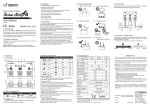
Select the component you want to
add e.g. Chart, Portfolio, Matrix,
Quote or News.
To create a page:
Click on the Create Page link and enter a name for the
page.
Control the current page. Use the
mouse to view a description of
each button
An empty default screen with a red border will appear
(right). Now select what you want to display (top left).
Supply the details relevant to that display. The example
shows a matrix (quote list) – enter the RICs of the
instruments to be displayed (space or comma separated).
Choose a template (the fields you want to view for these
instruments), or select Custom on Advanced to select
each field individually. Click on Go.
Use these buttons to add or delete
a component
Insert up to four components on a
page to view on BlackBerry or
Windows Mobile handheld
To add a News pane, click in the screen on the right again,
click on the Add below or Add above button, then select
News from the drop-down (top left). Then specify the news
code or text keyword.
Sample screen bordered in red.
Click here before you select the
component you want to add (top
left)
Click on the Save Screen button to save the details.
These are pages you have already
created. To edit a page, just click
on it
Shared Pages
Click the Shared page button to share your page with
other users in your organisation. Click the Import Page link
to find pages that other users have shared.
Watchlists
Watchlists are not supported by the Page Builder.
Although, custom templates can be created by the
administrator.
RSS Feeds (Executive Channel)
A list of RSS feeds can be defined via the RSS Feeds
page builder role. This is an administrator only function.
© Thomson Reuters 2013