1
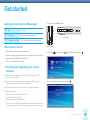
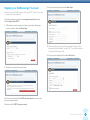
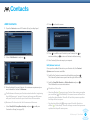
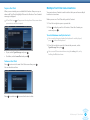
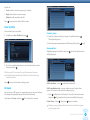
If you have not got a wireless connection saved, select New Connection
and enter the network details. See Network section of your PSP™ Quick
Reference guide.
The system checks your connection.
When a successful connection is made, the green wireless connection
indicator
lights up.
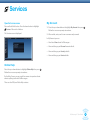
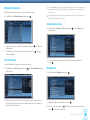
4 Network Update checks for new system software. Press
download the new system software.
to
Downloading the Go!Messenger™ software
With the right system software installed, you can now download the
Go!Messenger™ software to your PSP.
Please make sure you have at least 23MB memory available on
your Memory Stick Duo™.
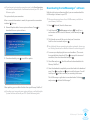
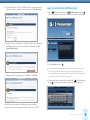
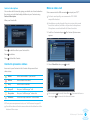
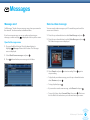
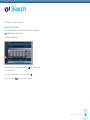
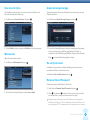
1 Select
(Network) from the Home menu.
2 Scroll down to
Go!Messenger and press . You will see a
confirmation screen to start the browser, select Yes and press
to start.
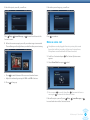
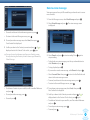
3 The Network screen will ask you to select your Connection.
Scroll to select a network and press .
For additional help on connecting to wireless networks, please see
our ‘Getting Connected to a Wireless Network’ section on page 26.
5 Once downloaded, press
to install the update.
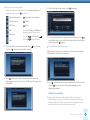
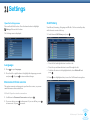
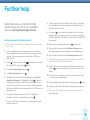
4 A screen opens displaying the terms and conditions. (These must
be accepted before download.) Press
to accept the terms and
conditions, then select download and press .
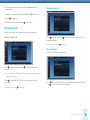
5 Select Yes and press
Memory Stick Duo™.
. Two files will now be downloaded to the
6 Once the download is completed you are taken back to the download
page. Press to confirm and again to exit the browser. You will
need to press for Yes to confirm you are exiting the browser.
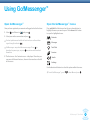
The Go!Messenger™ application is now downloaded. Selecting
and pressing will start Go!Messenger™.
After updating, you can delete the data from your Memory Stick Duo™.
For other ways to upgrade your system software, see Updating the
System Software section of your PSP™ Quick Reference guide.
Go!Messenger™ User Guide
6