1
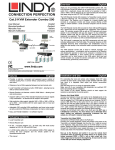
2 Port USB Cable KM Switch User Manual Benutzerhandbuch Manuel Utilisateur Manuale d’uso Eng li sh Deutsch Français Italiano No. 32165 www.lindy.com Tested to Comply with FCC Standards For Home and Office Use! © LINDY ELECTRONICS LIMITED & LINDY-ELEKTRONIK GMBH - FIRST EDITION (September 2013) User Manual English Introduction Thank you for purchasing the LINDY 2 Port USB Cable Keyboard & Mouse Switch. This KM Switch is cross compatible with Windows, Mac & Linux OS and allows you to control two PCs with independent displays from a single Keyboard & Mouse. As well as Hotkey switching, unique software allows you switch computers by simply moving your mouse from one monitor to the other*. True Transparent USB emulation technology also allows the KM Switch to recognize specific Keyboard & Mouse models,with access to all of their functions giving the KM Switch near universal compatibility. Simple to set-up and compatible with a wide rage of LINDY USB Extenders the KM switch is ideal for Education, SME, professional or home use. Helping you make the most of your IT equipment. Note: Software needs to be installed before using any of the switching features. *Not available on Linux. Package Contents 2 Port USB Cable Keyboard & Mouse Switch Software Disc This manual Features Easily switch between connected PCs Compatible with popular OS platforms True Transparent USB emulation Compact size Simple installation Specification Host Interface PC Port Device Port Supported OS* Power Dimensions (WxDXH) Power consumption USB 2.0 USB Type A (Male) 1.1m cable x 2 USB Type A (Female) Windows 8, Windows 7, Vista, XP, 98 Mac OS 10.8.3 Linux Ubuntu 12.10 – limited to hot key switching Bus Powered 28 x 80 x 20mm 5V / 105mA (Max) User Manual English Installation The KM Switch allows a cross compatible setup between desktops or laptops running different OS platforms. It can also be used with Windows Tablet PCs. Installation is a simple process and you do not have to turn off the computer before making connections to the KM switch. For Windows, Mac & Linux - Quickstart 1. Connect the shared USB Keyboard & Mouse to the KM switch via the female USB ports. 2. Connect the two computers that will share the Keyboard & Mouse to the KM switch via the USB cables. 3. The KM Switch will be ready to use via Hotkeys ONLY. For Windows and Mac 1. For both Windows & Mac systems install the KM switch driver software on to both computers from the Software CD. Follow the auto-run instruction to complete the installation. When the installation is complete, you will see a KM switch icon (see below samples) on the system tray of your desktop. User Manual English Operation Command Hotkeys Select PC port ScrLk + ScrLk + (1~2) 1~2 for PC port number. Selects the active PC port Next lower PC port ScrLk + ScrLk + Up Arrow Selects the next lower connected PC port Next higher PC port ScrLk + ScrLk + Down Arrow Previous PC port ScrLk + ScrLk + Backspace Switching software Right-click the KVM Switching icon to open the operation menu and select the computer you wish to use Description Selects the next higher connected PC port Toggle between the last & current port Note: Switching by moving the mouse from monitor to monitor is limited to Windows & Mac OS. Note: For Mac system, if the KM switch does not work after installation locate the KMSwitcher.app file in the application folder and double click on this file to start the program. Benutzerhandbuch Deutsch Einführung Dieser KM Switch (Tastatur- & Maus-Umschalter) ist kompatibel mit Windows, Mac & Linux und erlaubt das Umschalten zwischen zwei Rechnern mit jeweils eigenem Monitor durch simples Verschieben des Mauszeigers auf den anderen Bildschirm. Maus und Tastatur werden auf beiden Rechnern genau erkannt so dass dort die zugehörigen Treiber automatisch geladen werden und auch alle Sonderfunktionen zur Verfügung stehen . Hinweis: Installieren Sie auf Windows und Mac Rechnern die beiliegende Software um die erweiterten Funktionen dieses KM Switche verwenden zu können – nicht verfügbar für Linux. Lieferumfang 2 Port USB KM Switch Software CD Dieses Handbuch Eigenschaften Einfaches Umschalten zwischen der Bedienung von zwei Rechnern Kompatibel mit Windows, Mac OS und Linux Transparente USB Emulation Äußerst kompakt Einfache Installation Spezifikationen Host Interface Rechneranschluss Device Anschluss Unterstützt Systeme USB 2.0 USB Type A (Stecker) ca. 1,1m Kabel für jeden Rechner USB Type A (Buchse) x2 Windows 8, Windows 7, Vista, XP, 98 Mac OS 10.8.3 Linux Ubuntu 12.10 – ausschließliches Umschalten via Hotkey, s.u. Stromversorgung USB Bus Powered Abmessungen (BxTxH) 3 x 8 x 2 cm (ca.) Leistungsaufnahme 5V / 105mA (typisch) Benutzerhandbuch Deutsch Installation Der KM Switch erlaubt auch den gemischten Betrieb an Notebooks, Desktoprechnern, Windows Tablets mit USB HID Unterstützung sowie unter den verschiedenen Betriebssystemen. Die Installation ist einfach, nur anstecken, Sie müssen die Rechner nicht mal ausschalten. 1. Schließen Sie Ihre Maus und Tastatur an den KM Switch an 2. Schließen Sie den KM Switch an die Rechner an 3. Nach der vollautomatischen Treiberinstallation können Sie nun die Hotkey-Umschaltung (s.u.) verwenden Für Windows und Mac 2. Installieren Sie die Software von der beiliegenden CD auf beiden Rechnern. Schalten Sie die Autostart Funktion für das CD Laufwerk ein falls sie ausgeschaltet ist und legen Sie die CD ein. Folgen Sie den Anweisungen im Autostart-Fenster. 3. Nach Abschluss der Installation ist ein KM Switch Icon in der Taskleiste bzw. im Dock : Keine Verbindung mit KM Switch PC Port 1 ausgewählt & aktiv PC Port 2 ausgewählt & aktiv Benutzerhandbuch Deutsch Betrieb Kommando Hotkey Auswahl PC Port Rollen + Rollen + (1~2) 1~2 für jeweiligen PC Port Wählt den aktiven Port direkt aus Nächst niedrigen PC Port Rollen + Rollen + Cursor nach oben Taste Wählt den nächst niedrigeren Port aus Nächst höheren PC Port Rollen + Rollen + Cursor nach unten Taste Vorherigen PC Port Rollen + Rollen + Löschen Taste Umschalt-Software Rechts-Klick auf das Icon öffnet das Umschaltmenü auf dem Bildschirm, wählen Sie dort die Aktion aus Beschreibung Wählt den nächst höheren Port aus Wechselt zum vorhergehenden Port HINWEIS: Das Umschalten durch Bewegen des Mauscursor auf den andern Bildschirm ist ausschließlich unter Windows und Mac OS verfügbar! HINWEIS: Mac Systeme, Falls das Umschalten nicht korrekt funktioniert nach Installation der Software Suchen Sie die « KMSwitcher.app » Datei im Programm/Anwendungsordner und Doppelklicken Sie auf die App um sie erneut zu starten. Manuel Utilisateur Français Introduction Merci d’avoir choisi ce commutateur KM USB 2 ports LINDY (2 Port USB Cable Keyboard & Mouse Switch). Ce commutateur KM est compatible entre les systèmes Windows, Mac & Linux OS et vous permet de contrôler deux ordinateurs ayant un affichage indépendant, à partir d’un ensemble souris & clavier unique. Une séquence de raccourci clavier ainsi qu’un logiciel permettent de commuter d’un ordinateur à l’autre, simplement, en déplaçant la souris d’un écran à l’autre*. La technologie True Transparent d’émulation USB permet au commutateur KM de reconnaitre les modèles spécifiques de claviers & souris, avec un accès à l’ensemble de leurs fonctions qui donne au commutateur KM une compatibilité quasi universelle. Simple à paramétrer et compatible avec une large gamme d’Extender USB LINDY le commutateur KM est idéal dans les milieux de l’éducation, des PME, pour un usage professionnel ou privé. Il vous aidera à tirer le meilleur parti de votre équipement informatique. Note: le logiciel doit être installé avant de pouvoir utiliser la fonction de commutation. *Non disponible sur Linux. Contenu Commutateur KM USB 2 ports (2 Port USB Cable Keyboard & Mouse Switch) CD avec logiciel Ce manuel Caractéristiques Commutation simplifiée entre les ordinateurs connectés Compatible avec les systèmes d’exploitations les plus populaires Emulation USB True Transparent Taille compacte Simple à installer Spécification Interface hôte Port PC Port périphérique OS* pris en charge Alimentation Dimensions (LxPXH) Consommation USB 2.0 Câble USB type A (mâle) 1.1m x 2 USB Type A (Female) Windows 8, Windows 7, Vista, XP, 98 Mac OS 10.8.3 Linux Ubuntu 12.10 – limited to hot key switching Alimenté par le Bus USB 28 x 80 x 20mm 5V / 105mA (Max) Manuel Utilisateur Français Installation Le commutateur KM permet une configuration multi-plateformes entre des ordinateurs de bureau ou portables fonctionnants sous différents OS. Il peut également être utilisé avec des PC tablette sour Windows. Le processus d’installation est très simple et ne nécessite pas l’arrêt des ordinateurs avant de procéder aux connexions du commutateur KM. Pour Windows, Mac & Linux – Démarrage rapide 1. Connectez les clavier & souris USB partagés au commutateur KM via les ports USB femelles. 2. Connectez les deux ordinateurs qui partageront clavier & souris au commutateur KM via les câbles USB. 3. Le commutateur est prêt à être utilisé avec les raccourcis clavier UNIQUEMENT. Pour Windows et Mac Pour les deux systèmes, Windows & Mac, installez sur les deux ordinateurs les pilotes (KM switch driver software) présents sur le CD d’installation. Suivez les instructions pour compléter l’installation. Une fois celle-ci finalisée, vous trouverez une icône KM switch (voir les exemples ci-dessous) au niveau de la barre des tâches sur le bureau de votre système d’exploitation. Manuel Utilisateur Français Utilisation Commandes Sélection du port PC Raccourcis clavier (Hotkeys) Logiciel de commutation Arrêt Défil. + Arrêt Défil. + (1~2) 1~2 pour le numéro du port PC. Sélection du port PC actif Arrêt Défil. + Arrêt Port PC au niveau supérieur Défil. + flêche vers le haut Port PC au niveau inférieur Arrêt Défil. + Arrêt Défil. + flêche vers le bas Port PC précédent Arrêt Défil. + Arrêt Défil. + retour arrière Description Sélection du port PC de niveau supérieur Cliquez à droite sur l’icône KVM Switching pour ouvrir le menu de réglage et sélectionnez l’ordinateur que vous souhaitez utiliser Sélection du port PC de niveau inférieur Basculer entre le port PC précédent & courant Note: la commutation par déplacement de la souris entre les moniteurs est limitée aux systèmes Windows & Mac OS. Note: Pour les systèmes sous Mac, si le commutateur KM ne fonctionne pas après son installation , localisez le fichier KMSwitcher.app dans le répertoire des applications et double cliquez sur ce fichier pour démarrer le programme. Manuale d’uso Italiano Introduzione Grazie per aver acquistato lo Switch a 2 porte per Mouse e Tastiera su cavo LINDY. Questo KM (Keyboard & Mouse) Switch è compatibile con sistemi Windows, Mac & Linux e vi permetterà di controllare due computer con monitor indipendenti da una singola tastiera e mouse. Oltre alla commutazione con Hotkey, è possibile passare dal controllo di un pc all’altro semplicemente spostando il mouse da un monitor all’altro grazie ad un software dedicato*. Emulazione USB True Trasparent che consente ai computer di riconoscere ed utilizzare modelli specifici di tastiere e mouse con accesso a tutte le funzioni avanzate non presenti su tastiere standard. Semplice da installare e compatibile con un ampio range di extender USB LINDY questo KM Switch è ideale per ambienti come scuole, piccole e medie aziende o per un utilizzo domestico aiutandovi ad ottimizzare al meglio le risorse disponibili. Nota: Il software va installato prima di utilizzare qualsiasi funzionalità di switch. * Non disponibile per LINUX Contenuto della confezione Switch KM 2 Porte USB Disco Software Questo manuale Manuale d’uso Italiano Caratteristiche Commutazione semplice tra i computer collegati Compatibile con i sistemi operativi più diffusi Emulazione USB True Transparent Design compatto Installazione rapida ed intuitiva Specifiche Interfaccia: Connessione PC: Connessione Periferiche : Sistemi Supportati* Alimentazione Dimensioni (LxPXA) Consumo corrente USB 2.0 Cavo USB Tipo A (Maschio) 1.1m x 2 USB Tipo A (Femmina) Windows 8, Windows 7, Vista, XP, 98 Mac OS 10.8.3 Linux Ubuntu 12.10 – Commutazione solo tramite Hotkey Alimentato dal Bus USB 28 x 80 x 20mm 5V / 105mA (Max) Manuale d’uso Italiano Installazione Il KM Switch consente l’installazione su PC operanti con diversi sistemi operativi. Può essere utilizzato anche con Tablet PC Windows. Installation is a simple process and you do not have to turn off the computer before making connections to the KM switch. Per Windows, Mac & Linux – Guida rapida 4. Collegate tastiera e mouse condivisi al KM switch tramite le porte USB femmina. 5. Collegate i due computer che dovranno condividere mouse e tastiere con i cavi USB integrati nel KM switch. 6. Il KM Switch è ora pronto per funzionare tramite i solo comandi Hotkey Per Windows e Mac 4. Su sistemi Windows e Mac installate i driver software forniti con il Software CD. Seguite la procedura avviata dall’ auto-run per completare l’installazione. Quando l’installazione sarà completata comparirà l’icona KM Switch nella system tray del vostro desktop (potete vederne un esempio di seguito). Manuale d’uso Italiano Utilizzo Comando Hotkey Selezione di un PC Bloc Scorr + Bloc Scorr + (1 o 2) 1 o 2 indica la porta da selezionare. Selects the active PC port Porta PC precedente Bloc Scorr + Bloc Scorr + Freccia Su Seleziona la porta PC precedente Porta PC seguente Bloc Scorr + Bloc Scorr + Freccia Giù Porta PC selezionata precedentemente Bloc Scorr + Bloc Scorr + Backspace Commutazione via software Fate click con il tasto destro sull’icona del software KM switch e selezionate il PC da controllare Descrizione Seleziona la porta PC seguente Scorre fra la precendete porta selezionata e la corrente Nota: la selezione effettuata muovendo il puntatore del mouse da uno schermo all’altro funziona solo su sistemi Windows e Mac. Nota: Per sistemi Ma, se il KM switch non funziona dopo l’installazione localizzate il file KMSwitcher.app nella cartella dell’applicazione e fate doppio click su di esso per avviare il programma. CE/FCC Statement CE Certification This equipment complies with the requirements relating to Electromagnetic Compatibility Standards EN55022/EN55024 and the further standards cited therein. It must be used with shielded cables only. It has been manufactured under the scope of RoHS compliance. CE Konformitätserklärung Dieses Produkt entspricht den einschlägigen EMV Richtlinien der EU für IT-Equipment und darf nur zusammen mit abgeschirmten Kabeln verwendet werden. Diese Geräte wurden unter Berücksichtigung der RoHS Vorgaben hergestellt. Die formelle Konformitätserklärung können wir Ihnen auf Anforderung zur Verfügung stellen FCC Certification This equipment has been tested and found to comply with the limits for a Class B digital device, pursuant to part 15 of the FCC Rules. These limits are designed to provide reasonable protection against harmful interference in a residential installation. You are cautioned that changes or modification not expressly approved by the party responsible for compliance could void your authority to operate the equipment. This device complies with part 15 of the FCC Rules. Operation is subject to the following two conditions: 1. This device may not cause harmful interference, and 2. This device must accept any interference received, including interference that may cause undesired operation. LINDY Herstellergarantie – Hinweis für Kunden in Deutschland LINDY gewährt für dieses Produkt über die gesetzliche Regelung in Deutschland hinaus eine zweijährige Herstellergarantie ab Kaufdatum. Die detaillierten Bedingungen dieser Garantie finden Sie auf der LINDY Website aufgelistet bei den AGBs. Recycling Information WEEE (Waste of Electrical and Electronic Equipment), Recycling of Electronic Products Europe, United Kingdom In 2006 the European Union introduced regulations (WEEE) for the collection and recycling of all waste electrical and electronic equipment. It is no longer allowable to simply throw away electrical and electronic equipment. Instead, these products must enter the recycling process. Each individual EU member state has implemented the WEEE regulations into national law in slightly different ways. Please follow your national law when you want to dispose of any electrical or electronic products. More details can be obtained from your national WEEE recycling agency. Germany / Deutschland Die Europäische Union hat mit der WEEE Direktive Regelungen für die Verschrottung und das Recycling von Elektro- und Elektronikprodukten geschaffen. Diese wurden im Elektro- und Elektronikgerätegesetz – ElektroG in deutsches Recht umgesetzt. Dieses Gesetz verbietet das Entsorgen von entsprechenden, auch alten, Elektro- und Elektronikgeräten über die Hausmülltonne! Diese Geräte müssen den lokalen Sammelsystemen bzw. örtlichen Sammelstellen zugeführt werden! Dort werden sie kostenlos entgegen genommen. Die Kosten für den weiteren Recyclingprozess übernimmt die Gesamtheit der Gerätehersteller. France En 2006, l'union Européenne a introduit la nouvelle réglementation (DEEE) pour le recyclage de tout équipement électrique et électronique. Chaque Etat membre de l’ Union Européenne a mis en application la nouvelle réglementation DEEE de manières légèrement différentes. Veuillez suivre le décret d’application correspondant à l’élimination des déchets électriques ou électroniques de votre pays. Italy Nel 2006 l’unione europea ha introdotto regolamentazioni (WEEE) per la raccolta e il riciclo di apparecchi elettrici ed elettronici. Non è più consentito semplicemente gettare queste apparecchiature, devono essere riciclate. Ogni stato membro dell’ EU ha tramutato le direttive WEEE in leggi statali in varie misure. Fare riferimento alle leggi del proprio Stato quando si dispone di un apparecchio elettrico o elettronico. Per ulteriori dettagli fare riferimento alla direttiva WEEE sul riciclaggio del proprio Stato. LINDY No 32165 1st Edition, September 2013 www.lindy.com Tested to Comply with FCC Standards For Home and Office Use!