1
User Manual Addendum
eleVAta Synthesizer
The following changes to the operating system have been implemented from V1.11 and above:
PROGRAM MODE - MIDI CHANNEL: The MIDI channel selection in the PROGRAM menu will be applied globally
to all programs. This setting is memorised on power-down.
MIDI RECEIVE INDICATION: The [AUDITION] button indicator will flash when MIDI notes are received.
NOTE RANGE - HIGH/LOW: The note range has been increased to 0-127 (additional 27 notes at the top end).
ARPEGGIATOR: In PROGRAM mode, the arpeggiator menu selection for MIDI channel [CHAN] will be dis-abled.
The arpeggiator will be automatically set to the current global MIDI channel.
NOTE: Applies to PROGRAM mode only - this menu selection will still be active in MULTI mode.
UTILITY MODE - MULTI MODE MASTER MIDI CHANNEL: The [OFF] selection has been removed.
PROGRAM SELECT: The [VALUE/PROGRAM] encoder [PRESS] function has been removed for recalling
programs and multi’s - i.e. this control will now instantly update any parameter shown on the display.
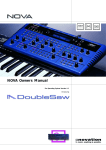
eleVAta OWNERS MANUAL
Introduction
eleVAta SYNTHESIS
VIRTUAL
ANALOG
16 VOICE POLYPHONIC SYNTHESIZER
Thank you for purchasing the RED Sound eleVAta 16-voice polyphonic synthesizer.
The Analogue Synthesizer, mainstay of Seventies' and Eighties' music, is back, reinvented in a new, more reliable
and flexible form. Physical modelling via powerful DSPs (Digital Signal Processors) allow all the warmth and control
of the synthesizers of yesteryear without the problems of unstable tuning and unrepeatable sounds, and with
modern benefits like realtime control and multitimbral access.
Welcome to eleVAta, a 16-voice polyphonic synthesizer with all the highlights of the analog tradition, Pulse Width
Modulation, Ring Mod, Resonant Filtering and ADSR Enveloping, combined with all the advantages of modern
MIDI instruments like rock-solid tuning, perfect program recall, velocity response and 8 different timbres
simultaneously available via 6 independent outputs.
So whether your aim is to recreate 'classic' timbres like 70's Disco Bassline / Screaming PWM Lead, chart new
sonic territory with realtime joystick manipulation of parameters such as filter frequency/resonance, or even
combine both approaches in the same MIDI sequence, eleVAta is the perfect tool for you.
With its ingenious ‘elevating’ front panel, eleVAta is as much at home on your studio desktop as it is in any
conventional 3U rack space giving total flexibility in one unit like never before.
In the future, eleVAta's capabilities will grow thanks to the ability to plug-in up to 3 extra EPROM-based DSP
algorithms. This will allow you to use eleVAta’s hardware to produce many different sound generating applications
such as a vocoders.
But eleVAta already offers so much with its marriage of proven synthesis techniques and state-of-the-art control.
Now it's time to unlock the potential of analogue-style synthesis with modern control techniques in your music.
Be creative and elevate your music to new levels!
PAGE
The evolution of synthesis!
OWNERS MANUAL
1
eleVAta - Polyphonic Synthesizer
PAGE
MOD
WAVEFORM
2
ENV 2
ENV 1
15
DECAY
ATTACK
Envelopes
OSC 2
OSC 1
Oscillators
1
MENU
ANALOG
16 VOICE POLYPHONIC SYNTHESIZER
MENU
RELEASE PORTAMenTO
MOD
PULSE WIDTH DETUNE
VIRTUAL
SUSTAIN
MOD
PITCH
AUTO PAN
tremolo
14
MOD
PANNING
MOD
LEVEL
MOD
Filter
3
MENU
MASTER
VOLUME
MOD
MENU
LFO 1
SPEED
LFOs
13
1
5
2
6
7
12
3
Multi-timbral Parts
MOD
RING MOD FREQUENCY Resonance ENV MOD
Output
MOD
OSC MIX
Mixer
2
4
8
MULTI
11
MENU
MODE
MENU
WAVEFORM
PROGRAM
LFO 2
DELAY
4
comp
NEXT
X
10
www.redsound.com
utility
MENU
Midi
LAST
save
Menus
hold
Joystick
Parameter
5
MENU
on / off
Arp
Y
EDIT
Value
9
AUDITION
SOUND
WIZARD
( push)
VALUE /
program
d
e
m
o
6
8
the colour of music
Red Sound
7
Front Panel
Front Panel Features
FRONT PANEL FEATURES
1. OSCILLATORS: This section features [WAVEFORM], [PITCH MOD], [PULSE WIDTH] and [DETUNE] rotary
controls for each oscillator. Also included are buttons for the oscillator MENU, oscillator 1 & 2 select modes and
oscillator modulation parameters.
2. MIXER: This section features the [OSC MIX] & [RING MOD] rotary controls for the oscillators. Also included are
buttons for the modulation parameters.
3. FILTER: This section features [FREQUENCY], [RESONANCE] and [ENV MOD] rotary controls for the filter. Also
included are buttons for the filter MENU and filter modulation parameters.
4. LFO’s: This section features [SPEED], [DELAY] and [WAVEFORM] rotary controls for both LFOs. Also included
are buttons for the LFO MENU and LFO 1 & 2 select modes.
5. PARAMETER/VALUE DISPLAY: This bright 8-digit alpha/numeric display shows program numbers, parameter
information and edit values.
6. JOYSTICK: The joystick mixer can be assigned to a number of different parameters. For example, the filter
[FREQUENCY] and [RESONANCE] parameters can be assigned to the joystick for unsurpassed ‘hands-on’ voice
editing. A button to activate [HOLD] mode is also included.
7. MASTER EDIT ENCODER: This tactile rotary encoder is used to select programs, change parameters and
increment/decrement edit values.
8. SOUND WIZARD: This button activates the sound wizard and its menus. This function will create totally new
sounds by throwing ‘wild cards’ for some/all of the synthesizer parameters.
9. AUDITION: This button can be used to trigger the currently selected PROGRAM or multi-timbral PART. As well
as single note triggers’ there are chords, riffs and patterns to choose from. The DEMO sequence can also be
accessed using a combination of this button and the [SOUND WIZARD] button.
10. ARPEGGIATOR: This section includes buttons for controlling the on-board arpeggiator and its various MENU
functions.
11. MENUS: This section includes buttons for the MIDI MENU and UTILITY MENU. Also included are the MENU
[NEXT] and [LAST] buttons for paging up and down the selected menu functions.
12. MULTI-TIMBRAL PARTS: This section includes buttons for selecting the 8 Multi-timbral ‘PARTS’. You can
create and store 8 totally different sounds in each MULTI program. Also included are switches for the PART MENU
and program/multi select modes.
13. HEADPHONE MONITOR: This is where you connect headphones to monitor the output [master left/right only].
14. OUTPUT: This section features [LEVEL], [PANNING] and [MASTER VOLUME] rotary controls. Also included
are buttons for the OUTPUT MENU and output modulation parameters.
PAGE
15. ENVELOPES: This section features [ATTACK], [DECAY], [SUSTAIN] and [RELEASE] rotary controls for each
envelope. Also included are the [PORTAMENTO] control, buttons for the envelope MENU and envelope 1 & 2
select modes.
OWNERS MANUAL
3
6
MADE IN ENGLAND
ON/OFF
+
9 V DC
LEFT [1]
MAIN
3
5
SUB 1
4
4. EXTERNAL INPUTS 1&2 - Jack Connectors
Use these sockets to connect any external line level sound sources to
eleVAta for filter/envelope processing whilst using MIDI control.
5. OUTPUT SECTION - Jack Connectors
Use the [MAIN] sockets to connect the master stereo output of eleVAta to
your mixing desk or amplification system. The [SUB 1] and [SUB 2]
sockets can be used when further individual outputs are required.
SUB 2
6
TWO
4
ONE
EXTERNAL I/P
6. POWER SECTION - Switch/Connector
Use the switch to turn the power on and off. Only use the 9vDC 1.33 mA
PSU supplied with eleVAta to power the unit.
1
Red Sound
eleVAta - Polyphonic Synthesizer
PAGE
CAUTION:
DO NOT OPEN CASE OTHER THAN TO FIT/REMOVE MODULES. REFER TO
QUALIFIED SERVICE PERSONNEL. NO USER SERVICEABLE PARTS INSIDE.
ANALOG
16 VOICE POLYPHONIC SYNTHESIZER
VIRTUAL
the colour of music
EXTERNAL
JOYSTICK
THRU
2
OUT
MIDI
IN
3
MIC/LINE
[OPTIONAL]
VOC I/P
2. MIDI IN/OUT/THRU - DIN Connectors
MIDI data will be transmitted and received by these connectors.
3. VOCODER INPUT - Jack Connector
Use this socket to connect the microphone input/control signal to eleVAta
ONLY when the optional VOCODA conversion is installed.
5
OUTPUTS
1. EXTERNAL JOYSTICK - DIN Connector
Use this socket to connect the optional remote joystick to eleVAta.
RIGHT [2]
POWER
Rear Panel
4
PAGE
CAUTION:
DO NOT OPEN CASE OTHER THAN TO FIT/REMOVE MODULES. REFER TO
QUALIFIED SERVICE PERSONNEL. NO USER SERVICEABLE PARTS INSIDE.
ANALOG
16 VOICE POLYPHONIC SYNTHESIZER
VIRTUAL
5
or...
EXTERNAL
JOYSTICK
THRU
or...
MIDI IN
OUT
MIDI OUT
or...
MIDI KEYBOARD
IN
MIDI OUT
MIC/LINE
[OPTIONAL]
VOC I/P
MIDI SEQUENCER
MIDI
Pin assignment Balanced Mic I/P
Hot
Cold
Ground
MIDI IN
Pin assignment Mono line level I/P
Line
N/C
Ground
OTHER MIDI DEVICE
MIDI IN
the colour of music
Red Sound
For full details please see
VOCODA conversion
operation manual
VOCODA OPTION INPUTS
TWO
ONE
EXTERNAL I/P
6
SUB 2
5
4
SUB 1
LEFT [1]
MAIN
RIGHT [2]
RED PSU
TO
AC WALL
SOCKET
MADE IN ENGLAND
ON/OFF
POWER
+
9 V DC
-
STUDIO MIXING DESK
or AMPLIFIER
3
OUTPUTS
EXTERNAL MIDI DRIVEN SOUND SOURCE 1
EXTERNAL MIDI DRIVEN SOUND SOURCE 2
Connections
OWNERS MANUAL
Front Panel Elevation
MULTI-POSITION FRONT PANEL
eleVAta’s ingenious chassis design allows you choose between desktop mode (with a choice of convenient angled
elevations to suit your requirement) or 19” rack mode when vertical.
RAISING THE PANEL: To raise the front control panel from the shipped flat position, hold each side of the control
panel near the top corners and lift it up and towards you, as shown below:
WARNING!
DISCONNECT POWER BEFORE
ATTEMPTING TO OPEN THIS COVER.
2
E PROM
the colour of music
Mixer
Oscillators
Filter
LFOs
EPROM
VIRTUAL
ANALOG
16 VOICE POLYPHONIC SYNTHESIZER
Red Sound
EPROM
BEFORE CLOSING COVER, CHECK
FOR LOOSE OBJECTS INSIDE.
EPROM
CONVERTOR MODULE
DOCKING BAY
NEVER FIT/REMOVE CONVERTOR
BOARDS WHEN POWER IS ON.
2
E PROM
1
2
2
E PROM
Parameter
3
Value
Red Sound
the colour of music
OSC 1
WAVEFORM
PITCH
PULSE WIDTH DETUNE
OSC MIX
RING MOD FREQUENCY Resonance ENV MOD
SPEED
DELAY
WAVEFORM
Joystick
EDIT
Y
OSC 2
MOD
MOD
MOD
MOD
MENU
Envelopes
MOD
MOD
Output
MOD
LFO 1
MENU
LFO 2
MENU
X
Multi-timbral Parts
save
comp
MULTI
DECAY
SUSTAIN
LEVEL
PANNING
tremolo
AUTO PAN
MASTER
VOLUME
MOD
MOD
MENU
RELEASE PORTAMenTO
1
2
3
4
( push)
Arp
Menus
PROGRAM
ATTACK
VALUE /
program
hold
LAST
MODE
NEXT
MENU
on / off
d
e
m
o
SOUND
WIZARD
VIRTUAL
ENV 1
ENV 2
ANALOG
16 VOICE POLYPHONIC SYNTHESIZER
MENU
5
6
7
8
MENU
Midi
utility
MENU
AUDITION
www.redsound.com
The chrome supports on either side of the chassis automatically drop into 3 sets of locators in the runners of the
side panels to lock the control panel in one of three pre-determined positions, as shown below:
POSITION ONE - FLAT
POSITION TWO - 45 DEGREES
19” Rack
POSITION THREE - 65 DEGREES
POSITION FOUR - VERTICAL
(use this position to mount in 19” rack)
eleVAta - Polyphonic Synthesizer
PAGE
LOWERING THE PANEL: First you need to release the support arms from their locators. Tilt the control panel
forwards then, using one hand at either side, lift the chrome supports with your index fingers simultaneously before
lowering the panel backwards to the next set of locators, or all the way down to the flat ‘parked’ position. During
panel movements like this you will need to keep continuous upwards pressure on the supports to avoid them
dropping down into their locators.
6
Quick Start
QUICK START
If you want to quickly try out the performance of eleVAta, please read the following points carefully:
CONNECTIONS: Before making any connections, make sure that the power on all your equipment is turned OFF.
Connect the power supply (included) to the ‘power in’ socket on the rear panel of eleVAta and plug it into a suitable
AC outlet. Connect the audio cables for a basic system setup as shown on page 5.
TURNING ON THE POWER: Make sure all connections have been made correctly and the volume controls on the
mixing desk and amplifier system are turned completely down. Press the rear panel power switch on eleVAta. Turn
on the power of the mixing desk and then turn on the power of the amplifier system.
POWER UP INDICATIONS: When eleVAta is powered up, the main display will show the software version whilst
various parameters are being set internally. After a few seconds the display will show the PROGRAM number
[PROG - 01]. If this does not happen, check the power supply is of the correct type and the unit was switched on
correctly.
PLAYING THE DEMO: To run the demonstration sequence, first press and hold down the [AUDITION] button and
then press the [SOUND WIZARD] button once. To stop the demo, simply press the [AUDITION] button again.
SETTING THE MIDI CHANNEL: Set your MIDI keyboard to transmit on channel 1 (this is the default PROGRAM
mode MIDI channel).
SELECTING PROGRAMS: First, ensure the [MODE] button in the MULTI-TIMBRAL PARTS section is set to
program mode [indicator OFF]. To select the factory programs press the [VALUE/PROGRAM] encoder knob once
and ensure the ‘PROG’ display is flashing. Now rotate the [VALUE/PROGRAM] encoder to select other sounds.
There are two banks of 128 programs, one containing the factory sounds and the other for storing your own user
sounds [marked with in the display]. eleVAta is shipped with the factory sounds copied into the user program
section.
*
Use the [AUDITION] button or connected MIDI keyboard to trigger the sounds. You can modify the sounds in realtime by altering controls in the OSCILLATOR, FILTER, ENVELOPE, JOYSTICK and LFO sections etc.
Please read the following “OPERATION” section carefully to fully appreciate the range of features and facilities the
eleVAta 16-Voice Synthesizer has to offer.
GETTING STARTED
After connecting eleVAta to your system as detailed on page 5, press IN the power switch on the rear panel to turn
the power on. As the software initialises (takes approximately 3 seconds) the main display will show a welcome
message indicating the software version fitted to your unit, as shown below:
Parameter
Value
Software version = 1.01
Afterwards, the last selected program (before power was switched off at the previous session) will be recalled and
displayed as follows:
Parameter
Value
Selected program = PROGRAM 1
PAGE
eleVAta is now ready to use.
OWNERS MANUAL
7
Operation
PROGRAM MODE - Selecting, editing and saving sounds
eleVAta has two basic modes of operation, PROGRAM mode and MULTI mode. Program mode allows you to work
on single sounds with up to 16 note polyphony and you can store these sounds in any of the 128 USER program
memories. There are also 128 factory ROM programs which cannot be overwritten. For further details on MULTI
mode operation please see page 27 later in the manual.
SELECTING PROGRAM MODE
To select PROGRAM mode, locate the MODE button in the MULTI-TIMBRAL PARTS section and ensure the
indicator is OFF, as shown below:
PROGRAM
MULTI
1
2
5
3
6
4
MODE
7
8
Press this button to extinguish
the indicator Off = PROGRAM mode
MENU
This button sets the basic operating mode for eleVAta. Each press will change the mode, the indicator within the
button showing the status as follows:
Off: PROGRAM mode is selected.
On: MULTI-TIMBRAL mode is selected.
PROGRAM MENU
The [MENU] button in this section lets you edit parameters such as POLYPHONY, GLOBAL MIDI CHANNEL,
TRANSPOSE etc for each sound in PROGRAM mode. For full details on the menu list, functions and settings
please see page 28.
AUDITION Button
This feature allows you to trigger sounds whilst working at the front control panel. There are single note triggers
and patterns to choose from enabling you to try sounds in a number of different ways. Each press of the
[AUDITION] button will re-trigger the sound and the [VALUE/PROGRAM] encoder can be used to change the
trigger pattern, as shown in the following examples:
Parameter
d
e
m
o
d
e
m
o
SOUND
WIZARD
AUDITION
Press once to
trigger sound
2
SOUND
WIZARD
AUDITION
Playing a sound
EDIT
Display shows current
AUDITION pattern
VALUE /
program
1
Press & hold
( push)
3
Rotate to change trigger pattern
Changing the AUDITION trigger pattern
PAGE
The selected trigger type will be stored with the program when saved.
eleVAta - Polyphonic Synthesizer
Value
8
Operation
DEMONSTRATION SEQUENCE
To play the eleVAta demo sequence, first press and hold down the [AUDITION] button, then press the [SOUND
WIZARD] button once, as shown in the following example:
To play the demo...
d
e
m
o
2 Press once
SOUND
WIZARD
AUDITION
1 Press and hold
To stop the demo at any time simply press the [AUDITION] button once.
SELECTING PROGRAMS
To change the current program you must first ensure that there are no [MENU] or [MOD] functions activated on the
front panel (check for any lighted indicators in the [MENU] buttons and/or flashing indicators in the [MOD] buttons.
With these other functions cancelled, [PROGRAM] mode will be automatically activated as indicated by the main
display. The [VALUE/PROGRAM] encoder can now be used to call-up other programs, as shown below:
Value
Parameter
EDIT
VALUE /
program
( push)
1 Display shows current PROGRAM number
2 Press once then rotate to change PROGRAM
Value
Parameter
EDIT
VALUE /
program
( push)
‘PROG’ letters flash
3 Display
to indicate PROGRAM SELECT mode
4 Todisplayed
‘lock-in’ the desired program press knob ‘PROG’ letters now stop flashing
The ‘PROG’ section of the display will flash during program select mode. When you have found the sound you
want, press the [VALUE/PROGRAM] encoder knob again to ‘lock-in’ the program.
The bank of ‘user’ programable PROGRAM’s (and ‘user’ programable MULTI’s) are identified in the main display
with an asterisk, as shown below:
Parameter
Value
Parameter
USER program bank - PROGRAM 35
Value
FACTORY ROM program bank - PROGRAM 35
PAGE
NOTE: You can only store sounds in the USER program/multi memories. If you attempt to save a sound in the
factory ROM locations the display will briefly show [ROM PROG] or [ROM MULT] and abort the save operation.
OWNERS MANUAL
9
Operation
SAVING AND COMPARING SOUNDS
Once a sound has been edited (any control moved or function changed) the [EDIT] and [SAVE] indicators will start
to flash, warning that the program memory setup has been changed, as shown below:
Menus
save
EDIT
comp
LAST
Both flash when program
setup has been edited
NEXT
MENU
VALUE /
program
( push)
Midi
utility
www.redsound.com
NOTE: The [SAVE] and [COMPARE] buttons are dual function (also control MENU selections) so, if any of the
[MENU] functions are ON, the [SAVE] indicator will not flash and the [SAVE]/[COMPARE] functions will be inactive.
SAVE: To save the edited sound in the same memory location simply press the [SAVE] button once, the display
confirming the save as shown below:
Display shows...
Menus
Parameter
Value
Parameter
Value
save
Press this button
once to store new
sound
comp
LAST
NEXT
MENU
Midi
then...
utility
www.redsound.com
The [EDIT] and [SAVE] indicators will now switch off and the new setup will be stored in memory.
COMPARE: To hear the original sound before overwriting it, press the [COMPARE] button: - once to hear the
original sound, then again to hear the edited version (this operation can be done as many times as necessary,
toggling between the two sounds). When the [COMPARE] function is selected the indicator in the [COMPARE]
button will flash along with the [EDIT] and [SAVE] indicators, as shown below:
Menus
Menus
save
SAVE indicator
flashing alone =
EDITED sound
save
comp
LAST
NEXT
SAVE and COMPARE
indicators flashing together
= ORIGINAL sound
MENU
Midi
NEXT
MENU
Midi
utility
utility
www.redsound.com
PAGE
www.redsound.com
eleVAta - Polyphonic Synthesizer
comp
LAST
10
Press COMPARE
button once to hear
ORIGINAL sound
Operation
SAVING TO A NEW PROGRAM LOCATION: To save the edited sound in any other user program location first
activate the [COMPARE] function, then use the [VALUE/PROGRAM] encoder to select a new program number and
finally, press the [SAVE] button to store the sound, as shown in the following example:
Original factory ROM PROGRAM number 5
1
Menus
Parameter
Value
Press COMPARE
button once
save
comp
3
LAST
NEXT
New user PROGRAM number 18
MENU
EDIT
Parameter
Press once to SAVE
new sound and overwrite selected
PROGRAM
Midi
VALUE /
program
utility
www.redsound.com
Value
2
( push)
Press once then rotate to select new
PROGRAM location as shown above
SOUND WIZARD
This feature lets you create new sounds instantly at the touch of a button. You can choose which sections are
affected (ALL, FILTER, OSCILLATOR etc.) as the software throws ‘wild-cards’ for totally automatic random
parameter setups. Each time the [WIZARD] is used a new sound will appear, which you can then save or edit
further from the front panel controls. To activate the wizard, press and hold down the [SOUND WIZARD] button NOTE: there is a one second safety delay feature to avoid accidental operation. The display will show the default
setting as shown below:
Default WIZARD setting ALL A...
To activate the wizard...
d
e
m
o
SOUND
WIZARD
Parameter
Value
Press and hold
for approx 1 second
AUDITION
As soon as the button is released the wizard will run, the display showing a moving asterisk * followed by ‘WIZARD’
- the sound is now ready to audition. To change the wizard setting, keep the [SOUND WIZARD] button pressed
down, then use the [VALUE/PROGRAM] encoder to select a new format, as shown below:
d
e
m
o
Parameter
SOUND
WIZARD
Value
New WIZARD setting = OSC B
EDIT
AUDITION
Parameter
Value
VALUE /
program
2
( push)
Rotate to select new WIZARD
setting as shown above
PAGE
[ALL A]: All settings 100%
[ALL B]: All settings 50%
[FIT A]: Filter settings 100%
[FIT B]: Filter settings 50%
[OSC A]: Osc settings 100%
[OSC B]: Osc settings 50%
[CNT A]: Env settings 100%
[CNT B]: Env settings 50%
Default WIZARD setting = ALL A
1Hold down
Wizard settings are:
OWNERS MANUAL
11
Operation
OSCILLATOR SECTION
Oscillators
OSC 1
WAVEFORM
PITCH
OSC 2
MOD
MOD
PULSE WIDTH DETUNE
MOD
MENU
This section of eleVAta produces the musical tones which form the basis of subtractive synthesis. There are two
oscillators per ‘voice’ (musical note), each producing audible vibrations to act as a sound source. The timbre of
each oscillator depends on its harmonic content which is determined by the waveform. There are basically two
waveforms available, SAWTOOTH and SQUARE each with its own specific set of harmonics.
Controls for changing the amount of modulation to the waveform, pitch timbre and pulse width of the oscillators are
also included in this section. These timbral and pitch modulations give the oscillator sound more depth and
stimulate musical appeal to the ear. The oscillator source can also be changed in the MENU section with Formant,
Sine wave and Noise selections on offer as well as two inputs for processing external audio signals.
OSC 1 / OSC 2 SELECT buttons
These two buttons are used to select the ‘active’ oscillator [the one that will be edited by the controls in this
section]. When the [OSC1] button indicator is on oscillator 1 will be selected/edited. When the [OSC2] button
indicator is on oscillator 2 will be selected/edited. Selecting each button automatically cancels the other.
WAVEFORM
This control sets the selected oscillator’s waveform. At the minimum setting [WAVE = 0] the waveform will be
shaped like a SAWTOOTH (
) . This waveform contains every harmonic in decreasing volume and produces a
very rich sound. As the control is moved in a clockwise direction the shape progressively changes, becoming more
and more ‘squared-off’ until, at the maximum setting [WAVE = 127] the shape will be a SQUARE or ‘pulse’
waveform ( ) . As a pure square wave (max and min values equal) the harmonic content will be all the oddnumbered harmonics in decreasing volume which gives the sound a hollow or ‘woody’ timbre. The width of the
pulse can also be altered by the [PULSE WIDTH] knob to make the sound thinner.
PITCH
This control sets the basic pitch of each oscillator. At the mid setting [PITCH = 0] the oscillator pitch will be normal.
Example: when a middle C note is played, the oscillator pitch will be true. The pitch can be raised in semitone steps
by rotating the control clockwise [+12, +24, +36 etc on the display indicating each octave above normal]. Similarly,
the pitch can be lowered in semitone steps by rotating the control anti-clockwise [-12, -24, -36 etc on the display
indicating each octave below normal]. Interim semitone settings can be used for 3rd, 5th, 7th tuning etc.
eleVAta - Polyphonic Synthesizer
PAGE
PULSE WIDTH
When the [WAVEFORM] control is set to 64 or above (i.e. a pulse waveform), this control will set the width of the
pulse waveform element. At the minimum setting [PULSE = 0] the fundamental will be at its minimum producing an
extremely thin sound. As the knob is moved in a clockwise direction the pulse width gets wider, with progressively
less high harmonics being added giving the sound a fuller timbre. At the maximum setting [PULSE = 127] the
minimum and maximum values of the pulse width will be equal.
12
Operation
DETUNE
This control sets the fine tuning of the selected oscillator (only when oscillator MODE = FREE or RATIO - see
MENU section below). At the mid setting [DTUN = 0] the oscillators’ tuning will be unaffected. As the knob is moved
in an anti-clockwise direction the oscillators tuning will become more ‘flat’, with a total negative detune of - 2
semitones available at the minimum setting. As the knob is moved in a clockwise direction the oscillators tuning will
become more ‘sharp’, with a total positive detune of + 2 semitones available at the maximum setting. Small
variations in the oscillators relative tuning will fatten up the sound giving it a rich texture. Larger amounts of
detuning create a more extreme effect.
MODULATION BUTTONS [mod]
These three buttons are used to access the modulation settings for the [WAVEFORM], [PITCH] and [PULSE
WIDTH] parameters. Please see the ‘MODULATION MATRIX’ section on page 24 for full details.
OSCILLATOR MENU
This section contains the remaining functions for the OSCILLATOR section. To access these functions, first press
the OSCILLATOR [MENU] button once, then use the menu [LAST] and [NEXT] buttons in the [MENUS] section
(CARE! - these buttons double-up as [SAVE] and [COMPARE] functions when no MENU is selected) to scroll
through the available menus as shown in the following examples:
2
DETUNE
Press this button
to scroll DOWN the
available menus
Menus
Press this button
to scroll UP the
available menus
save
EDIT
comp
LAST
VALUE /
program
NEXT
MENU
( push)
MENU
1
Press to access
OSCILLATOR MENU
(indicator ON)
3Rotate to change MENU settings
Midi
utility
www.redsound.com
When the indicator in the oscillator MENU button is ON, oscillator menu mode is activated (pressing this button
automatically de-selects any other active menu). The indicators in the [LAST] and [NEXT] menu buttons will light to
indicate the current menu position. When the first menu is selected only the [NEXT] indicator will be on, prompting
selection. When the last menu is selected only the [LAST] indicator will be on, again prompting selection. Other
menu selections in between the first and last menu will light both the [LAST] and [NEXT] indicators simultaneously.
Use the master [VALUE/PROGRAM] encoder to edit the menu settings.
There are 3 functions in the oscillator menu as detailed in the following paragraphs.
1. Mode [MODE]: This function allows you to decide how the two oscillators operate. The selections are:
Sync1 [SNC1]: This mode synchronises oscillator 2 to oscillator 1. The oscillator 2 waveform will now restart its
cycle each time oscillator 1 starts its own cycle. The result of this keeps the pitch of both oscillators identical
making a distinct change to the timbre. For the best results use envelope 2 to try and move the pitch of oscillator 2.
The pitch cannot change but you will hear timbral changes to the sound with ‘vocal’ characteristics.
Sync2 [SNC2]: This mode does much the same as [SNYC 1] but on every other period of oscillator 1 - equivalent
to syncing osc 2 to an oscillator with half the frequency of osc 1.
Free [FREE]: The two oscillators will run completely independently.
Ratio [RTIO]: This mode keeps osc 2 at a fixed frequency ratio to osc 1 so its pitch modulation is inactive.
PAGE
2. Oscillator Source [SRCE]: This function allows you to select the sound source for each oscillator. The
selections are:
OWNERS MANUAL
13
Operation
Normal [NORM] - This oscillator contains the full range of frequencies.
Formant [FMNT] - This oscillator is formed from a limited band of frequencies.
Sine [SINE] - This oscillator is a pure sine wave.
Pink Noise [NSE1] - PINK noise has the higher frequencies reduced.
White Noise [NSE2]- WHITE noise and has all frequencies at an equal level.
Blue Noise [NSE3] - BLUE noise has the lower frequencies reduced.
External Inputs1&2 [IN 1] [IN 2] - You can switch off all the internal sound generators and instead use the rear
panel connectors marked [EXTERNAL INPUTS 1 - 2] to process MIDI driven external sound sources through the
filter and envelope sections. See page 34 for further details.
3. Key Sync [KEYS]: This function can make the oscillators start each time a MIDI note on command is received.
The selections are:
[OFF]: The oscillators will be free running.
[ON]: The oscillator waveform will always start at the same point when a note ON is received - good for percussive
bass sounds!
MIXER SECTION
Mixer
OSC MIX
RING MOD
MOD
MOD
This section of eleVAta allows you to adjust the relative mix levels of the oscillators (or external audio inputs) and
also add ring modulation. Ring modulation occurs when the two sound sources are multiplied together and this
gives the sound a hard, overdriven edge.
OSC MIX
This control sets the mix level between the two oscillators. Around the mid setting [MIX = 64] the level of both
oscillator sources will be equal. As the knob is moved in an anti-clockwise direction the level of oscillator 2 will
begin to decrease until, at the minimum setting [MIX = 0], only oscillator 1 source will be heard. As the knob is
moved in a clockwise direction the level of oscillator 1 will begin to decrease until, at the maximum setting [MIX =
127], only oscillator 2 source will be heard.
RING MOD
This control sets the amount of ring modulation applied to the sound. At the minimum setting [RING = 0] the ring
modulation will be off. As the knob is moved in a clockwise direction the ring modulation gradually increases until,
at the maximum setting [RING = 127] the ring modulation effect will be at its maximum.
eleVAta - Polyphonic Synthesizer
PAGE
MODULATION BUTTONS [mod]
These two buttons are used to access the modulation settings for the [OSC MIX] and [RING MODULATION]
parameters. Please see the ‘MODULATION MATRIX’ section on page 24 for full details.
14
Operation
FILTER SECTION
Filter
FREQUENCY Resonance ENV MOD
MOD
MOD
MENU
This section of eleVAta features a classic, smooth 12dB per octave filter which, in subtractive synthesis, is used to
remove unwanted frequencies. There are three different types of filter to choose from, LOW PASS, BAND PASS
and HIGH PASS or the filter can be totally switched off.
FREQUENCY
This control sets the basic cut-off frequency of the filter. The effect this control has on the sound depends on the
type of filter selected (low, band or high-pass), as detailed in the filter MENU section on the next page. Its range is
[FREQ = 0] (minimum) to [FREQ = 127] (maximum).
RESONANCE
This control sets the boost level of the frequencies around the cut-off point as set by the [FREQUENCY] control. At
the minimum setting [RES = 0] there is no boost. As the control is moved in a clockwise direction the frequencies
will be gradually increased until, at the maximum setting [RES = 127], the resonance will almost reach selfoscillation producing a new pitched element similar to acoustic feedback.
ENV MOD
This control sets the amount of change (depth) of the cut-off frequency as set by the [FREQUENCY] control. At the
mid setting [MOD = 0] there will be no change to the filter cut-off frequency. As the control is moved in an anticlockwise direction the filter will be increasingly modulated in a negative manner - minimum setting [MOD = -64]. As
the knob is moved in a clockwise direction from the mid setting the filter will be increasingly modulated in a positive
manner - maximum setting [MOD = +64].
MODULATION BUTTONS [mod]
These two buttons are used to access the modulation settings for the [FREQUENCY] and [RESONANCE]
parameters. Please see the ‘MODULATION MATRIX’ section on page 24 for full details.
PAGE
FILTER MENU
This section contains the remaining functions of the FILTER section. To access these functions, first press the
FILTER [MENU] button once, then use the menu [LAST] and [NEXT] buttons in the [MENUS] section (CARE! these buttons double-up as [SAVE] and [COMPARE] functions when no MENU is selected) to scroll through the
available menus, as shown in the following examples on the next page:
OWNERS MANUAL
15
Operation
2
env mod
Press this button
to scroll DOWN the
available menus
Menus
EDIT
Press this button
to scroll UP the
available menus
save
comp
LAST
VALUE /
program
NEXT
MENU
( push)
MENU
1
Press to access
FILTER MENU
(indicator ON)
3
Rotate to change MENU settings
Midi
utility
www.redsound.com
When the indicator in the filter [MENU] button is ON, filter menu mode is activated (pressing this button
automatically de-selects any other active menu). The indicators in the [LAST] and [NEXT] menu buttons will light to
indicate the current menu position. When the first menu is selected only the [NEXT] indicator will be on, prompting
selection. When the last menu is selected only the [LAST] indicator will be on, again prompting selection. Use the
master [VALUE/PROGRAM] encoder to edit the menu settings.
There are just 2 functions in the filter menu as detailed in the following paragraphs.
1. Type [TYPE]: This function lets you choose the type of filter that will be applied. The selections are:
Low pass [LOW]: This type of filter allows the low frequency elements to pass whilst reducing the higher
frequencies as the [FREQUENCY] control is moved anti-clockwise.
Band pass [BAND]: This type of filter allows a limited band of frequencies to pass whilst reducing the remaining
high and low frequencies, the filtered frequency band being set by the position of the [FREQUENCY] control.
High pass [HIGH]: This type of filter allows the high frequency elements to pass whilst reducing the lower
frequencies as the [FREQUENCY] control is moved clockwise.
2. Keyboard Tracking [TRAC]: This function lets you choose whether the filter has the same effect across the
entire note range or has a different effect on the lower and higher notes. This function is applied as a percentage of
note change. The selections are:
0ff [OFF]: The keyboard tracking is off and so the filter’s effect will be the same across all notes.
25% [25]: The keyboard tracking is now on at its minimum setting.
50% [50]: The keyboard tracking is now on at the lower/medium setting.
100% [100]: The keyboard tracking is now on at the higher/medium setting.
150% [150]: The keyboard tracking is now on at its maximum setting.
When set between 25...150% the filter will open increasingly less for the low notes and more for the high notes until
the effect is at its maximum when the level is set to 150%.
eleVAta - Polyphonic Synthesizer
PAGE
There are also two negative settings:
- 25% [-25] and -50% [-50]: The filter will now open less for the high notes and more for the low notes.
16
Operation
LFO SECTION
LFOs
SPEED
DELAY
WAVEFORM
LFO 1
LFO 2
MENU
This section of eleVAta features 2 LFOs (Low Frequency Oscillators) which make regular electronic variations too
low to be heard when converted into audio vibrations. They can be used independently to alter elements of the
sound by adding vibrato or changes to the harmonic content.
LFO 1 / LFO 2 SELECT buttons
These two buttons are used to select the ‘active’ LFO [the one that will be edited by the controls in this section].
When the [LFO1] button indicator is on LFO 1 will be selected/edited. When the [LFO2] button indicator is on LFO 2
will be selected/edited. Selecting each button automatically cancels the other.
SPEED
This control sets the rate of the selected LFO. At the minimum setting [SPEED = 0] the speed will be at its slowest.
As the knob is moved in a clockwise direction the speed gradually increases until, at the maximum setting [SPEED
= 127] the LFO rate will be at its maximum. The speed indicator will flash at the current rate for visual confirmation.
DELAY
This control sets the time taken for the LFO to be introduced after a note is struck. At the minimum setting [DELAY
= 0] the LFO will start immediately. As the knob is moved in a clockwise direction the delay period before the LFO
starts will gradually increase until, at the maximum setting [DELAY = 127] the delay time will be at its maximum.
WAVEFORM
This control selects the waveform which determines the contour of the LFO modulation. There are 7 waveforms to
choose from as follows:
RAMP
TRIANGLE
SQUARE
SINE
PULSE
SAMPLE&HOLD
RANDOM
[
[
[
[
[
[
[
]
]
]
]
]
]
]
PAGE
Rotating the [WAVEFORM] control in either direction will scroll through the selections in a continuous cycle.
OWNERS MANUAL
17
Operation
LFO MENU
This section contains the remaining functions of the LFO section. To access these functions, first press the LFO
[MENU] button once, then use the menu [LAST] and [NEXT] buttons in the [MENUS] section (CARE! - these
buttons double-up as [SAVE] and [COMPARE] functions when no MENU is selected) to scroll through the available
menus, as shown in the following example:
2
Press this button
to scroll DOWN the
available menus
waveform
Menus
Press this button
to scroll UP the
available menus
save
EDIT
comp
LAST
NEXT
MENU
VALUE /
program
( push)
MENU
3Rotate to change MENU settings
1
Press to access
LFO MENU
(indicator ON)
Midi
utility
www.redsound.com
When the indicator in the LFO [MENU] button is ON, LFO menu mode is activated (pressing this button
automatically de-selects any other active menu). The indicators in the [LAST] and [NEXT] menu buttons will light to
indicate the current menu position. When the first menu is selected only the [NEXT] indicator will be on, prompting
selection. When the last menu is selected only the [LAST] indicator will be on, again prompting selection. Other
menu selections in between the first and last menu will light both the [LAST] and [NEXT] indicators simultaneously.
Use the master [VALUE/PROGRAM] encoder to edit the menu settings.
There are 3 functions in the LFO menu as detailed in the following paragraphs.
1. Key Synchronisation [SYNC]: This function sets the LFOs to start from the beginning of the selected waveform
each time a note is played. The selections are:
Off [OFF]: The waveforms of both LFOs are synchronised but will be free running.
On [ON]: The waveforms of both LFOs are synchronised but will re-start from the beginning of the selected
waveform each time a note is played.
2. MIDI Synchronisation [MIDI]: This function allows you to synchronise the LFOs with an external MIDI clock.
The cycle rate can be set to a range of values from1/8th beat up to 8 bars in duration. The [SPEED] control is used
to select the rate settings when this function is set to ON. The selections are:
[ OFF]:
[18BT]:
[16BT]:
[14BT]:
[13BT]:
[12BT]:
[23BT]:
[34BT]:
[1 BT]:
[2 BT]:
[3 BT]:
[1 BR]:
[15BR]:
[2 BR]:
[3 BR]:
[4 BR]:
[8 BR]:
The internal synchronisation will be applied - i.e. the [SPEED] control operates as normal.
The LFOs will trigger at this rate from external MIDI clock.
“
“
“
“
“
“
“
“
“
“
“
“
“
“
“
“
“
“
“
“
“
“
“
“
“
“
“
“
“
“
eleVAta - Polyphonic Synthesizer
PAGE
Off
1/8beat
1/6beat
1/4beat
1/3beat
1/2beat
2/3beat
3/4beat
1 beat
2 beat
3 beat
1 bar
1.5 bars
2 bars
3 bars
4 bars
8 bars
18
Operation
3. Slow speed [SLOW]: This function cuts the speed rate dramatically enabling ultra slow LFO cycles to be set.
The selections are:
Off [OFF]: The speed range (as set by the [SPEED] control) will be normal.
On [ON]: The speed range (as set by the [SPEED] control) will be shifted downwards.
ENVELOPE SECTION
Envelopes
ATTACK
DECAY
SUSTAIN
RELEASE PORTAMenTO
VIRTUAL
ENV 1
ENV 2
ANALOG
16 VOICE POLYPHONIC SYNTHESIZER
MENU
This section of eleVAta is used to shape the sound over a period of time with two envelopes available. The first
envelope is fixed to amplitude (or volume) and decides how quickly the sound starts, sustains and then fades away.
The second envelope can be used to control the filter frequency, pulse width or pitch modulations etc to alter the
character of the sound.
ENVELOPE SELECT buttons
These two buttons are used to select the ‘active’ envelope [the one that will be edited by the controls in this
section]. When the [ENV1] button indicator is on, envelope 1 will be selected/edited. When the [ENV2] button
indicator is on, envelope 2 will be selected/edited. Selecting each button automatically cancels the other.
ATTACK
This control sets the time period for the envelope to reach its maximum level after a note is played. At the minimum
setting [ATTAK = 0] the response is virtually instantaneous giving a percussive edge to the sound. As the knob is
moved in a clockwise direction the time to reach maximum gradually increases giving a softer start to the sound. At
the maximum setting [ATTAK = 127] the attack time will be at its maximum (longest).
DECAY
This control sets the rate at which the envelope falls to the [SUSTAIN] level after the maximum [ATTACK] level has
been reached. At the minimum setting [DECAY = 0] the response is virtually instantaneous. As the knob is moved
in a clockwise direction the decay duration gradually increases until, at the maximum setting [DECAY = 127] the
decay time will be at its maximum.
PAGE
SUSTAIN
This control sets the level of the envelope after the decay element is completed and until the note is released. At
the minimum setting [SUSTN = 0] the envelope will continue to decay to zero without interruption. As the knob is
moved in a clockwise direction the level at which the decay ends gradually increases until, at the maximum setting
[SUSTN = 127] the sustain level will be at its maximum.
OWNERS MANUAL
19
Operation
RELEASE
This control sets the time taken for the sustain level to reach zero once the note has been released. At the
minimum setting [RELSE = 0] the response is virtually instantaneous giving an abrupt, gated end to the sound. As
the knob is moved in a clockwise direction the release time gradually increases resulting in a softer, more natural
end to the sound. At the maximum setting [RELSE = 127] the release time will be at its maximum.
PORTAMENTO
This control sets the amount of portamento, a feature that creates a sliding or ‘glide’ effect from one note to the
next. The CONSTANT TIME portamento featured uses a regular time period between notes regardless of how far
the pitch has to travel. The portamento function in the envelope menu section must be set to a value other than
OFF for this control to have an effect.
At the minimum setting [PORTA = 0] there will be no portamento effect. As the control is moved in a clockwise
direction the portamento level will be gradually increased until, at the maximum setting [PORTA = 127] , the
portamento effect will be at its maximum.
ENVELOPE MENU
This section contains the remaining functions of the ENVELOPE section. To access these functions, first press the
ENVELOPE [MENU] button once, then use the menu [LAST] and [NEXT] buttons in the [MENUS] section (CARE! these buttons double-up as [SAVE] and [COMPARE] functions when no MENU is selected) to scroll through the
available menus, as shown in the following example:
2
Press this button
to scroll DOWN the
available menus
portamento
Menus
Press this button
to scroll UP the
available menus
save
EDIT
comp
LAST
VALUE /
program
NEXT
MENU
( push)
MENU
3Rotate to change MENU settings
1
Press to access
ENVELOPE MENU
(indicator ON)
Midi
utility
www.redsound.com
When the indicator in the envelope [MENU] button is ON, envelope menu mode is activated (pressing this button
automatically de-selects any other active menu). The indicators in the [LAST] and [NEXT] menu buttons will light to
indicate the current menu position. When the first menu is selected only the [NEXT] indicator will be on, prompting
selection. When the last menu is selected only the [LAST] indicator will be on, again prompting selection. Other
menu selections in between the first and last menu will light both the [LAST] and [NEXT] indicators simultaneously.
Use the master [VALUE/PROGRAM] encoder to edit the menu settings.
There are 5 functions in the envelope menu, as detailed in the following paragraphs.
1. Velocity [VEL]: This function sets how much the selected envelope is affected by the MIDI velocity level. Firmly
struck notes will open the envelope to its maximum level whilst softer strokes will produce a lesser result,
dependent on the velocity setting. The selections are:
eleVAta - Polyphonic Synthesizer
PAGE
[0] to [15]: When set to [0] there will be no velocity effect, with soft and hard notes each producing the same
maximum result. As the master [VALUE/PROGRAM] encoder is moved in a clockwise direction the envelope will
open less and less when softer notes are played until, at the maximum setting [15] the softest notes will not open
the envelope at all. With envelope 1 this maximum setting will make soft notes sound very quiet. On envelope 2
this will result in much lower levels of pitch, pulse width or filter modulation etc.
20
Operation
2. Sustain [SUST]: This function allows you to apply MIDI sustain to the sound. The selections are:
Off [OFF]: The MIDI sustain feature will be off.
On [ON]: The MIDI sustain feature will be on.
3. Glide [GLID]: This function introduces a glide between notes without re-triggering the envelopes. As featured on
many classic monophonic synthesizers (1 voice only), this ‘guitar-style’ glide occurs on eleVAta when a note is held
down and a second note is played (if the PART polyphony is set to 1 voice). When PART polyphony is set to 2
voices and more than 2 notes are played, the 3rd note played will ‘steal’ the 1st note but the envelopes will not be
re-triggered. TYPE 2 portamento will be used regardless of the current portamento setting. If the 3rd note is
released, the 1st note will be re-instated again, without re-triggering the envelopes. This feature allows polyphonic
auto-glide.
To setup conventional auto-glide the PART polyphony should be set to 1, AUTO-GLIDE should be ON and
PORTAMENTO type should be set to OFF. The selections are:
Off [OFF]: The Auto-glide feature will be off.
On [ON]: The Auto-glide feature will be on.
4. Portamento [PRTA]: This function allows you to set different types of portamento. The selections are:
Off [OFF]: No portamento will be applied
Type1 [TYP1]: The portamento starts from the current pitch of the last note played
Type2 [TYP2]: The portamento starts from the current pitch of the voice used for the new note
Pre-glide1 [PRE1]: The portamento starts 2 semitones above the note pitch
Pre-glide2 [PRE2]: The portamento starts 2 semitones below the note pitch
Pre-glide3 [PRE3]: The portamento starts 5 semitones above the note pitch
Pre-glide4 [PRE4]: The portamento starts 5 semitones below the note pitch
Pre-glide5 [PRE5]: The portamento starts 12 semitones above the note pitch
Pre-glide6 [PRE6]: The portamento starts 12 semitones below the note pitch
NOTE: For monophonic parts (polyphony set to 1 voice) portamento TYPE’s 1 and 2 will have the same effect.
5. Hold [HOLD]: This function lets you adjust the minimum ‘on time’ for each note press. This can be used to good
effect when creating short percussive sounds. The selections are:
PAGE
[0] to [15]: When set to [0] the hold time will be at its shortest. As the master [VALUE/PROGRAM] encoder is
moved in a clockwise direction the hold time will increase until, at the maximum setting [15] the hold time will be at
its longest.
OWNERS MANUAL
21
Operation
OUTPUT SECTION
Output
LEVEL
PANNING
tremolo
AUTO PAN
MASTER
VOLUME
MOD
MOD
MENU
This section of eleVAta features various effects such as panning, chorus, flanger and tremolo. Each PART has its
own level control whilst the master volume control governs the overall output level. The routing for the six individual
outputs can also be set using the output MENU.
LEVEL
This control sets the individual output level for each selected PART. At the minimum setting [LEVEL = 0] there will
be no sound from the selected PART. As the control is moved in a clockwise direction the PART level will be
gradually increased until, at the maximum setting [LEVEL = 127] , the PART output level will be at its maximum.
PANNING
This control sets the pan output position for the selected PART. At the mid setting [PAN = MID] the output will be
equal in both left and right channels. As the knob is moved in an anti-clockwise direction the output will be moved
more towards the LEFT channel until, at the minimum setting [PAN L = 64], the output will only be heard on the left
channel (the right channel will be muted). As the knob is moved in a clockwise direction the output will be moved
more towards the RIGHT channel until, at the maximum setting [PAN R = 63], the output will only be heard on the
right channel (the left channel will be muted). These extreme left/right settings can be used to isolate individual
sounds to one of the six outputs for separate external processing.
MASTER VOLUME
This control sets the overall output level of eleVAta. At the minimum setting [VOL = 0] there will be no sound at all.
As the control is moved in a clockwise direction the overall level will be gradually increased until, at the maximum
setting [VOL = 127] , the master output volume will be at its maximum level.
MODULATION BUTTONS [mod]
These two buttons are used to access the modulation settings for the [TREMOLO] and [AUTO PAN] parameters.
Please see the ‘MODULATION MATRIX’ section on page 24 for full details.
eleVAta - Polyphonic Synthesizer
PAGE
OUTPUT MENU
This section contains the remaining functions of the OUTPUT section. To access these functions, first press the
OUTPUT [MENU] button once, then use the menu [LAST] and [NEXT] buttons in the [MENUS] section (CARE! these buttons double-up as [SAVE] and [COMPARE] functions when no MENU is selected) to scroll through the
available menus, as shown in the following example on the next page:
22
Operation
2
Press this button
to scroll DOWN the
available menus
master
volume
MENU
Menus
Press this button
to scroll UP the
available menus
save
EDIT
comp
LAST
VALUE /
program
NEXT
MENU
( push)
3
1
Press to access
OUTPUT MENU
(indicator ON)
Rotate to change MENU settings
Midi
utility
www.redsound.com
When the indicator in the output [MENU] button is ON, output menu mode is activated (pressing this button
automatically de-selects any other active menu). The indicators in the [LAST] and [NEXT] menu buttons will light to
indicate the current menu position. When the first menu is selected only the [NEXT] indicator will be on, prompting
selection. When the last menu is selected only the [LAST] indicator will be on, again prompting selection. Other
menu selections in between the first and last menu will light both the [LAST] and [NEXT] indicators simultaneously.
Use the master [VALUE/PROGRAM] encoder to edit the menu settings. There are 6 functions in the output menu,
as detailed in the following paragraphs.
1. Assign Outputs [ASINO]: This function sets the output routing for the selected PART. The selections are:
Main left/right [1- 2]: The output will be routed to the main outputs 1 & 2.
Sub1 [3- 4]: The output will be routed to the first pair of sub outputs 3 & 4.
Sub2 [5- 6]: The output will be routed to the second pair of sub outputs 5 & 6.
2. Effect [EFCT]: This function allows you to apply flanging or chorus effects to the sound globally. The selections
are:
Off [OFF]: The effects will be switched off.
Chorus [CHOR]: The chorus effect will be applied globally to all sounds.
Flanger [FLAN]: The flanger effect will be applied globally to all sounds.
3. Effect Rate [RATE]: This function allows you alter the speed of the flanging/chorus effects. The selections are:
[0] to [127]: When set to [0] the effect speed will be at its minimum. As the master [VALUE/PROGRAM] encoder is
moved in a clockwise direction the rate will increase until, at the maximum setting [127] the effect speed will be at
its maximum.
4. Effect Modulation [MOD]: This function allows you alter the modulation level of the flanging/chorus effects. The
selections are:
[0] to [127]: When set to [0] the effect modulation will be at its minimum. As the master [VALUE/PROGRAM]
encoder is moved in a clockwise direction the modulation level will increase (giving subtle pitch variations to the
sound) until, at the maximum setting [127] the effect modulation will be at its maximum and most extreme.
5. Effect Depth [DPTH]: This function allows you alter the depth of the flanging/chorus effects. The selections are:
[0] to [127]: When set to [0] the effect depth will be at its minimum. As the master [VALUE/PROGRAM] encoder is
moved in a clockwise direction the depth will increase until, at the maximum setting [127] the effect depth will be at
its maximum and most pronounced.
6. Effect Feedback [FBAK]: This function allows you alter the feedback level of the flanging/chorus effects. The
selections are:
PAGE
[0] to [127]: When set to [0] the effect feedback will be at its minimum. As the master [VALUE/PROGRAM]
encoder is moved in a clockwise direction the feedback level will increase until, at the maximum setting [127] the
effect feedback will be at its maximum and most extreme.
OWNERS MANUAL
23
Operation
MODULATION MATRIX
Although the fundamental elements of a synthesiser (the oscillators, filters and amplifiers) all have an important
part to play in defining the sound of any particular machine, the modulation possibilities of any given device also
contribute greatly to the resulting "feel". The trademark sound of classic polyphonic analogue synthesisers such as
the Oberheim® Matrix 12 and Sequential Circuits® Prophet 5 owed much to the extent and nature of the
programmable modulation possibilities available to the user.
So what does ‘modulation’ mean in synthesiser terms? Technically speaking, modulation is the application of a
time-variable offset to a static value or, more simply, something that changes another element over time. There are
always at least two elements involved in modulation, a ‘source’ (the element doing the modulating) and a
‘destination’ (the element being modulated).
You might already have noticed that, manually adjusting parameter controls on eleVAta whilst holding down a note
can produce some interesting results. This, in essence, is exactly what modulation is doing for you, only in a more
controlled and predictable manner. Without modulation, the parameters of any given sound would be "fixed" in
place, and the result would be a boring, static sound that remained the same however long a key were to be held
down.
Using eleVAta's Modulation Matrix, many of the parameters of an eleVAta sound can be modified in real time after
a note is pressed, injecting a living, breathing dynamic element that the sound would otherwise have lacked. Just
as with the classic synths of old, the modulation possibilities in eleVAta not only breathe life into the programs but
also define the "sound" of the machine and give it unique character.
A typical example of modulation might be the second ADSR Envelope (ENV2) as a source being applied to the
Filter Cutoff Frequency as its destination. The result is a Filter Cutoff that changes (or is "modulated") over time.
The sound might start "bright and aggressive" and then settle down to a smoother sound for the sustain period.
MOD buttons - how they work
When a Program is recalled you will see that some of the [MOD] button indicators are illuminated, whilst others are
not. These indicators show the modulation status for each parameter, allowing you to check at a glance which will
be applied to the current sound.
MODULATION ON/OFF: When a [MOD] indicator is ON, the associated parameter above is being modulated (i.e.
it is the destination for a modulation source). If the indicator is OFF then there will be no modulation applied, as
shown in the following examples:
Oscillators
OSC 1
WAVEFORM
PITCH
OSC 2
MOD
MOD
PULSE WIDTH DETUNE
OSC 2 selected
MOD indicator ON = Oscillator 2 PITCH will be modulated
MOD
MENU
MOD indicator OFF = no PULSE WIDTH modulation applied
eleVAta - Polyphonic Synthesizer
PAGE
But what is modulating it, and by how much? In order to see and adjust modulation settings for a particular
parameter, we need to activate Modulation Edit mode.
24
Operation
MODULATION EDIT: There are four elements that can used to modulate each parameter, as detailed below:
Envelope1 [ENV1]: The output of envelope 1 will modulate the parameter.
Envelope2 [ENV2]: The output of envelope 2 will modulate the parameter.
LFO1
[LFO1]: The output of LFO 1 will modulate the parameter.
LFO2
[LFO2]: The output of LFO 2 will modulate the parameter.
To activate modulation edit mode, simply press the illuminated [MOD] button once. The indicator in the [MOD]
button will now start to flash and the main display will show the current source setting. Use the [VALUE
/PROGRAM] encoder to change the mod source, as shown below:
Oscillators
Original MOD SOURCE = LFO 1
Parameter
Value
EDIT
New MOD SOURCE = LFO 2
OSC 1
WAVEFORM
PITCH
PULSE WIDTH DETUNE
Parameter
Value
VALUE /
program
( push)
OSC 2
MOD
MOD
MOD
MENU
1 Press once to activate MOD EDIT mode - MOD indicator flashes
to select new
MOD SOURCE
2 Rotate
NOTE 1: all other rotary encoder controls are still in normal parameter mode.
NOTE 2: only one MOD SOURCE can be viewed/edited at a time.
We now know which parameters are being modulated, and the source of that modulation. The amount of
modulation applied from the source to the destination can also be adjusted. By adjusting the modulation amount, it
is possible to control more precisely the range over which the destination will be modulated. This is particularly
important when applying modulation to Filter and Pitch values, where the initial settings and range are clearly
critical.
To change the amount of modulation whilst in modulation edit mode (MOD button indicator flashing), simply turn the
rotary encoder above that particular [MOD] button, as shown in the following example:
to change
MOD AMOUNT
2 Rotate
Oscillators
jumps to show
3 Display
MOD AMOUNT setting
Original MOD AMOUNT = +26
Parameter
OSC 1
WAVEFORM
PITCH
PULSE WIDTH DETUNE
...then new MOD AMOUNT as
set by rotary encoder
Parameter
OSC 2
MOD
MOD
Value
MOD
Value
MENU
1 MOD indicator flashing
PAGE
Moving the rotary encoder above the [MOD] button just a fraction will let you see the current setting (+/- 1
increment depending on which way you turn it). In this way you can check the MOD AMOUNT setting before editing
it further. After moving a rotary encoder in MOD EDIT mode the display will self-cancel after 3 seconds.
OWNERS MANUAL
25
Operation
Note that it is possible to set negative as well as positive values for the amount. This might seem curious, but it
simply reverses the modulation polarity so, for example, an envelope that opens then closes down a filter is actually
applied as an envelope that closes down the filter then re-opens it. It also means that a single LFO could, for
example, be used to modulate the pitch of OSC1 and OSC 2 by the same amount but in different directions - great
for simulating "fat" oscillator tuning!
To return to normal parameter mode, press the associated [MOD] button again. The LED will now stop flashing and
either be:
ON: When any modulation amount is applied (other than zero).
OFF: When no modulation has been applied (setting is zero).
MODULATION MATRIX EXAMPLE: A Filter Sweep
As we saw above, the good news is that eleVAta's modulation matrix is not limited to just using ADSR envelopes
as modulation sources - the LFOs (Low Frequency Oscillators) may also generate modulation values. As their
name suggests, LFOs complete their waveform very slowly (compared to a normal oscillator generating tones by
oscillating many hundreds of times faster), and so are ideally suited to parameter modulation duties.
A common use of LFOs in today's Dance music is to sweep the Filter Cutoff Frequency on a sound that has a high
Filter Resonance value, so let's create something like that:
Select or create a sound that is reasonably close to the desired result - a Pad sound is a good choice for this.
Ensure that you are NOT in MOD EDIT mode (no [MOD] indicators flashing) and adjust the filter to an appropriate
setting for the centre point of the Filter sweep. We use the centre point because the LFO we're going to use is a
sine wave that generates positive and negative values around a centre point.
Now press the [MOD] button below the filter [FREQUENCY] encoder. Check that the main display shows that the
SOURCE is set to [LFO1] and adjust if necessary using the main [VALUE/PROGRAM] encoder.
Next, check that the LFO is generating the shape we're after. Use the [WAVEFORM] encoder in the LFO section to
set the shape to [SINE].
Now return to the filter [FREQUENCY] encoder and use this knob to set the modulation amount to [MOD’N +40],
whilst holding a note down so the sound is held. The filter should now be "sweeping" (opening and closing) in time
with the LFO. The speed of this modulation can now be adjusted to suit using the LFO1 speed control.
eleVAta - Polyphonic Synthesizer
PAGE
Finally… There are a great number of possible combinations available using the modulation matrix. Initially, trial
and error and ultimately experience will tell you which are useful to you and which are not, but a good
understanding of modulation will greatly enhance your creative results from eleVAta.
26
Operation
MULTI-TIMBRAL PARTS SECTION
Multi-timbral Parts
PROGRAM
MULTI
4
3
2
1
7
6
5
MODE
8
MENU
This section of eleVAta allows you to choose between PROGRAM mode, for single polyphonic sound source
applications or multi-timbral mode for more complex/layered voicing scenarios. Multi mode lets you create ‘scenes’
with up to eight different timbres simultaneously for a truly powerful synthesis performance. You can specify the
number of voices, note range, transposition, MIDI channel etc for each individual sound so that for instance, a fat
dirty bass sound can be played right alongside a warm string sound on the same keyboard. When connected to a
MIDI sequencer you can really get the maximum sound generating power from eleVAta by setting each PART to a
different MIDI channel for really stunning synthesizer layering.
MODE button
This button sets the basic operating mode for eleVAta. Each press will change the mode, with the indicator within
the button showing the current status as follows:
Off: PROGRAM mode is selected.
On: MULTI-TIMBRAL mode is selected.
PART buttons 1 to 8
When the [MODE] button above is set to [MULTI], each of the eight PART buttons can be allocated an individual
program or ‘voice’. Any sound from the program group (128 factory programs + 128 user programs) can be
assigned to any PART. Pressing one PART button automatically de-selects the last selected PART.
VOICE ALLOCATION: To import a new program voice to a PART, first press and hold down a PART button, then
use the [VALUE/PROGRAM] encoder to select the desired sound as shown in the following example:
Parameter
Value
PROGRAM
MULTI
4
3
2
1
MODE
shows current
2 Display
program number
EDIT
assigned to PART
5
6
8
7
MENU
( push)
1 Press & hold selected PART button
PAGE
VALUE /
program
3 Press
once then rotate to
change PART program
OWNERS MANUAL
27
Operation
After importing the sound you want, remember to save the edited multi program otherwise changes will be lost.
NOTE: the programmable user multi’s are identified in the main display with an asterisk - example: [MULT * 60].
In multi mode, pressing a PART button at any time will reveal its allocated program number in the main display. If
any [MENU] or [MOD] buttons are activated, pressing each PART button in turn will reveal the particular value for
that function, enabling you to see settings across all PARTS at a glance.
MULTI-TIMBRAL PARTS MENU (also applicable to PROGRAM mode)
This section contains the remaining functions of the MULTI-PART section. To access these functions, first press the
MULTI-PART [MENU] button once, then use the menu [LAST] and [NEXT] buttons in the [MENUS] section (CARE!
- these buttons double-up as [SAVE] and [COMPARE] functions when no MENU is selected) to scroll through the
available menus, as shown in the following example:
2
PROGRAM
Press this button
to scroll DOWN the
available menus
MULTI
MODE
Menus
Press this button
to scroll UP the
available menus
save
EDIT
comp
LAST
VALUE /
program
NEXT
MENU
( push)
MENU
1
Press to access
MULTI MENU
(indicator ON)
Midi
utility
3 Rotate to change MENU settings
www.redsound.com
When the indicator in the MULTI-PART [MENU] button is ON, MULTI-PART menu mode is activated (pressing this
button automatically de-selects any other active menu). The indicators in the [LAST] and [NEXT] menu buttons will
light to indicate the current menu position. When the first menu is selected only the [NEXT] indicator will be on,
prompting selection. When the last menu is selected only the [LAST] indicator will be on, again prompting selection.
Other menu selections in between the first and last menu will light both the [LAST] and [NEXT] indicators
simultaneously. Use the master [VALUE/PROGRAM] encoder to edit the menu settings.
There are 6 functions in the MULTI-PART menu, as detailed in the following paragraphs.
1: Polyphony [POLY]: This function allows you set the maximum note allocation for each PART. The eleVAta
synthesizer has a total number of 16 notes or ‘voices’ available and you must carefully allocate these between the
different PARTS so as not to leave unused voices on one PART whilst missing notes played (because of underallocation) on another. As an example, a bass sound will probably only require one or two notes to be played at any
one time so it would be extremely wasteful to allocate any higher number of voices to this type of sound. Also, this
will leave a greater number of spare voices for parts where you want to use chords. The selections are:
Off [OFF]: No voices are allocated so there will be no sound.
[1] to [16]: When set to [1] only one note can be played. As the master [VALUE/PROGRAM] encoder is moved in
a clockwise direction the number of allocated notes will increase until, at the maximum setting [16] the polyphony
will be at its maximum (if other PARTS are already assigned voices, the total polyphony for the current PART will be
reduced by that number).
2: MIDI Channel [CHAN]: This function allows you to set the MIDI transmit/receive channel for the selected PART.
The front panel controls will transmit MIDI controller data on the selected channel. The selections are:
[1] to [16]: MIDI channels 1 to 16 can be set.
eleVAta - Polyphonic Synthesizer
PAGE
NOTE: in PROGRAM mode this setting will be applied globally to all 128 programs - e.g. use this function to
change the master transmit/receive channel when using program mode.
28
Operation
3: Pitch Bend Range [BEND]: This function allows you to set the amount of pitch bend applied to the sound when
pitch bend data is received from a connected MIDI controller keyboard/sequencer. The selections are:
[0] to [12]: When set to [0] there will be no pitch bend response. As the master [VALUE/PROGRAM] encoder is
moved in a clockwise direction the bend range will increase in semitone steps until, at the maximum setting [12] the
pitch bend will be at its maximum, 12 semitones (one octave).
4: Key Transpose [TRAN]: This function allows you to change the musical key of the selected PART by moving it
up or down the scale in semitone steps to a maximum of +/- 60 notes (5 octaves). The selections are:
UP [0] to [+60]: When set to [0] there will be no transposition. As the master [VALUE/PROGRAM] encoder is
moved in a clockwise direction the transposition will rise in semitone steps until, at the maximum setting [+60] the
transposition will be at its highest (+5 octaves).
DOWN [0] to [-60]: When set to [0] there will be no transposition. As the master [VALUE/PROGRAM] encoder is
moved in an anti-clockwise direction the transposition will be lowered in semitone steps until, at the minimum
setting [-60] the transposition will be at its lowest (-5 octaves).
5: Note Range - LOW [NTLO]: This function allows you to set the LOW note point (the lowest note that can be
played) for the selected PART. By allocating groups of notes to each PART you can play up to eight different
sounds simultaneously on a single keyboard using just one MIDI channel. The selections are:
[0] to [127]: When set to [0] the lowest possible MIDI note will be set as the end-stop. As the master
[VALUE/PROGRAM] encoder is moved in a clockwise direction the lowest note setting will rise in semitone steps
until, at the maximum setting [127] the lowest note setting will be at its highest setting (limited by setting of NOTE
RANGE - HIGH e.g. the highest LOW NOTE value will be determined by the note value set in NOTE RANGE HIGH) - see next section for further details.
6: Note Range - HIGH [NTHI]: This function allows you to set the HIGH note point (the highest note that can be
played) for the selected PART. The lowest HIGH NOTE value will be determined by the note value set in NOTE
RANGE - LOW above. The selections are:
PAGE
[1] to [127]: When set to [1] the highest MIDI note played will be one semitone above the lowest note (for this
extreme setting the NOTE RANGE -LOW must be set to [0] and only one note can be played). As the master
[VALUE/PROGRAM] encoder is moved in a clockwise direction the highest note setting will rise in semitone steps
until, at the maximum setting [127] the highest note setting will be at the top of its range.
OWNERS MANUAL
29
Operation
JOYSTICK SECTION
Joystick
Y
hold
X
This section of eleVAta features a fully assignable joystick for multiple parameter manipulation. You can assign
parameters such as filter frequency/resonance, oscillator pitch, ring modulation etc to the joystick for added
creative expression and ‘on-the-fly’ editing. The joystick operates in parallel to the labelled front panel controls.
JOYSTICK
The joystick can control and manipulate assigned X and Y parameters about the centre return position. For full
details on the assignable parameters and their affect on the sound please see the MIDI MENU section on the next
page.
HOLD Button
This button can be used to ‘grab’ the sound from any given joystick position away from the centre spring-return
point. Simply move the joystick until you hear the sound you want, then press the [HOLD] button once. You can
now release the joystick. The indicator in the [HOLD] button will light to show that this function is activated and will
remain on until the [HOLD] button is pressed again to cancel the operation, as shown below:
Joystick
1
2
Press the HOLD
button to ‘grab’
the joystick setting
Move joystick to desired position
Y
hold
3
Release the joystick
X
4 Press the HOLD button again to
release the HOLD setting
eleVAta - Polyphonic Synthesizer
PAGE
EXTERNAL JOYSTICK rear panel connector
The rear panel 5 pin connector should only be used for connecting the optional RED SOUND external joystick kit DO NOT PLUG MIDI CABLES INTO THIS PORT! When connected this joystick will work in parallel with the onboard front panel joystick. Please see user instructions in the optional kit for full operational details.
30
Operation
MIDI MENU
This section contains the remaining functions related to eleVAta’s MIDI operation. To access these functions, first
press the MIDI [MENU] button once, then use the menu [LAST] and [NEXT] buttons in the [MENUS] section above
(CARE! - these buttons double-up as [SAVE] and [COMPARE] functions when no MENU is selected) to scroll
through the available menus, as shown in the following example:
2
Press this button
to scroll DOWN the
available menus
Menus
Press this button
to scroll UP the
available menus
save
EDIT
comp
LAST
VALUE /
program
NEXT
MENU
( push)
1Press
to access
MIDI MENU
(indicator ON)
3Rotate to change MENU settings
Midi
utility
www.redsound.com
When the indicator in the MIDI [MENU] button is ON, MIDI menu mode is activated (pressing this button
automatically de-selects any other active menu). The indicators in the [LAST] and [NEXT] menu buttons will light to
indicate the current menu position. When the first menu is selected only the [NEXT] indicator will be on, prompting
selection. When the last menu is selected only the [LAST] indicator will be on, again prompting selection. Other
menu selections in between the first and last menu will light both the [LAST] and [NEXT] indicators simultaneously.
Use the master [VALUE/PROGRAM] encoder to edit the menu settings.
There are 14 functions in the MIDI menu, as detailed in the following paragraphs.
1. Joystick ‘X’ Axis Modulation [J X M]: This function sets the ‘X’ axis (left & right) modulation depth for the onboard joystick. The selections are:
[0]: There will be no parameter modulation applied when the joystick is moved in the ‘X’ axis.
[+1 to +7]: The assigned parameter will respond with its maximum setting occurring at the ‘EAST’ position and
minimum setting at the ‘WEST’ position.
[-1 to -7]: The assigned parameter will respond in reverse to the above - i.e. maximum setting at the ‘WEST’
position.
2. Joystick ‘X’ Axis Source [J X S]: This function sets the ‘X’ axis parameter source for the on-board joystick.
The selections are detailed below:
TABLE A:
PAGE
Filter Frequency [FLFQ]: Filter frequency will be assigned to the X axis
Envelope Mod [EVMD]: Envelope mod will be assigned to the X axis
Filter Q Mod [FQMD]: Filter resonance mod will be assigned to the X axis
Filter Resonance [FLRS]: Filter resonance will be assigned to the X axis
Oscillator Mix [OMIX]: Oscillator 1/2 mix will be assigned to the X axis
Oscillator Mix Mod [MXMD]: Oscillator mix mod will be assigned to the X axis
Ring Mod [RING]: Ring modulation will be assigned to the X axis
Oscillator 1 Pitch [O1PT]: Oscillator 1 pitch will be assigned to the X axis
Oscillator 2 Pitch [O2PT]: Oscillator 2 pitch will be assigned to the X axis
Oscillator Pitch Mod [PIMD]: Oscillator pitch mod will be assigned to the X axis
Oscillator 1 Pulse Width [O1PW]: Oscillator 1 pulse width will be assigned to the X axis
Oscillator 2 Pulse Width [O2PW]: Oscillator 2 pulse width will be assigned to the X axis
Oscillator Pulse Width Mod [OPWM]: Oscillator pulse width modulation will be assigned to the X axis
Panning [PAN]: Panning will be assigned to the X axis
Panning Mod [PNMD]: Pan mod will be assigned to the X axis
Tremolo [TREM]: Tremolo will be assigned to the X axis
OWNERS MANUAL
31
Operation
3. Joystick ‘Y’ Axis Modulation [J Y M]: This function sets the ‘Y’ axis (up & down) modulation depth for the onboard joystick. The selections are:
[0]: There will be no parameter modulation applied when the joystick is moved in the ‘Y’ axis.
[+1 to +7]: The assigned parameter will respond with its maximum setting occurring at the ‘NORTH’ position and
minimum setting at the ‘SOUTH’ position.
[-1 to -7]: The assigned parameter will respond in reverse to the above - i.e. maximum setting at the ‘SOUTH’
position.
4. Joystick ‘Y’ Axis Source [J Y S]: This function sets the ‘Y’ axis parameter source for the on-board joystick.
The selections are detailed in TABLE A on the previous page.
5. Modulation Wheel [MW M]: This function sets the modulation depth for the MIDI modulation wheel. The
selections are:
[0]: There will be no mod depth applied by the mod wheel.
[+1 to +7]: The mod depth will respond increasingly in a positive manner.
[-1 to -7]: The mod depth will respond increasingly in a negative manner.
6. Modulation Wheel Source [MW S]: This function sets the parameter source for the MIDI modulation wheel.
The selections are detailed in TABLE A on the previous page.
7. After Touch [AT M]: This function sets the modulation depth for MIDI After Touch. The selections are:
[0]: There will be no after touch mod applied.
[+1 to +7]: The after touch mod depth will respond increasingly in a positive manner.
[-1 to -7]: The after touch mod depth will respond increasingly in a negative manner.
8. After Touch Source [AT S]: This function sets the parameter source for MIDI After Touch. The selections are
detailed in TABLE A on the previous page.
9. Breath Control [BH M]: This function sets the modulation depth for MIDI Breath Control. The selections are:
[0]: There will be no breath control mod applied.
[+1 to +7]: The breath control mod depth will respond increasingly in a positive manner.
[-1 to -7]: The breath control mod depth will respond increasingly in a negative manner.
10. Breath Control Source [BH S]: This function sets the parameter source for MIDI Breath Control. The
selections are detailed in TABLE A on the previous page.
11. External Joystick ‘X’ Axis Modulation [AJXM]: This function sets the ‘X’ axis (left & right) modulation depth
for the optional EXTERNAL joystick. The selections are:
[0]: There will be no parameter modulation applied when the joystick is moved in the ‘X’ axis.
[+1 to +7]: The assigned parameter will respond with its maximum setting occurring at the ‘EAST’ position and
minimum setting at the ‘WEST’ position.
[-1 to -7]: The assigned parameter will respond in reverse to the above - i.e. maximum setting at the ‘WEST’
position.
12. External Joystick ‘X’ Axis Source [AJXS]: This function sets the ‘X’ axis parameter source for the optional
EXTERNAL joystick. The selections are detailed in TABLE A on the previous page.
13. External Joystick ‘Y’ Axis Modulation [AJYM]: This function sets the ‘Y’ axis (up & down) modulation depth
for the optional EXTERNAL joystick. The selections are:
[0]: There will be no parameter modulation applied when the joystick is moved in the ‘Y’ axis.
[+1 to +7]: The assigned parameter will respond with its maximum setting occurring at the ‘NORTH’ position and
minimum setting at the ‘SOUTH’ position.
[-1 to -7]: The assigned parameter will respond in reverse to the above - i.e. maximum setting at the ‘SOUTH’
position.
eleVAta - Polyphonic Synthesizer
PAGE
14. External Joystick ‘Y’ Axis Source [AJYS]: This function sets the ‘Y’ axis parameter source for the optional
EXTERNAL joystick. The selections are detailed in TABLE A on the previous page.
32
Operation
UTILITY MENU
This section contains functions connected with MIDI System Exclusive operations and other global parameters. To
access these functions, first press the UTILITY [MENU] button once, then use the menu [LAST] and [NEXT]
buttons in the [MENUS] section above (CARE! - these buttons double-up as [SAVE] and [COMPARE] functions
when no MENU is selected) to scroll through the available menus, as shown in the following example:
2
Press this button
to scroll DOWN the
available menus
Menus
Press this button
to scroll UP the
available menus
save
EDIT
comp
LAST
VALUE /
program
NEXT
MENU
( push)
3Rotate to change MENU settings
Midi
utility
www.redsound.com
1Press
to access
UTILITY MENU
(indicator ON)
When the indicator in the UTILITY [MENU] button is ON, UTILITY menu mode is activated (pressing this button
automatically de-selects any other active menu). The indicators in the [LAST] and [NEXT] menu buttons will light to
indicate the current menu position. When the first menu is selected only the [NEXT] indicator will be on, prompting
selection. When the last menu is selected only the [LAST] indicator will be on, again prompting selection. Other
menu selections in between the first and last menu will light both the [LAST] and [NEXT] indicators simultaneously.
Use the master [VALUE/PROGRAM] encoder to edit the menu settings.
There are 6 functions in the UTILITY menu, as detailed in the following paragraphs.
1. Save Single Program Voice [VOICSYSE]: This function allows you to save program voices individually as
sysex data. You can quickly recall these sounds into buffer memory during a performance for ‘on-the-fly’ patch
changes. The transmitted program will be the one selected prior to entering UTILITY mode. The selections are:
Send [SEND]: Ensure the connected MIDI storage device is ready to receive the data. Rotate the [VALUE/
PROGRAM] encoder in either direction to send the sysex dump. The display will show [SENT] after the
transmission.
NOTE: the [EDIT] and [SAVE] indicators will flash after a sysex dump is received to show that a new sound is held
in buffer memory prompting you to save it if required.
2. Save Multi’s [MULTSYSE]: This function allows you to save the Multi program setups as sysex data. You can
quickly recall these sounds into buffer memory during a performance for ‘on-the-fly’ patch changes. The selections
are:
Send [SEND]: Ensure the connected MIDI storage device is ready to receive the data. Rotate the [VALUE/
PROGRAM] encoder in either direction to send the sysex dump. The display will show [SENT] after the
transmission.
NOTE: the [EDIT] and [SAVE] indicators will flash after a sysex dump is received to show that a new sound is held
in buffer memory prompting you to save it if required.
3. Save All [ALL SYSE]: This function allows you to save all the Multi /Program setups as one single sysex data
dump. The selections are:
PAGE
Send [SEND]: Ensure the connected MIDI storage device is ready to receive the data. Rotate the [VALUE/
PROGRAM] encoder in either direction to send the sysex dump. The display will show the Multi /Program memory
numbers as they are transmitted - this takes approximately 30 seconds. The display will then show [SENT] after the
transmission.
OWNERS MANUAL
33
Operation
4. Multi Mode Master MIDI Channel [MLCH]: This function allows you to set the master MIDI channel for multi
mode (where each of the 8 PARTS can be assigned to different MIDI channels). Received data such as MIDI
Program Change commands will affect the selected channel. This setting is automatically stored when power is
turned off. The selections are:
[1 to 16]: eleVAta will respond to all master MIDI commands received on the selected channel.
5. External Input Level [IN]: This function allows you monitor the audio input level from the two [EXTERNAL
INPUTS] on the rear panel and so avoid clipping the A to D input. The main display indicates the levels of inputs
[ONE] and [TWO] in 6dB steps as shown in the following example:
Parameter
Value
-12dB
EXTERNAL INPUT 1 level
EXTERNAL INPUT 2 level
-6dB
Clip
LEVEL INDICATIONS
6. Output Levels [OU]: This function allows you monitor the audio output levels from the six individual [OUTPUTS]
on the rear panel. The main display indicates the levels of all six outputs simultaneously in 6dB steps as shown in
the following example:
Value
SU [3
B1 ]
SU [4
B2 ]
SU [5
B2 ]
[6
]
-12dB
SU
B1
N
AI
M
M
AI
N
L
R
Parameter
-6dB
Clip
LEVEL INDICATIONS
MIDI CONTROLLERS
eleVAta’s comprehensive MIDI specification allows you to record and playback changes to the front panel
knobs/switches in real-time. This extensive power and control over these parameters will allow you to explore new
areas of creativity in the studio. Whenever a control knob is turned or the joystick moved, MIDI controller data will
be transmitted from the MIDI OUT socket directly into your MIDI sequencer allowing you to record detailed
parameter changes for instant, automated playback. You can record simple, ‘one-shot’ parameter changes or overdub as many as you like to build up complex, multi-layered sound scenarios.
Example: To record these events, first ensure your MIDI sequencer is connected to the MIDI In/Out sockets on the
rear panel of eleVAta as detailed on page 5. Check the MIDI transmit/recieve channels on the sequencer’s record
channel match those on eleVAta and when you’re ready, press RECORD on the sequencer. Whilst the sequencer
is recording, move the control knobs to transmit the MIDI data. When you’re happy with the control changes, STOP
the sequencer. Now reset the MIDI sequence to the beginning and press PLAY to hear the changes re-played
precisely as you recorded them. See the MIDI implementation chart at the end of this booklet for detailed MIDI
controller information.
EXTERNAL INPUTS
This feature allows you to process external audio signals through the Filter and Envelope sections of eleVAta
(a MIDI note on/off command must be used simultaneously to trigger the filter and envelopes).
eleVAta - Polyphonic Synthesizer
PAGE
Connect the output from your audio source to one of the rear panel sockets marked [EXT INPUT]. Use the input
level monitor feature in the UTILITY menu to check the signal levels (see above). Using the oscillator [MENU]
function (see pages 13/14 for further details) set either oscillator’s source to ‘IN 1’ or ‘IN 2’. Now, each time a MIDI
note on message is received you will hear the audio input playing through eleVAta’s filter and envelopes.
34
Operation
ARPEGGIATOR SECTION
Arp
on / off
MENU
This section of eleVAta features the Arpeggiator. An arpeggiator is a device that takes the notes of a chord and,
rather than playing them simultaneously, plays them one at a time in sequence automatically. Although some
arpeggiators require programming in advance, most take their note data from a keyboard input, as this offers a
more immediate interface.
Originally added to the analogue synthesizers of yesteryear to provide assistance to the on-stage synth player in
playing fast, accurate monophonic runs using the notes of a particular chord, arpeggiators went out of favour with
the advent of the computer-based sequencer as it was thought that the software solution could achieve this task
and so much more. However, with the re-emergence of the "analogue" sound in the Dance music scene, the
arpeggiator has found a new lease of life both as a useful "ideas" notepad and as a tool for creating weird and
wonderful patterns with a "real-time" interface just play the notes and off it goes! In this role, it could be thought of
as a step-time sequencer with real-time entry.
The arpeggiator in eleVAta offers many parameters that allow you to modify the speed, direction and input mode of
the arpeggio created.
ARP ON/OFF Button
This button controls the on/off status of the arpeggiator. When the indicator is ON, the arpeggiator will be active and
when it is OFF the arpeggiator will be de-activated. When set to ON, playing a chord on a connected keyboard
should result in a repeating sequence of single notes that make up the chord you are playing, including the velocity
data. Try playing some different chords, adding notes one by one to the chord with different velocities. The
arpeggiator will track the additional notes and include them in the sequence in the appropriate position.
PAGE
ARPEGGIATOR MENU
This section contains the remaining functions of the ARPEGGIATOR section. To access these functions, first press
the ARPEGGIATOR [MENU] button once, then use the menu [LAST] and [NEXT] buttons in the [MENUS] section
(CARE! - these buttons double-up as [SAVE] and [COMPARE] functions when no MENU is selected) to scroll
through the available menus, as shown in the following example:
OWNERS MANUAL
35
Operation
2
Press this button
to scroll DOWN the
available menus
on
/ off
MODE
Menus
Press this button
to scroll UP the
available menus
save
EDIT
comp
LAST
VALUE /
program
NEXT
MENU
( push)
MENU
1
Press to access
ARPEGGIATOR MENU
(indicator ON)
Midi
utility
3 Rotate to change MENU settings
www.redsound.com
When the indicator in the ARPEGGIATOR [MENU] button is ON, ARPEGGIATOR menu mode is activated
(pressing this button automatically de-selects any other active menu). The indicators in the [LAST] and [NEXT]
menu buttons will light to indicate the current menu position. When the first menu is selected only the [NEXT]
indicator will be on, prompting selection. When the last menu is selected only the [LAST] indicator will be on, again
prompting selection. Other menu selections in between the first and last menu will light both the [LAST] and [NEXT]
indicators simultaneously. Use the master [VALUE/PROGRAM] encoder to edit the menu settings.
There are 8 functions in the ARPEGGIATOR menu, as detailed in the following paragraphs.
1: Rate [RATE]: This function allows you to manually set the speed of the arpeggiator. The selections are:
[0] to [127]: When set to [0] the arpeggiator speed will be at its slowest. As the master [VALUE/PROGRAM]
encoder is moved in a clockwise direction the rate will increase until, at the maximum setting [127] the arpeggiator
rate will be at its maximum.
NOTE: if arpeggiator menu 8 is set to ON, the rate display will change from that described above - see MENU 8 on
the next page.
2: MIDI Channel [CHAN]: This function allows you to set the MIDI channel for the arpeggiator in MULTI mode only
(this function is unavailable in PROGRAM mode). The selections are:
[1] to [16]: The arpeggiator will respond to notes played on the selected PART/MIDI channel. Use the master
[VALUE /PROGRAM] encoder to change the setting.
3: Latch ON/OFF [LACH]: This function allows you to ‘latch on’ the arpeggiator so any notes played will be held
and repeated after releasing the keys. The selections are:
Off [OFF]: The arpeggiator will stop playing after notes are released.
On [ON]: The arpeggiator will continue playing even when notes are released and will continue to sound those
notes until another chord is played or the arpeggiator is switched off.
4: Mode [MODE]: This function allows you to change the pattern of notes played by the arpeggiator. The
selections are:
eleVAta - Polyphonic Synthesizer
PAGE
Up [UP]: The notes played will run UP the scale in sequence - e.g. G Major chord will play G - B - D
Down [DOWN]: The notes played will run DOWN the scale in sequence - e.g. G Major chord will play D - B - G
Up & Down1 [U/D1]: The notes played will run UP and DOWN the scale in sequence, the first and last notes
sounding TWICE each - e.g. G Major chord will play G - B - D - D - B - G - G etc.
Up & Down2 [U/D2]: The notes played will run UP and DOWN the scale in sequence, the first and last notes
sounding just ONCE each - e.g. G Major chord will play G - B - D - B - G - B - D etc.
Play [PLAY]: The notes played will be repeated in the order that the notes were struck.
Random [RAND]: The notes played will be randomly repeated.
Gate [GATE]: The notes played will all be repeated at the same time as a block chord.
36
Operation
5: Octaves [OCT]: This function allows you to set the octave range for the arpeggiator. The selections are:
One [1]: The notes played will be the ones actually fingered
Two [2]: The notes played will repeat over a TWO octave range comprising the notes actually fingered and the
same notes one octave above.
Three [3]: The notes played will repeat over a THREE octave range comprising the notes actually fingered and the
same notes one and two octaves above.
6: Reset [RSET]: This function allows you to set the number of notes that the arpeggiator will play before resetting
itself to the first note played. The maximum setting of [16] relates to the total polyphony performance of eleVAta (16
notes simultaneously). The selections are:
Off [0]: The reset feature will be switched off.
[1] to [16]: The reset feature will be on and the arpeggiator will reset to the first note in the chord after the denoted
number of notes. Examples:
Setting = [2]: The arpeggiator will re-start from the first note played after every second note played in the chord.
Setting = [7]: The arpeggiator will re-start from the first note played after every seventh note played in the chord.
Setting = [15]: The arpeggiator will re-start from the first note played after every fifteenth note played in the chord.
7: Width [WDTH]: This function allows you to manually adjust the duration of each note played. The selections are:
[0] to [127]: When set to [0] the arpeggiator notes played will be at their shortest, giving a sharp, percussive edge
to the sequence. As the master [VALUE/PROGRAM] encoder is moved in a clockwise direction the width will
increase until, at the maximum setting [127], the width will be at its maximum and the notes will blend into each
other to give a more subtle sound.
8: MIDI [MIDI]: This function allows you to synchronise and trigger the speed of the arpeggiator from an external
MIDI clock, much like the LFO’s. The selections are:
Off [OFF]: The arpeggiator will run at its own internal rate as set by the [RATE] menu 1 function.
On [ON]: The arpeggiator will only run when an external MIDI clock signal is received via the rear panel [MIDI IN]
socket. The trigger settings can now be set in the [RATE] menu as detailed below:
[18BT]:
[16BT]:
[14BT]:
[13BT]:
[12BT]:
[23BT]:
[34BT]:
[1 BT]:
[2 BT]:
[3 BT]:
[1 BR]:
[15BR]:
[2 BR]:
[3 BR]:
[4 BR]:
[8 BR]:
The arpeggiator will trigger at this rate from external MIDI clock.
“
“
“
“
“
“
“
“
“
“
“
“
“
“
“
“
“
“
“
“
“
“
“
“
“
“
“
“
“
“
PAGE
1/8beat
1/6beat
1/4beat
1/3beat
1/2beat
2/3beat
3/4beat
1 beat
2 beat
3 beat
1 bar
1.5 bars
2 bars
3 bars
4 bars
8 bars
OWNERS MANUAL
37
Accesories/Troubleshooting
CONVERSION KITS
eleVAta’s sonic power can be dramatically increased by installing optional conversion kits such as the Vocoda etc.
When you purchase a conversion kit for eleVAta you will need to install a small ‘daughter board’ inside the
CONVERSION MODULE DOCKING BAY. The access panel is situated on the top of rear chassis.
WARNING!
DISCONNECT POWER BEFORE
ATTEMPTING TO OPEN THIS
COVER.
VIRTUAL
Red Sound
ANALOG
16 VOICE POLYPHONIC SYNTHESIZER
the colour of music
2
E PROM
EPROM
BEFORE CLOSING COVER, CHECK
FOR LOOSE OBJECTS INSIDE.
EPROM
CONVERTOR MODULE
DOCKING BAY
EPROM
NEVER FIT/REMOVE CONVERTOR
BOARDS WHEN POWER IS ON.
2
1
E PROM
2
2
E PROM
3
WARNING! REMOVE ALL POWER CONNECTIONS BEFORE ATTEMPTING TO REMOVE THIS COVER!
To open the cover, remove the 2 fixing screws and lift off the panel taking care not to drop any foreign objects
inside the main casing. Follow the instructions supplied with the conversion kit for correct installation.
EXTERNAL REMOTE JOYSTICK
The optional external joystick can be used to control various eleVAta parameters whilst you are away from the front
panel. It works in parallel with the smaller on-board joystick, both having their own parameter setup tables in the
MIDI menu so they can be used simultaneously. Connect the output cable (3 metres long) from the remote joystick
to the rear panel socket marked [JOYSTICK - EXTERNAL]. For full operational details please see the instructions
supplied with the remote joystick kit.
TROUBLESHOOTING
Check
Check power supply and power connection
Distorted sound [also external inputs!]
Excessive Ring Mod settings
No sound
Check PART levels/Master volume
Check output assignment in output menu matches rear panel connections
Filter Frequency or Decay/Sustain levels set to zero
Oscillators set to External Input with no audio source playing/connected
Envelope 1 Attack time set to maximum
eleVAta - Polyphonic Synthesizer
PAGE
Problem
No Power
38
Specification
eleVAta 16-VOICE SYNTHESIZER
Polyphony:
16 Voices
Multitibral:
8 Parts
Voice Specification:
2 Oscillators
Each continuously variable between Sawtooth and square/pulse output.
Each can be de-tuned
For each, the Waveform, Pitch and Pulse width can be varied and modulated by the envelopes/LFOs.
Oscillator sources = Normal, Formant wave, Sine wave, Pink noise, White noise, Blue noise, Input 1,Input 2
Joystick:
Fully assignable X/Y Joystick
Filter:
12dB per octave resonant
The cut-off frequency can be modulated by the envelopes/LFOs and set to track the keyboard.
The resonance can be varied and modulated by the envelopes/LFOs.
The filter type can be switched between off, low pass, band pass or high pass.
Envelopes:
2 x ADSR envelopes, each of which can be set to respond to key velocity
LFOs:
2 x LFOs, each with a separate speed and delay control.
Each LFO can be set to output one of the following waveforms: Ramp, Triangle, Square, Sine, Pulse, Sample &
hold, Random
Each can be set to key sync.
Each can be set to super slow mode.
Each can be sync’d to incoming MIDI clock.
Triggering/Portamento/Arpeggiator:
Note triggering can be normal or autoglide
Polyphonic portamanto for polyphonic parts.
Portamento has constant time, two polyphonic modes and six pre-glide modes.
Arpeggiator features Up, Down, Up/Down1, Up/Down2, Play, Random and Gate modes. Can be sync’d to MIDI.
MIDI:
Note ON/OFF, Velocity, Pitch bend, Mod wheel / aftertouch (assignable), Program change, Sustain pedal, most
parameter controls, System exclusive.
Power Supply:
External switch mode type (9vDC 1.33mA) output plug wired centre pin +.
Dimensions/Weight:
484(W)x210(D)x(H)50mm (19x8.25 x2 inches) -panel in flat position
4.50kg (10lbs)
Optional Accessories: *VOCODA conversion kit
*External Remote Joystick
*Please ask your local dealer/distributor for availability
PAGE
* Specification and /or appearance subject to change without prior notice due to product improvement.
OWNERS MANUAL
39
Date: 10th April 2002 Revision: A
eleVAta - Polyphonic Synthesizer
Function
Basic
Channel
Default
Changed
Mode
Default
Messages
Altered
Note
Number:
Velocity
Aftertouch
Transmitted
1-16
1-16
Memorized
X
O
X
X
O
X
Key’s
Ch’s
X
X
X
O
X
O
X
X
O
O
O
O
O
O
O
O
O
O
O
O
O
O
O
O
O
O
O
O
O
O
O
O
O
O
O
O
O
O
O
O
O
O
X
O
O
O
O
O
O
O
O
O
O
O
O
O
O
O
O
O
O
O
O
O
O
O
O
O
O
O
O
O
O
O
O
O
O
O
O
O
O
O
O
O
O
O
O
O
O
O
O
O
O
O
O
O
O
O
O
O
O
O
O
O
O
O
O
O
Mod Wheel
Breath
Part Volume
Panning
Ext Joystick X axis
Ext Joystick Y axis
Portamento time
Joystick X axis
Joystick Y axis
Pan modulation
Tremolo
Oscillator Mix
Ring Mod level
Oscillator Mix modulation
Oscillator Ring modulation
Filter Frequency
Filter Frequency Modulation
Filter Envelope Modulation
Filter Resonance
Filter Resonance Modulation
Envelope 1 Attack
Envelope 1 Decay
Envelope 1 Sustain
Envelope 1 Release
Envelope 2 Attack
Envelope 2 Decay
Envelope 2 Sustain
Envelope 2 Release
LFO 1 Speed
LFO 1 Delay
LFO 1 Shape
LFO 1 Midi
LFO 2 Speed
LFO 2 Delay
LFO 2 Shape
LFO 2 Midi
Sustain
Oscillator 1 Pitch
Oscillator 2 Pitch
Oscillator 1 Detune
Oscillator 2 Detune
Oscillator 1 Pitch Modulation
Oscillator 2 Pitch Modulation
Oscillator 1 Pulse Width
Oscillator 2 Pulse Width
Oscillator 1 Pulse Width Mod
Oscillator 2 Pulse Width Mod
Oscillator 1 Waveform
Oscillator 2 Waveform
Oscillator 1 Waveform Mod
Oscillator 2 Waveform Mod
O
0 - 63
O
0 - 63
Program No. 1- 64
On Master Channel.
O
O
X
O
X
X
X
X
X
X
X
X
X
X
X
X
1
2
7
10
23
24
25
26
27
28
29
30
31
33
34
35
36
37
38
39
43
44
45
46
47
48
49
50
51
52
53
54
55
56
57
58
64
65
66
70
71
72
73
74
75
76
77
78
79
80
81
True #
System Exclusive
Aux
Messages
1-16
1-16
Remarks
True Voice
Note ON
Note OFF
Control Change
System
Real Time
Recognized
Mode 3
Pitch Bend
Program
Change
MIDI Implementation
Clock
Commands
:All sound off
:Reset all controllers
:Local ON/OFF
:All Notes OFF
:Active sense
:System Reset
Mode 1 : OMNI ON, POLY
Mode 2 : OMNI OFF, POLY
Clock, Start.
Mode 3 : OMNI ON, MONO
Mode 4 : OMNI OFF, MONO
O = Yes
X = No