1
SERVICE MANUAL
DV CAMCORDER
GY-DV500U/DV500E
GY-DV500U/GY-DV500E
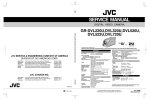
The photo shows the GY-DV500 DV camcorder with an optional lens and viewfinder.
No. 60125
VICTOR COMPANY OF JAPAN, LIMITED
Printed in Japan
(S)
100% recycled paper
COPYRIGHT © 1999 VICTOR COMPANY OF JAPAN, LTD.
No. 60125
November 1999
TABLE OF CONTENTS
Section
Title
Page
Section
Title
Page
Important Safety Precautions
INSTRUCTIONS
SECTION 1 SERVICE CAUTIONS AND DISASSEMBLY
SECTION 4 CHARTS AND DIAGRAMS
1.1
1.2
1.3
1.4
4.1 INDEX TO PAGES OF MAIN BOARDS AND CIRCUIT BOARD
LOCATION ................................................................................ 4-3
4.2 OVERALL WIRING DIAGRAM (1/2) ......................................... 4-4
• OVERALL WIRING DIAGRAM (2/2) ......................................... 4-5
4.3 ISB/ISG/ISR SCHEMATIC DIAGRAM 1 1 / 1 2 / 1 3 .............. 4-6
4.4 ISB/ISG/ISR CIRCUIT BOARD .................................................. 4-7
4.5 TG(Timing Generator) SCHEMATIC DIAGRAM 1 4 ................. 4-8
4.6 TG CIRCUIT BOARD ................................................................ 4-9
4.7 CAM1(CAMera 1) SCHEMATIC DIAGRAM (1/2) 1 5 ............ 4-10
• CAM1 SCHEMATIC DIAGRAM (2/2) 1 5 ............................... 4-11
4.8 CAM1 CIRCUIT BOARD ......................................................... 4-12
4.9 CAM2(CAMera 2) SCHEMATIC DIAGRAM (1/3) 1 6 ............ 4-14
• CAM2 SCHEMATIC DIAGRAM (2/3) 1 6 ............................... 4-15
• CAM2 SCHEMATIC DIAGRAM (3/3)1 6 ................................ 4-16
4.10 CAM2 CIRCUIT BOARD ........................................................ 4-17
4.11 PS(Power Supply)1,
PS2 SCHEMATIC DIAGRAM (1/2) 1 7/ 1 8 ......................... 4-19
• PS1, PS2 SCHEMATIC DIAGRAM (2/2) 1 7/ 1 8 ................. 4-20
4.12 PS1, PS2 CIRCUIT BOARD ................................................... 4-21
4.13 IF(InterFace), ROM(Read Only Memory)
SCHEMATIC DIAGRAM 2 1 / 1 9 ....................................... 4-22
4.14 IF, ROM CIRCUIT BOARD ..................................................... 4-23
4.15 SWRU, JOG SCHEMATIC DIAGRAM 2 2 / 2 0 ................... 4-24
4.16 SWF, SWRM, SWRB, SWPW, MIC, BNC SCHEMATIC DIAGRAM 2 3 / 2 4 / 2 5 / 2 6 / 2 7 / 2 8 ................................ 4-25
4.17 SWRU, JOG, SWF, SWRM, SWRB, SWPW, MIC, BNC, FL
CIRCUIT BOARD ................................................................... 4-26
4.18 VIDEO/SYSCON SCHEMATIC DIAGRAM (1/2) 3 1 ............. 4-27
• VIDEO/SYSCON SCHEMATIC DIAGRAM (2/2) 3 1 ............. 4-28
4.19 VIDEO/SYSCON CIRCUIT BOARD ........................................ 4-29
4.20 AUDIO/LCD SCHEMATIC DIAGRAM (1/2) 3 2 .................... 4-30
• AUDIO/LCD SCHEMATIC DIAGRAM (2/2) 3 2 .................... 4-31
4.21 AUDIO/LCD CIRCUIT BOARD .............................................. 4-32
• AUDIO/LCD CIRCUIT BOARD
(FOR SERIAL No.⳯⳯⳯⳯0732 AND AFTER OF GY-DV500U,⳯⳯⳯⳯0840
AND AFTER OF GY-500E) ........................................................................... 4-32-2
4.22 REG(REGulater) SCHEMATIC DIAGRAM 3 3 ..................... 4-34
4.23 REG CIRCUIT BOARD ........................................................... 4-35
4.24 MOTHER SCHEMATIC DIAGRAM 3 4 ............................... 4-36
4.25 MOTHER, AU JUNK CIRCUIT BOARD ................................. 4-37
4.26 AU JUNK SCHEMATIC DIAGRAM 3 9 ............................... 4-38
4.27 PWR JUNC, OPE(OPEration) SCHEMATIC DIAGRAM 4 1 / 3 5 ..... 4-39
4.28 CONNECT, REMOTE, XLR, EAR.J, SEN1, SENS2 SCHEMATIC
DIAGRAM 4 2 / 3 8 / 4 0 / 4 3 / 3 6 / 3 7 .......................... 4-40
4.29 OPE, PWR JUNC, CONNECT, REMOTE, XLR, EAR.J, SEN1,
SENS2 CIRCUIT BOARD ....................................................... 4-41
4.30 VTR UNIT OVERALL WIRING DIAGRAM ............................. 4-42
4.31 DV MAIN SCHEMATIC DIAGRAM (1/7) 1 0 ........................ 4-43
• DV MAIN SCHEMATIC DIAGRAM (2/7) 1 0 ........................ 4-44
• DV MAIN SCHEMATIC DIAGRAM (3/7) 1 0 ........................ 4-45
• DV MAIN SCHEMATIC DIAGRAM (4/7) 1 0 ........................ 4-46
• DV MAIN SCHEMATIC DIAGRAM (5/7) 1 0 ........................ 4-47
• DV MAIN SCHEMATIC DIAGRAM (6/7) 1 0 ........................ 4-48
• DV MAIN SCHEMATIC DIAGRAM (7/7) 1 0 ........................ 4-49
4.32 DV MAIN CIRCUIT BOARD ................................................... 4-50
• DV MAIN CIRCUIT BOARD (FOR SERIAL No.⳯⳯⳯⳯0332
AND AFTER OF GY-DV500U, ⳯⳯⳯⳯0545 AND AFTER OF GYDV500E) ............................................................................ 4-50-2
4.33 PR & MDA SCHEMATIC DIAGRAM (1/2) 0 1 ...................... 4-52
• PR(Pre Rec) & MDA(Motor Drive Amp.) SCHEMATIC DIAGRAM
(2/2) 0 1 ............................................................................... 4-53
RESETTING THE POWER CIRCUIT PROTECTION BREAKER ........... 1-1
REMOVING THE EXTERIOR COVERS ..................................... 1-1
LAYOUTS OF THE MAJOR BOARDS ..................................... 1-2
REMOVING THE OPTICAL BLOCK ASSEMBLY AND THE
OPTICAL FILTER ASSEMBLY .................................................. 1-3
1.5 REMOVING MAJOR BOARDS FROM THE CAMERA ............. 1-4
1.6 REMOVING THE MAJOR BOARDS FROM THE VCR ............. 1-6
1.7 DISASSEMBLY OF THE VCR UNIT .......................................... 1-8
1.8 TAPE EJECTION IN CASE OF EMERGENCY ......................... 1-10
1.9 CAUTION FOR REPLACING THE DV MAIN BOARD AND VIDEO
SYSCON BOARD ................................................................... 1-12
1.10 FUNCTIONS OF INTERNAL SWITCHES ............................... 1-13
1.11 MODES REQUIRED IN SERVICING ...................................... 1-14
1.12 CHANGING THE COLOR MATRIX SETTING ........................ 1-16
1.13 SERVICE MENU .................................................................... 1-18
1.14 ALARM DETECTION METHODS .......................................... 1-22
1.15 BATTERY POWER DETECTION METHODS ......................... 1-23
1.16 WARNING CODES ................................................................ 1-23
1.17 ANALYSIS OF BLOCK NOISE (SYMPTOMS: POOR VIDEO,
ABSCNCE OF AUDIO) .......................................................... 1-26
SECTION 2 MECHANISM ADJUSTMENTS
2.1 BERORE ADJUSTMENTS ........................................................ 2-1
2.2 BASICS OF MECHANISM DISASSAMBLY/ASSEMBLY .......... 2-2
2.3 MECHANISM TIMIN CHART ................................................... 2-4
2.4 MAINTENANCE AND INSPECTION OF MAJOR PARTS .......... 2-5
2.5 PERIODICAL MAINTENANCE .................................................. 2-8
2.6 DISASSEMBLY/ASSEMBLY OF MECHANISM ASSEMBLY ..... 2-9
2.7 REPLACEMENT OF MAJOR PARTS ...................................... 2-12
2.8 CONFIRMATION AND ADJUSTMENT OF MECHANISM PHASES ........ 2-27
2.9 MECHANISM DISASSEMBLY/ASSEMBLY SHEET ................ 2-28
2.10 DISASSEMBLY PROCEDURE LIST ....................................... 2-30
2.11 TORQUE ADJUSTMENTS .................................................... 2-31
2.12 COMPATIBILITY ADJUSTMENT ........................................... 2-32
SECTION 3 ELECTRICAL ADJUSTMENTS
3.1
3.2
3.3
3.4
3.5
3.6
3.7
FLOWCHART OF ELECTRICAL ADJUSTMENTS .................... 3-1
FUNCTIONS REQUIRED FOR ADJUSTMENTS, SETUP .......... 3-2
STANDARD SETUP .................................................................. 3-3
ADJUSTMENT MENU .............................................................. 3-3
CAMERA ADJUSTMENTS ....................................................... 3-5
VCR ADJUSTMENTS ............................................................. 3-11
DV ADJUSTMENTS (USING ADJUSTMENT SOFTWARE) .... 3-14
4.34 PR & MDA CIRCUIT BOARD ................................................ 4-54
4.35 ROM, CONN. SCHEMATIC DIAGRAM 0 3 / 0 4 ................. 4-55
4.36 DCDC SCHEMATIC DIAGRAM 0 2 ..................................... 4-56
4.37 DCDC, ROM, CONN. CIRCUIT BOARD ................................ 4-57
4.38 IS &TG BLOCK DIAGRAM (G channel) ................................. 4-58
4.39 CAM1 BOARD BLOCK DIAGRAM ........................................ 4-59
4.40 CAM2 BOARD BLOCK DIAGRAM ........................................ 4-60
4.41 IF, SWF, SWRU BLOCK DAIGRAM ....................................... 4-61
4.42 SYSCON BLOCK DIAGRAM ................................................. 4-62
4.43 LCD BLOCK DIAGRAM ......................................................... 4-63
4.44 VIDEO BLOCK DIAGRAM ..................................................... 4-64
4.45 REG BLOCK DIAGRAM ........................................................ 4-64
4.46 AUDIO BLOCK DIAGRAM .................................................... 4-65
4.47 DV BLOCK DIAGRAM 1/2 ..................................................... 4-66
• DV BLOCK DIAGRAM 2/2 ..................................................... 4-67
4.48 IC BLOCK DIAGRAM ........................................................... 4-68
SECTION 5 EXPLODED VIEW AND PARTS LIST
5.1
5.2
5.3
5.4
5.5
5.6
CAMERA HEAD ASSEMBLY M 1 ............................................ 5-3
CABINET ASSEMBLY M 2 ....................................................... 5-4
RIGHT SIDE COVER ASSEMBLY M 3 ...................................... 5-7
CHASSIS ASSEMBLY M 4 ....................................................... 5-8
VTR UNIT ASSEMBLY M 5 .................................................... 5-11
MECHANISM ASSEMBLY M 6 .............................................. 5-12
SECTION 6 ELECTRICAL PARTS LIST
6.1 PR & MDA BOARD ASSEMBLY PARTS LIST 0 1 ................... 6-2
6.2 DCDC BOARD ASSEMBLY PARTS LIST 0 2 .......................... 6-3
6.3 ROM BOARD ASSEMBLY PARTS LIST 0 3 ............................ 6-4
6.4 CONN. BOARD ASSEMBLY PARTS LIST 0 4 ......................... 6-4
6.5 DV MAIN BOARD ASSEMBLY PARTS LIST 1 0 ..................... 6-5
6.6 ISB BOARD ASSEMBLY PARTS LIST 1 1 ............................ 6-11
6.7 ISG BOARD ASSEMBLY PARTS LIST 1 2 ............................. 6-11
6.8 ISR BOARD ASSEMBLY PARTS LISTT 1 3 ........................... 6-12
6.9 TG BOARD ASSEMBLY PARTS LISTT 1 4 ........................... 6-12
6.10 CAM1 BOARD ASSEMBLY PARTS LIST 1 5 ....................... 6-13
6.11 CAM2 BOARD ASSEMBLY PARTS LIST 1 6 ....................... 6-17
6.12 PS1 BOARD ASSEMBLY PARTS LIST 1 7 ........................... 6-21
6.13 PS2 BOARD ASSEMBLY PARTS LIST 1 8 ........................... 6-21
6.14 ROM BOARD ASSEMBLY PARTS LIST 1 9 ......................... 6-22
6.15 JOG BOARD ASSEMBLY PARTS LIST 2 0 .......................... 6-22
6.16 IF BOARD ASSEMBLY PARTS LIST 2 1 .............................. 6-23
6.17 SWRU BOARD ASSEMBLY PARTS LIST 2 2 ...................... 6-23
6.18 SWF BOARD ASSEMBLY PARTS LIST 2 3 ......................... 6-24
6.19 SWRM BOARD ASSEMBLY PARTS LIST 2 4 ...................... 6-24
6.20 SWRB BOARD ASSEMBLY PARTS LIST 2 5 ....................... 6-24
6.21 SWPW BOARD ASSEMBLY PARTS LIST 2 6 ...................... 6-24
6.22 MIC BOARD ASSEMBLY PARTS LIST 2 7 .......................... 6-25
6.23 BNC BOARD ASSEMBLY PARTS LIST 2 8 .......................... 6-25
6.24 VIDEO/SYSCON BOARD ASSEMBLY PARTS LIST 3 1 ....... 6-25
6.25 AUDIO/LCD BOARD ASSEMBLY PARTS LIST 3 2 .............. 6-28
6.26 REG BOARD ASSEMBLY PARTS LIST 3 3 .......................... 6-31
6.27 MOTHER BOARD ASSEMBLY PARTS LIST 3 4 .................. 6-33
6.28 OPE BOARD ASSEMBLY PARTS LIST 3 5 .......................... 6-33
6.29 SEN1 BOARD ASSEMBLY PARTS LIST 3 6 ........................ 6-33
6.30 SENS2 BOARD ASSEMBLY PARTS LIST 3 7 ...................... 6-33
6.31 REMOTE BOARD ASSEMBLY PARTS LIST 3 8 .................. 6-33
6.32 AU JUNK BOARD ASSEMBLY PARTS LIST 3 9 .................. 6-34
6.33 XLR BOARD ASSEMBLY PARTS LIST 4 0 ........................... 6-35
6.34 PWR JUNC BOARD ASSEMBLY PARTS LIST 4 1 ............... 6-35
6.35 CONNECT BOARD ASSEMBLY PARTS LIST 4 2 ................ 6-35
6.36 EAR.J BOARD ASSEMBLY PARTS LIST 4 3 ....................... 6-35
SECTION 7 PACKING
7.1 PACKING ASSEMBLY M 7 ....................................................... 7-1
7.2 FACTORY SETTING OF SWITCH AND VR ............................... 7-2
SECTION 8 DESCRIPTION OF NEW CIRCUITRY
8.1 OUTLINE OF DV ....................................................................... 8-1
8.2 MAJOR SIGNAL PROCESSING OPERATIONS OF DV ............ 8-6
8.3 VIDEO/AUDIO SIGNAL PROCESSING IN RECORDING
CIRCUITRY ............................................................................... 8-7
8.4 VIDEO/AUDIO SIGNAL PROCESSING IN PLAYBACK CIRCUITRY .. 8-18
8.5 CAPSTAN SERVO ................................................................... 8-20
8.6 DRUM SERVO ........................................................................ 8-22
SECTION 9 CIRCUIT DESCRIPTION
9.1
9.2
9.3
9.4
CAMERA HEAD CIRCUITRY .................................................... 9-1
DVC CIRCUIT ........................................................................... 9-4
MECHANISM OPERATION DESCRIPTION ............................ 9-20
EXPLANATION OF NEW FUNCTIONS ................................... 9-26
Important Safety Precautions
Prior to shipment from the factory, JVC products are strictly inspected to conform with the recognized product safety and electrical codes
of the countries in which they are to be sold. However, in order to maintain such compliance, it is equally important to implement the
following precautions when a set is being serviced.
Precautions
during Servicing
12. Crimp type wire connector
In such cases as when replacing the power transformer in sets
where the connections between the power cord and power
transformer primary lead wires are performed using crimp type
connectors, if replacing the connectors is unavoidable, in order to prevent safety hazards, perform carefully and precisely
according to the following steps.
1. Locations requiring special caution are denoted by labels and
inscriptions on the cabinet, chassis and certain parts of the
product. When performing service, be sure to read and comply with these and other cautionary notices appearing in the
operation and service manuals.
2. Parts identified by the
symbol and shaded (
) parts are
critical for safety.
Replace only with specified part numbers.
Note: Parts in this category also include those specified to comply with X-ray emission standards for products using
cathode ray tubes and those specified for compliance
with various regulations regarding spurious radiation
emission.
1) Connector part number : E03830-001
2) Required tool : Connector crimping tool of the proper type
which will not damage insulated parts.
3) Replacement procedure
(1) Remove the old connector by cutting the wires at a point
close to the connector.
Important : Do not reuse a connector (discard it).
3. Fuse replacement caution notice.
Caution for continued protection against fire hazard.
Replace only with same type and rated fuse(s) as specified.
4. Use specified internal wiring. Note especially:
1) Wires covered with PVC tubing
2) Double insulated wires
3) High voltage leads
cut close to connector
Fig.3
5. Use specified insulating materials for hazardous live parts.
Note especially:
1) Insulation Tape
3) Spacers
5) Barrier
2) PVC tubing
4) Insulation sheets for transistors
(2) Strip about 15 mm of the insulation from the ends of
the wires. If the wires are stranded, twist the strands to
avoid frayed conductors.
15 mm
6. When replacing AC primary side components (transformers,
power cords, noise blocking capacitors, etc.) wrap ends of
wires securely about the terminals before soldering.
Fig.4
(3) Align the lengths of the wires to be connected. Insert
the wires fully into the connector.
Fig.1
Metal sleeve
7. Observe that wires do not contact heat producing parts
(heatsinks, oxide metal film resistors, fusible resistors, etc.)
Connector
8. Check that replaced wires do not contact sharp edged or
pointed parts.
Fig.5
9. When a power cord has been replaced, check that 10-15 kg of
force in any direction will not loosen it.
(4) As shown in Fig.6, use the crimping tool to crimp the
metal sleeve at the center position. Be sure to crimp fully
to the complete closure of the tool.
Power cord
Crimping tool
1.2
5
2.0
5.5
Fig.6
Fig.2
(5) Check the four points noted in Fig.7.
10. Also check areas surrounding repaired locations.
11. Products using cathode ray tubes (CRTs)
In regard to such products, the cathode ray tubes themselves,
the high voltage circuits, and related circuits are specified for
compliance with recognized codes pertaining to X-ray emission.
Consequently, when servicing these products, replace the cathode ray tubes and other parts with only the specified parts.
Under no circumstances attempt to modify these circuits.
Unauthorized modification can increase the high voltage value
and cause X-ray emission from the cathode ray tube.
Not easily pulled free
Crimped at approx. center
of metal sleeve
Conductors extended
Wire insulation recessed
more than 4 mm
Fig.7
1
Safety
Check after Servicing
Examine the area surrounding the repaired location for damage or deterioration. Observe that screws, parts and wires have been
returned to original positions, Afterwards, perform the following tests and confirm the specified values in order to verify compliance with safety standards.
1. Insulation resistance test
Confirm the specified insulation resistance or greater between power cord plug prongs and
externally exposed parts of the set (RF terminals, antenna terminals, video and audio input
and output terminals, microphone jacks, earphone jacks, etc.). See table 1 below.
2. Dielectric strength test
Confirm specified dielectric strength or greater between power cord plug prongs and exposed
accessible parts of the set (RF terminals, antenna terminals, video and audio input and output
terminals, microphone jacks, earphone jacks, etc.). See table 1 below.
3. Clearance distance
When replacing primary circuit components, confirm specified clearance distance (d), (d’) between soldered terminals, and between terminals and surrounding metallic parts. See table 1
below.
Chassis
d
d'
Power cord,
primary wire
Fig. 8
4. Leakage current test
Confirm specified or lower leakage current between earth ground/power cord plug prongs
and externally exposed accessible parts (RF terminals, antenna terminals, video and audio
input and output terminals, microphone jacks, earphone jacks, etc.).
Measuring Method : (Power ON)
Insert load Z between earth ground/power cord plug prongs and externally exposed accessible parts. Use an AC voltmeter to measure across both terminals of load Z. See figure 9 and
following table 2.
a
Externally
exposed
accessible part
Z
A
b
c
V
Fig. 9
5. Grounding (Class 1 model only)
Confirm specified or lower grounding impedance between earth pin in AC inlet and externally exposed accessible parts (Video in,
Video out, Audio in, Audio out or Fixing screw etc.).
Measuring Method:
Connect milli ohm meter between earth pin in AC inlet and exposed accessible parts. See figure 10 and grounding specifications.
Exposed accessible part
AC inlet
Grounding Specifications
Region
Earth pin
Grounding Impedance (Z)
USA & Canada
Z ≤ 0.1 ohm
Europe & Australia
Z ≤ 0.5 ohm
Milli ohm meter
Fig. 10
AC Line Voltage
100 V
100 to 240 V
110 to 130 V
110 to 130 V
200 to 240 V
Region
Insulation Resistance (R)
R ≤ 1 MΩ/500 V DC
Japan
USA & Canada
Europe & Australia
–
R ≤ 10 MΩ/500 V DC
Dielectric Strength
AC 1 kV 1 minute
AC 1.5 kV 1 miute
AC 900 V 1 minute
AC 3 kV 1 minute
(Class 2)
AC 1.5 kV 1 minute
(Class 1)
Clearance Distance (d), (d')
d, d' ≤ 3 mm
d, d' ≤ 4 mm
d, d' ≤ 3.2 mm
d ≤ 4 mm
d' ≤ 8 mm (Power cord)
d' ≤ 6 mm (Primary wire)
Table 1 Specifications for each region
AC Line Voltage
Region
100 V
Japan
110 to 130 V
USA & Canada
110 to 130 V
220 to 240 V
Europe & Australia
Load Z
Leakage Current (i)
a, b, c
1 kΩ
i ≤ 1 mA rms
Exposed accessible parts
i ≤ 0.5 mA rms
Exposed accessible parts
2 kΩ
i ≤ 0.7 mA peak
i ≤ 2 mA dc
Antenna earth terminals
50 kΩ
i ≤ 0.7 mA peak
i ≤ 2 mA dc
Other terminals
0.15 µF
1.5 kΩ
Table 2 Leakage current specifications for each region
Note: These tables are unofficial and for reference only. Be sure to confirm the precise values for your particular country and locality.
2
SECTION 1
SERVICE CAUTIONS AND DISASSEMBLY
1.1
RESETTING THE POWER CIRCUIT PROTECTION
BREAKER
1.2.2 Opening the Right Side Cover
(1) Loosen the 4 screws 2.
This unit employs a power circuit protection breaker in place of
a fuse to disconnect from the main power and to thus protect
the internal circuitry from damage caused by any current overload. The power can be re-connected by resetting the breaker.
To prevent any complications resulting from the failure, check the cause of the shutdown and repair it
before resetting the circuit breaker.
(1) Switch OFF the POWER of this unit as well as that of any
equipment supplying power to it.
(2) The circuit breaker Å is located below the VCR at the rear.
Press the BREAK button to re-connect the power line.
2
2
Fig. 1-2-2(1) Opening the Right Side Cover
(2) Flip open the right side cover toward the front.
3
Å
Fig. 1-1 Position of the Circuit Breaker
1.2
REMOVING THE EXTERIOR COVERS
1.2.1 Removing the Left Side Cover
(1) Open the cassette door by pressing the EJECT switch.
(2) Loosen the 4 screws 1 and remove the left side cover.
Fig. 1-2-2(2) View of the Opened Right Side Cover
Cassette cover
EJECT switch
1.2.3 Removing the Bottom Cover
(1) Remove the left side cover (see section 1.2.1).
(2) Remove the 2 screws 3 and remove the shoulder pads (see
Fig. 1-1).
(3) Remove the 4 screws 4 and remove the bottom cover.
1
1
Fig. 1-2-1 Removing the Left Side Cover
4
4
Fig. 1-2-3 Removing the Bottom Cover
1-1
1.3
LAYOUTS OF THE MAJOR BOARDS
On the side of the left-hand side cover
On the side of the bottom cover
4 2 CONNECT
0 3 ROM
1 0 DV MAIN
1 6 CAM2
3 7 SENS2
4 0 XLR
4 3 EAR.J
4 1 PWR JUNC
3 9 AU JUNK
3 8 REMOTE
2 8 BNC
2 7 MIC
VCR section
On the side of the right-hand side cover
1 7 PS1, 1 8 PS2
1 9 ROM
1 5 CAM1
3 6 SEN1
0 2 DCDC
1 1 ISB
1 2 ISG
1 3 ISR
0 4 CONN.
3 4 MOTHER
1 4 TG
2 3 SWF
2 1 IF
2 5 SWPB
2 6 SWPW
3 1 VIDEO/SYSCON
2 4 SWRM
3 2 AUDIO/LCD
2 0 JOG
1-2
2 2 SWRU
3 5 OPE
0 1 PR & MDA
1.4
REMOVING THE OPTICAL BLOCK ASSEMBLY AND
THE OPTICAL FILTER ASSEMBLY
(1) Remove the right side cover (see section 1.2.2).
(2) Remove the screw 1 retaining the ROM board.
(5) Loosen the 2 screws 3 and remove the connector Å.
(6) Remove the optical filter assembly in the direction of the
arrow.
3
Å
1
ROM board
S.S.F. ID label
for VIDEO/SYSCON board
Fig. 1-4-3
(7) Remove the 4 screws 4 and remove the TG board and CP
board mounting brackets.
Fig. 1-4-1
(3) Remove the 4 screws 2.
2
2
4
4
Fig. 1-4-4(1)
Fig. 1-4-2
(4) Pull out the optical block assembly and the front panel together toward the front.
CAUTION
(8) Flip open CN11, CN12 and CN13 and unplug the flexible
cables.
CN12
CN11
CN13
Be careful not to damage the boards or the FC cables.
Fig. 1-4-4(2)
1-3
(9) Remove the 4 screws 5and separate the optical block assembly from the front panel.
1.5
REMOVING MAJOR BOARDS FROM THE
CAMERA
1.5.1 Removing the CP and TG Boards.
5
5
(1) Remove the right side cover (see section 1.2.2).
(2) Remove the 4 screws retaining the front panel (see section
1.4.3).
(3) Pull out the optical block assembly and the front panel together toward the front.
(4) Remove the screw retaining the ROM board. Now the ROM
board can be removed.
(5) Remove the 4 screws 1. Now the CP board can be removed.
1
1
Fig. 1-4-5
NOTES
• The CCDs are bonded precisely to the prism. In case of
trouble with a CCD, it is not possible to replace an individual CCD, but the entire optical block assembly should
be replaced.
• The optical block assembly supplied as a service part
(SCM1049-N0A (NTSC)/P0A (PAL)) is not equipped with the
DR board. When replacing the optical block assembly, attach the surrounding PC boards to the new assembly before mounting it in the camera.
Fig. 1-5-1(1)
(6) Remove the CP board, then remove the 4 stud screws 4.
Now the TG board is disengaged from the stay.
(7) Unplug the flexible cables connecting the IS boards and the
TG board. Now the TG board can be removed.
4
Fig. 1-4-6 Optical Block Assembly for Servicing
CAUTION
When mounting the optical block assembly in the camera,
take care of the positioning of the wire assembly. A malfunction may occur if a wire is somehow caught up.
Fig. 1-5-1(2)
1-4
1.5.2 Removing the CAM1 Board
1.5.3 Removing the SW Boards
(1) Remove the left side cover (section 1.2.1).
(2) Remove the 6 screws 2.
(3) The DV MAIN board on the VCR side and the CAM2 board
are connected by a board-to-board connector. Open the two
boards together in the direction of the arrow.
(1) Open the right side cover (see section 1.2.2).
(2) The JOG, SWRU, SWRM, SWPW and SWRB boards are
attached on the right side cover. Remove them as required.
2
Fig. 1-5-3
1.5.4 Removing the PS 1 & 2 board.
(1) Open the right side cover (see section 1.2.2).
(2) Remove the 2 screws 3 retaining the PS 1 & 2 board.
(3) Pull out the PS 1 & 2 board, along the guide rail in the direction of the arrow.
2
3
Fig. 1-5-2(1)
(4) The opened boards can be secured by fitting them into the
notches on the VCR side frame as shown in the figure.
Fig. 1-5-4
Fig. 1-5-2(2)
The operation of the VCR can be confirmed when the
circuit boards are tilted.
When the circuit boards are tilted, take care that the
electrical circuitry on each board is not short-circuited
by the BNC connector located below the board.
1-5
4
1.6
REMOVING THE MAJOR BOARDS FROM THE VCR
1.6.1 Removing the VIDEO/SYSCON Board and Audio/
LCD Board
(1) Open the right side cover (see section 1.2.2).
The VIDEO/SYSCON board is clamped to the right side cover.
(2) Remove the 2 screws 1. Now the VIDEO/SYSCON board
can be removed.
4
1
Fig. 1-6-2(1)
(4) Remove the EJECT switch wire
ı.
Å and power supply wire
Å
Fig. 1-6-1(1)
(3) After removing the VIDEO/SYSCON board, remove the 6
screws 2 and 2 studs 3. Now the AUDIO/LCD board can
be removed.
2
ı
Fig. 1-6-2(2)
3
1.6.3 Removing the DV MAIN Board
(1) Remove the VCR unit (see section 1.6.2).
(2) Remove the 4 screws 5.
(3) Now the DV MAIN board can be removed.
2
5
Fig. 1-6-1(2)
1.6.2 Removing the VCR Unit
(1) Remove the left side cover (see section 1.2.1).
(2) Remove the 4 screws 4.
(3) Pull out the VCR unit gently in the direction of the arrow. As
the VCR unit is connected to the CAM2 board with a boardto-board connector, disconnect it gently.
Fig. 1-6-3(1)
1-6
(4) After removing the DV MAIN board, leave it standing up by
fitting it into the notches on the unit frame, as shown in the
figure.
(3) Unplug the power cable that supplies power from the battery case to the main unit, from the connector Ç.
Ç
Fig. 1-6-4(3)
Fig. 1-6-3(2)
1.6.4 Removing the Battery Case
1.6.5 Removing the REG Board
(1) Remove the 2 screws 1 and remove the rear cover of the
battery case.
(2) Remove the 4 screws 2 and remove the battery case from
the main unit.
(1) Remove the battery case (see section 1.6.4).
(2) Remove the 2 screws 3 and remove the panel.
Rear cover
3
Fig. 1-6-5(1)
1
(3) Remove the 2 screws 4 and remove the REG board.
Fig. 1-6-4(1)
4
2
Fig. 1-6-4(2)
Fig. 1-6-5(2)
1-7
1.7
DISASSEMBLY OF THE VCR UNIT
The mechanism unit incorporated in the unit can be disassembled as described below. Note that the following description
deals only with the method of removing the mechanism unit
from the VCR unit.
1.7.2 Disassembling the Rear Part of the Unit
(1) Remove the 2 screws 3 and remove the rear side stay.
1.7.1 Disassembling the Front Part of the Unit
(1) Remove the VCR unit from the camera (see section 1.6.2).
(2) Remove the DV MAIN board (see section 1.6.3).
(3) Remove the 2 screws 1 and remove the stay on the front
cover. The cover of the cassette insertion slot will come out
together with it.
3
Fig. 1-7-2(1)
(2) Remove the 2 screws 4 and remove the active head cleaner.
During this operation, be careful not to apply excessive force
to the wire that is connected between the active head cleaner
assembly and CN609 on the PR & MDA boards.
4
1
Fig. 1-7-1(1)
(4) Remove the 2 screws 2 and remove the front stay.
Fig. 1-7-2(2)
(3) Remove the 2 screws 5 and remove the side stays.
2
Fig. 1-7-1(2)
5
Fig. 1-7-2(3)
1-8
(4) Insulators (blue) are attached to the retaining screws. Be
sure to attach the insulators when re-assembling the side
stays.
(5) The side stays to both sides are attached in the same way.
Remove the 2 screws 6 and remove the side stays.
6
Fig. 1-7-3
1.7.4 Removing the Mechanism Unit
6
Fig. 1-7-2(4)
(6) After removing the rear stays and side stays (left and right),
remove the 2 screws 7 then remove the PR & MDA board.
When removing the PR & MDA boards, be careful not to
damage the wires and FFCs connecting them to the deck
assembly housing motor and power supply board.
(1) Remove the 3 screws 8. This allows the mechanism unit
to be removed from the stays When it is required to disassemble the mechanism unit itself, see SECTION 2.
8
Fig. 1-7-4(1)
7
(2) When the remove the mechanism unit completely, also remove the connector Å from the rear.
Fig. 1-7-2(5)
1.7.3 Removing the Cassette Housing Assembly
(1) Remove the 2 screws 6 and remove the cassette housing
assembly.
Å
Fig. 1-7-4(2)
1-9
1.8
TAPE EJECTION IN CASE OF EMERGENCY
When the cassette tape cannot be ejected normally, take it out
by the following methods.
1.8.1 Tape Ejection Using Forced Eject Mode
(Short-circuiting of Internal TP)
GY-DV500 is provided with a compulsory eject mode for use in
case the button operations are not accepted due to a malfunction of the mechanism control circuitry. When an attempted
operation of the operation buttons is not accepted, set the compulsory eject mode as described below before removing the
tape.
(3) Apply 3 V DC to the electrodes at the top of the loading
motor (red wire to + pole, brown wire to - pole) to unload
the tape. Unload it little by little because it could be damaged or contaminated by grease if the pole base assemblies
are returned completely beyond the position of the tape.
Brown wire
Red wire
CAUTION
䡲 This mode is effective only when the electrical and mechanical systems of the mechanism unit are normal and a
tape ejection operation is not accepted due to a problem
of the electrical system.
䡲 If there is a problem in the mechanical system of the unit,
this mode may be ineffective. If compulsory ejection is performed in such a case, the tape could be damaged or cut.
Fig. 1-8-2(1)
(1) Remove the left side cover (see section 1.2.1).
(2) With the power supply on, short-circuit TP107 on the DV
MAIN board with the GND using a wire, etc.
(3) Forced ejection is activated to eject the tape.
(4) If the tape slackens, take it up by rotating the shaft at the
top of the capstan motor in the direction of the arrow using
a sharp-tipped object (chip IC replacement tool, etc.).
(5) Repeat steps (3) and (4) above until the tape is taken up
completely.
(6) After confirming that the tape has been taken up completely,
rotate the gear of the cassette housing assembly in the direction of the arrow in order to eject the cassette tape.
DV MAIN board
TP107
Fig. 1-8-1
1.8.2 Tape Ejection without Using the Forced Eject Mode
Activate the loading motor by applying DC voltage to its two
terminals.
NOTE
When a forced ejection is not accepted because the loaded
cassette tape cannot be ejected due to a fault in the electrical system or because of some problem in the mechanism
unit, eject the tape by using the following procedure.
However, as this mode drives the loading motor, it assumes
that the mechanical system is operating normally.
(1) Turn off the power supply to the unit.
(2) Flip open the DV MAIN board to expose the mechanism
(see section 1.6.3).
1-10
Shaft
Fig. 1-8-2(2)
Gear
1.8.3 Manual Tape Ejection
If the loading motor cannot be run by the procedure outlined in
section 1.8.2, the mechanism may be defective. When the loading motor is defective, remove the tape as described below.
(1) Remove the mechanism unit from the main unit. See section 1.6.2 for the removal method.
(2) After removing the mechanism unit, remove the DV MAIN
board (see section 1.6.3).
(3) Remove the 2 screws and remove the active head cleaner
assembly (see section 1.7.2).
(4) Remove the side cover to easy operation (see section 1.7.2).
(5) Remove the 2 screws and remove the rear panel from the
side of the PR & MDA board.
Carefully unplug the wires so as not to damage them, then
remove the PR & MDA board (see section 1.7.2).
3
3
Loading motor
Fig. 1-8-3(3)
(9) Unload the pole base assemblies by rotating the gear shown
in the figure in the direction of the arrow.
1
Fig. 1-8-3(1)
(6) Remove the 2 screws 1 and remove the active head cleaner
stay.
2
Fig. 1-8-3(2)
(7) Loosen the 2 screws 2 so that the cassette housing is separated freely.
(8) Remove the 4 screws 3 and remove the loading motor.
Gear
Fig. 1-8-3(4)
(10) The pole base assemblies should be unloaded little by little. If they are returned completely beyond the position of
the tape, the tape may slacken and become damaged or
stained by grease.
(11) If the tape slackens, take it up by rotating the shaft on the
top of the capstan motor in the direction of the arrow using a sharp-tipped object (chip IC replacement tool, etc.)
(see section 1.8.2-(4)).
(12) Repeat steps (9) and (10) above until the tape is taken up
completely.
(13) After confirming that the tape has been taken up completely, tighten the cassette housing retaining screws which
were loosened in step (6).
(14) Attach and clamp the cassette housing again, then rotate
the gear of the housing assembly in the direction of the
arrow to eject the cassette tape in the same way as in
section 1.8.2-(6).
1-11
1.9
CAUTION FOR REPLACING THE DV MAIN BOARD
AND VIDEO SYSCON BOARD
When the DV MAIN board or VIDEO SYSCON board has been
replaced for servicing, be sure to enforce the following items.
1.9.1 DV MAIN Board
[A] About the ID Management Label
Each VCR unit carries an ID label in compliance with IEEE1394
showing the unique ID assigned on the production line.
(See the following figure for the label position.)
When replacing the DV MAIN board, remove the ID management label that was provided originally with the unit from the
defective board and attach it in the same position to the new
board.
[B] Load EEPROM Internal Data
The EEPROM provided with the new board for replacement
contains no data, while the EEPROM originally provided with
the VCR unit contains the IEEE1394 ID data as well as all adjustment data written in the assembly and adjustments written on
the production line. This means that the new VCR unit will not
function if the new EEPROM is used in the condition in which it
is delivered.
When replacing the DV MAIN board, load the internal data of
the EEPROM on the original board to the EEPROM of the new
board.
(1) How to use original EEPROM to new DV MAIN board.
Remove the EEPROM from the original DV MAIN board,
and attach the chip to the new board.
(2) How to write data from the original board to the new
EEPROM
How to load all parameters in EEPROM on original board to
new EEPROM by using the adjustment software.
(For details, see section 3.7.13)
DV MAIN board
(3) In case of original EEPROM on the original DV MAIN board
was broken.
Load the default data before making adjustments with the
adjustment software, write the data in the new EEPROM,
then make adjustments by following the adjustment procedures. (See section 3.7.12 for details.)
And then, input the ID number on the original board to new
EEPROM by using the adjustment software. (See section
3.7.13 for details.)
1.9.2 VIDEO SYSCON Board
[A] Transporting of IC407 (EEPROM) Data
ID Label
Fig. 1-9-1
When the SSF function is used, the cassette number recorded
on tape (see section 9.4.1) has the model ID code appended to
it. The model ID code is written in IC407 (EEPROM). However,
as the new EEPROM mounted on the new replacement circuit
board does not have the ID code written into it, the SSF function cannot work normally (the model ID code should be written
in IC407 for the correct operation of the SSF function).
Nevertheless, no means is provided for transporting the model
ID code from the original EEPROM to the new EEPROM. Therefore, it is recommended to remove the original IC from the original board and mount it on the new board.
[B] ID Management Label
An ID management label is attached to the camera head. For
the position, see Fig. 1-4-1.
1-12
1.10 FUNCTIONS OF INTERNAL SWITCHES
1.10.1 DIP Switch S901 on ROM Board
Symbol
No.
Name
S901
1
2
3
4
5
6
7
8
Adjustment mode
Check mode
Not used
Character mixing
Not used
Color matrix adjustment
Setup (NTSC model only)
Function setting
Function
Adjustment mode ON/OFF
Check mode ON/OFF
TEST OUT character display ON/OFF
Color matrix adjustment mode ON/OFF
ON (0% setup)/ OFF (7.5% setup)
Initial setting of camera functions
Shipment
OFF
OFF
OFF
OFF
OFF
OFF
OFF
OFF
Table 1-10-1
(1) Adjustment mode (S901-1)
Set S901-1 to ON to initiate the camera electrical adjustment mode.
For details, see section 3.3.
(2) Check mode (S901-2)
Set S901-2 to ON to display the camera’s check mode screen
on the viewfinder.
In this mode, the auto white balance and auto iris control
data in the microcomputer controlling the camera can be
viewed and checked. (This mode is not used for adjustments
but is intended to simply allow the checking of control values and their functions.)
– CHECK MODE –
R-G
B-G
R GAIN LEVEL
B GAIN LEVEL
PEAK
APL
NAM ERROR
GAIN ∗dB
:∗
:∗
:∗
:∗
:∗
:∗
:∗
:∗
Fig. 1-10-1(1)
R-G/B-G
Shows the data on the R/G/B signals input to the CPU for
use in white balance control in terms of R-G and B-G. The
values are variable between -127 and 128.
These values approach 0 if the white balance circuit is activated by capturing a non-color image such as a gray scale.
R GAIN LEVEL/B GAIN LEVEL
Show the levels of the R and B channel white balance control signals.
These values are variable between 0 and 255.
The R value tends to decrease and the B value tends to
increase under low color temperatures (reddish lighting), and
the R value tends to increase and the B value tends to decrease under high color temperatures (bluish lighting).
PEAK
Shows the peak hold value of the video signal in a vertical
scanning period.
APL
Shows the average picture signal level.
NAM ERROR
Shows the NAM value used in the auto iris control.
The value is variable between -127 and 128.
The value approaches 0 when the auto iris control approaches
the optimum level.
GAIN
Shows the electrical gain value set with the GAIN switch on
the right-hand side of the unit.
Shows “ALC” in the full auto-shooting mode.
1-13
(3) Character mixing (S901-4)
Set S901-4 to ON to superimpose the same characters as
those displayed on the viewfinder-screen in the output signal from the TEST OUT terminal. This is a convenient facility
for adjustment because the adjustment menu and screen
can be displayed on an external monitor.
(4) Color-matrix adjustment (S901-6)
Set S901-6 to ON to view the color-matrix adjustment-mode
screen on the
Viewfinder-screen.
This mode makes it possible to set color-matrix parameters
in details (see section 1.12).
* Note that the color-matrix adjustment is not a normal adjustment item. It is usually not required to adjust the color-matrix because this has been set to the optimum level before
shipment.
* In case a color-matrix adjustment becomes necessary because of a user’s request, it should be performed in accordance with the description in section 1.2.
(5) Setup (S901-7): NTSC only
Set S901-7 to ON or OFF to select whether or not the output signal setup is included in the TEST OUT and MONITOR
OUT terminals output.
(Note that the signal recorded onto tape is not affected by
the position of this switch. The signal is always recorded
without the setup information.)
As changing the position of this switch does not alter the
signal level, it is not necessary to re-adjust the signal recording according to the position of this switch. This switch is
effective only on the camera video output. With the video
signal obtained by playing back a previously recorded tape,
whether the setup is included or not can be selected with
the item “SETUP” in the Service Menu (see section 1.13.3).
(6) Function setting (S901-8)
This switch is used to set the functions shown in Table 1-91(2).
This switch is usually used to switch the defaults of the domestic and export-oriented models.
S901-8
Function
L
M
H
V. SCAN
ALC GAIN
GAIN
NTSC
OFF
0 dB
6 dB
9 dB
60.1 to 251.3
0 to + 18 dB
ON
0 dB
9 dB
18 dB
60.1 to 2067.0
0 to + 18 dB
PAL
Do not care
0 dB
9 dB
18 dB
50.1 to 2053.6
0 to + 18 dB
Table 1-9-1(2)
* The L/M/H positions of GAIN can also be set individually
using the [CAMERA MENU].
1-14
1.11 MODES REQUIRED IN SERVICING
1.11.1 Camera Service Menu
The CAMERA SERVICE MENU can be displayed on the viewfinder screen by setting the [POWER] switch to ON while tilting
the AUTO WHITE/ACCU FOCUS switch upward (toward AUTO
WHITE).
— — — CAMERA SERVICE MENU — — —
Cxxxx
V∗. ∗∗ <U>
CCD CORRECT
: ON
ERROR DETECT START
WHITE CLIP LEVEL
: 108%
END
Fig. 1-11-1
Select an item by turning the SHUTTER dial, and push the SHUTTER dial to select or set it.
Cxxxx V∗.∗∗<U>
This item displays the version number of the camer control software (IC902 on ROM board).
* The Character “U” after the Version No. indicates that U
version software is running. When “E” is shown here, the
software for E version is running.
CAUTION
Also be sure to reset the system after replacing IC902
(ROM) on the ROM board. See section 1.11.2, “System
Reset”.
CCD CORRECT (ON/OFF)
This item sets whether white blemish due to CCD is to be corrected or not.
To correct
: ON
Do not correct : OFF
The factory shipment condition is ON. Even when OFF is selected with this menu, it is temporary and the correction status
(ON) is recalled automatically the next time the power is turned
on.
NOTE
• To correct any white blemish interference produced after
the factory shipment, perform the “ERROR DETECT
START” described on the next page. Be sure to warm up
the camera by leaving it on for more than 2 hours before
performing the “ERROR DETECT START”.
• The white blemish correction is performed with the lens
iris closed or with the lens cap on. In normal use, the lens
iris closes automatically when performing a white blemish
correction. However in a case when the lens cable is disconnected and the lens iris cannot be closed, “ERROR DETECT FAIL” will be displayed on the viewfinder and the
white blemish correction cannot be executed. Before performing the white blemish correction again, be sure to first
close the lens.
ERROR DETECT START
When this item is selected and the SHUTTER dial is pushed,
the white blemish detection for correcting CCD white blemish
starts automatically.
The following messages are displayed on the viewfinder screen
during detection.
ERROR DETECT EXECUTING
↓
ERROR DETECT END
1.11.2 System Reset
While pushing the [SHUTTER] dial, press the [POWER] switch
to ON. This resets the system and initializes the menu set items
to their default values.
The following description shows items that are initialized to the
defaults by a system reset and those that are not.
1.11.3 Resetting DSP Data
After the completion of error detection, the camera is automatically set to the white blemish correction ON condition.
While pushing the [SHUTTER] dial and [STATUS] switch tilted
toward “SKIN AREA”, press the [POWER] switch to ON. This
resets the internal setting data (color matrix setting data) in the
DSP to the default setting.
1.11.4 Displaying Auto Iris Area Gate
While holding the [AUTO WHITE/ACCU FOCUS] switch down
(toward ACCU FOCUS), press the [POWER] switch to ON. The
area gate for the auto iris control is displayed in the viewfinder
screen.
The following types of white blemish can be corrected.
(1) White blemish correction target area
5%
5%
Correction target area
90%
Fig. 1-11-3
90%
Fig. 1-11-2
(2) Details of correctable white blemishes
䡲 White blemishes at luminance levels of 30 mV or more
can be corrected. The total number of white blemishes
that can be corrected is up to 7 for the R, G and B signals.
䡲 Even when there are 2 white blemishes on a single scanning line, both of them can be corrected. (However, when
they are adjacent, the results of a correction appear inferior to those of the results of the correction of a single
white blemish. These results are due to the correction characteristics themselves.)
1.11.5 List of Servicing Switches (Camera)
The following table that shows the switches described above is
for use in servicing. Use this table as a reference in servicing.
Switch Operation
Result
[AUTO WHITE] + [POWER] ON
Service menu display
[SHUTTER] + [POWER] ON
System reset
[STATUS] + [SHUTTER] + [POWER] ON
DSP data reset
[ACCU FOCUS] + [POWER] ON
Area gate display
Table 1-11-4
WHITE CLIP
The white clip level of the through-camera composite output
signal that is output at TEST OUT can be selected from the following 2 values:
100% or 108% (shipment setting)
1-15
1.12 CHANGING THE COLOR MATRIX SETTING
1.11.6 EEPROM in Camera
IC905 on the CAM1 board is an electrically erasable/rewritable
EEPROM. It stores the following data.
䡲 Camera adjustment data set in the adjustment mode.
䡲 Settings in [CAMERA MENU].
䡲 White blemish position coordinate data for use in white blemish correction.
䡲 Auto white balance control data (A/B).
䡲 Camera status at the last power OFF (positions of non-lock
type switches, etc.).
Therefore, when retention of the above data becomes impossible due to a failure in the EEPROM or over the 1 million times of
rewrite count, the EEPROM should be replaced with a new one
and the data should then be re-set in it.
1.11.7 Tripod base
See the KA-510U servide manual NO. 60065 for servicing.
The tripod is not exactly same as KA-510U. See note for the
difference.
Note
NOTE
The color reproduction properties of the color-matrix circuit
built into the DSP can be re-set by varying the values of 9
parameters. However, as these parameters have been set at
the factory to the default values based on detailed studies of
the product development process, it is usually not recommended to alter them. Note that this adjustment is not a
normal electrical adjustment item.
Should a re-adjustment of the color matrix (a color reproducibility change) be required as a result of a user request, etc.,
this should be performed only after studying and understanding the details of the following instructions.
1.12.1 Setting the Color Matrix
Preparation
The color matrix setting requires a color chart for use as a
reference for color reproduction and a vectorscope. As we
do not specify a color chart for this purpose, discuss the
matter with any user requesting a custom setting and use a
color chart to be agreed by the user.
Adjustment
The color-matrix circuit can be set using menus displayed
on the screen (the viewfinder-screen or the test out screen).
These 1/4 and 3/8 inch fixing tripod holes are not
povided for the KA-510U.
Accessory
2–3/8"
2–1/4"
Front
Rear
Not provided
MODE
R (R-G)
R (R-B)
G+(G-R)
G–(G-R)
G+(G-B)
G–(G-B)
B+(B-G)
B–(B-G)
B (B-R)
: M3 M2 M1 DATA
:
:
: X
:
X
: X
:
X
: X
:
X
:
Not provided
Fig. 1-12-1
Not provided
KA-510U
Front
Rear
4–1/4"
1-16
4–3/8"
Use the following procedure.
(1) Remove the right side cover (see section 1.3.1)
(2) Set DIP switch S901-6 on the ROM board to ON to display
the color-matrix setting menu on both the viewfinder and
testout screens.
(3) Move the cursor (mark of “ ”) to the desired item by using
the [SHUTTER] dial.
(4) When the cursor set on the desired item, pushing the [SHUTTER] dial causes the selected item to blink. (This is the status of the value adjustment.)
(5) When the adjustment value is blinking, rotating the [SHUTTER] dial varies the adjustment value. The available adjustment values are “M3”, “M2”, “M1” which is 0 or 1, and
“DATA” which is between 0 and 31.
(6) Set DIP switch S901-6 on the ROM board to OFF. The colormatrix setting menu is canceled and the normal screen appears again.
NOTE
The settings are stored and reflected every time a value in
an item is changed. The setting values marked “X” do not
need to be changed.
NOTE
If the [STATUS] switch is pressed during the value of some
adjustment item is blinking, all of the data being set is reset
to the default values.
1.12.2 Details of Setting Items
As described above, the color matrix setting consists of varying
12 items using 9 parameters. The following table shows a comparison of the setting items.
NOTE
The model diagrams in the table may be interpreted as follows.
(Example)
This diagram represents the display area of the vectorscope.
Inactive area:
Represents a vector area
that is not affected by a
currently selected setting
item.
Color signal increase/decrease trend:
The increase or decrease trend can be
selected with M1.
M1 = 0: Increasing trend
M1 = 1: Decreasing trend
Active area:
Represents the vector area that is affected
by a currently selected setting item.
(The area can be selected with M3 or M2
depending on the item.)
MODE
Active Area
Graph display
M3
0 : Active
1 : Inactive
M2
0 : Active
1 : Inactive
M1
0 : Increase DATA
1 : Decrease 0 – 31
M3
0 or 1
R±(R-G)
0 or 1
M2
0 or 1
M3
0 or 1
R±(R-B)
0 or 1
M2
0 or 1
M2
0 or 1
G+(G-R)
0 or 1
M3
0 or 1
0 or 1
G–(G-R)
M2
0 or 1
G+(G-B)
0 or 1
M3
G–(G-B)
0 or 1
0 or 1
M2
B+(B-G)
0 or 1
0 or 1
M3
B–(B-G)
0 or 1
0 or 1
M3
0 or 1
B±(B-R)
0 or 1
M3
0 or 1
Table 1-12-1
1-17
1.13 SERVICE MENU
1.13.1 Operation Method
When the [MENU] button is pressed, the setup menu appears on the viewfinder screen to allow the user to perform setups. (For the
contents of the setup menu, refer to page 66 of the instruction manual). Then, with the setup menu displayed, press the [MENU]
button while holding down the [LOG] button to display the service menu.
To change a menu setting value, press the [DATA SET] button. The viewfinder screen and counter display show the blinking “DATA
SET” indicators and the set returns to normal mode.
To return to the setup menu, turn the power off and then on again.
1.13.2 Configuration of the Service Menu (Displayed on the Viewfinder Screen)
GROUP
→ ↓ 00
↓ 1 0
↓ 2 0
↓ 3 0
↓ 4 0
↓ 5 0
↓ 7 0
↓ HM
↓ RV
↓ EH
→ ↓OT
0
0
0
0
0
0
0
:
:
:
:
:
:
:
:
:
:
:
SERVO/SYSTEM
V I DEO
AUD I O
SYSTEM
T I ME CODE
ONSCR E EN
D I P SW
HOUR ME T ER
ROM V E RS I ON
ERROR H I STORY
OTHERS
Initial display of the service menu.
Select an item with the [GROUP] button and press the [SELECT] button
to go to a lower hierarchical level.
↓
GROUP
HOUR METER
( HOUR
ITEM
SERECT
↓DH
: DRUM
↓ TH
: T
↓ PH
: P
↓ CH
: C
↓ L D
: L
Hour meter data can be checked.
See section 1.13.4.
METER )
HOUR
METE
0
OTAL DRM HOUR
0
OWE R HOUR ME T
0
AP HOUR ME T ER
0
OAD I NG T I ME S
R
00
M
00
ER
00
000H
ETER
000H
000H
00000H
000000
( HOUR
METER )
↓ E J
: EJECT
↓HC
: HEAD
↓ F R
: F WD / R E V
T I MES
000000
T I MES
000000
CR EAN I NG
T I MES
000000
( ROM
ROM VERSION
ROM version data can be checked.
See section 1.13.5 .
V E RS I ON )
SY
: SYSCON
ROM
VER .
L T
: LCD/ TC
ROM
VER .
US
: UN I T
SYS
ROM
VER .
UM
: UN I T
MSD
ROM
VER .
01
SERECT
01
Error history of the 4 most recent errors can be
checked.
Pressing the [SELECT] switch in this screen
displays the mechanism information of each
error.
01
01
ERROR HISTORY
ITEM
→
SERECT
( ERROR
( ME CHAN I SM
H I STORY )
↓ 1 : E RR 7 1 0 1
CAP
MOTOR
SELECT
( MODE )
MENU
(
(
(
(
(
(
(
FA I LURE
↓ 2 : E RR 7 1 0 1
C
↓ 3 : E RR
C
← ↓ 4 : ERR
C
A
7
A
7
A
P MOTOR
101
P MOTOR
101
P MOTOR
SERECT
FA I LURE
FA I LURE
↓MS
: MEMORY
SW
SAVE
↓ML
: MEMORY
SW
LOAD
OF F
O
↓M I
: MEMORY SW I N I T I A L I
O
↓ E C : E RROR H I S TORY C L EA
O
↓ L CD : L CD / K E Y T E S T
O
F
Z
F
R
F
F
E
F
F
F F
( OTHERS )
↓ DHC : DRUM
H . M .
CL EAR
OF F
↓ CHC : CAP
H .M.
CL EAR
OF F
↓ L T C : L OAD I NG T I ME S C L E A R
OF F
↓ E T C : E J E C T T I ME S C L E A R
OF F
↓ H T C : H . C L E AN T I ME S C L E A R
OF F
( OTHERS )
F T C : F WD / R E V
1-18
T I ME S
EDCD
HOUS
SAF E
BG I N
REM
P . TM
T EMP
)
)
)
)
)
)
)
I NFO . )
ON
ON
See sections 1.13.5 and 1.13.6.
( OTHERS )
ITEM
OTHERS
FA I LURE
SW
REC
→ REC PAUSE
HLH
OF F
( CASS )
OF F
OF F
( END )
O O H O OM
OOOOOOH
60~
CL EAR
OF F
The set-up menu contents can be saved, loaded or initialized
and the hour meter data can be reset.
See section 1.13.8.
After switching an item from OFF to ON using [SELECT],
execute the selected item by pressing [DATA SET]. It is not
possible to execute more than one item simultaneously.
When an item is switched ON, other items are switched OFF.
1.13.3 Contents of Service Menu
OFF
ON
125
126: INPUT SELECT
CAMERA
IEEE1394
VD
244: LOW CUT
OFF
CH1
CH2
CH1&CH2
32K
48K
DISABLE
ENABLE
ENABLE
DISABLE
OFF
ON
ENABLE
DISABLE
LcTF
3MIN
30MIN
12V
13.2V
14.4V
OFF
CUE MODE
MARK MODE
LGPT
083: FRONT TALLY MODE
125: SET UP
(Only U-ver.)
245: SAMPLING RATE
246: FRONT VOLUME ENABLE
300
SYSTEM
303: WARNING DISABLE
305: REC REPEAT
306: LONG PAUSE DISABLE
307: LONG PAUSE TIME
396: BATTERY TYPE
398: SSF MODE
400
TIME CODE
406: USERS BIT GROUP
NOT SPECIFIED
BE
23
105
10.5V
Battery empty detection voltage setting.
BA
110
11.0V
Battery alarm detection voltage setting.
BL
OFF
ON
03
01
BLINK
User setup menu (Refer to page 68 of
the instruction manual.)
BLINK
00
01
ON
Select the front tarry
BLINK: Blinking
ON: Lighting
Select the setup of MONITOR OUT in playback mode.
ON: Setup added.
OFF: No setup.
Input signal selection
User setup menu (Only U-ver.) (Refer to
page 68 of the instruction manual.)
User setup menu (Refer to page 68 of
the instruction manual.)
RT D
083
S PL
FRVL
303
305
306
BATT
55F
40B
ISO CHAR
UNASSIGNED1
UNASSIGNED2
416: NON DROP/DROP
(Only U-ver.)
500
ON
SCREEN
515: CALENDAR SELECT
516: DISPLAY SELECT
OFF
c
CAMERA
OF
01
02
ON
48
32
OF
ON
00
01
00
01
00
01
OFF
03
30
12
13
14
OF
cU
48K
ENABLE
ENABLE
OFF
ENABLE
30MIN
12V
Operation lock setting.
User setup menu (Refer to page 68 of
the instruction manual.)
User setup menu (Refer to page 68 of
the instruction manual.)
User setup menu (Refer to page 68 of
the instruction manual.)
ENABLE: Warning enabled.
DISABLE: Warning disabled.
OFF: REC Full Repeat enabled.
ON: REC Full Repeat disabled.
ENABLE: Long pause is canceled after specified period of time (set using Menu 307).
DISABLE: Long pause is not canceled.
User setup menu (Refer to page 68 of
the instruction manual.)
User setup menu (Refer to page 68 of
the instruction manual.)
CUE MODE
User setup menu (Refer to page 68 of
the instruction manual.)
NOT
SPECIFIED
User bit’s binary group flag setting
U
082: BACK TALLY MODE
Description
LOCAL
R SL
U
050: REMOTE SELECT
Factory Default
01
00
Lc
U
002
081: BATTERY ALARM V
200
AUDIO
Counter Display
ON
OFF
LOCAL
IEEE1394
RS232C
10.5 – 11.0V
(0.1V step)
10.5 – 12.0 V
(0.1V step)
BLINK
OFF
ON
BLINK
ON
002: OPERATION LOCK
080: BATTERY SHUTDOWN V
100
VIDEO
Settings
U
000
SERVO/
SYSTEM
Item
U
Group
R
00
01
02
03
DF
NF
DROP
NON DROP
TcG
JAPAN
USA
EUROPE
515
00
01
02
TC
CLOCK
DSP
Tc
cL
DROP
User setup menu (Refer to page 68 of
the instruction manual.)
U-ver: USA
E-ver: EUROPE
Calendar display format selection.
JAPAN: Year/Month/Day
USA: Month/Day/Year
EUROPE: Day/Month/Year
User setup menu (Refer to page 68 of
the instruction manual.)
TC
1-19
Group
700
DIP SW
Item
Settings
Counter Display
Factory Default
Description
Operate LED display switching
OFF: Blinks in amber when the cassette
cover is opened.
ON: Extinguished when the cassette
cover is opened.
OFF: Other operations than ejection are
inhibited when the cassette cover is
opened.
ON: Operations are valid even when the
cassette cover is opened.
Switching inhibited. Must be set to OFF.
700: DIP SWITCH-0
OFF
ON
700
00
01
OFF
701: DIP SWITCH-1
OFF
ON
701
00
01
OFF
702: DIP SWITCH-2
OFF
ON
702
00
01
All OFF
to
to
715
715: DIP SWITCH-15
00
01
Operations are not accepted when the cassette cover is open. Therefore, DIP switch-0 and -1 can be used in checking the operation when the
side cover is open or in the compatibility adjustment.
1.13.4 HOUR METER
This screen allows the data of hour meters to be checked.
Item
Counter Display
Max. Display Hours/Count
Description
DRUM HOUR METER
DH∗∗∗∗∗∗
Displays the drum rotation hours.
999999H
TOTAL DRM HOUR METER
TH∗∗∗∗∗∗
Displays the total drum rotation hours. This data can-
999999H
not be reset.
POWER HOUR METER
PH∗∗∗∗∗∗
Displays the power ON hours. This data cannot be re-
999999H
set.
CAP HOUR METER
cH∗∗∗∗∗∗
Displays the capstan motor rotation hours.
LOADING TIMES
LH∗∗∗∗∗∗
Displays the loading count.
999999TIMES
EJECT TIMES
EJ∗∗∗∗∗∗
Display the ejection count.
999999TIMES
HEAD CLEANING TIMES
Hc∗∗∗∗∗∗
Displays the active cleaning head operation count.
999999TIMES
FWD/REV TIMES
FR∗∗∗∗∗∗
Displays the forward or reverse operation count
999999TIMES
999999H
∗∗∗∗∗∗ are the figures of time (or count).
1.13.5 ROM VERSION
This screen allows the ROM versions to be checked.
Counter Display
SY
∗∗
LT
∗∗
US
∗∗
U
∗∗
U
Item
SYSCON ROM VER.
LCD/TC ROM VER.
UNIT SYS ROM VER.
UNIT MSD ROM VER.
Board Name Symbol No.
Video/Sys-con board IC403
Audio/LCD board IC601
DV MAIN board IC101
DV MAIN board IC401
ROM board IC1
(The MSD CPU program is written in
IC401 and ROM board IC1.)
∗∗ is the version number.
1-20
Remark
PLSL1063-V1-**
UPD78P058BT***
MN102F1617HL-**
M31020EAVP-***
M27W102-80N6-**
(The ROM version No. of PAL begins
with “80”.)
1.13.6 ERROR HISTORY
This screen allows the history of the 4 most recent errors to be checked.
Error code
( ERROR
Latest warning
Warning before the latest
Warning before the above
1 : ERR
C
2 : ERR
C
3 : ERR
C
4 : ERR
C
7
A
7
A
7
A
7
A
1
P
1
P
1
P
1
P
01
MO
01
MO
01
MO
01
MO
H I STORY )
Error message
TOR
FA I LURE
TOR
FA I LURE
TOR
FA I LURE
TOR
FA I LURE
Warning before the above
( ME CHAN I SM
1.13.7 MECHANISM SW INFO
( MODE )
This screen allows the mechanism mode at each error to be displayed.
(
(
(
(
(
(
(
EDCD
HOUS
SAF E
BG I N
REM
P . TM
T EMP
)
)
)
)
)
)
)
SW
I NFO . )
REC
→R E C P A U S E
HLH
OF F
( CASS )
OF F
OF F
( END )
O O H O OM
OOOOOOH
H I GH
ON
ON
Display
Item
Description
Input Pin
Display
(MODE)
Mode at the moment of VCR error & mode immediately before.
—
PLAY, STILL, REC, REC PAUSE, NO CASSETTE, EJECT,
STNDBY-ON, FF, REW, SHTL, STILL, SHTL X10, SHTL X-10
(ECOD)
Rotary encoder output.
DV MAIN board
IC401
Pin 44 → CAM0
Pin 45 → CAM1
Pin 46 → CAM2
Shows H or L according to the mechanism position.
Rotary encoder terminal
(ENCD)
H
L
H
CAM0 CAM1 CAM2
(HOUS)
Cassette housing switch status.
DV MAIN board
IC401 pin 27
ON : Housing inserted/ejected status
OFF : Housing operating status
(CASS)
Cassette switch status.
DV MAIN board
IC401 pin 32
ON : Cassette tape inserted
OFF : Cassette tape not inserted or during insertion /ejection
(SAFE)
REC safety switch status.
DV MAIN board
IC401 pin 47
ON : Non-recordable tape inserted, cassette tape not inserted or during insertion /ejection
OFF : Recordable tape inserted
(BGIN)
Tape begin sensor status.
DV MAIN board
IC401 pin 126
ON : Tape leader section detected
OFF : Magnetic tape section detected
(END)
Tape end sensor status.
DV MAIN board
IC401 pin 125
ON : Tape leader section detected
OFF : Magnetic tape section detected
(REM)
Remaining tape at the moment of
error.
—
Remaining tape time
(P.TM)
POWER HOUR METER data at
the moment of error.
—
POWER HOUR METER time
(TEMP)
Set’s internal temperature at the
moment of error
DV MAIN board
IC101 pin 75
UNDER
NORMAL
HIGH
OVER
: under 10°C
: 10 to 40°C
: 40 to 60°C
: over 60°C
1-21
1.13.8 OTHERS
This screen allows the setup menu to be saved temporarily, loaded or initialized.
To execute an item, switch it from “OFF” (displayed as “00”) to “ON” (displayed as “01”) with the [SELECT] button, then press the
[DATA SET] button (excluding hour meter). As switching an item “ON” switches other items automatically “OFF”, it is not possible to
execute more than one item simultaneously.
Item
Description
Counter Display Factory Default
U
00
OFF
Saves the data set with the setup menu.
U
00
OFF
Loads the data set for the setup menu.
U
00
OFF
Initializes the setup menu data to the factory defaults.
Ec
00
OFF
Clears the error history.
LcD
00
OFF
Checks the lighting of operation key LEDs.
After changing the setting to “START”, press the [DATA SET] button. The viewfinder screen and LCD display show “PERFORM”
and the key test mode is set. In this mode pressing an operation
key, lights the corresponding LED but does not cause the VCR to
operate. To exit from the key test mode, change the setting to
“STOP” and press the [DATA SET] button. The viewfinder screen
and LCD shows “PERFORM” and the normal mode is reset.
DRUM H.M. CLEAR
DHc
00
OFF
Resets the drum hour meter.
CAP H.M. CLEAR
cHc
00
OFF
Resets the capstan hour meter.
LOADING TIMES CLEAR
L7c
00
OFF
Resets the loading count.
EJECT TIMES CLEAR
E7c
00
OFF
Resets the ejection count.
H. CLEAN TIMES CLEAR
H7c
00
OFF
Resets the head cleaning count.
FWD/REV TIMES CLEAR
F7c
00
OFF
Resets the forward/reverse operation count
MEMORY SW SAVE
S
MEMORY SW LOAD
L
MEMORY SW INITIALIZE
ERROR HISTORY CLEAR
LCD/KEY TEST
1.14 ALARM DETECTION METHODS
The unit incorporates the alarm display function, which notifies the user of the VCR status, remaining tape and remaining battery
power. For the contents of the alarm display, see page 86 of the instruction manual. This section describes the methods applied for
alarm detection.
Item
Description
Status After Detection
Detection Method
The MSD microcomputer
detects the drum rotation
phase from the phase error
between the TSR and HID
signals. The capstan motor
rotation speed is detected
based on the CAP FG signal.
Servo lock error
“SERVO”
(Counter display)
When the drum rotation phase is deviated by more than
10 or when the capstan motor rotation speed is deviated by more than 20%.The alarm sound is generated
in REC mode. The alarm display only appears in the
PLAY mode.
When external sync input signal SYNC IN is disturbed,
“
” (sync inhbit) is displayed.
Same mode is
maintained.
Head clog
“RF”
(Counter display)
Measures the error rate during playback or quick review with RET button and displays “HEAD CLOG”
when the viterbi is ON and exceeds 2000 (total).
Same mode is
maintained.
Dew condensation
“DEW”
When dew warning occurs with the VCR.
See error code “0201 DEW” in 1.16.
Lithium battery exhaustion
“Li”
When the built-in lithium battery for the timecode
backup is exhausted or not installed.
Same mode is
maintained.
Decrease in the
battery voltage
below 2.6 V.
Remaining battery
When the remaining battery power is low.
• Battery nearly empty:
Operation is maintained.
• Battery empty: Operation stops automatically.
Detects the voltage
at system controller
pin 62.
1-22
—
1.15 BATTERY POWER DETECTION METHODS
1.16 WARNING CODES
The battery voltage is detected to display the remaining power
on the LCD. Since the detection voltage is variable depending
on the 12 V/13.2 V/14.4 V battery types, correct settings should
be made with the setup menu.
If a problem occurs during operation, the unit diagnoses the
cause by itself, provides a warning through the “warning LED”
and “buzzer”, and displays the diagnosis results in the counter
display.
Detection voltage and remaining battery display
[LCD counter]
Error display appears. (∗∗∗∗ is the error code.)
ERR-∗∗∗∗
[Warning LED]
The red LED blinks (at about 4 Hz).
Battery Type
Display
12V
E
13.2V
14.4V
BATT
F
E
BATT
F (“F” off)
E
BATT
F
(“F” off)
E
BATT
F
(“F” off)
E
BATT
F
(“F” off)
E
BATT
F
(“F” off)
E
BATT
F (“F” off, “BATT” blinking)
(Segment blinking)
11.0V – 11.1V 11.6V – 12.2V 12.6V – 13.3V
E
BATT
F (“F” off, “BATT” blinking)
(Segment blinking)
10.6V – 10.9V 10.6V – 11.5V 10.6V – 12.5V
E
BATT
F (“F” off, “BATT” blinking)
(Segments off)
– 10.5V
12.6V –
3.9V –
15.1V –
12.0V – 12.5V 13.2V – 13.8V 14.4V – 15.0V
[Buzzer]
Generates a continuous tone. However, the tone is intermittent
(at about 4 Hz) in case of dew alarm.
11.8V – 11.9V 13.0V – 13.1V 14.2V – 14.3V
11.6V – 11.7V 12.8V – 12.9V 13.9V – 14.1V
11.3V – 11.5V 12.4V – 12.7V 13.6V – 13.8V
11.2V
12.3V
– 10.5V
13.4V – 13.5V
– 10.5V
0201 Condensation
•VCR operation
In save mode:
· If a cassette is loaded, enters the AUTO OFF mode.
· If a cassette is not loaded, the warning LED lights
and the SAVE mode is maintained.
In other modes:
· If a cassette is loaded, the AUTO OFF mode is initiated.
· If a cassette is not loaded, the warning LED lights
and the drum rotates. An operation is accepted after any condensation has evaporated.
•Cause
: Condensation of moisture.
•Detection method : Check the voltage at the pin 124 of
IC401.
DEW ON : 2.4 V or more
DEW OFF : 1.8 V or less
0601 WRONG CASSETTE TYPE
•VCR operation
: The AUTO OFF mode is initiated.
•Cause
: A wrong type of cassette for the
computer is inserted.
•Detection method : An error in the cassette type is detected (at pins 117, 118 and 119 of
IC401) after the insertion is completed.
3200 LOADING INCOMPLETE
•VCR operation
: The AUTO OFF mode is initiated.
•Cause
: Malfunction of the loading motor,
rotary encoder or mechanism.
•Detection method : The rotary encoder output is
checked (at pins 44, 45 and 46 of
IC401) and an error is detected
when loading has not completed in
4 seconds.
1-23
3300 UNLOADING INCOMPLETE
•VCR operation
: After the first unloading error, the
cassette is loaded temporarily, then
unloading is retried. If the retry fails
again, the AUTO OFF mode is initiated.
•Cause
: Malfunction of the loading motor,
rotary encoder or mechanism.
•Detection method : The rotary encoder output is
checked (at pins 44, 45 and 46 of
IC401) and an error is detected
when unloading has not completed
in 4 seconds.
4000 INTAKE INCOMPLETE
•VCR operation
: The AUTO OFF mode is initiated.
•Cause
: Malfunction of the cassette housing switch or cassette housing motor.
•Detection method : When completion of insertion is not
detected (at pin 27 of IC401) within
3 seconds after the start.
4100 EJECTION INCOMPLETE
•VCR operation
: The AUTO OFF mode is initiated.
•Cause
: Malfunction of the cassette housing switch or cassette housing motor.
•Detection method : When completion of ejection is not
detected (at pin 27 of IC401) within
3 seconds after the start.
5605 TAPE BEGIN/END DETECTED SIMULTANEOUSLY
•VCR operation
: The AUTO OFF mode is initiated.
•Cause
: Tape is cut due to abnormal tension
or a mechanism defect or because
the cassette was inserted while the
tape was slack.
•Detection method : When both the tape begin sensor
(at pin 126 of IC401) and the tape
end sensor (at pin 125 of IC401)
output Low level together when a
cassette is loaded.
5606 SP REEL RUNAWAY DURING UNLOADING
•VCR operation
: The AUTO OFF mode is initiated.
•Cause
: Tape is cut due to abnormal tension
or a mechanism defect or because
the cassette was inserted while the
tape was slack.
•Detection method : When the detected TU reel rotation
count (at pin 59 of IC401) exceeds
30 revs. per sec. (1200 pulses) during unloading.
1-24
5607 TU/SUP REEL STOPPED DUE TO A CUT TAPE
•VCR operation
: The AUTO OFF mode is initiated.
•Cause
: Tape is cut due to abnormal tension
or a mechanism defect or because
the cassette was inserted while the
tape was slack.
•Detection method : When the FGs from the SUP and
TU reels were not detected at all (at
pins 59 and 60 of IC401) during loading.
5702 TAPE END DETECTED AFTER SHORT REW
•VCR operation
: The AUTO OFF mode is initiated.
•Cause
: Tape is cut after the end of the tape
has been detected. The mode transition of the mechanism failed.
•Detection method : When the tape end sensor output
(at pin 125 of IC401) remains Low
even after 3 seconds have elapsed
since the start of the short REW
operation following the tape end
detection in play mode, etc.
5802 TAPE BEGIN DETECTED AFTER SHORT FF
•VCR operation
: The AUTO OFF mode is initiated.
•Cause
: Tape is cut after the end of the tape
has been detected. The mode transition of the mechanism failed.
•Detection method : When the tape begin sensor output
(at pin 126 of IC401) remains Low
even after 3 seconds have elapsed
since the start of the short FF operation following the tape beginning
detection in the reverse search
mode, etc.
7001 DRUM MOTOR ROTATION ERROR
•VCR operation
: The AUTO OFF mode is initiated.
•Cause
: Malfunction of the drum motor,
MDA circuit or FG detector circuit.
•Detection method : When the drum FG has not been
detected (at pin 54 of IC401) for
more than 4 seconds in the drum
driving mode.
7101 CAPSTAN MOTOR ROTATION ERROR
•VCR operation
: The AUTO OFF mode is initiated.
•Cause
: Malfunction of the capstan motor,
MDA circuit or FG detector circuit.
•Detection method : When the drum FG has not been
detected (at pin 55 of IC401) for
more than 2 seconds in the capstan
driving mode.
7202 SUP TAPE SLACK DURING CAPSTAN DRIVE
•VCR operation
: The AUTO OFF mode is initiated.
•Cause
: The timing belt is cut or one of the
reel control parts in the mechanism
is malfunctioning.
•Detection method : When the SUP reel FG has not been
detected (at pin 60 of IC401) during
5 rotations of the capstan in the capstan driving mode.
7302 TU TAPE SLACK DURING CAPSTAN DRIVE
•VCR operation
: The AUTO OFF mode is initiated.
•Cause
: The timing belt is cut or one of the
reel control parts in the mechanism
is malfunctioning.
•Detection method : When the TU reel FG has not been
detected (at pin 59 of IC401) during
5 rotations of the capstan in the capstan driving mode.
7305 NO TU REEL ROTATION DURING UNLOADING
•VCR operation
: The AUTO OFF mode is initiated.
•Cause
: Malfunction of the cassette housing switch or cassette housing motor.
•Detection method : When the TU reel rotation detected
(at pin 59 of IC401) during unloading is less than 1/2 turn.
1-25
1.17 ANALYSIS OF BLOCK NOISE (SYMPTOMS: POOR VIDEO, ABSCNCE OF AUDIO)
1.17.1 Analysis Flow Chart
In case of trouble, perform troubleshooting using the following flow chart.
Start
OK
Play cleaning tape.
Dirt deposited on the head.
NG
Play the recorded
tape to measure error rate.
Is the error rate less than 500
(one channel) and less than 1000(total)
when the viterbi is on?
OK
Played tape defect.
NG
Check RF envelope.
•Is waveform flat?
•Are SUP and TU pulses
continuous?
NG
The dirt deposited on the drum.
↓
Clean the drum.
2.12.5 Compatibility Adjustment.
OK
Play cleaning tape.
Play the recorded
tape to measure error rate.
Is the error rate less than 500
(one channel) and less than 1000 (total)
when the viterbi is on?
NG
Drum or PB CD defect.
Yes
Play moving image.
Is monitored video OK?
Yes
End
1-26
NG
Digital processing circuitry
(DV Main) defect.
1.17.2 RF Envelope Check
Symptom Observed
on Monitor Screen
RF envelope
Audio, etc.
Possible Causes
Block noise on left
SUP dropout
• No audio output.
• Intermittent audio.
Block noise on right
TU dropout
• Timecode not counted. • Take-up guide roller
adjustment failure.
• Dirt on take-up side of drum.
One CH frozen
No video output from one CH
• Audio is output.
• Dirt attached on one CH of
head.
• Drum assembly defective.
• PR & MDA board IC901
defective.
Frozen
Low level
• No audio output.
• Dirt attached on head.
• Drum assembly defective.
;
;
;;
;
;
;
;;
;
;
;;
;
;
;
;;
;;
;
;
;;
;;
;;
;
;;
;
;;
;;
;
• Supply guide roller adjustment
failure.
• Dirt on supply side of drum.
The RF envelope condition can be confirmed to a certain degree in the Error Rate adjustment display.
RF envelope condition
1-27
SECTION 2
MECHANICAL ADJUSTMENTS
2.1
BERORE ADJUSTMENTS
2.1.1 Precautions
2.1.2 Measuring instruments required for adjustments
1) Be sure to apply a screw securing torque when attaching a
part.
The securing torque should be 0.04 N-m (0.4 kgf-cm) unless
otherwise specified.
2) Always unplug the power cord of the set before attaching,
removing or soldering a part.
3) When unplugging a connector, do not pull the wire but grasp
the connector body.
4) Do not make an adjustment or rotate a potentiometer blindly
while the source of trouble is not identified.
5) Before adjusting electrical circuitry, be sure to wait for more
than 10 minutes after turning the power on.
Condition
Instrument
Oscilloscope
Calibrated instrument with measuring
bandwidth of 100 MHz or more.
Personal computer
Microsoft Windows 95 environment,
Pentium 133 MHz or better,
Memory 16 MB or more.
Table 2-1-1
2.1.3 Equioment required for adjustments
1 DV 12 V power supply(AA-G10/AA-P250)
Output capability
of 3 A or more.
2
7
YTU94121A
Alignment tape
8
9
DV tape
10 Adjustment software
Cassette torque meter
YTU94150A
5
PLSC1304
Guide screwdriver
11
YTU94085
6
YTU94088-003
Replaceable bit
(long type)
Table 2-1-2
2-1
2-2
Chip IC replacement tool
PTS40844-2
Torque screwdriver
YTU94088
PC cable
QAM0099-001
For use
in self-recording/playback. (60 ME)
4
Connector cable
PTU94018A
MC-1 (NTSC)
MC-2 (PAL)
3
Slit washer attaching tool
2.2
BASICS OF MECHANISM DISASSAMBLY/ASSEMBLY
2.2.1 Assembly mode
The disassembly and assembly of the mechanism can be done
in the ASSEMBLY mode (see Table 2-2-1).
The ASSEMBLY mode is provided in the intermediate position
between C-IN and S.FF. As the C-IN (Cassette IN) mode is usually set when a cassette tape is ejected, the ASSEMBLY mode
should be entered after entering the C-IN mode. To set the AS-
SEMBLY mode, apply 3 V DC to the electrodes at the top of the
loading motor shown in Fig. 2-2-1. The ASSEMBLY mode is set
when the markings (red) on two gear teeth of the rotary encoder are aligned with the confirmation holes.
MODE
ASSEMBLY
LOADING END
S. FF
PLAY
REV
MAIN CAM GEAR
FF/REW
276.33°
229.66°
223.66°
196.33°
190.33°
303.66°
3
R. ENC
169.66°
87°
2
36.33°
30.33°
1
ROTARY
ENCORDER
STOP
270.33°
PARTS
17°
36°
C-IN
-20
0
33.33
166.66
193.33
226.66
273.33
0
15
40
140
160
185
220
306.66
245
Table 2-2-1
Motor bracket assembly (Loading motor)
Note: The ASSEMBLY mode is set Wire (Brown)
according to the markings
(colored red) on two gear teeth
of the rotary encoder.
Marking
(colored red)
Wire (Red)
Rotary encoder
< ASSEMBLY MODE >
C
H
Back side of Mechanism assembly
Fig. 2-2-1
2-2
2-3
2.2.2 Mechanism modes
The mechanism has 6 modes as shown in Table 2-3-1.
The current mode can be confirmed by observing the markings
on the sub-cam gear and the 8 mark on the main deck at the
back side of mechanism assembly. See Figs. 2-2-2 to -7.
1. Mechanism mode confimation
<C-IN : C >
<S-FF : H >
C H
Fig. 2-2-2
<REV : R >
2-3
2-4
<PLAY : P >
H
P
Fig. 2-2-3
Fig. 2-2-4
<STOP : S >
<FF/REW : F >
R
S
F
Fig. 2-2-5
Fig. 2-2-6
Fig. 2-2-7
2.3
MECHANISM TIMIN CHART
See following table (Table 2-3-1).
MODE
ASSEMBLY
PLAY
REV
FF/REW
303.66°
229.66°
223.66°
196.33°
190.33°
276.33°
270.33°
3
169.66°
87°
2
36.33°
30.33°
1
ROTARY
ENCORDER
STOP
17°
36°
PARTS
LOADING END
S. FF
C-IN
-20
0
33.33
166.66
193.33
226.66
273.33
MAIN CAM GEAR
0
15
40
140
160
185
220
245
SUB CAM GEAR
0
15
40
140
160
185
220
245
ROTARY ENCODER
306.66
ON
POLE BASE
OFF
S/REV
PLAY
CTL PLATE
FF/REW
ON 1
MAIN BRAKET(SUP)
ON 2
OFF
ON 1
MAIN BRAKET(TU)
ON 2
OFF
ON
SUB BRAKE
OFF
ON(REV MODE PRESS UP)
ON(PLAY MODE)
PINCH ROLLER
OFF
ON
EXIT GUIDE ARM
HALF LOADING
ASSY
OFF
ON
TENSHION ARM
OFF 1
BAND ARM PLATE
OFF 2
OFF
ON
CLUTCH LOCK
OFF 1
OFF 2
SUP CENTRRING
CENTERRING. ARM
S/REV
Table 2-3-1
2-4
2-5
2.4 MAINTENANCE AND INSPECTION OF MAJOR PARTS
Periodical inspection and maintenance are requisite to maintain
the initial performance and reliability of the product. Table 2-4-1
(Maintenance & Inspection List) has been compiled assuming
standard operating conditions, and the specifications in the table are greatly variable depending on the actual operating environment and conditions. Remember that, if the maintenance
and inspection are not enforced properly, the operating hours of
the product will not only reduce considerably but other
unfavorable influences may produce.
Rubber parts may deform or degrade after long period of storage even if they are not used in this period.
The service life of the drum is variable depending on the tape
used and operating environment.
2.4.1 Layout of Major Parts
To attach the Active Head Cleaner Assembly, refer to "1.7.2.
Disassembling the Rear Part of the Unit".
Active head cleaner
assembly
43
Cleaner bracket ass'y
2
19
42
1
18
41
3
9
21
23
11
25
22
5
8
15
34
10
35
38
14
39
37
31
7
6
29
40
30
46
17
2-5
2-6
12
36
20
44
4
32
45 26 ~ 28
33
24
13
2.4.2 Maintenance and insoection list
1) The 6000 H maintenance consists of a replacement of the entire mechanism assembly.
2) When mounting the capstan motor on the main deck, control of the verticality is required. Therefore, when the capstan motor
reaches the end of its service life, the entire mechanism assembly should be replaced.
Part Name
1
2
3
4
5
6
7
8
9
10
11
12
13
14
15
16
17
18
19
20
21
22
23
24
25
26
27
28
29
30
31
32
Operating Hours (DRUM Hour Meter)
Symbol
500 1000 1500 2000 2500 3000 3500 4000 4500 5000 5500 6000
No.
Tape transport parts
M 6 43
M 6 40
M 6 22
M 6 23
M 6 24
M6 4
M 6 44
M 6 43
M 6 50
M6 4
M 6 33
M 6 34
M 6 11
M 6 12
M 6 14
M 6 36
M 6 38
M 6 37
M 6 39
M 6 41
M 6 42
M6 3
M 6 20
M 6 21
M 6 26
M6 8
M6 9
M 5 29
M 6 35
M 6 35
M 6 35
Mechanism assembly (including cassette housing assembly) M 6 1
⁄ ENT. guide base assembly
8 Tension arm sub-assembly
( Guide rail (S) assembly
% Guide rail (T) assembly
3 Middle catcher assembly
7 Capstan shaft
5 Pin roller arm assembly
9 Exit guide arm assembly
1 Drum assembly
q Capstan motor
fi Reel drive pulley assembly
› Center gear assembly
‹ Timing belt
° Clutch lock gear (1)
‡ Clutch lock gear (2)
6 Sub-brake assembly
@ Main brake (S) assembly
# Main brake (T) assembly
$ 15Reel disk assemblies
7 Band arm plate assembly
0 Swing arm assembly
¤ Worm wheel 2
2 Motor bracket assembly
¢ Rotary encoder assembly
¶ Centering arm assembly
∞ Min cam
• Sub cam
e Cleaner assembly
r Cassette guide pin
t Cassette guide
y MIC contact
>
>
>
> > > >
>
>
> > > > > > > >
Ref.
2.7.14
2.7.8
2.7.12
2.7.12
2.7.5
2.7.3
2.7.4
2.7.2
2.7.15
2.7.14
2.7.14
2.7.15
2.7.10
2.7.10
2.7.10
2.7.11
2.7.8
2.7.7
2.7.14
2.7.2
2.7.18
2.7.18
2.7.18
2.7.19
2.7.20
: Clean with ethanol. : Check and replace if required. : Replace. >: Oil the shaft.
After replacing a part, apply lubricant to the required points.
Table 2-4-1
2-6
2-7
2.4.3 Cleaning
2.4.4 Oiling and Greasing
The tape transport system should be cleaned periodically. Be
sure to clean the tape transport system upon receipt of a set for
servicing, etc. To clean use a good quality fine-textured cloth
moistened with ethyl alcohol.
Table 2-4-2 shows the oil and greases used with the set.
1)
When the video head is stained, the playback output decreases and a read error will not be able to be corrected by
the error correction. If this occurs, the video will be interfered by block noise, the audio will not be output, and the
video output will eventually be lost when the video head
becomes extremely dirty. To clean the drum, while applying
cleaning cloth (service part No. : KSMM-01) or high quality
paper gently to the upper drum, rotate the upper drum in
the normal (counterclockwise) rotation direction.
The dirt deposited on the video head can be removed by
playing a cleaning tape.
CAUTION
Do not move the cleaning paper while applying it to
the video head. Otherwise, the video head may be
damaged.
2) The lower drum tends to attract dirt on the leader section
and the linearity cannot be guaranteed when the lower drum
becomes extremely dirty. Particularly, the tape inlet and output sections gather dirt easily, causing symptoms such as
dropout of the reproduced FM signal, deterioration of video
quality and lack of audio output. In order to clean the leader
section, rub a a cotton swab gently along its edge.
3) Stain of the tape transport system leads to tape damage.
When magnetic powder or dirt penetrates inside the rollers,
a rotation malfunction may affect the video. Clean the tape
transport parts carefully using a cleaning cloth or cotton swab
moistened with ethyl alcohol.
2-7
2-8
Classification
Name
Part No.
Oil
Cosmo Hydro HV100
YTU94027
Grease
Maltemp SH-P
KYODO-SH-P
Hanal
RX-410R
Table 2-4-2
1) Oiling should be performed periodically. Oil the shafts by
referring to the maintenance table.
2) After replacing a part, grease the required points. For the
parts to be greased see the exploded diagram in chapter 5,
“DISASSEMBLY DRAWINGS AND PARTS LIST”.
3) As Hanal separates over time, be sure to mix it (shake) well
before use.
4) Take care not to leave grease or oil on the tape transport
parts which come into contact with the tape or on the brake
pads.
5) Take care not to apply too much oil or grease. The standard
oiling quantity is one drop and the standard greasing quantity is the quantity with which the grease does not overflow.
2.5
PERIODICAL MAINTENANCE
Perform maintenance at the correct times in accordance with the maintenance table.
Fig. 2-5-1 shows the flow chart of periodical maintenance procedures at different operating hours.
1000-hour maintenance
2000-hour maintenance
6000-hour maintenance
Start
Start
Start
Replaced parts
› Center gear assembly
‹ Timing belt
0 Swing arm assembly
e Cleaner assembly
2.12 Compatibility adjustment
3.7.7 Play switching point adjustment
Confirm the 3.7.8-3
PB EQ (error rate) adjustment
End
Replaced parts
⁄ ENT. guide base assembly
8 Tension arm sub-assembly
( Guide rail (SUP) assembly
% Guide rail (TU) assembly
3 Middle catcher assembly
5 Pinch roller arm assembly
9 Exit guide arm assembly
1 Drum assembly
fi Reel drive pulley assembly
› Center gear assembly
‹ Timing belt
° C. lock gear (1)
‡ C. lock gear (2)
6 Sub-brake assembly
# Main brake (TU) assembly
$% Reel disk assembly
7 Band arm plate assembly
0 Swing arm assembly
¤ Worm wheel 2 assembly
2 Motor bracket assembly
¢ Rotary encoder assembly
• Centering arm assembly
∞ Main cam
• Sub cam
e Cleaner assembly
Replaced parts
Mechanism assembly
including capstan motor
and cassette housing assembly
2.12 Compatibility adjustment
3.7.7 Play switching point adjustment
3.7.8-1 REC Current Adjustment
3.7.8-3 PB EQ (error rate) adjustment
End
2.12 Compatibility adjustment
3.7.7 Play switching point adjustment
3.7.8-1 REC Current Adjustment
3.7.8-3 PB EQ (error rate) adjustment
End
Fig. 2-5-1
2-8
2-9
2.6
DISASSEMBLY/ASSEMBLY OF MECHANISM ASSEMBLY
2.6.2 Screws and Washers Used in Mechanism Assembly
Disassembly/Assembly
2.6.1 Assembly/Disassembly
The following table shows the mechanism assembly/disassembly procedures.
Table 2-6-1 shows the symbols, designs, part numbers and colors
of the screws and washers used with the Mechanism assembly.
When disassembling or assembling the Mechanism assembly,
be sure to attach the correct screws and washers by referring
to the following table.
1 : Names of the disassembled/assembled parts.
2 : Items of disassembly.
3 : Parts to be removed for disassembly, such as screws, washers and springs, and points.
Symbol
Symbol
S
W
P
*
Name or Point
Screw
Washer
Spring
Connector, lock (L), soldering (SD), shield, etc.
Design
Part No.
(S1)
QYSDSP2005Z
Gold
(S2)
YQ43893
Silver
(S3)
YQ43893-7
Black
Symbol
Design
Part No.
1
2
3
4
2-9
2-10
Color
Red
W1
YQ44246
W2
YQ44246-3
Black
W3
YQ43933-2
Black
Fig. 2-6-1
Part Name
Color
Step
Points
Å Cassette housing assembly, ı Main deck assembly
1 Drum assembly
2 Motor bracket assembly
3 Middle catcher assembly
1
2(S1), (L1) to (L5)
2
3(S2)
2
4(S2)
3
3(S2)
↑
1
↑
2
↑
3
Remark
2.6.3 Mechanism Assembly Disassembly Procedure Table
Part Name
1
2
3
4
5
6
7
8
9
10
11
12
13
14
15
16
17
18
19
20
21
22
23
24
25
26
27
28
29
30
31
32
33
34
35
36
37
38
39
40
41
42
43
Å Cassette housing assembly
1 Drum assembly
2 Motor bracket assembly
3 Middle catcher assembly
4 Reel cover assembly
5 Pinch roller arm assembly
6 Sub-brake assembly
7 Band arm plate assembly
8 Tension arm sub-assembly
9 Exit guide arm assembly
0 Swing arm assembly
! Sub-deck assembly
@ Main brake (SUP) assembly
# Main brake (TU) assembly
$ Reel base assembly (SUP)
% Reel base assembly (TU)
^ Prism
& Control plate
* Guide rail (TU) assembly
( Guide rail (SUP) assembly
) Base plate assembly
⁄ ENT. guide base assembly
¤ Worm wheel 2
‹ Timing belt
› Center gear assembly
fi Reel drive pulley assembly
fl Push plate
‡ Clutch lock gear (2)
° Clutch lock gear (1)
· Tension control arm assembly
‚ Brake control arm assembly
¡ Charge arm assembly
™ Connect gear 2 (SUP)
£ Connect gear 2 (TU)
¢ Rotary encoder assembly
∞ Main cam
§ Arm gear 1 assembly
¶ Centering arm assembly
• Sub cam
ª Arm gear 2 assembly
º Clutch lock lever assembly
q Capstan motor
w Drum base deck
Item
1
Points
Remark
2 (S1), (L1) to (L5)
2
3 (S2)
2
4 (S2)
5
3 (S2)
6
(S2), 2 (L6)
3
(W1), (L7)
10
(P1), (W1), (L8)
8
(S3), (L9), (P2), (W2)
8
(P3)
4
(W1)
7
–
Position alignment
Position alignment
9
4 (S2)
10
(P4), (L10)
10
(P5), (L11)
11
–
11
–
7
(S2)
11
(2 (L12)
12
4 (S2)
Position alignment
12
(S2), 2 (L13)
Position alignment
13
(S2), 2 (L14)
14
(S2)
14
–
14
–
14
–
15
(W1)
15
(W1)
15
(W3)
Phase alignment
15
(P6)
16
(L15)
Position alignment
16
(W1), (L16)
Position alignment
16
(L17)
Position alignment
17
(S2)
(Phase alignment)
17
(S2)
(Phase alignment)
18
2 (S2)
Phase alignment
18
(W1)
Phase alignment
18
Collar
Position alignment
18
(L18)
Position alignment
19
(S2)
Phase alignment
19
–
Position alignment
19
(L19)
Position alignment
Change with mechanism assembly
3 (S2)
Table 2-6-2
2-10
2-11
2
19
42
1
18
41
3
21
9
11
23
22
25
8
5
34
15
35
10
14
38
37
39
7
31
29
6
30
40
17
12
36
20
4
32
26 ∼ 28
33
24
13
Fig. 2-6-1
2.6.4 Mechanism disassembly/assembly procedure chart
<How to read the chart>
⋅ The following chart shows the disassembly/assembly procedures by dividing them into blocks A to I.
⋅ To remove the tension arm sub-assembly which is located in block D; start disassembly from block A. The tension arm sub-assembly
can be removed as the fourth operation after the removals of the cassette housing assembly (block A) → reel cover assembly (block
B) → band arm plate assembly (block C).
⋅ The parts enclosed in thick frames are the maintenance parts listed in the maintenance table.
⋅ For details on the disassembly/assembly, see section 2.7, “Replacement of Major Parts”.
A BLOCK
C BLOCK
⁄ ENT guide base
assembly
D BLOCK
¤ Worm wheel
2
F BLOCK
G BLOCK
H BLOCK
I BLOCK
Assembly Procedure
2 Motor bracket
assembly
Disassembly Procedure
B BLOCK
E BLOCK
Å Cassette
housing assembly
1 Drum assembly
3 Middle catcher
assembly
4 Reel cover
assembly
7 Band arm
plate assembly
8 Tension arm
sub-assembly
0 Swing arm
assembly
$ Reel base
assembly (SUP)
¢ Rotary encoder
assembly
q Capstan motor
assembly
£ Connect
gear 2 (TU)
· Tension control
arm assembly
› Center gear
assembly
‚ Brake control
arm assembly
∞ Main cam
§ Arm gear 1
assembly
¶ Centering
arm assembly
w Drum base
deck
)Base plate
assembly
& Control plate
™ Connect gear
2 (SUP)
fl Push plate
‡ Clutch lock
gear (2)
° Clutch lock
gear (1)
Fig. 2-6-2
2-11
2-12
% Reel base
assembly (TU)
9 EXIT guide
arm assembly
!Sub-deck
assembly
‹ Timing belt
fi Reel drive
pulley assembly
# Main brake
(TU) assembly
5 Pinch roller
arm assembly
^ Prism
* Guide rail
(TU) assembly
( Guide rail (SUP)
assembly
@ Main brake
(SUP) assembly
6 Sub-brake
assembly
¡ Charge
arm assembly
• Sub cam
º Clutch lock
lever assembly
ª Arm gear 2
assembly
No.
Item
Reference picture/drawing
Procedure
2.7 REPLACEMENT OF MAJOR PARTS
⋅ Make sure that the mechanism is in the ASSEMBLY mode before proceeding to disassembly or assembly. (See section 2.1,
“Assembly Mode”.)
⋅ Screws must always be tightened using a torque screwdriver and at the specified torque.
1
Å Cassette housing assembly
<Removal>
1) Remove the 2 screws (S1) then take out the cassette housing by sliding it upward and toward the
front.
1
(S1)
A
2
(S1)
<Attaching>
1) Reverse the removal procedure.
(L2)
(L4)
(L5) Note 1
(L1)
(L3)
B
Fig. 2-7-1
2
1 Drum assembly, 2 Motor bracket assembly
<Removal>
1 Drum assembly
3
(S2)
6
(S2) 7
9
(S2)
(S2)
8
(S2)
1) Remove the 3 screws (S2) and take out the assembly.
5
(S2)
4
(S2)
2 Motor bracket assembly
1) Remove the 4 screws and take out the motor
bracket assembly.
1
2
<Attaching>
1) Reverse the removal procedure
Fig. 2-7-2
2-12
2-13
No.
3
Item
Reference picture/drawing
5 Pinch roller arm assembly
Procedure
<Removal>
1) Remove the washer (W1) and pull out the assembly.
(W1)
5
A
<Attaching>
1) Fit the pinch roller arm assembly Å into the boss
(L7) of the charge arm assembly.
2) Attach the washer (W1).
(L7)
Fig. 2-7-3
4
9 Exit guide arm assembly
<Removal>
1) Remove the washer (W1) and pull out the assembly.
9
(W1)
<Attaching>
1) Reverse the removal procedure.
Fig. 2-7-4
2-13
2-14
No.
5
Item
Reference picture/drawing
Procedure
3 Middle catcher assembly
<Removal>
1) Remove the 3 screws (S2) and remove the assembly.
10
12 (S2) 11
(S2)
(S2)
3
<Attaching>
1) Reverse the removal procedure.
Fig. 2-7-5
6
4 Reel cover assembly
4
13
(S2)
<Removal>
1) Remove the screw (S2).
2) Slide the assembly toward the drum and lift the
assembly up to remove it.
NOTE
⋅ After having removed the reel cover, take care
because the parts located below the reel
cover tend to slip out easily.
(L6)
<Attaching>
1) Insert the reel cover into (L6) and attach by reversing the removal procedure.
(L6)
Fig. 2-7-6
2-14
2-15
No.
7
Item
Reference picture/drawing
0 Swing arm assembly
Procedure
<Removal>
1) Pull the assembly upward.
10
<Attaching>
1) Reverse the removal procedure.
Fig. 2-7-7
2-15
2-16
No.
8
Item
Reference picture/drawing
7 Band arm plate assembly, 8 Tension arm sub-assembly
14
(S3)
(W2)
7
(P2)
Procedure
<Removal>
1) Remove the washer (W2).
2) Remove the screw (S3).
3) Remove the spring (P2).
4) Remove the band arm plate assembly and tension
arm sub-assembly.
8
NOTE
Be careful not to lose the spring (P3).
(P3)
<Attaching>
1) Attach the spring (P3) to the tension arm subassembly. Engage the longer end of spring to hook
(L9)
a and the shorter end to hook b as shown in Fig.
2-7-8(b).
2) Attach the tension arm sub-assembly.
3) Attach the band arm plate assembly.
4) Clamp with the screw (S3) and washer (W2).
5) Attach the spring (P2) to (L9).
NOTE
Fig. 2-7-8(a)
After attaching, ensure that the band arm assembly can rotate in the direction of the arrow as
shown in Fig. 2-7-8(c).
Attaching the spring
Step 1
Hook a (Longer end)
Step 2
Hook b (Shorter end)
Fig. 2-7-8(c)
6) After attaching, adjust the tension.
Step 3
Fig. 2-7-8(b)
2-16
2-17
No.
8
Item
Reference picture/drawing
<Tension arm sub-assembly position adjustment>
Position alignment point
Notch on tension arm
Notch on tension arm
Procedure
1) Without loading a tape, set the mechanism mode
to PLAY mode.
To switch the mode, rotate worm wheel 2 while the
motor bracket assembly is disengaged (see 2.2,
“Mechanism Modes”).
2) Rotate the tension arm slightly clockwise to eliminate production of rattle with the band arm plate.
3) Ensure that the notch on the tension arm is located
within area A. (See Fig. 2-7-8(e).)
4) If the tension arm is not located in area A, loosen
screw B (black) lightly and fine-adjust the position
of the band arm plate assembly. Turn the screw
counterclockwise to move the tension arm extremity toward the right or clockwise to move it toward
the left.
5) After the adjustment, clamp the band holder by
tightening screw B (black) (with a securing torque
of 5.88 Nm, or 0.6 kgf-cm). Then adjust the tension arm position again.
Turn the tension arm
in the clockwise direction.
Tension arm
Band arm plate
A
Joint between the tension arm
and band arm plate
(must not rattle here.)
OK (Lower limit)
No Good
OK (Center)
No Good
Screw
B (Black)
Counterclockwise
direction
Clockwise Band holder
direction
Fig. 2-7-8(d)
OK (Upper limit)
Fig. 2-7-8(e)
2-17
2-18
No.
9
Item
Reference picture/drawing
Procedure
! Sub-deck assembly
<Removal>
1) Remove the 4 screws (S2) and pull out the assembly.
15
(S2)
16
(S2)
The boss should fit into the hole.
17
18
(S2)
(S2)
<Attaching>
1) While sliding the control plate toward the left, attach the sub-deck assembly.
NOTE
⋅ Attach by aligning the phase holes of the
main deck assembly and control plate.
11
Phase alignment
Control plate
(L11)
2) Clamp with 4 screws (S2).
Fig. 2-7-9
10
@ Main brake (SUP) assembly, # Main brake (TU) assembly,
6 Sub-brake assembly
<Removal>
Main brake (SUP) (TU) assembly
1) Remove the spring by disengaging its ends from
the hooks (L10) (L11).
12
(P4)
13
Sub-brake assembly
1) Remove the washer (W1).
2) Remove the spring by disengaging it from the hook
(L8).
(L10)
(P5)
11
(L11)
(W1)
<Attaching>
1) Reverse the removal procedure.
(L8)
6
(P1)
Fig. 2-7-10
2-18
2-19
No.
11
Item
Reference picture/drawing
Procedure
$ Reel base (SUP) assembly, % Reel base (TU) assembly,
& Control plate, ^ Prism
14
<Removal>
1) Pull up each assembly to remove it. The control
plate can be removed by sliding it toward the left
as shown by the arrow.
2) Remove the screw (S2) to remove the prism.
15
17
16
<Attaching>
1) Reverse the removal procedure.
(L12)
(L12)
11
Fig. 2-7-11
12
* Guide rail (TU) assembly, ( Guide rail (SUP) assembly
(L13) 24
(S2)
20
(S2)
19
21
(S2)
<Removal>
Guide rail (TU) assembly:
1) Remove the 4 screws (S2) and remove the assembly.
Guide rail (SUP) assembly:
1) Remove the screw (S2) and remove the assembly.
22
(S2)
18
23
(S2)
<Attaching>
1) Return the guide pole fully to the unloading position, and attach the assemblies by reversing the
removal procedures. When attaching, place the
alignment markings of the two gears so that they
face each other. (See Fig. 2-7-12(b).)
19
Fig. 2-7-12(a)
2-19
2-20
18
Fig. 2-7-12(b)
No.
13
Item
Reference picture/drawing
) Base plate assembly
Procedure
<Removal>
1) Remove the screw (S2) and take out the assembly.
25
(S2)
20
<Attaching>
1) Attach the assembly to the boss (L14) as if inserting, then clamp with the screw.
(L14)
Fig. 2-7-13
14
⁄ Entrance guide base assembly, ¤ Worm wheel 2, ‹ Timing belt,
› Center gear assembly
26
(S2)
<Removal>
1) The entrance guide base assembly can be removed
by removing the screw (S2). Other parts can be
removed by simply pulling them out.
23
21
<Attaching>
1) Reverse the removal procedure. See Fig.. 2-7-14(b)
for the worm wheel 2.
24
22
22
34
Phase alignment
Marking
(Red)
Align the phase of the rotary encoder assembly
¢, then attach the main deck assembly by aligning the phase hole with the rotary encoder assembly.
Fig. 2-7-14(a)
Fig. 2-7-14(b) Attaching Worm Wheel 2 ¤
2-20
2-21
No.
15
Item
Reference picture/drawing
fi Reel drive pulley assembly, fl Push plate, ‡ Clutch lock gear (1),
° Clutch lock gear (2)
Procedure
<Removal>
1) Remove the washer (W1) and take out the assembly.
(W1)
26
27
(W3)
(P6)
28
Fig. 2-7-15
2-21
2-22
(W1)
25
<Attaching>
1) Reverse the removal procedure.
No.
16
Item
Reference picture/drawing
· Tension control arm assembly, ‚ Brake control arm assembly,
¡ Charge arm assembly
Procedure
<Removal>
1) The brake control assembly can be removed after
removing the washer (W1).
(L16)
(W1)
30
(L17)
31
(L15)
<Attaching>
1) Align the phases of the main cam and sub cam ,
then attach by reversing the removal procedure.
Refer to Fig. 2-7-16(b) and Fig. 2-7-16(c).
29
Fig. 2-7-16(a)
31
34
38
30
Bosses
(Phase alignment)
29
39
Phase
alignment
Bosses
(Phase alignment)
35
Align the phase of the main cam
bosses in the cam groove.
∞ then attach by fitting the
Fig. 2-7-16(b)
Attaching Tension Control Arm Assembly ·
and Brake Control Arm Assembly ‚
Phase alignment
Boss (Phase alignment)
Align the phase of the sub cam •, then
attach by fitting the boss into the cam groove.
Fig. 2-7-16(c) Attaching the Charge Arm
Assembly ¡
2-22
2-23
No.
17
Item
Reference picture/drawing
™ Connect gear 2 (SUP), £ Connect gear 2 (TU)
27
(S2)
32
Procedure
<Removal>
1) Remove the screw (S2) and take out the gears.
<Attaching>
1) Reverse the removal procedure. The two connect
gears 2 are given the same part number.
28
(S2)
33
NOTE
⋅ Align the phases of the main cam and sub
cam when attaching.
Fig. 2-7-17
2-23
2-24
No.
18
Item
Reference picture/drawing
¢ Rotary encoder assembly, ∞ Main cam , § Arm gear 1 assembly,
¶ Centering arm assembly
29
(S2)
30
(S2)
34
(W1)
Procedure
<Removal>
1) The rotary encoder can be removed by removing
the 2 screws (S2).
2) The main cam can be removed by removing the
washer (W1). As the cam gear is engaged at the
rear of the main deck assembly while the phase is
aligned, deviate the phase in the direction of the
arrow before removal. (See Fig. 2-7-18(b).)
37
(L18)
35
Collar
L18
37
36
Phase alignment
Fig. 2-7-18(b) Removing the Centering Arm
Assembly ¶
Fig. 2-7-18(a)
<Attaching>
1) Align the phase by referring to Figs. 2-7-18(c) and
2-7-18(d), then attach the ass’ies reverse the removal procedure.
Phase
alignment
34
Å Marking (Red)
36
35
Boss
35
Boss
Phase
alignment
37
Phase alignment
Align the phase of the main cam ∞, then attach by aligning the redcolored markings Å (on 2 gear teeth) inside Q.
Align the phases of the arm gear 1 assembly §
and centering arm assembly ¶, then align those
of the arm gear 1 assembly § and centering
arm assembly ¶, attach the gear by fitting the
bosses into the cam groove below, and fit the
slit washers.
Fig. 2-7-18(c) Attaching the Rotary Encoder Assembly ¢
Fig. 2-7-18(d) Attaching the Main Cam ∞
Phase alignment
2-24
2-25
No.
19
Item
Reference picture/drawing
Procedure
• Sub cam ª Arm gear 2 assembly, º Clutch lock lever assembly
31
(S2)
<Removal>
1) Remove the screw (S2) and take out the sub cam .
As L19 is engaged at the rear of the main deck
assembly while the phase is aligned, deviate the
phase in the direction of the arrow before removal.
20. This checking should be done after completing the
switching point adjustment.
38
Phase alignment
40
40
(L19)
L19
39
Fig. 2-7-19(b) Removing the Clutch Lock Lever
Assembly º
Fig. 2-7-19(a)
<Attaching>
1) Align the phase correctly by referring to Fig. 2-719(c), then attach by reversing the removal procedure.
Boss
39
38
Phase
alignment
Phase
alignment
40
Phase
alignment
Align the phases of the arm gear 2 assembly ª
and clutch lock lever assembly º, attach them by
fitting the boss into the cam groove below, and
clamp with the screw.
Fig. 2-7-19(c) Attaching the Sub Cam
2-25
2-26
•
No.
20
Item
Reference picture/drawing
e Cleaner assembly
Procedure
<Removal>
1) Remove the washer (W2)
2) Take out the e cleaner assembly.
<Attaching>
1) Reverse the removal procedure.
2) Activate the cleaner (loading) and ensure that the
cleaner contacts the drum normally. (Make sure that
the cleaner rotation sound is heard.)
<When an active head cleaner assembly is disassembled>
After the active head cleaner assembly has been disassembled and assembled, the following adjustment
is required to restore the pressure of contact of the
cleaner to the drum.
43
(W2)
A
B
1) Rotate screw Å fully clockwise until it is stopped,
then rotate it counterclockwise by 2.5 turns. (The
clamping torque is 4.9 x 10⁻⁴ N m/0.5 kgf cm or
less)
2) Rotate screw ı fully clockwise until it is stopped,
then rotate it counterclockwise by 0.5 of a turn.
(The clamping torque is 4.9 x 10⁻⁴ N m/0.5 kgf cm
or less)
3) Activate the cleaner (perform loading) and confirm
that the contact between the claw, cleaner and
drum is normal. (The rotation sound of the cleaner
should be audible now.)
4) If the cleaner does not work normally, rotate screw
ı clockwise by 1/8 turn and check the operation
again.
Fig. 2-7-18(c)
2-26
2-27
2.8
CONFIRMATION AND ADJUSTMENT OF MECHANISM PHASES
See Fig. 2-8-1.
22 Worm wheel 2
See section 2.7.14
36 Arm gear 1 assembly
See section 2.7.18
34 1 Worm wheel 2
See section 2.7.18
39 Arm gear 2 assembly
See section 2.7.19
38 Sub cam
See section 2.7.19
35 Main cam
See section 2.7.18
37 Centering arm assembly
See section 2.7.18
Fig. 2-8-1
2-27
2-28
40 Clutch lock lever assembly
See section 2.7.19
2.9
MECHANISM DISASSEMBLY/ASSEMBLY SHEET
Screw Management
Drawing No.
Å
1
2
3
4 7
!
1 2
3 4 5 6 7 8 9 10 11 12 13 14 15 16 17 18
No.
Table
S1 S1 S2 S2 S2 S2 S2 S2 S2 S2 S2 S2 S2 S3 S2 S2 S2 S2
Application
Ref. No.
No.1
No.2
No.8
No.5
Å Cassette housing assembly
1 Drum assembly
4 Reel cover assembly
3
(S2)
1
(S1)
No.9
5
(S2)
4
(S2)
13
(S2)
2
(S1)
S2×3
S2,L6×2
2 Motor bracket assembly
5 Pinch roller arm assembly
6
(S2)
9
(S2)
(L2)
(L4)
7
(S2)
(W1)
8
(S2)
(L5)
(L1)
(L3)
S2×4
W1,7
3 Middle catcher assembly
6 Sub-brake assembly
10
(S2)
12
(S2)
(W1)
11
(S2)
(P1)
S2×3
S×12,L1-L5
P1,W1,L8
* Guide rail (TU) assembly
& Control plate
20
(S2)
( Guide rail (SUP) assembly
(L13)
22
(S2)
21
(S2)
24
(S2)
23
(S2)
S2×4
L12×2
S2,L13×2
› Center gear fi Reel drive fl Push plate ‡ Clutch lock ° Clutch lock · Tension control arm
assembly
pulley assembly
gear (2)
(W1)
W1
∞ Main cam
(W1)
(P6)
(W3)
assembly
P6
§ Arm gear 1 assembly
¶ Centering arm assembly
(W1)
Collar
Collar
‚ Brake control
arm assembly
(L16)
(L15)
W1
Collar
W1
gear (1)
(W1)
W1,L16
• Sub cam
31
(S2)
(L18)
L18
S2
2-28
2-29
Screw Management
^
*
( ) ⁄
™ £
¢
•
w
19 20 21 22 23 24 25 26 27 28 29 30 31 32 33 34
S2 S2 S2 S2 S2 S2 S2 S2 S2 S2 S2 S2 S2 S2 S2 S2
No.11
No.12
No.13 No.14 No.17
7 Band arm plate assembly ! Sub-deck assembly
14
(S3)
−
No.18 No.19
@ Main brake # Main brake
15
(S2)
(SUP) assembly (TU) assembly
16
(S2)
(W2)
The slit washers cannot
be reused once they
have been removed.
(P5)
(P4)
(P2)
17
(S2)
18
(S2)
S3,P2,L9,W2
P4,L10
8 Tension arm assembly
P5,L11
$ Reel base % Reel base
assembly (SUP) assembly (TU)
(P3)
P3
S2×4
9 Exit guide arm assembly
0 Swing arm assembly
^ Prism
(W1)
19
(S2)
W1
S2
) Base plate (TU) assembly ⁄ Entrance guide base
¤ Worm wheel 2
‹ Timing belt
£ Connect gear 2
¢ Rotary encoder assembly
assembly
25
(S2)
26
(S2)
S2,L14×2
S2
¡ Charge arm assembly
™ Connect gear 2
S2
S2
ª Arm gear 2 assembly
º Clutch lock lever assembly q Capstan motor
ADJ NUT
w Drum base deck
33
(S2)
(P7)
(L19)
2-29
2-30
30
(S2)
S2×2
L17
L19
29
(S2)
28
(S2)
27
(S2)
(L17)
ADJ NUT,P7
S2×3
32
(S2)
34
(S2)
2.10 DISASSEMBLY PROCEDURE LIST
14(S3)
(W2)
19
(S2)
14
7
15 15
(S2)
(P3)
4
10
16
16
(S2)
8
13
(S2)
(W1)
6
20
(S2)
12
13
21
(S2)
17
(S2)
18
6(S2)
9(S2)
7(S2)
8(S2)
22
(S2)
2
17
23
(S2)
18
(S2)
11
26
(S2)
3
(S2)
32
(S2)
33
(S2)
29
(S2)
34
22
32
23
24
(S2)
(W1)
30
(P7)
28
(S2)
37
24
20
27
33
26
(W3)
(P6)
1
(W1)
41
9
(W1)
(W1)
4
(S2)
19
ADJ.
NUT
27
(S2)
5
(S2)
38
42
35
30
(S2)
3
34
(S2)
(W1)
25
(S2)
11
(S2)
12
(S2)
31(S2)
21
29
10
(S2)
31
25
(W1)
28
Collar
5
36
40
B
39
Fig. 2-9-1
Note) For the grease and oil application points,
see section 5.6, ''MECHANISM ASSEMBLY PARTS LIST M 6''
2-30
2-31
2.11 TORQUE ADJUSTMENTS
No.
1
Item
SUP backup
torque
adjustment
Measuring
instruments &
Input signals
Mode
Measuring point ( * )
Adjustment parts ( - )
Adjustment level ( + )
* Supply side indica
tion of cassette
torque meter
-4
+ 3.9 +1.47
-0.39 x 10 N m
+1.5
(4.0 -0.4 gf cm)
• Cassette torque Play
meter
Adjustment procedure
(1) nsert the cassette torque meter and enter play
mode.
(2) The supply backup torque should be as specified. (If it fluctuates, read the center value.)
(3) If it is out of specification, eject the tape, remove the cassette housing, loosen the screw
(black) slightly and fine-adjust the band holder.
Slightly turn the band holder as follows.
⋅ To increase torque: Counterclockwise
⋅ To decrease torque: Clockwise.
NOTE
The screw securing torque should be 0.0588
N-m (0.6 kgf⋅cm).
Tension arm
Band arm plate
Screw (Black)
4) Check the supply backup torque again and repeat the above steps until it becomes as specified.
Counterclockwise
Clockwise
2
2-31
2-32
TU torque
check
• Cassette torque Play
meter
Band
holder
* Take-up side
indication of
cassette torque
meter
+3.92
+ 4.9 -1.96 x 10⁻⁴N m
(5.0 +4.0
- 2.0 gf cm)
(1) Insert the cassette torque meter and enter play
mode.
(2) Ensure that the take-up torque is as specified.
If it is out of specification, check the assembly of the reel drive parts and the center gear
assembly.
2.12
COMPATIBILITY ADJUSTMENT
2.12.1 Compatibility Adjustment Flow Chart
Fig. 2-12-1 shows the flow chart of compatibility adjustment.
Start
Connect the jig connector.
Enter modes PLAY → SEARCH REV →
SEARCH FWD → PLAY in this sequence,
and ensure that tape is not damaged
by wrinkles.
Set the RF envelope adjusted waveform flat.
Turn ATF OFF, then fine-adjust the tracking
so that the envelope is exactly flat.
OK
NG
Check the envelope during
FF and REW, and confirm that the specified
waveforms are output in both modes.
Is the envelope flat?
OK
OK
NG
Eject the cassette tape and start
playback. Is the envelope still flat?
NG
Transport system
part defect.
NG
Tension band or
main brake
assembly defect.
Tension error.
Electrical
adjustments
OK
NG
Is the envelope
restored within 1 second after mode
transition from Eject to Play?
OK
NG
Is the envelope restored
within 1 second after mode transitions
from SEARCH FWD to PLAY and from
SEARCH REV to PLAY?
OK
Fig. 2-12-1
2-32
2-33
2.12.2 Before Adjustments
Table 2-12-1 shows the adjustments to be enforced after servicing.
Adjustment Item 2.12.5
Linearity
Servicing
Adjustment
3.6.7
3.6.8-3
Play Switching
Error Rate (PB
Point Adjustment EQ) Adjustment
3.6.8-1
REC Current
Adjustment
Drum replacement
Note 1
Required
Required
Required
Required
Required
Note 1
Required
Not required
Check
Not required
Not required
Not required
Check
Required
Not required
Not required
Required
Not required
Required
Required
Required
IC901 replacement
(PRE/REC amp on
P/R & MDA board)
IC501 replacement
(PB EQ on DV Main
board)
DV Main board
Not required
replacement Note 2
Table 2-12-1
Note 1 : Check is required after servicing or replacement related to the drum, TU/
SUP guide rails or tension.
Note 2 : After having replaced the DV Main
board, be sure to write the original
data in the EEPROM (IC103) of the
new board. If the original data cannot
be written due to communication failure, mount the original EEPROM to
the new board.
The following data are written in the
EEPROM (IC103) on the DV MAIN
board.
• EVR adjustment value data
• Hour meter
• Warning history
• IEEE1394 ID code
2.12.3 Adjustment Setup
Adjustment software
As shown in Fig.2-12-2 below, connect the connector cable to
CN104 on the DV MAIN board and then connect it to the PC
cable.
RS-232C port
JVC menu
Personal computer
VCO DC
FS PLL
A GND
HID
ENV OUT
Switch
PC cable
QAM0099-001
<JLIP>
Connector cable
PTU94018A
B
PW
IN
A
M
DV
CN
104
Fig. 2-12-2 Adjustment Setup
2-33
2-34
6 TU guide roller 7 MID guide roller
2.12.4 Tape Transport Restriction
The unit uses only the SUP guide roller and TU guide roller to
restrict the tape transport. The tape is free (no restriction) from
other parts.
3 SP guide roller
4
SUP slant pole
2 Tension pole
8 TU slant pole
5 Drum
0 Pinch roller
1 Entrance guide pole
9 Capstan shaft
! Exit guide pole
SUP slant pole
4 No
restriction
SP guide roller
3 Upper
restriction
Tension pole
2 No
restriction
(10.35)
± 0.02
19.25
guide pole
1 Entrance
No restriction
13.6
Reference plane (Top of main deck)
Tape sensor
Fig. 2-12-3
Exit guide pole
! No
restriction
Capstan shaft
9 No
restriction
MID guide roller
8 No
restriction
MID guide roller
7 No
restriction
TU guide roller
6 Upper
restriction
13.6
Reference plane (Top of main deck)
Tape sensor
Fig. 2-12-4 Tape Restriction on Supply Side
Fig. 2-12-5 Tape Restriction on Take-up Side
2-34
2-35
No.
Item
Measuring
instruments &
Input signals
Mode
Measuring point ( * )
Adjustment parts ( - )
Adjustment level ( + )
Adjustment procedure
2.12.5 Compatibility Adjustment
1
Preparation
Drag here to vary the tracking.
Fig. 2-12-6 PC Display of Adjustment Software
2
RF envelope
adjustment
• Error on supply Play
side
Oscilloscope,
alignment tape
MC-1(NTSC)
MC-2(PAL)
Color bar portion
Error on
supply side
Error on
take-up side
Fig. 2-12-7
2-35
2-36
* ENV OUT [jig
connector]
* HID [jig connector]
- Supply guide roller
- Take-up guide roller
+ Make the waveforms flat. The drop
level should be less
than 3 dB with both
SUP and TU levels.
+ Flatness variation
should be less than
2 dB.
(1) Set up the adjustment software (see section
2.12.3, “Setup”) and execute the program.
(2) If it is required to switch the auto tracking function, set [ATF] to “OFF”. When the ATF Value
appears, vary the tracking value as desired.
NOTE
⋅ Be sure to clean the tape transport parts
and play a cleaning tape before proceeding to the compatibility adjustment.
(1) Play alignment tape color bar portion.
(2) Observe the measuring points and adjust the
supply guide roller and take-up guide roller so
that the RF waveform is flat.
(3) Set [ATF] to OFF and vary tracking.
(4) Fine-adjust the supply and take-up guide rollers to make the waveform exactly flat.
(5) Set the mode to EJECT, then set to the PLAY
mode and ensure that the RF waveform is flat.
No.
Item
Measuring
instruments &
Input signals
Measuring point ( * )
Adjustment parts ( - )
Adjustment level ( + )
Mode
Eject →Play
Search FWD
→Play
Search REV
→ Play
3
Waveform
rise check
• Oscilloscope,
alignment tape
MC-1(NTSC)
MC-2(PAL)
Color bar portion
4
Damage
check
• Self-recorded/
played tape
60ME
5
Envelope
check during
FF/REW
• Oscilloscope,
FF
alignment tape REW
MC-1(NTSC)
MC-2(PAL)
Color bar portion
Play
↓
Search REV
↓
Search FWD
↓
Play
Adjustment procedure
* ENV OUT
[jig connector]
* HID [jig connector]
+The envelope
waveform should be
restored within 1
sec.
(1) Switch the mode from Eject → Play and ensure that the envelope waveform is restored
in less than 1 sec.
(2) Switch the mode from Search FWD → Play
and from Search REV → Play, and ensure that
the envelope is restored in less than 1 sec. in
both cases.
(3) If the waveform does not restore in the specified period, fine-adjust the supply/take-up
guide rollers as far as the envelope waveform
specification is met, then restart checking from
the above procedure 1 again.
* ENV OUT
[jig connector]
* HID [jig connector]
+The tape should not
be damaged by
wrinkle.
(1) Transport the self-recorded/played tape from
the beginning by changing modes in order of
Play → Search REV → Search FWD → Play,
and ensure that wrinkles due to strong restriction by the guide rollers and guide pole are not
produced on tape.
(2) Perform the same check at the section near
the end of tape.
* ENV OUT
[jig connector]
* HID [jig connector]
+A > 55µsec.
+B T/3
(1) Insert the alignment tape and enter Stop mode.
(2) Enter FF mode.
(3) Ensure that the envelope output is present at
55 (s before the HID switching timing.
(4) Check the take-up side of the envelope to see
that the MAX output duration is more than 1/3
the HID duration.
This checking should be done after completing the switching point adjustment.
(5) Enter REW mode and check the same items
as (3) and (4) above.
(6) If the envelope is out of specification, check
the tension band and main brake assembly and
replace as required. Confirm the playback
switching point.
ı
t
MAX
ENV OUT
HIGH
LOW
HID
Å
T
Fig. 2-12-8
2-36
2-37
SECTION 3
ELECTRICAL ADJUSTMENTS
3.1 FLOWCHART OF ELECTRICAL ADJUSTMENTS
CAMERA PART
VCR PART
Malsyncronizing
Malsyncronizing
3.5.1 SSG Adjustment
3.7.7 Servo Circuit Adjustment
END
3.7.8 RF Circuit Adjustment
AUDIO PART
END
Abnormal video level
Abnormal audio level
3.7.10 Audio Circuit Adjustment
Abnormal
color-bar level
NG
3.6.2 Audio Circuitry Adjustment
GOOD
3.5.2 Encoder Adjustment
END
3.5.4 Video White Level Adjustment
3.5.6 Iris Level Adjustment
Abnormal video level
NG
Abnormal
REC/PB level
3.6.3 Video Circuitry Adjustment
OK
3.7.8 RF Circuit Adjustment
END
3.7.9 Video Circuit Adjustment
Poor color reproductivity
END
Abnormal
white level
NG
GOOD 3.5.4 Video White Level Adjustment
Abnormal
lens capped
black level
GOOD
NG
3.5.3 Video Black Level Adjustment
3.5.5 Flare Correction Adjustment
Block noise
END
3.7.8-3 Error Rate Adjustment
END
3-2
3-1
3.2 FUNCTIONS REQUIRED FOR ADJUSTMENTS, SETUP
3.2.1 General instruments necessary for adjustment
Instrument
Oscilloscope
Vectorscope
Audio tester
Condition
Instrument
Condition
Calibrated instrument with a measuring
bandwidth of 100 MHz or more.
Calibrated instrument
Calibrated instrument
Frequency counter
Instrument calibrated for 8 digits or more.
Stability of 0.1 ppm or 1x10⁻⁷ or better is
required at 0 to 40°C.
Color video monitor with a 75Ø video input.
Monitor TV
3.2.2 Special implements required for adjustment
1
2
Computor
Waveform monitor (WFM)
3
Gray scale chart
(Part No.:GS2L)
Windows 95 or NT
4
5
Lens
S14X7.3B12 or equiv.
7
Viewfinder
6
Tripod base
9
Alignment tape
VF-P115B or equiv.
8
Power supply unit
Monitor TV
AA-P250 or equiv.
10
MC-1 : NTSC
MC-2 : PAL
Connector cable PTU94018A
11
Adjustment software PLSC1304
12
PC cable QAM0099-001
Fig. 3-1-1 Special implements required for adjustment
3-3
3-2
3.3 STANDARD SETUP
Color video monitor
Waveform monitor (WFM)
Vectorscope
Oscilloscope
75 Ø resistor for
termination
75 Ø resistor for
termination
Filter 1 (3200 K)
Test pattern
OPERATE/WARNING
LIGHT
RESET
2 m or more
ON
OFF
MONITOR
SELECT
FILTER
1 3200k
2 5600k
3 5600k+ND
COUNTER
CTL
TC
UB
ALARM
SHUTTER STATUS
MONITOR
MENU
CH-1
FULL AUTO BLACK
BACK L
NORMAL
SPOT L
LOLUX
GAIN
PRST A B
HML
BARS CAM
STRETCH
NORMAL
COMPRESS
SAVE STBY
VTR
OFF ON
AUTO KNEE
AUTO IRIS
AUDIO CH-2
LEVEL
OUTPUT WHT.BAL
POWER
NG
ON
OFF
AC adapter
(12 V DC INPUT)
3200 K illumination
3.4 ADJUSTMENT MENU
3.4.1 Switches and Functions Used in Adjustments
ROM
ON
1 2 3 4 5 6 7 8
S901
ROM BOARD
2
1
1 SW901-1 on ROM board
: Set to ON (up) to display the adjustment menu on the viewfinder screen and enter the adjustment
mode.
Set to OFF (down) to turn off the adjustment menu on the viewfinder screen and exit from the adjustment mode.
2 SHUTTER/MENU dial
: Used to select an adjustment item, adjust the selected item and store the adjusted value in memory.
3-4
3-3
3.4.2 Operation Procedure
(1) Open the right side cover and set the DIP switch SW901-1 on the ROM board to ON (up).
(2) When the cursor on the left of an item is blinking and the adjustment value is lit steadily, rotating the SHUTTER/MENU dial selects
the adjustment item. Rotate this dial continuously to turn over the page of the MENU screen.
(3) When the cursor on the left of an item is blinking and the adjustment value is lit steadily, pushing the SHUTTER/MENU dial causes
the selected item to blink.
(4) When the cursor on the left of an item is blinking and the adjustment value is blinking, rotating the SHUTTER/MENU dial varies the
adjustment value.
(5) When the cursor on the left of an item is blinking and the adjustment value is blinking, pushing the SHUTTER/MENU dial stores the
adjustment value in memory and returns to the adjustment item selection step.
(6) Set the DIP switch SW901-1 on the ROM board to OFF (down) to exit from the adjustment mode.
Adjustment Menu
– C AME R A
Cursor
AD J UST
DSP I N
DSP I N
MA S T E R
B L ACK
B L ACK
B L ACK
DSP d a
<B c h > <Gc h
0
0
N AM
ME NU – 2 / 6
<B> :
<R> :
:
t a
> <Rc
0
128
128
128
Adjustment value
h>
APL : 3 2
Adjustment item
SHUTTER/MENU Dial
Cursor
Adjustment Value
Blinking
Steady lighting
Rotate
Selects an adjustment item.
Push
Adjustment value blinks.
Blinking
Blinking
Varies an adjustment value.
Stores adjustment value in memory.
Functions of SHUTTER/MENU Dial
3.4.3 Flowchart of ADJUST MENU
– C AME R A A D J U S T ME NU – 1 / 6
FH
O
T E S T OU T L E V E L : O
– C AME R A A D J U S T ME NU – 2 / 6
DSP I N B L ACK<B> : O
DSP I N B L ACK<R> : O
MA S T E R B L A C K
:O
<Bc h>
0
N AM
– C AME R A A D J U S T
I R I S LEVEL
ME NU – 6 / 6
:O
DSP d a t a
<Gc h >
<Rc h >
0
0
<Bc h>
0
APL : 3 2
– C AME R A A D J U S T
F L ARE B
F L ARE R
AB L AD J UST
<Bc h>
32
– C AME R A A D J U S T ME NU – 3 / 6
AGC I N B L A C K < G > : O
AGC I N B L A C K < B > : O
AGC I N B L A C K < R > : O
ME NU – 5 / 6
:O
:O
:O
DSP d a t a
<Gc h >
<Rc h >
32
32
DSP d a t a
<Gc h >
<Rc h >
0
0
– C AME R A
I N GA I N
I N GA I N
I N GA I N
<Bc h>
438
AD J UST
G
B
R
ME NU – 4 / 6
:O
:O
:O
DSP d a t a
<Gc h >
<Rc h >
438
438
3-5
3-4
No.
Item
Measuring
instruments &
Input signals
Mode
Measuring point (*)
Adjustment parts (-)
Adjustment level (+)
Adjustment procedure
3.5 CAMERA ADJUSTMENTS
3.5.1 SSG Adjustment
1
fh frequency
adjustment
• Frequency
counter
Adjustment
menu 1/6
(Color bar
output)
– C AME R A A D J U S T ME NU – 1 / 6
FH
O
T E S T OU T L E V E L : O
* TP101 (CAM2)
- SHUTTER/MENU
dial
+ 27 MHz ±30 Hz
TP101
CAM2
board
(1) Open the left side cover.
(2) Rotate the SHUTTER/MENU dial to select
MENU 1/6: FH.
(3) Push the SHUTTER/MENU dial so that the adjustment value blinks then rotate it to adjust to
the specified level.
(4) Push the SHUTTER/MENU dial to store the
adjustment data in memory.
VR801
3.5.2 Encoder Adjustments
1
TEST OUT
LEVEL
adjustment
• Oscilloscope
(H-rate, 10:1)
or WFM
– C AME R A A D J U S T ME NU – 1 / 6
FH
O
T E S T OU T L E V E L : O
* TEST OUT
Adjustment
(1) Rotate the SHUTTER/MENU dial to select
(75 Ø terminated)
menu 1/6
MENU 1/6: TEST OUT LEVEL.
- SHUTTER/MENU
(Color bar output)
(2) Push the SHUTTER/MENU dial so that the addial
justment value blinks then rotate it to adjust to
+ 1 Vp-p ± 0.003 Vp-p
the specified level.
(140 IRE ±4 IRE)
(3) Push the SHUTTER/MENU dial to store the
adjustment data in memory.
[NTSC]
2
CHROMA
LEVEL
adjustment
• Oscilloscope
(H-rate, 10:1)
or WFM
• Vectorscope
Adjustment
menu 1/6
(Color bar
output)
– C AME R A A D J U S T ME NU – 1 / 6
FH
O
T E S T OU T L E V E L : O
[PAL]
* TEST OUT
(1) Open the left side cover.
(75 Ø terminated)
(2) Adjust VR801 on the CAM2 board to the speci- VR801 (CAM2)
fied level.
+ All the spots of the
color bar signal
should be within the
marks of the
TP101
vectorscope and the
burst level should be
as specified.
NTSC 0.286 ± 0.015 Vp-p
PAL 0.3 ± 0.015 Vp-p
VR801
CAM2 board
NTSC
Adjust so that all the spots are
located inside the
marks.
3-6
3-5
PAL
No.
Measuring
instruments &
Input signals
Item
Mode
Measuring point (*)
Adjustment parts (-)
Adjustment level (+)
Adjustment procedure
* TEST OUT
(75 Ø terminated)
- SHUTTER/MENU
dial
+ Position the noise
on the B-YL axis at
the center of the
vectorscope.
(1) Rotate the SHUTTER/MENU dial to select
MENU 2/6: DSP IN BLACK <B>.
(2) Push the SHUTTER/MENU dial so that the adjustment value blinks then rotate it to adjust to
the specified level.
(3) Push the SHUTTER/MENU dial to store the
adjustment data in memory.
3.5.3 Video Black Level Adjustments
1
DSP IN
BLACK
adjustment
• Oscilloscope
(H-rate, 10:1)
or WFM
• Vectorscope
• Lens capped
or iris closed.
Adjustment
menu 2/6
– C AME R A A D J U S T ME NU – 2 / 6
DSP I N B L ACK<B> : O
DSP I N B L ACK<R> : O
MA S T E R B L A C K
:O
<Bc h>
0
N AM
DSP d a t a
<Gc h >
<Rc h >
0
0
APL : 3 2
B-YL axis
+ Position the noise
on the R-CY axis at
the center of the
vectorscope.
– C AME R A A D J U S T ME NU – 2 / 6
DSP I N B L ACK<B> : O
DSP I N B L ACK<R> : O
MA S T E R B L A C K
:O
<Bc h>
0
N AM
DSP d a t a
<Gc h >
<Rc h >
0
0
APL : 3 2
R
(4) Rotate the SHUTTER/MENU dial to select
MENU 2/6: DSP IN BLACK <R>.
(5) Push the SHUTTER/MENU dial so that the adjustment value blinks, then rotate it to adjust
to the specified level.
(6) Push the SHUTTER/MENU dial to store the
adjustment data in memory.
R-CY axis
+ Position NAM APL
at the center of 32
MASTER BLACK
variation range.
– C AME R A A D J U S T ME NU – 2 / 6
DSP I N B L ACK<B> : O
DSP I N B L ACK<R> : O
MA S T E R B L A C K
:O
<Bc h>
0
N AM
(7) Rotate the SHUTTER/MENU dial to select
MENU 2/6: MASTER BLACK.
(8) Push the SHUTTER/MENU dial so that the adjustment value blinks, then rotate it to adjust
to the specified level.
(9) Push the SHUTTER/MENU dial to store the
adjustment data in memory.
DSP d a t a
<Gc h >
<Rc h >
0
0
APL : 3 2
(10) Check the following condition.
NTSC 5.3 ± 7 Vp-p
PAL
0 ± 7 Vp-p
Carrier: less than 30 mVp-p
3-7
3-6
No.
2
Measuring
instruments &
Input signals
Item
AGC IN
BLACK
adjustment
• Oscilloscope
(V-rate, 10:1)
or WFM
• Lens capped
or iris closed.
• Vectorscope
Mode
Adjustment
menu 3/6
GAIN SW H
(+18 dB)
Measuring point (*)
Adjustment parts (-)
Adjustment level (+)
* TEST OUT
(1) Rotate the SHUTTER/MENU dial to select
(75 Ø terminated)
MENU 3/6: AGC IN BLACK <G>.
- SHUTTER/MENU
(2) Push the SHUTTER/MENU dial so that the addial
justment value blinks then rotate it to adjust to
+ Minimize V shading.
the specified level.
(3) Push the SHUTTER/MENU dial to store the
adjustment data in memory.
NG
– C AME R A A D J U S T ME NU – 3 / 6
AGC I N B L A C K < G > : O
AGC I N B L A C K < B > : O
AGC I N B L A C K < R > : O
<Bc h>
0
Adjustment procedure
DSP d a t a
<Gc h >
<Rc h >
0
0
GOOD
NG
– C AME R A A D J U S T ME NU – 3 / 6
AGC I N B L A C K < G > : O
AGC I N B L A C K < B > : O
AGC I N B L A C K < R > : O
<Bc h>
0
DSP d a t a
<Gc h >
<Rc h >
0
0
– C AME R A A D J U S T ME NU – 3 / 6
AGC I N B L A C K < G > : O
AGC I N B L A C K < B > : O
AGC I N B L A C K < R > : O
<Bc h>
0
DSP d a t a
<Gc h >
<Rc h >
0
0
+ Minimize V shading. (4) Rotate the SHUTTER/MENU dial to select
MENU 3/6: AGC IN BLACK <B>.
(5) Push the SHUTTER/MENU dial so that the adjustment value blinks then rotate it to adjust to
the specified level.
(6) Push the SHUTTER/MENU dial to store the
adjustment data in memory.
+ Minimize V shading. (7) Rotate the SHUTTER/MENU dial to select
MENU 3/6: AGC IN BLACK <R>.
(8) Push the SHUTTER/MENU dial so that the adjustment value blinks then rotate it to adjust to
the specified level.
(9) Push the SHUTTER/MENU dial to store the
adjustment data in memory.
Ensure that noise display is almost completely circular.
NG
3-8
3-7
GOOD
(10) Check that the noise display on the
vectorscope is close to a true circle.
If the circle is distorted, repeat (1) to (9) until it
approaches a true circle.
(11) Set the GAIN SW to L (0dB).
No.
Measuring
instruments &
Input signals
Item
Mode
Measuring point (*)
Adjustment parts (-)
Adjustment level (+)
Adjustment procedure
3.5.4 Video White Level Adjustments
1
IN GAIN
adjustment
Adjustment
• Oscilloscope
menu 4/6
(H-rate, 10:1)
or WFM
• Gray scale chart
(precisely
scanned size)
* TP2 (TG,Open the
left side cover)
- Lens iris
+ 1.00 ± 0.01 Vp-p
(1) Rotate the SHUTTER/MENU dial to select
MENU 4/6: IN GAIN <G>.
(2) Shoot the gray scale chart and adjust the lens
iris so that the white peak level is as specified.
ROM board
TP1
TP2
– C AME R A
I N GA I N
I N GA I N
I N GA I N
<Bc h>
438
AD J UST
G
B
R
ME NU – 4 / 6
:O
:O
:O
DSP d a t a
<Gc h >
<Rc h >
438
438
– C AME R A
I N GA I N
I N GA I N
I N GA I N
<Bc h>
438
ME NU – 4 / 6
:O
:O
:O
DSP d a t a
<Gc h >
<Rc h >
438
438
– C AME R A
I N GA I N
I N GA I N
I N GA I N
<Bc h>
438
AD J UST
G
B
R
AD J UST
G
B
R
ME NU – 4 / 6
:O
:O
:O
DSP d a t a
<Gc h >
<Rc h >
438
438
TP3
TG board
------------------------------------------------------------* TEST OUT
(3) Push the SHUTTER/MENU dial so that the ad(75 Ø terminated)
justment value blinks then rotate it to adjust to
- SHUTTER/MENU
the specified level.
dial
(4)
Push the SHUTTER/MENU dial to store the
+ DSP DATA <G>:
adjustment data in memory.
515 ± 2
------------------------------------------------------------* TEST OUT
(5) Rotate the SHUTTER/MENU dial to select
(75 Ø terminated)
MENU 4/6: IN GAIN <B>.
- SHUTTER/MENU
(6) Push the SHUTTER/MENU dial so that the addial
justment value blinks then rotate it to adjust to
+ DSP DATA <B>:
the specified level.
± 2 of DSP DATA
<G>
(7) Push the SHUTTER/MENU dial to store the
adjustment data in memory.
------------------------------------------------------------* TEST OUT
(8) Rotate the SHUTTER/MENU dial to select
(75 Ø terminated)
MENU 4/6: IN GAIN <R>.
- SHUTTER/MENU
(9) Push the SHUTTER/MENU dial so that the addial
justment value blinks then rotate it to adjust to
+ DSP DATA <R>:
the specified level.
± 2 of DSP DATA
<G>
(10) Push the SHUTTER/MENU dial to store the adjustment data in memory.
------------------------------------------------------------* TEST OUT
(11) Minimize the white carrier leak signal of the
(75 Ø terminated)
video signal by repeating steps (5) to (10).
- SHUTTER/MENU
(Carrier leak: less than 30 mVp-p)
dial
+ Minimize the carrier
leak.
3-9
3-8
No.
Measuring
instruments &
Input signals
Item
Mode
Measuring point (*)
Adjustment parts (-)
Adjustment level (+)
Adjustment procedure
3.5.5 Flare Correction Adjustments
1
Flare adjustment
Adjustment
• Oscilloscope
menu 5/6
(H-rate, 10:1)
or WFM
• Gray scale chart
(precisely
scanned size)
– C AME R A A D J U S T
F L ARE B
F L ARE R
AB L AD J UST
<Bc h>
32
<Bc h>
32
PAL
0.7 Vp-p
(1) Rotate the SHUTTER/MENU dial to select
MENU 5/6: ABL.
(2) Shoot the gray scale chart and adjust the lens
iris so that the white peak level is 0.714 Vp-p.
(3) Open the iris by 1 stop further.
h
Opened by 1 f-stop
------------------------------------------------------------* TEST OUT
(4) Rotate the SHUTTER/MENU dial to select
(75 Ø terminated)
MENU 5/6: FLARE <B>.
- SHUTTER/MENU
(5) Push the SHUTTER/MENU dial so that the addial
justment value blinks then rotate it to adjust to
+ Minimize window
the specified level.
black carrier leakage.
(6) Push the SHUTTER/MENU dial to store the
adjustment data in memory.
ME NU – 5 / 6
:O
:O
:O
DSP d a t a
<Gc h >
<Rc h >
32
32
– C AME R A A D J U S T
F L ARE B
F L ARE R
AB L AD J UST
* TEST OUT
(75 Ø terminated)
- Lens iris
+ NTSC 0.714 Vp-p
------------------------------------------------------------* TEST OUT
(7) Rotate the SHUTTER/MENU dial to select
(75 Ø terminated)
MENU 5/6: FLARE <R>.
- SHUTTER/MENU
(8) Push the SHUTTER/MENU dial so that the addial
justment value blinks then rotate it to adjust to
+ Minimize window
the specified level.
black carrier leakage.
(9) Push the SHUTTER/MENU dial to store the
adjustment data in memory.
ME NU – 5 / 6
:O
:O
:O
DSP d a t a
<Gc h >
<Rc h >
32
32
------------------------------------------------------------* TEST OUT
(10) Minimize the black carrier leak signal of the gray
(75 Ø terminated)
scale window by repeating the steps (4) to (9).
- SHUTTER/MENU
dial
+ Minimize window
black carrier leakage.
≤ 30mVp-p
3-10
3-9
------------------------------------------------------------* TEST OUT
(11) Adjust the lens iris to return the white peak of
(75 Ø terminated)
the gray scale to 0.714 Vp-p(NTSC) 0.7 Vp- Lens iris
p(PAL).
+ 0.714 Vp-p (100 IRE)
(12) Ensure that the level of the black section of
the window is no more than 30 mVp-p.
NTSC 0.714 Vp-p
PAL
0.7 Vp-p
No.
2
Measuring
instruments &
Input signals
Item
ABL adjustment
Adjustment
• Oscilloscope
menu 5/6
(H-rate, 10:1)
or WFM
• Gray scale chart
(precise
scanned size)
– C AME R A A D J U S T
F L ARE B
F L ARE R
AB L AD J UST
<Bc h>
32
Mode
Measuring point (*)
Adjustment parts (-)
Adjustment level (+)
* TEST OUT
(75 Ø terminated)
- SHUTTER/MENU
dial
+ Gray scale chart
window black level:
NTSC 110 +5/–0 mVp-p
PAL 55 +5/–0 mVp-p
Adjustment procedure
(1) Rotate the SHUTTER/MENU dial to select
MENU 5/6: ABL.
(2) Push the SHUTTER/MENU dial so that the adjustment value blinks then rotate it to adjust to
the specified level.
(3) Push the SHUTTER/MENU dial to store the
adjustment data in memory.
ME NU – 5 / 6
:O
:O
:O
DSP d a t a
<Gc h >
<Rc h >
32
32
NTSC 0.714 Vp-p
PAL
0.7 Vp-p
3.5.6 Iris Level Adjustment
1
IRIS LEVEL
adjustment
Adjustment
• Oscilloscope
menu 6/6
(H-rate, 10:1)
or WFM
• Monitor TV
• Gray scale chart
(precise
scanned size)
– C AME R A A D J U S T
I R I S LEVEL
* TEST OUT
(75 Ø terminated)
- SHUTTER/MENU
dial
+
(1) Rotate the SHUTTER/MENU dial to select
MENU 6/6: IRIS LEVEL.
(2) Push the SHUTTER/MENU dial so that the adjustment value blinks then rotate it to adjust to
NTSC 0.714 ± 0.03 Vp-p
the specified level.
PAL 0.7 ± 0.03 Vp-p
(3) Push the SHUTTER/MENU dial to store the
adjustment data in memory.
ME NU – 6 / 6
:O
3-11
3-10
3.6 VCR ADJUSTMENTS
3.6.1 Audio Circuitry Adjustments
Before adjustments, set the audio switches, menu and potentiometer as follows.
LINE
MANUAL
CH-1
CH-2
AUDIO
LEVEL
CH-1
EARPHONE
CH-1 AUDIO IN CH-2
DV
LINE
DC INPUT
MIC
+48V
ON
LINE
MIC
+48V
ON
TC GENERATOR
CH-2
PRESET
REGEN
AUTO
MANUAL
AUDIO SELECT
AUDIO INPUT
TALLY
CH-1
FREE
REC
CONTINUE
CH-2
MENU
FRONT
REAR
LITHIUM BATT.
DC OUTPUT
GROUP
ITEM
HOLD
SHIFT
SELECT
DATA SET
ADVANCE PRESET
REAR
AUDIO INPUT
ITEM MENU
AUDIO
2 4 4 : LOW CUT
OFF
SKIN
AREA
ON
OF F
2 4 5 : SAMP L E RATE
ZEBRA
4 8K
2 4 6 : FRONT VOLUME ENAB L E
D I SAB L E
AUTO
WHITE
ACCU
FOCUS
VTR AUDIO
TAKE
LEVEL CH-1
∗ Refer to page 67 of the instruction book.
MAX (10)
• Potentiometer and measuring points for adjustments
TP209
VR302
TP210
VR301
VR303
VR304
VR602 VR601
Y
LINE OUT
Y/C OUT MONITOR OUT CH-1
CH-2
C
VIDEO/SYSCON board
AUDIO/LCD board
Y/C OUT terminal
LINE
EARPHONE
DV
CH-1 AUDIO IN CH-2
LINE
DC INPUT
MIC
+48V
ON
LINE
MIC
+48V
ON
TALLY
No.
DC OUTPUT
2
1
3
1
2
3
SIGNAL
GND
HOT
COLD
AUDIO INPUT
Rear panel
3-12
3-11
AUDIO IN connector
No.
Item
Measuring
instruments &
Input signals
Mode
Measuring point (*)
Adjustment parts (-)
Adjustment level (+)
Adjustment procedure
3.6.2 Audio Circuitry Adjustments
Note : Before proceeding to section “3.5.2 Audio Circuitry Adjustments”, complete “3.6.10 Audio Circuitry Adjustment of DV Unit”.
1
Preparation
Before adjustments, set the audio switches, menu
and potentiometer as follows:
[Switches]
AUDIO IN
AUDIO INPUT
AUDIO SELECT
: LINE
: REAR
: MANU
[Menu]
LOW CUT
SAMPLING RATE
FRONT VOLUME ENABLE
: OFF
: 48KHz
: DISABLE
[Potentiometer(Front panel)]
AUDIO LEVEL CH1
: MAX (10)
2
INPUT LEVEL • 1kHz,+4dBs
adjustment
• Audio tester
EE
* TP209 (CH1)
[AUDIO LCD]
- VR201 (CH1)
[AUDIO LCD]
* TP210 (CH2)
[AUDIO LCD]
- VR202 (CH2)
[AUDIO LCD]
+ –22 dBs
(1) Apply a +4 dBs signal to the AUDIO INPUT
connector of REAR and adjust the adjustment
points so that the levels at the measuring points
are as specified.
3
OUTPUT
LEVEL
adjustment
• 1kHz,+4dBs
• Audio tester
EE
* LINE OUT
- VR302 (CH1)
[AUDIO LCD]
- VR303 (CH2)
[AUDIO LCD]
+ –6 dBs
(1) Perform this adjustment after completing 2
above.
(2) Apply a +4 dBs signal to the AUDIO INPUT
connector of REAR and adjust the adjustment
points so that the levels at the measuring points
are as specified.
4
Record/play
level adjustment
• 1kHz,+4dBs
•Audio tester
Self-recording/ * LINE OUT
- VR301 (CH1)
playback
[AUDIO LCD]
- VR304 (CH2)
[AUDIO LCD]
+ –6 dBs
(1) Perform this adjustment after completing 2 and
3 above.
(2) Apply a +4 dBs signal to the AUDIO INPUT
connector of REAR and record the audio onto
tape.
(3) Play the tape recorded in (2) and adjust the
adjustment points so that the levels at the
measuring points are as specified.
5
Level meter
adjustment
• 1kHz,+4dBs
EE
* LCD
(1) Perform this adjustment after completing 2,3
- VR601 (CH1)
and 4 above.
[AUDIO LCD]
(2) Apply a +4 dBs signal to the AUDIO INPUT
- VR602 (CH2)
connector of REAR and adjust the adjustment
[AUDIO LCD]
points so that the audio level meter of LCD
+ LCD's audio level
meter display: “–20”
indicates “–20” for both channels.
3-13
3-12
No.
Item
Measuring
instruments &
Input signals
Measuring point (*)
Adjustment parts (-)
Adjustment level (+)
Mode
Adjustment procedure
3.6.3 Video Circuitry Adjustments
1
* TP3[VIDEO/SYSCON] (1) Play the color bar section of alignment tape
- VR2[VIDEO/SYSCON]
MC-1 / MC-2.
+ 9.0 ± 0.1 µs
(2) Adjust the adjustment point so that the initial
duration of the SETUP pulse (see diagram on
the left) is as specified.
- VR3[VIDEO/SYSCON] (3) Adjust the adjustment point so that the negative-going duration of the SETUP pulse is as
+ 1.5 ± 0.1 µs
specified.
SETUP PULSE • Oscilloscope
PB
(V-rate, 10:1)
adjustment
• MC-1:NTSC
SETUP: ON
MC-2:PAL
(MENU)
(alignment tape)
color bar section
9.0 µsec
1.5 µsec
2
DELETE
PULSE
adjustment
(NTSC only)
* TP2[VIDEO/SYSCON] (1) Play the color bar section of alignment tape
MC-1.
- VR4[VIDEO/SYSCON]
+ 1.23 ms
(2) Adjust the adjustment point so that the pulse
duration at the measuring point is as specified.
• Oscilloscope
PB
(V-rate, 10:1)
• MC-1
SETUP: ON
(alignment tape) (MENU)
color bar section
1.23 msec
3
Y LEVEL
adjustment
• Oscilloscope
(H-rate)
Y SIGNAL
4
C LEVEL
adjustment
* Y signal output
(1) Set the camera to the color bar mode.
(75Ω terminated)
(2) With the VCR set to EE, adjust the adjustment
- VR6[VIDEO/SYSCON]
point so that the Y signal level in Y/C OUT is as
EE
+ 1.0 Vp-p
specified.
-------------------------------------------------------------------------Color bar
* Y signal output
(3) Adjust the Y signal level to the specified level
(75Ω terminated)
using the adjustment software (see section
- Adjustment software
EE
3.7.9-1).
+ 1.0 Vp-p
Color bar
* C signal output(75Ω (1) Set the camera to the color bar mode.
terminated)
(2) With the VCR set to EE, adjust the adjustment
- VR5[VIDEO/SYSCON]
point so that the C signal level in Y/C OUT is as
EE
+ NTSC 0.286 Vp-p
specified.
PAL
0.3 Vp-p
burst level
-------------------------------------------------------------------------(3) Adjust the C signal level to the specified level
Color bar
* C signal output
C SIGNAL
(75Ω terminated)
using the adjustment software (see section
- Adjustment software
3.7.9-2).
EE
+ NTSC 0.286 Vp-p
PAL
0.3 Vp-p
burst level
• Oscilloscope
(H-rate)
Color bar
VR5
TP3
VR6
VR4
TP2
Y
LINE OUT
Y/C OUT MONITOR OUT CH-1
CH-2
C
VR3
VR2
3-14
3-13
VIDEO/SYSCON board
Y/C output
3.7 DV ADJUSTMENTS (USING ADJUSTMENT SOFTWARE)
3.7.3 Setup for PC Adjustment
3.7.1 Precautions
Note: This switch is not used with the adjustments of the GYDV500.
(1) The adjustments of the DV circuit (VTR Unit) of this model
require a PC. These adjustments are necessary after replacement of the following parts.
Adjustment software
• EEPROM (IC103 on DV Main board)
• Mechanism parts
(5)
(6)
(7)
(8)
PC cable
QAM0099-001
VCO DC
FS PLL
Switch
(Note)
A GND
HID
ENV OUT
<JLIP>
Connector cable
4
(4)
PC
100
(3)
JVC
MENU
RS-232C port
CN
(2)
In case of a problem with the electrical circuit, be sure to
identify the point of the trouble first by using measuring instruments. Do not proceed to repair, replacement or adjustment unless the location of the trouble has been identified.
When observing a TP on a chip, avoid applying stress by
using an IC clip, etc. In order to prevent the pattern from
being peeled off when replacing a chip part, particularly in
the case of an IC, remove the solder completely before removing the part.
The connectors tend to be broken easily. Be careful when
unplugging or plugging a wire.
Before starting any adjustments, be sure to save the
EEPROM data in a PC file for use as backup data in case of
an adjustment failure (see section 3.7.12).
When the adjustment software is run, a tape can be recorded
even if its REC SAVE tab is set to “SAVE”. Be careful not to
record anything onto an alignment tape by mistake.
When the adjustment software is run, the operations performed on the main unit do not cause the VCR Unit to function accordingly.
When loading a tape into the GY-DV500, at the same time
the power is turned on while the tape is loaded, the unit
automatically enters the REC PAUSE mode. To cancel the
REC PAUSE mode, press the STOP buttons both of the main
unit and of the adjustment software.
When the adjustment software is run, set the Menu switch
“VIDEO 126 :INPUT SELECT” to “IEEE1394” . (Only U-ver.)
B
PW
AIN
M
DV
3.7.2 Equipment Required for Adjustments
1 PC (Windows machine. Recommended CPU: Pentium 133
MHz or more)
2 Color TV monitor
3 Oscilloscope (2-trace, 100 MHz or more)
4
5
6
7
* 300 MHz or more recommended.
Digital voltmeter
Frequency counter (with threshold level adjustment)
Tape for use in recording/playback (JVC ME60)
Cleaning tape
Fig. 3-7-1 Setup for PC Adjustment
3-15
3-14
3.7.4 Installing the Adjustment Software
Insert the floppy disk of the adjustment software and run
“Setup.exe”. “Professional DV Adjustment” will be created in
“Program” under the Start menu.
3.7.5 Operating the Adjustment Software
1. Startup
Execute “Professional DV Adjustment”. When the following screen appears, click <OK> because the adjustment
software automatically reads the EEPROM data at the start.
2. Function description
2
3
4 5 6
1
7
8
9
0
!
Fig. 3-7-5
1 TV System and Model window
Shows the TV system and model selected for the software
in [System Option...].
2 [View] tab
Fig. 3-7-2
The following screen appears when [System Option...] under the [Option] tab is clicked, or the first time that the software is started up. Select the “TV System” and “Model”
and click <OK>. This setting is also operative during the next
startup. (With the domestic models, select “NTSC” (or “PAL”
and “GY-DV500”.)
Fig. 3-7-6
Fig. 3-7-3
If the set “TV System” differs from the setting in the adjustment software, the following warning message appears. Set
“TV System” correctly. If the IEEE 1394 ID is not set, the
message appears too. Set the ID correctly. (See 3.6.13)
3-16
3-15
Fig. 3-7-4
3
• VCR Controller “ 6 ”
• DSP Controller “ 8 ”
• ROM Tools “ 7 ”
• ROM Monitor
• Error Rate Monitor
• Error Rate Check
Switch each item ON or OFF.
The details will be described later.
[Adjustment] tab
• Adjustment Explorer (Adjustment menu)
• Active Head Cleaner Adjustment
Forced operation mode for use in adjusting the position
of the active head cleaner installation. (See 3.7.14.)
Switch each item ON or OFF.
Fig. 3-7-7
4 [Option] tab
! ROM file display
Shows the file name or “Current VCR data” while a ROM
tool reads EEPROM data. Clicking [ROM Monitor] under the
2 [View] tab displays the data contents.
3.7.6 Common Operations for Adjustments
Fig. 3-7-8
• COM Port selection
From COM1 to COM4, select the COM port to which
the communication cable is connected.
• System Option...
Select the TV signal format and the model of the connected VCR.
• IEEE1394 ID Setting
ID setting utility of the IEEE1394 standard. (See 3.7.13.)
• Emulation Mode ON/OFF
The emulation mode makes it possible to use the adjustment software even when communication with the VCR
is not available. As the following window is displayed in
case of a communication error, check “Enter the Emulation Mode”.
Note: Before adjustment, be sure to save the EEPROM
data in a PC file as the backup for use in case of
adjustment failure. (See 3.6.12.)
(1) Under the [Adjustment] tab, check [Adjustment Explorer].
(4)
(5)
Fig. 3-7-10
(2) Click the desired adjustment items.
(3) To monitor the video output from the VCR Unit, press the
PLAY button of the operation switches of the main unit. If
the color bar signal has been recorded in the VCR Unit, the
playback screen becomes as shown below, but this is not a
malfunction (BR-DV600).
Fig. 3-7-9
5 [Help] tab
Displays the version information of the adjustment software.
6 VCR Controller
Controls the VCR operations.
7 ROM Tools
Used to check, save, print, modify the memory in the
EEPROM (IC103 on DV Main board) or to initialize it. (See
3.7.12.)
8 DSP Controller
Used to control the TV signal generator in the VTR Unit,
switch SHUFFLE, CONCEALMENT and VITERBI ON/OFF.
Clicking “ ” resets them to the defaults.
9 COM port display
Shows the COM port in use.
Fig. 3-7-11
0 Communication status display
(4) After completing each adjustment item, click the “v” marking, then switch the set OFF.
(5) To cancel the adjutment, click the “G” marking.
Note: If another adjustment is started without clicking the
“v” marking, the previous adjustment cannot be
stored in memory.
Shows one of the following messages according to the communication status.
CONNECTED: Normal communication
UNKNOWN: Communication error
EMULATION MODE: In emulation mode
3-17
3-16
No.
Item
Measuring
instruments &
Input signals
Mode
Measuring point (*)
Adjustment parts (-)
Adjustment level (+)
Adjustment procedure
3.7.7 Servo Circuit Adjustment
1
PB switching
point
adjustment
• Alignment tape
MC-1, color bar
PB
Automatic adjust- (1) Click [PB Switching Point (Auto)].
ment
(2) Click [OK] to start automatic adjustment.
+ Adjustment is per(3) Message “Complete” is displayed when the
formed automatiadjustment has completed successfully. If it is
cally so that the timunsuccessful, the message “Adjustment
ings of HID and SPA
signals are as shown
failed” is displayed; try adjustment again.
below.
HID
SPA
126 ± 10µs
“Complete” message
“failed” message
3-18
3-17
No.
Item
Measuring
instruments &
Input signals
Mode
Measuring point (*)
Adjustment parts (-)
Adjustment level (+)
Adjustment procedure
3.7.8 RF Circuit Adjustment
1
2
REC current
adjustment
VCO center
frequency
adjustment
• Internal Color
bars (100%)
• Oscilloscope
REC
• Internal Color
REC
bars (100%)
↓
• Digital voltmeter PB
* TP REC MON
(connector cable)
- 6Ch
+ 440 ± 20 mVp-p
Note: Connect TP to the section indicated [REC
MON] on the jig connector in advance.
* TP VCO DC
(connector cable)
- 6Ah
+ 1.925 ± 0.025 V
(1)
(2)
(3)
(4)
(1) Click [REC Current].
(2) Click the [OK] button.
(3) Adjust “New value” (address “6Ch”) so that
the level becomes the adjustment level.
(4) After adjustment, click the “v” marking and set
the power button of the set to OFF.
Click [VCO Center Frequency].
Click the [OK] button.
Play the tape section containing color bars.
Adjust “New value” (address “6Ah”) so that
the level becomes the adjustment level.
(5) After adjustment, click the “v” marking and set
the power button of the set to OFF.
3-19
3-18
No.
3
Measuring
instruments &
Input signals
Item
• Internal color
bars (100%)
• PC
PB EQ
(Error rate)
adjustment
Start
Error Timing : 68h
Slice Level : 69h
1 + D Delay : 67h
PLL Phase : 6Bh
α : 63h
β : 64h
α : 63h
Error Timing : 68h
Error Rate Check
End
START
2.4.3 Head cleaning
OK
END
NG
2.4.3 Head cleaning
Is error rate within
specification?
OK
END
NG
Replace tape.
Is error rate within
specification?
OK
END
NG
2.12 Interchangeability Adjustment
Is error rate within
specification?
NG
Drum failer or
RF circuit failer
To START
3-20
3-19
• REC
↓
PB
• VITERBI : OFF
Measuring point (*)
Adjustment parts (-)
Adjustment level (+)
* PC monitor
- 68 h, 69h, 67h, 6Bh,
63h, 64h
+ Minimize error rate
(Total less than
1000, and less than
500 at each channels )
Adjustment procedure
Notes: • Use a new tape or non-used section of
tape in this adjustment.
• Be sure to clean the head before this adjustment.
• It takes about 1 second from the data
change to its reflection in the error rate.
• Also measure the error rate after the
“Sync Block” monitor has become perfectly OK.
• If the adjustment within specification is
not possible, clean the head. If the next
adjustment is still out of specification, use
another tape.
(1) Click [PB EQ (Error rate)].
(2) Click the [OK] button.
(3) Adjust “New value” of each address to minimize the error rate, by following the order
shown in the flow chart.
(4) After adjustment, click the “v” marking and set
the power button of the set to OFF.
Error Timing : 68h
Is error rate within
specification?
Mode
OK
END
No.
Item
Measuring
instruments &
Input signals
Mode
Measuring point (*)
Adjustment parts (-)
Adjustment level (+)
Adjustment procedure
3.7.9 Video Circuit Adjustments
1
D/A Y level
adjustment
• Internal color
bars (100%)
• Oscilloscope
EE
(With PLAY lit
on the set)
* Y OUT
(75 Ø terminated)
- 76h
+ 1.00 ± 0.05 Vp-p
(1) Click [D/A Y Level].
(2) Click the [OK] button.
(3) Press the “PLAY” button of the set and check
that the LED lights up.
(4) Adjust “New value” (address “76h”) so that
the Y level becomes the adjustment level.
(5) After adjustment, click the “v” marking and
set the power button of the set to OFF.
2
D/A C level
adjustment
• Internal color
bars (100%)
• Oscilloscope
EE
(With PLAY lit
on the set)
* C OUT
(75 Ø terminated)
- 60h
+ NTSC 0.286 ± 0.01 Vp-p
PAL 0.30 ± 0.01 Vp-p
(Burst)
(1) Click [D/A C Level].
(2) Click the [OK] button.
(3) Press the “PLAY” operation button of the set
and check that the LED lights up.
(4) Adjust “New value” (address “60h”) so that
the burst level becomes the adjustment level.
(5) After adjustment, click the “v” marking and
set the power button of the set to OFF.
3-21
3-20
No.
Item
Measuring
instruments &
Input signals
Mode
Measuring point (*)
Adjustment parts (-)
Adjustment level (+)
Adjustment procedure
3.7.10 Audio Circuit Adjustment
(Note)
• Perform the audio circuitry adjustments immediately after turning the main unit ON. Be sure to turn the main unit OFF after
completing each adjustment item.
1
Fs PLL (48k)
adjustment
• No signal
• Frequency
counter
EE
* TP FS PLL
(1) Click [Fs PLL (48k)].
(connector cable)
(2) Click the [OK] button.
(3) Adjust “New value” (address “62h”) so that
- 62h
the frequency level becomes the adjustment
+ 12.288 ± 0.020 MHz
level.
(4) After adjustment, click the “v” marking and
set the power button of the set to OFF.
2
Fs PLL (44.1k) • No signal
adjustment
• Frequency
counter
EE
* TP FS PLL
(1) Click [Fs PLL (44.1k)].
(connector cable)
(2) Click the [OK] button.
(3) Adjust “New value” (address “FCh”) so that
- FCh
the frequency level becomes the adjustment
+ 11.2896 ± 0.110 MHz
level.
(4) After adjustment, click the “v” marking and
set the power button of the set to OFF.
3
Fs PLL (38k)
adjustment
EE
* TP FS PLL
(connector cable)
- FDh
+ 8.192 ± 0.080 MHz
3-22
3-21
• No signal
• Frequency
counter
(1) Click [Fs PLL (38k)].
(2) Click the [OK] button.
(3) Adjust “New value” (address “FDh”) so that
the frequency level becomes the adjustment
level.
(4) After adjustment, click the “v” marking and
set the power button of the set to OFF.
3.7.11 Error Rate Monitoring
3.7.12 ROM Tools
The error rate-monitoring screen is displayed when the PB EQ
is adjusted or the error rate is measured. The screen shows the
error rate every second during PB EQ adjustment. With the error rate measurement, it shows the error rate measurement
result after about 20 seconds of measurement.
This section describes the seven functions of the ROM Tools in
processing the EEPROM data.
(1) Error Rate Monitoring
The following screen appears when [View] under the [Error
Rate Monitor] tab is clicked.
12 34
7
6
5'
5
6
1
Fig. 3-7-14
2
1 File reading
3
Fig. 3-7-12 (Error Rate Monitoring Screen)
1 Error rate display window
Shows the error rate per video/audio or CH-1/CH-2 as well
as the total error rate.
2 Sync block counter display window
Shows the amount of sync blocks played by the head as a
percentage. When it reaches 100%, “OK” is displayed and
a graph is displayed bule. The error rates are measured when
this display shows “OK”.
3 Error rate measurement status display window
Depending on the load to the PC, “CH1 Reset” or “CH2
Reset” may be displayed frequently. In such a case, leave
the PC idle (without operating the mouse, etc.). The error
rates are measured when “Reset” is not displayed (when
“CH1 Detect” or “CH2 Detect” is displayed).
(2) Error Rate Measurement
The following screen appears when [View] under the [Error
Rate Check] tab is clcked. To start the measurement, click
[Start] button. After a while the measurement result is displayed “1”.
1
Read the ROM data saved in the PC files. It is provided as
standard with the adjustment software, for use as initial data.
When the PC files are read, the file names are displayed in
the ROM file display window.
2 File saving
The ROM data read by the ROM Tools can be saved in a PC
file. This function is used for temporary backup of ROM data
before adjustment. If the adjustment fails and the data becomes erroneous, use the backup to restore the original data.
3 Data read from VCR
The ROM data in the VCR can be read. The ROM file display
window shows “Current VCR data” in this case.
4 Data write in VCR
The ROM data read by the ROM Tools can be written in the
VCR. When the initial data is written, it is required to readjust the DV circuit and re-set the IEEE1394 ID (see 3.7.13).
5 Data comparison
Note: When the ROM data is written in the VCR, be sure
to turn the main unit and adjustment software OFF
once.
The ROM data read by the ROM Tools is compared with
data contained in a PC file or with the VCR data, and any
differences are displayed in red characters. “Comp. value”
shows the data used in the comparison. It shows “(“ when
the comparison data does not exist. To cancel comparsion,
clik 5'.
6 Data editing
The ROM data read by the ROM Tools can be edited on a
per-address basis. To edit data, click the [New value] of the
required address data. To write the data in the VCR, click the
“V” marking. To cancel editting, click the “
” marking.
7 Data output
The ROM data read by the ROM Tools can be output at a
printer or as a text file.
Fig. 3-7-13 (Error Rate Measurment)
3-23
3-22
3.7.13 IEEE1394 ID Setting
3.7.14 Active Head Cleaner Adjustment Mode
The GY-DV500 stores the ID in the format specified by the
IEEE1394 standard in the EEPROM (IC103 on DV Main board).
After replacing the EEPROM or the DV Main board, it is required
to re-set the ID. The setting is possible with either of the methods outlined below.
When adjusting the installation position of the active head
cleaner, use this mode to force the active head cleaner ON for a
certain period. (See subsection 2.7 No. 20 for the adjustment
procedure.)
1. Setting by manual input
(1) Under the [Option] tab of the adjustment software, click the
[IEEE1394 ID Setting]. The window as shown below appears.
(1) Under the [Adjustment] tab, click [Active Head Cleaner Adjusting...]. The window as shown below appears.
Fig. 3-7-16
Fig. 3-7-15
(2) The ID (“ID : 0401xxxx” : NTSC, “ID : 0481xxxx” : PAL) is
indicated on the ID label number attached to the DV Main
board. Input characters corresponding to “0401xxxx” for
NTSC or “0481xxxx” for PAL.
(3) Click “Write” to write the ID in the EEPROM.
2. Setting with ROM Tools
(1) Read the data saved in the EEPROM to be replaced. (See
3.7.12.3.)
(2) Save the read data in a PC file. (See 3.7.12.2.)
(3) After the EEPROM replacement, connect the adjustment
software to the GY-DV500.
(4) Load the data saved in the PC file. (See 3.7.12.1.)
(5) Write the loaded data in the EEPROM. (See 3.7.12.4.)
(6) Now that the adjustment data in the new EEPROM has been
overwritten by the data in the previous EEPROM. Re-adjust
the DV circuit as required.
3-24
3-23
(2) Click [START] to set to “REC PAUSE” mode.
(3) Click [ACH ON]. The active head cleaner will turn on in about
3 seconds.
(4) Adjust the installation position as described in the adjustment procedure.
SERVICE MANUAL
DV CAMCORDER
GY-DV500U/DV500E
GY-DV500U/GY-DV500E
The photo shows the GY-DV500 DV camcorder with an optional lens and viewfinder.
No. 60125
VICTOR COMPANY OF JAPAN, LIMITED
Printed in Japan
(S)
100% recycled paper
COPYRIGHT © 1999 VICTOR COMPANY OF JAPAN, LTD.
No. 60125
November 1999