1
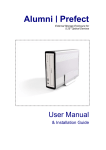
ME2 User Manual 1.8” ATA to USB 2.0 External Storage Enclosure Table of Contents Chapter 1 Chapter 2 Chapter 3 Chapter 4 Chapter 5 Chapter 6 Introduction.…………………………………………….………………….. System Set Up……………...……………………………………………... Installation Procedure…………………………………………………….. Unplug Procedure…………………………………………………………. Partitioning & Formatting..………………………………………………... Performance Test………………………………………………………….. P.2 P.4 P.5 P.8 P.11 P.14 AP-BP0004 V 1.0 -1- Chapter 1 Introduction 1.1 The ME2 1.8” ATA to USB 2.0 External Storage Enclosure is an ultra-slim, clarity, compact, outstanding looking enclosure. Equipped with a mini 5-pin USB 2.0 port, this is the perfect solution for additional external storage, data backup, and for transferring data between computers and platforms. 1.2 Available Interfaces a. USB 2.0 b. Firewire 1394a 1.3 System Requirement a. Hardware : b. OS requirement : 1.4 Product Dimensions: PC or MAC with USB interface Windows 98/SE , Windows ME, Windows 2000, Windows XP Mac OS 8.6 and later 10.2cm x 60.0 cm x 1.3 cm 4.02” x 2.36” x 0.51” 1.5 Package Contents: a. ME2 (ATA to USB 2.0 External Hard Drive) b. Mini 5-pin USB 2.0 Cable c. CD with Driver d. Protective Bag -2- 1.6 Quick Guide: Blue LED: Power Indicator Red LED: Accessing Hook USB 2.0 mini 5-pin Connector -3- Chapter 2 System Set Up (See Figure A) Figure A -4- Chapter 3 Installation Procedure 4.1 Installation on Windows 98/SE (USB 2.0) Turn on your computer and start Windows Connect the ME2 Driver Installation Insert the included driver CD and follow the onscreen instruction (See Figure 1 –3) Step 1 Figure 1 -5- Step 2 Figure 2 Step 3 ME2 Figure 3 -6- 4.2 Installation on Windows ME / 2000 / XP Turn on your computer and start Windows Connect the ME2 No separate driver required, let Windows search and install it automatically Open “My Computer”, where you can see the external Hard Drive (see Figure 4) ME2 Figure 4 4.3 Installation on Macintosh (USB 2.0 High Speed only on Mac OSX) Turn on your computer and start Mac OS 8.6 / 9.2 / 10X Connect the ME2 No separate driver required, except if used under OS 8.6, where the USB support has to be at least version 1.41 The external Hard Disk will show up on the Desktop (see Figure 5) ME2 Figure 5 -7- Chapter 4 Unplug Procedure 5.1 Windows 98/SE a. Single click (right mouse button) on the taskbar icon (see Figure 6) b. Click on popup message (see Figure 7) Figure 6 External Hardware Icon Figure 7 c. Click “OK” and remove the device (see Figure 8) Figure 8 5.2 Windows ME / 2000 / XP a. Single click (right mouse button) on the taskbar icon (see Figure 9) b. Click on popup message (see Figure 10) Figure 9 External Hardware Icon Figure 10 c. Click “OK” and remove the device (see Figure 11) Figure 11 -8- 5.3 Mac OS Drag the icon to the trash bin and remove the device (see Figure 12) Figure 12 -9- Attention!! To assure no data will be lost, always follow the “unplug procedure”. If not, data could be lost and the following message will show up: For Windows ME USB 2.0 For Windows 2000 USB 2.0 For Mac USB 2.0 - 10 - Chapter 5 Partitioning & Formatting Please be aware that this will destroy all your existing data on the drive, so make sure you have a backup! This step is usually only required the first time you install the HDD or if you have a factory new HDD. Windows 98/SE, Windows ME DOS command “fdisk” Type “fdisk” and press Enter Enter "5” to change the disk Select ”Y” Select the drive you want to format Choose “1” and follow the instructions - 11 - Windows 2000, Windows XP Disk Management Program: Select “Disk Management” Select “My Computer”, then right click Æ “Manage” Choose the drive you want to format and right click on it for further commands Follow the Partition Wizard If you want to use it on many different OS including Mac, we recommend FAT32 - 12 - Mac OS Mac OS9.2 and before does not support creating partitions on an external drive. To do that you would need to purchase additional software. Initializing is no problem on all OS. For OSX please use the Disk Utility to format and create partitions on your external disk. Select ”Disk Utility “ in the Utilities folder Choose your external drive and format it according to your requirement - 13 - Chapter 6 Performance Test Test Computer Motherboard GA-8IE533 REV2.0 CPU Processor Intel Pentium 4 CPU Speed 2.0 GHz System RAM (MB) 256 MB USB 2.0 Host Controller Intel USB2.0 Enhanced Host Controller Operating System Microsoft Windows XP Hard Drive Model RPM Capacity Toshiba MK2003GAH 4200 20GB Remark Test Data Model Read Write Unit Interface ME-U2GJ-20 12.00 17.83 Mbytes USB © Copyright 2003 Macpower Peripherals Ltd. all Rights Reserved The information contained in this manual is believed to be accurate and reliable. Macpower Peripherals Ltd. assumes no responsibility for any errors contained in this manual. Macpower Peripherals Ltd. reserves the right to make changes in the specifications and/or design of the ME2 without prior notice. The diagrams contained in this manual may also not fully represent the product that you are using and are there for illustration purposes only. Macpower Peripherals Ltd. assumes no responsibility for any differences between the product mentioned in this manual and the product you may have. - 14 -