1
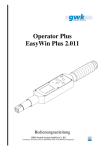
Operator Plus
EasyWin Plus 2.011
User Manual
GWK Norbert Gerlach GmbH & Co. KG
In der Steinbach 2, 55758 Schauren, Phone: +49 (0)6786/2904860, Fax: +49 (0)6786/2904861,
[email protected]
CONTENTS:
1
Operating Instructions.................................................................................................... 2
1.1
User Interface......................................................................................................... 2
1.1.1
LEDs.............................................................................................................. 2
1.1.2
Push Button Functions (general)..................................................................... 2
1.2
Menus .................................................................................................................... 3
1.2.1
Main menu ..................................................................................................... 3
1.2.2
Set-up menu ................................................................................................... 3
1.3
Parameter preset usage........................................................................................... 4
1.4
Other display readouts............................................................................................ 5
2 EasyWin Plus 2.011....................................................................................................... 6
2.1
Installation ............................................................................................................. 6
2.2
Main window of EasyWin Plus .............................................................................. 6
2.3
Menu Database ...................................................................................................... 7
2.4
Fundamental operating hints .................................................................................. 7
2.5
Administer parameter sets ...................................................................................... 8
2.5.1
Tool parameter set view ................................................................................. 9
2.5.2
Configuration list ........................................................................................... 9
2.5.3
List of tightening parameter sets ....................................................................10
2.5.4
Creating and editing tightening parameter sets...............................................10
2.5.5
Fundamental operating hints using parameter sets .........................................12
2.6
Administer tightening results.................................................................................15
2.6.1
Tool’s tightening result view .........................................................................16
2.6.2
Directory list .................................................................................................16
2.6.3
List of tightening results ................................................................................16
2.6.4
List of final values and statistics view............................................................17
2.6.5
Fundamental operating hints using tightening results.....................................17
2.7
Pin code and tool number ......................................................................................19
2.8
Settings .................................................................................................................19
2.8.1
General application settings...........................................................................20
2.8.2
Hardware settings..........................................................................................21
2.8.3
Printer settings...............................................................................................22
2.9
Info about EasyWin Plus.......................................................................................22
3 Data output via serial interface......................................................................................23
3.1
Header ..................................................................................................................23
3.2
Final tightening data..............................................................................................24
4 Technical Data..............................................................................................................25
1
1 Operating Instructions
1.1 User Interface
1.1.1 LEDs
•
•
•
Power/Snug Torque:
o green: tool is activated
o yellow: snug torque is reached (aktiv meassurement)
tightening status:
o displays 70%, 80%, 90% and 100% of achieved target
value.
o at 100% (STOP) release the tool!
tightening result:
o green: last tightening operation was OK
o red: last tightening operation was NOK
1.1.2 Push Button Functions (general)
Left / Right – navigation and selection, to leave the menu or function use
the left button
up / down – setting and selection
OK – confirming and selecting of functions, aborting a tightening process
SCAN – activation of the integrated barcode-scanner. When the LED lights
up, the bar-code reading process was finished successfully
2
1.2 Menus
1.2.1 Main menu
Menu items in the Maim menu
SETUP – Enter Setup-Menu
PARAMETERSATZ-BETRIEB – Start Parameter-set usage
WERKZEUG-INFO – display wrench information
1.2.2 Set-up menu
To enter the set-up menu a 5-digit pin code is needed. This pin code can be selected with the
EasyWin Plus Software.
Menu items in the Set-up menu
SETUP-CODE – Activation of optional / special functions and service functions of
the tool
VOLUME-SETTING – adjust volume level of the acoustic signal
CONTRAST-SETTING – adjust the display-contrasts
3
1.3 Parameter preset usage
1.3.1.1 Parameter set-up using EasyWin Plus software
Werkzeug ist nicht parametriert
Werkzeuginfo einlesen
Werkzeug parametrieren
1. Parametersatz gestartet
Push button functions during parameter preset-usage
Back to main menu. An active tightening process will be stopped and aborted
without displaying any tightening results.
Enter parameter set selection. An active tightening process will be stopped
and aborted without displaying any tightening results.
Termination of an active tightening process. Tightening results will be
displayed.
Tara setting if tool is not in an active tightening procedure.
1.3.1.2 Selecting an using a parameter set
Ausgewählter Parametersatz gestartet
Parametersatz-Auswahl
Parametersatz-Informationen
Erweiterte Parametersatz-Informationen
Verschraubung ausgewählter Parametersatz
Ergebnis ausgewählter Parametersatz
Push button functions in parameter-set selection menu.
Back to start of the last selected parameter-set, the actual selection will be
aborted.
Display of parameter-set information.
Selection of a parameter-set.
Star the selected parameter-set
4
Push button functions in parameter-set info-display
Back to parameter-set selection menu
Display of detailed parameter-set information
Push button functions in detailed parameter-set information display screen
Back to parameter-set selection menu
Back to the display screen of detailed parameter-set information
1.4 Other display readouts
Tara setting
•
Tara setting of torque measurement, tool must be free of any load!!
Stop
•
Nominal value or Stop-value is reached, stop tightening and unload the tool!
Unload
•
Please unload the wrench completely!
Overload
•
The wrench is overloaded and must be unloaded immediately! The tightening
procedure is stopped!
Overspeed in rotation
•
Tightening to fast, unload the tool! Tightening process is aborted.
5
2 EasyWin Plus 2.011
2.1 Installation
•
•
Generally, you need to have administrator privileges for setting up the software.
Before starting the installation, be sure to close all currently running applications.
After inserting the installation data medium, the setup program of EasyWin Plus will start
automatically.
2.2 Main window of EasyWin Plus
Item
6
Name
Database
Parameter sets
Tightening results
Pin code
Settings
Info
Description
Opens, saves, creates a new, or imports a database
Administers the parameter sets and parameterizes the tool
Reads out and administers the tightening results
Sets up the tool number and the pin code
Configures EasyWin Plus
Displays information about EasyWin Plus
2.3 Menu Database
Before starting to work with the EasyWin Plus software, you should select an existing
database or create a new database for storing the tightening parameter sets and the results. The
last database, which has been in use, will be opened automatically at the startup of EasyWin
Plus. The menu database offers the following options:
Item
New…
Open…
Save as…
Import…
Description
Creates a new empty database on the storage medium. The existing
tightening parameter sets and results will not be copied to the new database.
Opens an existing database which has been saved on the storage medium
before.
The existing tightening parameter sets and results are copied to a new
database, which will be saved on the storage medium then.
Imports an EasyWin Plus V1.011 database (*.mdb) from a storage medium.
After having imported the data, EasyWin Plus will prompt you to save the
database with the new format.
Data changes (parameter sets or results) will be saved automatically in the actual database
when closing the particular editor window. So in “normal” use, there is no need to execute the
data storage manually.
2.4 Fundamental operating hints
The administration windows for the tightening parameter sets and results, which are described
in the following sections, will offer you different ways to execute the available actions:
At one hand, there will be buttons. They will only appear when the corresponding action is
possible. This means that visibility of a button is depending on the availability of the related
action.
At the other hand, the list views will offer context menus, which can be opened by clicking
the right mouse button within the list views. The menus will show the available actions as
separate menu items. The icons in front of the menu items are the
same as shown on the buttons related to the same action. The menu
content will be adapted just as the visibility of the buttons to the
availability of the corresponding actions. At right, an example for a
context menu is pictured:
Additionally, some of the list views support drag & drop, so there are certain actions which
can be executed by dragging and dropping the list view items.
To improve clarity in list views with many items and to help locating certain list view items,
the most part of the list views support changing the sorting sequence by clicking on the
column headers with the left mouse button. Then, the list view will be sorted alphabetically
by the item of the clicked column.
7
2.5 Administer parameter sets
Pressing the button
administration:
in the main window opens the tightening parameter set
The window is divided in three big functional regions. The corresponding buttons are placed
at the bottom part (below) the regions.
In the bottom half of the window, there is the tool view. After a tool has been read out, the
tool view shows the actual tool configuration (tool parameter sets) and some information
about the tool. In addition to that display function, the tool view is the place, where the
parameter sets for a new tool configuration will be arranged.
At the top left side of the window, the configuration list is placed. A configuration is a group
of parameter sets. The selection in the configuration list determines the content of the
parameter set list in the top right part of the screen.
The list of parameter sets displays either all available tightening parameter sets or only the
parameter sets of the selected configuration depending on the selected item in the
configuration list.
8
2.5.1 Tool parameter set view
Button Description
Reads out the actual tool configuration and information about the tool and shows
that data in the tool view.
Parameterizes the tool with the actual content of the tool view.
Creates a report out of the actual tool view. This action is only available, if the
content of the tool view is equal to the actual tool configuration. That means that
there shouldn’t have been any changes after the read out or the parameterization of
the tool.
Deletes all the selected parameter sets from the tool view.
Deletes all parameter sets from the tool view (the entire content).
Moves the selected parameter sets one position upwards in the tool view. The
position of the parameter set is related to its number. This should be taken into
account when having selected a different sorting sequence other than by number.
Moves the selected parameter sets one position downwards in the tool view.
Pastes the parameter sets, which have been copied into the clipboard, in the tool
view. The inserting position will be in front of the actually selected parameter set.
The tool view is able to receive via drag & drop on the one hand certain selected parameter
sets from the list of tightening parameters and on the other hand a complete configuration out
of the configuration list. To do so, simply drag the objects of interest into the tool view and
drop them at the desired position.
Deleting a parameter set from the tool view can alternatively be executed by pressing the key
<DEL> if the tool view has the focus.
2.5.2 Configuration list
Button Description
Creates a new configuration out of the actual tool view with a copy of its content.
The name of the configuration will be selected automatically for renaming
immediately after creating the configuration, so that a new name can be specified.
Copies the selected configuration into the tool view. This action is the first step to
configure the tool with an already existing configuration.
Deletes the selected configuration. Only the composition of parameter sets is
deleted, but the contained parameter sets will still be found in the list off all
available parameter sets.
The configuration list has always the entry “all” as the first item. This entry is for displaying
the pool of all parameter sets. The entry “new” can always be found as the last item of the
configuration list. With the help of this item, a new configuration can be created simply by
renaming it.
The individual configurations are able to receive parameter sets out of the list of tightening
parameters via drag & drop. With this feature, you can compose parameter sets to a
configuration without using the tool view as intermediate step.
9
Deleting a configuration can alternatively be executed by pressing the key <DEL> if the
configuration list has the focus.
2.5.3 List of tightening parameter sets
Button Description
Opens the parameter set editor for creating a new parameter set.
Copies the selected parameter sets into the tool view. This action can alternatively
be executed via drag & drop.
Deletes the selected parameter sets respectively remove the selected parameter sets
from the configuration depending on the selection in the configuration list.
Opens the parameter set editor for changing the parameters of the selected
tightening parameter set.
Copies the selected parameter sets into the clipboard. After that, the sets can be
pasted in the tool view. This procedure is an alternative way to drag & drop.
Hides those parameter sets, which are not suitable for the read out tool. This action
is only available after having read out valid tool information and if there are “all
parameter sets” selected in the configuration list.
Switches the display in a way, that all parameter sets are shown, even those, which
are not suitable for the red out tool. Those sets are marked with a gray background
color.
A parameter set can only be deleted completely, if all parameter sets are displayed (no
configuration selected in the configuration list). If a configuration is selected, the parameter
set will only be removed out of the configuration, but it will still remain in the list of all
parameter sets.
If a parameter set should be deleted completely and if that parameter set is used in at least one
configuration, there will be a prompt that the set is used in configurations. If the deleting is
confirmed, the parameter set will be deleted itself as well as it will be removed out of all
configurations in which it is contained.
Deleting a parameter set respectively removing a parameter set from a configuration can
alternatively be executed by pressing the key <DEL> if the list of tightening parameters has
the focus.
Editing a parameter set can alternatively be started with a double click on the corresponding
item in the list of tightening parameters.
2.5.4 Creating and editing tightening parameter sets
With the help of the button
a new parameter set can be created. The parameters of an
existing set can be changed by pressing the button
parameter set editor.
10
. Both actions will open the
In the top part of the window the list of all parameter sets can be found. Here, you can get an
overview of all parameter sets in stock.
The edit fields and the drop down lists in the bottom half give the possibility to work on the
data of a certain parameter set. If the editor has been opened to edit an existing parameter set,
this set is selected in the list of tightening parameters and the data of the set is written to the
related control elements. If the editor has been opened for creating a new parameter set, the
control element will contain default values.
By double click on a parameter set in the list, the data of this set will be shown in the control
elements.
The symbolic graph on the right side of the window illustrates the different parameters. The
number of parameters will change depending on the selected tightening mode field and the
selection of tolerance limits.
In the edit field “repeat”, a tightening counter can be specified. With the default setting “1”
the cycle counter is deactivated. If the counter is set to a value greater than “1” up to “99”, the
counter is enabled. Then, the tool will display the actual counter value. After each “OK” sub
cycle the counter will be incremented until the repetition counter is equal to the value of this
parameter. Then the repetition counter is automatically reset back to “1” to start a new cycle.
The tightening cycle can be aborted or reset at any time by pressing the “Start/OK” button for
at least 3 seconds.
11
With the help of the field “Centre dist.” the use of special ratchet equipment or screw
attachment can be taken into account when creating parameter sets (max. 250mm). If the field
is empty, the tool’s standard value will be used. That value is stored fixed in the tools memory
and it represents the centre distance of the standard ratchet (18 mm up to Operator 100, 25
mm for Operator 200 and above).
During data input, the parameter set is always checked for plausibility and integrity.
Implausible input will be marked with red frames around the related control element. If the
put in data is valid, there will be two buttons for taking over the input. The visibility of the
buttons is depending on whether the data has been changed and whether an equal parameter
set already exists.
Button Description
Creates a new parameter set out of the data input and appends the parameter set to
the list of tightening parameters.
Applies the data input to the parameter set with the specified name resp. to the
selected parameter set.
Closes the parameter set editor and returns back to the parameter set administration.
2.5.5 Fundamental operating hints using parameter sets
In this chapter, a few examples are given to demonstrate some fundamental operating
methods for the tool parameterization and the handling of configurations in the parameter set
administration.
2.5.5.1 Configuring the tool
•
•
•
Create the desired parameter sets, if not already existing.
Select the parameter sets and insert them into the tool view. This action can be
executed in 3 different way with the same result:
o by pressing the button
o with drag & drop
o with the help of the clipboard
Repeat the above step as long as the desired composition of parameter sets is
generated in the tool view. The order of the parameter sets in the tool view can be
•
•
adjusted at any time using the buttons
and
.
Connect the tool and switch it on.
Send the actual tool configuration shown in the tool view to the tool with the help of
•
the button
.
Optionally, the composition of parameter sets can be added to the configuration list by
pressing the button
12
.
2.5.5.2 Creating configurations
Configurations can be created in three different ways.
2.5.5.2.1 Creating configurations in the tool view
The first way to create a configuration is using the tool view. The method is the same as
described in the above section “configuring the tool”. The configuration can be created
without having a tool within reach. The steps “connecting and switching on the tool” and
“sending the configuration to the tool” can be left out then.
2.5.5.2.2 Creating configurations in the configuration list
A further method for creating configurations is supported by the configuration list. The list
always contains an item “new” at the end. You can drag & drop here tightening parameters
out of the parameter list at the right side. The parameter sets will be added at the end of the
configuration. Finally, the configuration should be renamed by a left mouse click. Optionally,
a remark can be added in the second column.
2.5.5.2.3 Creating configurations by read out from the tool
Additionally, a configuration can be created when a configured tool is read out with the
button
. The tool’s parameter sets will be added automatically at the end of the
tightening parameter set list, if they are not already contained in the list. Pressing the button
will create a new configuration out of the tool view.
2.5.5.3 Transferring configurations to the tool
•
Select the desired configuration in the configuration list.
•
•
Copy the selected configuration into the tool view with the help of the button
This step can alternatively be executed via drag & drop.
Connect the tool and switch it on.
•
Transfer the configuration with the button
.
into the tool.
2.5.5.4 Searching for parameter sets
Locating certain parameter sets in the tightening parameter list can be made easier by
switching the sorting criteria with a click into the related column header.
To locate certain parameter sets from configurations in the total list or vice versa, the
selection of those parameter sets can help as described in the following sections.
13
2.5.5.4.1 Locating parameter sets from a configuration in the total list
If one or more parameter sets from a configuration should be located in the total list of
tightening parameter sets, you can proceed as following:
• Select the relevant configuration in the configuration list. After that, the list of
tightening parameter sets displays the parameter sets of the selected configuration.
• Now select the desired parameter sets in the list of tightening parameter sets.
• Select the item “all” in the configuration list. Now, the list of tightening parameter
shows all available parameter sets and the relevant parameter sets are selected to
locate them easily.
2.5.5.4.2 Locating parameter sets from the total list in a configuration
If one or more parameter sets from the total list of tightening parameter sets should be located
in a configuration, you can proceed as following:
• Select the item “all” in the configuration list. Now, the list of tightening parameter
shows all available parameter sets.
• Now select the desired parameter sets in the list of tightening parameter sets.
• Select the related configuration in the configuration list. Now, the list of tightening
parameter shows the parameter sets of the selected configuration and the relevant
parameter sets are selected to locate them easily.
2.5.5.5 Creating macros (sequencer)
If the feature “sequencer” is supported by the tool, a complete configuration can be executed
as a so called macro. To do so, a parameter set with tightening mode “macro” has to be placed
to the first position of the tool view. The name of that parameter set is taken for identifying
the macro. In macro mode, the tool processes all subsequent parameter sets as a block, which
means that if the cycle counter of the actual set is completed, the tool automatically switches
to the next parameter set.
A parameter set with tightening mode macro is only allowed at the first position of the tool
view, otherwise the configuration is invalid.
14
2.6 Administer tightening results
With the use of the button
in the main window the following dialog for the
administration of tightening results will be opened:
The window is divided into five big functional regions. The related buttons are placed at the
bottom margin of those regions.
In the bottom left area, the tool view is placed. After a tool has been read out, the tool view
displays the content of the tool’s memory for tightening results and some information about
the tool. After the read out of the tool, all sets of tightening results in the tool view are
selected for further processing.
The top left area of the window contains the directory list. The tightening results can be
placed into a directory to get better clarity for the user. The selection in the directory list
determines the content of the list of tightening results in the top middle part of the window.
The list of tightening results displays either the total pool of tightening results or only the sets
of tightening results which are related to the selected directory depending on the selection in
the directory list.
At the right part of the window, the list of final values and the statistics can be found. They
show the details of the selected set of tightening results.
15
2.6.1 Tool’s tightening result view
Button Description
Reads out the content of the tool’s memory for tightening results and displays the
tool information in the tool view.
Deletes the tightening results, which are selected in the tool view, directly from the
tool’s memory.
The tool view shows immediately after tool read out the content of the tool’s memory for
tightening results. This information provides the starting point for further read out of the
tightening data. The data sets of interest can be selected and then they can be read out and
added to the list of tightening results with the use of the methods which are described later in
this section.
2.6.2 Directory list
Button Description
Renames the selected directory so that a new name can be assigned.
Deletes the selected directory. Only the composition is deleted, the contained
tightening results will still remain in the list of all tightening results.
The directory list always contains the item “all” as first item to display the total pool of
tightening results. At the end of the directory list, the item “new” is always present. With the
help of this item, a new directory can be created simply by renaming that entry.
The items in the list of tightening results can be related via drag and drop exactly to one
directory. With this feature, the sets of tightening results can be combined to a group. The
intension is to get more clarity for the user.
Deleting a directory can be executed alternatively by pressing the key <DEL> if the directory
list is focused.
2.6.3 List of tightening results
Button Description
Reads out the sets of tightening result, which are selected in the tool view, out of
the tool’s memory and appends them as new entries to the list of tightening results.
Before reading out, the user will be asked whether the results should be deleted
from the tool’s memory after read out.
Deletes the selected sets of tightening results irrevocably out of the list of tightening
results.
Creates a report out of the selected set of tightening results.
The read out of the selected tightening data from the tool can alternatively be carried out with
a double click onto the selected entries in the tool view or via drag and drop of the selected
tool view entries into the list of tightening results.
Deleting a set of tightening results can be executed alternatively by pressing the key <DEL>
if the list of tightening results is focused.
16
2.6.4 List of final values and statistics view
Button Description
Copies the actual list of final values and the statistics view into the clipboard, to
import that data into other applications. The data is formatted as tabulator separated
text.
2.6.5 Fundamental operating hints using tightening results
In this chapter, a few examples are given to demonstrate some fundamental operating
methods for the read out of tightening results from the tool and the handling of tightening data
in tightening results administration.
2.6.5.1 Reading out tightening data out of the tool
•
•
Connect the tool and switch it on.
Read out the content of the tool’s tightening data memory with the help of the button
•
. After that, the tool view shows all files with tightening result stored in the tool.
Select the files with tightening results of interest.
•
. This action can
Read out the selected files from the tool by pressing the button
alternatively be carried out with a double click onto the selected entries in the tool
view or via drag and drop of the selected tool view entries into the list of tightening
results. Before reading out, the user will be asked whether the results should be
deleted from the tool’s memory after read out.
2.6.5.2 Creating directories
In order to create a new directory, the directory list always contains the entry “new” at the end
of the list. The items of the list of tightening results can be put here via drag and drop. The
sorting sequence of the data sets in the directory will be the same as in the list of all results.
This means that the data sets which have been read out last will be placed at the end of the
directory. After having dropped the data sets, the directory should be renamed. This action
can be carried out either by clicking with the left mouse button into the name field or by
pressing the button
. Optionally, a remark can be put in.
2.6.5.3 Searching for tightening results
Locating certain tightening results in the list of tightening data sets can be made easier by
switching the sorting criteria with a click into the related column header.
To locate certain tightening results from directories in the total list or vice versa, the selection
of those tightening data sets can help as described in the following sections.
17
2.6.5.3.1 Locating data sets from a directory in the total list
If one or more tightening data sets from a directory should be located in the total list of
tightening results, you can proceed as following:
• Select the relevant directory in the directory list. After that, the list of tightening
results displays the tightening data sets of the selected directory.
• Now select the desired tightening data sets in the list of tightening results.
• Select the item “all” in the directory list. Now, the list of tightening results shows all
available tightening data sets and the relevant data sets are selected to locate them
easily.
2.6.5.3.2 Locating data sets from the total list in a directory
If one or more tightening data sets from the total list of tightening results should be located in
a directory, you can proceed as following:
• Select the item “all” in the directory list. Now, the list of tightening results shows all
available tightening data sets.
• Now select the desired tightening data sets in the list of tightening results.
• Select the related directory in the directory list. Now, the list of tightening results
shows the tightening data sets of the selected directory and the relevant tightening
data sets are selected to locate them easily.
2.6.5.4 Exporting tightening data
The actual list of final values and the statistics view (selection in the list of tightening results)
can be exported to other applications via two different ways. Both methods will offer the
content of the final value list and the statistics view in text format separated through
tabulators.
2.6.5.4.1 Exporting via the Windows® clipboard
With the help of the button
the actual content of the finals value list and the statistics
view is copied into the Windows® clipboard. The application which should receive the data
then offers the option “paste” to insert the data out of the clipboard.
2.6.5.4.2 Exporting via drag & drop
Alternatively it is possible to export the actual content of the final value list and the statistics
view to another application via drag & drop. To do so, simply press and hold the left mouse
button over any entry of the final value list or the statistics view. Then move the mouse
having still pressed the left button down. After that, the EasyWin Plus software will minimize
to make the selection of another application easier. If necessary, another application can be
brought into the foreground by moving the mouse over the task bar entry of that application.
To import the data, simply release the mouse button after having reached the desired insert
position.
18
2.7 Pin code and tool number
By pressing the button
in the main window you will get into the following dialog for
setting up a tool security code and a tool number:
The edit field “pin code” allows to specify a five character long security code. Only numerical
characters are allowed. This code is used by the tool to protect some of its special functions.
The field “tool number” is to receive a tool specific number. This number can be up to 12
characters long. Non numerical characters are allowed. The tool number is appended to all of
the tightening results of that specific tool. After having opened the dialog, first the number
should be read out to prevent the number from an accidentally change.
Button Description
Reads out the actual tool number out of the tool and displays it in the related edit
field. The pin code is not read out.
Writes the input into the tool.
2.8 Settings
With the help of the button
in the main window, different settings of the EasyWin Plus
software can be adjusted. The following dialog will be opened:
In the top area, the language of the EasyWin Plus software can be selected by pressing the
button with the corresponding flag.
The icon
points out the actual selection if there are several options for choice.
19
In the middle part of the dialog, further setting can be made. After pressing a button in that
area, a subsequent dialog will be shown. The following sections will describe in detail the
available settings in the different categories.
After having pressed the <OK> button, the user will be prompted, whether the changes really
should be applied. If the user acknowledges, the settings will be kept permanently and the
dialog will be closed. The settings will be loaded automatically at program start.
The <CANCEL> button will close the dialog, too. The changes will be discarded. Before,
there will be a security prompt, too.
The <OK> and <CANCEL> buttons in the settings dialog will apply respectively discard all
changes, which were made in the subsequent dialogs, too.
2.8.1 General application settings
With the help of the button <application…> the following dialog for adjusting the basic
behavior of the EasyWin Plus software will be opened:
The following settings can be adjusted:
Setting
Show tool tips
Acoustic signal on
message box
Remind not stored
configurations
20
Description
If the mouse pointer will be parked over a control element, a short help
text will be displayed as a small window.
An acoustic signal will be given when opening a message box.
If the tool view is containing a configuration that is not yet stored, and
if that configuration would be discarded (e.g. through a newly read out
of the tool or through closing the parameter administration) there will
be security prompt before.
2.8.2 Hardware settings
The button <hardware…> opens the following dialog to specify the communication port
settings:
This dialog is for adjusting the port number of the RS-232 interface for the tool
communication. The right setting for the tool interface is essential for the successful
parameterization of the tool and the read out of tightening data from the tool as well as the
setting up of the tool number and the tool’s pin code!
If the option “always detect” is enabled, there will be a search for the actual tool interface
before any tool communication.
In order to save the time for the detection, the tool interface can be adjusted to a fix value.
Then, please take the recommendation at the end of this section into account.
The button <search now> can support you when setting the tool interface to a fix value. If the
tool is connected and switched on, with the help of that button, the tool can be detected once.
If the detection is successful, the edit field for the “port number” then contains the detected
value.
The detection of the tool interface is only carried out for the port number range from 1 up to
99. Please make sure, that the serial interface for the tool communication of your system is
placed inside that range (device manager).
Always use the same USB connector of your system, please. Changing the USB connector
could lead to a different interface assignment. After having changed the interface assignment,
a new setting for the port number respectively a redetection of the port number is necessary.
21
2.8.3 Printer settings
With the help of the button <printer…> the following dialog for setting up the printer
selection can be opened:
If the option <select before printing> is enabled, every time before a print out will be done, a
dialog for selecting a printer will be shown.
If this option is disabled, the button <default> can be used to configure the printer selection in
a way, that the Windows® default printer is used for the print out.
If the default printer isn’t selected, the combo box under it allows to select a certain printer
that will be used for print out without any prompt before.
2.9 Info about EasyWin Plus
The button
in the main window opens the following dialog to show some information
about the application:
22
3 Data output via serial interface
3.1 Header
After starting the wrench with preset parameters, a header is sent which shows the active toolnumber and parameter-set.
Example:
Wzg.-Nr.
:
Dateinummer
:
Schraubmodus
:
Wirkrichtung
:
Dateiname
:
Speichermodus
:
Anzahl Messwerte:
Haerte
:
Fuegemoment
:
Nominalmoment
:
Momentgrenzen
:
Nominalwinkel
:
Winkelgrenzen
:
12345ABCDEFG
02
Winkel
CW
TESTW_ABLAUF1
n. speichernd
--------0005.0 Nm
0000.0 Nm
(0000.0 ... 0000.0)Nm
0045.0Ò
(0000.0 ... 0000.0)Ò
Zähler: 03
If a cycle counter is activated in the parameter-set it will be shown in the header.
Communication protocol:
18 0A 0D 57 7A 67 2E 2D 4E 72 2E 20 20 20 20 20
20 20 20 3A 20 31 32 33 34 35 41 42 43 44 45 46
47 0A 0D 44 61 74 65 69 6E 75 6D 6D 65 72 20 20
20 20 20 3A 20 30 32 0A 0D 53 63 68 72 61 75 62
6D 6F 64 75 73 20 20 20 20 3A 20 57 69 6E 6B 65
6C 20 20 20 20 20 20 0A 0D 57 69 72 6B 72 69 63
68 74 75 6E 67 20 20 20 20 3A 20 43 57 20 0A 0D
44 61 74 65 69 6E 61 6D 65 20 20 20 20 20 20 20
3A 20 54 45 53 54 57 5F 41 42 4C 41 55 46 31 20
20 20 20 20 20 20 20 20 20 20 0A 0D 53 70 65 69
63 68 65 72 6D 6F 64 75 73 20 20 20 3A 20 6E 2E
20 73 70 65 69 63 68 65 72 6E 64 0A 0D 41 6E 7A
61 68 6C 20 4D 65 73 73 77 65 72 74 65 3A 20 2D
2D 2D 2D 0A 0D 48 61 65 72 74 65 20 20 20 20 20
20 20 20 20 20 3A 20 2D 2D 2D 2D 2D 2D 0A 0D 46
75 65 67 65 6D 6F 6D 65 6E 74 20 20 20 20 20 3A
20 30 30 30 35 2E 30 20 4E 6D 20 20 20 20 0A 0D
4E 6F 6D 69 6E 61 6C 6D 6F 6D 65 6E 74 20 20 20
3A 20 30 30 30 30 2E 30 20 4E 6D 20 20 20 20 0A
0D 4D 6F 6D 65 6E 74 67 72 65 6E 7A 65 6E 20 20
20 3A 20 28 30 30 30 30 2E 30 20 2E 2E 2E 20 30
30 30 30 2E 30 29 4E 6D 20 20 20 20 0A 0D 4E 6F
6D 69 6E 61 6C 77 69 6E 6B 65 6C 20 20 20 3A 20
30 30 34 35 2E 30 D2 20 0A 0D 57 69 6E 6B 65 6C
67 72 65 6E 7A 65 6E 20 20 20 3A 20 28 30 30 30
30 2E 30 20 2E 2E 2E 20 30 30 30 30 2E 30 29 D2
0A 0D 0A 0D 5A E4 68 6C 65 72 3A 20 30 33 0A 0D
0A 0D
...Wzg.-Nr.
: 12345ABCDEF
G..Dateinummer
: 02..Schraub
modus
: Winke
l
..Wirkric
htung
: CW ..
Dateiname
: TESTW_ABLAUF1
..Spei
chermodus
: n.
speichernd..Anz
ahl Messwerte: ---..Haerte
: ------..F
uegemoment
:
0005.0 Nm
..
Nominalmoment
: 0000.0 Nm
.
.Momentgrenzen
: (0000.0 ... 0
000.0)Nm
..No
minalwinkel
:
0045.0Ò ..Winkel
grenzen
: (000
0.0 ... 0000.0)Ò
....Zähler: 03..
..
23
3.2 Final tightening data
After a finished tightening procedure the final torque-/ angle results and the OK/NOK
evaluation will be sent.
Example:
M= 0009.4 Nm
W= 0060.0Ò
Zähler #03 VON #05
IO
If a cycle counter is activated in the parameter-set the line „Zähler #XX VON #XX“ will be
shown.
Communication protocol:
18 4D 3D 20 30 30 30 39 2E 34 20 4E 6D 20 20 20
20 0A 0D 57 3D 20 30 30 36 30 2E 30 D2 0A 0D 5A
E4 68 6C 65 72 20 23 30 33 20 56 4F 4E 20 23 30
35 0A 0D 49 4F 20 20 20 20 20 0A 0D
24
.M= 0009.4 Nm
..W= 0060.0Ò..Z
ähler #03 VON #0
5..IO
..
4 Technical Data
Power supply
• rechargeable Lithium-Ion battery, 7,2 V,
2600 mAh, Type 18650, protected
(GWK Part No. ABA-0030)
• ca. 13 h endurance per charging cycle
• ca. 7 h recharging time
• continuous use possible in combination with
a charging tray or cable-interconnection
torque
• accuracy ± 1 % scale (calibration range
according to DIN/ISO 6789 from 20% to
100%)
• adjustable bolt centre-distance
angle
Temperature range
• 00 … 40 °C
Model
60 Nm
200 Nm
350 Nm
600 Nm
800 Nm
•
resolution 0.1 °, accuracy ± 1 ° absolute
(at nominal-angle of 100°)
Dimensions & Weight
length
width
hight
430 mm
59 mm
32 mm
522 mm
59 mm
32 mm
800 mm
59 mm
32 mm
1050 mm
59 mm
38 mm
1360 mm
59 mm
38 mm
(all data without ratchet-head)
weight
ca. 1 kg
ca. 1,4 kg
ca. 2,5 kg
ca. 4 kg
ca. 5 kg
25
German
Verbraucher sind gesetzlich verpflichtet Altbatterien zu einer geeigneten
Sammelstelle/Verkaufsstelle/Versandlager zu bringen. Die durchgestrichene Mülltonne
bedeutet: Batterien und Akkus dürfen nicht in den Hausmüll. Pb, Cd und Hg bezeichnet
Inhaltsstoffe die oberhalb der gesetzlichen Werte liegen.
English
Consumers are legally required to dispose of batteries at suitable collection points, vending
points or dispatch bays. The crossed-out wheeled bin means that batteries must not be
disposed of in the household waste. Pb, Cd and Hg designate substances that exceed the legal
limits.
French
La législation exige des consommateurs le dépôt des piles usagées dans un lieu de collecte
approprié, un point de vente ou un entrepôt d’expédition. La poubelle barrée signifie qu’il est
interdit de jeter les piles et les batteries avec les ordures ménagères. Pb, Cd et Hg désignent
les substances dont les valeurs dépassent les limites légales.
26
Italian
Per legge, i consumatori sono obbligati a depositare le batterie esaurite presso i punti di
raccolta, i punti di vendita o i magazzini di spedizioni. Il simbolo del contenitore dei rifiuti
sbarrato indica che è vietato smaltire le batterie con i rifiuti domestici. Pb, Cd e Hg indicano
le sostanze presenti con valori superiori alla norma.
Spanish
Los usuarios están obligados por ley a depositar las pilas viejas en un punto de recogida
adecuado /punto de venta/centro de envío. El contenedor de basura tachado significa: la pilas
no deben desecharse en la basura doméstica. Pb, Cd y Hg designan sustancias que se
encuentran por encima de los valores establecidos por ley.
27
GWK Norbert Gerlach GmbH & Co. KG
In der Steinbach 2, 55758 Schauren, Phone: +49 (0)6786/2904860, Fax: +49 (0)6786/2904861,
[email protected]