1
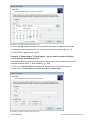
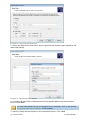
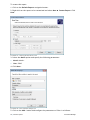
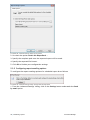
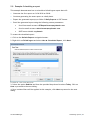
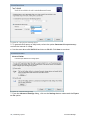
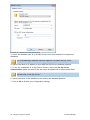
Screenshot 7 - Configuring custom date/time period
3. Select the Day option and expand the provided drop down to display the calendar.
4. Navigate to the required month (i.e. March) and select the required day (i.e. 1).
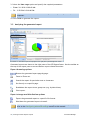
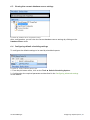
5. Click Finish to generate the report.
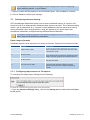
Example 3: Generating a “Failed logons” report based on data collected
over a specific date/time period.
This example demonstrates how to generate a failed logons report based on the events
recorded between March 1, 2010 and March 25, 2010.
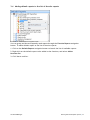
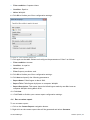
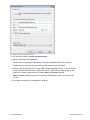
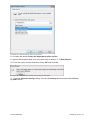
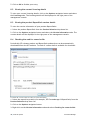
1. Click on the Default Reports navigation to launch the list of available reports.
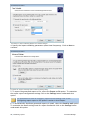
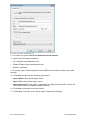
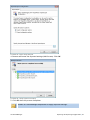
2. Right-click on Failed logons and select Run ► For Custom Date.
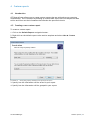
Screenshot 8 - Configuring custom date/time period
GFI EventsManager
Getting started: Default reports |13