1
Setting Up and Using vLog—Overview
Connecting Loggers to PCs
To connect your logger to a PC using USB or Serial cable:
1 Connect the logger to a Vaisala Veriteq USB or Serial
cable.
2
Connect the other end of this cable to a USB or Serial
port on the PC.
To connect your logger to a PC using a Digi or vNet device:
1 Connect Digi or vNet device (will be referred to as
2
3
4
5
device, following) to power supply and Ethernet outlet.
Connect logger to device (Digi requires Vaisala Veriteq
cable).
Obtain a static IP address for device from your IT
department. If your networking policy requires you to
reserve IP addresses using DHCP, see
www.vaisala.com/lifescience-hitech for technical support.
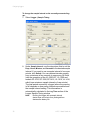
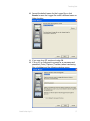
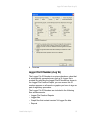
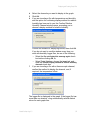
Insert device driver CD into PC. The Device Setup
Wizard launches automatically. Click Next.
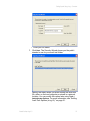
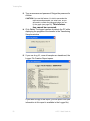
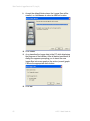
Select the device that matches the MAC address printed
on the bottom of your device. Click Next.
Note:
16
If your device is on a different subnet from the
PC, you will need to know the IP address of the
device and launch the RealPort Setup.exe
installer from the RealPort folder on the device
drivers CD.
© 2011 Vaisala Canada Inc