1
7.3 Windows 2000/XP
After the hardware has been installed correctly (see 6. Hardware Installation), and the computer
has been switched on, Windows will recognize the new hardware component and start its
‘Hardware Wizard’. Insert the RME Driver CD into your CD-ROM drive, and follow further instructions which appear on your computer screen. The driver files are located in the directory
\DIGI96 W2k (no error!) on the RME Driver CD.
Windows will install the DIGI32 driver, and will register the card in the system as a new audio
device. The computer must be rebooted then.
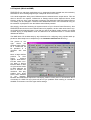
All cards of the DIGI32 series can be easily configured using the RME DIGI Settings dialog.
The panel 'Settings' can be opened
• by clicking on the DIGI icon in the Taskbar's system tray
In case the warning messages 'Digital signature not found', 'Do not install driver', 'not certified
driver' or similar come up: Don't listen to Microsoft, listen to us and continue with the installation.
7.4 Deinstalling the Drivers
A deinstallation of the DIGI32 series driver files is not necessary – and not supported by Windows anyway. Thanks to full Plug & Play support, the driver files will not be loaded after the
hardware has been removed. If desired these files can then be deleted manually.
Unfortunately Windows Plug & Play methods do not cover the additional autorun entries of the
Settings dialog, and the registering of the ASIO driver. Those entries can be removed from the
registry through a software deinstallation request. This request can be found (like all deinstallation entries) in Control Panel, Software. Click on the entry 'DIGI96 Link and Tray Autostart', or
'RME DIGI32, DIGI96 and Hammerfall Series'.
7.5 Linux/Unix
Drivers for Linux, Unix and Solaris are available at 4Front Technology. Information:
http://www.opensound.com
Another source of (free) drivers may be the ALSA project:
http://www.alsa-project.org
User's Guide DIGI32/8 © RME
6