1
Menu
4
Read this chapter to learn how to use the receiver’s menu, how to adjust the
receiver to fit your needs and more.
4.1 The Main Menu
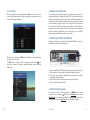
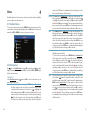
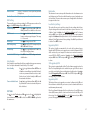
To access the main menu, press the MENU button in viewing mode. Use
cursor buttons to navigate through the menu. Use OK button to select a submenu. Press EXIT or MENU to return to the previous screen.
4.2 Edit Channel
Use / to select Edit Channel and press OK or to enter. Use / to highlight the desired submenu and press OK to select. Press EXIT or MENU to get
back to the main menu.
Channel List
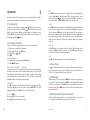
Select Channel List with / and press OK to enter. In this menu you can
manage the Channel List.
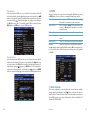
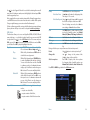
MoveTo enable the Move function, press WHITE while in Channel List.
The Move symbol on the top of the screen will move up to indicate that the Move function is selected. Use / to highlight the
desired channel and press OK to select it and mark it with . You can
now move the selected channel up or down the channel list using
/ . Once the channel is on the desired position, press OK again.
The channel is now fixed on its new position. Once all changes are
20
made, press EXIT twice. A confirmation banner will pop up. Select
Yes to save the changes or No to discard.
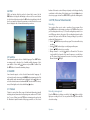
DeletePress RED while in Channel List to enable the Delete function. The
Delete sign will move up to indicate that Delete is selected. Use /
to highlight the desired channel and press OK to mark it for deletion
with x. Press OK again to unmark it. Once you have marked all channels you wish to delete, press EXIT twice. A confirmation banner will
pop up. Select Yes to delete the marked channels or No to cancel.
EditPress GREEN while in Channel List to enable the Edit function. The
Edit sign will move up to indicate that Edit is selected. Use / to
highlight the desired channel and press OK to select it. A text field
will now pop up at the right of the screen. Use cursor buttons to
select the desired characters and enter them with OK. Once you
have finished editing, press BLUE to enter the changes. Once all
changes are made, press EXIT twice. A confirmation banner will pop
up. Select Yes to save the changes or No to discard.
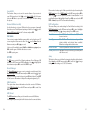
LockLocked channels can only be watched after entering the password
(Default password is 0000).
To lock or unlock a channel, press YELLOW while in Channel List.
The Lock sign on the top of the screen will move up to indicate that
the Lock function is selected. Use / to select the desired channel
and press OK to lock or unlock it. You are asked to input the password. Locked channel will be marked with the symbol. Locking/
unlocking multiple channels in one session is possible. Once all
changes are made, press EXIT twice. A confirmation banner will pop
up. Select Yes to save the changes or No to discard.
Skip
Channels marked with Skip will be skipped when changing channels with the / buttons. Despite that, these channels are still
available from the channel list. To mark channels for skipping, press
BLUE while in Channel List. The Skip symbol on the top of the
screen will move up to indicate that the Skip function is selected.
Use / to select the desired channel and press OK to mark or
unmark it for skipping. Channels set for skipping will be marked
with the symbol. Once all changes are made, press EXIT twice.
A confirmation banner will pop up. Select Yes to save the changes
or No to discard.
Menu
21